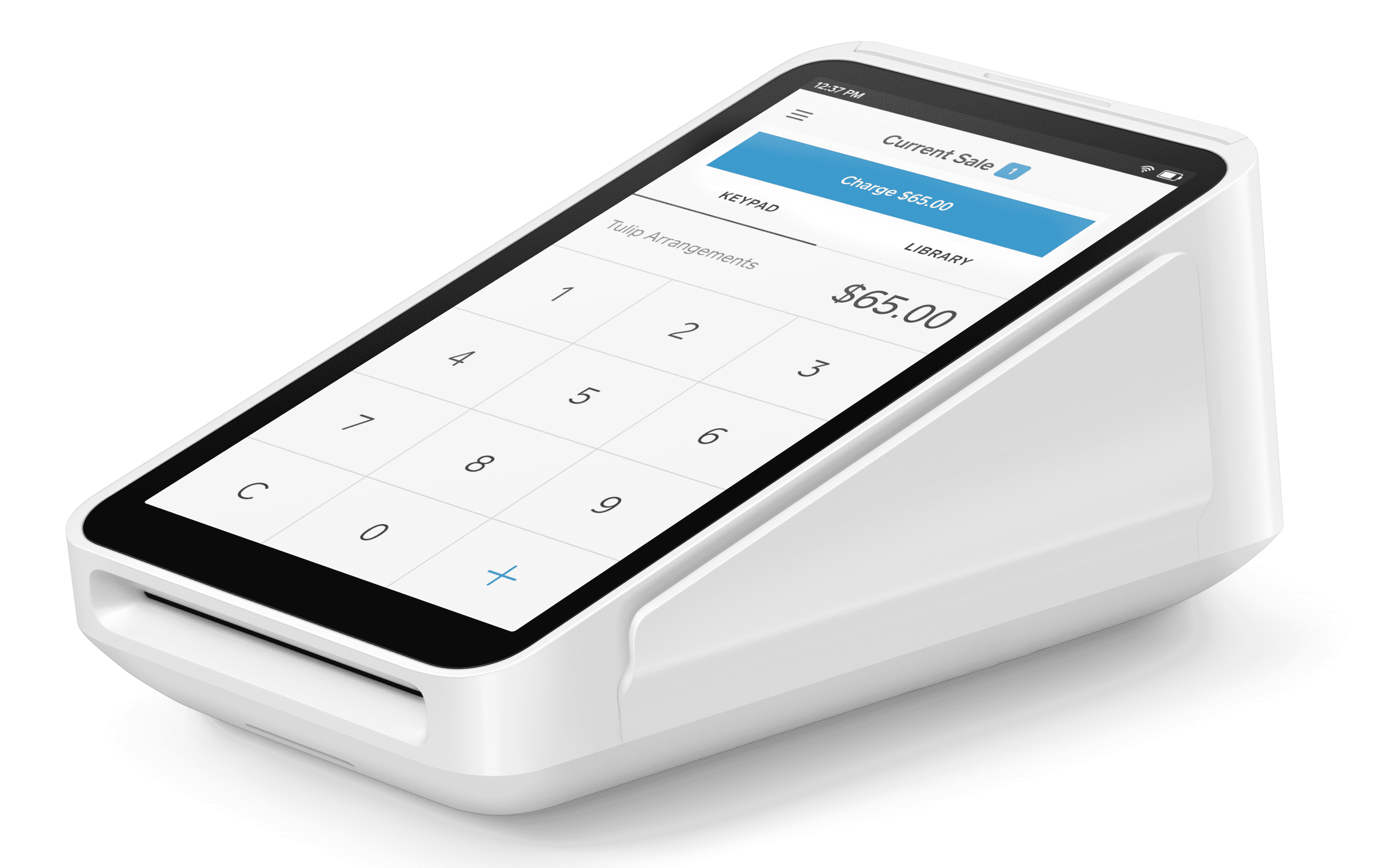
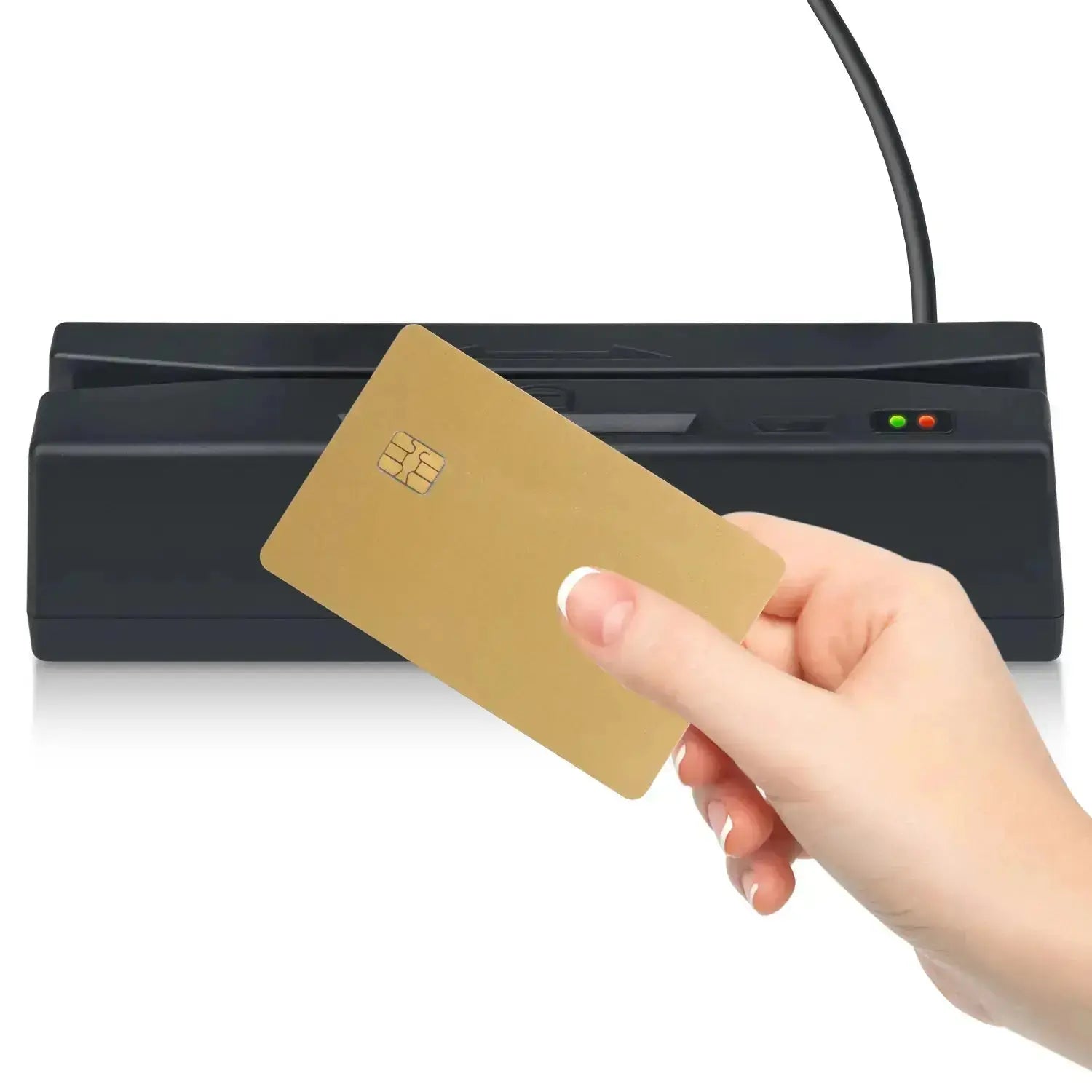
Using an Apple credit card reader in business allows merchants to accept contactless card payments, Apple Pay, and digital wallets directly on an iPhone via Apple’s native Tap to Pay feature, or through Bluetooth-connected external readers for chip and dip transactions. This setup eliminates the need for bulky traditional terminals, significantly lowering point-of-sale costs.
Understanding Apple Credit Card Acceptance Options for Business
Modern businesses accepting payments on Apple hardware typically rely on one of two primary pathways: native software-based contactless processing (Tap to Pay on iPhone) or dedicated external mobile credit card readers that pair with iPhones and iPads. Understanding the operational differences between these options helps business owners choose the right hardware stack for retail, mobile services, or pop-up commerce.
| Native Tap to Pay on iPhone | External Mobile Readers |
|---|---|
| Software-based NFC read | Bluetooth / Lightning / USB |
| Contactless cards & wallets | Chip (EMV) + Swipe + Tap |
| Zero external hardware cost | iPhone & iPad support |
Native Tap to Pay on iPhone
Introduced by Apple to transform standard smartphones into point-of-sale (POS) terminals, Tap to Pay on iPhone allows merchants to accept contactless credit cards, debit cards, Apple Pay, and other NFC-enabled digital wallets using only an iPhone. The technology utilizes the iPhone's embedded Near Field Communication (NFC) chip and hardware-level encryption inside the device’s Secure Element. No additional dongles, readers, or external accessories are required to process valid contactless payments.
External Hardware Card Readers for iOS
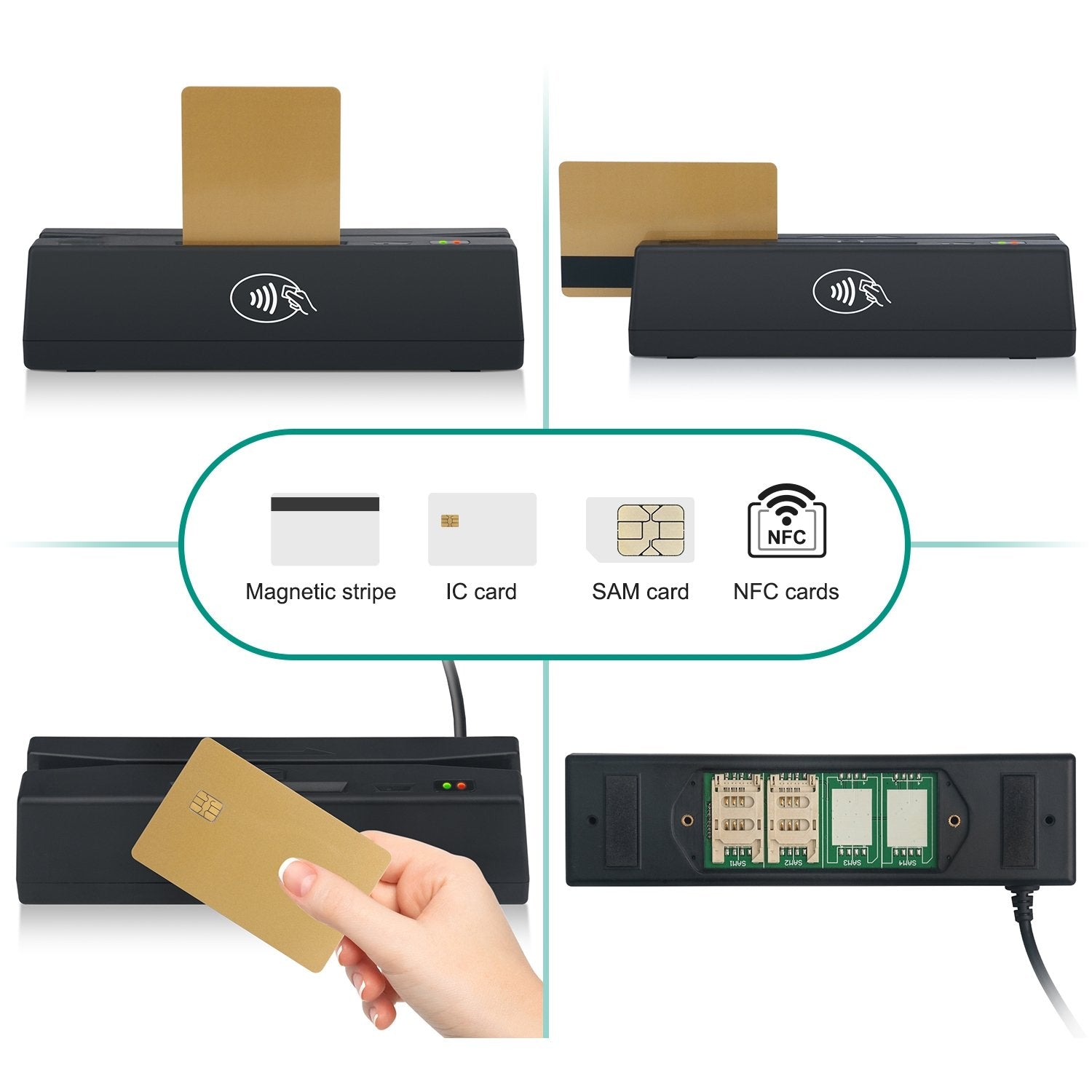
While Tap to Pay on iPhone handles contactless transactions seamlessly, it cannot process physical magstripe cards (swiping) or non-contactless chip cards (EMV dip). For businesses operating in markets where contact-based chip cards or legacy cards remain common, or for operations centered around iPads at fixed counter locations, third-party card readers remain essential. Mobile payment facilitators such as Square, Zettle by PayPal, Stripe, Shopify, and Clover manufacture physical hardware card readers that connect to iOS devices via Bluetooth Low Energy (BLE), USB-C, or Lightning connectors.
How Tap to Pay on iPhone Works for Business Processing
Tap to Pay on iPhone relies on a combination of iOS system-level frameworks, specialized secure hardware, and partner software applications. Understanding the underlying technology ensures that businesses can optimize customer checkout speed while maintaining strict data compliance.
- Customer Card / Wallet
- NFC Wireless Signal
- iPhone NFC Chip & Secure Element
- Hardware Encryption
- Merchant Payment App (e.g., Square, Stripe, Shopify, Clover)
- Merchant Payment Gateway
- Card Network Authorization
Technical and Hardware Requirements
To deploy Tap to Pay on iPhone without external hardware, a business must satisfy basic technical prerequisites:
- Compatible Hardware: An iPhone XS or newer model running a supported version of iOS.
- Supported iOS Version: The device must run updated iOS software that supports Apple’s payment software development kit (SDK).
- Enabled Security Settings: Passcode protection, Touch ID, or Face ID must be active on the device, alongside an active Apple Account.
- Partner Payment Application: Tap to Pay does not operate standalone through the native iOS Wallet app for selling. Instead, a merchant must install an iOS payment app from an authorized Payment Service Provider (PSP), such as Square POS, Stripe Terminal, Shopify POS, Clover Go, or PayPal Zettle.
Supported Payment Networks and Wallets
Tap to Pay on iPhone natively supports all major global payment card networks, including:
- Visa
- Mastercard
- American Express
- Discover
- Interac (in Canada)
- EFTPOS (in Australia)
Additionally, it accepts all major NFC-based mobile wallets, including Apple Pay, Google Pay, Samsung Pay, and contactless smart cards.
PIN Entry on Glass Technology
For transactions that exceed regional contactless spending limits or for debit cards requiring a Personal Identification Number (PIN), Tap to Pay on iPhone includes Apple-approved PIN on Glass functionality. When triggered by the processing app, the iPhone screen displays a secure, randomized PIN pad screen. The customer enters their security code directly on the merchant's iPhone screen. Apple's hardware architecture isolates this PIN entry within the Secure Element, preventing screen recording, keystroke logging, or unauthorized access by third-party apps.
Top External Credit Card Readers for iPhone and iPad
For businesses that require physical card insertion (chip reading), magnetic swipe access, or iPad compatibility, several trusted external readers pair directly with Apple devices.
| Reader | Overview |
|---|---|
| Square Reader | Best overall ecosystem for small businesses |
| Zettle Reader 2 | Excellent low-cost option for PayPal users |
| Stripe Reader M2 | Superior choice for custom app developers |
| Shopify Reader | Ideal for omnichannel e-commerce retailers |
1. Square Reader for Contactless and Chip
Square remains one of the most widely adopted credit card readers for Apple hardware.
- Connectivity: Bluetooth Low Energy (BLE).
- Capabilities: Reads EMV chip cards and contactless payments (NFC cards and mobile wallets).
- Compatibility: Fully compatible with both iPhone and iPad models running the free Square Point of Sale app.
- Operational Strengths: Reliable battery life, fast pairing, and seamless integration with Square’s extensive software suite (inventory tracking, invoicing, team management).
2. Zettle Reader 2 (by PayPal)
Designed for small businesses, retail shops, and service providers, the Zettle Reader 2 integrates closely with PayPal merchant accounts.
- Connectivity: Bluetooth BLE.
- Capabilities: Supports contact EMV chips, contactless NFC cards, Apple Pay, and traditional magnetic stripe cards via a built-in side slot.
- Operational Strengths: Built-in physical pin pad on the device itself, making it easy for customers who prefer traditional buttons for PIN entry rather than touching a smartphone screen.
3. Stripe Reader M2
For businesses using custom-built iOS applications or developers using Stripe Terminal, the Stripe Reader M2 provides an enterprise-ready hardware solution.
- Connectivity: Bluetooth and USB-C.
- Capabilities: Supports contactless NFC, EMV chip insertion, and swipe transactions.
- Operational Strengths: Comes with pre-certified SDKs, enabling developers to integrate payment acceptance directly into proprietary iOS business applications without building payment logic from scratch.
4. Shopify POS Tap & Chip Reader
Built specifically for retailers operating on the Shopify platform, this reader synchronizes physical sales with online store management.
- Connectivity: Bluetooth BLE.
- Capabilities: EMV chip insertion and contactless NFC payments.
- Operational Strengths: Automatic inventory synchronization between retail storefronts and e-commerce platforms, unified customer profiles, and consolidated financial analytics.
Comparison: Built-In Tap to Pay on iPhone vs. External Mobile Readers
Choosing between native iPhone Tap to Pay and external mobile hardware depends on payment volume, customer demographics, and fixed vs. mobile sales environments.
| Feature / Capability | Native Tap to Pay on iPhone | External Mobile Card Reader (e.g., Square / Zettle) |
|---|---|---|
| Initial Hardware Cost | $0 (Uses existing iPhone XS or newer) | $29 to $79 per reader unit |
| Supported Input Types | Contactless NFC Cards, Apple Pay, Digital Wallets | EMV Chip (Dip), Contactless (NFC), Magstripe (Swipe) |
| Device Compatibility | Compatible iPhones only (No iPad support natively) | iPhone, iPad, and supported Android devices |
| PIN Entry Method | On-screen PIN on Glass | Physical PIN pad on hardware or paired screen |
| Portability & Form Factor | Maximum portability (Single device in pocket) | Requires carrying two devices (Phone/Tablet + Reader) |
| Hardware Maintenance | Zero external batteries or charging cables | Requires periodic charging and firmware updates |
| Ideal Business Environment | Mobile services, pop-ups, queues, quick-serve retail | Traditional counter POS, high chip-card usage areas |
Processing Fees, Overhead, and Setup Costs
Understanding the cost structure of processing payments through Apple devices ensures transparent financial planning. Apple itself does not charge extra processing fees to merchants for accepting payments via Tap to Pay on iPhone; all processing costs are determined by the payment processor.
| Cost Type | Details |
|---|---|
| 1. Hardware Cost | $0 (Tap to Pay) vs $29-$79 (External) |
| 2. Platform / SaaS | $0/mo (Basic apps) vs $29-$89/mo (Pro POS) |
| 3. Processing Fee | 2.6% + $0.10 per tap/dip (Average rate) |
1. Hardware Expenses
- Tap to Pay on iPhone: $0 in hardware investment if staff already carry compatible iPhones (iPhone XS or newer).
- External Card Readers: Entry-level contactless and chip readers cost between $29 and $59. Advanced dock-mounted readers for fixed counters range from $79 to $149.
2. Processing Rates (Card-Present Rates)
Transactions processed through Apple hardware using native Tap to Pay or external Bluetooth readers are classified by payment processors as Card-Present (CP) transactions, which carry lower processing rates than manual-entry or online key-in transactions.
Standard industry pricing structures include:
- Flat-Rate Pricing (Aggregators): Typically ranges from 2.5% + $0.10 to 2.75% per tap or chip insertion. Providers like Square and PayPal Zettle generally use flat-rate structures with no monthly commitments.
- Interchange-Plus Pricing: Used by processors like Stripe, Helcim, or traditional merchant acquirers. Costs consist of the baseline card network fee (Interchange) plus a fixed processor markup (e.g., Interchange + 0.15% + $0.08). This model offers lower overall costs for high-volume businesses.
3. Software and App Subscriptions
Most major point-of-sale applications (Square POS, Shopify POS Lite, Stripe Terminal) provide basic payment collection capabilities with no monthly fee. Advanced POS features—such as multi-location inventory, employee management, commission tracking, and accounting integrations—range from $29 to $89 per month per location.
How to Set Up an Apple Credit Card Reader for Your Business
Deploying payment processing on an Apple device takes only a few minutes. Follow these practical steps to configure your system correctly.
- Step 1: Verify Hardware & iOS Compatibility
- Ensure iPhone XS or newer with updated iOS software
- Step 2: Select & Install Authorized Merchant Application
- Download app (Square, Stripe, Shopify, Zettle, etc.)
- Step 3: Enable Merchant Permissions & Tap to Pay
- Turn on Location Services, Bluetooth & NFC permissions
- Step 4: Perform Test Transaction & Staff Training
- Run a $1.00 test tap to verify transaction settlement
Step 1: Verify Hardware and Software Prerequisites
Ensure your iOS device is prepared for transaction processing:
- Navigate to Settings > General > About on your iPhone and confirm the model is an iPhone XS or newer.
- Go to Settings > Software Update and install the latest available version of iOS.
- Verify that an Apple ID is signed in and that a secure device Passcode, Touch ID, or Face ID is enabled.
Step 2: Choose and Install a Compatible Merchant Application
Download your chosen payment processor’s application from the Official Apple App Store:
- Square: Download Square Point of Sale.
- Stripe: Download Stripe Terminal or a certified partner application.
- Shopify: Download Shopify POS.
- PayPal: Download Zettle by PayPal.
Step 3: Configure Settings and Pair Readers
- Open the payment app and sign in with your verified merchant account credentials.
- Grant necessary app permissions when prompted:
- Location Services: Required by federal card networks and PCI compliance guidelines to prevent fraudulent remote processing.
- Bluetooth: Required if pairing an external physical card reader.
- To Enable Tap to Pay on iPhone: Navigate to the payment settings within your merchant app and select Tap to Pay on iPhone. Accept the Apple terms of service to activate the native NFC reader.
- To Pair an External Reader: Turn on your Bluetooth hardware reader, navigate to Hardware > Card Readers inside the POS app, and select your reader to pair.
Step 4: Conduct a Test Transaction
Before accepting live customer payments:
- Enter a custom item or enter a test charge of $1.00 in your POS app.
- Select Tap to Pay or Card Reader as the payment method.
- Hold a contactless card or Apple Pay device near the top edge of the iPhone (around the rear camera area) or insert a chip card into the external reader.
- Wait for the success chime and check mark verification screen. Void or refund the transaction afterward within your merchant dashboard.
Security, Privacy, and Regulatory Compliance
Payment security is critical for business reputation and legal compliance. Apple’s architecture provides enterprise-grade protection out of the box.
| Level | Details |
|---|---|
| User Level | Device Passcode / Face ID / Touch ID Authentication |
| Device Level | Hardware Secure Element & Isolated PIN Entry |
| Network Level | End-to-End Encryption (E2EE) & Tokenization |
| Industry Level | PCI-DSS Level 1 Merchant Standard Compliance |
Hardware Isolation via the Secure Element
When a customer taps their payment card or Apple Pay against an iPhone, raw card details (such as the 16-digit Primary Account Number and CVV) are never stored on the iPhone memory or transmitted to Apple servers. Instead, transactions are processed using hardware-level tokenization. The payment data is encrypted directly within Apple’s isolated Secure Element chip before reaching the payment app or gateway.
PCI-DSS Standard Compliance
Payment Card Industry Data Security Standards (PCI-DSS) mandate strict rules for handling payment information. Using Tap to Pay on iPhone or certified iOS Bluetooth card readers maintains high compliance because payment applications isolate raw card data from the main mobile operating system.
For maximum security, business owners must follow basic operational guidelines:
- Never use jailbroken iOS devices for payment processing.
- Keep automatic iOS software updates enabled to patch security vulnerabilities promptly.
- Restrict employee permissions within your POS software to prevent unauthorized refunds or export of customer transaction history.
Common Operational Challenges and Troubleshooting
Even with modern hardware, payment processing can encounter occasional technical hiccups. Here is how to resolve common operational issues quickly.
- Issue: NFC Card Not Reading
- Tap near top rear of iPhone (camera area), hold 2-3 secs
- Issue: Tap to Pay Option Missing in App
- Verify iOS software update & enable Location Services
- Issue: Bluetooth Reader Disconnecting
- Unpair hardware in iOS Bluetooth menu, re-pair in POS app
1. NFC Reading Positioning Errors
Unlike dedicated credit card terminals with large tap targets, the NFC antenna on an iPhone is positioned near the top edge of the device, adjacent to the rear cameras.
- Solution: Advise customers to tap their card or device against the back or top rim of the iPhone rather than the middle of the screen. Hold the card still for 2 to 3 seconds until the payment completion sound plays.
2. Location Services and Security Prompt Failures
If your POS application refuses to launch Tap to Pay or displays a "Location Required" error, the app cannot verify your geographic location as required by merchant agreements.
- Solution: Go to Settings > Privacy & Security > Location Services, locate your payment application, and set access permission to "While Using the App". Ensure Precise Location is toggled ON.
3. Bluetooth External Reader Connectivity Drops
External Bluetooth readers can drop connection if left idle or if multiple paired devices are nearby.
- Solution: Do not pair external card readers through the native iOS Bluetooth settings menu. Instead, forget the device in iOS Bluetooth settings, open your POS app, and initiate pairing directly inside the app’s hardware menu.
4. Poor Cellular or Wi-Fi Connection
Mobile payment processing requires an active internet connection to contact payment gateways and verify card funds.
- Solution: If operating in poor signal areas (such as outdoor festivals or basements), enable your processor’s Offline Mode if supported. Offline mode allows the app to store encrypted payment tokens locally and process them automatically once internet connection is restored. Note that offline transactions carry a minor risk of card declination once reconnected.
Frequently Asked Questions
Do I need special hardware to use an iPhone as a credit card reader?
No. If you use Apple’s native Tap to Pay on iPhone feature, you do not need any additional hardware readers or dongles. You only need a compatible iPhone (iPhone XS or newer) running recent iOS software and a supported payment application from a provider like Square, Stripe, Shopify, or PayPal Zettle. However, if you need to accept physical swipe cards or non-contactless chip cards, an external Bluetooth card reader is required.
What happens if a customer has a chip-only card without contactless capability?
If a customer presents a traditional card without NFC contactless capability, native Tap to Pay on iPhone cannot read the card. In this scenario, you must either process the transaction using a paired external Bluetooth chip reader, send an instant electronic invoice/payment link to the customer’s phone, or manually key in the card numbers (which incurs higher manual-entry processing fees).
Are transaction fees higher when using Tap to Pay on iPhone compared to a traditional POS terminal?
No. Transactions processed via Tap to Pay on iPhone or paired Bluetooth card readers are categorized as Card-Present (CP) transactions. Payment processors charge standard in-person card-present processing fees (typically between 2.5% and 2.75% + fixed fee). These rates are lower than manual key-in or online e-commerce rates.
Can an iPad be used as a native Tap to Pay card reader without external hardware?
No. Native software-based Tap to Pay is available specifically on iPhone models. While iPads can run POS apps and handle payments, they lack the specific NFC hardware configuration required for direct Tap to Pay processing. To accept payments on an iPad, you must pair an external hardware card reader via Bluetooth or USB-C.
Is entering a credit card PIN on an iPhone screen secure for my customers?
Yes. Apple’s PIN on Glass technology uses hardware-isolated security via the device's Secure Element chip. When a customer enters their PIN on your iPhone screen, the inputs are isolated from the main iOS operating system and payment applications, preventing unauthorized keystroke logging, screen capture, or data interception.
Practical Business Next Steps
Deploying an Apple credit card reader solution can instantly streamline business operations, eliminate expensive terminal rental fees, and shorten line wait times.
To choose and deploy the best setup for your business:
- Audit Your Transaction Types: If over 80% of your customers pay via mobile wallets or contactless cards, rely primarily on Tap to Pay on iPhone to keep hardware costs at zero.
- Equip Mobile Teams: If you run field services, trade shows, or pop-up stores, equip staff iPhones with your chosen POS app so every employee carries a payment terminal in their pocket.
- Add External Hardware for Fixed Counters: If you run a high-volume brick-and-mortar storefront or use iPads as main counter registers, purchase an external Bluetooth reader (like the Square Reader or Zettle Reader 2) to handle non-contactless chip cards and backup manual dips without interruption.