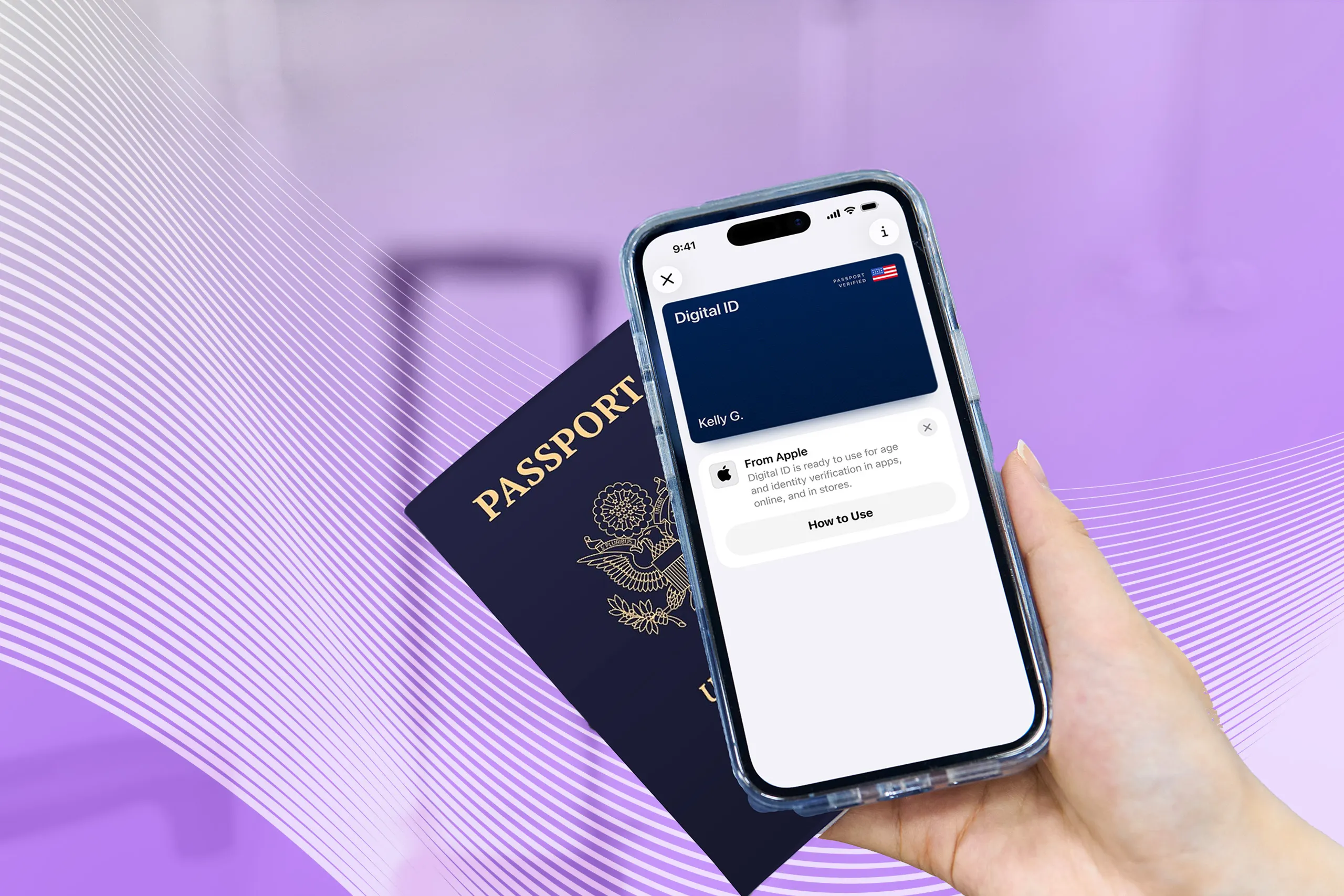
Apple Digital ID allows eligible travelers to present state-issued driver’s licenses or state IDs stored in Apple Wallet at participating airport security lanes. Using advanced Credential Authentication Technology readers, passengers tap their iPhone or Apple Watch to securely share identity data via encrypted wireless transmission, eliminating the need to physically hand over a driver's license or unlock the device.
The Technology Behind Digital IDs in Travel Screening
The integration of digital identity credentials into mobile devices represents a fundamental shift in identity verification at airport security checkpoints. Rather than relying on physical cards with visual security elements—such as holograms, UV ink, or tactile embossing—the Transportation Security Administration (TSA) relies on cryptographically signed data packets transmitted directly from your iPhone or Apple Watch.
This digital identity ecosystem relies on international interoperability standards, primarily ISO/IEC 18013-5, which defines the technical architecture for mobile Driver’s Licenses (mDLs). When a state issuing authority provisions a digital ID into Apple Wallet, it creates a secure credential signed by the state’s Private Key. During an airport screening check, the TSA’s reader verifies this digital signature against the state's public certificate, confirming that the credential is authentic, unalterable, and active.
- State Issuing Authority: Cryptographically Signs mDL Data
- Apple Wallet / Secure Element: Stores Encrypted mDL Data
- TSA CAT-2 Terminal: Transmits via NFC / Data Minimization (Biometric Authorization: Face ID)
- Real-Time Image Match: Validates State Signature & Identity
Travel screening using Apple Digital ID is powered by second-generation Credential Authentication Technology (CAT-2) readers deployed by the TSA. Unlike legacy CAT units that required officers to insert a physical driver's license or scan a passport barcode, CAT-2 units are equipped with Near Field Communication (NFC) receivers, Bluetooth Low Energy (BLE) capabilities, and real-time facial matching cameras.
When you approach the security lane, the CAT-2 unit establishes a secure session with your device to request only the specific personal data required for flight clearance. This cryptographic exchange happens in seconds, significantly reducing manual inspection times while raising the bar against sophisticated physical document counterfeiting.
State Availability and Airport Adoption Pathways
The rollout of Apple Digital ID for travel screening is a collaborative effort involving state Departments of Motor Vehicles (DMVs), Apple, and the Department of Homeland Security (DHS). Because driver’s licenses in the United States are issued at the state level rather than federally, adoption occurs state by state.
State motor vehicle authorities must first update their internal database architectures to support the ISO 18013-5 standard and establish secure issuance pipelines compatible with Apple's identity platform. Once a state enables support, residents who hold a valid, non-commercial driver's license or state identification card can add the credential to the Apple Wallet app on an iPhone or paired Apple Watch.
- State DMV Integration
- System Architecture Update (ISO 18013-5)
- Apple Wallet Provisioning Infrastructure
- Passenger Adds ID to Wallet
- TSA CAT-2 Airport Compatibility Check
TSA Airport Compatibility
It is important to distinguish between having a digital ID in Apple Wallet and being able to use it at a specific airport. The TSA has systematically upgraded identity verification lanes across major hub airports and regional facilities with CAT-2 hardware. However, implementation varies by terminal and security checkpoint type:
- TSA PreCheck Lanes: Digital ID acceptance is highest in designated PreCheck lanes equipped with CAT-2 devices, where processing speed is prioritized.
- Standard Security Lanes: CAT-2 deployment in standard screening lanes is expanding, but availability depends on terminal traffic and equipment allocation.
- International Departure Terminals: While digital IDs can verify identity for domestic travel departing from international terminals, they cannot replace passports for border clearance or customs control.
Travelers should monitor state DMV portals and official TSA announcements regarding participating airports. Because equipment maintenance, software updates, or lane reconfigurations can temporarily alter availability, travelers must always carry their physical driver's license or passport as a primary backup.
Step-by-Step: Using Apple Digital ID at TSA Checkpoints
Using a digital driver's license or state ID at an airport checkpoint requires no physical contact between your phone and the TSA officer's equipment. The entire process occurs via localized wireless communication.
- Approach CAT-2 Reader
- Hold iPhone or Apple Watch Near Reader (NFC)
- Review Requested Data on Device Screen
- Authenticate with Face ID or Touch ID
- Face Matching Camera Verification by TSA Reader
- Proceed to Baggage Screening
1. Preparing Your Device Before Security
Ensure your device has Bluetooth and NFC enabled. You do not need to open the Apple Wallet app in advance, unlock your iPhone, or swipe to your credential card. The system leverages proximity-based authentication triggers built directly into iOS and watchOS.
2. Initiating the Wireless Reader Connection
When instructed by the TSA officer, hold your iPhone or Apple Watch within a few centimeters of the contactless reader on the CAT-2 device. Your Apple device will automatically detect the identity request and prompt you on screen.
3. Reviewing Requested Information
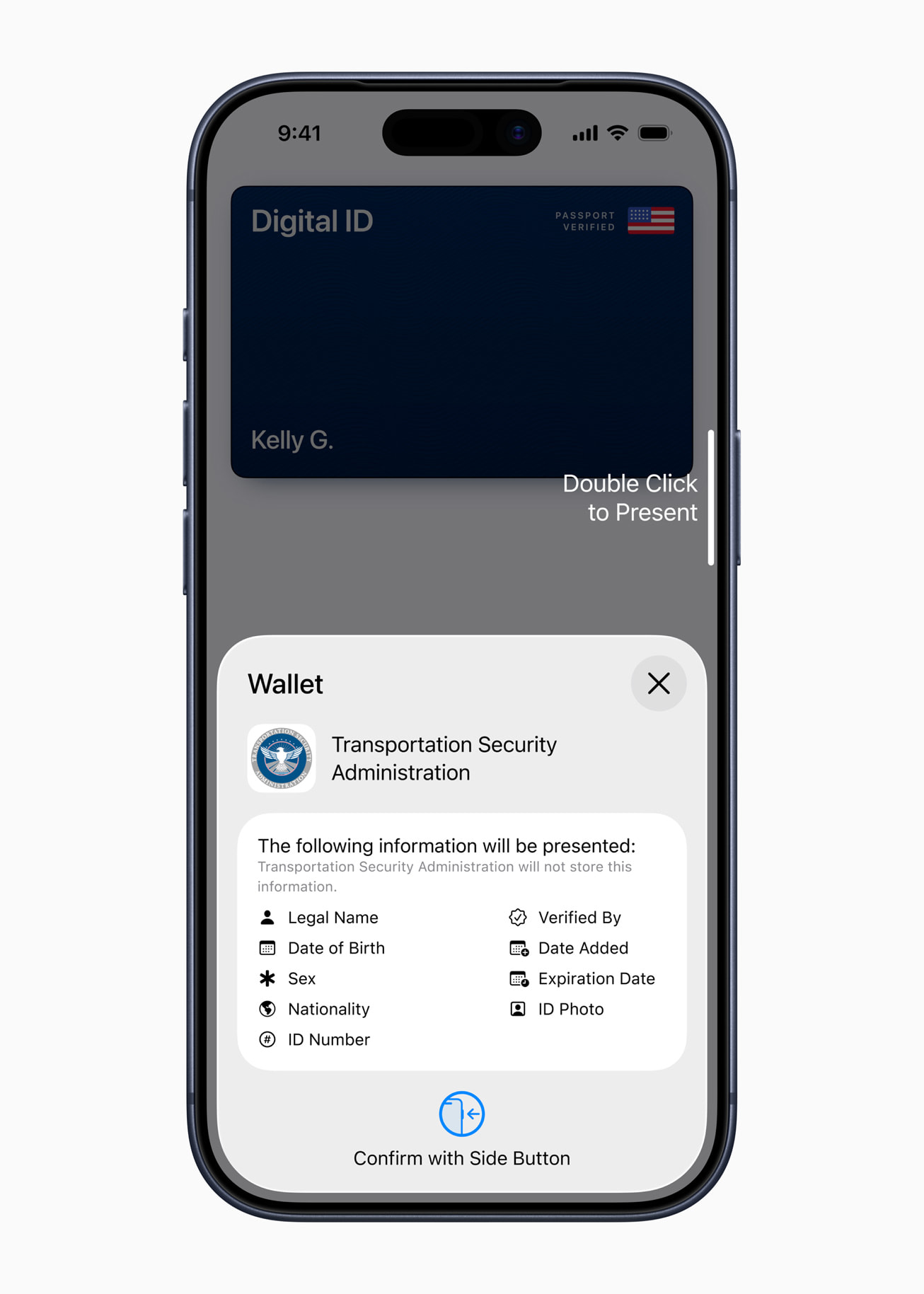
Your device screen will display a prompt indicating exactly what information the TSA scanner is requesting. Typically, this includes:
- Your full legal name
- Date of birth
- State-issued ID portrait photo
- ID expiration date and issuing state
- Real ID compliance status
Crucially, the prompt displays the explicit identity of the requester (e.g., "Transportation Security Administration") to ensure data is not being intercepted by an unauthorized scanner.
4. Authenticating with Biometrics
To release the requested data, authenticate directly on your personal device using Face ID or Touch ID.
- You do not enter a passcode on the TSA terminal.
- You do not hand your iPhone or Apple Watch to the TSA officer.
- Your phone remains securely in your hand throughout the transaction.
5. Facial Matching and Pass Through
Once authenticated, the CAT-2 unit receives the encrypted data packet and compares your state-issued photo against a real-time photo captured by the camera attached to the CAT-2 terminal. This automated facial matching algorithm confirms that the person presenting the digital ID matches the individual verified by the state DMV and listed on the secure flight manifest. Once matched, the officer signals you to proceed to baggage screening without needing to see a physical boarding pass or physical ID card.
Privacy Architecture and Data Safeguards
A major concern for travelers moving to digital credentials is data privacy. Traditional identity checks require handing a physical card to an officer, exposing information like your full home address, organ donor status, and driver's license number—details unnecessary for simple travel screening.
Apple Digital ID incorporates several privacy protocols designed to limit access to personal information during security checks.
- Physical Card: Full Address, Donor Status, Restrictions, Height/Weight, DOB
- Entire surface visible to officer and surrounding bystanders
- Digital ID (Apple Wallet via CAT-2): Verified Name, State Portrait, DOB, Real ID Status
- Only requested data fields wirelessly transmitted; Address excluded
Data Minimization Practices
Under the ISO 18013-5 standard, digital IDs support selective disclosure (data minimization). When the TSA CAT-2 terminal requests identity confirmation, it specifies only the data points necessary for travel security. Unnecessary details—such as your residential street address, driver weight, or vision restrictions—are omitted from the transmitted payload.
Secure Element Encryption
Your digital ID data is stored within the Secure Element, an isolated, hardware-certified chip inside the iPhone and Apple Watch engineered to protect sensitive information. Data stored within the Secure Element is encrypted and accessible only through biometric approval (Face ID or Touch ID) paired with hardware-level security keys. Neither Apple nor the device operating system can read the contents of your digital ID.
No Device Handover or Screen Unlocking
A key privacy feature of Apple Digital ID is that you never surrender physical control of your device.
- No Unlocking Required: Presenting a digital ID does not require unlocking your iPhone to the home screen, keeping your apps, messages, and photos private.
- No Visual Inspection: Officers do not inspect your device's screen; all verification occurs on the TSA officer's dedicated CAT-2 screen.
- Zero Tracking: Transmissions occur directly between your device and the local reader. Neither Apple nor the state DMV receives a timestamped log or location tracking record of where or when you presented your digital ID.
Practical Limitations and Mandatory Backup Protocols
While digital IDs streamline identity verification at supported checkpoints, they do not entirely replace physical identification documents. Travelers must navigate several operational limitations.
Apple Digital ID Supported:
- TSA Security Checkpoint (Participating Airports): Accepted
- International Customs & Border Control: NOT Accepted
- Local Law Enforcement & Commercial Car Rental: Varies / Limited
1. Mandatory Physical Identification Backup
The TSA officially requires all passengers using digital IDs to carry their physical, state-issued driver's license, state ID, or passport. A physical backup is required because:
- Airport scanners may experience technical downtime, network disruptions, or hardware failures.
- Not all airport terminals or individual security lanes within a single airport possess CAT-2 readers.
- Diverted flights or emergency re-routing may land at airports without digital ID verification capabilities.
2. Ineligibility for International Travel
Apple Digital ID serves solely as an identity verification tool for domestic TSA security lines within the United States. It cannot be used in place of a physical passport for international departures, passport control, international customs clearance, or border crossings managed by U.S. Customs and Border Protection (CBP).
3. Limited Airline Identity Matching
While TSA security screening validates that an authenticated passenger has a valid flight booking, individual airline check-in desks, baggage drop counters, and gate agents may still require physical identification documents or official physical passports depending on their proprietary software systems and regulatory compliance obligations.
4. Commercial and Legal Limits Beyond the Airport
A digital ID in Apple Wallet is primarily tailored for state-level interactions and TSA screening. It may not be recognized by local law enforcement officers outside participating jurisdictions, private car rental agencies, commercial banks, or hotel check-in desks that require a physical card swipe or magnetic stripe read.
Comparing Digital ID to Traditional Travel Verification Methods
The transition from physical documentation to digital identity alters the travel verification experience. The following table highlights the differences between physical state IDs, standard physical passports, and Apple Digital ID at security checkpoints.
| Feature / Metric | Physical State Driver's License | Physical Passport | Apple Digital ID (Apple Wallet) |
|---|---|---|---|
| Primary Standard | REAL ID Act (State Standard) | ICAO Doc 9303 | ISO/IEC 18013-5 mDL |
| Transmission Method | Physical Inspection / Barcode Scan | Optical Scanner / RFID Chip | Contactless NFC / BLE Encryption |
| Device/Document Handover | Yes (Handed to Officer) | Yes (Handed to Officer) | No (Retained by Traveler) |
| Data Minimization | No (All data visible on card) | No (Full data page visible) | Yes (Transmits only requested data) |
| Biometric Authorization | None required by user | None required by user | Required (Face ID or Touch ID) |
| TSA Machine Verification | CAT-1 / CAT-2 (Barcode / Visual) | CAT-1 / CAT-2 (MRZ / RFID) | CAT-2 Reader Only |
| Domestic Travel Acceptance | Nationwide (If REAL ID compliant) | Nationwide | Selected Airports & Terminals |
| International Travel Validity | No | Worldwide | No |
| Physical Damage Risk | Low (Plastic Wear) | Medium (Page Binding/Water) | None (Hardware Dependent) |
Troubleshooting and Technical Readiness
When presenting a digital ID at an airport checkpoint, hardware or software issues can occasionally prevent successful data transmission. Following operational best practices minimizes delays.
| Common Issue | Root Cause | Resolution |
|---|---|---|
| Reader fails to respond | NFC or Bluetooth toggled OFF | Enable NFC & Bluetooth in Settings |
| Biometric failure | Camera obstruction / Low light | Use Touch ID or passcode trigger |
| No state matching prompt | Outdated iOS / Software glitch | Update iOS to latest version |
| Device screen remains blank | Low Power Mode restricting background | Disable Low Power Mode before lane |
Checking Software and Hardware Requirements
- Operating System Compatibility: Ensure your iPhone is updated to the latest iOS release, as Apple frequently issues operational patches for Wallet secure enclave communications.
- Active Biometrics: Face ID or Touch ID must be configured and fully functional. If biometric components are disabled or broken, digital ID presentations cannot be authorized.
- Battery Power Management: If your iPhone enters Low Power Mode, background wireless protocols can alter communication range. Maintain sufficient battery charge before entering security lines. If your battery drains completely, your digital ID cannot be accessed.
Managing System Mismatches
If a CAT-2 terminal fails to register your device after two attempts, do not repeatedly reset your connection. Politely inform the TSA officer and present your physical driver's license or passport. Attempting to diagnose network failures while in a security queue creates delays for surrounding passengers.
Frequently Asked Questions (FAQs)
Can I use Apple Digital ID if my state hasn't officially enabled support?
No. You can only add a digital ID to Apple Wallet if your state’s DMV or Department of Revenue has directly integrated its infrastructure with Apple's identity framework. The app requires verification against the official state driver database during initial setup.
Does presenting an Apple Digital ID give TSA access to my phone?
No. The authentication process uses NFC and Bluetooth protocols that allow data to transfer while your device remains locked to other applications. You never surrender your phone, and TSA officers cannot access your apps, photos, messages, or device storage.
Do I still need to carry my physical driver's license or passport?
Yes. TSA guidelines mandate that all travelers using mobile identification carry their physical driver's license, passport, or approved physical alternative. Digital ID screening equipment is not available at every security lane or airport, and technical downtime can require manual visual inspection.
What happens if my iPhone battery dies while standing in line?
If your iPhone loses power, you cannot authenticate or transmit your digital ID via Apple Wallet. In this scenario, you must present your physical driver's license or state ID to the TSA officer to complete security clearance.
Is Apple Digital ID accepted at international border checkpoints or customs?
No. Apple Digital ID is approved exclusively for domestic identity verification at participating U.S. TSA security checkpoints. International travel, passport control, and U.S. Customs and Border Protection checks strictly require a physical passport or valid international travel credential.
Does Apple track where I use my digital ID for airport screening?
No. Apple's privacy model ensures that digital ID presentations are private. Apple does not receive information about when, where, or to whom you present your digital ID. Verification logs are stored locally on your device or managed strictly between the verifying terminal and the state issuing database.
Essential Checklist for Travelers Using Digital IDs
To ensure a smooth transition through airport security using Apple Digital ID, keep these actionable steps in mind:
- Verify State Provisioning: Confirm that your state DMV supports digital ID enrollment within Apple Wallet prior to your travel day.
- Confirm Airport Availability: Check whether your departure airport and specific terminal utilize CAT-2 equipment compatible with digital credentials.
- Pack Your Physical Identification: Always keep your physical REAL ID-compliant driver's license or passport stored securely in your carry-on luggage.
- Verify Device Settings: Keep Bluetooth and NFC active, ensure Face ID or Touch ID is operational, and verify your iPhone has adequate battery life.
- Follow Officer Instructions: Approach the CAT-2 reader, hold your device near the target area, authenticate via Face ID when prompted, and face the terminal's camera for validation.
By understanding how digital identity protocols operate, where they are deployed, and their privacy safeguards, travelers can take full advantage of streamlined security screening while remaining prepared for any technical contingency.
EDITORIAL CATEGORY METADATA: