For users accessing Amazon Prime through the Microsoft Edge browser in 2026, the experience is defined by a deep integration of Chromium-based performance and specialized shopping tools. Amazon Prime serves as a multi-tier subscription service providing expedited shipping, streaming media, and exclusive retail discounts, which Edge enhances through native price-tracking, memory-efficient tab management, and high-definition DRM support.
As we move through 2026, the landscape of digital subscriptions has shifted toward integrated ecosystems. For those who prefer Microsoft Edge as their primary gateway to the web, Amazon Prime is no longer just a "shipping membership." It is a comprehensive digital suite that, when paired with Edge’s specific architectural advantages, offers a more streamlined and cost-effective experience than traditional browser setups. This guide breaks down the technical requirements, hidden features, and optimization strategies for every Amazon Prime member utilizing the Microsoft Edge platform.
The State of Amazon Prime in 2026
By 2026, Amazon Prime has solidified its position as a central pillar of household logistics and entertainment. The service operates on a tiered model, though the core "Prime" membership remains the standard for most users. As of the current 2026 billing cycles, the standard membership cost remains approximately $14.99 per month or $139 per year, though specialized versions for students and EBT/Medicaid recipients continue to offer reduced rates.
The membership is built upon several key pillars:
- Logistics and Shipping: Beyond the standard two-day shipping, "Prime Today" and "One-Day" delivery have expanded to cover nearly 80% of the continental United States.
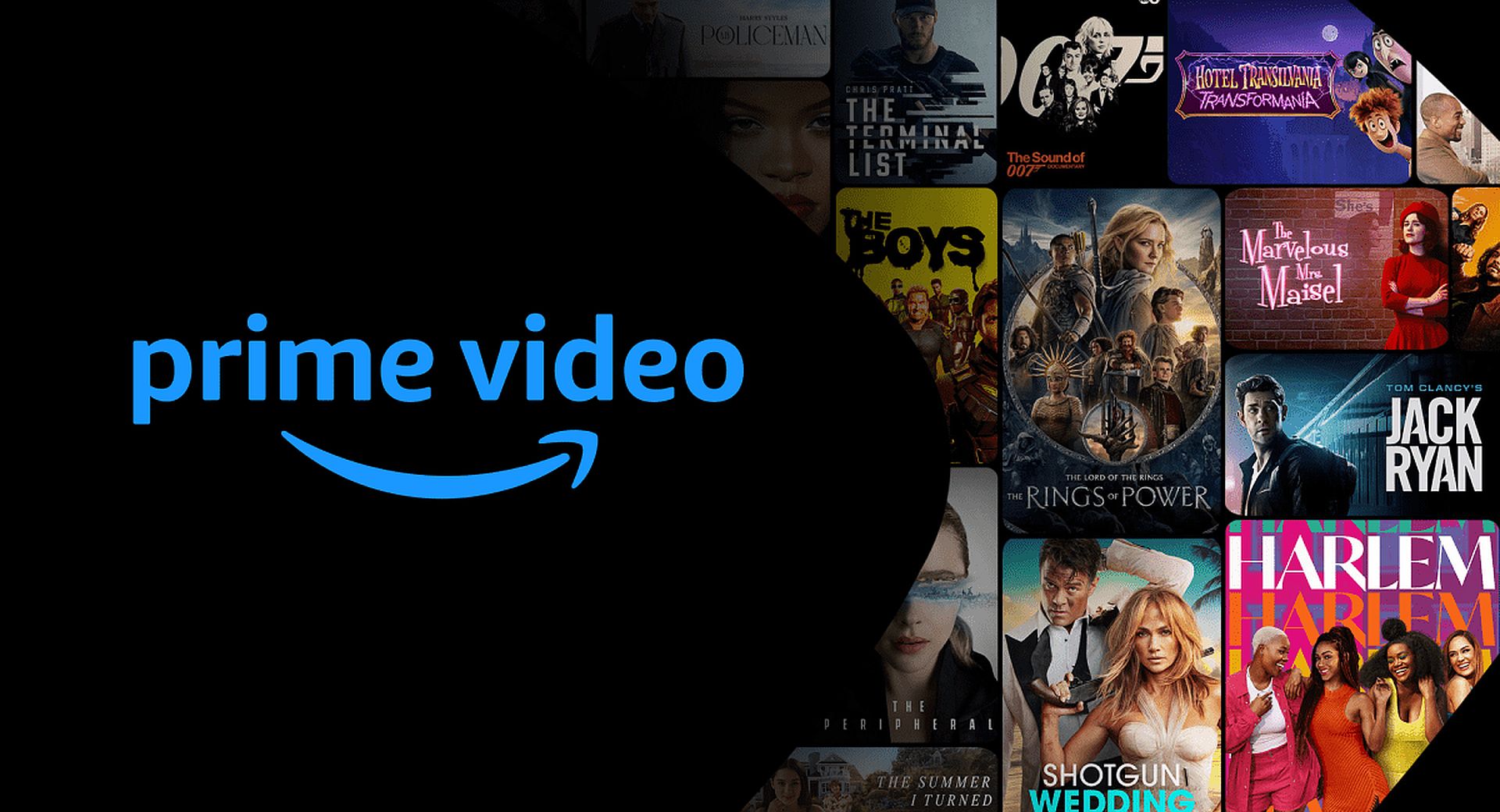
- Prime Video: A massive library of licensed and original content, now featuring advanced HDR10+ and Dolby Atmos integration, which requires specific browser capabilities to execute correctly.
- Prime Gaming: A monthly selection of free PC games and a free Twitch subscription, often managed via browser-based portals.
- Amazon Photos: Unlimited full-resolution photo storage, which Edge users can manage through a dedicated web interface that utilizes Chromium’s multi-threaded upload capabilities.
- Prime Rx: Significant discounts on prescriptions at thousands of pharmacies, accessible via a digital card within the Amazon portal.
For an Edge user, the primary goal is to ensure these services run without friction, leveraging the browser’s unique "Sidebar" and "Collections" features to organize the vast array of Prime benefits.
Why Microsoft Edge is the Strategic Choice for Prime
Since Microsoft transitioned Edge to the Chromium engine, it has shared the same foundational "Blink" rendering engine as Google Chrome. However, for Amazon Prime users, Edge offers several "quality of life" improvements that Chrome lacks, particularly regarding resource management and shopping-specific APIs.
Performance and Memory Efficiency
Amazon’s storefront is notoriously script-heavy. A single product page can load dozens of trackers, high-resolution image carousels, and dynamic pricing widgets. Edge’s Sleeping Tabs feature is particularly useful for Prime users who tend to keep multiple product pages open while comparing items. By "hibernating" inactive tabs, Edge frees up RAM and CPU cycles, ensuring that your Prime Video stream or checkout process doesn't lag because of a tab you opened three hours ago.
The Microsoft Shopping Integration
Edge features a native "Shopping" sidebar that automatically scans Amazon for coupons and price history. While third-party extensions like Keepa or Honey are popular, the native integration in Edge is optimized for the browser’s performance. In 2026, this feature has evolved to include "Price Protection" alerts, notifying Prime members if an item they recently purchased has dropped in price, facilitating a quicker request for a price match or refund.
Optimizing Prime Video on Microsoft Edge
Streaming is perhaps where Edge users find the most significant technical advantage. Because Edge is deeply integrated with the Windows Media Foundation and PlayReady DRM (Digital Rights Management), it can often handle higher bitrates and resolutions than other browsers.
DRM and Resolution Standards
Most browsers are limited to 1080p for Prime Video due to Widevine DRM restrictions. However, on Windows 10 and 11, Microsoft Edge supports PlayReady Content Protection. This allows for 4K Ultra HD streaming on compatible hardware, provided the user has the "HEVC Video Extensions" installed from the Microsoft Store.
To ensure you are getting the best quality:
- Navigate to Edge Settings > System and Performance.
- Ensure Hardware Acceleration is toggled ON. This offloads video decoding from your CPU to your GPU.
- Check your "Edge://gpu" internal page to verify that "Hardware Protected Video Decode" is supported.
Managing Prime Video Profiles
Edge’s "Profiles" feature allows users to separate their work environment from their Prime Video environment. By creating a dedicated "Entertainment" profile, you can stay logged into Amazon Prime without mixing your shopping history or video recommendations with your professional browsing data.
Leveraging Edge Tools for Amazon Shopping
The synergy between Amazon's retail platform and Edge’s productivity tools can significantly reduce the "decision fatigue" associated with Prime’s massive inventory.
Using Collections for Prime Day and Holiday Shopping
Edge Collections allow you to drag and drop Amazon products into a sidebar list. Unlike the Amazon "Wish List," Collections can also pull in data from competing retailers, allowing Prime members to verify if the "Prime Member Deal" is actually the lowest price available on the web.
Vertical Tabs for Comparison
When comparing technical specifications of electronics on Amazon, horizontal tabs often cut off the product names. Switching to Vertical Tabs in Edge allows you to see the full title of each Amazon listing, making it easier to navigate between multiple open Prime items.
Essential Extensions for Edge Users
While Edge is powerful out of the box, specific extensions can enhance the Prime experience. In 2026, the following tools are considered standard for "power users":
- Keepa - Amazon Price Tracker: This provides a detailed price history graph directly on the Amazon product page. It is essential for determining if a "Limited Time Deal" is a genuine discount or a temporary price hike followed by a return to MSRP.
- Amazon Assistant: The official extension that provides desktop notifications for shipping updates and "Deal of the Day" alerts.
- Privacy Badger: Developed by the EFF, this tool helps block the aggressive cross-site tracking that Amazon uses to follow your browsing habits outside of the Prime ecosystem.
Technical Troubleshooting for Amazon on Edge
Even with a high-end setup, users may encounter issues with the Amazon-Edge interface. Most problems stem from cache corruption or extension interference.
Resolving "Sign-In Loops"
If you find yourself constantly asked to log in to your Prime account despite checking "Keep me signed in," it is likely a cookie conflict.
- Go to
edge://settings/siteData. - Search for "amazon.com".
- Click "Remove All".
- Restart the browser. This clears the session tokens that may have become desynchronized.
Fixing Prime Video Error Codes (e.g., Error 7031)
Error 7031 usually indicates a DRM handshake failure. This often happens if you are using a VPN or if your monitor is connected via an older VGA cable that does not support HDCP (High-bandwidth Digital Content Protection). Ensure your HDMI/DisplayPort cables are secure and your GPU drivers are updated to the latest 2026 versions.
Comparison of Browser Features for Amazon Prime Users
| Feature | Microsoft Edge | Google Chrome | Mozilla Firefox |
|---|---|---|---|
| Native Price Tracking | Yes (Built-in) | No (Requires Extension) | No |
| 4K Streaming Support | Yes (via PlayReady) | Limited (Mostly 1080p) | Limited (Mostly 1080p) |
| Memory Management | Sleeping Tabs (High) | Memory Saver (Moderate) | Total Cookie Protection |
| Shopping Sidebar | Yes | No | No |
| Extension Support | Full Chrome Web Store | Full Chrome Web Store | Firefox Add-ons |
Security Considerations for Prime Members on Edge
Your Amazon Prime account contains sensitive data: saved credit cards, home addresses, and your digital purchase history. Edge provides several layers of security to protect this:
- Password Monitor: Edge will notify you if your Amazon credentials have been leaked in a third-party data breach.
- Tracking Prevention: Setting this to "Balanced" or "Strict" prevents Amazon’s advertising partners from building a profile of your browsing habits based on your Prime searches.
- Microsoft Defender SmartScreen: This acts as a barrier against phishing sites that mimic the Amazon login page to steal Prime credentials.
FAQ
Does Amazon Prime cost more when accessed via Microsoft Edge?
No. The cost of Amazon Prime is determined by your subscription plan with Amazon, not the browser you use. Whether you use Edge, Chrome, or Safari, the membership fees remain the same. However, Edge may help you save money through its built-in coupon and price-comparison tools.
Can I use Amazon Prime Gaming through the Edge sidebar?
Yes. You can pin the Prime Gaming URL to the Edge sidebar. This allows you to claim your monthly "Free Games with Prime" and Twitch sub without leaving your current tab. It is a highly efficient way to manage digital rewards.
Why does Prime Video look blurry on my Edge browser?
This is usually due to one of three factors: your internet bandwidth, your "Streaming Quality" settings within the Prime Video player, or a lack of hardware acceleration. Ensure that your "Streaming Quality" is set to "Best" and that your Edge browser is allowed to use your computer’s graphics card (GPU) in the system settings.
Is the Edge "Shopping" feature safe to use with my Prime account?
Microsoft’s shopping feature is a browser-level tool that scans the metadata of the page you are visiting. It does not "see" your private Prime account data unless you explicitly use it to store coupons or track orders. It is generally considered safe and follows Microsoft's standard data privacy protocols.
How do I stop Amazon notifications from popping up in Edge?
If you are tired of shipping updates appearing in the corner of your screen, go to edge://settings/content/notifications. Look for "amazon.com" in the "Allow" list and switch it to "Block." You will still receive email updates, but the browser-level pop-ups will cease.
Final Recommendation for Edge Users
To get the absolute most out of your Amazon Prime membership in 2026, you should treat Microsoft Edge as a dedicated shopping and streaming workstation. Start by enabling Sleeping Tabs to maintain system speed, utilize Collections for your shopping research, and ensure your HEVC extensions are installed for the highest quality Prime Video playback. By leveraging these browser-specific features, you transform Amazon Prime from a simple service into a fully optimized digital experience.