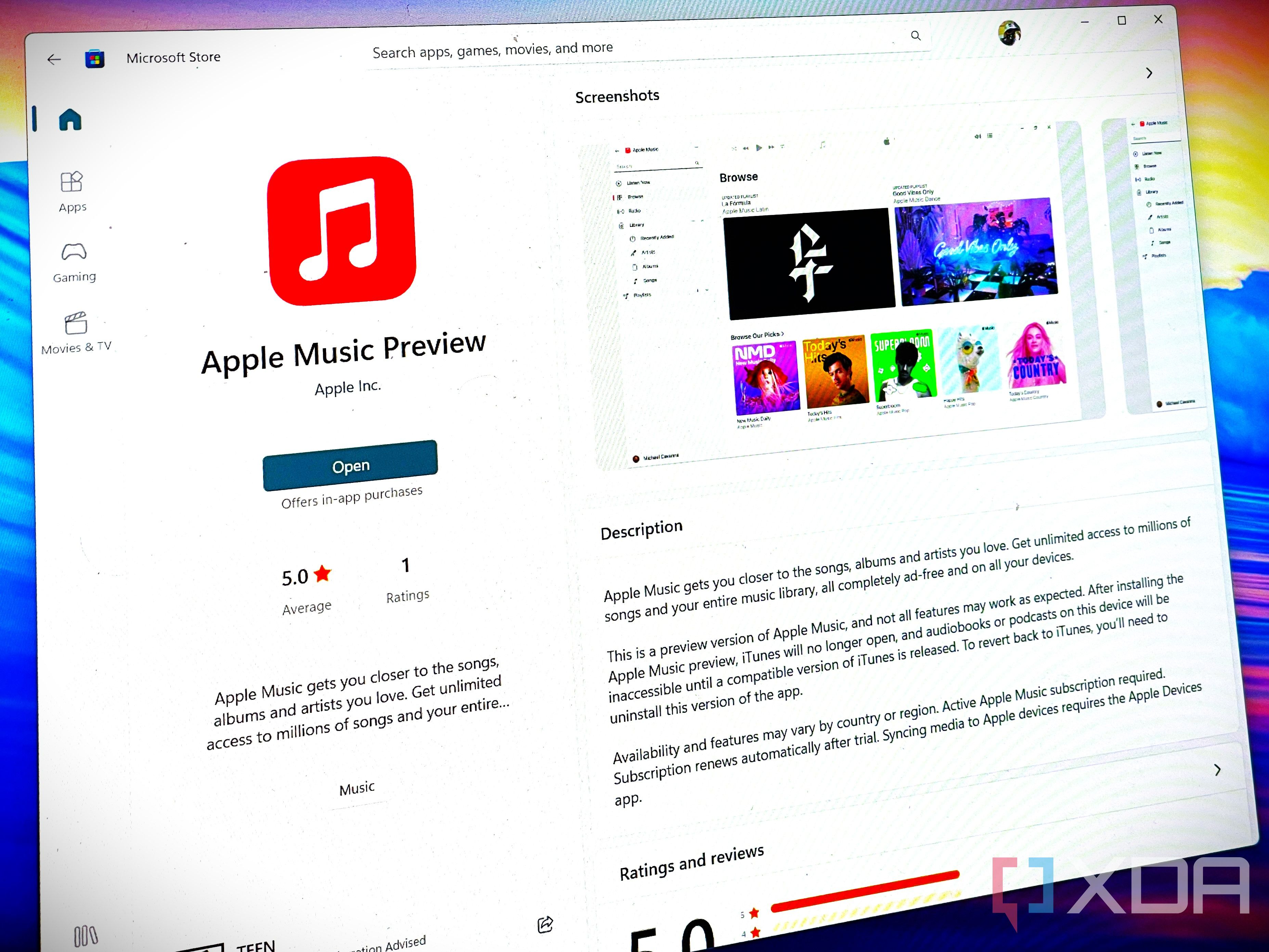
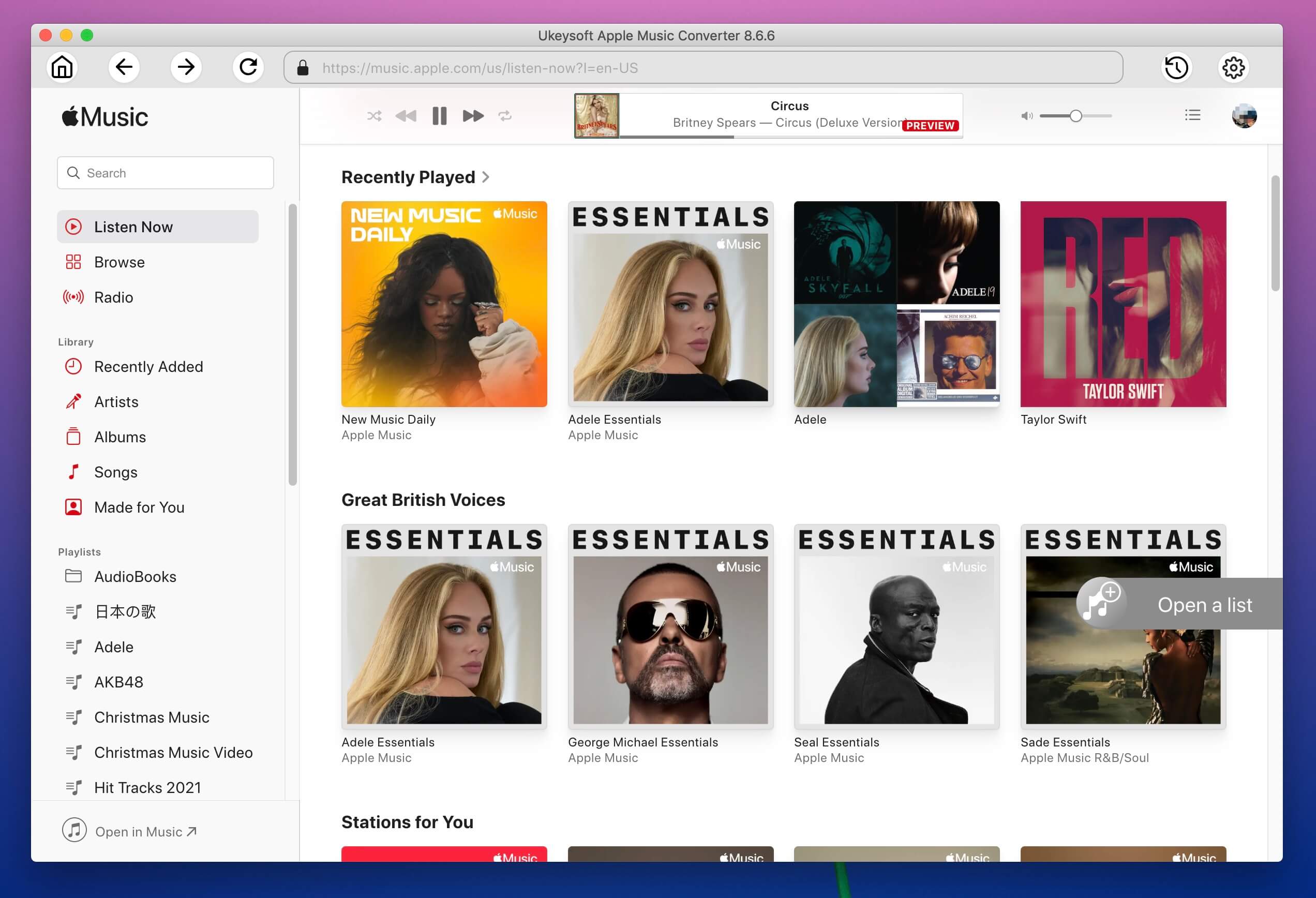
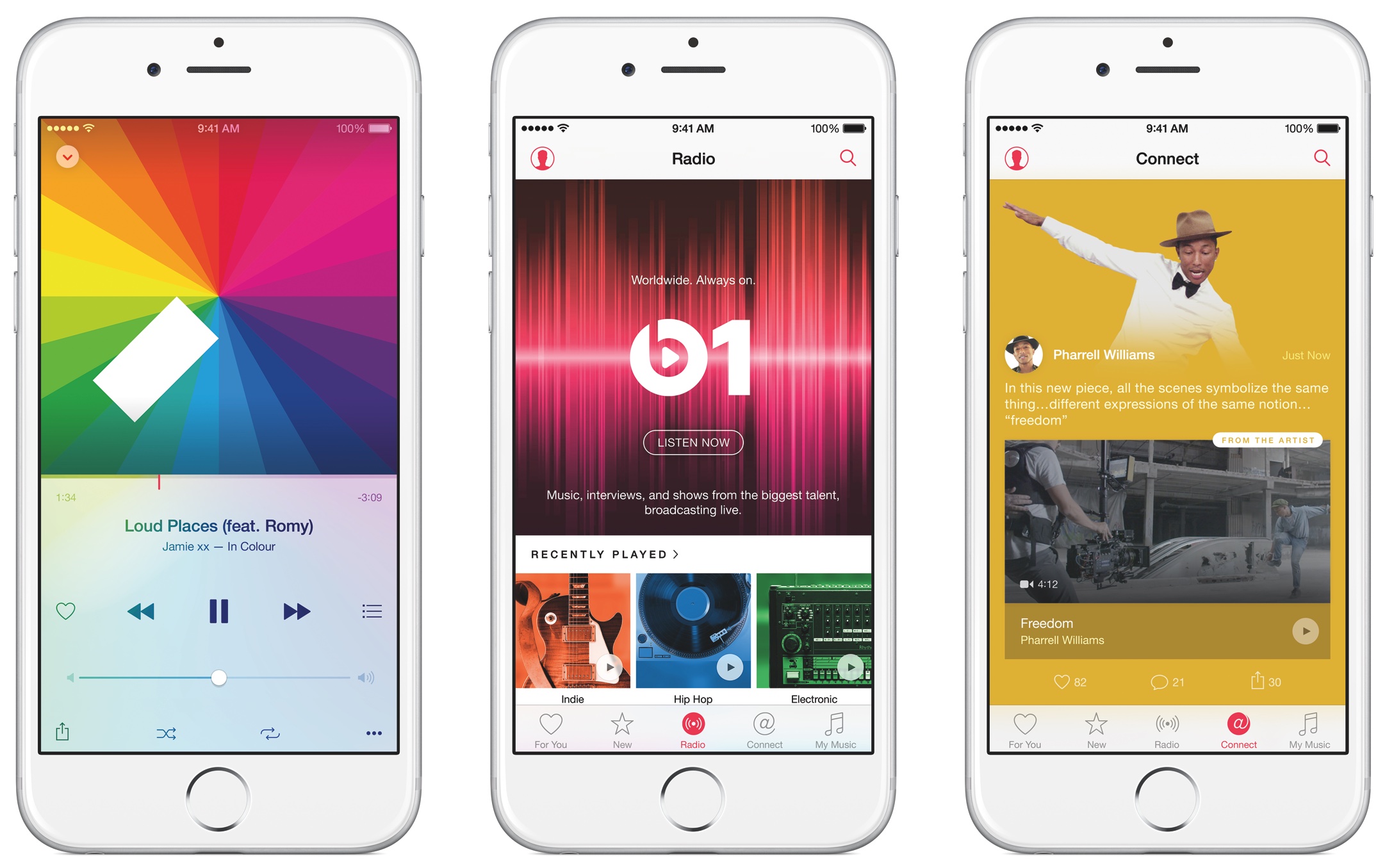
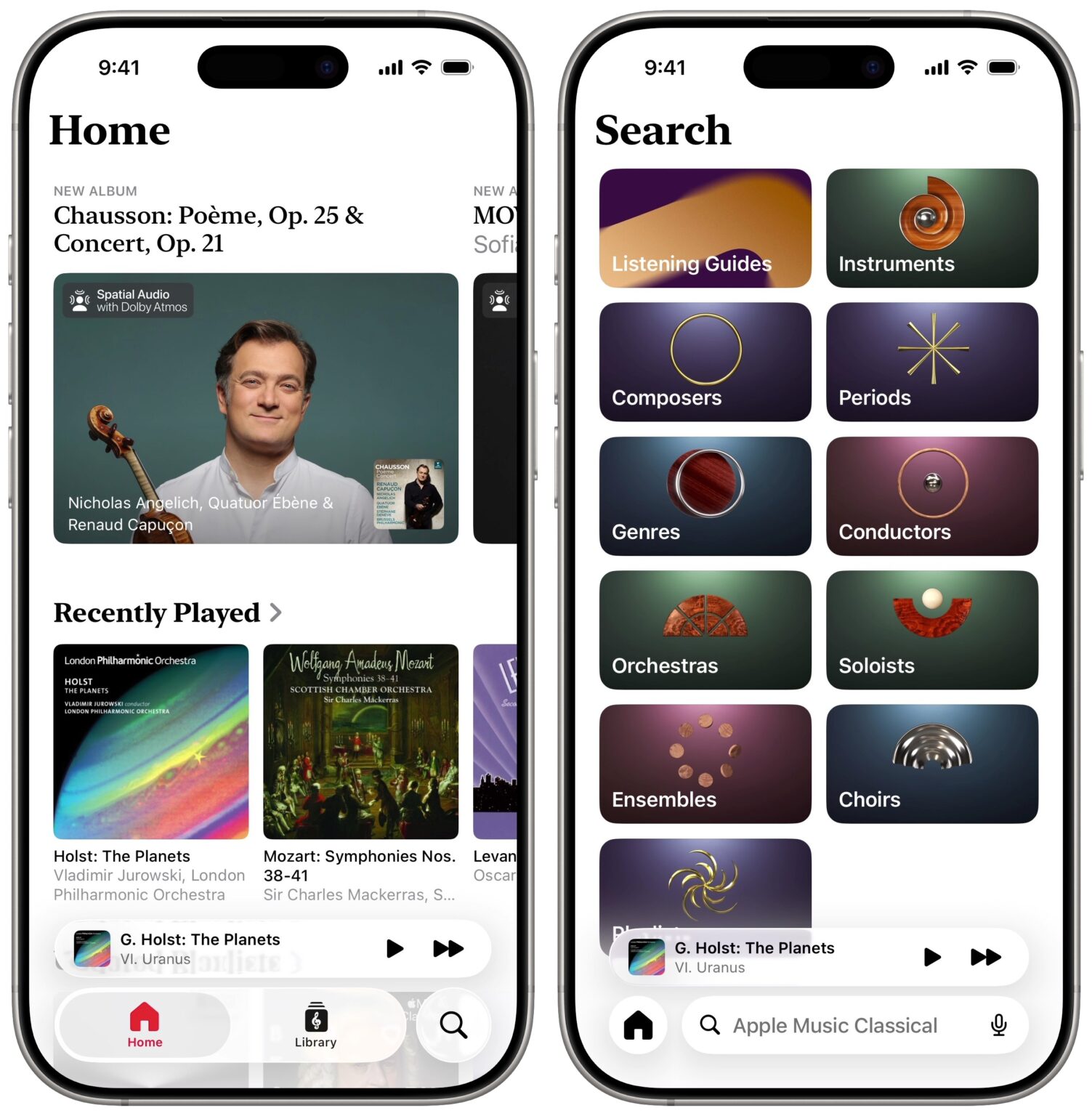
The Apple Music app on macOS provides a uniquely integrated experience that third-party alternatives often struggle to replicate, primarily due to deep system-level optimizations, seamless iCloud Music Library synchronization, and exclusive access to Apple’s ecosystem-specific features like Spatial Audio and lossless high-resolution playback. While many alternative players offer niche customization, the native application remains the most stable, efficient, and comprehensive tool for managing both streaming and local media on Apple silicon and Intel-based Macs.
The Foundation: Deep System Integration
The primary advantage of the native Music app lies in its role as a core component of the macOS operating system. Unlike third-party applications that must interact with Apple’s music library through secondary APIs (Application Programming Interfaces), the native app exists as a first-party service. This proximity to the kernel and the media frameworks means it handles system-level transitions—such as audio routing changes, external device connectivity, and power management—with significantly lower latency than competitors.
For users who rely on Apple Silicon, the app is architected specifically to leverage the unified memory architecture. This allows for near-instantaneous library searching, even for users with massive, decades-old local music collections. When you utilize the native app, you are utilizing the same engine that powers the OS’s own system sounds and media notifications, ensuring that playback interruptions are minimized and that keyboard media keys, Touch Bar controls (on supported hardware), and Lock Screen widgets work flawlessly without extra software overhead.
Lossless Audio and Spatial Audio Optimization
One of the most significant technical hurdles for third-party music players on macOS is the reliable implementation of Apple’s proprietary audio standards. Apple Music on Mac natively supports Apple Lossless Audio Codec (ALAC) and Dolby Atmos spatial audio formats. While some developers have successfully integrated support for these formats, the implementation often feels like a "wrapper" over the native frameworks.
The native Music app guarantees a bit-perfect signal path to the Core Audio framework. For users invested in high-fidelity setups, the native app allows for easy configuration within the Audio MIDI Setup utility, ensuring that the sample rate matches the source content without unnecessary resampling. Third-party apps often struggle with "Sample Rate Switching," where the Mac’s audio output frequency must change to match the track; the native app automates this synchronization, whereas alternative players often require manual intervention or produce audible clicking sounds during format transitions.
iCloud Music Library and Cross-Device Synchronization
The concept of a "unified library" is where the native application truly distances itself from the competition. For subscribers to Apple Music or iTunes Match, the iCloud Music Library is the backbone of the experience. The native Music app is the only platform that provides a truly bidirectional sync for the library.
When you add a local file to the native Music app on your Mac, it doesn't just sit on your hard drive; it is matched or uploaded to your iCloud account, becoming instantly available on your iPhone, iPad, and Apple TV. Third-party applications frequently suffer from synchronization delays, failure to sync metadata changes (such as updated artwork or corrected tags), or issues with "Match" status verification. The native app communicates directly with Apple’s private server infrastructure, ensuring that your listening history, play counts, and "Loved" statuses remain consistent across all your devices without the need for periodic manual refreshes or database rebuilds.
Comparison of Media Management Capabilities
Understanding the difference between the native app and third-party alternatives requires a look at how they handle media storage and playback.
| Feature | Apple Music (Native) | Third-Party Alternatives |
|---|---|---|
| iCloud Sync | Native, real-time sync | Often delayed or manual |
| Spatial Audio | Integrated/Automatic | Generally unsupported |
| System API Access | Deep/System-level | Limited/API-bound |
| Keyboard/Media Keys | Native/Always functional | Requires auxiliary helper apps |
| Power Efficiency | High (System Optimized) | Variable/Higher CPU usage |
| Local File Handling | Extensive (Metadata/ID3) | Often basic/Read-only |
Metadata and Library Management
For collectors with large local libraries of FLAC, ALAC, or MP3 files, managing metadata is a full-time task. The native Music app provides a robust, if sometimes dated, interface for editing ID3 tags, album art, and sort-as fields.
Crucially, the native app manages its own database files (the Music Library.musiclibrary package). This database is resilient and designed to handle hundreds of thousands of tracks. Many third-party apps, which often rely on lighter database architectures (such as SQLite), can become unstable when managing massive libraries, leading to slow search results or "spinning wheels" during indexation. The native app’s ability to manage artwork caching and genre organization at the system level provides a level of stability that alternative players simply cannot match during long-term, high-volume use.
The "All-in-One" Convenience Factor
The modern Apple user values the ecosystem effect. The native Music app is designed to work in tandem with other macOS features:
- Handoff: Start listening on your Mac and pick up exactly where you left off on your iPhone by clicking the icon in the Dock.
- Siri Integration: Only the native app can be fully controlled via voice commands for complex requests, such as "Add this track to my workout playlist" or "Play music based on my mood."
- HomePod Control: The native Music app acts as the primary controller for your home audio network. AirPlay 2 streaming is handled with priority by the native app, whereas third-party players often experience lag or dropouts when streaming to multiple AirPlay speakers simultaneously.
Troubleshooting and Performance
While critics often point to the "bloat" associated with the Music app, this complexity is a function of its capabilities. If you experience performance issues, it is rarely the app's fault, but rather a corrupted library file or an issue with system-level caches.
To maintain peak performance:
- Rebuild the Library: If you encounter slow loading, hold the Option key while launching the Music app to select or create a new library file.
- Verify Sample Rates: Ensure your external DAC or audio interface is set to "Default" in the Audio MIDI Setup to let the Music app manage the sample rate dynamically.
- Optimize Storage: Use the "Sync Library" settings in preferences to ensure that only the music you actually need is stored locally, allowing the rest to stream on demand.
Frequently Asked Questions
Why does my third-party player have better sound quality settings than the native app? Many third-party players provide an "Equalizer" or "Audio Enhancement" suite that allows you to artificially boost frequencies. While this might sound "better" to some, it is essentially applying a filter over the original recording. The native Music app prioritizes bit-perfect playback, which is the industry standard for high-fidelity audio.
Can I use the native Music app if I have my music on an external hard drive? Yes. You can hold the Option key during launch to select a custom library location. This allows you to keep your actual music files on an external drive while using the native app’s database and sync capabilities to manage them.
Does the native app consume more battery than lighter alternatives? Because the native app is highly optimized for Apple Silicon, it is actually one of the most power-efficient ways to play music. Third-party apps that run as background processes or utilize non-native media frameworks often require more CPU cycles to perform the same playback tasks.
Is there any reason to use a third-party alternative? The primary reason to use a third-party app is to support niche file formats (like high-bitrate DSD files) that Apple does not natively support, or to achieve a specific user interface aesthetic. If your primary goal is a standard streaming and local file playback experience, the native app is superior.
How do I prevent the native app from auto-playing when I connect headphones? This is typically a system-level setting rather than an app setting. Navigate to System Settings > Sound and check if your Mac is configured to automatically launch the default media app upon device detection. You can also disable this by adjusting your "Music" playback preferences.
Next Steps for Users
If you have been using third-party software due to frustration with the native app, we recommend performing a clean re-index of your library. Start by consolidating your media files into the standard ~/Music/Music folder and allow the app to rebuild its database. By embracing the native workflow, you regain full access to the seamless ecosystem integration that Apple has refined specifically for the macOS hardware stack. Stick to the official Apple Music application to ensure your playback history, metadata, and cross-device sync functions remain secure and fully operational.