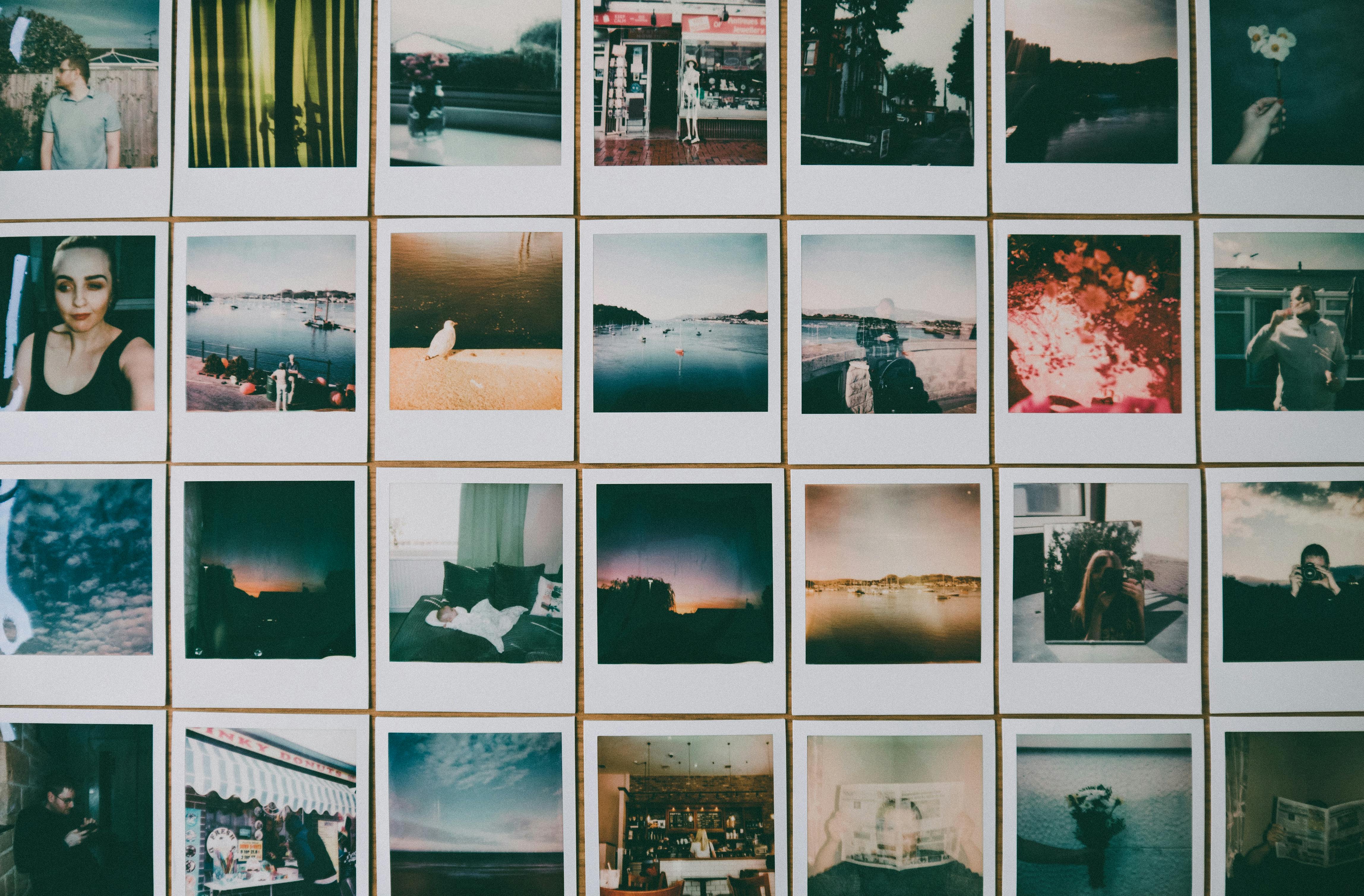
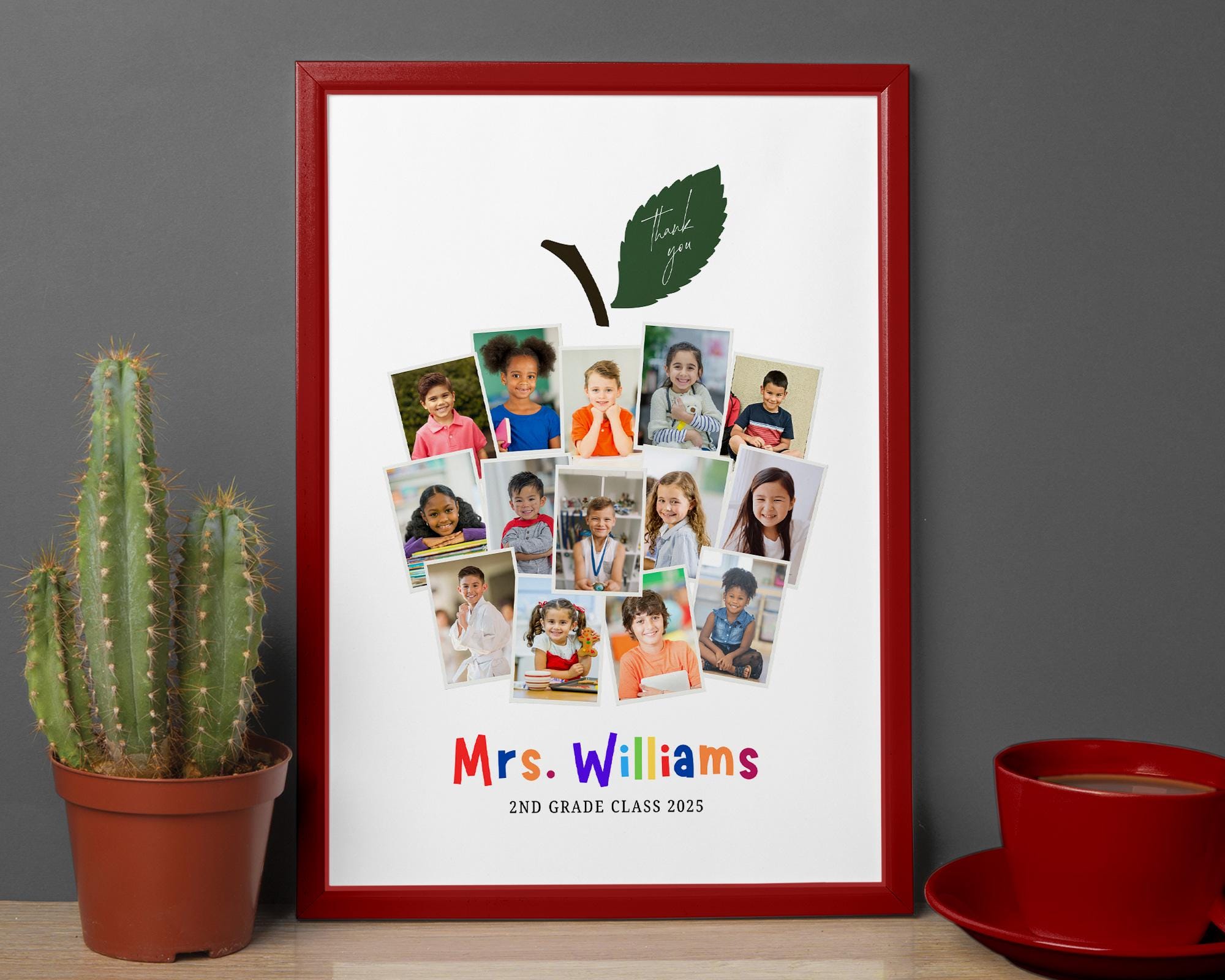
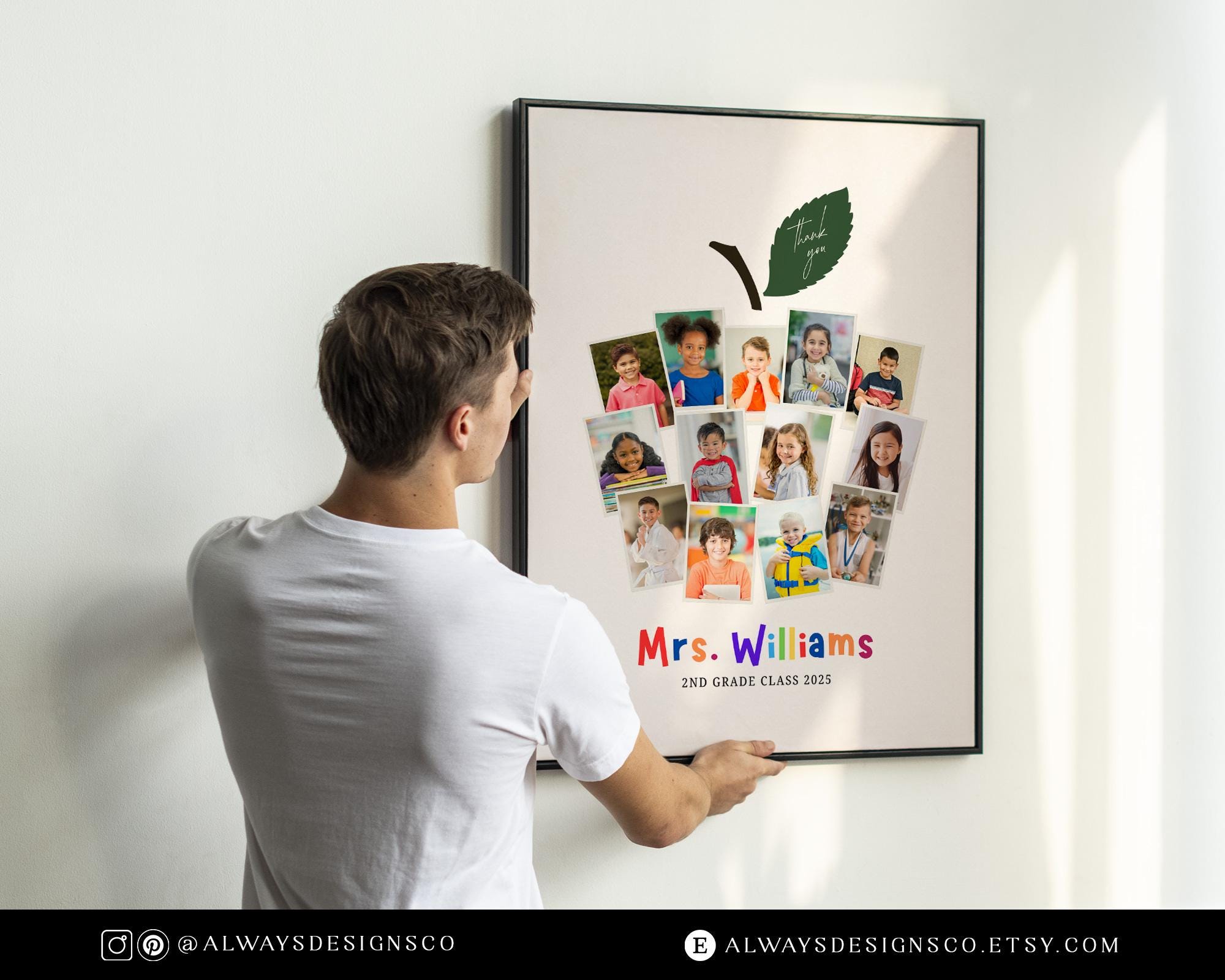
Creating an Apple photo collage involves utilizing native software within the iOS and macOS ecosystems or leveraging third-party applications integrated via the Apple App Store to arrange multiple images into a single cohesive layout. While Apple does not provide a single button labeled "collage" inside the Photos app, users can achieve this through the Shortcuts app, native markup tools, or by utilizing specialized software designed to interface with the Apple media library.
Understanding the Landscape of Apple Photo Collages
The term "Apple photo collage" typically refers to the intent of gathering disparate images stored within the Photos library—which is synced across devices via iCloud—and arranging them into a grid, storyboard, or freeform layout. Because Apple prioritizes simplicity and privacy in its native Photos app, the platform lacks an explicit, one-click collage generator. Users often find this confusing, as competing platforms sometimes offer automated collage features.
However, the strength of the Apple ecosystem lies in its extensibility. By using tools like Shortcuts—a powerful automation app developed by Apple—users can create custom, repeatable workflows that perform image compositing automatically. Alternatively, third-party developers have filled this gap by creating high-performance applications that read directly from the user's local photo database, ensuring that privacy remains a priority while providing advanced design features like borders, aspect ratio adjustments, and stylized filters.
Using the Shortcuts App for Native Collages
For those who prefer not to download third-party software, the Shortcuts app is the most effective native method. It allows you to build a custom "action" that takes a selection of photos and stitches them together into a grid.
Setting Up a Collage Shortcut
- Open the Shortcuts app on your iPhone or iPad.
- Tap the plus sign (+) to create a new shortcut.
- Tap Add Action and search for "Select Photos." Ensure you toggle the "Select Multiple" option to On.
- Search for the "Combine Images" action. This will automatically set the images you selected as the input.
- You can choose to arrange them "Horizontally," "Vertically," or "In a Grid."
- Tap the arrow to set spacing or metadata if required.
- Finally, add the "Save to Photo Album" action to ensure the final file is written back to your device.
This method is highly recommended for users who want to avoid subscriptions or advertisements. It operates entirely locally, meaning no images are sent to a third-party server during the creation process.
Third-Party App Integration and Selection
If your requirements go beyond simple grids—such as requiring rounded corners, drop shadows, text overlays, or specific social media aspect ratios—third-party applications are the logical next step. These apps are optimized to integrate with the Apple Photos Picker, a secure interface that allows the app to access only the images you specifically choose, maintaining your privacy.
When selecting an app, evaluate the following criteria:
- Privacy Permissions: Ensure the app utilizes the native Photos Picker (the system-standard interface for selecting images) rather than requesting full access to your entire library.
- Format Flexibility: Look for apps that support custom canvas sizes (e.g., 1080x1920 for Instagram Stories or 16:9 for presentations).
- Export Quality: Verify that the app exports at full resolution without applying heavy compression.
Comparison of Collage Methods
| Method | Ease of Use | Customization | Privacy Level | Cost |
|---|---|---|---|---|
| Shortcuts App | Moderate | Moderate | High (Local) | Free |
| Third-Party Apps | High | High | Varies | Free/Freemium |
| Pages (iWork) | Moderate | Very High | High | Free |
Advanced Layouts Using Apple Pages
Many users overlook Apple’s Pages application as a tool for photo collage creation. Because Pages is a sophisticated layout engine, it offers much more control than dedicated collage apps.
To build a high-resolution collage in Pages:
- Open a new document in Pages and set the page orientation or size to your preference (e.g., A4 or square).
- Drag and drop your images from the Photos app directly onto the canvas.
- Use the Arrange tab in the Format sidebar to manipulate image layers, alignment, and rotation.
- Utilize the Mask tool (Double-click an image) to crop specific portions of your photos to fit unique shapes.
- Once your layout is complete, export the file as an image (JPEG or PNG) or PDF to save it back to your device.
This method is ideal for creating physical prints or large-format digital posters, as Pages does not impose the aggressive compression often found in quick-collage mobile apps.
Troubleshooting Common Issues
When working with photo collages on Apple devices, users occasionally encounter specific bottlenecks. Here are the common solutions:
Image "Not Found" or Sync Issues
If you are using iCloud Photos, a high-resolution version of your image might not be stored locally on your device. When an app tries to access it, the process may stall. Ensure you have a stable Wi-Fi connection and that the image has finished downloading from iCloud before adding it to your project.
Storage and Export Limits
Collages created with many high-resolution files (e.g., from an iPhone 16 Pro's 48MP sensor) can consume significant RAM. If your collage app crashes during export, try reducing the number of photos in the layout or scaling down the individual images before compositing them.
Permission Errors
If an app refuses to load your photos, navigate to Settings > Privacy & Security > Photos on your device. Verify that the app in question has been granted permission to access your library. If it is already enabled, toggle it off and back on to refresh the connection.
Frequently Asked Questions
Can I create a photo collage directly inside the Apple Photos app?
No, the native Photos app does not have a dedicated "collage" function. It focuses on viewing, editing individual photos, and creating "Memories" slideshows. You must use either the Shortcuts app, Pages, or third-party software to combine images into a single file.
Do I lose image quality when making a collage?
You may experience a reduction in quality if the collage app compresses the file upon export. To maintain the highest quality, use the Pages application or the Shortcuts app, as these tools generally preserve the original resolution of the source images better than social-media-focused collage apps.
Is my privacy protected when using collage apps?
Privacy depends on the app’s data handling policy. Always look for apps that utilize the "Photos Picker." This system feature allows you to select specific images for the app to see, without giving the app permission to scan your entire photo library.
Can I change the aspect ratio of my collage?
Yes. If you are using Pages or a flexible third-party app, you can manually define the pixel dimensions or aspect ratio. This is essential if you intend to post the collage to platforms with strict layout requirements, such as Instagram or LinkedIn.
Are there any built-in tools on macOS that help with this?
Yes, macOS offers the Preview app. You can open multiple images, copy and paste them onto a single canvas (adjusting the canvas size in Tools > Adjust Size), and save the result. This is a manual but highly effective way to create collages without installing additional software.
Final Recommendation
For users seeking a balance of efficiency and control, the Shortcuts app is the best starting point. It requires no additional software and provides a reliable, automated way to create grid-based collages. If you require professional-grade layouts, high-resolution prints, or intricate text and design elements, Apple Pages remains the most powerful, privacy-focused tool available within the ecosystem. Practice using the Masking tool in Pages to elevate your collages from simple grids to polished, custom compositions.