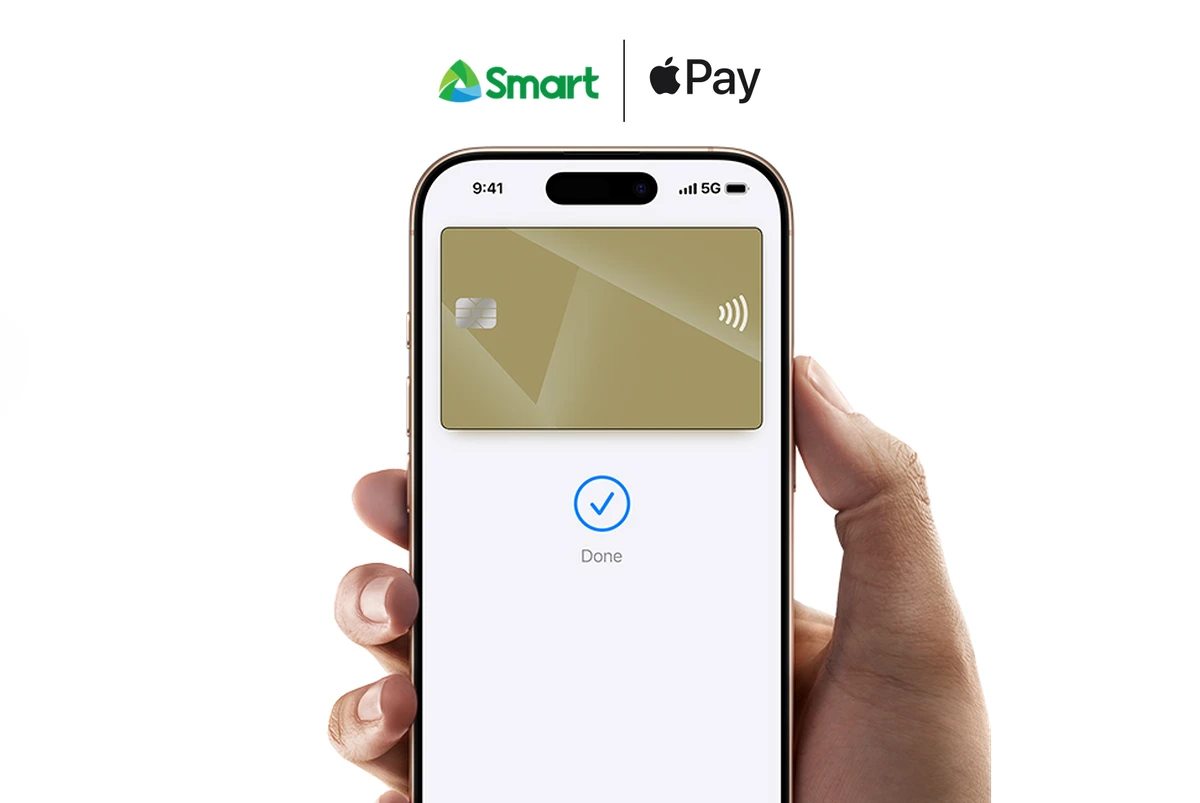
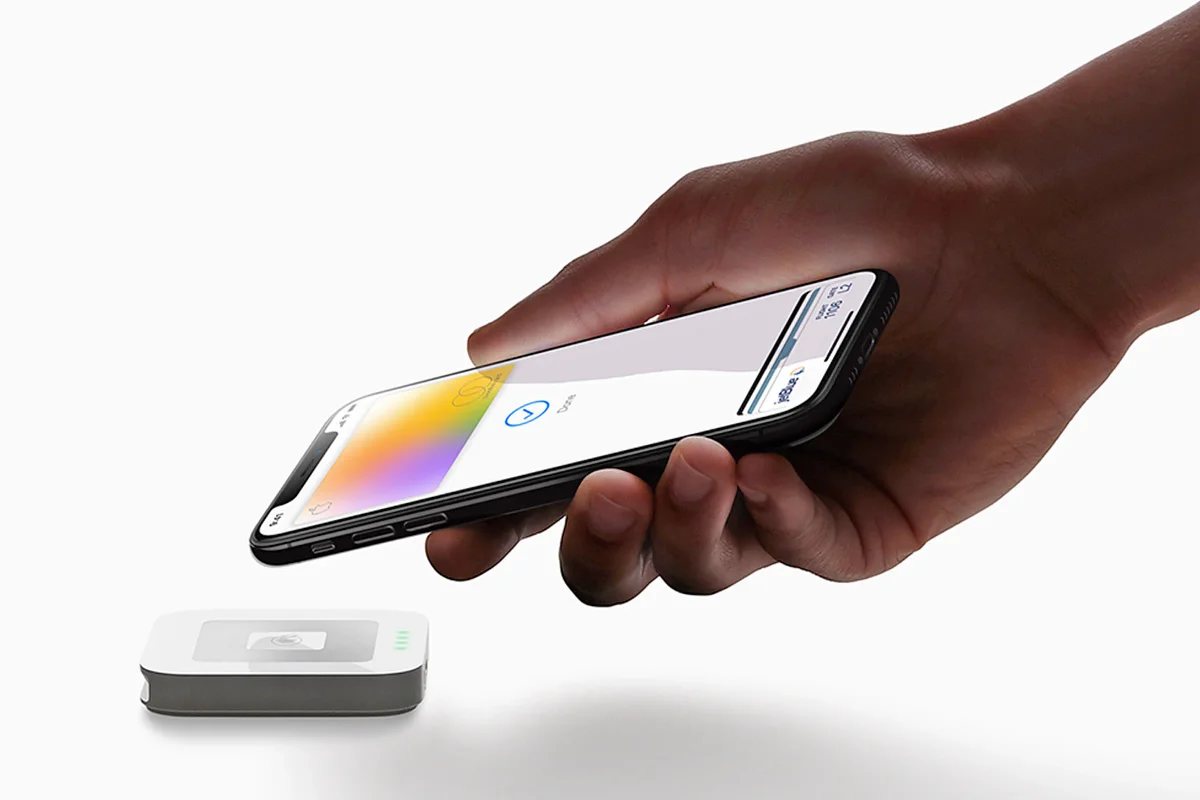
Apple Pay functions seamlessly on iPad for digital purchases, allowing you to complete transactions within apps and on websites using the Safari browser. When you make a purchase on an iPad, Apple Pay securely transmits your payment information to the merchant using your stored cards, eliminating the need to manually enter credit card numbers or shipping details for every individual transaction.
Understanding Apple Pay Integration on iPad
Apple Pay is not merely a physical point-of-sale tool; it is a comprehensive payment framework built into the iPadOS ecosystem. When you use Apple Pay on your iPad, the system utilizes a unique Device Account Number combined with a transaction-specific dynamic security code. This architecture ensures that your actual credit or debit card numbers are never shared with merchants or stored on Apple’s servers.
For digital purchases, this functionality manifests in two primary environments: inside applications downloaded from the App Store and on websites visited via Safari. Because the iPad provides a secure enclave—a hardware-based security module—it can verify your identity using Touch ID or Face ID, depending on your specific iPad model, before authorizing the transaction.
Prerequisites for Using Apple Pay on iPad
Before you can initiate a digital purchase, you must ensure your device and account are correctly configured. Apple Pay on iPad requires a compatible device running the latest version of iPadOS. While older models may support basic functionality, newer iterations with modern biometric sensors provide a significantly smoother experience.
Essential Requirements:
- Supported Device: Any iPad model with Touch ID or Face ID.
- Apple Account: You must be signed into your device with your Apple Account, which is protected by two-factor authentication.
- Supported Card: A credit or debit card from a participating bank or card issuer. You can verify if your specific bank is supported by checking Apple’s official list of participating institutions.
- Wallet Configuration: Your chosen payment method must be added to the Wallet app on your iPad.
To add a card, open the Wallet app, tap the "Add" button (represented by a plus sign), and follow the on-screen instructions. You may need to verify your card with your bank through their mobile app, a text message code, or a phone call. Once added, the card is ready for use across all digital platforms that accept Apple Pay.
Step-by-Step: Making Purchases Within Apps
The most common use case for Apple Pay on iPad is purchasing digital goods, subscriptions, or physical products within third-party applications. If an app supports Apple Pay, the process is streamlined to prioritize speed and security.
- Select the Item: Browse the app and add your desired items to your cart or select a subscription tier.
- Proceed to Checkout: Look for the dedicated "Apple Pay" button or select Apple Pay as your payment method during the checkout flow.
- Review Information: A sheet will appear on your screen displaying your billing, shipping, and contact information. You can tap the information fields if you need to change your registered address or default email.
- Confirm Identity: Once you have verified the transaction details, you must confirm the purchase. On iPads with Face ID, double-click the top button. On iPads with a Home button (Touch ID), rest your finger on the sensor.
- Authorization: Upon successful biometric verification, the transaction will process, and you will receive a confirmation within the app.
Making Purchases on Websites via Safari
Using Apple Pay for online shopping on the web is restricted to the Safari browser. While you can browse websites on third-party browsers, those platforms often do not have the necessary system-level access to trigger the secure Apple Pay interface.
When visiting a website that supports Apple Pay, you will often see a banner or a specific button labeled "Apple Pay" or "Buy with Apple Pay." Clicking this link opens the secure payment sheet, similar to the one experienced within apps. This is particularly advantageous for users who prefer shopping on the larger iPad display but want to avoid the tedious process of entering credit card digits on a virtual keyboard.
Comparison of Payment Methods for Digital Content
When deciding whether to use Apple Pay or a traditional credit card entry, it is helpful to weigh the advantages and limitations of each approach.
| Feature | Apple Pay on iPad | Manual Credit Card Entry |
|---|---|---|
| Speed | Extremely Fast (Biometric) | Slow (Manual entry) |
| Security | Dynamic tokens (High) | Static data exposure (Moderate) |
| Merchant Data | Never shares card number | Shares card number with merchant |
| Compatibility | Apps and Safari only | Virtually all web browsers |
| Privacy | High (Masks user identity) | Low (Merchant records card data) |
Troubleshooting Common Issues
If you encounter difficulties during a purchase, the issue is often related to network connectivity, outdated software, or issuer restrictions.
- Apple Pay Button Not Appearing: Ensure you are using Safari if you are on a website. If you are inside an app, the developer may not have integrated Apple Pay, or your region may not support that specific merchant's payment processor.
- Transaction Declined: This is typically an issue with the bank rather than the iPad. Check your banking app to see if there is a pending verification request or if the card has reached a spending limit.
- Biometric Failure: If Face ID or Touch ID fails repeatedly, ensure your sensors are clean and free of debris. If necessary, you can authenticate the transaction using your device passcode as a fallback.
Important Considerations for 2026
As of 2026, Apple has continued to refine the integration of Apple Pay within iPadOS. It is important to note that while the process is highly secure, it does not exempt the user from standard financial due diligence. Always review the transaction amount and the merchant’s refund policy before authorizing payment with your biometric data. Because the authentication happens near-instantaneously, it is easy to finalize a purchase before noticing an incorrect item or price.
Furthermore, always maintain the latest version of iPadOS. Apple frequently pushes security patches that protect the hardware-based encryption used by Apple Pay. Keeping your software updated ensures that your financial data remains shielded against emerging vulnerabilities.
Frequently Asked Questions
Does Apple Pay work on every website I visit on my iPad? No. Apple Pay is only available on websites that have specifically integrated the Apple Pay API. While many major retailers and service providers support it, smaller or older e-commerce sites may only offer traditional credit card or third-party payment gateways.
Are there extra fees for using Apple Pay on an iPad? No. Apple does not charge users any fees for using Apple Pay to make digital purchases. Your bank or card issuer will treat the transaction exactly as they would a standard purchase using your physical card.
What happens if I lose my iPad? If your iPad is lost or stolen, you can use the "Find My" service to put the device in Lost Mode. This action immediately disables Apple Pay on that device. Because your actual card numbers are not stored on the iPad, a thief cannot retrieve your financial data from the device's storage.
Can I use Apple Pay for recurring subscriptions? Yes. Many app developers and online services support Apple Pay for recurring subscriptions. Once authorized, the service provider uses a secure token to process subsequent billing cycles according to your agreed-upon schedule.
Is my purchase history saved on the iPad? The Wallet app maintains a record of recent transactions for your convenience, but this data is local to your device. Apple does not store transaction history that can be linked back to you, ensuring your purchasing habits remain private.
Next Actions
If you are currently experiencing issues with a specific purchase, first verify your card's status within your banking application. If you have not yet set up Apple Pay, navigate to your Settings, select "Wallet & Apple Pay," and follow the prompts to add your primary payment card. For merchants, ensuring your web portal or application is correctly configured with the latest Apple Developer guidelines will provide your customers with the most reliable and efficient checkout experience.