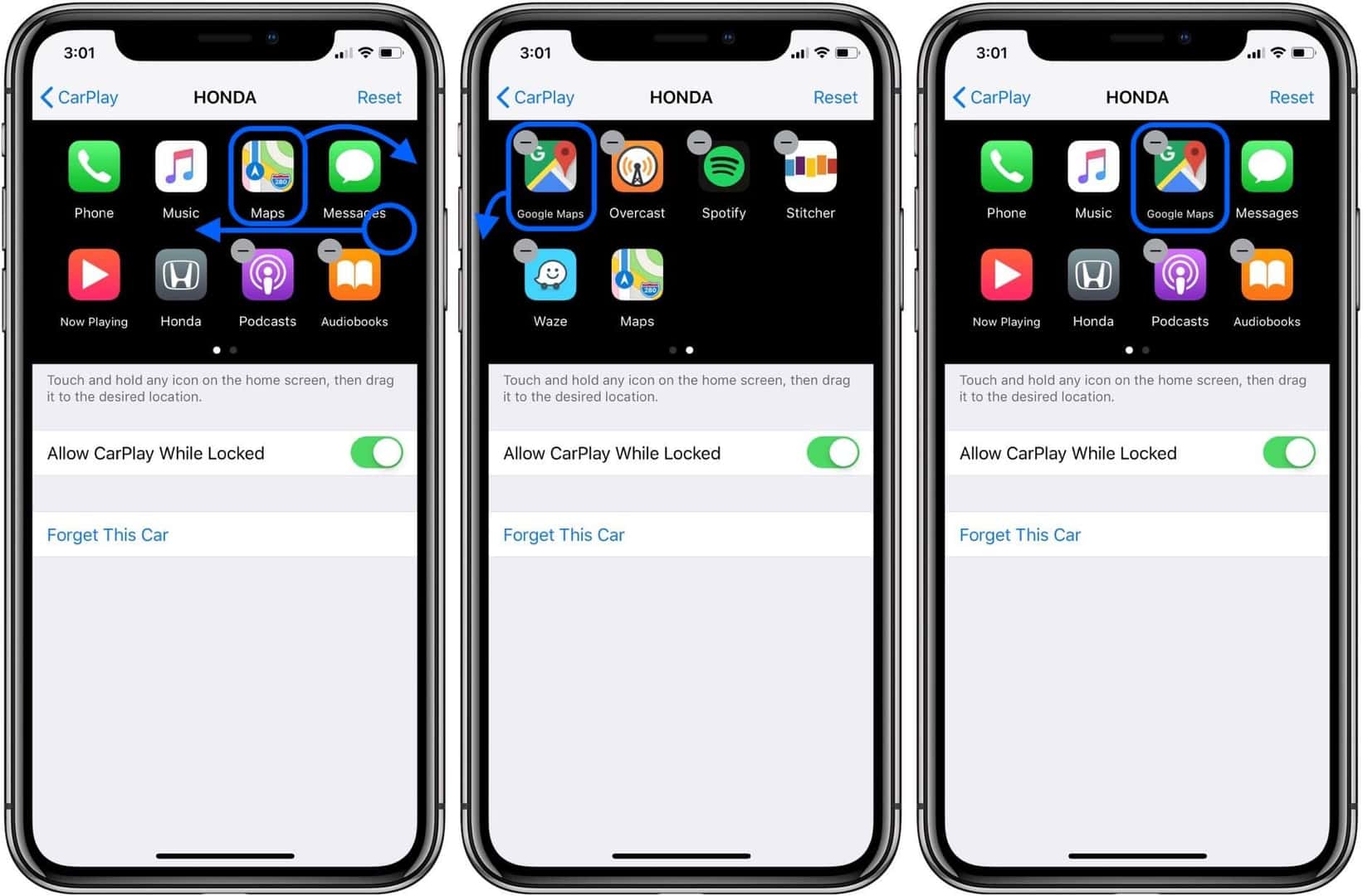
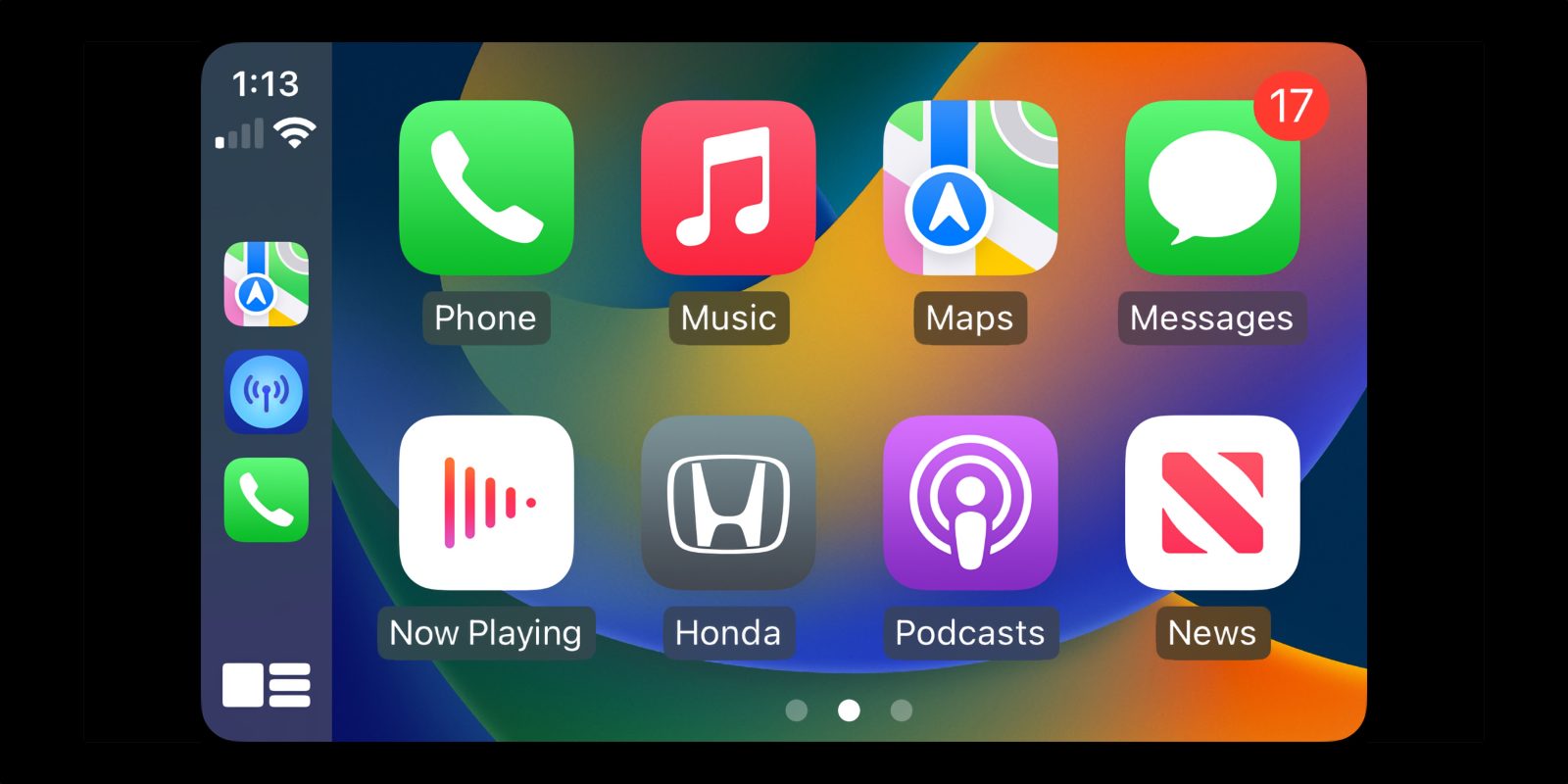
Apple CarPlay comes standard on the 2019 Honda CR-V EX, EX-L, and Touring trim levels through a factory-installed 7-inch Display Audio touchscreen interface. The base LX trim does not support Apple CarPlay. The 2019 model year relies exclusively on a wired USB connection for CarPlay, though drivers can add wireless capabilities using compatible third-party adapters.
Understanding how Apple CarPlay functions in the 2019 Honda CR-V helps drivers maximize in-cabin convenience, navigation capabilities, and hands-free communication. This comprehensive guide covers trim availability, hardware requirements, step-by-step connection procedures, common operational fixes, and retrofit options for base-trim owners.
Trim Level Compatibility for the 2019 Honda CR-V
Not all 2019 Honda CR-V models feature the hardware necessary to run Apple CarPlay. Honda equipped the fifth-generation CR-V with two distinct infotainment layouts depending on the trim package selected at purchase.
LX Trim Limitations
The base 2019 Honda CR-V LX includes a standard 5-inch color LCD screen paired with a basic physical button interface. This system lacks the capacitive touch display, underlying software architecture, and high-amp USB interface required to render Apple CarPlay. As a result, LX owners cannot enable CarPlay natively through software updates or dealer flash procedures.
EX, EX-L, and Touring Support
The EX, EX-L, and Touring trims feature Honda’s 7-inch Display Audio system. This unit includes a capacitive touchscreen, integrated smartphone integration software, and dual USB ports in the center console. On these higher trims, Apple CarPlay works straight from the factory without purchasing optional packages.
| 2019 Honda CR-V Trim | Infotainment Display | Native Apple CarPlay Support | Connection Type | Dedicated Smartphone USB Port |
|---|---|---|---|---|
| LX | 5-inch Color LCD | No | N/A | No (1.0A standard port only) |
| EX | 7-inch Display Audio Touchscreen | Yes | Wired (USB) | Yes (1.5A Port with Smartphone Icon) |
| EX-L | 7-inch Display Audio Touchscreen | Yes | Wired (USB) | Yes (1.5A Port with Smartphone Icon) |
| Touring | 7-inch Display Audio Touchscreen with Navigation | Yes | Wired (USB) | Yes (1.5A Port with Smartphone Icon) |
Hardware and Setup Requirements
Before setting up Apple CarPlay in your 2019 Honda CR-V, ensure your devices and accessories meet the necessary hardware and software criteria.
iPhone Requirements
- Device Model: iPhone 5 or newer running iOS 7.1 or higher (modern iOS versions recommended for feature stability).
- Siri Settings: Siri must be enabled on your iPhone. CarPlay relies on Siri for voice commands, text dictation, and system navigation. Go to Settings > Siri & Search and verify that Press Side Button for Siri (or Listen for "Hey Siri") is toggled on.
- Content Restrictions: Verify that CarPlay is not restricted under your device settings. Navigate to Settings > Screen Time > Content & Privacy Restrictions > Allowed Apps and ensure CarPlay is enabled.
Cable Selection Matters
The 2019 Honda CR-V’s Display Audio system is sensitive to cable quality. Data transmission failures are the leading cause of CarPlay disconnects.
- MFi-Certified Cables: Use an original Apple Lightning-to-USB-A cable or an official Apple-certified (MFi) third-party cable.
- Cable Length: Keep cable lengths under 3 feet (1 meter) to prevent voltage drop and signal degradation.
- USB Standard: Avoid generic charging-only cables, which lack the internal wiring needed for high-speed data transfer.
Step-by-Step Guide: Connecting Apple CarPlay
Connecting your iPhone to the 2019 Honda CR-V for the first time requires establishing initial permissions between the phone and the car’s head unit.
Initial First-Time Setup
- Start the Vehicle: Turn the ignition to the ON position or start the engine. Park the vehicle safely with the shift lever in Park (P).
- Locate the Correct USB Port: Open the center console storage bin. Locate the USB port marked with a smartphone/tablet icon (rated at 1.5 Amps). Do not use the secondary charging-only port marked solely with an Amp rating or battery icon.
- Connect the Cable: Plug your MFi-certified USB cable into the 1.5A port, then connect the Lightning end to your iPhone.
- Respond to On-Screen Prompts:
- Honda Screen: A prompt will appear on the 7-inch touchscreen asking if you wish to enable Apple CarPlay for this device. Select Always Enable. Choosing Enable Once will prompt you every time you plug in your phone, while choosing Disable blocks the device entirely.
- iPhone Screen: Unlock your iPhone. A pop-up dialog will ask: "Allow CarPlay with 'Honda HFT' while phone is locked?" Tap Allow.
- Launch the Interface: The system will display the Apple CarPlay home screen on the Honda display panel. The physical or virtual "Home" icon on the dash will allow you to switch back to native Honda menus at any time.
[iPhone] ---> (MFi Lightning Cable) ---> [1.5A USB Port in Center Console] ---> [Honda 7" Display Audio Unit]
Subsequent Connections
Once initial authorization is established, connecting your iPhone in the future requires simply plugging the cable into your phone. The Honda system will auto-detect the device and launch the CarPlay interface within 5 to 10 seconds.
Wired vs. Wireless CarPlay in the 2019 Honda CR-V
The 2019 Honda CR-V was built before Honda rolled out factory wireless Apple CarPlay, which debuted on later vehicle generations.
Factory Wired Configuration
From the factory, all 2019 CR-V models require a physical connection via the center console USB port.
- Advantages: Simultaneous device charging (via the 1.5A port), zero audio latency during playback, reliable connection stability, and no interference from outside radio frequencies.
- Disadvantages: Cable clutter around the center shifter area, physical wear on the iPhone’s Lightning port over time, and the inconvenience of plugging in for short errands.
Adding Wireless CarPlay with Aftermarket Adapters
Drivers who prefer a cord-free experience can convert the wired factory system into a wireless connection using an aftermarket wireless CarPlay adapter (often called a dongle).
How Wireless Adapters Work
These compact devices stay plugged into the CR-V’s 1.5A USB port permanently. When you enter the vehicle, the adapter boots up and connects to your iPhone via Bluetooth to negotiate the connection, then switches to a local Wi-Fi connection (5 GHz) to stream the CarPlay interface to your screen wirelessly.
Recommended Usage Steps for Wireless Dongles:
- Pair your iPhone to the wireless adapter's Bluetooth signal following the adapter manufacturer's setup guide.
- Allow the iPhone to approve the Wireless CarPlay prompt.
- Ensure your phone's Wi-Fi remains turned on (the adapter uses Wi-Fi to transmit high-bandwidth display data).
- Keep the adapter secured inside the center console to prevent physical damage to the USB slot.
Note: While wireless adapters offer convenience, they can occasionally experience a 1- to 2-second audio latency during call handling or track switching, and they consume more iPhone battery power than a wired connection.
Operating Apple CarPlay in the CR-V
The 2019 Honda CR-V integrates CarPlay functionality directly into the vehicle's primary hardware controls for safer operation while driving.
Steering Wheel Integration
The left side of the CR-V's steering wheel contains controls designed to manage audio and voice interactions seamlessly:
- Voice Control Button:
- Short Press: Activates the native Honda Voice Recognition system.
- Long Press (Hold for 2 seconds): Triggers Apple Siri directly through the CarPlay interface.
- Volume Switches: Adjusts CarPlay media or navigation voice guidance volume depending on which audio source is active.
- Left/Right Arrow Buttons: Skips tracks or changes stations within CarPlay audio applications like Apple Music, Spotify, or Podcasts.
Multi-Information Display (MID) Interaction
The digital instrument cluster behind the steering wheel offers limited integration with Apple CarPlay. While full turn-by-turn map graphics from Apple Maps or Google Maps appear primarily on the central 7-inch display, active audio track metadata (song title, artist) will mirror to the central MID screen when selected via the steering wheel menu controls.
Split-Screen and Dashboard View
Using modern iOS versions on the 2019 CR-V screen, drivers can access the CarPlay Dashboard view. This layout displays live navigation mapping, current audio playback, and upcoming calendar events or Siri suggestions on a single screen without needing to constantly flip between individual applications.
Troubleshooting Common 2019 Honda CR-V CarPlay Issues
Software glitches, hardware wear, and improper configuration settings can occasionally cause CarPlay to fail or disconnect. Below are verified troubleshooting solutions tailored to the 2019 CR-V.
1. CarPlay Icon is Grayed Out or Won't Launch
If you plug your phone in and the "Apple CarPlay" icon on the Honda touchscreen remains non-responsive or grayed out:
- Check Device Status in Honda Settings:
- On the Honda display screen, tap Home > Settings > Smartphone > Apple CarPlay.
- Select your iPhone from the device list.
- Ensure the device status is set to Enable rather than Disable.
- Verify iOS Restrictions:
- Open iPhone Settings > Screen Time > Content & Privacy Restrictions.
- Tap Allowed Apps and confirm the toggle next to CarPlay is switched green (ON).
- Inspect the Cable and Port: Ensure the cable is plugged firmly into the correct port marked with the smartphone icon, not the secondary port.
2. "No Device Connected" or Intermittent Disconnections
If CarPlay constantly drops the signal while driving over bumps or after several minutes of use:
- Clean the iPhone Port: Pocket lint often accumulates inside the Lightning port, preventing the USB cable from seating fully. Carefully clear out debris using a wooden toothpick or small plastic tool.
- Replace the Cable: Lightning cables degrade over time due to flexing. Replace worn cables with a new, certified Apple or MFi cable under 3 feet in length.
- Disable/Re-enable Bluetooth: Toggle your iPhone's Bluetooth off and back on via Settings > Bluetooth.
3. Infotainment Screen Freezes or Goes Black
Occasionally, the Honda Display Audio system encounters a memory cache overrun, causing the screen to freeze or go completely black while running CarPlay.
How to Force Reboot the 2019 Honda CR-V Infotainment Unit:
- Ensure the vehicle is parked safely.
- Press and hold the physical Audio Power Knob (located at the top-left corner of the center screen frame) for approximately 5 to 10 seconds.
- A system prompt will appear on the display asking: "Do you want to reboot the system?"
- Tap Yes. The system will shut down and restart the Honda Android-based operating system.
- Once the system finishes rebooting, reconnect your iPhone.
[Press & Hold Audio Power Knob 5-10 Sec] ---> [Reboot Prompt Appears] ---> [Tap 'Yes'] ---> [System Restarts]
4. No Audio Output or Low Siri Volume
If navigation directions are silent or Siri cannot be heard over vehicle audio:
- Adjust Volume During Active Speech: CarPlay maintains separate volume channels for media playback and Siri guidance. To increase Siri or navigation guidance volume, turn the physical Honda volume knob while Siri or the navigation system is actively speaking.
- Check iPhone Mute Switch: Ensure the physical Ring/Silent switch on the side of the iPhone is not set to silent, as this can affect notification sounds in certain app configurations.
Upgrading the Base LX Trim
Because the 2019 Honda CR-V LX lacks the 7-inch Display Audio head unit, LX owners looking to add Apple CarPlay must rely on aftermarket solutions.
Aftermarket Double-DIN Receiver Installation
Replacing the factory 5-inch screen with an aftermarket touchscreen head unit (manufactured by brands like Sony, Alpine, Pioneer, or Kenwood) is the most reliable way to bring CarPlay to an LX model.
Installation Requirements:
- Dash Kit: A vehicle-specific trim panel kit designed for the 2019 CR-V dash layout.
- Wiring Harness & CAN-Bus Adapter: An integration module (such as an iDatalink Maestro or Crux interface) is required to retain factory features, including:
- Steering wheel audio controls.
- The factory backup camera image feed.
- Vehicle status messages and alerts.
- USB Retention Cable: An adapter cable that connects the aftermarket radio to the factory USB port location in the lower dash or console.
Installing an aftermarket head unit provides native Apple CarPlay ( wired or wireless, depending on the chosen radio model) while preserving key factory safety features when properly integrated with an adapter module.
Frequently Asked Questions
Can I install factory Apple CarPlay software onto a 2019 Honda CR-V LX?
No. The LX trim lacks the requisite capacitive touchscreen, internal processor hardware, and high-amperage smartphone USB wiring harness. Enabling CarPlay on an LX trim requires replacing the factory head unit with an aftermarket touchscreen receiver.
Why won't my iPhone connect to CarPlay using the lower USB port?
The 2019 Honda CR-V center console contains two USB ports on equipped trims. Only the port marked with the smartphone/tablet icon (rated at 1.5 Amps) connects to the Display Audio system for CarPlay data transmission. The second port is strictly intended for power delivery and device charging.
Does Apple CarPlay drain my iPhone battery while connected in a 2019 CR-V?
No. Because the factory CarPlay system uses a wired connection via the 1.5A USB port, your iPhone will charge continuously while CarPlay is active. If you use a third-party wireless CarPlay adapter, your phone will use more battery power; plugging your phone into a dedicated charger during long drives is recommended in that setup.
How do I switch between Apple CarPlay and Honda’s built-in menus?
You can switch out of CarPlay at any time by pressing the physical or virtual Home button on the Honda frame, or by selecting the "Honda" application icon on the CarPlay home screen. To return to CarPlay, tap the Apple CarPlay icon on the main Honda touchscreen menu.
Why is Siri not hearing my voice commands in the CR-V?
Check that your iPhone microphone is functioning and that Siri is fully enabled in your device settings under Settings > Siri & Search. Additionally, ensure you are holding down the steering wheel voice button for a full two seconds. A quick press activates Honda's built-in voice system, while a long press routes the request to Apple Siri.
Recommended Next Steps
To maintain seamless Apple CarPlay performance in your 2019 Honda CR-V:
- Verify Your Cable: Switch to a brand-new, Apple-certified (MFi) Lightning cable under 3 feet long if you experience occasional dropouts.
- Keep iOS Updated: Update your iPhone to the latest supported iOS version to benefit from ongoing performance optimizations and security patches.
- Configure Device Permissions: Confirm your phone is configured to allow CarPlay when locked via Settings > General > CarPlay > Honda HFT.
- Consider a Adapter for Wireless Use: If wired operation is inconvenient, research reputable wireless adapters compatible with Honda Display Audio systems to upgrade your vehicle's connectivity.