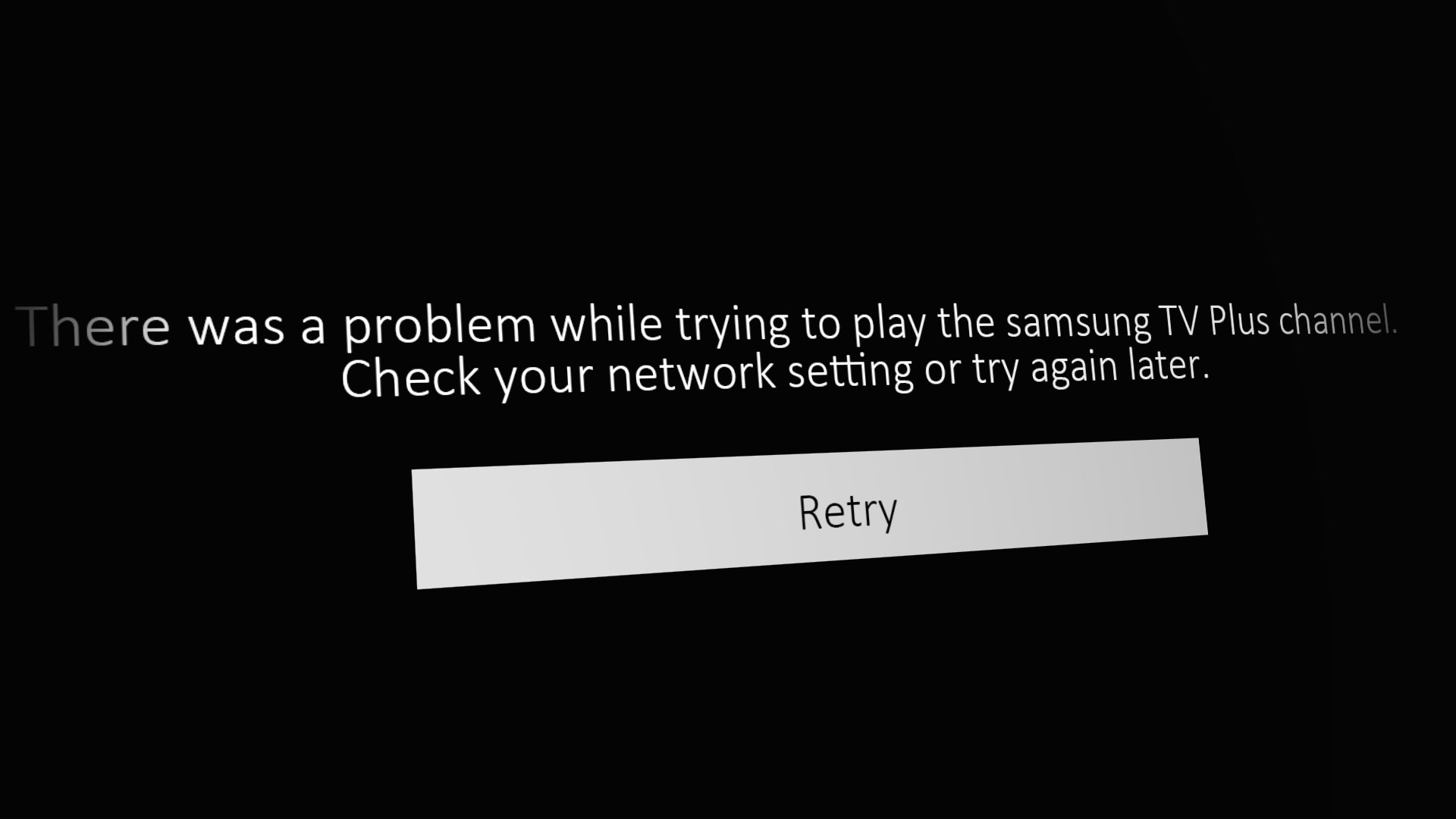
If the Apple TV app is not working on your Samsung TV, the most frequent cause is a temporary synchronization error or an outdated firmware version. Often, power-cycling the television by unplugging it for 60 seconds or performing a software update within the Samsung Settings menu will resolve connectivity, playback, or launch issues immediately.
Understanding the Integration
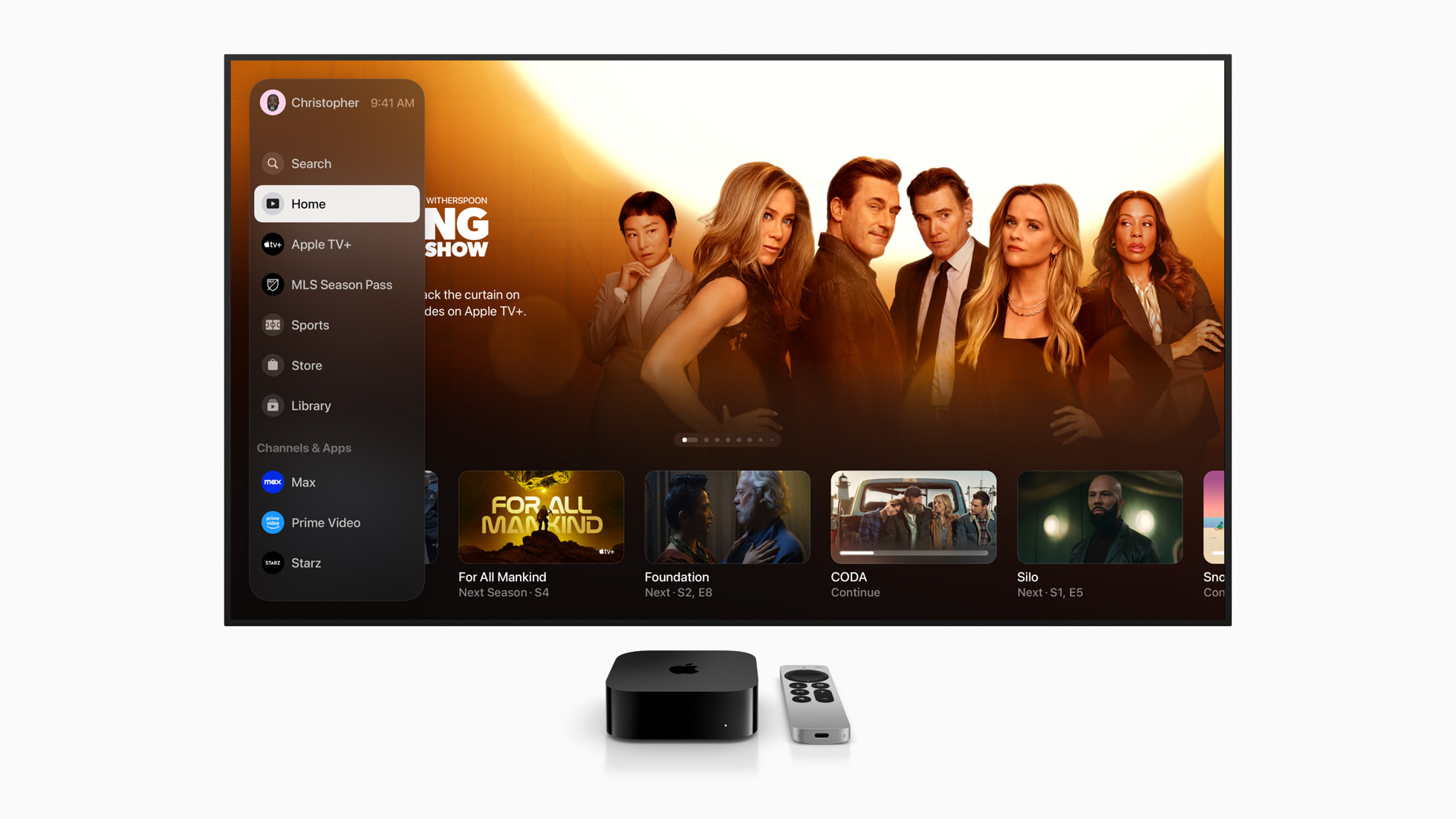
The Apple TV app on Samsung Smart TVs provides access to Apple TV+, Apple TV channels, and your personal library of purchased or rented content. Because this integration relies on the Tizen operating system—Samsung’s proprietary platform—functioning correctly, any breakdown in communication between the app and the television’s system software can lead to performance degradation.
When the app fails to load, crashes upon opening, or refuses to stream content, the fault typically lies in one of three areas: the network connection, the application cache, or the system software of the television itself. Unlike a dedicated hardware streaming device, a smart TV app is deeply embedded in the firmware, meaning that general system maintenance is usually the most effective troubleshooting path.
Preliminary Hardware and Network Checks
Before diving into software-specific fixes, eliminate the most common points of failure: the physical hardware and the internet connection.
- Power Cycling: Smart TVs function like computers; they accumulate cache files that can become corrupted. Completely power down the Samsung TV by holding the power button on the remote until the device restarts, or more effectively, unplug the power cable from the wall outlet for at least 60 seconds. This clears the volatile memory.
- Network Stability: Streaming high-definition or 4K content through the Apple TV app requires a stable, high-bandwidth connection. Use the TV’s built-in network test (found under Settings > General > Network > Network Status) to ensure your connection speed is sufficient.
- Router Refresh: If other devices in your home are also experiencing connectivity issues, power cycle your internet modem and wireless router. A congested network or an expired IP address lease can prevent the Apple TV app from authenticating with Apple's servers.
Updating Firmware and App Versions
Samsung periodically releases firmware updates for its Smart TVs to maintain compatibility with streaming services. If your TV’s operating system is outdated, the Apple TV app may lose its ability to securely communicate with Apple’s servers.
- Updating TV Firmware: Navigate to Settings > Support > Software Update. Select Update Now. If an update is available, the TV will download and install it, requiring a reboot.
- Updating the Apple TV App: In some instances, the app itself requires an update independent of the TV firmware. Navigate to the Apps section of your Samsung home screen, select the Settings gear icon in the top right, and check if an update is available for the Apple TV application.
Resolving Authentication and Account Errors
If the app opens but refuses to play content or shows a "Service Unavailable" error, the issue is often related to your Apple ID authorization.
- Sign Out and Sign In: Navigate to the Settings menu within the Apple TV app. Choose the account section and sign out of your Apple ID. Once signed out, restart the TV, return to the app, and sign back in. This forces the app to request a new authentication token from Apple.
- Check Apple System Status: Occasionally, Apple’s own servers experience outages. Before assuming the issue is with your Samsung TV, visit the official Apple System Status page to verify that the "Apple TV+" service is currently green and operational.
- Reset the App: Some Samsung models allow you to reset individual apps. If this feature is available, deleting and reinstalling the app (or clearing the cache) can remove corrupted configuration files.
Troubleshooting Technical Glitches: Comparison Table
| Symptom | Most Likely Cause | Primary Fix |
|---|---|---|
| App stuck on splash screen | Corrupted cache | Power cycle (Hard reset) |
| "Service Not Available" | Network/Server issue | Check internet or Apple Status |
| Playback buffer/stutter | Low bandwidth | Reboot router/check signal |
| Error during login | Authentication error | Sign out and sign in again |
| Black screen on launch | Firmware mismatch | Update Samsung TV OS |
Advanced Troubleshooting: Smart Hub Reset
If the steps above fail to yield results, a more drastic measure is the Smart Hub reset. This action resets all of your downloaded apps and system configurations to their factory default state.
To perform a Smart Hub reset, go to Settings > Support > Device Care > Self Diagnosis > Reset Smart Hub. You will be prompted to enter your PIN (the default is usually 0000). Note that after performing this reset, you will need to re-download your applications and re-enter your login credentials for services like Apple TV, Netflix, and Hulu. This effectively clears all persistent data that may be interfering with the app's performance.
Geographical and Licensing Constraints
It is important to remember that the Apple TV app is subject to geographical licensing restrictions. If you are traveling or using a VPN, the app may block playback. Ensure that your Samsung TV’s location settings match your actual region. If you are using a VPN or a DNS-based geo-unblocking service, disable it, as Apple’s security protocols frequently block traffic originating from known VPN IP addresses.
When to Contact Support
If you have performed a factory reset of the Smart Hub and verified your network connection, yet the Apple TV app still fails to function, the issue may be a hardware-specific incompatibility or a deeper software bug within that specific model year of Samsung TV.
In this case, reach out to Samsung Support to determine if there is a known issue with your specific model number. Simultaneously, verify if the issue persists on other devices in your home (like a smartphone or a dedicated streaming box). If the app works on other devices, the problem is definitively localized to the Samsung TV interface, and further assistance from the manufacturer is the appropriate next step.
Frequently Asked Questions
Why does the Apple TV app keep crashing on my Samsung TV? Crashes are usually caused by a full cache or a memory leak in the TV's operating system. Perform a "cold boot" by holding the power button on the remote until the TV logo appears. If the crashing persists, a Smart Hub reset is the most reliable way to clear the offending background processes.
Does the Apple TV app work on all Samsung Smart TVs? No. The Apple TV app is primarily supported on Samsung Smart TV models released from 2018 onwards. If your television is older than this, it likely does not support the native application. You would need to use an external streaming device, such as an Apple TV 4K or a Roku stick, to access the service.
How do I check if my Samsung TV firmware is up to date? Go to Settings, select Support, and then choose Software Update. If your TV is connected to the internet, it will automatically query Samsung's servers. If you are already on the latest version, the menu will indicate that no new updates are found.
Will I lose my saved settings if I reset the Smart Hub? Yes. A Smart Hub reset returns the television's app environment to its factory settings. This means you will need to sign back into every streaming app and potentially re-configure your preferred app layout on the home screen. However, this is often necessary to fix deep-seated software conflicts.
Can I uninstall and reinstall the Apple TV app? Yes. If the app is acting up, navigate to the Apps menu, select the Settings gear icon, highlight the Apple TV app, and select Delete. Once deleted, navigate to the App Store within the TV interface to search for and reinstall the application. This ensures you have a fresh, uncorrupted version of the software.
Final Recommendation
Start by performing a hard power cycle (unplugging the TV) and checking for system updates. If these initial steps do not resolve the issue, proceed to sign out of the app and clear the Smart Hub. Should the problem persist, ensure your TV model is compatible with the Apple TV app by checking the official Samsung support documentation. If all else fails, use a secondary streaming device to bypass the TV's internal software entirely.