The Apple TV app is free to download and install on compatible devices, serving as a centralized hub for your media library. While the application itself requires no purchase, costs arise through the Apple TV+ subscription service, individual content rentals, digital purchases, and integrated third-party channel subscriptions managed through the interface.
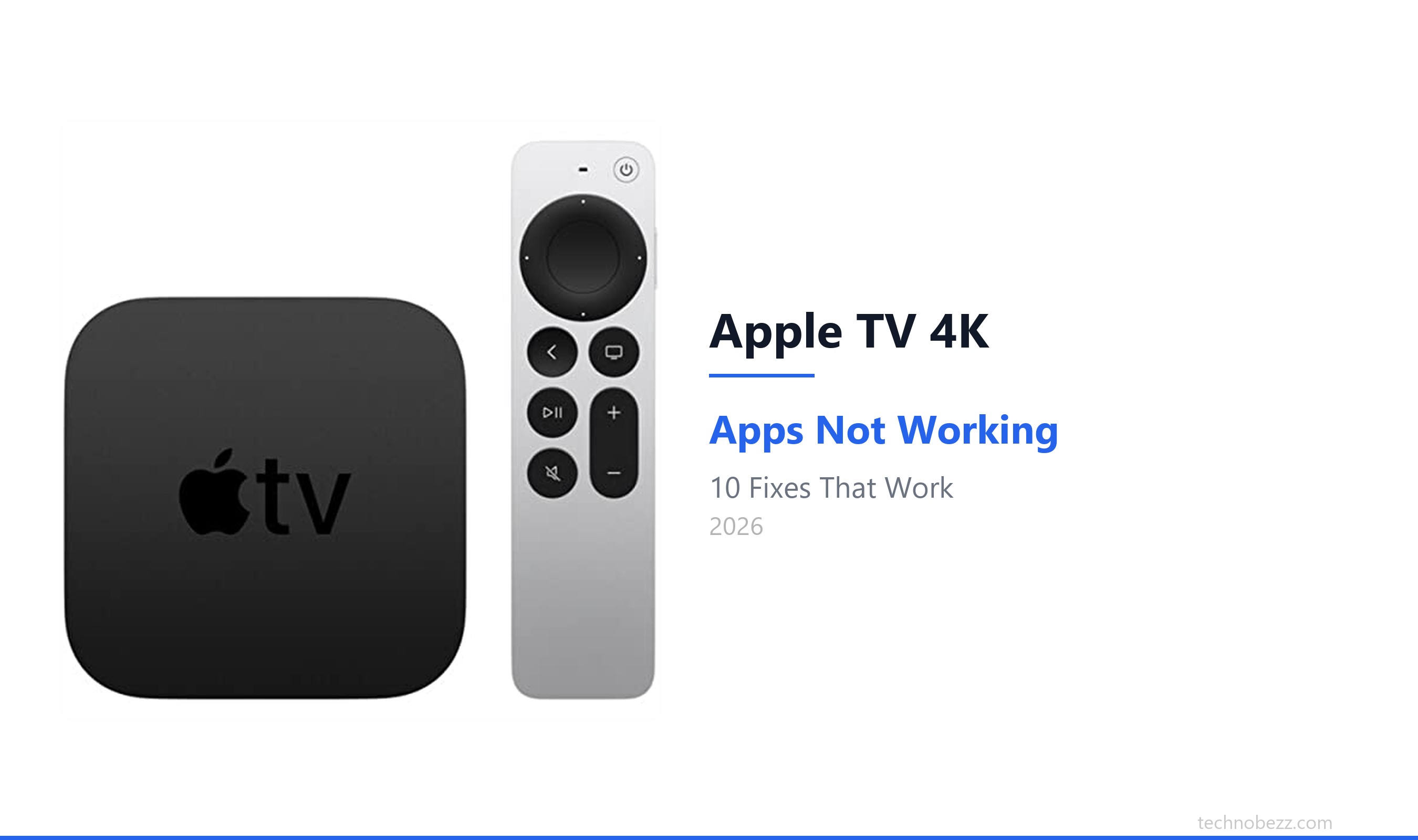
Navigating the ecosystem of Apple’s television software can be confusing because the brand uses the name "Apple TV" to describe both hardware (the Apple TV 4K box) and software (the Apple TV app). Understanding the cost structure requires distinguishing between the platform, which acts as a storefront and aggregator, and the specific paid content tiers available within it.
The Distinction Between the Apple TV App and Apple TV+
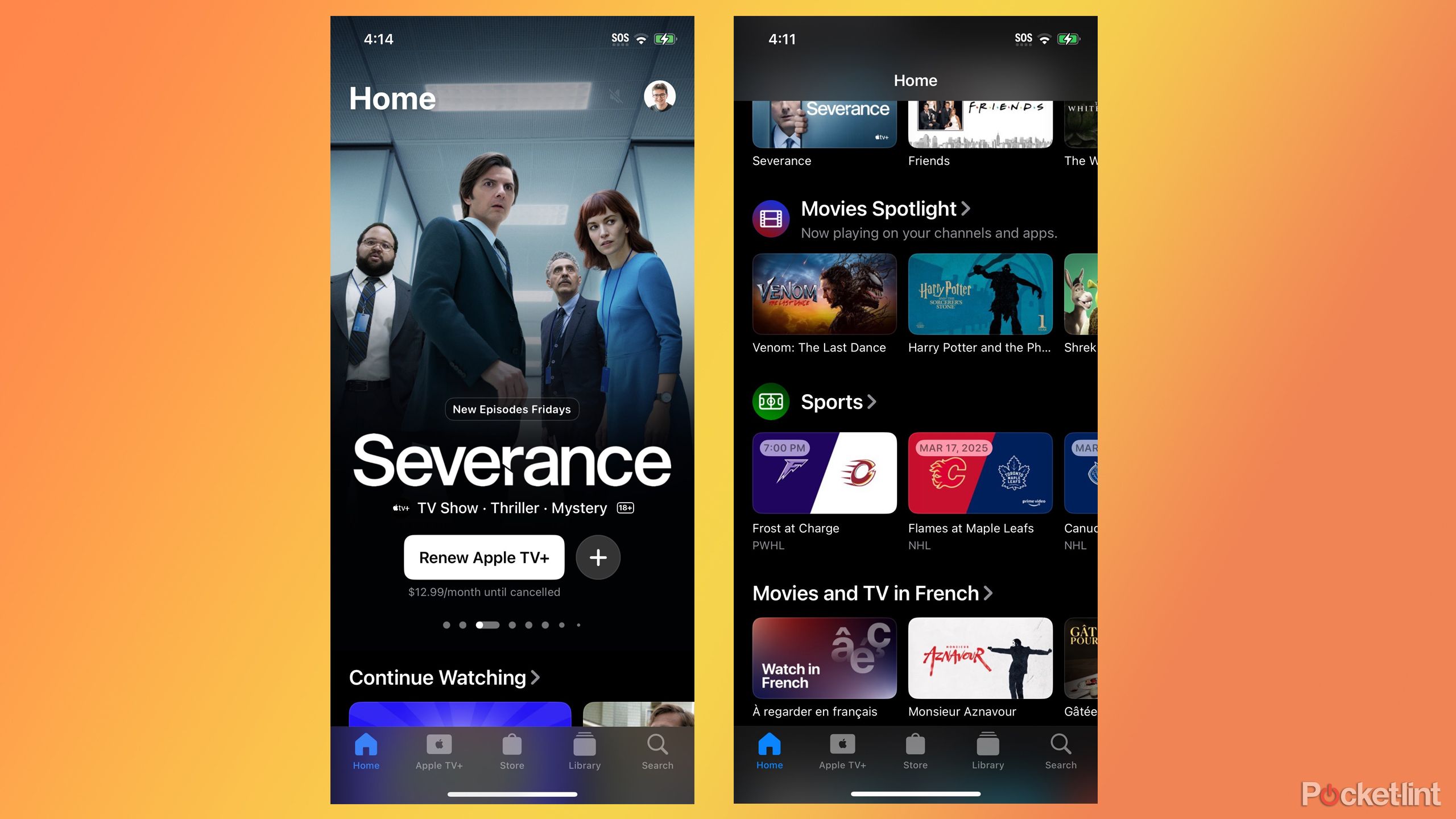
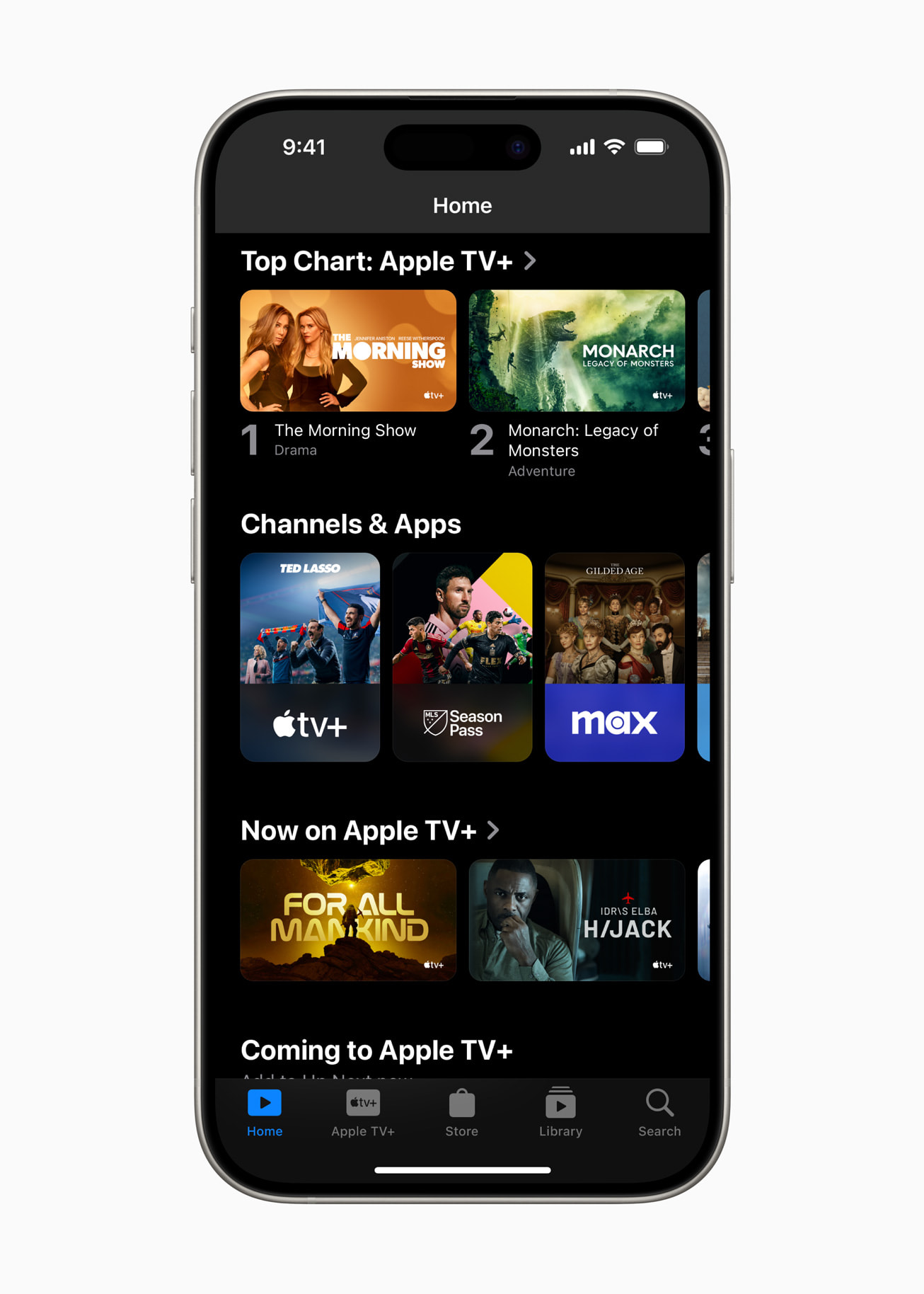
To understand your potential costs, you must first separate the container from the contents. The Apple TV app is a free software interface—an aggregator that allows you to browse movies, television shows, and third-party streaming services in one location. You do not pay to own or use the app itself.
Apple TV+, however, is the company’s proprietary subscription-based streaming service. It features original programming produced by Apple, including series, films, and documentaries. If you see an icon or a tile marked with the "TV+" logo, that content is gated behind a monthly or annual subscription fee.
Why the Costs Can Appear Variable
Users often encounter varying price points because the Apple TV app operates under a hybrid model:
- The Aggregator Model: It pulls content from services you may already subscribe to (such as Hulu or Paramount+), provided you link those accounts.
- The Storefront Model: It functions as a digital marketplace where you can buy or rent movies and entire television seasons individually.
- The Subscription Model: It offers Apple TV+ as a standalone subscription and "Apple TV Channels," which allow you to subscribe to other premium networks directly through Apple’s billing system.
Breaking Down the Costs
When calculating the potential cost of your viewing experience, you need to account for three distinct categories of spending.
1. Apple TV+ Subscription
As of 2026, Apple TV+ remains a paid service. The subscription grants unlimited, ad-free access to the library of Apple Originals. Pricing is structured as a monthly recurring fee. This subscription can also be bundled with other services through Apple One, which packages Apple Music, iCloud+, and Apple Arcade for a single, consolidated monthly price.
2. Individual Rentals and Purchases
The Apple TV app retains the legacy functionality of the iTunes Store for media. You can purchase digital copies of movies to own in your library or rent them for a limited 30-day window (with a 48-hour completion window once playback begins). These costs are one-time transactions per item and are entirely separate from the Apple TV+ subscription.
3. Apple TV Channels (Third-Party Subscriptions)
The Apple TV app allows you to subscribe to third-party services—such as AMC+, Starz, or PBS Documentaries—directly through the Apple interface. When you subscribe through "Channels," your billing is handled by your Apple ID. This is often convenient for consolidating subscriptions, but it is important to note that these subscriptions are distinct from an Apple TV+ membership and carry their own monthly recurring fees.
Pricing Comparison Table
| Service Type | Cost Basis | Recurring vs. One-Time |
|---|---|---|
| Apple TV App | Free | N/A |
| Apple TV+ | Monthly / Annual | Recurring |
| Movie Rentals | Per Item | One-Time |
| Movie/Series Purchases | Per Item | One-Time |
| Apple TV Channels | Per Channel | Recurring |
Prerequisites for Using the Apple TV App
Before you can access or subscribe to any content, you must ensure you have the necessary infrastructure. The application is designed to function across a wide range of devices, but the "cost" of the hardware is often a hidden entry requirement.
Device Requirements
The Apple TV app is pre-installed on Apple hardware, including the Apple TV 4K, Apple TV HD, iPhone, iPad, and Mac computers. Beyond Apple hardware, the app is available on:
- Smart TVs (Samsung, LG, Sony, Vizio, and others)
- Streaming sticks (Roku, Amazon Fire TV)
- Gaming consoles (PlayStation, Xbox)
If you are using a non-Apple device, you must download the app from that device's respective app store. The download remains free, but you must have a valid Apple ID to sign in and authorize payments.
Payment Methods
To interact with any paid aspect of the Apple TV app, you must have a valid payment method linked to your Apple ID. This can include:
- Major credit or debit cards.
- Apple ID balance (funded via gift cards).
- Mobile phone billing (where supported by your carrier).
- Digital wallets (such as PayPal, in specific regions).
Common Mistakes and Financial Pitfalls
The most frequent issue users encounter is the assumption that the Apple TV app is a comprehensive "all-access" pass to every movie or show. It is critical to differentiate between "Available to you" and "Available to purchase."
Subscribing Twice
A common mistake occurs when a user subscribes to a service (e.g., Paramount+) through the original provider's website and then subscribes to the same service again inside the Apple TV app under "Channels." These are separate billing relationships. If you subscribe through Apple, you must manage the subscription through the Apple ID settings; if you subscribe directly to the provider, you must manage it through their portal.
The "Rent vs. Buy" Trap
Users frequently overlook the difference between renting and buying. If you rent a movie, you have a limited time to finish it. If you purchase the movie, it is added to your permanent "Library" tab. Accidentally clicking "Buy" on a premium-priced 4K movie instead of "Rent" can result in a charge significantly higher than expected. Always verify the transaction button label before confirming with biometric or password authentication.
Regional Availability
Content licensing varies by country. A film available for subscription on Apple TV+ in one region may only be available for individual rental in another. If you travel or use a VPN, you may find that the cost of accessing specific titles changes, or that the content disappears entirely.
Troubleshooting Subscription and Billing Issues
If you find an unexpected charge on your statement, you can verify it directly through the Apple ecosystem.
- Check Subscription Status: Go to your device's Settings, tap your name, and select "Subscriptions." This list will show all services currently billing through your Apple ID, including any Apple TV Channels or the Apple TV+ subscription itself.
- Review Purchase History: Use reportaproblem.apple.com to view your recent digital transactions. This is the most effective way to see if a charge was for a movie rental, a movie purchase, or a recurring subscription.
- Cancellation: If you wish to stop recurring charges, you must cancel the subscription at least 24 hours before the renewal date. Canceling does not immediately remove access; you will typically retain access to the content until the end of your current billing cycle.
Expert Guidance: Managing Your Media Costs
To optimize your spending, audit your digital media habits regularly. Many users find themselves paying for "Channels" they no longer watch. Because the Apple TV app integrates these subscriptions, it is easy to forget about them once they are set up.
If you find that you are frequently paying for individual movie rentals, it may be more cost-effective to rotate your streaming subscriptions. For example, subscribe to Apple TV+ for one month to watch the content you desire, cancel it, and then move to a different service. The ability to manage these subscriptions through a single interface—the Apple ID "Subscriptions" menu—is the app's greatest strength for consumers looking to control their monthly entertainment budget.
Frequently Asked Questions
Does the Apple TV app require an Apple TV hardware box?
No. While the app is native to the Apple TV hardware, it is available as a free download on most modern smart TVs, streaming devices, and gaming consoles. You can use the app without ever purchasing Apple hardware.
Is Apple TV+ included with the free app?
No. The Apple TV app is merely the window through which you view content. Apple TV+ is a premium subscription service. Even if you have the app installed, you must pay the monthly subscription fee to view Apple Originals.
Can I share my Apple TV+ subscription with my family?
Yes, provided you use "Family Sharing." This allows up to six family members to share a single Apple TV+ subscription using their own personal Apple IDs, ensuring that your watch history and recommendations remain private to your account.
Why was I charged for a movie when I have a subscription?
The Apple TV app is a marketplace. A subscription to Apple TV+ only covers "Apple Originals" and select library content. Many major studio releases require an individual rental or purchase fee, even for active Apple TV+ subscribers.
How do I stop being charged for a channel I subscribed to?
You must navigate to your Apple ID account settings under the "Subscriptions" tab. Locate the specific channel in the list and select "Cancel Subscription." If you do not see the channel there, you may have subscribed directly via the third party's website, in which case you must cancel via their platform.
Will my rentals expire?
Yes. Once you begin playing a rented movie, you have 48 hours to finish it. Unwatched rentals expire 30 days after the date of purchase.
Recommendation for New Users
If you are new to the platform, begin by exploring the "Free to Me" section within the app. This filter highlights content available via subscriptions you have already linked, preventing accidental charges. Before committing to a purchase or a new channel, verify your existing streaming accounts to ensure you are not duplicating services you already pay for elsewhere. If you have several Apple services, evaluate whether an Apple One bundle provides a lower overall cost than maintaining individual, disconnected subscriptions.