If your Apple Watch is unable to pair with your iPhone, the issue typically stems from software version mismatches, disabled Bluetooth or Wi-Fi settings, or an active Activation Lock from a previous owner. To resolve this, ensure both devices are updated, restart both pieces of hardware, and verify that the "Find My" service is not obstructing the connection.
The pairing process between an Apple Watch and an iPhone is designed to be a seamless "handshake" using a combination of Bluetooth, Wi-Fi, and the camera sensor to scan a unique particle cloud animation. However, when this process fails, it can be due to a variety of technical bottlenecks. In 2026, with the integration of more complex health sensors and advanced WatchOS features, the requirements for a stable connection have become more stringent. This guide provides a deep dive into every possible reason your Apple Watch might refuse to pair and offers structured solutions to get you back on track.
Understanding the Prerequisites for Pairing in 2026
Before attempting advanced troubleshooting, it is essential to verify that your hardware meets the minimum requirements for the current ecosystem. In 2026, Apple’s hardware-software lifecycle has moved forward, meaning older devices may no longer support the latest synchronization protocols.
Hardware and Software Compatibility
Every version of WatchOS requires a specific minimum version of iOS. For example, if you are attempting to pair a new Apple Watch Series 11 or Ultra 3 running WatchOS 12, your iPhone must likely be running iOS 19 or later. If your iPhone is an older model that cannot be updated to the latest iOS version, you will encounter a persistent "Update Required" loop or a simple "Unable to Pair" error.
- iPhone Requirements: Ensure your iPhone is at least an iPhone 13 or newer to handle the processing demands of modern WatchOS features.
- Software Checks: Navigate to Settings > General > Software Update on your iPhone. If an update is available, install it before attempting to pair the watch.
Power and Proximity
While it may seem elementary, the distance between the two devices and their current battery levels play a critical role. The initial pairing process involves high-intensity data transfer and firmware checks. If either device falls below 50% battery, the pairing protocol may fail to initiate to prevent a mid-process shutdown, which could potentially "brick" the watch. Always place both devices on their respective chargers during the setup process to ensure stability.
Initial Troubleshooting: The Quick Fixes
If your hardware is compatible, the next step involves clearing temporary software glitches that may be preventing the devices from communicating.
The Force Restart
A standard restart often isn't enough to clear the low-level cache involved in Bluetooth handshaking. A force restart resets the hardware's power cycle without deleting your data.
- On the iPhone: Press and quickly release the Volume Up button, press and quickly release the Volume Down button, then press and hold the Side button until the Apple logo appears.
- On the Apple Watch: Press and hold both the Side button and the Digital Crown for at least 10 seconds, releasing them only when the Apple logo is visible.
Resetting the Bluetooth and Wi-Fi Radios
Apple Watch pairing relies on a "Dual-Channel" connection. The iPhone uses Bluetooth to find the watch and Wi-Fi to transfer large setup files. If these radios are "stuck" in a state of interference, pairing will fail.
- Toggle Airplane Mode on your iPhone for 30 seconds.
- Ensure that Bluetooth is enabled specifically in the Settings app, not just the Control Center, as the Control Center toggle sometimes only disconnects accessories rather than resetting the radio itself.
Resolving Activation Lock and Previous Pairings
The most common reason for a pairing failure on a used or refurbished Apple Watch is the Activation Lock. This is a security feature tied to the "Find My" network that prevents a stolen watch from being paired with a new account.
Checking for an Active Lock
If you see a screen asking for an Apple ID and password that you do not recognize, the watch is still linked to the previous owner's account. To solve this:
- Contact the previous owner and ask them to remove the device from their iCloud account.
- They do not need the watch physically; they can go to iCloud.com/find, sign in, select the watch, and choose "Remove from Account."
- Once removed, restart the watch and try pairing again.
The "Pairing Failed" Message on an Existing Watch
If you previously had this watch paired and are now experiencing issues, the iPhone may still "think" it is connected to a ghost profile.
- Open the Watch app on your iPhone.
- Tap All Watches at the top left.
- Tap the (i) icon next to the watch and select Unpair Apple Watch.
- Confirm the action and, if prompted, enter your Apple ID password to disable Activation Lock.
Advanced Network and Software Solutions
When basic restarts and security checks fail, the issue likely resides deep within the iPhone’s network configuration or the Watch's firmware state.
Resetting iPhone Network Settings
Sometimes the iPhone’s internal database of network certificates and Bluetooth pairings becomes corrupted. Resetting the network settings can clear this path.
- Note: This will erase your saved Wi-Fi passwords and VPN configurations.
- Go to Settings > General > Transfer or Reset iPhone > Reset > Reset Network Settings.
- After the iPhone reboots, reconnect to your Wi-Fi and attempt the pairing process again.
Manual Pairing via Code
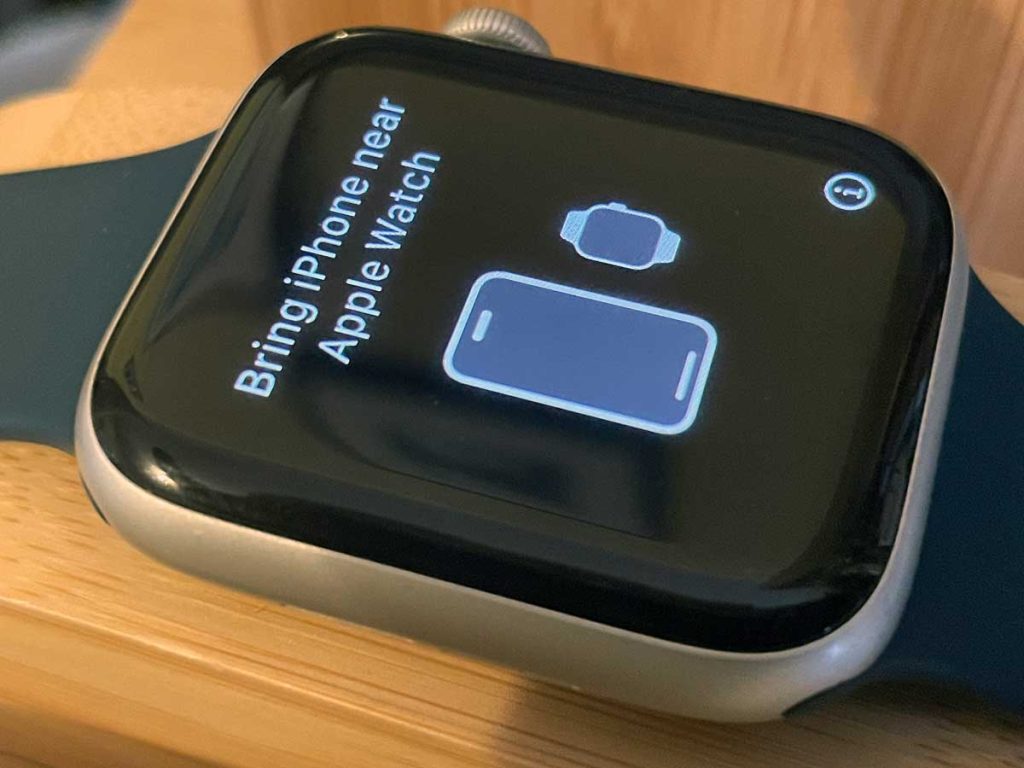
If the camera-based "particle cloud" scan fails, you can pair the devices manually. This method bypasses visual sensor issues.
- Start the pairing process on both devices.
- On the iPhone, select Pair Apple Watch Manually.
- On the Apple Watch, tap the (i) icon in the bottom right corner to see a unique 6-digit code.
- Enter this code into the iPhone when prompted. This establishes a direct data link without relying on the camera.
Handling the "Software Update Required" Loop
A frequent issue in 2026 is the requirement for a WatchOS update before pairing can complete. However, if the watch isn't paired, it can't always access the internet to download the update.
- Ensure your iPhone is connected to a strong 2.4GHz or 5GHz Wi-Fi network.
- If the update fails, try "forgetting" the Wi-Fi network on your iPhone and reconnecting.
- Ensure the Apple Watch is on its charger and is within inches of the iPhone.
Identifying Hardware Failures
If you have exhausted all software solutions, you must consider the possibility of a hardware malfunction. In the Apple Watch ecosystem, the specific sensors used for pairing can occasionally fail.
| Symptom | Potential Cause | Recommended Action |
|---|---|---|
| Camera won't recognize animation | Optical sensor or lens damage | Use the "Manual Pairing" method. |
| "i" icon doesn't appear | Digital Crown or display freeze | Perform a hardware force restart. |
| Watch gets hot and pairing stops | Battery or Processor fault | Contact Apple Support for diagnostic. |
| Bluetooth "Searching" forever | Bluetooth antenna failure | Test iPhone with other Bluetooth devices. |
| Unable to check for update | Wi-Fi chip or Server outage | Check Apple System Status page. |
If the Apple Watch displays a "Red Exclamation Point," this indicates a firmware corruption that cannot be fixed by the user. In this scenario, the watch must be sent to an authorized service provider for a direct wired restore. You can find more information on hardware-specific errors at Apple Support's official repair portal.
Strategic Troubleshooting Checklist
To streamline your efforts, follow this logical progression of steps to identify and solve the pairing issue.
Verification Phase:
- Confirm iPhone is on the latest iOS.
- Confirm both devices are on chargers.
- Confirm Bluetooth and Wi-Fi are active in the iPhone Settings app.
Cleaning Phase:
- Force restart the iPhone and Apple Watch simultaneously.
- Reset the Watch to factory settings (Settings > General > Reset > Erase All Content and Settings).
- Remove any old watch profiles from the iPhone's Watch app.
Authentication Phase:
- Verify the Apple ID is signed in and "Find My" is active on the iPhone.
- Check for Activation Lock via iCloud.
Execution Phase:
- Attempt pairing via the camera scan.
- If that fails, use the "Manual Pairing" 6-digit code method.
- If the update hangs, switch to a different Wi-Fi network or a mobile hotspot.
Common Mistakes to Avoid
In the process of trying to fix a pairing error, users often make mistakes that complicate the recovery. Avoid these pitfalls:
- Interrupting an Update: If the pairing process reaches the "Updating" stage, do not move the devices apart or turn them off. An update can take anywhere from 10 minutes to an hour depending on the WatchOS version.
- Using Beta Software: If your iPhone is running a developer beta of iOS, it may have bugs that prevent stable pairing with a public version of WatchOS. You may need to roll back to a stable iOS version.
- Ignoring the Router: Sometimes, the issue is not the devices, but the network. Many enterprise or "Guest" Wi-Fi networks have "AP Isolation" enabled, which prevents the iPhone and Watch from communicating locally. Always use a private home network for the initial setup.
Frequently Asked Questions
Why does my Apple Watch say "Unable to Check for Update" during pairing?
This is usually caused by a network conflict or the Apple servers being overloaded. First, ensure your iPhone is not connected to a VPN. VPNs can interfere with the local handshake required for WatchOS updates. If the error persists, reset your iPhone's network settings and try again using a different Wi-Fi frequency (e.g., switch from 5GHz to 2.4GHz).
Can I pair an Apple Watch to an iPad or Mac?
No. As of 2026, the Apple Watch requires an iPhone for the initial pairing and setup process. While you can sync health data to an iPad and use features like "Unlock your Mac," the core management of the watch—including pairing and software updates—is strictly limited to the iPhone.
What if I forgot the passcode to my Apple Watch and it won't pair?
If the watch is locked and you cannot remember the passcode, you must reset the watch to factory settings. Place the watch on its charger, press and hold the Side button until "Power Off" appears, then firmly press (Force Touch or long-press) the Power Off slider and tap "Erase all content and settings." You can then begin the pairing process as if it were a new watch.
Does the Apple Watch Series 11 have different pairing requirements?
The Series 11 utilizes an updated Bluetooth 6.0 (or equivalent for 2026) protocol for faster data transfer. While it is backward compatible, pairing it with older iPhones (like the iPhone 12) may result in slower setup times or frequent "Connection Timed Out" errors due to the older Bluetooth hardware in the phone.
Can I pair a watch that is still locked to someone else’s Apple ID?
No. There is no software workaround for Activation Lock. This is a theft-deterrent measure. You must have the original owner remove the device from their account via the Find My app or iCloud website. Apple Support will only assist in removing Activation Lock if you can provide the original purchase receipt from an authorized retailer.
Practical Next Action
If you have followed all the steps above and the Apple Watch still refuses to pair, the final step is to perform a DFU-style reset (Device Firmware Update) on your iPhone to ensure there are no deep-seated OS corruptions, followed by a trip to the Genius Bar. Before visiting a technician, ensure you have a full backup of your iPhone. In most cases, a "Pairing Failed" error that survives a network reset and a watch factory reset is indicative of a hardware failure in the Bluetooth antenna of either the watch or the phone.