Apple TV remote power control relies primarily on a communication protocol called Consumer Electronics Control (CEC). By utilizing the HDMI connection between your Apple TV and your television or receiver, the Apple TV remote can automatically power your entire home theater system on or off, adjust volume levels, and switch inputs without requiring separate, dedicated remotes. While this system is designed to function automatically, its effectiveness depends on your hardware's specific CEC implementation and your Apple TV settings.
Understanding the Role of HDMI-CEC in Power Control
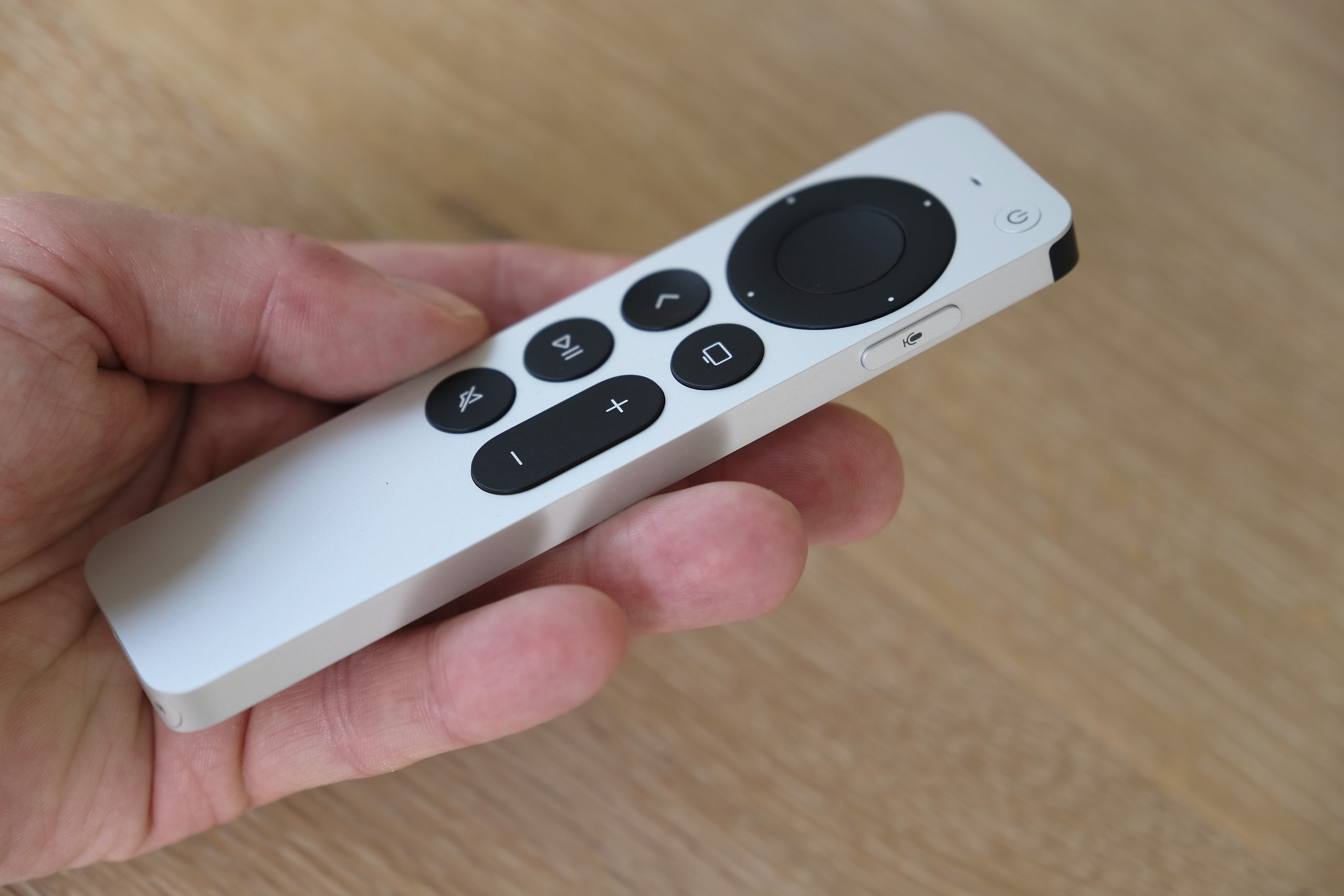
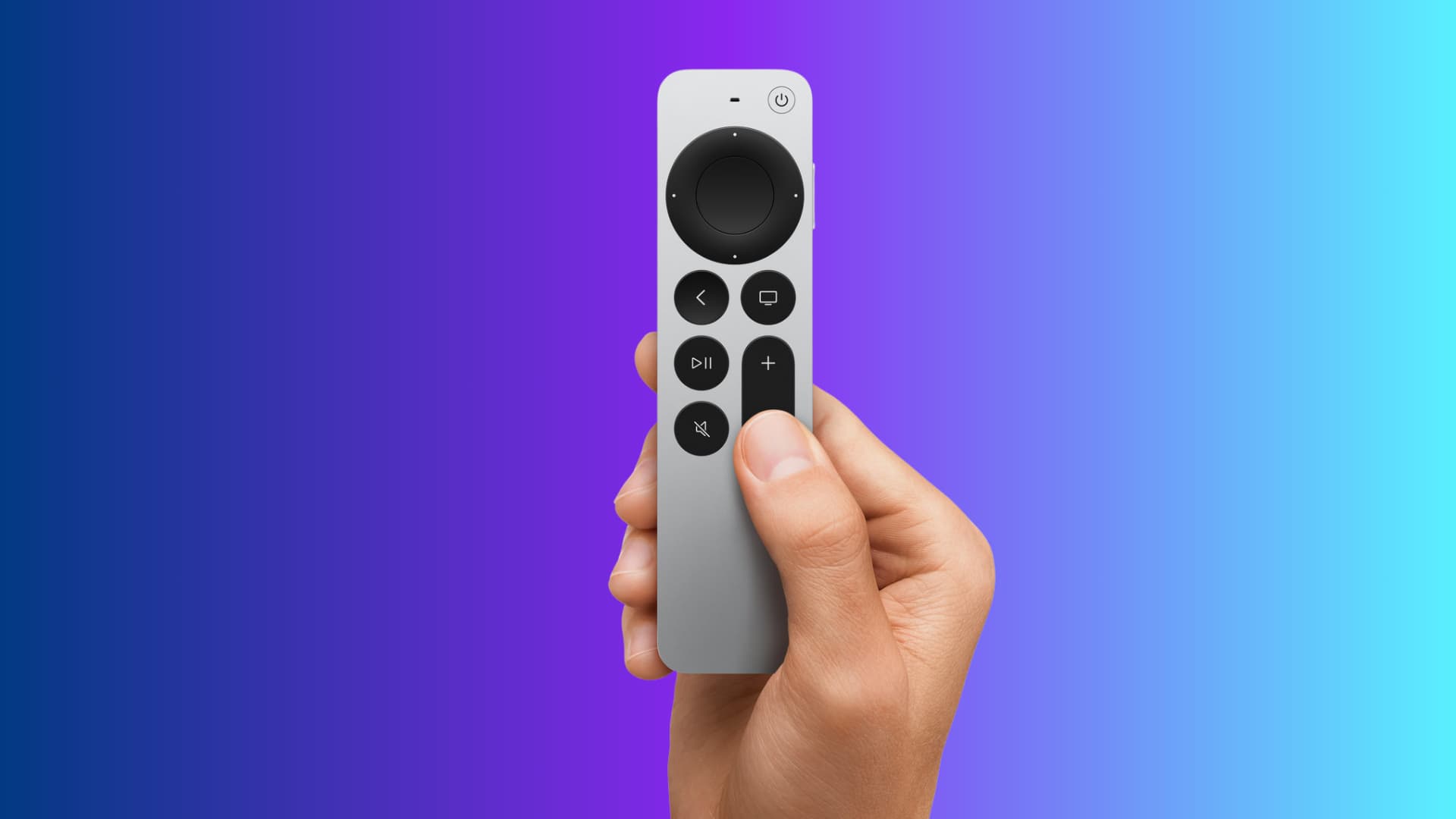
Consumer Electronics Control (CEC) is a feature built into the HDMI standard that allows different devices connected via HDMI to communicate with one another. When you use your Apple TV remote to press the "Power" or "TV" button, the Apple TV sends a signal through the HDMI cable to your television. If your television is configured correctly, it interprets this signal as a command to wake up, go into standby mode, or switch to the specific HDMI port occupied by the Apple TV.
The primary advantage of this technology is the consolidation of hardware control. In a standard setup, you might need the TV remote to turn on the screen, a receiver remote for audio, and the Apple TV remote for content navigation. HDMI-CEC effectively eliminates the need for the first two. However, because different manufacturers implement CEC under proprietary names—such as Samsung’s Anynet+, LG’s SimpLink, Sony’s BRAVIA Sync, or Panasonic’s Viera Link—users sometimes encounter inconsistencies in how "power control" is interpreted.
Prerequisites for Successful Power Integration
Before attempting to configure your remote, ensure your hardware environment is prepared to handle these signals. Not every television manufactured over the last decade supports HDMI-CEC, and even those that do often have the feature disabled by default to prevent unexpected behavior.
1. Hardware Requirements
- HDMI Cables: Ensure you are using "High Speed" or "Ultra High Speed" HDMI cables. Older, degraded, or damaged cables may fail to carry the digital handshake signal required for CEC.
- Direct Connection: For the most reliable results, connect your Apple TV directly to your television’s HDMI port. If you are routing your connection through a soundbar or an A/V receiver (AVR), ensure that device also supports and has CEC enabled.
- Firmware Updates: Ensure both your Apple TV (tvOS) and your television are running the latest available firmware. Manufacturers frequently release patches to address compatibility issues with newer iterations of CEC protocols.
2. Identifying Manufacturer-Specific CEC Settings
You must navigate your television’s internal menu to enable the CEC function. Because manufacturers use different trade names for this technology, look for settings labeled as:
- Samsung: Anynet+
- LG: SimpLink
- Sony: BRAVIA Sync
- Panasonic: Viera Link
- Philips: EasyLink
- Sharp: Aquos Link
- TCL/Hisense: CEC (often found in "System" or "Input" settings)
Configuring Apple TV Power Settings
Once your television is prepared to receive signals, you must verify the configuration on the Apple TV itself. This is done through the Settings menu, which acts as the control center for how your hardware interacts.
Step-by-Step Configuration
- Navigate to Settings on your Apple TV home screen.
- Select Remotes and Devices.
- Scroll down to the Home Theater Control section.
- Ensure Control TVs and Receivers is set to On.
- Check Volume Control. Ideally, set this to Auto via IR/HDMI or HDMI via TV to allow the remote to manage your audio levels seamlessly.
If you find that the remote is not powering the TV, return to the Remotes and Devices menu and select Learn Remote. This feature is a fallback for devices that do not support standard HDMI-CEC. It allows the Apple TV remote to "learn" the specific infrared (IR) codes of your television’s original remote. By pointing your TV remote at the Apple TV and following the on-screen prompts, you can map the power, volume, and mute commands to your Apple TV remote manually.
Troubleshooting Common Power Control Failures
When power control stops working, it is rarely due to a hardware failure of the remote itself. Instead, it is usually a "handshake" error where the devices have lost their synchronized communication.
Signal "Handshake" Resets
If the remote stops powering on the TV, the simplest solution is a power cycle of the entire chain. Unplug your Apple TV, your television, and any receivers or soundbars from their power sources. Wait at least 60 seconds. This discharge allows the HDMI-CEC controllers to reset their memory. Plug the devices back in, starting with the television, then the receiver, and finally the Apple TV. This often restores the communication bridge.
Port Sensitivity
Not all HDMI ports on a modern television are created equal. Many televisions reserve the CEC-compatible features for specific ports, often labeled "HDMI (ARC)" or "HDMI (eARC)." If your Apple TV is plugged into a generic HDMI port, the TV may ignore the "Power On" signal sent by the Apple TV. Consult your television manual to identify which port supports the full range of CEC commands.
Interference and IR Limitations
If you are using the IR (infrared) method of control—the fallback for non-CEC setups—you must have a clear line of sight between the Apple TV remote and the IR sensor on your television. If your Apple TV is hidden behind the television or inside a media cabinet, but your television requires IR for power control, the command will fail. In such cases, you must move the TV or the Apple TV so that the signal can travel unobstructed.
Comparative Overview of Remote Control Methods
To determine the best approach for your specific setup, use the following guide to compare the methods of power management.
| Method | Reliability | Ease of Setup | Equipment Requirement |
|---|---|---|---|
| HDMI-CEC | High | High | Compatible TV/AVR and High-Speed HDMI |
| IR Learning | Medium | Moderate | Line-of-sight required for the TV |
| Manufacturer App | Low | Low | Requires smartphone or network integration |
Frequently Asked Questions
Why does my Apple TV remote turn on my TV, but not my soundbar?
This occurs when the Apple TV is not configured to send volume or power commands to the specific audio device. Ensure your "Volume Control" setting in the Apple TV menu is set to "HDMI via Receiver" if you use an external soundbar, and verify that the soundbar’s own CEC settings are enabled.
Can I turn off the feature that wakes my TV when I wake the Apple TV?
Yes. If you prefer to manually control your TV power, navigate to Settings > Remotes and Devices and toggle "Control TVs and Receivers" to "Off." This will stop the Apple TV from sending the "Power On" signal via HDMI.
Why does my television turn on when I just want to charge my Apple TV remote?
Certain actions on the remote, such as clicking the "Menu" or "Back" buttons, are interpreted by the Apple TV as a request to start playback. To avoid this, consider placing the Apple TV in "Sleep" mode before walking away, or ensure the Apple TV is not set to auto-wake when an HDMI signal is detected.
Does the remote use Bluetooth or IR for power control?
The Apple TV remote uses Bluetooth for navigation and most commands. However, the power and volume buttons typically use a combination of HDMI-CEC (digital) and IR (infrared). The Apple TV attempts to use CEC first, falling back to IR if the HDMI handshake fails.
Is there a difference in power control between Apple TV 4K generations?
While the underlying logic remains consistent across tvOS versions, newer Apple TV 4K models have more robust support for eARC and advanced CEC standards. If you are using a very old television with a newer Apple TV, you may find that the television’s outdated CEC implementation limits the power-sync capabilities of the remote.
Expert Guidance for Long-Term Reliability
For the most consistent experience, treat your Apple TV and your television as a single ecosystem. Avoid frequently swapping HDMI ports or changing the order in which devices are powered up. If you frequently use other devices (like a gaming console) on the same television, be aware that some consoles may attempt to "hijack" the CEC signal, causing your TV to switch inputs away from the Apple TV unexpectedly.
If you continue to experience issues, verify that no "eco-mode" or "power-saving" settings are active on your television. Many modern screens are programmed to shut down HDMI ports to save electricity, which effectively kills the CEC signal, preventing the Apple TV from sending a wake-up command. By disabling aggressive power-save features on your television, you ensure the HDMI bus remains "awake" and ready to receive commands from your Apple TV.