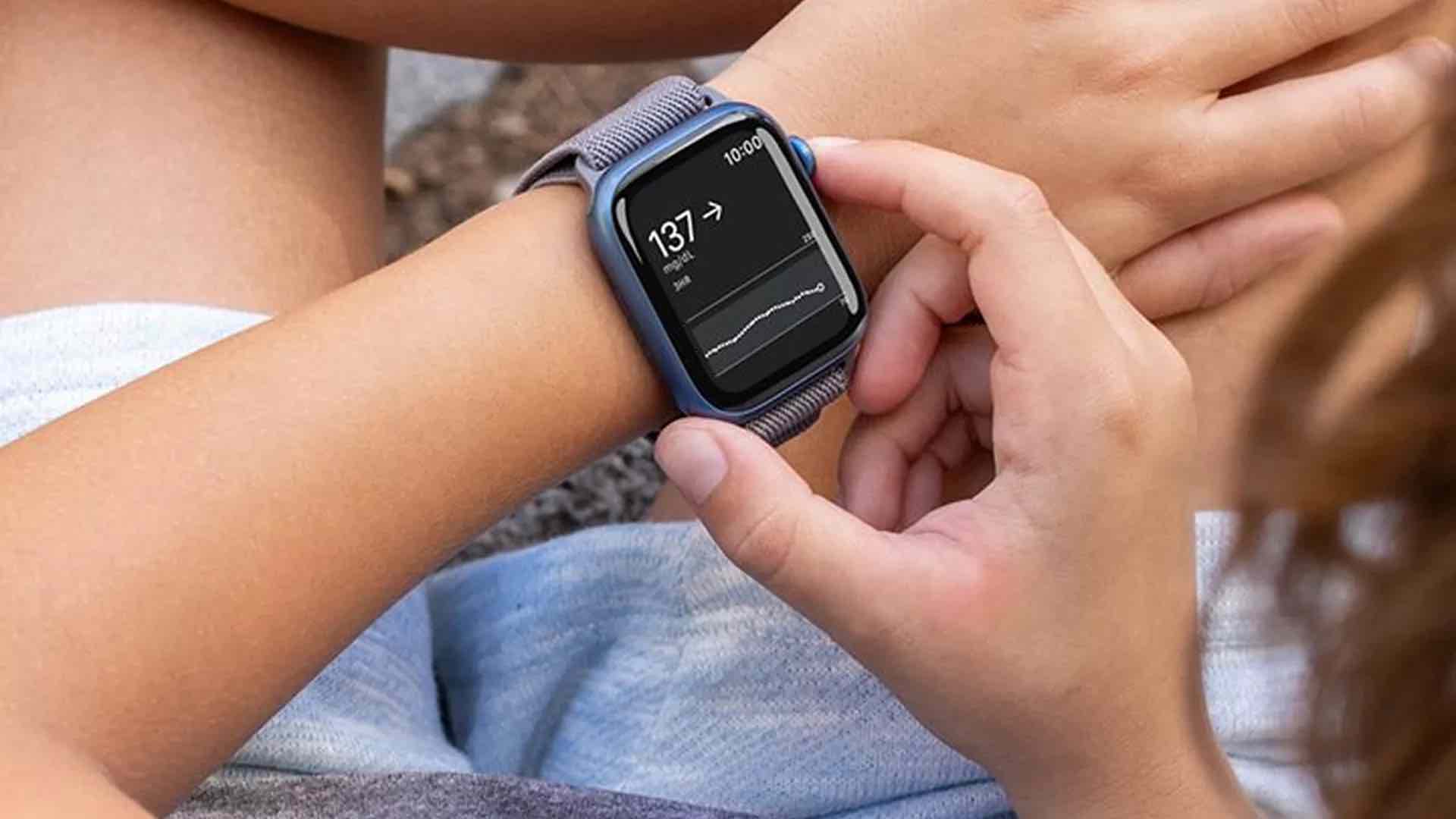
As of 2026, Apple Watch glucose monitoring is primarily achieved through seamless integration with third-party Continuous Glucose Monitors (CGMs). While Apple continues to advance its proprietary non-invasive optical sensor research, users currently rely on the watch as a sophisticated hub that displays real-time data, trends, and alerts synced from external sensors like Dexcom and FreeStyle Libre.
Managing blood sugar has transitioned from a series of manual, painful "snapshots" to a continuous stream of actionable data. For Apple Watch users, this means the ability to view glucose levels with a flick of the wrist. Understanding how this ecosystem works requires looking at the interplay between hardware sensors, Bluetooth protocols, and the Apple Health app. This guide explains the current technological landscape of glucose monitoring on the Apple Watch, the requirements for setup, and what the future holds for non-invasive tracking.
The Core Mechanism: How Apple Watch Tracks Glucose in 2026
The term "Apple Watch glucose monitoring" can be slightly misleading to new users. It is essential to distinguish between the watch acting as a display/receiver and the watch acting as a primary sensor.
CGM Integration: The Current Standard
Currently, the Apple Watch functions as the primary user interface for FDA-cleared Continuous Glucose Monitors. These devices involve a small sensor wire inserted under the skin (usually on the arm or abdomen) that measures glucose in the interstitial fluid. The sensor sends data via Bluetooth to an iPhone or, in more recent configurations, directly to the Apple Watch.
The "Direct-to-Watch" feature, which gained widespread stability in recent years, allows the Apple Watch to communicate with the CGM transmitter without requiring the iPhone to be within range. This is a significant quality-of-life improvement for athletes and those who prefer not to carry a phone at all times.
The Role of the Apple Health App
Apple Health acts as the central repository for all metabolic data. When a CGM app (such as Dexcom G7 or FreeStyle Libre 3) captures a reading, it syncs that data to the Health app. This allows the watch to use that information across various "Complications"—the small widgets on the watch face.
The integration is not merely about showing a number. The Apple Watch uses this data to:
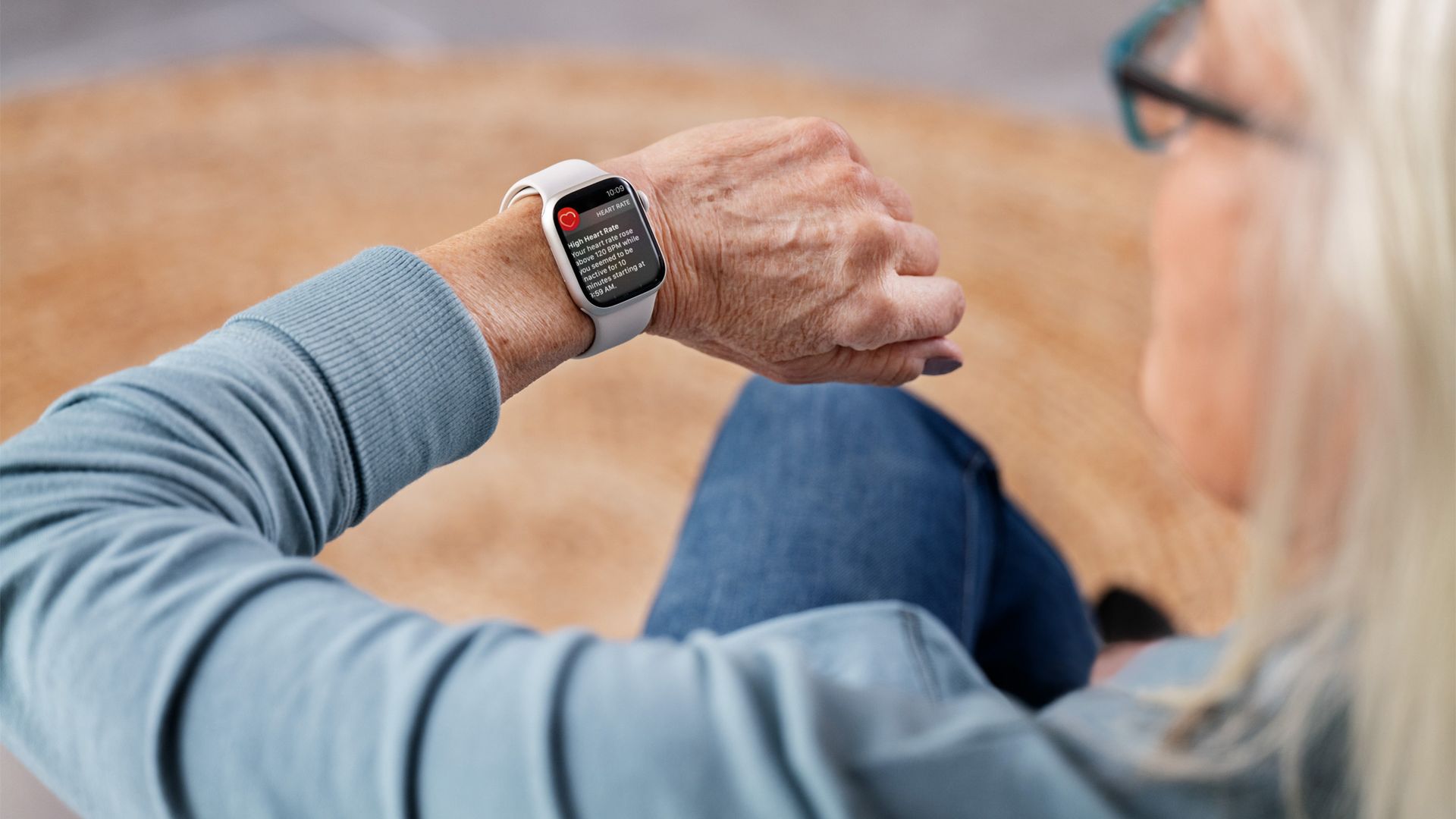
- Generate Alerts: Taptic Engine vibrations notify the user of rapid rises or falls.
- Correlation: It maps glucose data against physical activity recorded by the watch’s accelerometers and heart rate sensors.
- Long-term Trends: It provides a holistic view of how sleep and exercise impact insulin sensitivity over weeks or months.
The Science of Non-Invasive Glucose Monitoring
The "holy grail" of wearable tech is non-invasive glucose monitoring (NIGM)—measuring blood sugar without needles or interstitial sensors. Apple has been working on this technology for over a decade under a secret project (formerly known as E5).
Silicon Photonics and Optical Sensors
The technology Apple is developing involves a technique called optical absorption spectroscopy. This uses lasers to emit specific wavelengths of light into the area below the skin where interstitial fluid is present. The light that is reflected back is then analyzed by a silicon photonics chip.
Because glucose absorbs light in a specific way, the sensor can, in theory, determine the concentration of glucose in the fluid. However, as of 2026, this technology remains in the advanced clinical testing phase for wearable integration. The primary challenges involve:
- Signal-to-Noise Ratio: Differentiating glucose from other substances in the blood and tissue.
- Skin Variation: Differences in skin tone, thickness, and hydration can alter light absorption.
- Form Factor: Shrinking a high-precision spectrometer into a device as thin as an Apple Watch Series 10 or Ultra 2/3.
For more technical details on how light interacts with glucose molecules, the National Institutes of Health (NIH) provides extensive research on optical metabolic monitoring.
Supported Devices and Ecosystem Requirements
To use your Apple Watch for glucose monitoring in 2026, you must meet specific hardware and software prerequisites. It is not a "plug-and-play" feature inherent to the watch hardware alone.
Required Hardware
- Apple Watch: Series 6 or later, or any Apple Watch Ultra model. These versions have the necessary Bluetooth stability and processing power to handle constant data streams without significant battery drain.
- Compatible CGM: You must have a supported sensor. As of 2026, the most popular options include the Dexcom G7 and the Abbott FreeStyle Libre 3.
- iPhone: While Direct-to-Watch exists, an iPhone is still required for the initial sensor calibration and long-term data backup.
Software Configuration
Users must ensure that "Background App Refresh" is enabled for their specific glucose monitoring app. Without this, the watch face complication may "stall," showing outdated data which can be dangerous for insulin-dependent users.
| Feature | Dexcom G7 Integration | FreeStyle Libre 3 Integration | Apple Health Native View |
|---|---|---|---|
| Direct-to-Watch | Supported | Supported (v3.0+) | Aggregated Data |
| Alert Type | Audio & Haptic | Audio & Haptic | Notification Only |
| Data Lag | 5 Minutes | 1-5 Minutes | Dependent on Source |
| Calibration Required | No (Factory Calibrated) | No | N/A |
| Sensor Life | 10 Days | 14 Days | N/A |
Setting Up Glucose Monitoring on Your Apple Watch
If you have a compatible CGM, follow these steps to enable glucose tracking on your wrist:
- Install the CGM App: Download the official app for your sensor (e.g., Dexcom G7) on your iPhone.
- Pair the Sensor: Follow the manufacturer's instructions to apply the sensor and pair it with your iPhone via Bluetooth.
- Enable Apple Watch App: Open the Watch app on your iPhone, scroll down to the "Available Apps" section, and tap "Install" next to your CGM app.
- Configure Complications:
- Firmly press the watch face on your Apple Watch.
- Tap "Edit."
- Swipe to the "Complications" screen.
- Select a slot and choose your CGM app from the list. This ensures your blood sugar is visible every time you look at the watch.
- Authorize Apple Health: In the iPhone Health app, go to Profile > Apps > [Your CGM App] and ensure all "Write" and "Read" permissions are turned on.
For official support and troubleshooting, users should refer to Apple Support for watchOS-specific issues.
Accuracy and Regulatory Considerations
It is vital to understand the regulatory status of glucose monitoring on wearables. The FDA has issued clear guidelines regarding smartwatches that claim to measure glucose non-invasively.
The FDA Position
In early 2024, the FDA issued a safety communication warning consumers that any smartwatch or smart ring that claims to measure blood glucose levels using non-invasive techniques (without piercing the skin) should be avoided for medical decision-making. As of 2026, this warning remains relevant for "off-brand" watches found on various marketplaces.
The Apple Watch, when used with a cleared CGM, is considered a secondary display. The medical-grade accuracy comes from the sensor (Dexcom/Abbott), not the watch itself. Users should always perform a finger-stick blood glucose test if their symptoms do not match the readings on their Apple Watch.
Interstitial vs. Capillary Blood
There is a natural "lag" between blood glucose (from a finger prick) and interstitial glucose (from a CGM). Interstitial fluid readings can trail behind blood readings by 5 to 15 minutes. During periods of rapid change—such as immediately after a meal or intense exercise—the Apple Watch may show a number that is significantly different from a traditional meter.
Benefits of Wrist-Based Monitoring
Despite the current reliance on external sensors, the integration provides several clinical and lifestyle benefits:
- Discretion: Checking a watch is less intrusive than pulling out a phone or a dedicated receiver in social or professional settings.
- Safety During Sleep: The Apple Watch can be set to "Critical Alerts" mode, which allows glucose alarms to bypass "Do Not Disturb" or "Sleep" focuses, potentially saving lives during nocturnal hypoglycemia.
- Activity Adjustment: Seeing a downward trend arrow during a workout allows users to consume carbohydrates before they experience a "crash."
- Caregiver Sharing: Through the "Follow" features of many CGM apps, parents can monitor their child's glucose levels from their own Apple Watch in real-time.
Detailed clinical studies on the efficacy of continuous monitoring can be found through the American Diabetes Association (ADA).
Troubleshooting Common Issues
Even with the advancements seen in 2026, technical hurdles can occur.
Data Gaps ("---" on Watch Face)
If your watch face shows dashes instead of a number, it usually indicates a Bluetooth "handshake" failure. To fix this:
- Toggle Bluetooth off and on in the Apple Watch Settings.
- Ensure the CGM app is open in the background on the iPhone.
- Check if the sensor is still within its valid wear period.
Calibration Errors
If the watch displays a "Calibration Required" or "Sensor Error" message, this is a signal from the CGM hardware, not the watch. In these instances, the user must rely on a standard glucose meter until the sensor stabilizes.
Battery Drain
Constant Bluetooth polling can impact battery life. Users of the Apple Watch Series 10 or Ultra models generally experience the best results, as these devices are optimized for the Low Energy (BLE) protocols used by medical devices.
Frequently Asked Questions
Can the Apple Watch measure glucose without a separate sensor in 2026?
No. As of 2026, the Apple Watch requires a separate, FDA-cleared CGM (like Dexcom or FreeStyle Libre) to provide glucose data. While Apple is researching non-invasive technology using lasers and silicon photonics, this feature has not yet been released for public medical use in a consumer Apple Watch.
Which Apple Watch models are best for glucose monitoring?
The Apple Watch Ultra 2, Ultra 3, and Series 10 are the preferred models. These devices feature the latest Bluetooth chips which offer more stable "Direct-to-Watch" connections, reducing the frequency of data gaps and lowering battery consumption during 24/7 monitoring.
Is the glucose data on the Apple Watch accurate enough for insulin dosing?
Accuracy depends entirely on the connected CGM. Most modern CGMs are cleared for "non-adjunctive" use, meaning they can be used for insulin dosing. However, users are advised to verify with a finger-stick test if their symptoms (like feeling shaky or faint) do not align with the watch's reading.
Does Apple Watch glucose monitoring work without an internet connection?
Yes. The connection between the CGM sensor and the Apple Watch uses Bluetooth, which does not require Wi-Fi or cellular data. However, internet access is required if you wish to share your data with a healthcare provider or a family member via cloud-based "Follow" services.
Can I see my glucose on the Always-On Display?
Yes. If you use a compatible complication and have an Apple Watch with Always-On Display (Series 5 or later), your glucose reading will remain visible even when your wrist is down. Note that the reading may only update every minute to conserve battery life.
Practical Recommendation
For individuals living with Type 1 or Type 2 diabetes in 2026, the Apple Watch is a powerful tool when paired with a Dexcom G7 or FreeStyle Libre 3. To maximize the benefit, choose a watch face with multiple complication slots (such as "Infograph" or "Modular Ultra") so you can view your glucose level alongside your activity rings and heart rate. Always maintain a traditional finger-stick meter for backup, and consult with your endocrinologist to ensure your watch alerts are set to the appropriate thresholds for your specific health needs.