An Asana request form is a dedicated digital intake portal that allows external or internal stakeholders to submit tasks, project requests, or information directly into a pre-configured Asana project. By utilizing these forms, teams automate the triage process, ensure data consistency, and eliminate the need for scattered email threads or manual status updates.
Understanding the Role of Request Forms in Asana
In modern project management, the intake process is often the biggest bottleneck. Teams frequently rely on disorganized channels—such as email chains, instant messages, or verbal requests—to receive work. This lack of structure leads to missing requirements, lost information, and significant time spent on administrative "catch-up."
Asana request forms resolve these inefficiencies by acting as a standardized interface. When a requester fills out an Asana form, the data is automatically converted into a new task within a specific project. This transition from "raw request" to "actionable project item" is immediate, providing the receiving team with a centralized repository of all incoming work.
These forms are not merely contact pages; they are dynamic logic-gate systems. Depending on the settings enabled, a form can map specific user inputs to custom fields, assign deadlines automatically, or route tasks to particular team members based on the nature of the request.
Eligibility and Prerequisites
To utilize the request form feature, your workspace or organization must meet specific requirements regarding the Asana subscription plan. As of 2026, request forms are a feature tied to paid tiers, typically starting with Asana Advanced (formerly Business).
Before you can build your first form, you must have:
- Project Owner Permissions: You need sufficient access to create or edit projects within the organization.
- Active Paid Subscription: The feature is restricted to paid Asana tiers; basic/free versions do not support the advanced form-building capabilities.
- Defined Workflow Intent: You must have a destination project where tasks will land. It is best practice to create a project dedicated solely to incoming requests rather than mixing intake tasks with ongoing project work.
Configuring Your First Asana Request Form
The construction of a request form follows a structured logic that balances user simplicity with data-collection rigor.
1. Selecting the Destination Project
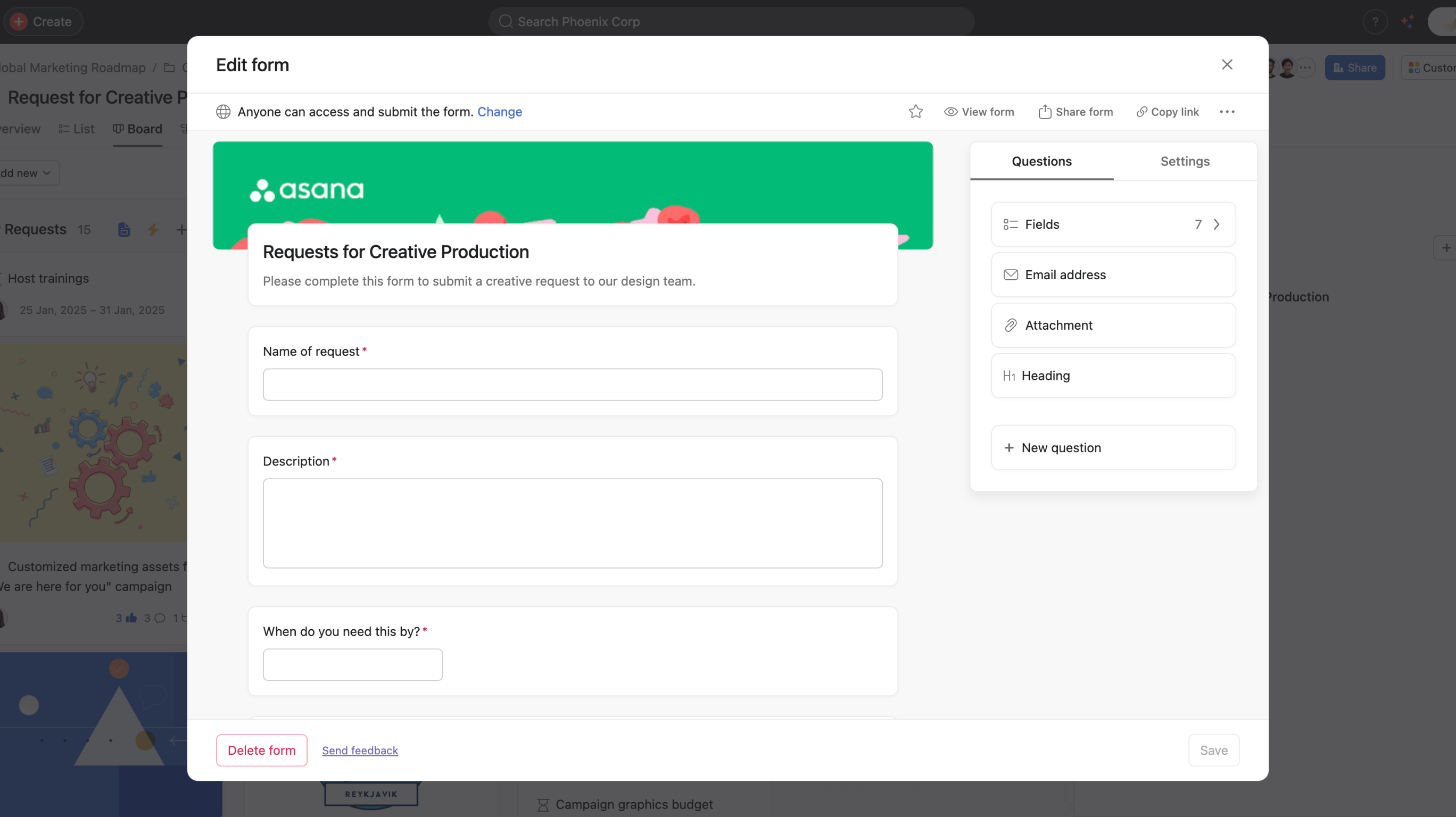
Navigate to the project where you want tasks to land. Under the "Customize" menu, select "Forms." This will open the form builder. Even if you do not have a form yet, Asana will prompt you to create a new one.
2. Designing the Input Fields
The "Builder" tab allows you to drag and drop various field types, including:
- Text/Long Text: For names, project descriptions, or detailed context.
- Dropdown/Single-Select: Useful for categorizing requests by department, urgency, or project type.
- Date/Time: To gather specific deadlines or target launch dates.
- Attachments: Essential for design files, briefs, or reference documentation.
3. Implementing Field Mapping
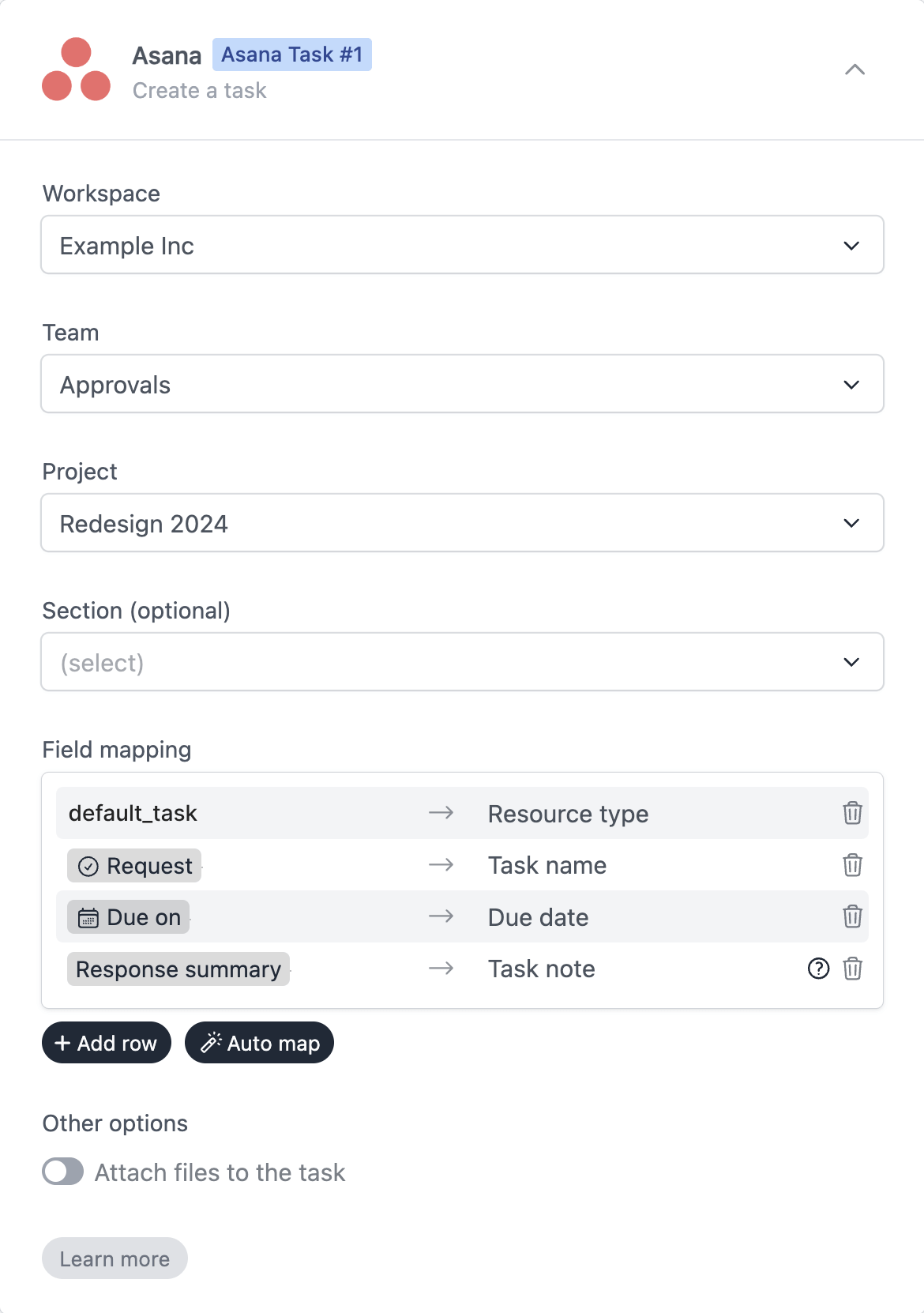
The power of Asana forms lies in field mapping. You can map a dropdown selection in your form to a "Custom Field" in your project. For example, if a user selects "Marketing" from a dropdown on your form, you can configure the task to automatically populate a "Department" custom field in the project. This allows for instant filtering, sorting, and reporting once the task is created.
4. Visibility and Sharing
Once configured, you must publish the form. Asana provides a unique URL that can be shared internally or externally. By default, anyone with the link can submit a form, though you can restrict access to organizational members if the project requires high levels of security or privacy.
Best Practices for Effective Intake Portals
A well-designed form is only useful if stakeholders actually use it correctly. If the form is too complex, users will revert to emailing you. If it is too simple, you will spend your time following up on missing details.
- Make Fields Mandatory Judiciously: Only mark fields as "Required" if they are truly necessary for the work to begin. If a requester does not know the answer to a question, they will often provide junk data just to get past the requirement.
- Provide Context: Use the "Description" field at the top of the form to explain the process. Include turnaround times, a link to your team’s service-level agreement (SLA), or instructions on what happens after the form is submitted.
- Use Conditional Logic (if available): If your plan supports it, use conditional branching. This allows you to hide or show questions based on previous answers, keeping the form short and relevant to the specific requester.
- Automation Integration: Connect your intake project to Asana "Rules." For example, when a form is submitted with an "Urgent" priority level, create a rule that automatically notifies the team lead via a comment or moves the task to the top of the project list.
Comparison: Request Forms vs. Traditional Intake
| Feature | Email/Chat Intake | Asana Request Form |
|---|---|---|
| Data Structure | Unstructured/Text | Structured/Mapped to Fields |
| Accountability | Manual logging required | Automatic audit trail |
| Searchability | Low; buried in threads | High; tagged with custom fields |
| Priority Triage | Manual effort | Rule-based automation |
| Completeness | Frequently missing info | Mandatory fields prevent errors |
Troubleshooting Common Issues
Even with a robust setup, you may encounter friction in your intake process. Here are common issues and how to resolve them:
- Lack of Adoption: If team members bypass the form, identify the friction point. Is it too long? Are they unsure where to find the link? Consider adding the form link to the project description, team calendar, or as a browser bookmark.
- Spam or Non-Relevant Requests: If your form is public, you may receive spam. While Asana forms are generally secure, if you notice this becoming a problem, ensure the link is shared only via authorized channels rather than posted openly on public-facing websites.
- Field Mapping Errors: If data is not appearing in your project's custom fields, revisit the "Builder" tab. Ensure each form input is correctly mapped to the corresponding custom field within the project settings.
- Missing Notifications: If the team isn't being alerted to new submissions, check the "Settings" tab in the form builder. You can define who receives a notification when a new task is created—usually the project owner or a specific collaborator.
Advanced Strategies for Large Organizations
In 2026, many teams use "Hub and Spoke" models for request management. This involves a single, master "Intake Hub" project. When a request is submitted via a form, it lands in the hub. From there, a project manager or coordinator reviews the request, uses the "Multi-homing" feature to move the task into the specific department project (e.g., Design, Development, or Legal), and then archives or completes the hub task. This creates a single point of entry for the entire organization, regardless of which team is eventually responsible for the work.
Additionally, leverage Asana’s reporting features alongside request forms. By using the "Dashboard" view in your intake project, you can visualize the volume of incoming requests over time. This data is invaluable for capacity planning, justifying additional headcount, or identifying recurring pain points that may need a process update.
Frequently Asked Questions
Do external users need an Asana account to submit a request form?
No. One of the primary advantages of Asana request forms is that they can be configured to allow external users to submit data without needing an Asana license. The submissions appear as tasks from an "Anonymous" or "Form Guest" user, ensuring your team has a centralized process for external partners.
Can I change the fields of a request form after it has been published?
Yes, you can edit the form at any time. Any changes you make will be reflected immediately in the shared URL. However, be cautious when deleting fields that were previously used, as this may result in a loss of historical data representation if those fields were mapped to specific project columns.
How do I handle file size limits on attachments?
Asana imposes limits on the size of individual files uploaded through forms. If your team requires large video or design files, it is best practice to include a text field in the form requesting a link to a cloud storage service like Google Drive, Dropbox, or Box, rather than requiring a direct upload.
Can I automate task assignment based on form inputs?
Yes, by using Asana Rules. You can set a rule that says: "When a new task is added via Form, if the 'Region' custom field is 'North America,' change the Assignee to 'Sarah Jones'." This ensures that requests are routed to the correct person immediately upon submission.
What happens if a stakeholder submits the same request twice?
If you are worried about duplicates, you can instruct your team to check the project search bar before acting on a task. Additionally, you can enable "Task Templates" alongside your form to ensure that when a task is created, it follows a specific, repeatable structure that helps the team identify if the work has already been scoped.
Next Steps for Implementation
To maximize the efficiency of your request intake, begin by auditing your current workflow. Map out the five most common requests your team receives and identify the three pieces of information required to start each one. Use this as the blueprint for your first form. Once built, test the submission process yourself before sharing it with stakeholders. By formalizing your intake, you move your team away from reactive firefighting and toward proactive, organized delivery.