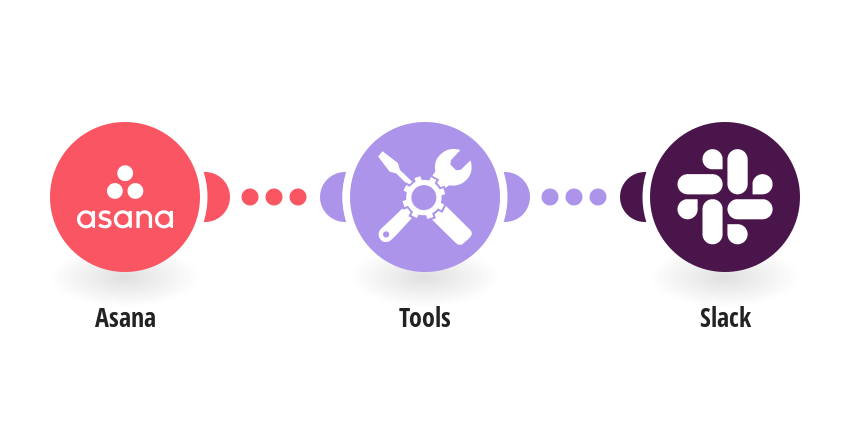
Integrating Asana with Slack bridges the gap between project management and real-time team communication, significantly reducing the friction associated with tracking task updates. By connecting these two platforms, organizations can automate task notifications, create new Asana tasks directly from Slack conversations, and provide status visibility without requiring team members to toggle between browser tabs. This synchronization ensures that project data remains current, stakeholders stay informed of deadline changes, and communication remains contextualized within the specific project work.
Understanding the Value of the Asana and Slack Ecosystem
Modern digital workflows often suffer from "context switching"—the cognitive cost of moving between a project management tool and a communication platform. When a team member receives a Slack message about a project, they typically must open Asana to verify the details, update the status, or assign a subtask. This manual transition interrupts focus and increases the likelihood of information being overlooked or forgotten.
The Asana for Slack integration functions as an interoperability layer. By pushing Asana activity—such as task completion, comment mentions, or due date updates—directly into designated Slack channels, teams create a central "source of truth." This allows for immediate acknowledgment of progress. Furthermore, when a discussion in Slack reveals a need for a new action item, team members can convert that message into an Asana task immediately, ensuring the work is captured before the conversation drifts.
Prerequisites and Configuration Requirements
To successfully implement this integration, administrators must ensure that both platforms are properly provisioned. The integration is available across Asana tiers, though certain advanced features—such as rules-based automation—may vary based on your specific Asana subscription plan.
Initial Administrative Setup
- Permissioning: Ensure that your organization’s Slack workspace administrator has granted permission to add third-party applications. If your organization uses restricted app installation policies, you may need to request an exception or provide the specific app ID to your IT department.
- Account Linking: Each individual user must authenticate their own Asana account within Slack. This ensures that the integration respects existing project permissions; you will only receive notifications for tasks and projects that you are already authorized to view in Asana.
- Workspace Matching: If you belong to multiple Asana organizations or Slack workspaces, ensure you are connecting the correct pair. Connecting an Asana "Guest" account to an entire Slack "Enterprise Grid" can lead to notification overload; coordinate your deployment to ensure only relevant projects are linked to specific channels.
Implementation Steps for Seamless Workflow Automation
The process of connecting these tools is designed for accessibility, but the true efficiency gains come from strategic configuration rather than just enabling the connection.
Step-by-Step Connection Guide
- Step 1: Install the App: Navigate to the Slack App Directory, search for "Asana," and click "Add to Slack." Follow the prompts to authorize the integration to read and write messages in the channels you select.
- Step 2: Link the Asana Domain: Once the app is added, you will be prompted to log in to your Asana account. This establishes the security token exchange required for the tools to communicate.
- Step 3: Associate Projects with Channels: This is the most critical step for reducing noise. Rather than pushing all Asana updates to a #general channel, link specific Asana projects to dedicated project channels. For example, a "Marketing Campaign" project should map exclusively to the #marketing-team Slack channel.
- Step 4: Configure Rules: Utilize Asana’s "Rules" feature to trigger Slack messages based on specific criteria. For instance, you can set a rule that triggers a notification in Slack whenever a task is moved to the "Pending Approval" column in Asana.
Managing Notification Noise and Information Density
A common pitfall in integration management is the "firehose effect," where every minor change in Asana floods a Slack channel, causing team members to mute the channel entirely. To maintain an efficient workflow, you must curate what information flows into your chat environment.
Strategies for Signal-to-Noise Management
- Filter by Action Type: Configure your notifications to exclude "task created" events if those are too frequent, and instead focus only on "due date changed" or "task completed" events.
- Utilize Threading: Configure the integration to post updates as replies to a parent message whenever possible. This prevents a high volume of individual notifications from pushing other team conversations off the screen.
- Limit High-Volume Projects: For massive projects with hundreds of tasks, consider using the Slack integration only for "Milestones" or "High Priority" custom fields, rather than all task activity.
Comparative Overview: Manual Coordination vs. Integrated Workflow
The following table highlights the operational differences between manual tracking and an integrated Asana-Slack workflow.
| Feature | Manual Coordination | Integrated Asana-Slack |
|---|---|---|
| Task Creation | Copy-paste from Slack to Asana | Create task directly via Slack Action |
| Update Visibility | Periodic manual check-ins | Real-time push notifications |
| Context Retention | Lost between tabs/apps | Links directly to Asana from Slack |
| Accountability | Relies on manual status reports | Automated logs in relevant channels |
| Setup Effort | Low (none) | Moderate (initial configuration) |
Troubleshooting Common Integration Errors
Despite a straightforward installation, technical issues can occasionally disrupt the synchronization between your tools.
Resolving Authentication and Sync Failures
- Stale Tokens: If notifications stop appearing, the most frequent cause is an expired authentication token. Simply disconnect and reconnect the app via the Slack settings menu to refresh the security credentials.
- Permission Mismatches: If you cannot see a specific Asana project in the Slack configuration menu, verify that you have "Editor" or "Commenter" access within the Asana project itself. You cannot link to a project that you do not have permission to view.
- Lag in Updates: While the integration is generally near-instant, significant network traffic or heavy API usage on either platform can result in a 30-to-60-second delay. If notifications are missing entirely, check the Asana Status page to ensure the API services are fully operational.
Best Practices for Scaling Across Departments
As your organization grows, the way you use these integrations will naturally evolve. Large teams often find success by appointing a "Workflow Architect"—a team lead responsible for managing the rules and channel associations to ensure that the integration serves the team's needs without becoming a distraction.
Encourage the use of the "Slack Actions" menu. By hovering over any message in Slack and selecting "More actions" > "Create a task in Asana," employees can move from brainstorming to execution in seconds. This habit reduces the burden on project managers to manually track every loose idea discussed in team chats.
Frequently Asked Questions
Is the Asana for Slack integration included in the free version of Asana?
Yes, basic integration functionality is available to all Asana users regardless of their plan tier. However, certain advanced features like custom Rules that bridge Asana and Slack often require an Asana Starter, Advanced, or Enterprise subscription.
Can I link one Asana project to multiple Slack channels?
Yes, you can configure the integration to post updates from a single Asana project to multiple Slack channels. This is useful for cross-functional teams where, for example, the Engineering team and the Product team both need updates on the same feature launch project.
Does the integration work for private projects?
The integration respects privacy settings. If a project is set to "Private to members" in Asana, only those members who are also added to the linked Slack channel (and have authorized the app) will see the notifications.
How do I stop receiving notifications for a specific project?
You can manage your notification subscriptions directly within the Asana for Slack app settings in your Slack sidebar. From there, you can view all active project linkages and remove the ones that are no longer relevant to your current focus.
Can I reply to Asana comments directly from Slack?
While the integration allows you to see comments and task updates, substantive replies often work best within the Asana interface itself to ensure that attachments and complex formatting are handled correctly. Always evaluate if a quick reply in Slack is sufficient or if the task requires a formal update in Asana.
Does this integration work with Slack Enterprise Grid?
Yes, the integration is fully compatible with Slack Enterprise Grid. When working in a multi-workspace environment, ensure that the app is installed at the organization level or that it is permitted in every workspace where you intend to sync your projects.
Recommendation for Next Actions
To begin, audit your current project management workflow by identifying the top three projects that currently suffer from the most "where are we at?" communication. Once identified, configure the Slack integration for these specific projects first. Run this for a one-week pilot period, soliciting feedback from team members regarding notification volume and clarity. After the pilot, refine your Rules to ensure that notifications are actionable rather than purely informational. By starting small and iterating, you will build a robust, low-noise workflow that keeps your team synchronized without increasing administrative overhead.