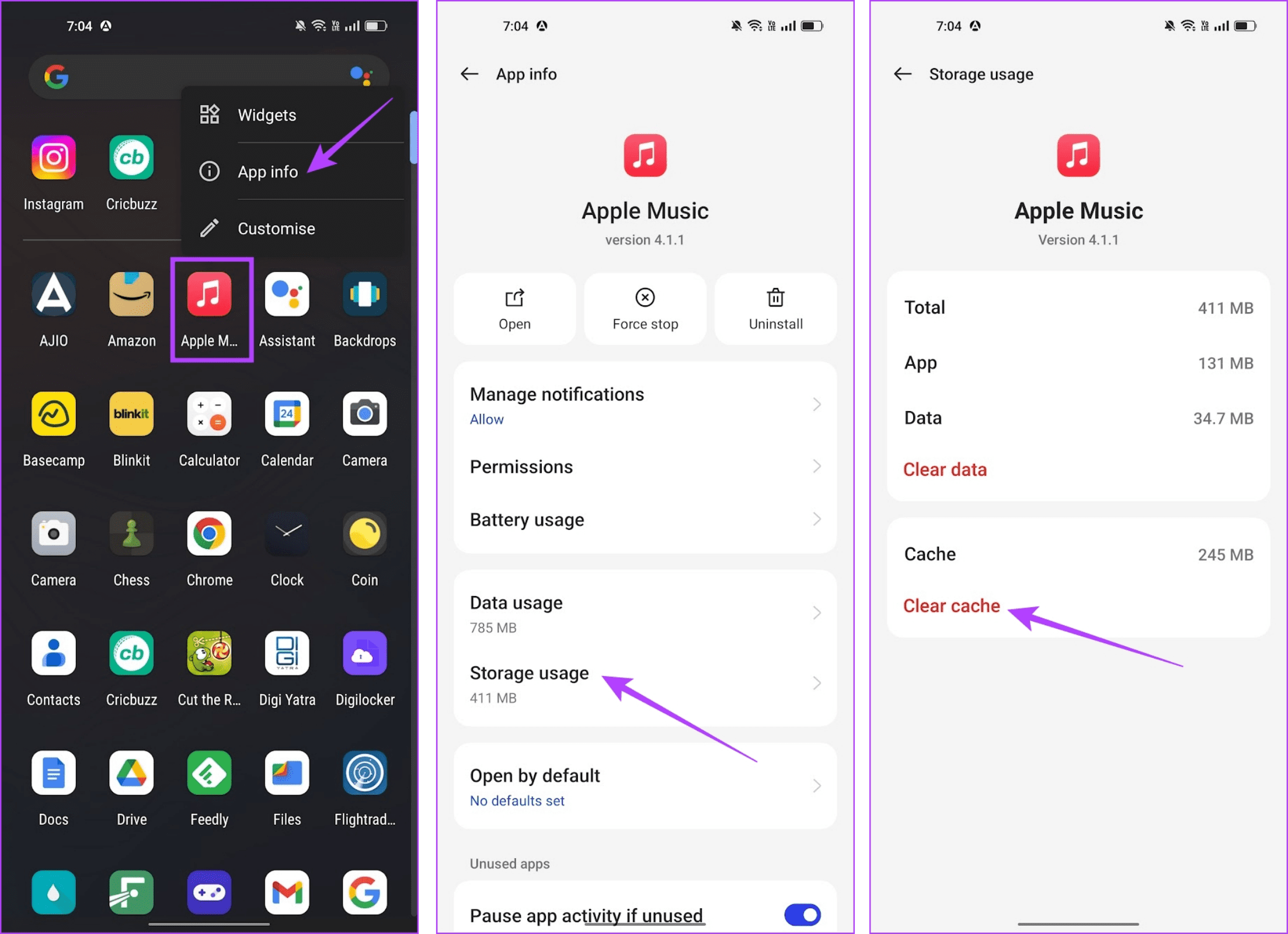
When Apple Music crashes unexpectedly, it is usually the result of a temporary software glitch, a corrupted cache, or an interrupted synchronization process between your device and Apple’s servers. To resolve this, restart your device, ensure your operating system is updated to the latest version, and verify your internet connection. If the issue persists, clearing the app’s temporary data or signing out and back into your Apple ID often restores stability.
Understanding the Root Causes of Apple Music Instability
Apple Music is integrated deeply into the hardware and software architecture of Apple devices. Because it relies on a constant handshake between your local library, your iCloud Music Library, and Apple’s streaming servers, the application is sensitive to minor environmental inconsistencies. When the app crashes—whether it closes instantly, freezes during playback, or refuses to open—it is typically communicating an underlying struggle to manage these data streams.
Common triggers include outdated software versions that no longer communicate effectively with server-side API changes, corrupted local cache files that confuse the playback engine, or network congestion that prevents the app from authenticating your subscription. Furthermore, high-resource tasks running simultaneously on your device can cause the system to terminate the Apple Music process to preserve memory, a phenomenon known as "jetsam" in iOS development. By systematically isolating these variables, you can pinpoint whether the problem is software-based, network-dependent, or account-specific.
Immediate Diagnostic Procedures
Before attempting complex reconfigurations, perform basic diagnostics to rule out transient errors. These steps address the most frequent reasons for application instability.
1. Perform a Forced Restart
A simple restart clears the RAM and stops any background processes that may be causing a conflict with the music player.
- For iPhones with Face ID: Quickly press and release the volume up button, then the volume down button. Press and hold the side button until the Apple logo appears.
- For macOS: Click the Apple menu and select "Restart." Do not check the box to "Reopen windows when logging back in," as this may reload the state that caused the crash.
2. Check Network Stability
If the app crashes specifically when you attempt to stream a track, the fault may lie with your network. Switch from Wi-Fi to cellular data (or vice versa) to see if the behavior changes. If the app only crashes while on a specific network, your router’s firewall settings may be blocking the ports required by Apple Music.
3. Verify System Status
Occasionally, Apple’s own services experience outages. Before troubleshooting your hardware, visit the official Apple System Status page. Look for "Apple Music" and "Apple Music Radio." If the status indicator is yellow or red, the issue is on Apple’s end, and you must wait for their engineers to resolve the server-side error.
Troubleshooting Software and Data Conflicts
If the basic restarts do not stabilize the application, the issue likely stems from your local library data or a bug within the current app installation.
Managing the Local Cache
The cache stores temporary artwork and metadata to speed up navigation. If this data becomes corrupted, the app may crash upon trying to read a malformed file.
- On iOS: Navigate to Settings > Music. Toggle off "Sync Library" if it is enabled. Restart your device, then toggle "Sync Library" back on. This forces the device to re-index your music library from the cloud.
- On macOS: In the Music app, go to Account > Sign Out. Then, quit the Music app entirely. Restart the app and sign back into your Apple ID. This refreshes the authentication token and clears local session data.
Updating to the Latest Software
Apple frequently releases patches to address memory leaks and stability bugs. Ensure your device is running the latest version of its OS.
- iOS/iPadOS: Go to Settings > General > Software Update.
- macOS: Go to System Settings > General > Software Update. Always create a backup of your device before performing a major system update to protect your local media files and personal data.
Comparative Troubleshooting Strategy
The table below outlines common crash scenarios and the corresponding priority of solutions to help you identify the most efficient fix.
| Symptom | Probable Cause | Primary Solution | Secondary Solution |
|---|---|---|---|
| Crash on app launch | Corrupted local cache | Sign out/in of Apple ID | Reinstall application |
| Crash during playback | Network handshake error | Reset network settings | Check DNS settings |
| Crash when scrolling library | Excessive metadata load | Update OS version | Remove large playlists |
| Crash on specific tracks | Corrupted audio file | Redownload track | Remove from library |
Advanced Resolution Strategies
If the problem remains unresolved after checking your software and library, you may need to look at more granular settings that could be interfering with playback.
Check for Third-Party Interference
On macOS, third-party audio software—such as audio routing apps, equalizers, or plugins—can conflict with the Music app’s audio engine. Try disabling these applications to see if stability returns. If you use an external DAC (Digital-to-Analog Converter), disconnect it and test the app using your device’s built-in speakers or standard headphones. Hardware incompatibility is a frequent, yet often overlooked, cause of crashes on desktop systems.
Addressing Low Storage Space
The Music app requires a small amount of "scratch space" to load track information and manage buffering. If your device storage is critically low (under 1GB of free space), the system may aggressively close apps to prevent a total system crash. Check your storage settings (Settings > General > iPhone Storage) and ensure you have sufficient headroom for the app to function.
Reinstalling the Music App
While Apple Music is a core system app on iOS, you can delete and reinstall it. Doing this clears the internal database associated with the app.
- Long-press the Music app icon on your home screen.
- Select "Remove App" and confirm the deletion.
- Go to the App Store and search for "Apple Music" to download it again. Note that this will remove any downloaded songs for offline listening, which you will need to redownload once the app is reinstalled.
Frequently Asked Questions
Why does Apple Music crash only when I have low battery?
When your device enters Low Power Mode, it restricts background activity and CPU performance to extend battery life. This can cause apps that rely on high-bandwidth background synchronization, like Apple Music, to experience time-out errors that lead to a crash. Try disabling Low Power Mode while listening to music.
Does an unstable internet connection cause the app to close?
Yes. If the app is attempting to fetch metadata or stream high-resolution audio and the connection drops, the app may encounter a "null" response. While well-coded apps should handle this gracefully, a failure to manage the lost connection can result in the app closing.
Will I lose my music library if I sign out of Apple Music?
No. Your library, including your playlists and saved albums, is stored in the cloud via your Apple ID. Signing out and back in simply refreshes the local link between your device and your library. Once you sign back in, your data will re-sync.
Can a VPN cause Apple Music to crash?
Yes. VPNs can mask your IP address or route traffic through servers that have restricted access to Apple’s content delivery network (CDN). If the app detects an unauthorized connection attempt or faces significant latency, it may crash. Disable your VPN to confirm if it is the source of the instability.
Should I contact Apple Support?
If you have performed the steps above and continue to experience crashes, contact Apple Support. Provide them with the specific circumstances—such as when the crash occurs—and any error codes you might see. They can analyze your "Analytics & Improvements" logs to identify if a specific background process is responsible.
Recommendation for Continued Stability
To prevent future crashes, prioritize regular system updates and avoid keeping the application open with thousands of tracks queued in a single, unorganized playlist, as large metadata loads can stress device memory. If you frequently download music for offline use, periodically clear your downloads and re-sync your library to ensure no corrupted files remain on your local storage. By maintaining a healthy storage environment and keeping your software current, you will minimize the likelihood of encountering unexpected application interruptions.