You can wirelessly project content from your iPhone, iPad, or Mac to a compatible Roku streaming player or Roku TV by utilizing the AirPlay 2 protocol. This feature allows you to mirror your entire screen or stream specific media, such as videos and photos, directly to your television, provided both devices are connected to the same local network.
Understanding Compatibility and Prerequisites
The integration between Apple’s ecosystem and Roku hardware is facilitated through Apple AirPlay 2 and HomeKit technology. Before attempting to initiate a connection, it is essential to verify that your hardware meets the minimum requirements, as older Roku models may not support this functionality.
Verified Hardware Requirements
AirPlay is supported on a wide variety of modern Roku devices. Generally, any Roku device running Roku OS 9.4 or higher supports AirPlay. This includes:
- Roku TV: Most models from manufacturers such as TCL, Hisense, Sharp, and Westinghouse.
- Roku Streaming Players: Express, Express 4K, Express 4K+, Streaming Stick 4K, Streaming Stick 4K+, Ultra, and Streambar models produced in recent years.
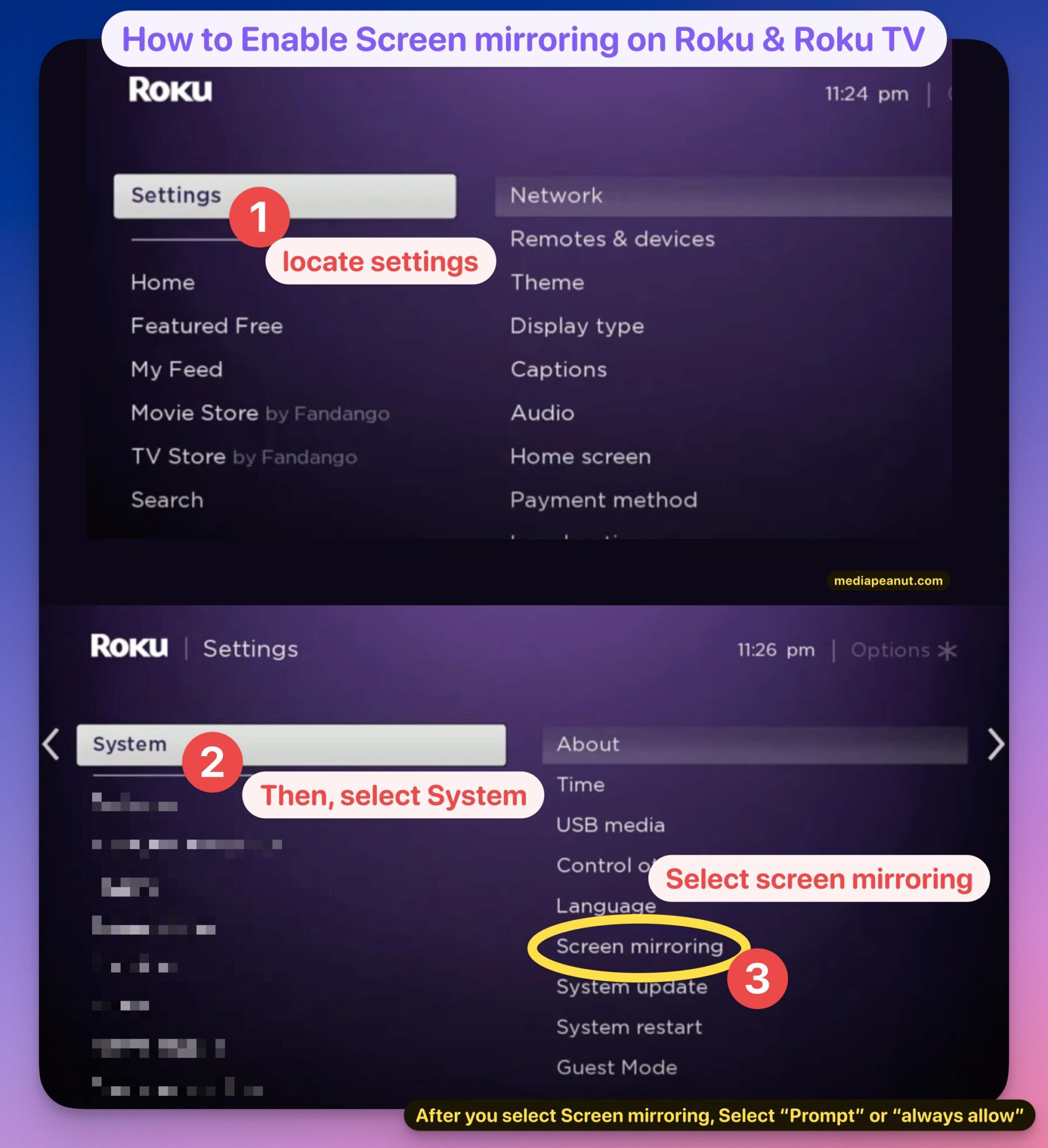
To verify your specific model's compatibility, navigate to your Roku home screen, select Settings, then System, and finally About. If your Roku OS version is below 9.4, select System Update to check for the latest firmware. If no updates are available, your specific device hardware may not support AirPlay.
Network and Security Prerequisites
Because AirPlay relies on local network communication, both your Apple device and your Roku device must be connected to the exact same Wi-Fi network. Issues often arise in environments with multiple VLANs, guest networks, or "AP Isolation" enabled on routers.
Furthermore, ensure that your Roku device is set to allow AirPlay connections. Navigate to Settings > Apple AirPlay and HomeKit. Ensure that AirPlay is set to "On." You may also choose between "Require Code" settings—setting this to "First Time Only" is generally the most convenient balance between security and ease of use.
How to Mirror Your Screen from an Apple Device
Mirroring your screen essentially broadcasts everything displayed on your iPhone, iPad, or Mac directly to the Roku interface. This is ideal for presentations, browsing the web, or displaying apps that do not have dedicated AirPlay buttons.
Mirroring from iPhone or iPad
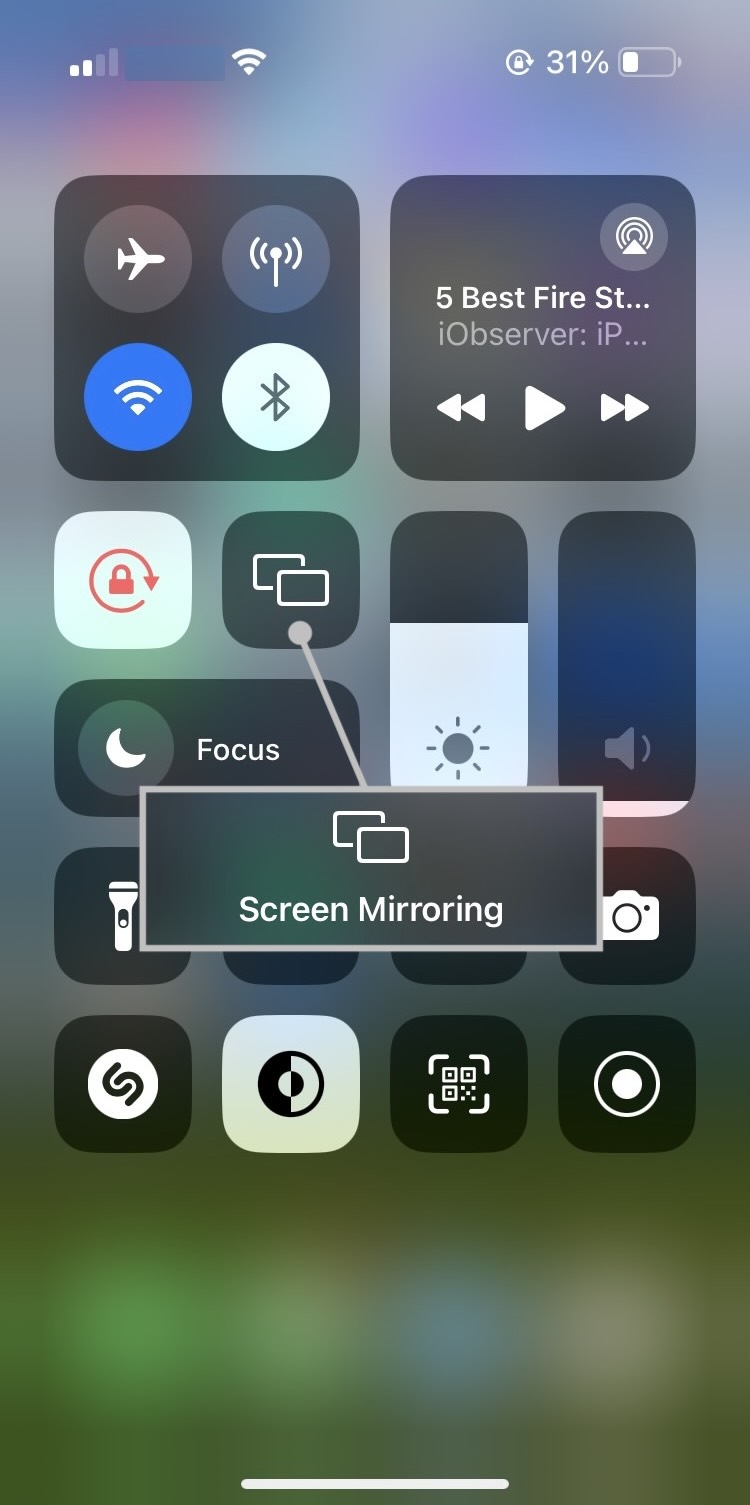
- Open Control Center: Swipe down from the top-right corner of your screen (on iPhones with Face ID) or swipe up from the bottom (on iPhones with a Home button).
- Select Screen Mirroring: Locate and tap the Screen Mirroring icon (represented by two overlapping rectangles).
- Choose Your Roku: A list of available AirPlay-enabled devices will appear. Select your Roku device from the list.
- Enter Code (If Required): If you configured your Roku to require a code, a four-digit PIN will appear on your TV screen. Enter this code into the prompt on your Apple device.
- Stop Mirroring: To end the session, return to the Control Center, tap the Screen Mirroring icon, and select Stop Mirroring.
Mirroring from a Mac
- Access Control Center: Click the Control Center icon in the top-right corner of your macOS menu bar.
- Select Screen Mirroring: Choose Screen Mirroring from the menu.
- Select Device: Click on your Roku device in the list.
- Configure Display: You can choose to "Mirror Built-in Display" (to match your Mac's aspect ratio) or "Use As Separate Display" (to treat the TV as an extended desktop).
Streaming Media Without Full Mirroring
Often, you do not need to mirror your entire screen—you simply want to share a specific video from an app like Apple TV+, YouTube, or Photos. Using the dedicated AirPlay button is often superior to mirroring because it allows your Apple device to go to sleep or perform other tasks while the Roku handles the video stream independently, preserving battery life and improving video quality.
When viewing media in a supported app, look for the AirPlay icon (a rectangle with a triangle at the bottom). Tapping this icon allows you to select your Roku as the playback destination. This method offloads the processing to the Roku, resulting in a more stable playback experience compared to brute-force screen mirroring.
Troubleshooting Common Connection Failures
Even when hardware and software requirements are met, users may occasionally encounter issues where the Roku does not appear in the AirPlay menu or the connection fails to establish.
| Problem | Likely Cause | Recommended Action |
|---|---|---|
| Roku not in list | Network mismatch | Ensure both devices are on the exact same Wi-Fi SSID. |
| Connection fails | Network congestion | Restart both the router and the Roku device to clear cache. |
| Lag/Choppiness | Low bandwidth | Move devices closer to the router or use a 5GHz band. |
| Audio but no video | HDCP protection | Ensure the HDMI cable is HDCP 2.2 compliant if used with a 4K TV. |
| Code not appearing | System glitch | Restart the Roku via Settings > System > System Restart. |
Advanced Network Tips: If your home network uses a mesh system, ensure that the "Fast Roaming" or "Band Steering" settings are not forcing devices onto different nodes that might isolate them from one another. Additionally, VPN applications running on your iPhone or Mac can frequently block the discovery of local AirPlay devices; disable any active VPNs before attempting to connect.
Privacy and Security Considerations
When you enable AirPlay on your Roku, you are essentially opening a port for communication within your home network. By default, Roku devices provide options to manage who can access this feature. Within the Apple AirPlay and HomeKit settings menu, you can restrict access to "Only people on my network" or require a device to be authenticated with a password every single time a connection is requested.
If you are concerned about unauthorized users in your household attempting to mirror their devices to your TV, utilize the "Require Code" setting set to "First Time Only." This ensures that only someone who can physically see your television screen can authorize their device to connect, preventing accidental or malicious intrusion from neighboring devices on the same Wi-Fi network.
Frequently Asked Questions
Can I use AirPlay on a Roku if I don't have an Apple TV+ subscription? Yes. AirPlay functionality is a feature of the Roku operating system and does not require an active Apple TV+ subscription or an Apple TV hardware box. It is a protocol that allows your Apple device to communicate with the Roku.
Does screen mirroring work with copy-protected content? Some streaming apps (such as Netflix or specific premium cable apps) restrict screen mirroring due to digital rights management (DRM) protections. While you can often "cast" these apps using their internal AirPlay buttons, attempting to use "Screen Mirroring" (the full-screen broadcast) may result in a black screen or an error message regarding content protection.
Why does my mirrored screen look stretched or have black bars? This is typically due to a mismatch in aspect ratios. iPhones and iPads have vertical aspect ratios, while television screens are horizontal. When mirroring your entire screen, the Roku attempts to fit the device's display onto the TV. You may have better results by rotating your iPhone or iPad to landscape mode before initiating the mirror.
Is there a cost associated with using AirPlay on Roku? No. AirPlay is a free feature provided by Roku for all compatible devices. There are no subscription fees or hardware add-ons required to use this functionality.
Does AirPlay work over a cellular connection? No. AirPlay requires a local network connection (Wi-Fi) to function. Your Apple device and your Roku must be on the same local network for the discovery protocol (Bonjour) to work correctly.
Final Recommendation
For the best experience, prioritize using the native AirPlay icon within media apps rather than utilizing the full "Screen Mirroring" feature. This approach ensures higher resolution, better frame rates, and less battery drain on your iPhone or Mac. If you frequently use this feature, ensure your Roku is updated to the latest OS version to maintain stability and compatibility with future iOS and macOS updates.