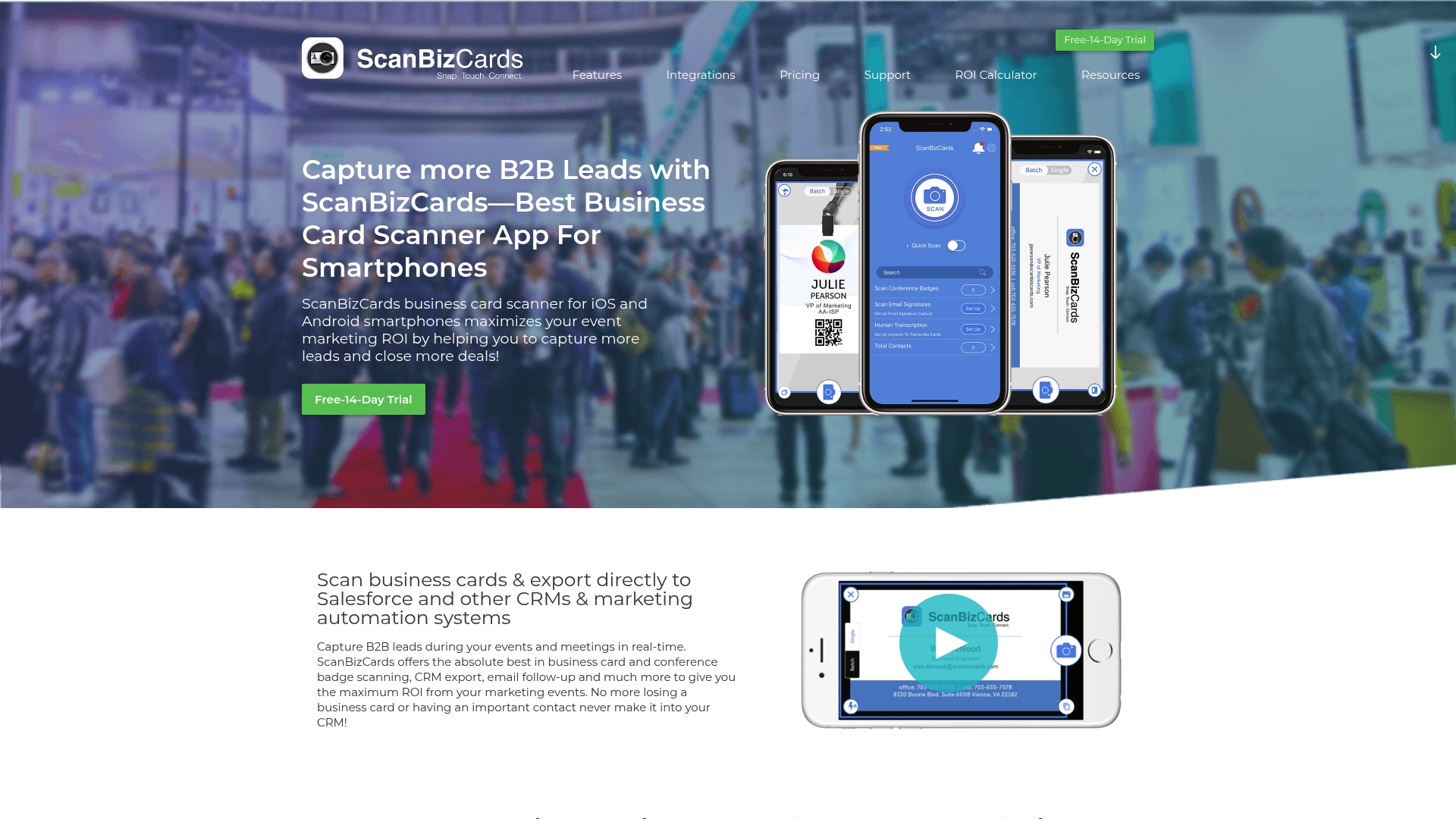
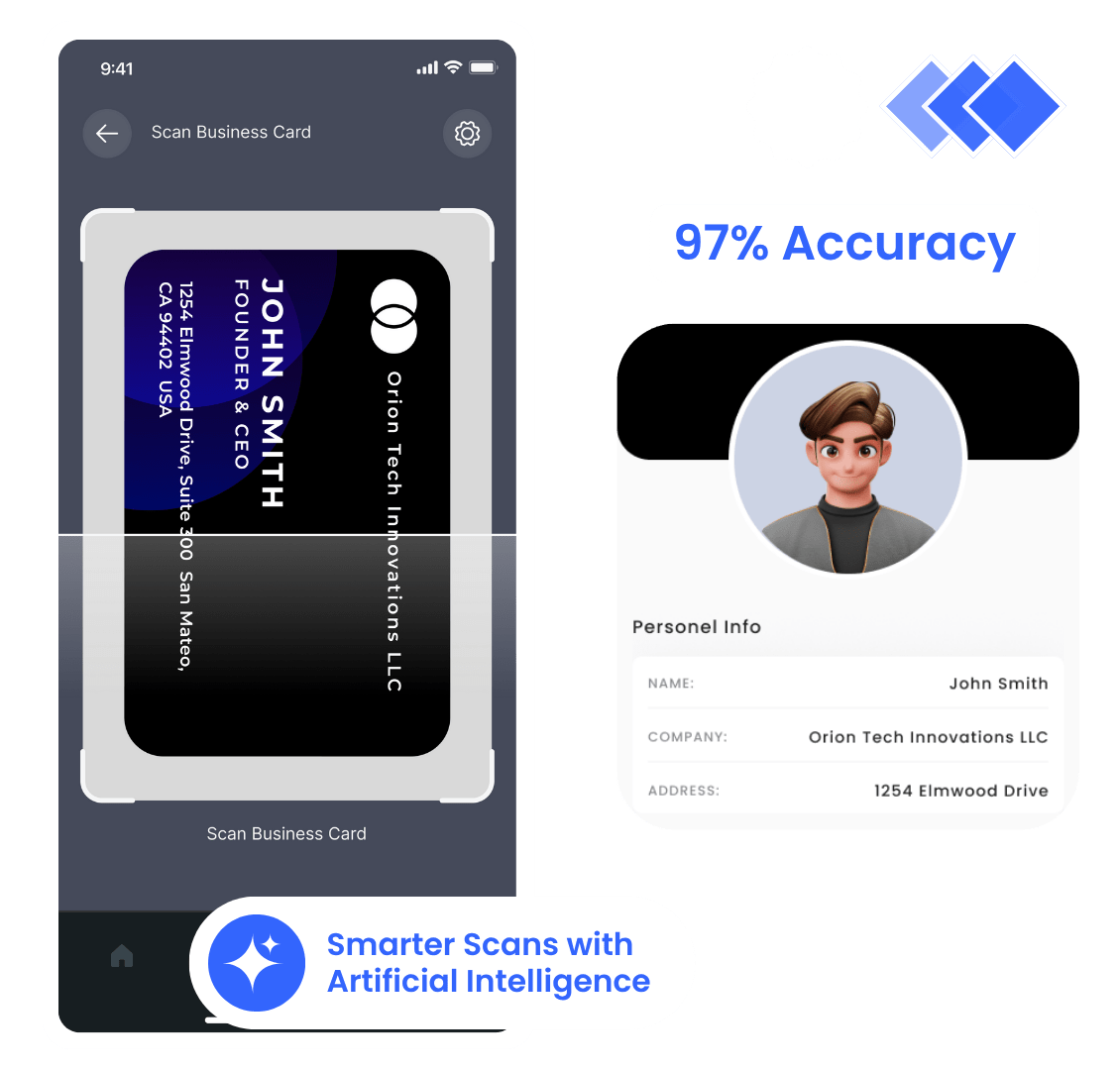
Scanning business cards on Android requires using Optical Character Recognition (OCR) software to capture, parse, and save paper contact details directly into your digital address book. You can extract phone numbers, email addresses, and company titles in seconds using built-in Google tools like Google Lens or dedicated third-party scanner applications.
Understanding OCR Technology in Android Card Scanners
Converting a physical piece of cardstock into a structured contact entry on your smartphone involves more than taking a simple photo. The process relies on Optical Character Recognition (OCR), a machine vision technology that identifies letterforms, numbers, and symbols within an image file and translates them into machine-readable text strings.
Modern Android business card scanning solutions use multi-stage processing pipelines to maximize data capture accuracy:
- Image Pre-processing: When you position your device camera over a business card, the application detects the rectangular edges of the card, corrects perspective distortion (keystoning), adjusts contrast, and eliminates camera shadows.
- Text Segmentation: The OCR engine analyzes the high-contrast image to isolate lines of text and individual characters from background graphics, logos, and textures.
- Field Mapping & Semantic Parsing: Advanced algorithms—often boosted by machine learning models—evaluate the isolated text to determine semantic context. The software distinguishes between an email address, a mobile phone number, a job title, a physical mailing address, and a corporate website URL based on formatting rules, top-level domain extensions, and keyword markers (such as "Tel:", "Dir:", or "Fax:").
- Data Output: The structured attributes map to standardized Contact Data fields (vCard / vcf parameters) ready for export into Google Contacts, Microsoft Outlook, or customer relationship management (CRM) systems.
Card scanning software operates using either on-device OCR or cloud-assisted OCR processing. On-device processing runs directly on your Android phone's Neural Processing Unit (NPU) or GPU. This method offers offline scanning capabilities, near-instant speed, and complete privacy, as data never leaves your hardware.
Cloud-assisted scanning transmits the image to remote servers, where massive AI models parse complex typography, vertical layouts, or handwritten notes with higher accuracy. However, cloud processing requires an active internet connection and introduces privacy considerations for sensitive corporate details.
Native Android Methods: Scanning Without Extra Apps
If you prefer not to install single-purpose scanner software, modern Android devices feature built-in tools capable of extracting contact details from physical business cards out of the box.
Method 1: Using Google Lens
Google Lens is integrated into the native Android camera app on Google Pixel devices and accessible via the Google Search widget or Google Photos app on most Android smartphones.
Open Camera / Lens
Frame Business Card
Tap Text / Tap "Add Contact"
Save to Google Account
Open Google Lens (or launch your stock Camera app and switch to the Lens icon).
Point your camera at the business card until the frame aligns with the borders. Ensure adequate light to avoid motion blur.
Tap the shutter button or select the text area highlighted on your screen.
Tap Text mode or tap directly on the highlighted name, phone number, or email address.
Select Add Contact from the contextual pop-up menu at the bottom of the screen.
The Android system will open your default contact manager with the fields automatically filled out. Verify the accuracy of the fields and tap Save.
Method 2: Google Keep OCR Extraction
Google Keep offers a reliable backup method for scanning cards and storing physical design notes alongside contact data.
- Open the Google Keep app on your Android device.
- Tap the Image icon (camera symbol) in the lower right corner and choose Take photo.
- Capture a clear, straight-on picture of the business card and tap the checkmark.
- Tap the captured image inside the note to open the full-screen view.
- Tap the Three Dots (More Options) menu in the upper right corner and select Grab image text.
- Google Keep will parse the image and paste all extracted text into the note body below the image. You can then copy and paste individual lines into your contacts application.
Native Tool Limitations
While native tools avoid app clutter, they lack features built into dedicated business utilities. Native methods generally process cards one at a time, lack batch export functionality, do not create vCard (.vcf) files automatically, and cannot sync contact data directly to enterprise platforms like Salesforce, HubSpot, or Microsoft Dynamics.
Top Dedicated Business Card Scanner Apps for Android
For business networking, conference attendance, and field operations, dedicated Android applications offer higher parsing accuracy, automation rules, and export options.
1. Adobe Scan
Adobe Scan transforms your Android camera into a document and card scanning workstation powered by Adobe Sensei AI.
- Primary Strengths: Exceptional automatic edge detection, automatic shadow removal, and seamless integration with PDF workflows.
- Scanning Mechanism: Adobe Scan automatically recognizes business card geometry, stabilizes the shot, takes the photo without user interaction, and crops out background clutter.
- Exporting Options: Extracted contact details can be saved directly to your Android device's local contacts or exported as searchable PDFs and vCard entries.
- Pricing Model: Free base scanner with optional Adobe Acrobat Premium subscription for batch OCR export and document conversion.
2. Microsoft Lens (formerly Office Lens)
Microsoft Lens is an ideal choice for professionals who rely on the Microsoft 365 ecosystem and Outlook Contact infrastructure.
- Primary Strengths: Direct mapping into Microsoft Outlook, Microsoft Teams, and OneDrive accounts.
- Scanning Mechanism: Offers a dedicated "Business Card" shooting mode that enhances light levels, straightens skewed angles, and extracts contact fields upon capture.
- Exporting Options: Saves parsed contact data directly as a
.vcffile, inserts the contact image into OneNote notebooks, or extracts text into Word documents for editing. - Pricing Model: Free with a Microsoft Account.
3. Covve Card Scanner
Covve Card Scanner focuses on high-precision AI parsing and strict user data privacy.
- Primary Strengths: Market-leading accuracy for non-traditional card layouts, vertical cards, and multi-language business cards.
- Scanning Mechanism: Cloud-assisted AI engine trained on millions of business card variants.
- Exporting Options: Exports to phone contacts, Excel CSV sheets, Google Contacts, and connects natively with CRM software via Zapier webhooks.
- Pricing Model: Free trial for a limited number of scans; recurring monthly or annual subscription required for unlimited scanning.
4. CamScanner
CamScanner is one of the oldest scanning applications on the Google Play Store, providing robust batch scanning features for heavy contact intake.
- Primary Strengths: High-volume scanning capabilities, image color enhancement filters, and digital card wallet storage.
- Scanning Mechanism: Allows continuous photo capturing of multiple cards in sequence, batch-processing them through its OCR pipeline afterwards.
- Exporting Options: Exports to vCard files, Excel spreadsheets, and direct device storage.
- Pricing Model: Free version with watermarks/ads; Premium monthly subscription unlocks advanced card text extraction and cloud storage.
5. Enterprise CRM Mobile Applications (HubSpot & Salesforce)
If your primary goal is importing sales leads into your company database, use your CRM's native Android mobile application.
- HubSpot Mobile: Includes a built-in business card scanner that matches parsed data directly against contact property fields in your HubSpot CRM, instantly tagging contact source and lifecycle status.
- Salesforce Mobile: Utilizes Einstein AI or integrated add-ons (such as Salesforce Mobile Business Card Scanner) to create Lead or Contact records directly from camera shots without manual data entry.
Comparison of Android Business Card Scanners
| Application | Primary OCR Engine | Free Tier Limits | Key Export Formats | Best Use Case |
|---|---|---|---|---|
| Google Lens | Google Vision AI | Unlimited | Android System Contacts | Quick single-card captures without installing apps |
| Adobe Scan | Adobe Sensei | Unlimited scans | Device Contacts, PDF, vCard | General document processing & crisp visual archival |
| Microsoft Lens | Microsoft Azure OCR | Unlimited | VCF, Outlook Contacts, OneNote | Professionals embedded in Microsoft 365 ecosystem |
| Covve Scanner | Proprietary AI Cloud | ~10 free scans | Google Contacts, CSV, Zapier, VCF | Complex layout parsing & high-accuracy requirements |
| CamScanner | In-house OCR | Limited scans (Ads) | VCF, Excel (CSV), PDF | High-volume batch scanning at tradeshows |
| HubSpot Mobile | Integrated CRM AI | Depends on CRM plan | Direct HubSpot CRM Record | B2B Sales professionals & lead pipeline tracking |
Step-by-Step Guide: Scanning and Exporting to Google Contacts
Follow this walkthrough to scan a physical card and save it directly into your primary Google Account using a dedicated scanning tool like Adobe Scan or Microsoft Lens.
Step 1: Capture Setup and Lighting
Place the physical card on a flat, non-reflective surface with high visual contrast (e.g., a dark business card on a white table, or a light card on a dark desk). Ensure light overhead to eliminate hand shadows over the card surface.
Step 2: Framing and Image Capture
- Launch your chosen scanning application on your Android device.
- Select Business Card mode if available.
- Hold your device steady directly above the card. Align the white or blue frame overlays provided by the app software over the four corners of the card.
- Allow the app to auto-capture, or manually tap the camera shutter button when the image appears sharp and clear.
Step 3: Verification and Field Mapping
Never save an OCR contact without performing a visual check. Read through the automatically filled fields:
- First and Last Name: Ensure job titles (e.g., "Vice President") were not mistakenly put into the name field.
- Phone Numbers: Verify country codes and confirm that direct extensions were not combined with primary phone lines.
- Email Address: Watch out for common OCR typos, such as replacing the letter
"o"with the number"0", or turning"rn"into"m". - Company Name & Address: Check multi-line addresses for proper formatting.
- Captured Text
- Review Name / Phone / Email
- Correct Typos
- Map to Contact Fields
Step 4: Exporting to Google Contacts
- Tap the Save Contact or Export button within the app interface.
- If prompted, select your primary Google Account (e.g.,
yourname@gmail.comor your corporate Google Workspace email) as the saving location. - The contact will automatically sync across all devices logged into that Google Account.
Managing, Organizing, and Syncing Digitized Contacts
Converting paper into text is only half the battle; managing your digital contact library efficiently prevents duplicate records and lost sales opportunities.
vCard (.VCF) vs. CSV File Formats
When exporting batch data from your Android scanning app, you will typically choose between two main file types:
- vCard (.VCF): The standard file format for digital electronic business cards. A single
.vcffile can contain individual or multiple contact cards with structured fields, embedded profile pictures, and notes. This format is ideal for importing directly into Apple Contacts, Google Contacts, and mobile devices. - CSV (Comma-Separated Values): A flat text spreadsheet format where data attributes are separated by commas. CSV exports are ideal for bulk importing contact records into spreadsheets (Microsoft Excel, Google Sheets) or database systems like CRM engines.
Syncing Across Multi-Platform Environments
To ensure contact availability across mobile and desktop devices:
- Google Workspace Integration: Set your default Android contact save destination to your corporate Google Workspace account. Contacts scanned on your phone appear immediately when composing emails in Gmail on desktop web browsers.
- Microsoft Exchange & Outlook: Configure Microsoft Lens or use third-party apps with Exchange ActiveSync support. Contacts scanned on Android will reflect in desktop Outlook contact lists.
- CRM Data Hygiene: When scanning leads at trade shows, use tag options within your scanning software (e.g., tagging contacts with
"CES 2026 Lead") before exporting to your CRM. This prevents unsegmented contacts from cluttering main databases.
Overcoming Scanning Challenges
Non-standard business card designs can confuse basic optical character recognition engines. Here is how to handle complex physical media:
- Vertical / Portrait Cards: Rotate your smartphone 90 degrees to align camera optics parallel with the text orientation, or manually rotate the captured image inside the editor before triggering the OCR process.
- Glossy or Metallic Foil Cards: Glossy paper and foil lettering create camera flash reflections that obscure text pixels. Turn off your device's camera flash, step away from direct overhead spotlights, and capture the shot at a slight angle before letting the app correct perspective distortion.
- Multi-Language / Non-Latin Scripts: If scanning business cards containing non-Latin scripts (e.g., Japanese Kanji, Mandarin, Arabic, Cyrillic), select an OCR app that supports multi-language pack downloads (such as Google Lens or Covve). Ensure the primary language of the target card is selected in app settings prior to shooting.
Privacy, Data Security, and Compliance Considerations
Scanning business cards involves collecting and processing personally identifiable information (PII). Individuals and enterprise organizations must account for data privacy rules when selecting scanning utilities.
- Camera Capture
- On-Device OCR
- Local
- Zero Cloud Leak Risk
- Cloud Processing
- Transmits PII
- Check Privacy Policy, GDPR / SOC 2 Compliance
- On-Device OCR
Cloud Processing Risks vs. Local Execution
Free or unverified scanning applications available on software repositories may process images by transmitting full card scans to third-party cloud servers. These images contain personal details including cell phone numbers, direct email addresses, corporate roles, and physical office locations.
- On-Device OCR: Offers maximum data confidentiality. The scan is converted on the hardware itself, preventing data leakage across third-party networks.
- Cloud OCR: Requires verification of the provider's security credentials. Verify whether cloud vendors store card images temporarily or retain data to train machine learning models.
Regulatory Compliance (GDPR, CCPA, and Enterprise Policies)
For business users operating within regulated jurisdictions:
- General Data Protection Regulation (GDPR): Under European data rules, capturing corporate contact data falls under legitimate business interest, but storing or processing that data requires appropriate protection. Ensure cloud scanner applications comply with EU data transfer rules.
- SOC 2 Type II Certification: Enterprise procurement teams should prefer software providers (such as Adobe, Microsoft, or major CRM vendors) that maintain active SOC 2 compliance. This ensures scanned sales lead data is encrypted both in transit (using TLS encryption) and at rest (using AES-256 encryption).
Frequently Asked Questions
What is the best free app to scan business cards on Android?
Google Lens is the best overall free tool natively available on Android devices. It requires no additional software installation, runs directly through your camera or photo gallery, and allows single-tap exports to Google Contacts. For dedicated multi-card management without cost, Microsoft Lens provides reliable scan-to-vCard capabilities connected to Microsoft accounts.
How do I transfer business card contacts directly into Google Contacts?
Position your business card within your scanning app (such as Google Lens or Adobe Scan) and capture the image. Once the OCR engine parses the phone number, name, and email fields, choose the Save Contact or Export option. Select your designated Google Account from the device dropdown list to store the record directly in your Google Contacts library.
Can Android business card scanners read handwritten notes on cards?
Most standard OCR engines struggle to parse informal handwriting accurately. Advanced AI tools like Google Lens, Adobe Sensei, and specialized cloud engines can extract legibly printed handwriting, but accuracy drops significantly compared to standard typography. Always manually review handwritten notes or switch to manual input for scribbled numbers.
Is it safe to scan business cards using free third-party apps?
Safety depends on the processing methods and data policies of the application vendor. Apps from established developers (such as Google, Microsoft, and Adobe) process data under clear enterprise security guidelines. Avoid obscure scanning utilities that request unnecessary device permissions (such as location tracking or full media library access) or store captured contact images on unencrypted remote servers.
How do I bulk scan hundreds of business cards after a conference?
Use an app built for batch capture operations, such as CamScanner or specialized enterprise scanner utilities. These tools allow you to take continuous photographs of multiple cards in quick succession without stopping to edit each record. After capturing, the software processes the images in the background and exports the complete dataset as a single CSV spreadsheet or bulk vCard file.
Final Recommendations
Transitioning from physical business card storage to a digital contact manager improves network accessibility and prevents valuable connections from getting lost.
- For Casual/Occasional Use: Stick with Google Lens. It requires no setup, updates automatically via system software, and syncs instantly with your core Android profile.
- For Microsoft 365 Users: Deploy Microsoft Lens to streamline card exports into your Outlook directory and organizational OneNote spaces.
- For High-Volume Networking & B2B Sales: Implement a dedicated AI scanner like Covve Card Scanner or utilize the native scanning tools inside your mobile CRM application (HubSpot or Salesforce). This ensures captured leads route straight into your automated sales pipelines with complete security compliance.