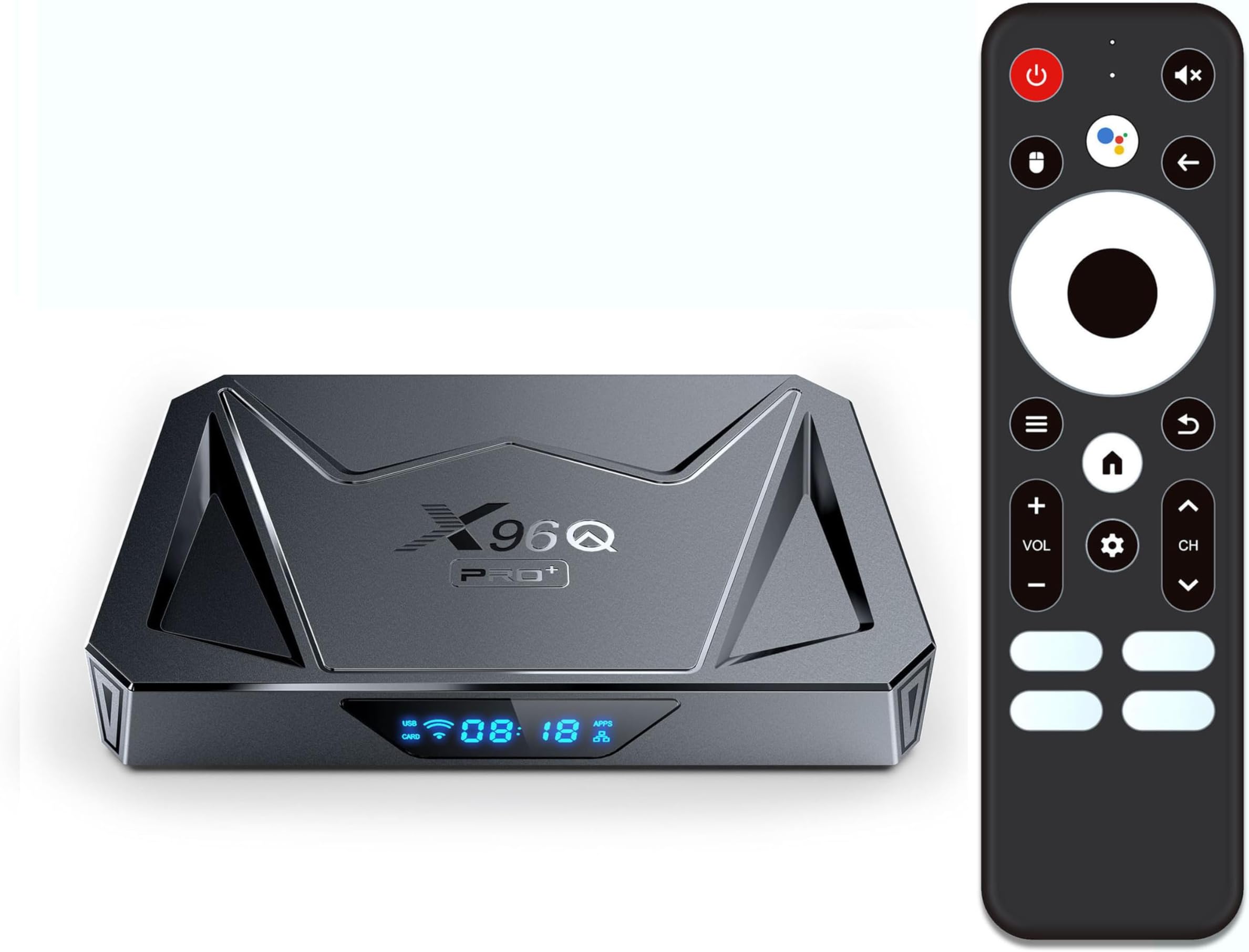
An Android TV box streams live television through official subscription services, free ad-supported streaming channels, over-the-air tuner integration, or specialized media player applications. Setting up live TV requires choosing a certified Android TV or Google TV device, installing authorized applications or connecting a network tuner, and configuring the electronic program guide for seamless channel navigation.
Core Methods to Access Live TV on an Android TV Box
Transforming an Android TV box into a live television receiver involves choosing between several distinct streaming architectures. Each method differs in cost, hardware dependencies, channel selection, and technical complexity.
- Android TV / Google TV
- vMVPDs Services (YouTube TV, Sling, Fubo)
- FAST Channels (Pluto TV, Tubi, Google)
- OTA Antenna (HDHomeRun, AirTV Tuner)
- Player Middleware (TiviMate, Sparkle TV)
1. Subscription Live TV Streaming Services (vMVPDs)
Virtual Multichannel Video Programming Distributors (vMVPDs) mirror traditional cable and satellite television packages over an internet connection. Applications such as YouTube TV, Sling TV, Hulu + Live TV, and Fubo deliver linear broadcast networks, local affiliate stations, sports channels, and premium cable networks directly to Android TV devices.
These services stream high-definition (HD) and 4K video feeds using adaptive bitrate protocols like HTTP Live Streaming (HLS) and MPEG-DASH. They offer built-in Cloud DVR functionality, allowing users to record live broadcasts without local storage drives. Accessing vMVPDs requires an active monthly subscription and an official application downloaded from the Google Play Store.
2. Free Ad-Supported Streaming Television (FAST)
FAST platforms deliver linear, scheduled television channels without subscription fees, supported entirely by targeted programmatic advertising. Leading FAST services on Android TV include Pluto TV, Tubi, Plex Live TV, Xumo Play, and Google TV’s built-in Free Channels.
Google TV integrates these platforms directly into the native home screen operating system via the Live tab. This aggregates hundreds of free linear feeds—covering news, weather, classic television shows, and niche sports—into a unified Electronic Program Guide (EPG). Users do not need individual account registrations for basic viewing on these built-in feeds.
3. Over-the-Air (OTA) Antenna Signals via Network Tuners
For free access to major broadcast networks (such as ABC, CBS, NBC, FOX, PBS, and CW) in uncompressed high definition, an Android TV box can pair with an Over-the-Air (OTA) digital antenna and a network tuner.
Direct USB tuners can plug into some Android TV hardware, but network-attached tuners (such as HDHomeRun or AirTV) provide a more versatile configuration. The network tuner connects to an indoor or outdoor antenna and streams the broadcast TV signal (ATSC 1.0 or ATSC 3.0 NextGen TV) across the local home network via Wi-Fi or Ethernet. The Android TV box receives this feed using specialized viewer apps like HDHomeRun, Channels DVR, or Live Channels.
4. Media Player Middleware and M3U Playlists
Advanced users often employ dedicated Android TV player middleware—such as TiviMate, Sparkle TV, or OTT Navigator—to organize legal live TV feeds, local stream links, or specialized subscription streams. These applications act purely as media engines and user interfaces; they do not supply content on their own.
Users load custom M3U playlists, Xtream Codes APIs, or XMLTV program guide URLs into the app. The software then renders a custom, highly responsive EPG interface with options for recording, multi-viewing, dynamic channel sorting, and picture-in-picture modes.
Technical Specifications and Hardware Requirements
Smooth live television playback demands higher real-time processing and decoding power than standard video-on-demand (VOD). Unlike VOD, where content buffers significantly in advance, live television feeds must parse linear manifests with minimal latency while deinterlacing live signals on the fly.
- Signal Inputs
- Antenna / Cable Signal: ATSC 1.0 / 3.0 Broadcast
- Internet Streaming: HLS / MPEG-DASH Stream
- DRM & Licensing Gatekeeping
- Widevine L1 Hardware Root of Trust / PlayReady / HDCP 2.2
- Hardware Video Decoder
- MPEG-2 | H.264 (AVC) | H.265 (HEVC) | AV1 / AC-4
- Display Output Engine
- Hardware Deinterlacing (1080i to 1080p60) & Audio Passthrough
Digital Rights Management (DRM) and Certification
To run official live TV platforms like YouTube TV, Hulu, or Netflix in HD or 4K resolution, an Android TV box must possess Google Certification and hardware-level Widevine L1 DRM licensing.
- Widevine L1: Video processing and cryptographic decryption occur entirely within a hardware-secured Trusted Execution Environment (TEE) inside the processor. This enables full 1080p and 4K HDR live playback.
- Widevine L3: Lacks hardware-level security keys. Devices restricted to L3 will fall back to standard-definition (SD 480p) streams on official apps or fail to play protected streams altogether.
Video Decoders and Motion Deinterlacing
Live sports and news broadcasts are frequently transmitted in interlaced formats (such as 1080i at 60 fields per second) or compressed via specialized modern codecs. The Android TV processor (SoC) must feature hardware decoding for:
- MPEG-2: Critical for decoding uncompressed ATSC 1.0 digital antenna broadcasts. Lacking hardware MPEG-2 decoding causes heavy CPU load and dropped frames.
- H.264 (AVC) & H.265 (HEVC): The standard compression formats used by vMVPDs and digital FAST platforms.
- AV1: The modern open video format increasingly deployed by Google TV and YouTube TV to reduce bandwidth requirements without sacrificing image clarity.
- Hardware Deinterlacing: Converts interlaced broadcast signals (1080i) into smooth progressive video (1080p at 60 frames per second). Poor deinterlacing yields visible horizontal line artifacts across fast motion.
Network Bandwidth and Latency Standards
Live streaming requires sustained network throughput and low jitter to avoid buffering freezes:
- Standard Definition (SD): Minimum 3–5 Mbps.
- High Definition (1080p Live TV): Minimum 10–15 Mbps per device.
- 4K Ultra HD Live Sports: Minimum 25–50 Mbps sustained throughput.
While Wi-Fi 5 (802.11ac) or Wi-Fi 6 (802.11ax) handles high bitrates well, a wired Gigabit Ethernet connection remains the best approach to minimize packet loss and keep channel-switching latency low.
Comparison of Android TV Hardware for Live TV
Not all streaming hardware handles live television integration equally. The table below compares leading, certified Android TV and Google TV hardware options based on capabilities critical to live TV viewing.
| Feature / Spec | Nvidia Shield TV Pro | Google TV Streamer (4K) | Mecool KM2 Plus Deluxe | Onn. 4K Pro (Walmart) |
|---|---|---|---|---|
| Operating System | Android TV 11 | Google TV (Android 14) | Google TV | Google TV |
| DRM / Certification | Widevine L1, Netflix, Google | Widevine L1, Netflix, Google | Widevine L1, Netflix, Google | Widevine L1, Netflix, Google |
| Processor (SoC) | Nvidia Tegra X1+ | MediaTek MT8696 | Amlogic S905X4 | Amlogic S905X4-K |
| System RAM / Storage | 3 GB / 16 GB | 4 GB / 32 GB | 4 GB / 32 GB | 3 GB / 32 GB |
| Network Connectivity | Gigabit Ethernet, Wi-Fi 5 | Gigabit Ethernet, Wi-Fi 6 | Gigabit Ethernet, Wi-Fi 6 | Wi-Fi 6, 10/100 Ethernet |
| AV1 Hardware Decode | No | Yes | Yes | Yes |
| Hardware Deinterlacing | Superior (AI Upscaling) | Hardware Native | Hardware Native | Hardware Native |
| Primary Use Case | Power users, OTA deinterlacing, local DVR | Seamless Google TV Live integration, modern apps | High-bitrate 4K streaming, local file/media expansion | Budget-friendly live TV with hands-free voice control |
Step-by-Step Setup Guides for Live TV
Method A: Setting Up the Google TV Built-in Live Tab
Google TV unifies free and paid channel guides into a single native interface.
Power On Box
Google Play Store
Install FAST Apps (Pluto TV, Tubi, Plex)
Live Tab Auto-Sync (Unified Native EPG)
Power on your certified Google TV box and ensure you are logged into your Google account.
Open the Google Play Store on the device.
Search for and install supported FAST applications, including Pluto TV, Tubi, and Plex.
Return to the main home screen and navigate to the Live tab at the top of the interface.
The device will automatically parse the channel manifests from the installed applications.
Scroll down to browse integrated linear channels. To prioritize favorite channels, select the star icon next to any channel name within the guide.
Method B: Setting Up Over-the-Air (OTA) TV via an HDHomeRun Network Tuner
To stream free digital antenna broadcasts over your home network to your Android TV box:
Indoor/Outdoor Antenna
Coaxial Cable
HDHomeRun Tuner
Router (Ethernet) / Local Network
Android TV Box (Runs HDHomeRun / Channels)
Connect your digital HDTV antenna to the coaxial input on the HDHomeRun tuner.
Connect an Ethernet cable from the HDHomeRun tuner directly to your home Wi-Fi router.
Plug in the power adapter for the HDHomeRun.
On your Android TV box, open the Google Play Store, search for HDHomeRun, and install the app.
Launch the app. It will automatically scan your local network, detect the tuner, and run a digital channel scan.
Once the channel scan finishes, the live antenna feeds will display in HD with a built-in channel guide.
Method C: Configuring Advanced Player Middleware (TiviMate)
For custom stream organization using legal M3U playlists or provider credentials:
Install TiviMate
Add Playlist
Select M3U / Xtream
Input EPG URL
Rendering Guide
Download and install TiviMate IPTV Player from the Google Play Store.
Open TiviMate and click Add Playlist.
Select your input format: M3U playlist, Xtream Codes, or Stalker Portal.
Enter the server URL or file path provided by your verified linear stream distributor.
Select Next to configure the Electronic Program Guide (EPG). Enter the XMLTV EPG web address if requested.
Set the channel update interval (e.g., update every 24 hours).
Save the setup. TiviMate will process the data and display a multi-channel guide with support for channel grouping, search, and recording.
Legal Considerations, Cybersecurity, and IPTV Risks
While the Android TV platform supports dozens of legitimate live television services, users should understand the legal, security, and performance differences between authorized platforms and unverified third-party IPTV subscriptions.
- Live TV Sources
- Authorized / Official
- Licensed Content Agreements
- Widevine L1 Hardware Encryption
- Guaranteed Up-time & Support
- Secure Data Practices
- Unverified Third-Party
- Copyright Infringement Risk
- Malware & Data Harvesting
- Sudden Service Shutdowns
- Credit Card Fraud Risks
- Authorized / Official
Unverified Third-Party IPTV Services vs. Official Services
Unverified IPTV services often sell access to thousands of live premium cable channels, pay-per-view events, and regional sports networks for unusually low prices. These services operate without copyright licenses from content holders. Using or purchasing unauthorized live TV streams presents serious legal and technical risks:
- Copyright Infringement: Law enforcement agencies, the Alliance for Creativity and Entertainment (ACE), and international regulatory bodies regularly seize unauthorized IPTV domains and shut down server infrastructures without notice.
- Cybersecurity Hazards: Unverified IPTV apps sideloaded via APK files often bypass Google Play Protect. Independent security audits routinely detect trojans, cryptominers, and data-harvesting malware embedded inside pirated streaming apps.
- Financial Fraud: Purchasing illicit streams from unverified vendors exposes payment details to untrusted operators, increasing the risk of credit card fraud and identity theft.
Network Throttling and Privacy
Internet Service Providers (ISPs) actively monitor network traffic patterns to manage bandwidth. High-bandwidth linear streaming—especially via non-standard ports—can trigger automated ISP throttling, causing constant buffering.
While legitimate services like YouTube TV negotiate dedicated edge-node delivery with major ISPs, unverified streams lack these routing agreements.
Troubleshooting and Optimizing Live TV Streams
1. Eliminating Buffering and Video Stutter
If live TV feeds constantly pause, refresh, or stutter, apply the following performance fixes:
- Switch to a Wired Connection: Connect an Ethernet cable directly to the Android TV box. If the device lacks a native port, use a certified USB-to-Ethernet adapter.
- Clear Application Cache: Navigate to Settings > Apps > See all apps, select your live TV player, and choose Clear Cache. Avoid clearing data unless you are prepared to log in again.
- Disable Hardware Acceleration Conflicts: In apps like TiviMate or VLC, navigate to playback settings and toggle between Hardware (HW) and Software (SW) decoding. Hardware decoding is faster, but software decoding can fix playback bugs on unsupported codecs.
2. Fixing Audio-Video Synchronization (Lip-Sync Errors)
Audio desync frequently occurs when an Android TV box passes multi-channel surround sound (Dolby Digital, DTS) to a soundbar or AV receiver that processes audio slower than the display processes video.
- Adjust Display Refresh Rates: Enable Match Content Frame Rate in the Android TV Display Settings (Settings > Display & Sound > Advanced Display Settings). This matches the display output to the broadcast standard (e.g., 59.94 Hz or 60 Hz).
- Toggle Audio Passthrough: If audio lags behind video, change the audio output mode from Passthrough to PCM / Auto in the sound settings.
- Set Audio Offset: Advanced media players (such as TiviMate and Kodi) include a manual audio delay offset slider. Adjust the offset in 50ms increments until the dialogue matches lip movements.
3. Correcting Interlaced Video Lines (Combing Artifacts)
When watching fast-moving sports on 1080i live channels, horizontal jagged lines can appear across the screen.
Interlaced Frame (1080i) - Visible "Combing" Artifacts:
- Odd Lines: Frame A
- Even Lines: Frame B
- Odd Lines: Frame A
- Even Lines: Frame B
Deinterlacer Processing
Progressive Frame (1080p) - Smooth 60fps Motion:
- Line 1: Frame A
- Line 2: Frame A
- Line 3: Frame A
- Line 4: Frame A
Ensure your player app has Deinterlacing set to On or Auto.
Select Hardware Deinterlacing mode within the application's video settings to offload calculation to the GPU.
4. Resolving Program Guide (EPG) Fetch Failures
If the live channel guide displays blank "No Information" rows:
- Check the device time zone settings (Settings > Device Preferences > Date & Time). Select Use network-provided time. An inaccurate system clock prevents EPG data from mapping to current program timestamps.
- Manually force an EPG update within your TV app's settings menu.
- Clear the application data storage for the Electronic Program Guide to remove corrupted XML caches.
Frequently Asked Questions
Can I watch live broadcast TV on an Android TV box without an internet connection?
No, an Android TV box cannot process television signals without an active network connection. However, if you plug a USB digital tuner directly into a compatible Android TV box—or use a local network tuner connected via an Ethernet switch—you can watch live local Over-the-Air (OTA) broadcasts over your local home network without utilizing external internet data.
Why do some live TV apps display a black screen with audio on cheap Android boxes?
This issue typically stems from a lack of Widevine L1 DRM certification or missing hardware video decoders. When an app attempts to stream protected HD or 4K content on an uncertified box limited to Widevine L3, the digital copy protection blocks video rendering, resulting in sound without an image.
What is the minimum internet speed needed for buffer-free live TV?
A stable connection of at least 15 Mbps is recommended for a single HD 1080p live TV stream. For 4K live broadcasts or households streaming to multiple devices simultaneously, a broadband connection of 50 Mbps or higher is ideal to accommodate sudden bandwidth spikes.
Is TiviMate legal to install on an Android TV box?
Yes, TiviMate is completely legal. It is a media player software engine distributed through the official Google Play Store. It contains no channels, streams, or media content. Users are responsible for providing their own legal stream links, M3U playlists, or tuner feeds.
How do I add live local news channels to my Android TV box for free?
You can access free local news by installing official FAST applications such as Pluto TV, Tubi, Haystack News, or NewsON from the Google Play Store. Additionally, Google TV integrates free local news channels directly into the native Live tab on supported home screens.
Final Recommendations and Next Steps
To build a reliable live TV experience on an Android TV box:
- Select Certified Hardware: Choose an officially certified Google TV or Android TV device (such as the Nvidia Shield TV Pro, Google TV Streamer, or Onn. 4K Pro) equipped with Widevine L1 DRM and hardware decoding support.
- Determine Your Channel Source:
- For sports and cable networks, subscribe to an official vMVPD like YouTube TV or Sling TV.
- For cost-free channels, install Pluto TV and Tubi, and use the Google TV Live tab.
- For uncompressed local networks, install an HDHomeRun tuner paired with an indoor/outdoor digital antenna.
- Optimize the Network: Connect your streaming box to your router using a wired Gigabit Ethernet connection to ensure minimum latency, eliminate buffering, and keep channel switching fast.