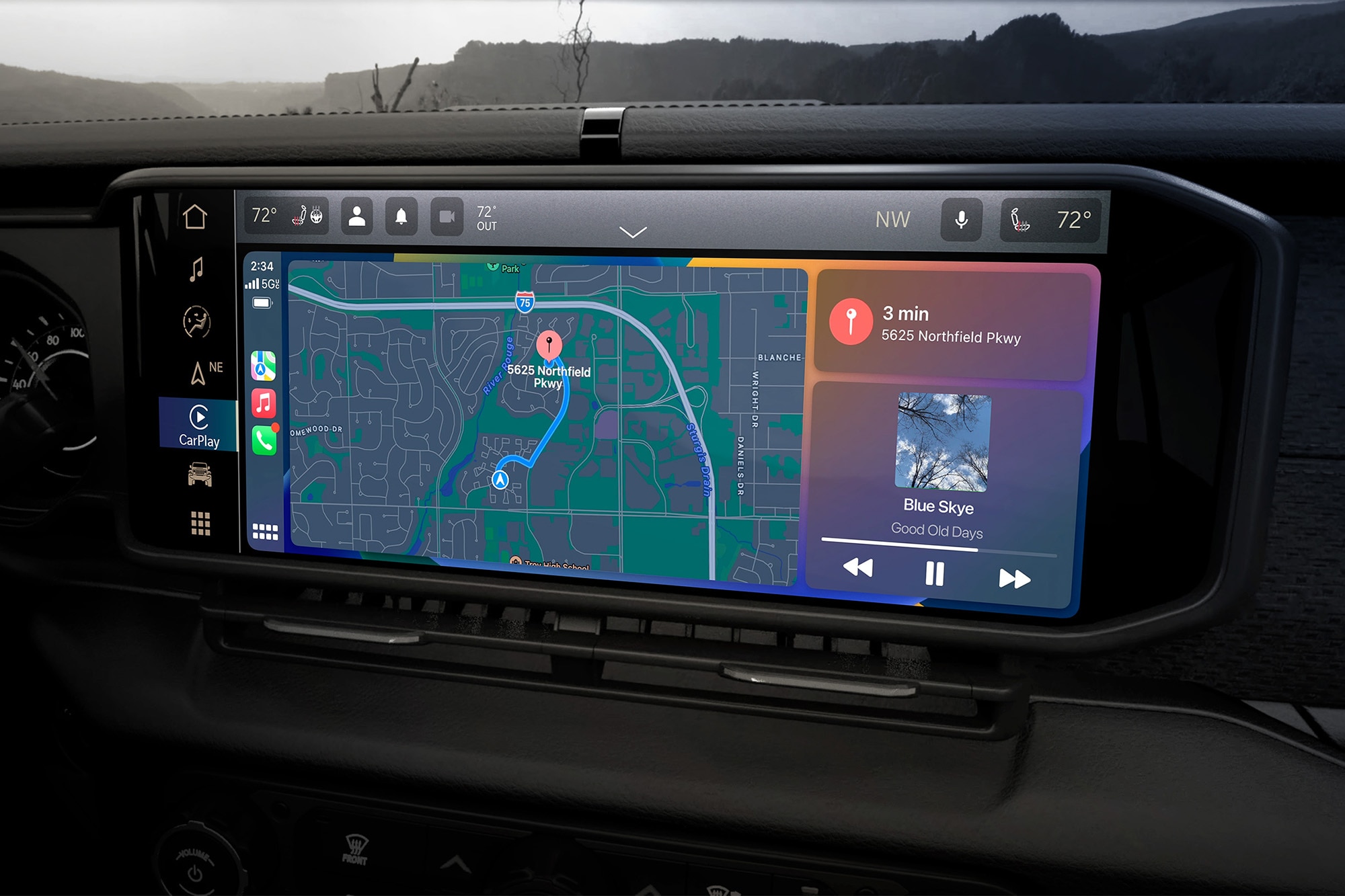
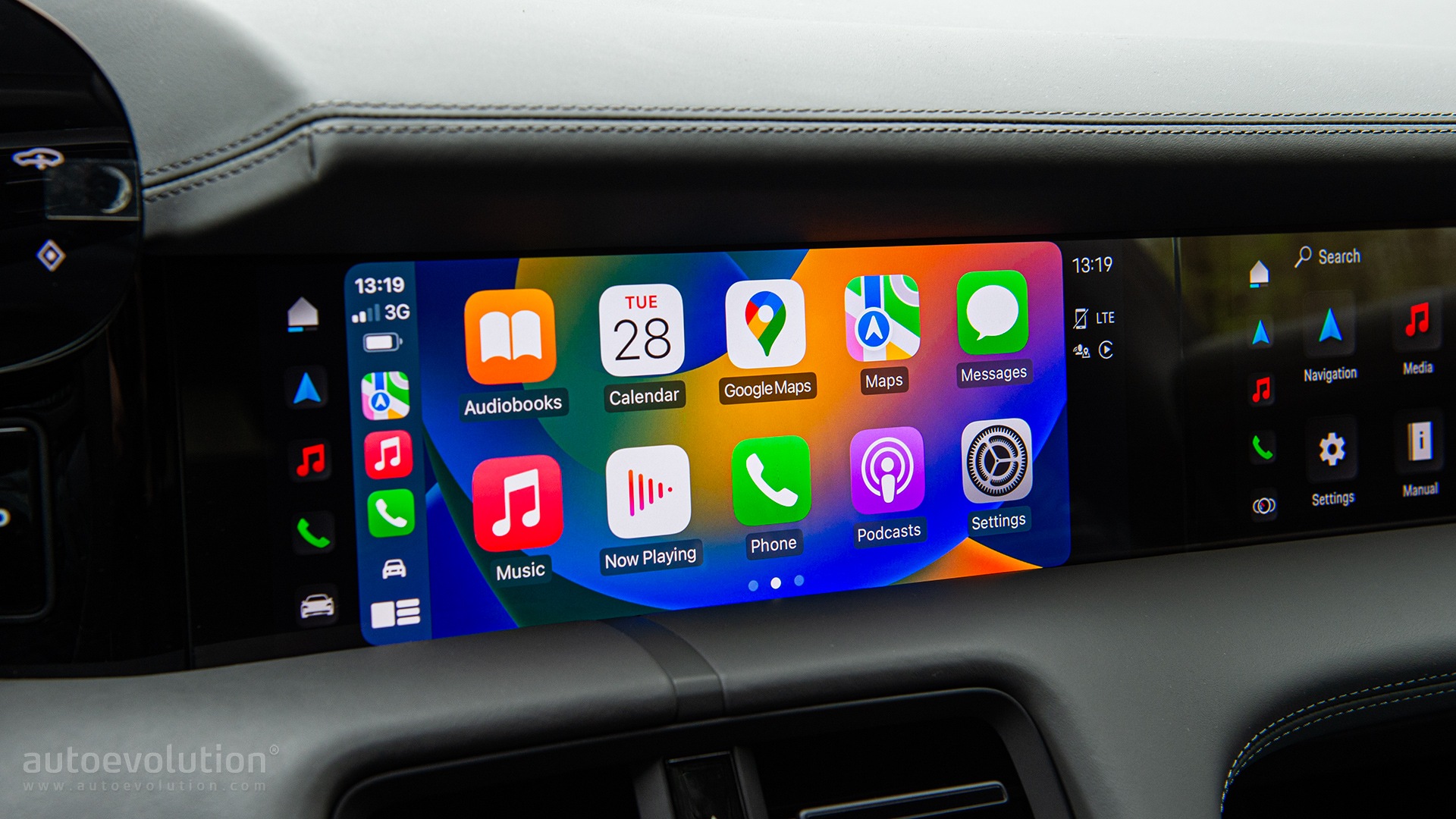
To connect Apple CarPlay, ensure Siri is turned on in your iPhone settings and your car supports CarPlay. For a wired connection, plug your iPhone into your vehicle's designated CarPlay USB port using an approved cable. For a wireless connection, pair your iPhone via Bluetooth and confirm the prompt to use CarPlay over Wi-Fi.
Technical Requirements and Compatibility Prerequisites
Before attempting to set up Apple CarPlay, your hardware and software configuration must meet several foundational requirements. While CarPlay has been standard across the automotive industry for years, connection failures frequently stem from overlooked system settings, unsupported hardware, or strict privacy configurations on the iPhone.
| CarPlay Prerequisites Check |
|---|
| 1. Compatible iPhone (iPhone 5 or newer running iOS 7.1+) |
| 2. CarPlay-supported vehicle or aftermarket receiver |
| 3. Siri enabled (Settings > Siri & Search) |
| 4. Allowed in Restrictions (Settings > Screen Time > Privacy) |
| 5. Active Wi-Fi & Bluetooth (for wireless setups) |
Supported Devices and iOS Versions
CarPlay is compatible with iPhone 5 and all subsequent models. However, optimal operational stability, modern app availability, and enhanced dashboard UI capabilities require a modern device running a fully updated version of iOS.
Your vehicle must also feature native CarPlay support from the manufacturer or be equipped with an aftermarket receiver from brands such as Pioneer, Kenwood, Alpine, Sony, or JVC. You can check the complete manufacturer compatibility directory via the official Apple CarPlay Vehicle List.
Required iPhone Settings
CarPlay will not initiate if specific iOS safety and assistant features are disabled. Check the following configurations prior to connecting:
- Siri Configuration: Siri must be active for CarPlay to operate. Navigate to Settings > Siri & Search (or Settings > Apple Intelligence & Siri on newer iOS versions) and ensure Listen for "Hey Siri" (or "Siri") and Press Side Button for Siri are toggled on. Additionally, enable Allow Siri When Locked.
- Content & Privacy Restrictions: If CarPlay fails to launch when plugged in, it may be blocked by iOS restrictions. Navigate to Settings > Screen Time > Content & Privacy Restrictions > Allowed Apps & Features and confirm that CarPlay is toggled on.
- Location Services: Navigation applications like Apple Maps, Google Maps, and Waze require precision location data. Ensure location access is set to "While Using the App" under Settings > Privacy & Security > Location Services.
How to Connect Apple CarPlay via USB Cable
A wired connection remains the most reliable method to connect Apple CarPlay. It delivers lossless digital audio playback, consistent GPS data transfer, zero signal latency, and continuous battery charging while driving.
- iPhone (Lightning or USB-C)
- High-Quality Data Cable
- Vehicle CarPlay USB Port (Marked with Phone/Car icon)
- Infotainment Prompt: "Allow CarPlay while locked?"
- Vehicle CarPlay USB Port (Marked with Phone/Car icon)
- High-Quality Data Cable
Step 1: Locate the Designated CarPlay USB Port
Not every USB port in a modern vehicle transmits data to the infotainment system. Many rear-seat ports or center console outlets are designated exclusively for power delivery (charging only). Look for a USB port marked with one of the following identifiers:
- A smartphone outline icon
- The official Apple CarPlay symbol
- A icon showing a screen next to a USB plug
- A port explicitly labeled Data or USB 1
Step 2: Select the Correct Cable
Cable quality is the single most common cause of wired CarPlay dropouts and setup failures.
- iPhone 14 and Older (Lightning Port): Use an original Apple Lightning-to-USB cable or an official MFi-certified (Made for iPhone) third-party cable. Uncertified, cheap charging cables lack the data transfer pins required to transmit the video feed to your dashboard.
- iPhone 15 Series and Newer (USB-C Port): Use a high-speed USB-C data cable that supports USB 2.0 or higher data rates. If your car features legacy USB-A ports, use a verified USB-A to USB-C data cable rather than an unbranded adapter.
Step 3: Establish the Physical Connection
- Unlock your iPhone and turn on your car's engine or switch the ignition to Accessory (ACC) mode.
- Insert the cable into your iPhone and connect the other end to your car’s primary data USB port.
- Wait 3 to 5 seconds for the vehicle's head unit to detect the device.
Step 4: Authorize the Initial Connection
When connecting for the first time, your iPhone will display an authorization prompt: "Allow CarPlay with '[Car Name]' while locked?" Select Allow. This step ensures that CarPlay launches automatically in future driving sessions without requiring you to unlock your iPhone every time you enter the vehicle. If your car dashboard prompts you to accept terms or choose between charging-only and CarPlay mode, select Apple CarPlay.
How to Connect Apple CarPlay Wirelessly
Wireless CarPlay removes the hassle of physical cables by utilizing a dual-protocol wireless connection. Bluetooth is utilized solely for initial device discovery and authentication handshakes, while high-bandwidth Wi-Fi handles the actual streaming of user interface frames, map data, and high-fidelity audio.
- [iPhone]
- (1) Bluetooth Handshake to [Car Infotainment]
- (2) Switch to Wi-Fi Direct Stream
Step 1: Enable Wireless Connections on iPhone
Ensure your iPhone's wireless radios are fully operational. Open the Control Center or go to Settings and confirm that both Bluetooth and Wi-Fi are toggled ON. You do not need to connect to a specific Wi-Fi network manually; the vehicle and phone will establish an ad-hoc Wi-Fi connection automatically.
Step 2: Initiate Wireless Pairing
Depending on your vehicle's infotainment system design, initiate pairing using one of two methods:
Method A: Infotainment Touchscreen Pairing
- Start your vehicle and keep it in Park.
- On your car display screen, navigate to the device manager or phone settings menu (often labeled Phone, Devices, or Connect New Device).
- Select Add Device or Pair New iPhone.
- On your iPhone, go to Settings > Bluetooth and tap your vehicle’s system name when it appears under Other Devices.
- Confirm that the 6-digit PIN shown on your iPhone screen matches the PIN displayed on your car screen, then tap Pair.
Method B: Steering Wheel Controls
- Press and hold the Voice Control / Siri button located on your vehicle’s steering wheel until you hear an audio prompt or see a setup message on the center console.
- Open your iPhone and navigate to Settings > General > CarPlay.
- Under Available Cars, select your vehicle.
Step 3: Confirm Wireless CarPlay Prompts
After Bluetooth pairing succeeds, your iPhone screen will display a pop-up window asking: "Use CarPlay with '[Car Name]'?" Tap Use CarPlay. A second prompt will request permission to sync your Contacts and Favorites for hands-free calling and messaging. Tap Allow.
Once authorized, the vehicle screen will switch automatically from the native automaker software to the Apple CarPlay interface.
Wired vs. Wireless Apple CarPlay Comparison
Choosing between a wired and wireless setup involves weighing convenience against raw performance and system battery management.
| Feature / Metric | Wired Apple CarPlay | Wireless Apple CarPlay |
|---|---|---|
| Primary Data Connection | Physical USB Data Lines | 5 GHz Wi-Fi Direct Link |
| Initial Pairing Handshake | Instantaneous Plug-and-Play | Bluetooth Authentication |
| Audio Quality & Latency | Lossless audio; zero lag | High-quality compressed audio; minor latency (~1-2s) |
| Phone Battery Impact | Charges device continuously | High battery consumption due to active Wi-Fi/GPS |
| Connection Stability | Very High (unaffected by RF interference) | High (can experience interference near toll booths or radar) |
| Multi-Device Management | Priority given to physically plugged device | Depends on vehicle Bluetooth priority rankings |
| Cable Requirement | Requires MFi or USB-C Data Cable | Cable-free after initial pairing |
Customizing CarPlay App Layout and Settings
Once your connection is established, you can customize your interface layout, app arrangements, and notification behavior directly from your iPhone.
- iPhone: Settings > General > CarPlay > Select Vehicle > Customize
- Drag apps to reorder on dashboard
- Tap (-) to remove unsupported third-party apps
Rearranging Dashboard Icons
CarPlay allows you to rearrange first-party and compatible third-party applications across its home screens:
- Open Settings on your iPhone.
- Tap General > CarPlay and select your connected vehicle from the list.
- Tap Customize.
- Touch and hold the three horizontal bars next to any app to drag it up or down. Apps at the top of the list will appear on the first page of your vehicle's display.
- Tap the red minus (-) icon to hide an application from your dashboard screen.
Configuring Driver Focus and Notifications
To prevent distracted driving, CarPlay integrates directly with iOS Focus modes.
- Driving Focus Activation: Go to Settings > Focus > Driving. You can configure this mode to turn on automatically when your iPhone connects to CarPlay.
- Announce Messages: To have Siri read incoming text messages through your car speakers without displaying popup previews on screen, enable Announce Messages under Settings > Siri & Search > Announce Notifications.
Advanced Troubleshooting for Connection Failures
When Apple CarPlay fails to launch, displays a black screen, or drops connections repeatedly, follow these step-by-step diagnostic fixes to resolve the root cause.
- [CarPlay Connection Issue]
- Check physical cable / USB port (Wired)
- Toggle Bluetooth & Wi-Fi radios (Wireless)
- Restart iPhone & Infotainment System
- Forget Car in iPhone Settings & Re-pair
- Reset iPhone Network Settings
Fix 1: Resolve Wired Cable and Port Failure
If plugging your phone into the USB port only charges the battery without launching the CarPlay dashboard interface:
- Inspect for Dirt/Debris: Lint accumulated inside your iPhone’s Lightning or USB-C port can prevent data pins from engaging while allowing power pins to connect. Clean the port gently using a non-conductive wooden or plastic pick.
- Swap the Cable: Test an official Apple-branded cable. Many cheap aftermarket cables lack data wire pairs entirely.
- Bypass Hubs and Adapters: Remove non-certified USB extenders, multi-port splitter hubs, or magnetic cable tips. Plug the cable directly into the car's built-in dashboard USB port.
Fix 2: Resolve Wireless Pairing and Interference Issues
Wireless CarPlay relies on high-frequency Wi-Fi connections that can occasionally fail to hand over from Bluetooth:
- Force Radio Re-initialization: Toggle Airplane Mode ON for 10 seconds, then toggle it OFF to force your iPhone’s Wi-Fi and Bluetooth stacks to reset.
- Disable VPN Software: Active VPN profiles can block the local ad-hoc Wi-Fi subnet created between your vehicle's head unit and your iPhone. Temporarily disable any active VPN client under Settings > VPN & Device Management.
- Clear Wi-Fi Network Conflicts: If your phone is attempting to join an external Wi-Fi hotspot (such as a vehicle onboard cellular hotspot) before the CarPlay Wi-Fi network initializes, tell your iPhone to Forget This Network for the car’s standard hotspot SSID.
Fix 3: Reset CarPlay Settings and Infotainment Firmware
If software handshake corruption occurs:
- Forget Vehicle on iPhone: Navigate to Settings > General > CarPlay, select your vehicle name, and tap Forget This Car.
- Remove Phone from Vehicle Memory: On your car's touchscreen, open the Bluetooth/CarPlay settings menu, locate your iPhone in the device list, and delete or unpair it.
- Hard-Reset Infotainment System: Many modern vehicles permit a soft reset of their media consoles. Press and hold the infotainment volume button or power button for 10–15 seconds until the screen reboots.
- Perform a Clean Re-pair: Start your car's engine and execute the wired or wireless setup process from the beginning.
Fix 4: Reset iPhone Network Settings
If network conflicts persist across multiple vehicles, system-level networking configurations on your iOS device may be corrupted.
- Open Settings > General > Transfer or Reset iPhone > Reset.
- Tap Reset Network Settings.
Note: This action clears all saved Wi-Fi networks, Bluetooth device pairings, and custom cellular settings. You will need to reconnect to known Wi-Fi networks afterward.
Frequently Asked Questions
Why does my phone charge, but Apple CarPlay will not connect?
When an iPhone charges without launching CarPlay, the issue is typically a cable that handles power delivery only, a corrupted USB data handshake, or an incorrect USB port. Ensure your cable supports high-speed data transfer (MFi-certified for Lightning; USB data-rated for USB-C) and that you are connected to the vehicle's dedicated data port, marked with a screen or smartphone icon.
Can I convert a wired-only Apple CarPlay system to wireless?
Yes. You can add wireless functionality to a factory wired-only CarPlay system using aftermarket wireless CarPlay adapters (dongles) from reputable accessory brands. These devices plug into your car’s wired USB port and act as a wireless bridge, connecting to your iPhone via Bluetooth and Wi-Fi.
Why did Apple CarPlay stop working after an iOS update?
Software updates occasionally modify privacy permissions, reset Siri preferences, or introduce temporary network stack bugs. If CarPlay stops connecting after updating your iPhone, check that Siri remains turned on, verify that CarPlay isn't restricted under Screen Time settings, and perform a "Forget This Car" re-pairing cycle.
Does Apple CarPlay require active cellular data?
CarPlay itself does not require cellular data to establish a connection or mirror your interface. However, data-dependent applications operating within CarPlay—such as live GPS navigation updates, Apple Music streaming, Spotify, and Siri voice searches—require an active cellular signal or connection to transmit real-time information.
How do I switch between multiple paired iPhones in the same car?
If multiple paired iPhones are inside the vehicle simultaneously, wireless systems default to the last connected device or the device set to highest priority in the infotainment menu. To switch devices, open the car touchscreen's Devices or Phone menu, disconnect the active phone, and manually tap the name of the alternate iPhone you want to connect.
Summary and Next Actions
Connecting Apple CarPlay transforms your vehicle dashboard into a safe, voice-controlled extension of your iPhone. To maintain a stable connection, use MFi-certified or verified USB data cables for wired setups, keep both Bluetooth and Wi-Fi toggled on for wireless setups, and ensure Siri is enabled without privacy restrictions.
If you experience dropouts or setup failures:
- Inspect your cable and clear debris from your iPhone charging port.
- Verify Siri and Screen Time permissions on your iOS device.
- Remove your car from Settings > General > CarPlay and complete a fresh pairing.
For persistent issues, consult your vehicle manufacturer's service department to check if your infotainment unit requires a official dealer firmware update. Additional technical support documentation can be retrieved directly from Apple Support.