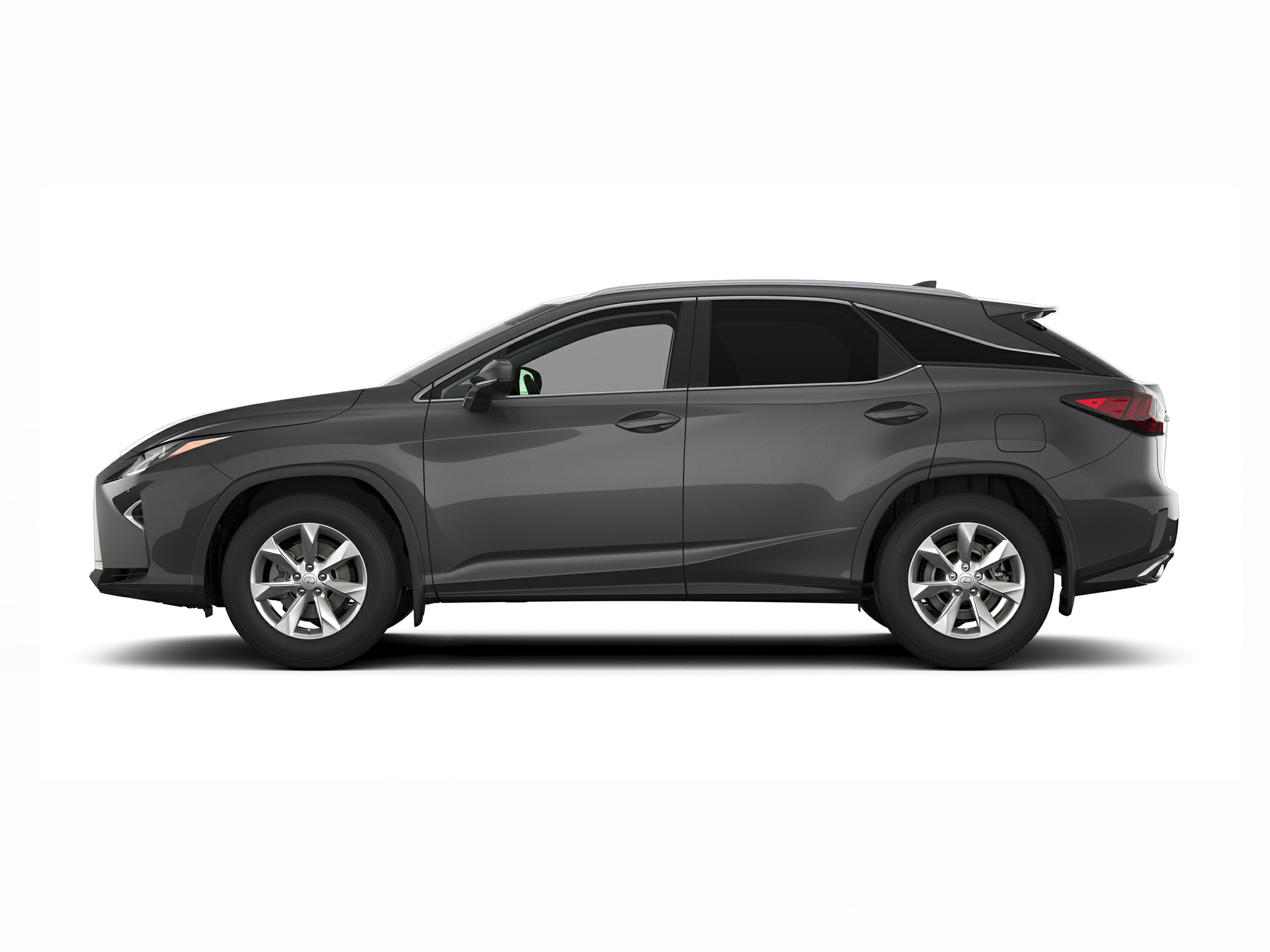
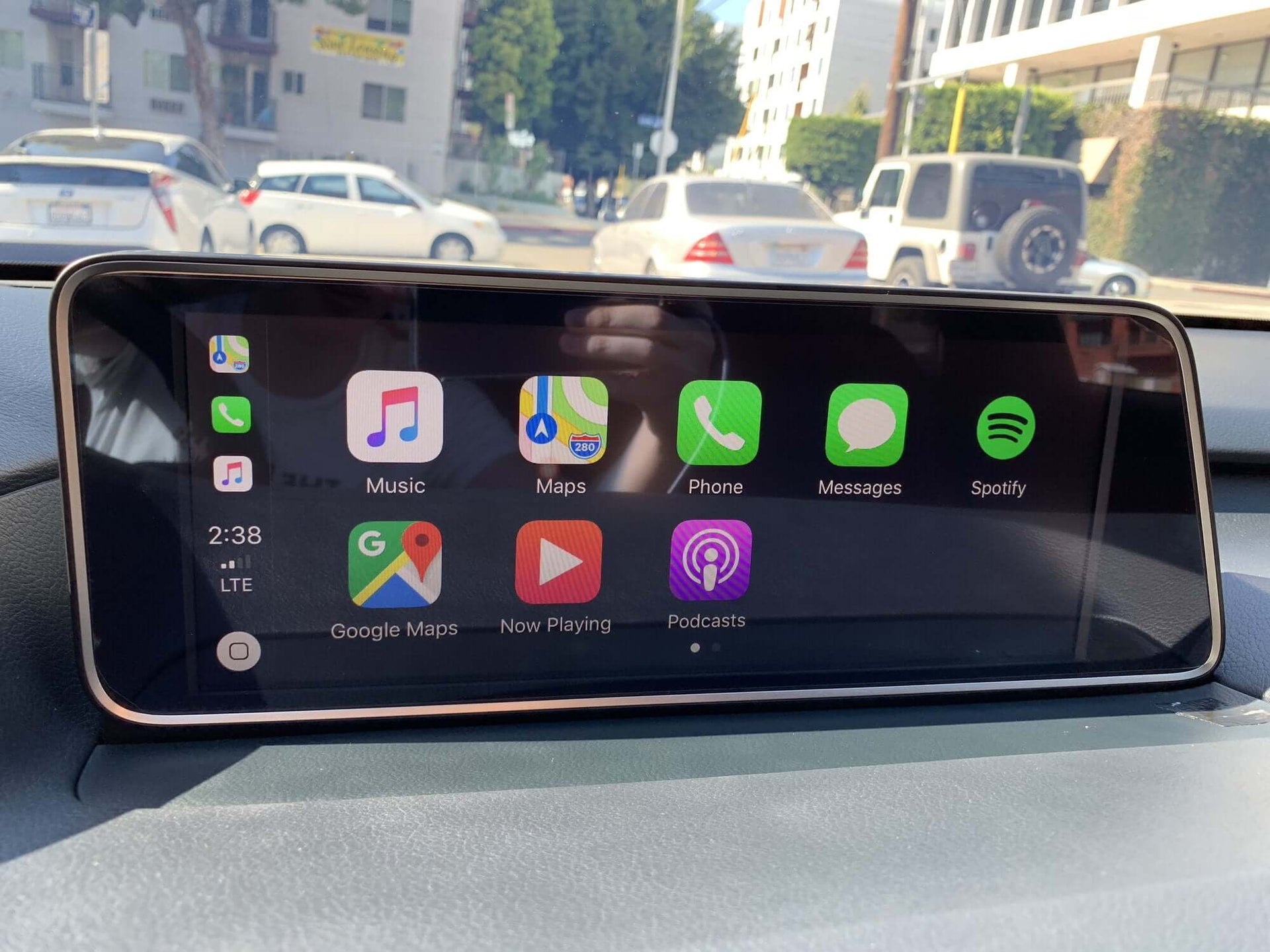
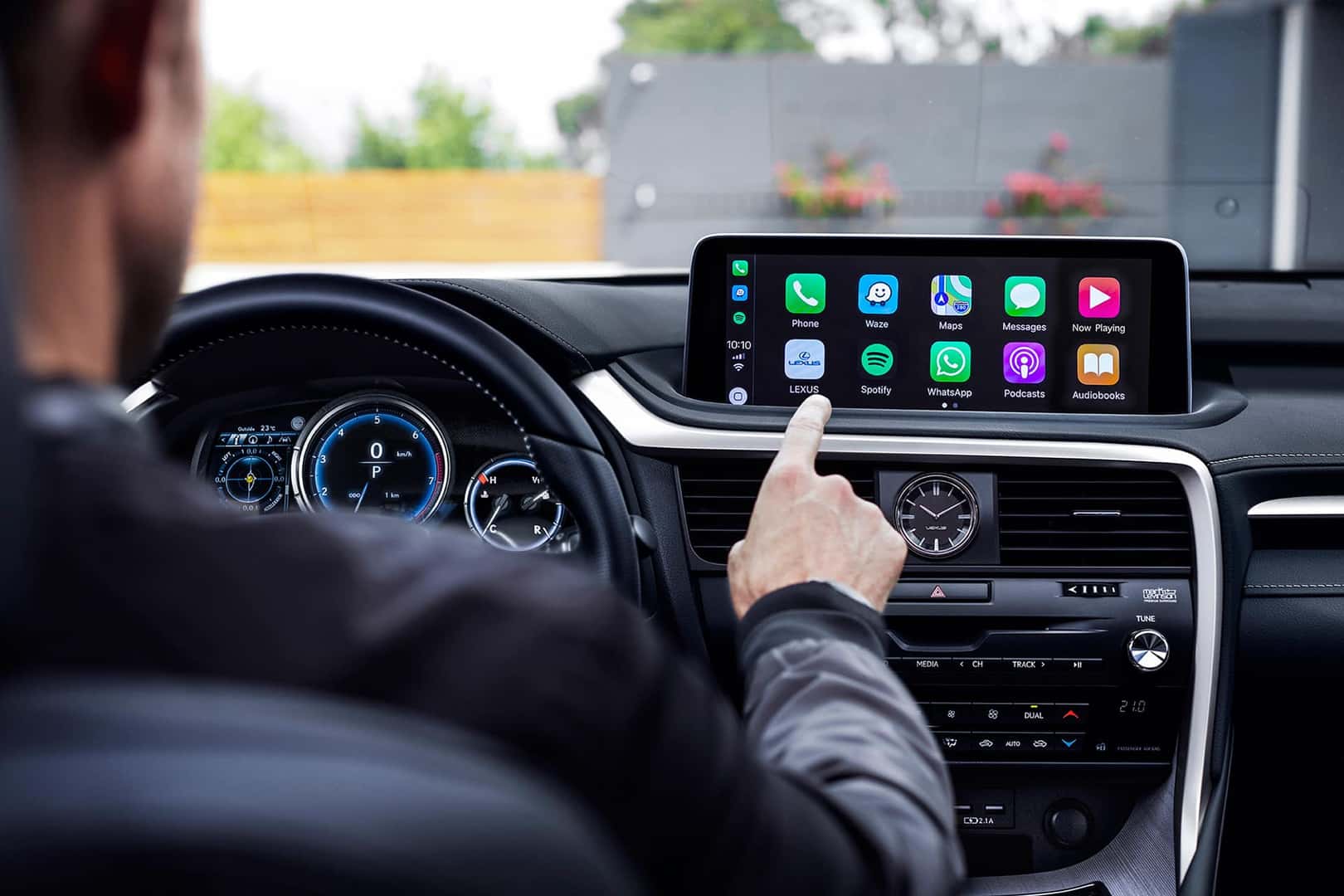
The 2019 Lexus RX 350 did not come equipped with factory Apple CarPlay or Android Auto support. Lexus introduced native Apple CarPlay to the RX lineup starting with the 2020 model year facelift. However, 2019 RX 350 owners can add full wireless or wired Apple CarPlay functionality using aftermarket integration modules or upgraded touchscreen displays.
Does the 2019 Lexus RX 350 Have Apple CarPlay?
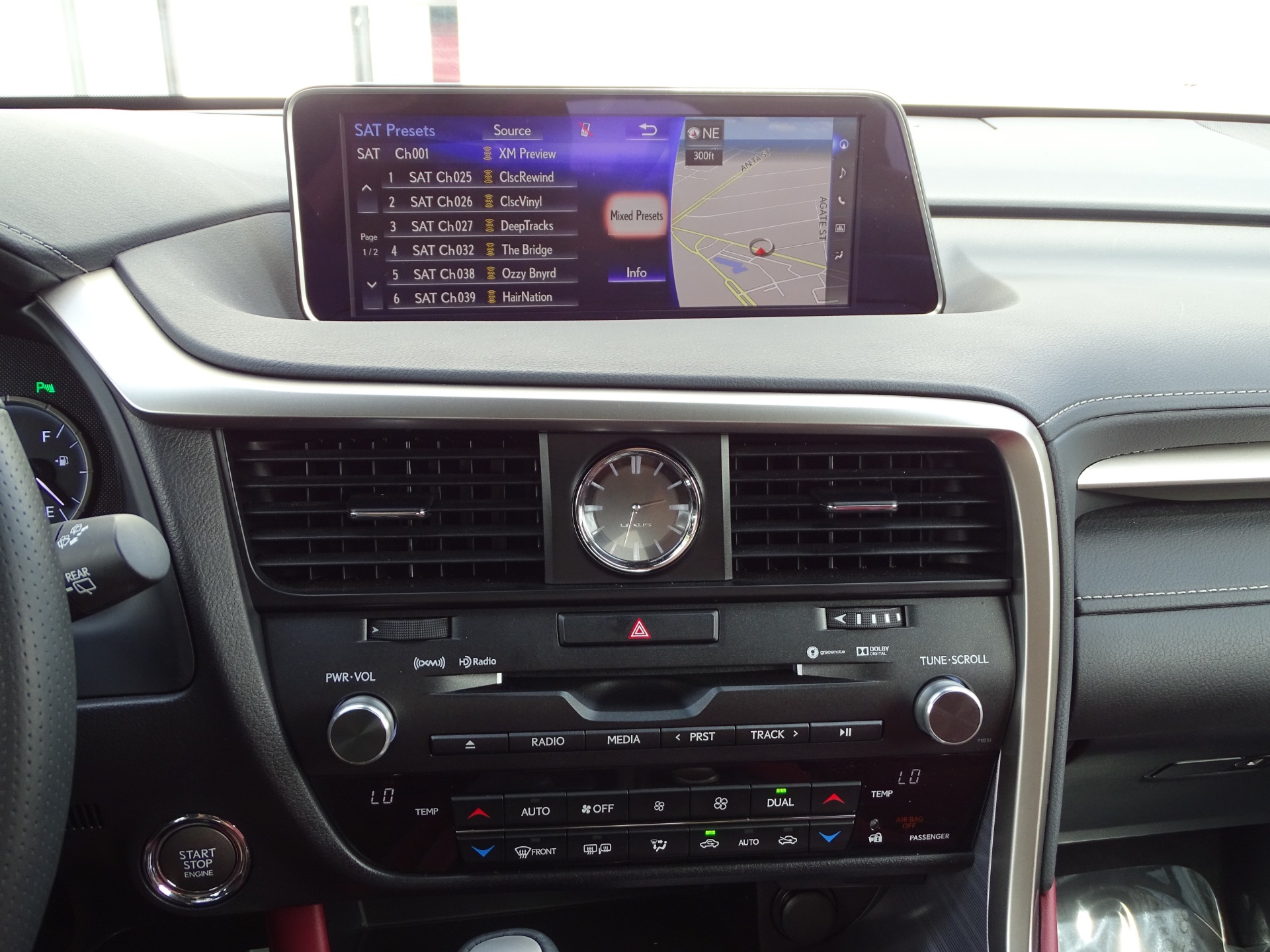
When the 2019 Lexus RX 350 was manufactured, Lexus had not yet integrated Apple CarPlay across its entire vehicle lineup. The 2019 model year retained the older Lexus Enform 2.0 multimedia system, controlled exclusively via the console-mounted Remote Touch mouse/joystick (for models equipped with the 12.3-inch Navigation package) or the rotary controller (for models with the standard 8-inch screen).
The Model Year Split: 2019 vs. 2020
- 2019 Lexus RX 350: No factory Apple CarPlay or Android Auto. The infotainment display is non-touchscreen and recessed deep into the dash top.
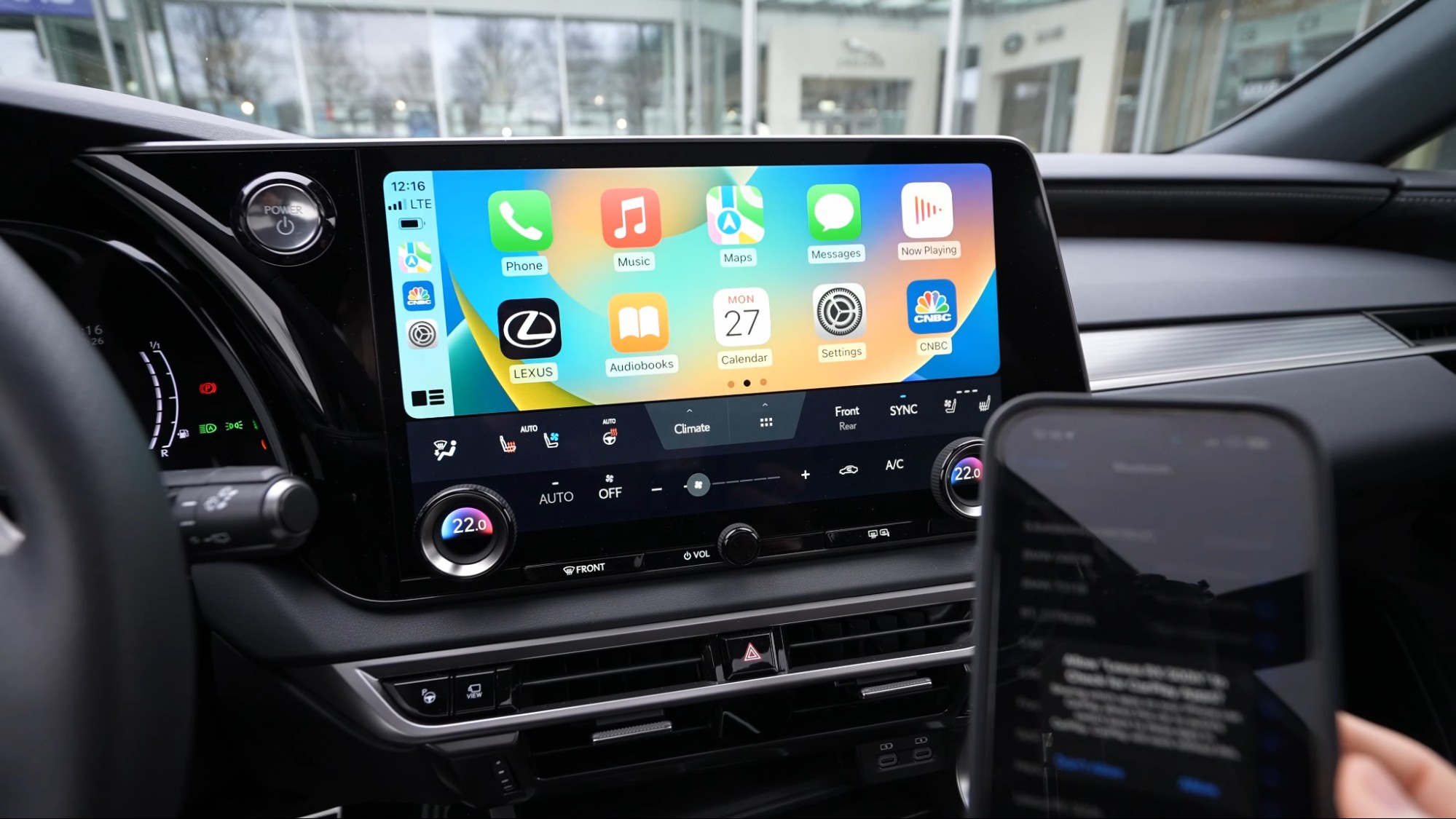
- 2020 Lexus RX 350: Received a mid-cycle refresh that moved the screen 5.5 inches closer to the driver, added touchscreen capability, and included standard wired Apple CarPlay, Android Auto, and Amazon Alexa support.
Clarifying the Lexus Dealer Retrofit Software Update
A common source of confusion for 2019 Lexus owners is the official Lexus Apple CarPlay Retrofit Campaign announced in mid-2019. Lexus offered an authorized dealer software update (Service Bulletin L-SB-0021-19) that retroactively added Apple CarPlay and Android Auto to select 2018 and 2019 vehicles equipped with specific Lexus Enform hardware.
Eligible vehicles included the 2018 Lexus LS 500, 2018 LC 500, 2019 NX 300, 2019 RC 300/350, and early-build 2019 ES 350 models. The 2019 Lexus RX 350 was explicitly excluded from this update. The 2019 RX 350 used an older generation infotainment head unit architecture that lacked the processing power and digital signal routing required to accept the official Lexus software update.
Consequently, there is no official Lexus dealer software download or factory update that can enable Apple CarPlay on a 2019 RX 350. Adding smartphone integration requires hardware modification.
How to Add Apple CarPlay to a 2019 Lexus RX 350
Because factory updates are unavailable, owners must turn to hardware solutions. Two primary aftermarket approaches exist: installing an add-on interface module (piggyback system) that uses your factory screen, or installing an aftermarket touchscreen upgrade.
- 2019 Lexus RX 350 Smartphone Options
- Add-On Integration Module (Beat-Sonic, GROM VLine, etc)
- Retains factory Lexus screen
- Uses OEM joystick/mouse
- Completely hidden box
- Retains factory camera/radio
- Aftermarket Screen Upgrade (12.3" Android Touchscreen)
- Adds direct touch control
- Replaces original display
- Modern widescreen look
- Keeps factory dual-mode OEM
- Add-On Integration Module (Beat-Sonic, GROM VLine, etc)
Option 1: Standalone Interface Modules (Piggyback Systems)
Interface modules are small hardware boxes installed behind the center console or dashboard trim. They plug inline between the factory Lexus head unit, display screen, and climate control wiring using vehicle-specific harness T-taps.
When installed, pressing a specific button on your steering wheel or dash (typically the "MAP" or "HANG UP" button) toggles the factory screen between the original Lexus Enform interface and a modern Apple CarPlay environment.
Popular Interface Brands:
- Beat-Sonic (LGV Series / Apple CarPlay Interface): Engineered specifically for Lexus electronics. Highly stable, preserves factory audio routing, and utilizes OEM steering wheel controls and the Remote Touch joystick.
- GROM Audio (VLine VL2 / Lite): Offers full CarPlay integration along with standalone Android app capabilities. Known for active software maintenance and user-configurable settings.
- Road Top / Carlinkit / Unavi Modules: Budget-friendly interface units available through online auto tech retailers. They offer wireless CarPlay and Android Auto, though software support and user documentation can vary.
Key Characteristics of Interface Modules:
- Display Retention: Keeps the original 8-inch or 12.3-inch OEM factory screen intact.
- Control Input: Controlled using the factory Lexus Remote Touch mouse, trackpad, or rotary dial.
- Audio Source: Feeds audio into the car via the factory Auxiliary (AUX) input or factory Bluetooth stream.
- Camera Integration: Automatically overrides CarPlay to display the factory backup camera or 360-degree panoramic view monitor when shifted into Reverse.
Option 2: Aftermarket Touchscreen Replacement Displays
For drivers who dislike the Lexus Remote Touch joystick, aftermarket screen replacement kits swap out the factory display for an upgraded 10.25-inch or 12.3-inch Android-based high-definition touchscreen.
Key Characteristics of Screen Replacements:
- Direct Touch Control: Brings the screen within reach and enables capacitive multitouch gestures (swiping, pinching maps).
- Dual-System Architecture: Retains the native Lexus Enform OS on one side while hosting an integrated Apple CarPlay / Android environment on the other. Switching back to OEM settings (to view factory HVAC or maintenance menus) takes one tap.
- Aesthetic Integration: Modules feature customized mounting bezels designed to fit the 2019 RX 350 dashboard contour.
Comparison of 2019 Lexus RX 350 CarPlay Upgrade Methods
The following matrix compares the most popular methods for integrating Apple CarPlay into a 2019 Lexus RX 350.
| Feature / Metric | OEM Lexus Software Update | Aftermarket Interface Module (e.g., Beat-Sonic / GROM) | Aftermarket Screen Replacement (e.g., 12.3" Touchscreen) | FM Transmitter / Portable CarPlay Screen |
|---|---|---|---|---|
| Availability for 2019 RX | Not Available | Available | Available | Available |
| Approximate Hardware Cost | N/A | $450 – $750 | $600 – $950 | $50 – $150 |
| Screen Type Used | OEM Screen | Factory 8" or 12.3" Display | Upgraded HD Touchscreen Display | Standalone External Display |
| Input Method | N/A | OEM Joystick / Rotary Mouse | Touchscreen + OEM Joystick | Touchscreen on Device |
| CarPlay Connection Type | N/A | Wireless & Wired | Wireless & Wired | Wireless or Auxiliary |
| Factory Camera Retention | N/A | 100% Retained (Auto-Switch) | 100% Retained (Auto-Switch) | No Camera Pass-Through |
| Installation Complexity | N/A | Moderate (Trim Removal Required) | Moderate to High (Dash Removal) | Plug-and-Play (Dashboard Mount) |
| Dashboard Aesthetics | Factory Original | 100% Factory OEM Look | Modernized / Upgraded Appearance | Suction-mounted Bracket |
Technical Prerequisites and Vehicle Compatibility
Before purchasing an Apple CarPlay upgrade kit for your 2019 Lexus RX 350, verify your vehicle's specific interior package details:
- Screen Size Identification: Determine whether your RX 350 has the base 8-inch display (controlled via rotary knob or trackpad) or the optional 12.3-inch navigation display (controlled via Remote Touch joystick). Aftermarket wiring harnesses differ between screen sizes.
- Audio Package Verification: Confirm whether your vehicle features the standard Lexus Premium Audio system or the upgraded Mark Levinson 15-speaker Surround Sound system. Hardware modules require specific DIP switch settings or auxiliary loop harnesses to avoid signal clipping on Mark Levinson setups.
- Factory AUX Channel: Verify that the OEM auxiliary input port in the center console is operational. Most aftermarket interface modules route digital CarPlay audio through the car's analogue or digital AUX pipeline.
Step-by-Step Installation Overview: Interface Hardware Module
While professional installation by an automotive electronics specialist is recommended, experienced DIY enthusiasts can perform the installation in approximately 2 to 3 hours using standard trim removal tools and a 10mm socket wrench.
- Disconnect Negative Battery Cable & Protect Interior Trim
- Disassemble Center Console Side Trim & Remove Climate Control Panel
- Unbolt 10mm Bolts & Carefully Unplug Factory Radio Head Unit
- Connect Plug-and-Play Harnesses (LVDS Video, Power, CAN, Audio)
- Route USB Extension/Microphone Cables & Secure Module behind Glovebox
- Reconnect Battery, Test All Functions (Camera, Controls), Reassemble
Step 1: Safety and Surface Protection
Disconnect the negative terminal of the 12V battery. Apply painter's tape or protective microfiber towels around the center console leather, shifter housing, and navigation screen bezel to prevent scratch damage during panel removal.
Step 2: Trim Disassembly
- Use a plastic pry tool to unclip the side leather trim panels running along the sides of the center console.
- Remove the gear shifter knob by twisting it counterclockwise.
- Lift the cup holder panel and Remote Touch controller trim upward to release the retention clips. Unplug the harness connectors beneath the console panel.
- Unscrew the retention bolts holding the air conditioning/climate control panel and pull it forward to remove it.
Step 3: Accessing the Head Unit and Display
- Remove the two 10mm bolts located below the factory radio head unit.
- Carefully pull the head unit out toward the cabin.
- Access the rear of the unit to identify the primary power harness, video signal cable (LVDS connector), and factory display feed.
Step 4: Wiring Harness Interconnection
- Unplug the factory video (LVDS) cable from the back of the radio and connect it to the female receptacle of the aftermarket interface module harness.
- Connect the male LVDS cable from the interface module into the back of the Lexus factory head unit.
- Connect the main power/CAN-bus T-harness inline with the factory radio wiring.
- Route the 3.5mm AUX audio cable or dedicated audio harness to the vehicle's center console AUX port or factory audio plug.
Step 5: Positioning the Module and Testing
- Tuck the interface module into the empty cavity behind the glovebox or below the factory radio structure using heavy-duty double-sided foam tape or zip ties.
- Temporarily reconnect the 12V battery. Turn the ignition to ACC mode.
- Switch the Lexus head unit source to AUX.
- Hold the designated toggle button (e.g., "MAP" or "NAV") on the steering wheel or controller for 3 seconds to confirm screen switching to the CarPlay interface.
- Test wireless Bluetooth pairing, microphone responsiveness, steering wheel volume controls, and reverse camera engagement.
Step 6: Final Reassembly
Once all functions pass verification, turn off the ignition, disconnect the battery again, click all dashboard trim panels back into position, re-bolt the head unit, and reconnect the battery.
Operational Usability: Navigating CarPlay in the RX 350
Using Apple CarPlay in a 2019 Lexus RX 350 differs slightly from modern touchscreen vehicles due to the control hardware.
| Input Hardware | CarPlay Function / Interaction |
|---|---|
| Remote Touch Mouse | Moves highlight box across CarPlay app icons |
| Joystick Push (Enter) | Selects highlighted app, track, or map button |
| Steering Wheel Voice | Triggers Apple Siri for hands-free voice commands |
| Steering Wheel Vol | Adjusts master CarPlay audio / phone call volume |
| Dash MAP/NAV Button | Hold 3 seconds to toggle between Lexus OS & CarPlay |
| Reverse Gear Shifter | Overrides CarPlay to show factory Backup Camera |
Remote Touch Interface Navigation
When using an interface module with the factory screen, the Lexus Remote Touch joystick acts as an analogue controller:
- Moving the joystick shifts the active highlighted box across Apple CarPlay app icons, map controls, and media buttons.
- Pressing down on the joystick ("ENTER") selects the highlighted icon.
- While the joystick is less direct than a touchscreen, users adapt quickly, relying heavily on voice commands via Siri.
Audio Routing and Call Quality
- Music & Navigation Audio: Must be played while the Lexus media source is set to AUX. If the head unit is set to AM/FM or XM radio, CarPlay visual navigation remains active on screen, but audio guidance and music will not play through the vehicle speakers.
- Phone Calls & Siri: Most modern interface modules support dual-Bluetooth routing. Calls route through the factory Lexus hands-free Bluetooth system for optimal microphone clarity, while CarPlay handles the visual call interface.
Common Troubleshooting Guidelines
If you encounter issues after installing an Apple CarPlay system in your 2019 RX 350, consult these common solutions:
1. Black Screen or No Display Signal
- Cause: Loose LVDS video harness connection or incorrect DIP switch settings on the interface box.
- Fix: Power off the car and verify that DIP switches on the module match your screen size (8-inch vs 12.3-inch). Re-seat all video cable latches until they click securely.
2. No Sound Output
- Cause: The vehicle's audio source is not set to AUX, or the AUX input volume is muted in the Lexus Enform settings.
- Fix: Navigate to the original Lexus audio menu, select AUX, and raise the volume baseline to level 30 before switching back to the CarPlay interface.
3. Remote Touch Controller Feels Too Sensitive or Sluggish
- Cause: Hardware cursor speed mismatch between the Lexus CAN-bus driver and the module.
- Fix: Open the settings menu inside the aftermarket CarPlay module interface (not the Lexus menu) and adjust "Feedback Sensitivity" or "Mouse Speed" settings.
4. Wireless Connection Drops
- Cause: Wi-Fi/Bluetooth signal interference or conflicting background connections to the OEM Lexus Bluetooth profile.
- Fix: Delete the iPhone from the factory Lexus Bluetooth menu (if using module-based calling) or select "Forget This Network" on the iPhone Wi-Fi settings and re-pair the CarPlay module's Wi-Fi access point.
Frequently Asked Questions
Can a Lexus dealer add Apple CarPlay to my 2019 Lexus RX 350?
No. Lexus dealers cannot add factory Apple CarPlay to the 2019 RX 350. The official Lexus retrofitting program introduced in 2019 applied only to specific models like the 2018 LS/LC and 2019 ES/NX/RC. The 2019 RX 350 uses an older infotainment hardware platform that does not support the software patch.
Will installing an aftermarket CarPlay module void my Lexus warranty?
Under the U.S. Magnuson-Moss Warranty Act, installing aftermarket equipment does not automatically void your entire vehicle warranty. However, Lexus can deny warranty coverage for specific electrical failures directly caused by improper installation or hardware failure of the aftermarket module itself. Choosing plug-and-play kits that require no wire cutting minimizes risk.
Does Apple CarPlay work wirelessly in a retrofitted 2019 Lexus RX 350?
Yes. Modern aftermarket interface modules (such as Beat-Sonic, GROM, and Road Top) support both wireless Apple CarPlay via 5GHz Wi-Fi/Bluetooth and wired connections through a hidden USB extension cable.
Will my factory backup camera still work after adding CarPlay?
Yes. High-quality aftermarket interface modules and screen replacement units feature automated CAN-bus switching. Whenever you move the gear shifter into Reverse, the screen instantly displays the factory backup camera or 360-degree panoramic display. Switching out of Reverse automatically returns the screen to Apple CarPlay.
Is it better to buy an interface module or replace the screen entirely?
If you prefer to maintain an entirely stock interior appearance and keep the original factory screen, an interface module is the best choice. If you dislike using the Lexus Remote Touch joystick/mouse and want direct capacitive touchscreen operation, an aftermarket 12.3-inch screen replacement is recommended.
Recommended Next Steps
If you are ready to equip your 2019 Lexus RX 350 with Apple CarPlay, follow these recommended actions:
- Confirm Interior Package Details: Check your dash screen size (8-inch vs 12.3-inch) and confirm whether your RX 350 has the Mark Levinson audio system.
- Select Your Hardware Strategy: Choose between retaining the factory display (using an interface module like Beat-Sonic or GROM) or upgrading to a dedicated 12.3-inch touchscreen unit based on your control preferences.
- Determine Installation Path: Review the panel removal requirements. If comfortable with dashboard disassembly, purchase a vehicle-specific kit for DIY installation. Otherwise, source hardware through a qualified mobile electronics installer specializing in Lexus and Toyota vehicles.