An Apple serial number check is the primary method for verifying hardware authenticity, determining warranty status, confirming AppleCare+ coverage, and checking repair eligibility across Apple devices. By entering your unique serial code into official lookup tools, you can access verified records regarding purchase validation, technical support eligibility, and remaining service coverage.
Why Perform an Apple Serial Number Check?
Every hardware product manufactured by Apple—including iPhones, iPads, Mac computers, Apple Watches, AirPods, and external displays—is assigned a unique alphanumeric string known as a serial number. Checking this identifier serves several critical functions for both current owners and prospective second-hand buyers.
1. Verifying Warranty and Service Eligibility
Apple provides a standard one-year limited warranty on hardware purchases, alongside 90 days of complementary technical support. Performing a serial number lookup reveals whether a device remains within this initial warranty window or if active AppleCare+ protection is present. This is essential prior to requesting hardware repairs, battery replacements, or screen servicing.
2. Confirming Product Authenticity
The market for counterfeit electronics frequently includes replica AirPods, iPhones, and Apple accessories designed to mimic genuine hardware visually and within software menus. Checking the serial number against Apple’s global database verifies whether the identifier corresponds to a legitimate manufactured unit and matches the exact color, capacity, and model description.
3. Evaluating Second-Hand Purchases
Before purchasing a pre-owned Apple device, checking its serial number helps verify that the seller's claims regarding age, specification, and warranty status are accurate. It also aids in identifying potential red flags, such as serial number cloning or misrepresentations of refurbished status.
4. Processing Trade-Ins and Insurance Claims
When trading in hardware to Apple or a third-party retailer, or when submitting claims to an insurer following loss or damage, the serial number acts as the definitive identifier of the physical asset.
How to Find Your Apple Serial Number Across All Devices
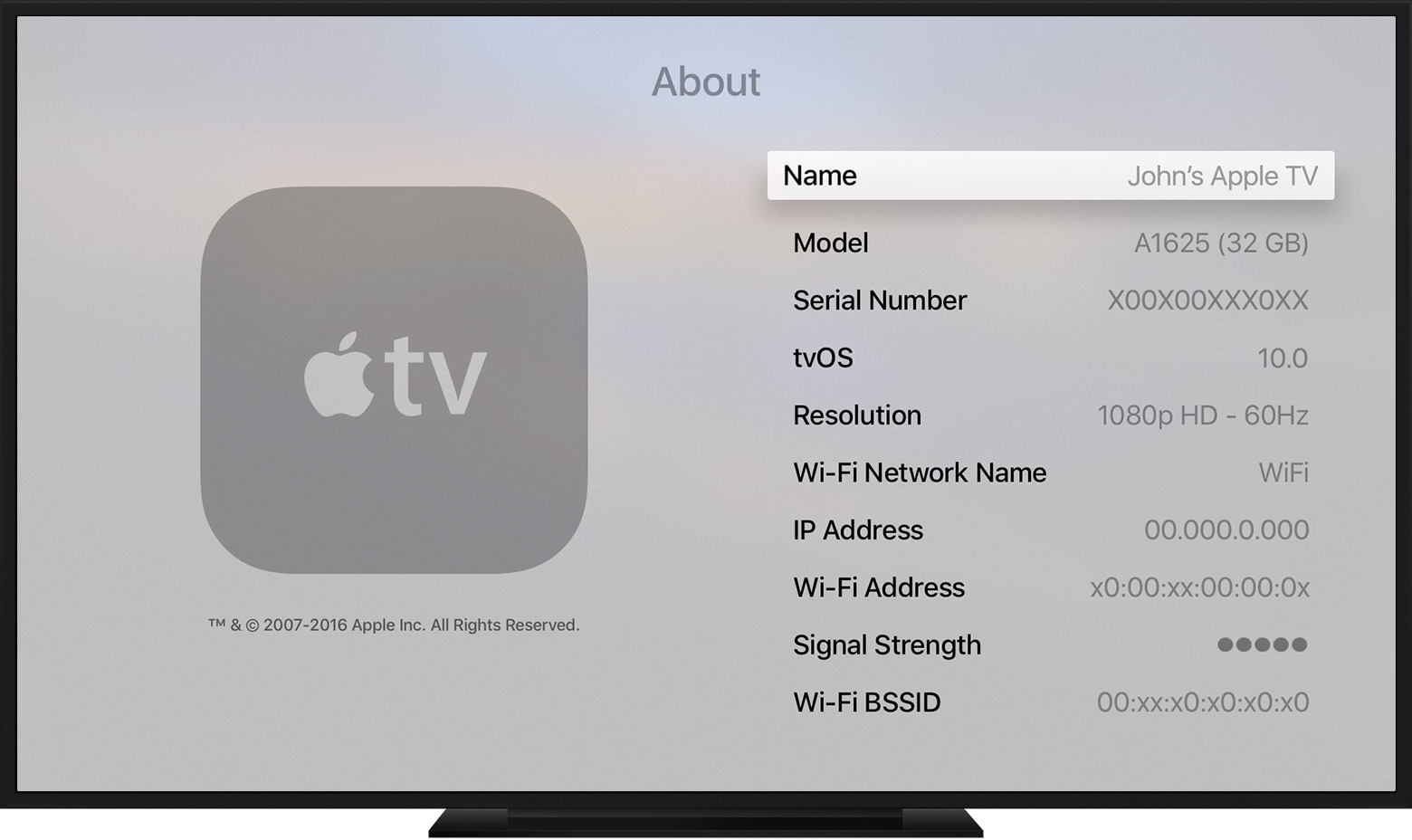
The process for retrieving an Apple serial number depends on whether the device is powered on, functional, or accessible via software. Apple embeds the serial number into the operating system software, engraves it onto physical hardware components, prints it on original packaging, and links it to account management dashboards.
- Locating Apple Serial Numbers
- On-Device OS
- Settings > General > About (iOS/macOS/watchOS)
- Hardware Engraving
- SIM Tray, Bottom Case, or Charging Case Interior
- Account & Box
- appleid.apple.com
- Original Packaging
- Retail Receipt
- On-Device OS
iPhone, iPad, and iPod touch
- In Software: Navigate to Settings > General > About. Scroll down to locate the Serial Number field. You can press and hold the field to copy the text.
- On Physical Hardware:
- iPhone 6s through iPhone 15 series (and newer): The serial number is stored in software, but the physical identifier printed on the device is the IMEI/MEID. On models with a physical SIM tray, the IMEI is etched directly into the tray slot.
- Earlier iPhone models and iPads: On older iPhones and iPads without cellular capabilities, the serial number is laser-engraved directly on the back lower portion of the aluminum enclosure.
Mac Notebooks and Desktop Computers
- In Software: Click the Apple menu () in the upper-left corner of the screen and select About This Mac. The serial number appears directly in the overview window. Alternatively, open System Information via Terminal or Spotlight search for detailed hardware component identifiers.
- On Physical Hardware:
- MacBook Pro and MacBook Air: Turn the laptop over. The serial number is printed in small text on the bottom metal case, adjacent to regulatory markings.
- iMac: The serial number is engraved on the underside of the aluminum stand base.
- Mac mini and Mac Studio: The serial number is printed on the bottom surface of the chassis, embedded within the rubberized ring or metallic base plate.
- Mac Pro: On tower models, the identifier is located on the back panel near the video outputs or on the bottom enclosure latch mechanism.
Apple Watch
- In Software: Open the Settings app on the Apple Watch, tap General, and select About. Alternatively, open the Watch app on the paired iPhone and go to My Watch > General > About.
- On Physical Hardware: Remove the watch band. On Apple Watch Series 1 and later, inspect the interior of the band slot (either the upper or lower channel). The serial number or model code is micro-etched inside the cavity.
AirPods and Beats Audio Products
- In Software: Connect the earbuds or headphones to an iOS or iPadOS device. Navigate to Settings > Bluetooth, tap the Info (i) button next to the device name, and view the Serial Number.
- On Physical Hardware:
- AirPods and AirPods Pro: The serial number is printed inside the lid of the wireless charging case or MagSafe case.
- AirPods Max: Remove the left magnetic ear cushion. The serial number is etched directly onto the upper portion of the ear cup driver housing.
Alternative Methods (Without the Physical Device)
If a device is lost, stolen, or unable to power on, you can retrieve the serial number using secondary official channels:
- Apple Account Dashboard: Sign in to appleid.apple.com with the Apple ID associated with the device. Navigate to the Devices section and select the specific hardware to view its serial number and IMEI.
- Apple Devices / Finder Backup: If you previously backed up an iPhone or iPad to a Mac or Windows PC, open Finder (macOS) or the Apple Devices app (Windows), select your device, and click the device summary field below its name to cycle between IMEI, MEID, and Serial Number.
- Original Retail Receipt or Box: The serial number is listed on the original purchase receipt, invoice, or retail box adjacent to the barcode label.
How to Check Your Coverage and Warranty Online
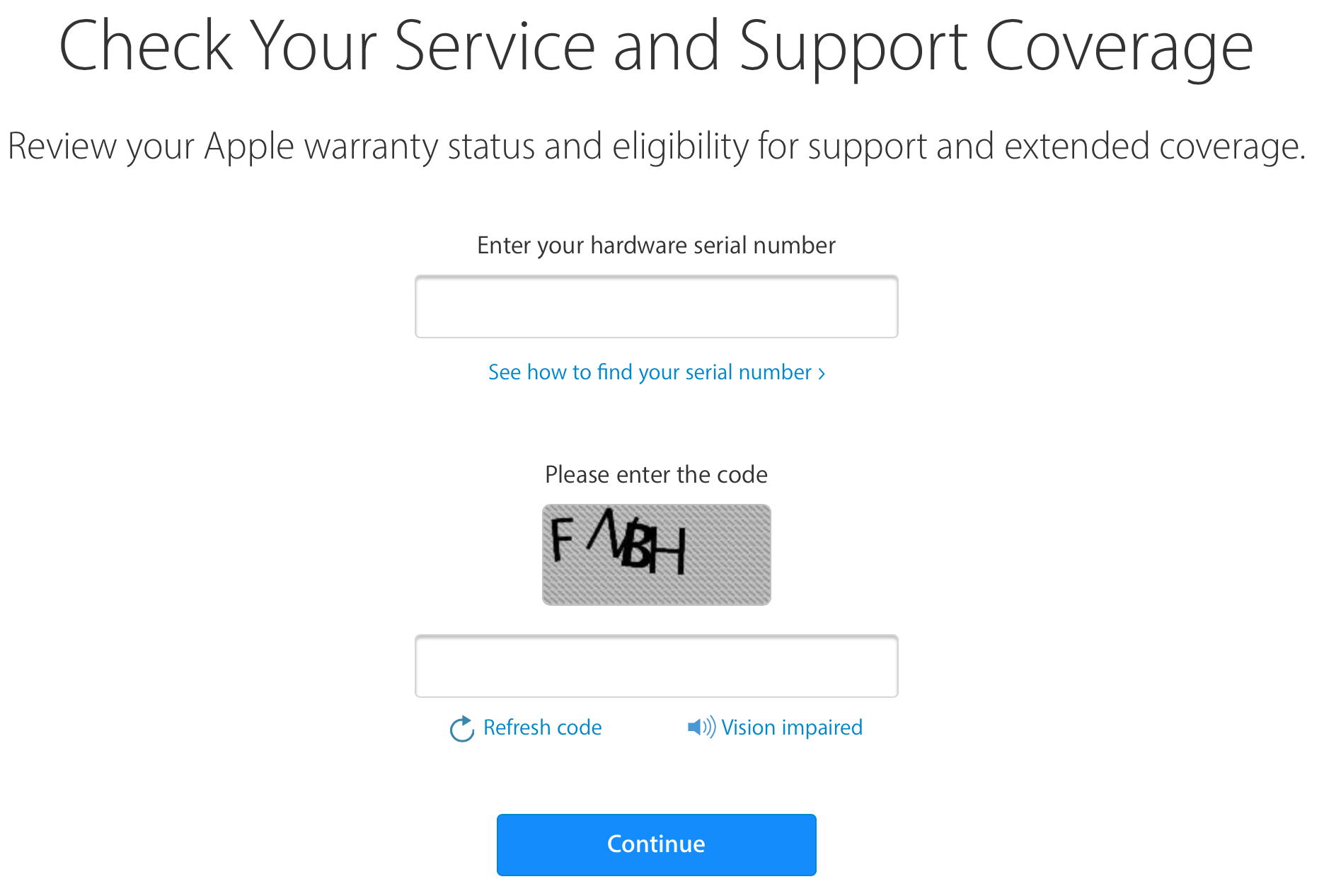
Once you have located your device's serial number, you can query Apple's official database to confirm warranty entitlement, service availability, and purchase validation.
- Visit Official Portal (checkcoverage.apple.com)
- Enter Serial Number & CAPTCHA
- View Generated Report
- Validation Status (Purchase Date Verified)
- Technical Support (90-Day Telephone Support Status)
- Service Coverage (1-Year Limited / AppleCare+)
Step-by-Step Guide to Using Apple's Check Coverage Portal
- Access the Portal: Open a browser and navigate directly to Apple’s official lookup page at checkcoverage.apple.com.
- Input Device Information: Enter the serial number into the designated input box. Ensure letters and numbers are entered accurately.
- Complete Security Verification: Enter the visual CAPTCHA security code to verify that the query is human-initiated.
- Review Results: Click Submit to generate the real-time coverage overview screen.
Interpreting the Results Screen
The report generated by the coverage portal provides four critical data points:
- Valid Purchase Date: A checkmark confirms that Apple has a record of the original sale date, allowing them to calculate warranty windows accurately. If this displays an alert stating "Purchase Date Not Validated," the owner must upload proof of purchase to unlock full online entitlement lookup.
- Telephone Technical Support: Indicates whether the unit is currently eligible for complimentary phone-based technical assistance.
- Repairs and Service Coverage: Indicates whether the device is covered under Apple's 1-Year Limited Warranty or an active AppleCare+ plan. It displays the estimated expiration date or specifies if coverage has expired.
- AppleCare+ Eligibility: For newly purchased devices (typically within 60 days of original retail sale), the system indicates whether the unit remains eligible for purchasing add-on AppleCare+ accidental damage coverage.
Managing Devices via the My Support Dashboard
For users managing multiple Apple products, signing in to mysupport.apple.com provides a centralized management console. After authenticating with an Apple ID, the portal lists all hardware currently bound to that account, displaying covered repairs, active coverage plans, and open service requests without requiring manual entry of individual serial numbers.
Decoding Apple Serial Numbers and Model Numbers
Understanding the structure of Apple serial numbers and model numbers provides extra insight into hardware generation, manufacturing origin, and device condition.
Modern vs. Legacy Serial Number Formats
Historically, Apple utilized a structured 12-character alphanumeric serial number format. This system allowed analysts to decode specific manufacturing parameters directly from the string:
- Characters 1–3: Manufacturing location code (factory identifier).
- Characters 4–5: Year and week of production.
- Characters 6–8: Unique device identifier code.
- Characters 9–12: Model and hardware specification variant codes.
Starting with products introduced in mid-2021 (such as the iPhone 13 series, M1-based Macs, and subsequent revisions), Apple transitioned to a randomized serial number format consisting of 8 to 10 characters. This change eliminated deterministic factory decoding from the serial string itself, enhancing privacy and reducing fraudulent serial generation schemes.
Deciphering Model Numbers (Refurbished vs. New Status)
While modern serial numbers are randomized, Apple’s Model Number—found directly above the serial number in Settings > General > About—uses a predictable naming convention. The first letter of the model number defines the hardware supply category:
Model Number Prefix Meanings
| First Letter | Meaning / Device Condition Status |
|---|---|
| M | Brand new device purchased from retail or authorized distributor. |
| F | Apple Certified Refurbished unit (remanufactured by Apple with new outer shell and battery). |
| N | Official service replacement unit provided by Apple for warranty claims. |
| P | Custom personalized/engraved unit ordered originally through the Apple Online Store. |
Comparison of Apple Hardware Identifiers
Devices maintain multiple identifiers used by network carriers, service teams, and registry databases. The table below outlines how serial numbers compare to other identifiers.
| Identifier Type | Standard Format / Length | Primary Function | Primary Retrieval Location | Uniqueness Scope |
|---|---|---|---|---|
| Serial Number | 8 to 12 alphanumeric characters | Hardware tracking, warranty verification, service claims | Settings menu, hardware chassis, packaging | Unique per physical Apple unit |
| IMEI (Int. Mobile Equipment Identity) | 15 numeric digits | Cellular network authorization, carrier blacklisting | Settings menu, SIM tray, cellular database | Unique per cellular radio interface |
| MEID (Mobile Equipment ID) | 14 hex digits | CDMA network authorization (legacy networks) | Settings menu, device diagnostic menus | Unique per CDMA module |
| Model Number (Order) | 5 to 9 alphanumeric characters (e.g., MU793LL/A) |
Specifies region, color, storage, and market allocation | Settings menu, box label | Shared by identical product configurations |
| Regulatory Model Number | Letter 'A' followed by 4 digits (e.g., A2849) |
Identifies broad hardware chassis platform for compliance | Physical back/engraving, regulatory menu | Shared across hardware production runs |
| UDID (Unique Device Identifier) | 40 hex characters or 25-char formatted string | Developer beta provisioning, MDM profile assignment | Finder, iTunes, Xcode diagnostics | Unique per iOS/iPadOS device |
Detecting Counterfeit Devices and Serial Cloning Scams
A key reason users run an Apple serial number check is to verify whether a device is genuine before buying it from an unverified seller. However, a valid serial number response alone does not guarantee hardware authenticity due to serial cloning.
The Mechanism of Serial Cloning
Counterfeit manufacturers frequently buy or copy valid serial numbers from legitimate Apple products sold publicly online. They program these valid strings into fake hardware running modified versions of Android styled to resemble iOS.
When a buyer inputs the cloned serial number into checkcoverage.apple.com, Apple's system confirms that the serial number belongs to a real device in its database. However, the physical item in the buyer's hand is still a fake.
Serial Cloning Scam Process:
- Scammers obtain genuine Apple serial numbers from legitimate products.
- Scammers burn the genuine serial into fake Android/iOS-style clone.
- Buyer runs serial check: Apple database returns "Valid Device".
- RESULT: Serial check passes, but physical hardware is counterfeit.
Red Flags and Physical Verification Steps
To guard against serial cloning scams, pair the online serial check with physical and functional diagnostics:
- Check OS-Level Features: Counterfeit iPhones running customized Android software cannot access the genuine App Store. Attempting to open the App Store on a fake device often redirects to the Google Play Store or opens a web view.
- Test System Integration Features: Features like AirDrop, real-time True Tone display adjustments, Handoff, and precise Find My network tracking are proprietary to Apple's custom silicon and firmware. Cloned devices cannot replicate these capabilities.
- Verify Settings Details: Go to Settings > General > About. Confirm that the serial number listed inside the operating system matches the serial number laser-etched on the physical SIM tray or back glass. Discrepancies indicate altered parts or shell swaps.
- Check AirPods Spatial Audio and Diagnostics: Fake AirPods often display pop-up connection animations on iOS, but they typically fail to support genuine Dynamic Head Tracking, personalized Spatial Audio configurations, or official firmware updates delivered via iOS.
Activation Lock and Carrier Blacklists
An online serial number coverage lookup checks service eligibility, but it does not reveal whether a mobile device is iCloud Activation Locked or reported lost/stolen.
- Activation Lock Verification: To verify that an iOS device is not tied to a previous owner's account, turn on the device and proceed through setup. If the screen displays "iPhone Locked to Owner" or prompts for an unknown Apple ID password, the device cannot be used without the original owner's credentials.
- IMEI Blacklist Lookup: For cellular devices, copy the IMEI (rather than the serial number) into an independent carrier blacklist portal or international registry (such as the CTIA IMEI check tool) to verify that the device has not been flagged for non-payment, theft, or fraud.
Troubleshooting Serial Number Check Errors
When querying Apple's coverage databases, users may occasionally encounter errors or missing information. Below are common issues and their technical resolutions.
Troubleshooting Guide
| Error Encountered | Actionable Resolution |
|---|---|
| "Please enter a valid serial number." | • Check for visual misreadings (e.g., number '0' vs letter 'O').• Apple serials never use the letter 'O'. Use the number zero ('0').• Re-copy directly from Settings app. |
| "Purchase Date Not Validated" | • Log in with Apple ID at My Support.• Upload original retail proof of purchase receipt to update database. |
| Serial number missing/worn off physical chassis | • Retrieve via appleid.apple.com.• Connect to Mac/PC and check via Finder or Apple Devices app. |
Visual Character Misreadings
The standard character set used in Apple serial numbers excludes certain letters to avoid visual confusion. Specifically:
- The letter "O" is not used in Apple serial numbers; any round character that appears to be an "O" is actually the numerical digit zero "0".
- The letter "I" and letter "Q" are rarely used or excluded in specific serial formats to prevent confusion with the numbers "1" and "0".
Addressing "Purchase Date Not Validated"
This status frequently occurs when a device is purchased from an unaccredited third-party reseller, imported, or purchased wholesale. Because Apple's database lacks a direct registration record from the point of sale, the system cannot calculate warranty expiration.
To resolve this issue:
- Obtain a legible copy of the original itemized sales receipt showing the seller's business details, purchase date, and device serial number.
- Contact official Apple Support and request a purchase date validation update.
- Upload the document via Apple's secure upload portal to update the warranty system.
Frequently Asked Questions
Can a fake Apple product have a valid serial number?
Yes. Counterfeiters frequently perform "serial cloning" by copying a valid serial number from a genuine Apple product and burning it into the firmware of fake hardware. To verify authenticity, do not rely solely on the serial lookup tool. You should also verify that the hardware runs genuine iOS, iPadOS, or macOS software and supports features like AirDrop, iCloud synchronization, and official App Store access.
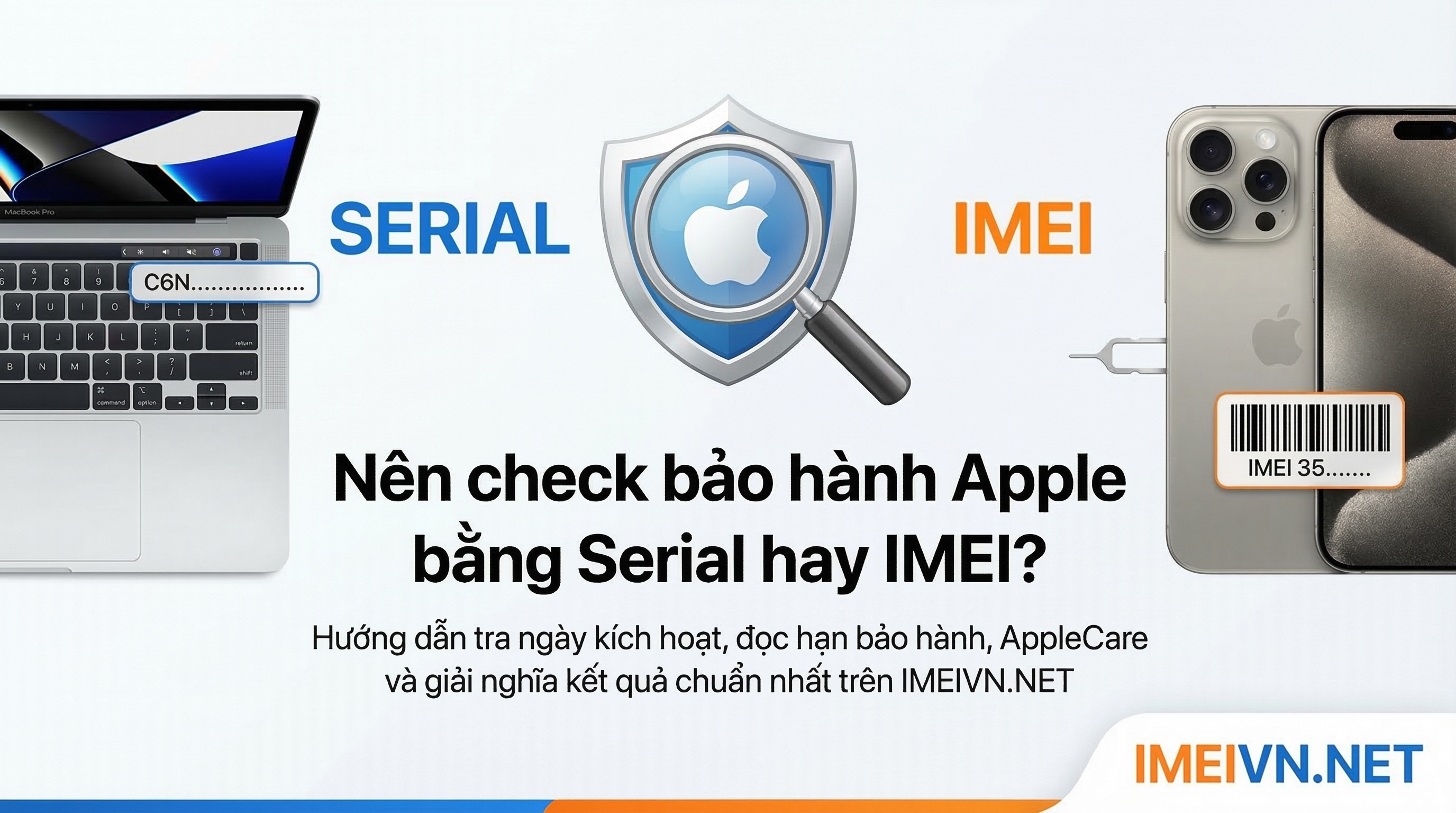
What is the difference between an Apple Serial Number and an IMEI?
An Apple serial number is a proprietary hardware identifier used internally by Apple to track warranty status, repairs, and manufacturing records. An IMEI (International Mobile Equipment Identity) is a globally standardized 15-digit code used by cellular networks to identify specific mobile radios. Serial numbers exist on all Apple hardware, whereas IMEIs are found exclusively on cellular-enabled models such as iPhones and iPad Wi-Fi + Cellular units.
How do I check if an Apple serial number indicates a stolen device?
Apple’s public Check Coverage tool does not explicitly list stolen device status due to privacy considerations. To check if an iPhone or iPad is usable, power on the hardware to ensure Activation Lock is disabled. If the device asks for a previous owner's Apple ID password, it cannot be activated. For cellular units, run the device's IMEI through a national cellular blacklist database to confirm it has not been reported lost or stolen to wireless carriers.
Does AppleCare+ transfer to a new owner if I check the serial number?
Yes. AppleCare+ plans are tied primarily to the hardware device serial number rather than the individual owner. If you purchase a used device whose serial check reveals active AppleCare+ coverage, that coverage remains valid for the device. In regions where plans are paid monthly, the original owner must maintain active billing for coverage to remain valid.
Why does my new Apple device show "Coverage Expired" on the serial check site?
This usually occurs if the retail seller did not transmit sale registration data to Apple at the time of purchase, or if the unit remained in secondary distribution channels for an extended period. You can resolve this issue by submitting your valid tax invoice or purchase receipt to Apple Support to adjust your official coverage start date.
Practical Recommendation & Next Actions
Before buying, selling, or servicing an Apple product, complete these actionable verification steps:
- Copy the Serial Number Directly: Copy the string from Settings > General > About to avoid manual character entry errors.
- Query the Official Portal: Run the serial code through checkcoverage.apple.com to confirm model identity, warranty limits, and AppleCare+ enrollment.
- Verify Device Functional Identity: For pre-owned purchases, ensure physical serial numbers match the software settings, verify that Activation Lock is removed, and confirm that proprietary software integrations function as expected.
- Archive Your Documentation: Keep your purchase receipt and record your serial number in a secure location or associate it with your Apple ID account via appleid.apple.com. This ensures you can access service support even if your physical device screen is damaged or inoperable.