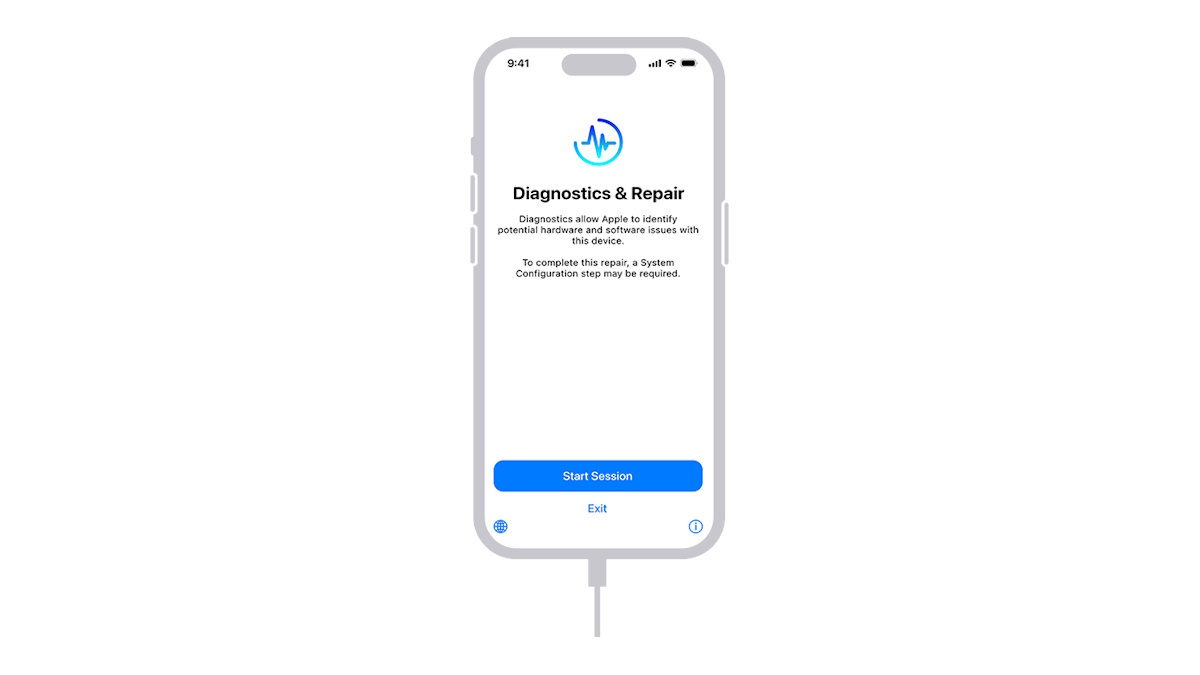
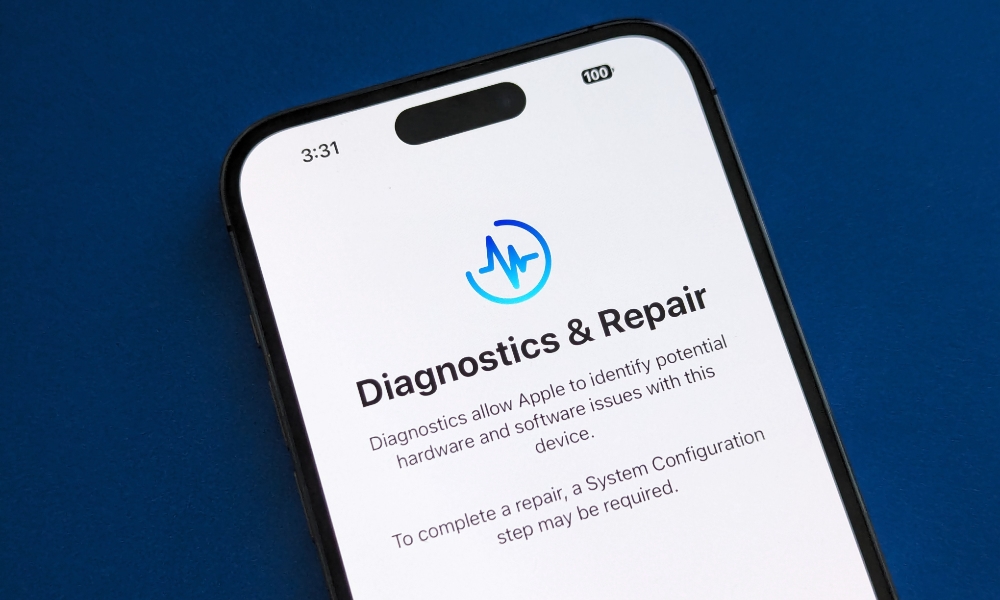
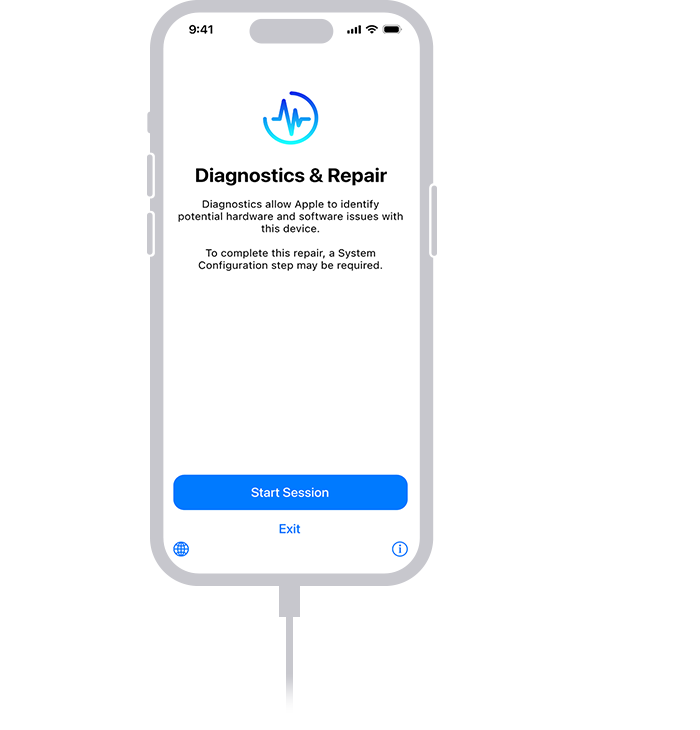
Apple iPhone diagnostic software serves as a critical bridge between internal hardware performance and user-accessible data, allowing owners and technicians to verify system integrity, battery health, and sensor functionality. Rather than a singular "app" found on the App Store, these tools comprise a combination of integrated iOS utilities, proprietary Apple Service Toolkit (AST) interfaces used by authorized technicians, and legitimate third-party analytics software that provides deeper insight into system logs and component status.
Understanding the Landscape of iPhone Diagnostics
When you search for iPhone diagnostic software, you are likely looking for one of three things: a way to check if your hardware is failing, a method to confirm the authenticity of parts, or a diagnostic tool to interpret system crash logs.
It is important to differentiate between consumer-level tools and professional-grade diagnostic software. Apple provides robust, built-in diagnostic features directly within the Settings app, which suffice for most user-reported issues. For advanced hardware testing, Apple restricts access to its Apple Service Toolkit (AST 2), which is reserved for Apple Authorized Service Providers (AASPs) and independent repair shops that have enrolled in the Apple Independent Repair Provider program. Consequently, when searching for software, you must distinguish between official diagnostic paths and third-party utilities that act primarily as data visualizers for existing system logs.
Built-in Apple Diagnostic Tools
Before seeking third-party solutions, users should utilize the native tools provided by Apple. These tools are designed to interact directly with the device's firmware to provide accurate reporting on the status of the processor, battery, storage, and wireless components.
Battery Health and Optimization
The most frequently used diagnostic feature is found under Settings > Battery > Battery Health & Charging. This interface provides a Maximum Capacity percentage, which serves as a hardware diagnostic measure of your battery’s ability to hold a charge compared to when it was new. Furthermore, the system provides a Peak Performance Capability report, which indicates whether the iOS power management system is intentionally throttling performance to prevent unexpected shutdowns.
Part and Service History
In newer versions of iOS, Apple includes a "Parts and Service History" section under Settings > General > About. This diagnostic log displays whether components—such as the display, battery, or camera—have been replaced. If a repair was performed, the software verifies whether the part is a "Genuine Apple Part." This is a crucial diagnostic function for anyone purchasing a used iPhone, as it reveals the repair history and the authenticity of the installed hardware.
Third-Party Analytics and System Monitoring
While Apple restricts low-level hardware access, several third-party applications allow users to aggregate and read the Analytics logs that iOS generates. These apps act as an interface for the files located in Settings > Privacy & Security > Analytics & Improvements > Analytics Data.
How Analytics Apps Function
Third-party diagnostic apps like CoconutBattery (for macOS) or various system information utilities do not "run" a test in the sense of overriding the system; instead, they parse existing logs. For example, by connecting an iPhone to a computer running a diagnostic-capable utility, you can extract cycle counts for the battery—a metric not natively displayed in the standard iPhone UI. This provides a more granular view of the battery's chemical age and health, which is essential for determining if a replacement is necessary.
Interpreting Panic Logs
One of the most valuable aspects of diagnostic software involves interpreting "panic" or "crash" logs. When an iPhone restarts unexpectedly, it writes a file to the system. While the raw text in these files is difficult for the average user to interpret, third-party diagnostic software can scan these logs to pinpoint which hardware component—such as the thermal sensor, the NAND flash storage, or the Wi-Fi module—triggered the restart.
Comparison of Diagnostic Approaches
The following table summarizes the different methods available for diagnosing your iPhone, ranging from internal settings to external forensic-style software.
| Method | Accessibility | Primary Capability | Best Used For |
|---|---|---|---|
| Settings (Native) | Built-in | Battery health, component status | Routine maintenance and battery checks |
| Apple Support App | Free download | Remote diagnostics via Apple servers | Determining if hardware needs professional service |
| Desktop Utilities | Paid/Free apps | Detailed logs, cycle counts, storage health | Advanced troubleshooting and buying used devices |
| Apple Service Toolkit | Authorized only | Low-level hardware validation | Official repairs and component calibration |
Conducting a Systematic Diagnostic Workflow
If you suspect your iPhone is malfunctioning, follow this structured workflow to isolate the issue before seeking a physical repair.
1. Verify Software Integrity
Before blaming hardware, ensure your device is running the latest version of iOS. Many performance "failures" are actually software bugs that are resolved through updates. Navigate to Settings > General > Software Update to confirm your device is current.
2. Run the Apple Support Diagnostic
The Apple Support app allows you to initiate a remote diagnostic session. When you request a diagnostic, Apple sends a small, temporary packet of data to your device that performs a series of background checks. The results are sent back to Apple's servers, which then provide the technician or you with a report on whether a specific hardware component is failing. This is the most reliable "official" diagnostic method available to consumers.
3. Examine the Analytics Logs
If the Apple Support app does not provide a definitive answer, check for "Panic" logs manually. Go to Settings > Privacy & Security > Analytics & Improvements > Analytics Data. Scroll through the list and look for entries starting with the word "panic." If you see multiple logs from recent dates, your iPhone is experiencing a recurring hardware kernel panic, which is a strong indicator of a logic board or peripheral component failure.
Limitations and Risks of Diagnostic Software
Users must remain cautious regarding "repair software" marketed online. There is no legitimate software that can "fix" a physically broken screen, a dead battery, or a failed sensor. Any app claiming to restore hardware functionality through software magic is likely a scam or malware.
Security Concerns
When using third-party diagnostic software, you are often required to provide the tool with access to your device's logs, which may contain sensitive usage data. Always ensure that the software is from a reputable, long-standing developer. Never grant permissions to unknown diagnostic apps that request access to your Apple ID, photos, or personal files. Legitimate diagnostic tools only need read-only access to system logs and device metadata.
The "Genuine Part" Restriction
If you use third-party diagnostic software to identify a component failure, be aware that replacing a part yourself may lead to "Non-Genuine Part" notifications in iOS. Apple's diagnostic software performs a serial number handshake between the logic board and the new component. If the serial numbers do not match the original manufacturing database, some features—such as True Tone, Face ID, or auto-brightness—may be disabled or limited, even if the new part is functional.
Frequently Asked Questions
Can diagnostic software fix my battery?
No. Diagnostic software can only report on the state of your battery. If the software confirms that your battery health is below 80% or that it is failing, the only solution is physical replacement. Software cannot chemically rejuvenate a degraded lithium-ion cell.
Are there free apps that check iPhone hardware?
Yes, there are several, but they act as reporting tools rather than diagnostic "fixers." Look for apps that read system metadata. However, the most accurate diagnostic for your specific device remains the tool initiated through the official Apple Support app or a physical check at an Apple Store.
What should I do if the diagnostics show a "Kernel Panic"?
A kernel panic is a serious error where the operating system detects a critical failure. If you see these logs consistently, back up your device immediately via iCloud or a computer. This is often a sign of impending storage failure or a failing processor, and you should take the device to an authorized service provider for professional hardware inspection.
Does Apple allow third-party diagnostics for repairs?
Apple has opened its Independent Repair Provider program, which allows third-party shops to access the same Apple Service Toolkit (AST 2) as Apple's own employees. If you are choosing a third-party repair shop, ask them if they use official Apple diagnostic tools, as this ensures your device will be calibrated correctly after the repair.
Is it safe to use diagnostic tools while my phone is overheating?
If your phone is physically hot to the touch, do not run heavy diagnostic tests. High temperatures can cause the device to trigger thermal protection measures, which will invalidate the results of any diagnostic test. Let the device cool down in a well-ventilated area for 15 minutes before running any hardware diagnostics.
Final Recommendation
For most users, the most effective path for iPhone diagnostics is to rely on the built-in system reporting under Settings and the official Apple Support application. If these tools indicate a hardware issue, avoid attempting to repair the device yourself unless you are experienced with microsoldering and possess the necessary tools to calibrate the device afterward. If you are buying a used iPhone, prioritize checking the "Parts and Service History" in the Settings menu to verify that the device is running genuine parts. When in doubt, a professional diagnosis at an Apple Authorized Service Provider remains the gold standard for accuracy and safety.