Renting movies through the Apple TV app allows users to access a vast library of digital content across various devices, including iPhones, iPads, Apple TV hardware, and compatible smart TVs. Once a rental is initiated, you generally have 30 days to begin watching and 48 hours to finish once playback starts, providing a flexible viewing experience within the Apple ecosystem.
Understanding the Apple Movie Rental Ecosystem
The Apple ecosystem for digital rentals is centered primarily within the Apple TV app. This application serves as the storefront for the iTunes Store, where users can browse, purchase, and rent films ranging from independent documentaries to the latest major studio blockbusters. Unlike subscription-based platforms that grant access to a rotating catalog for a monthly fee, renting on Apple is an a-la-carte model. You pay for the specific title you wish to see, granting you a temporary, time-limited digital license to stream that content.
The primary benefit of this system is the sheer breadth of the library. Because it integrates with major film studios, users often find titles available for rent on Apple shortly after their theatrical run, or sometimes concurrently with home media releases. The service is designed for portability, meaning a film rented on an iPhone can typically be resumed on an Apple TV box or even a compatible smart TV or gaming console, provided the user is signed in with the same Apple Account.
Prerequisites and Account Requirements
To begin renting movies, you must have an active Apple Account (formerly known as Apple ID). This account must be associated with a valid payment method, such as a major credit card, debit card, or an accepted local payment method depending on your region.
Device Compatibility
While the Apple TV app is the primary interface, it is not restricted solely to Apple-manufactured hardware. As of 2026, the app is available on a wide array of devices:
- Apple Hardware: iPhone, iPad, Mac, and Apple TV (4K and HD models).
- Smart TVs: Select models from Samsung, LG, Sony, Vizio, and TCL that support the Apple TV app.
- Gaming Consoles: PlayStation 4, PlayStation 5, Xbox One, and Xbox Series X/S.
- Streaming Devices: Roku devices and Amazon Fire TV sticks.
Before attempting a rental, ensure your device’s firmware is updated. Running outdated software versions can occasionally cause DRM (Digital Rights Management) authentication issues, which may prevent the app from verifying your rental license.
How to Rent and Access Content
The process of renting a movie is consistent across most interfaces. Once you have navigated to the Apple TV app, follow these steps:
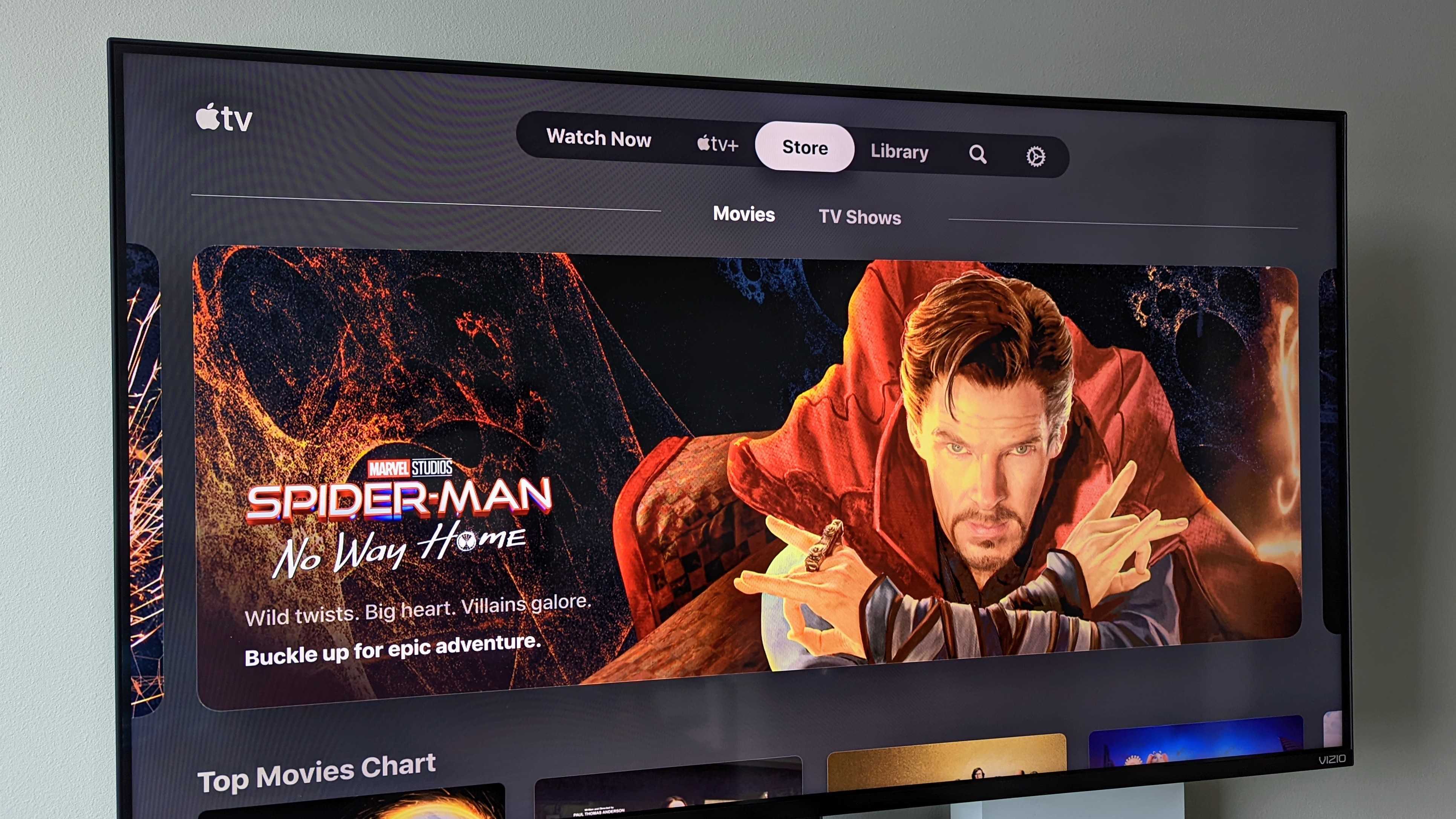
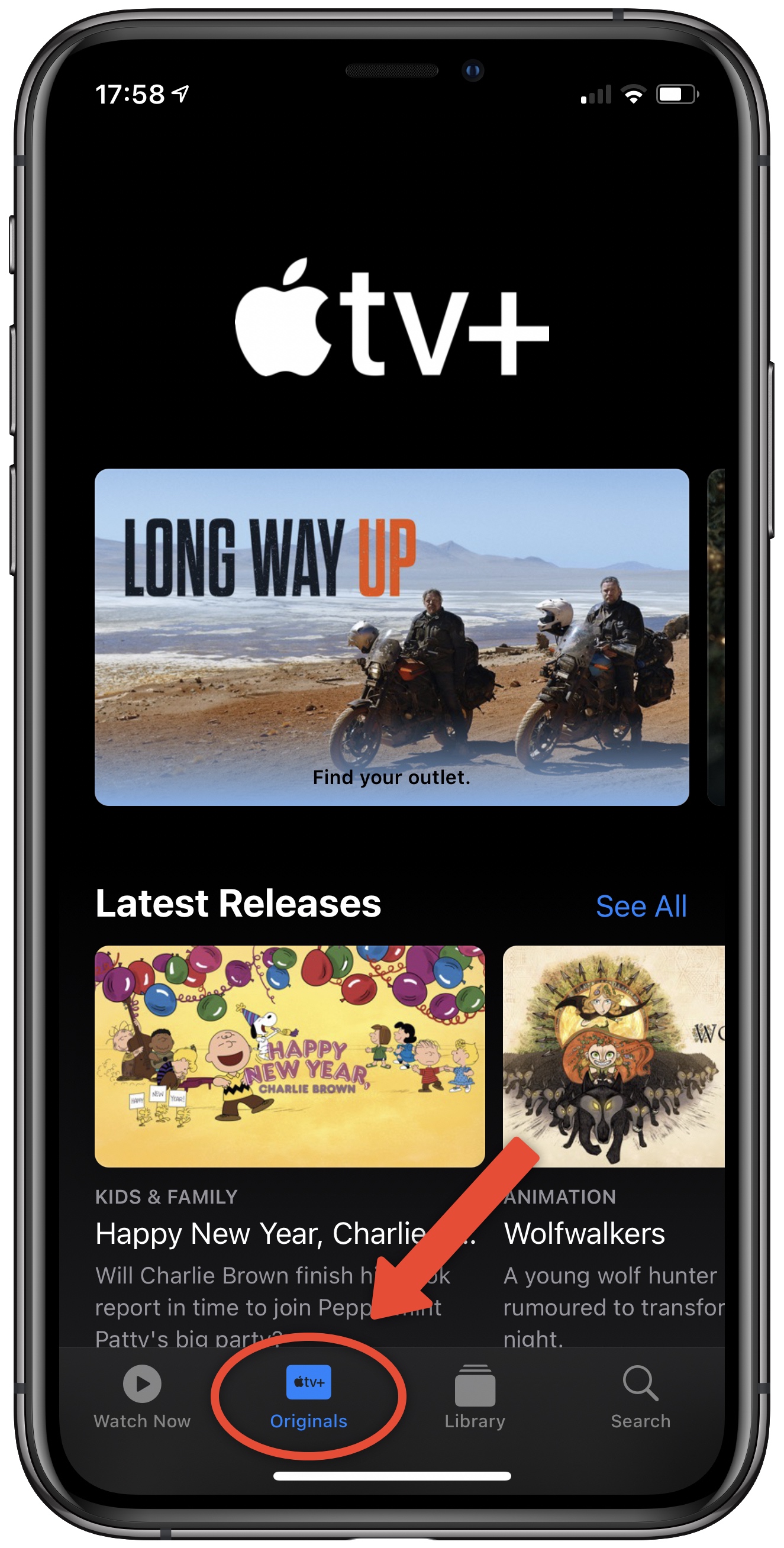
- Browse or Search: Use the "Store" tab at the top or bottom of the app interface to locate your desired title. You can search by title, actor, or genre.
- Select the Title: Once you find the movie, click on the product page. Here, you will see two primary buttons: "Buy" and "Rent."
- Confirm Rental: Selecting "Rent" will prompt an authentication step (FaceID, TouchID, or password entry). Once confirmed, the rental is applied to your account.
- Playback: After the transaction is complete, the "Rent" button will typically change to "Play." The movie will be available in your "Library" tab under the "Rentals" section.
Time Limits and Viewing Constraints
It is critical to understand the two-tier time limit imposed on rentals:
- The Start-Window: You have 30 days from the initial purchase to begin watching the movie. If you do not click play within these 30 days, the rental expires and is removed from your library.
- The Completion-Window: Once you press play for the first time, you have exactly 48 hours to complete the movie. You are permitted to watch it as many times as you like within that 48-hour window, but once the time expires, the file becomes inaccessible.
Comparing Digital Rental Models
To help determine if renting via Apple is the most efficient choice for your needs, compare it against other common ways of accessing content.
| Feature | Apple TV Rental | Subscription Service | Physical Media |
|---|---|---|---|
| Cost | Per title ($3.99 - $5.99) | Monthly fee ($10+) | One-time purchase |
| Availability | Very high (new releases) | Limited to library | High |
| Duration | 48 hours (after start) | Unlimited access | Permanent ownership |
| Internet Need | Streaming required | Streaming required | None (after purchase) |
| Portability | High (cloud-based) | High | Low (requires disc player) |
Troubleshooting Common Issues
Despite the seamless design of the Apple TV interface, technical hiccups can occur. Addressing them usually involves checking three key areas:
1. Connection and Bandwidth
Apple rentals require a stable internet connection for streaming. If you experience buffering or low video quality, check your network speed. Streaming 4K HDR content typically requires a consistent speed of at least 25 Mbps. If your internet is fluctuating, consider downloading the movie to your device (where the option is available) before traveling or in areas with poor coverage.
2. Payment Failures
If you are unable to complete a rental, verify that your payment method is active. Sometimes, an expired card or a change in billing address can cause the purchase to fail. Check your Apple Account settings to ensure your "Payment & Shipping" information is current.
3. Missing Rentals
If you rented a movie but cannot find it in your library, ensure you are logged into the exact same Apple Account used for the purchase. If you share a household, multiple accounts can sometimes lead to confusion. Signing out and back into the Apple TV app often refreshes the library synchronization.
Frequently Asked Questions
Can I watch my rented movie offline? Yes, if you use the Apple TV app on an iPhone, iPad, or Mac, you can download the rental to your device. Once downloaded, you can watch it without an internet connection, provided the 48-hour viewing window has not expired.
What happens if the movie does not play? If a movie fails to load, first try restarting the app or your device. If the issue persists, verify that your device is running the latest operating system, as outdated software is the most common cause of playback errors with DRM-protected content.
Can I get a refund for a rental? Refunds for accidental rentals are not guaranteed. However, if a movie is technically unplayable or has significant defects, you can request support by visiting the "Report a Problem" page provided by Apple’s official support portal.
Does the 48-hour rule apply even if I only watch a few minutes? Yes. The 48-hour clock begins the moment you press the play button, regardless of how long you watch. If you stop the movie and return three days later, the rental will have expired.
Can I rent a movie in 4K? Yes, Apple offers many movies in 4K, HDR, and Dolby Vision. The app automatically selects the best quality your display and internet connection can support.
Final Recommendation
When renting movies on Apple, prioritize downloading the title if you are planning to view it while traveling or if your home internet connection is unstable. Always check the rental terms on the specific product page before checkout, as some titles may have restricted availability in specific regions. By keeping your device updated and ensuring your primary payment method is valid, you can enjoy a frictionless high-definition movie experience across your entire library of connected hardware.