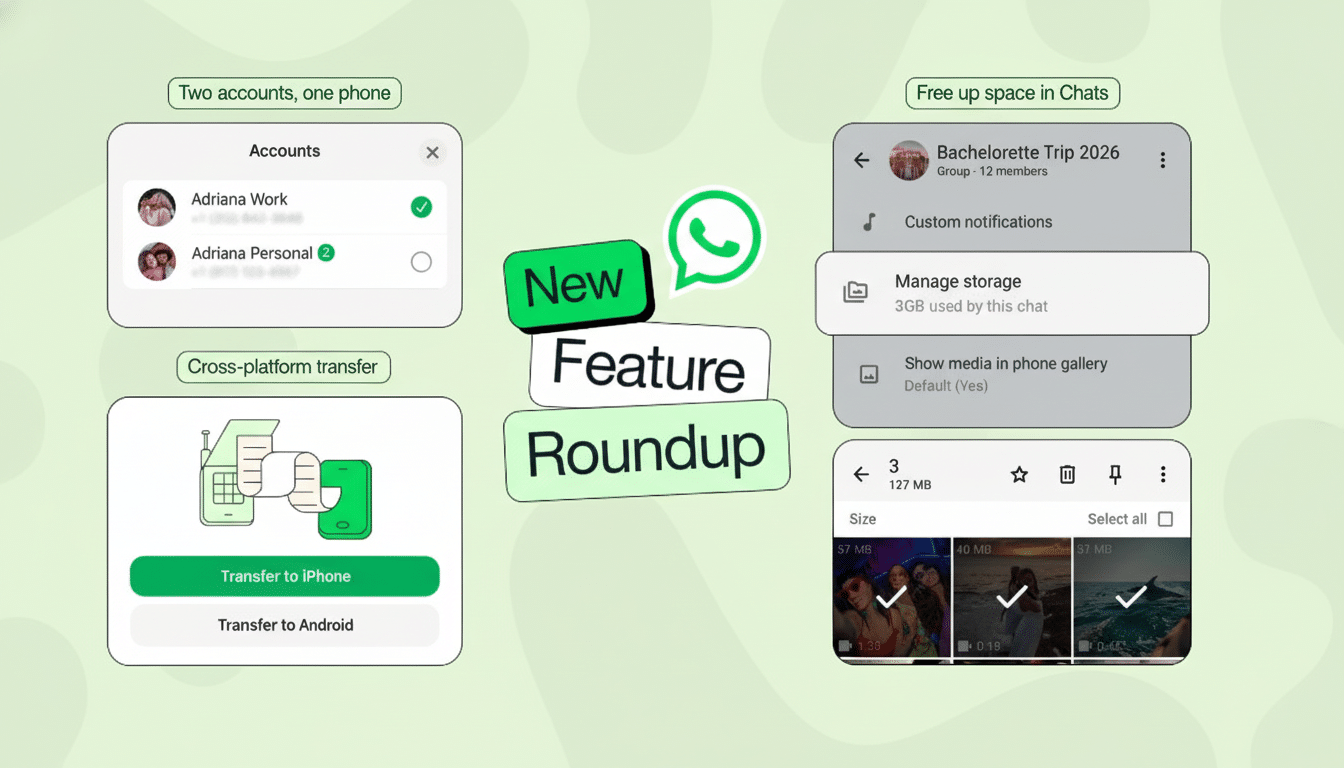
To use two WhatsApp accounts on one device, you can utilize the native "Add Account" feature within the app's settings, which allows you to switch between two numbers seamlessly. Alternatively, you can use built-in smartphone features like "Dual Messenger" or "App Cloner," or install the official WhatsApp Business app alongside the standard version.
The landscape of mobile communication has shifted dramatically as we move through 2026. For years, users were forced to carry two physical handsets or resort to potentially insecure third-party "cloning" apps to manage separate personal and professional identities. Today, WhatsApp’s ecosystem has matured, offering robust, native solutions for multi-account management that prioritize security, data separation, and user convenience. Whether you are managing a global business or simply want to keep your private life separate from your work contacts, understanding how dual login works is essential for modern digital hygiene.
The Evolution of WhatsApp Multi-Account Functionality
Prior to the official rollout of multi-account support, the quest for a "dual WhatsApp" experience was a fragmented journey. Android users often relied on manufacturer-specific software hacks, while iOS users were largely left without options unless they utilized the Business version of the app. In late 2023, Meta began the global rollout of native multi-account support, a feature that has become the gold standard by 2026.
This native functionality allows a single installation of WhatsApp to host two distinct accounts, each tied to a unique phone number. Unlike the "Linked Devices" feature—which mirrors one account across multiple tablets or computers—dual login (or multi-account) allows two entirely separate identities to exist on a single primary device. This is powered by a sandboxing architecture within the app that keeps message databases, media folders, and encryption keys isolated from one another.
Why Dual Login is the Standard in 2026
By 2026, the reliance on physical SIM cards has dwindled in favor of eSIM technology. Most modern smartphones now support multiple active eSIM profiles, making it easier than ever to maintain two active numbers. This hardware shift provided the necessary infrastructure for WhatsApp to optimize its dual login system. Users no longer need to swap plastic cards; they simply toggle a software profile and verify their second account.
Prerequisites for Setting Up a Second WhatsApp Account
Before attempting a dual login setup, you must ensure your hardware and software meet specific criteria. Even in 2026, the fundamental requirement for a WhatsApp account remains a valid, verifiable phone number.
- A Second Active Number: You must have access to a second phone number capable of receiving SMS or voice calls for verification. This can be a second physical SIM, an eSIM, or even a fixed-line (landline) number if you are using the WhatsApp Business method.
- Dual-SIM Capability: Your device must be able to hold two active connections simultaneously if you wish to receive real-time notifications for both accounts without switching network profiles.
- Updated App Version: Ensure you are running the latest version of WhatsApp from the Google Play Store or Apple App Store. The native multi-account feature is built into the core architecture of the 2026 builds.
- Storage Capacity: Running two accounts essentially doubles the storage requirements for cached data and media. Ensure your device has sufficient overhead to handle two sets of "Sent" and "Received" media folders.
Method 1: Using the Native WhatsApp Multi-Account Feature
The most efficient way to manage two accounts is through the official built-in switcher. This method is preferred because it consumes less battery than running two separate app instances and ensures that both accounts benefit from the same security updates.
Step-by-Step Configuration
- Open WhatsApp: Launch your existing WhatsApp application.
- Access Settings: Tap on your profile picture or the three-dot menu in the upper corner to enter the Settings menu.
- Initiate Add Account: Look for the small arrow icon located next to your name or the "Account" submenu. Tap Add account.
- Privacy Agreement: You will be presented with the standard terms of service. Tap Agree and continue.
- Verification: Enter the second phone number you wish to use. WhatsApp will send a 6-digit verification code via SMS to that number. If the number is active on the same device (via eSIM), the app may automatically detect the code.
- Profile Setup: Once verified, you can set a separate profile picture, name, and "About" status for this second account.
Switching and Notifications
Once the second account is active, switching between them is instantaneous. You can tap the arrow in the settings menu or long-press the "Settings" tab (on some OS versions) to toggle between profiles.
A critical concern for users is how notifications are handled. In the 2026 version of WhatsApp, notifications are clearly labeled. If you receive a message on your "Work" account while currently viewing your "Personal" account, the notification will indicate which profile the message belongs to. This ensures you never accidentally reply to a client from a personal handle.
Method 2: Manufacturer "Dual App" or "App Cloner" Features
While the native feature is excellent, many users still prefer the "Dual App" method provided by phone manufacturers like Samsung (Dual Messenger), Xiaomi (Dual Apps), or Oppo (App Cloner). This method creates a completely separate instance of the WhatsApp APK, appearing as a second icon on your home screen.
When to Use This Method
Manufacturer-level cloning is useful if you want to keep your apps visually separated on your home screen or if you use different "Work Profiles" (Android Enterprise) to manage your device. It provides a harder wall of separation between the two accounts' data.
- Samsung: Go to Settings > Advanced Features > Dual Messenger. Toggle WhatsApp to "On."
- Xiaomi/Poco: Go to Settings > Apps > Dual Apps. Select WhatsApp.
- iOS: Apple remains more restrictive. While native multi-account works within the app, iOS does not allow native "cloning" of the same app icon on the home screen without third-party management software.
Technical Comparison of Dual Login Methods
| Feature | Native Multi-Account | Manufacturer Cloner | WhatsApp Business + Standard |
|---|---|---|---|
| Battery Impact | Low (Single process) | Moderate (Two processes) | Moderate (Two processes) |
| Storage Usage | Efficient | High (Duplicate app files) | High (Two distinct apps) |
| User Interface | Single icon, in-app switch | Two separate icons | Two separate icons |
| Verification | SMS/Call | SMS/Call | SMS/Call/Landline |
| Security | Standard End-to-End | Standard End-to-End | Standard + Business Tools |
| Availability | All platforms (2026) | Android-specific | All platforms |
Method 3: Combining WhatsApp Standard and WhatsApp Business
Using the WhatsApp Business app alongside the standard WhatsApp Messenger remains a highly effective strategy, especially for entrepreneurs. These are two different applications developed by Meta, and the OS treats them as distinct entities.
Advantages of the Business Approach
The Business version offers features that the standard "Dual Login" does not, such as:
- Automated Greetings: Send a standard message to anyone who contacts you for the first time.
- Quick Replies: Create keyboard shortcuts for frequently asked questions.
- Labels: Categorize chats (e.g., "New Customer," "Pending Payment").
- Landline Support: Unlike standard WhatsApp, the Business version allows you to verify an account using a fixed-line telephone number through a voice call.
To set this up, simply download WhatsApp Business from your app store. During setup, use your second phone number. You will then have two different icons (one with a 'W' logo and one with a 'B' logo), allowing you to use both simultaneously without ever needing to "switch" inside a menu.
Security and Privacy Considerations for Dual Accounts
Managing two identities on one device introduces specific privacy risks that must be managed. By 2026, WhatsApp has integrated several "Privacy Checkup" tools to help users audit their settings for both accounts.
Data Sandboxing and Encryption
Each account maintains its own set of End-to-End Encryption (E2EE) keys. This means that even though both accounts reside on the same physical hardware, the data from Account A cannot be decrypted by the keys of Account B. However, users should be aware that backups (stored on Google Drive or iCloud) are usually tied to the cloud account associated with the phone. If you back up both WhatsApp accounts to the same Google account, they will occupy the same cloud storage quota.
Permissions and Contacts
One of the most common points of confusion is contact synchronization. When you grant WhatsApp permission to access your contacts, it pulls from your device’s central address book. By default, both accounts will see the same contact list. If you want to keep your "Work" contacts separate from your "Personal" ones, you may need to use your phone’s "Contact Groups" feature or a dedicated Work Profile (on Android) to ensure that only relevant contacts are visible to the specific account.
Troubleshooting Common Dual Login Issues
Even with the advancements of 2026, technical hurdles can occur. Here is how to resolve the most frequent issues:
- Verification Code Not Arriving: This is often due to network latency or the second SIM being inactive. Ensure the second number has an active signal. If using an eSIM, verify that the "Data Line" or "Voice Line" for that SIM is turned on in your phone's cellular settings.
- Delayed Notifications: If you are using a Manufacturer Cloner, the OS's battery optimization might "put the second app to sleep." Go to your device’s battery settings and set the cloned WhatsApp instance to "Unrestricted" or "Not Optimized."
- Storage Full Errors: Dual accounts mean dual media. Go to Settings > Storage and Data > Manage Storage for each account and clear out large videos or forwarded files that may be duplicated across both profiles.
- App Crashing on Switch: If the native switcher causes the app to hang, it is often a cache issue. Clearing the app cache (not data) in your phone's system settings usually resolves the conflict without deleting your messages.
The Future of Dual Messaging in 2026 and Beyond
As we look further into 2026, the concept of "Dual Login" is expanding into Interoperability. Under regulations like the EU's Digital Markets Act (DMA), WhatsApp has begun allowing users to receive messages from other platforms (like Signal or Telegram) within the WhatsApp interface.
This means that in the near future, your "Dual Login" might not just be two WhatsApp accounts, but a unified inbox where one profile handles WhatsApp messages and another profile handles a mix of cross-platform communications. The goal is to reduce "app fatigue" while maintaining the strict boundary between different areas of a user's life.
Practical Recommendation
For most users, the Native Multi-Account feature is the best choice due to its balance of performance and ease of use. However, if you require specialized tools for customer interaction, the combination of WhatsApp Standard and WhatsApp Business is superior. Avoid using third-party "WhatsApp Gold" or unofficial "Cloner" apps found outside official app stores; these frequently contain spyware and can lead to a permanent ban of both your phone numbers from the WhatsApp platform.
FAQs
1. Can I use the same phone number for two different WhatsApp accounts? No. Each WhatsApp account must be linked to a unique phone number. While you can use two accounts on one phone, they must represent two different lines (e.g., a personal mobile number and a work mobile or landline number).
2. Will my contacts know I have two accounts? Your contacts will only see the account they have saved in their phone. If they have both of your numbers saved, you will appear as two separate entries in their WhatsApp contact list. There is no public link between the two accounts provided by the app itself.
3. Does using two accounts drain the battery faster? Using the native "Add Account" feature has a negligible impact on battery life because it utilizes a single background process. However, using "Dual App" or "App Cloner" features can increase battery consumption slightly, as the phone must run two separate instances of the application simultaneously.
4. Can I lock one account and leave the other open? Most 2026 smartphone OS versions allow for "App Lock" or "Folder Lock." While the native WhatsApp feature currently applies "App Lock" to the entire application (locking both accounts), using the "Dual App" or "WhatsApp Business" method allows you to apply biometric locks to one instance while leaving the other more accessible.
5. What happens to my data if I remove one of the accounts? If you remove an account from the multi-account switcher, the message history for that specific account will be deleted from the device unless it has been backed up to the cloud. The other account will remain completely unaffected.
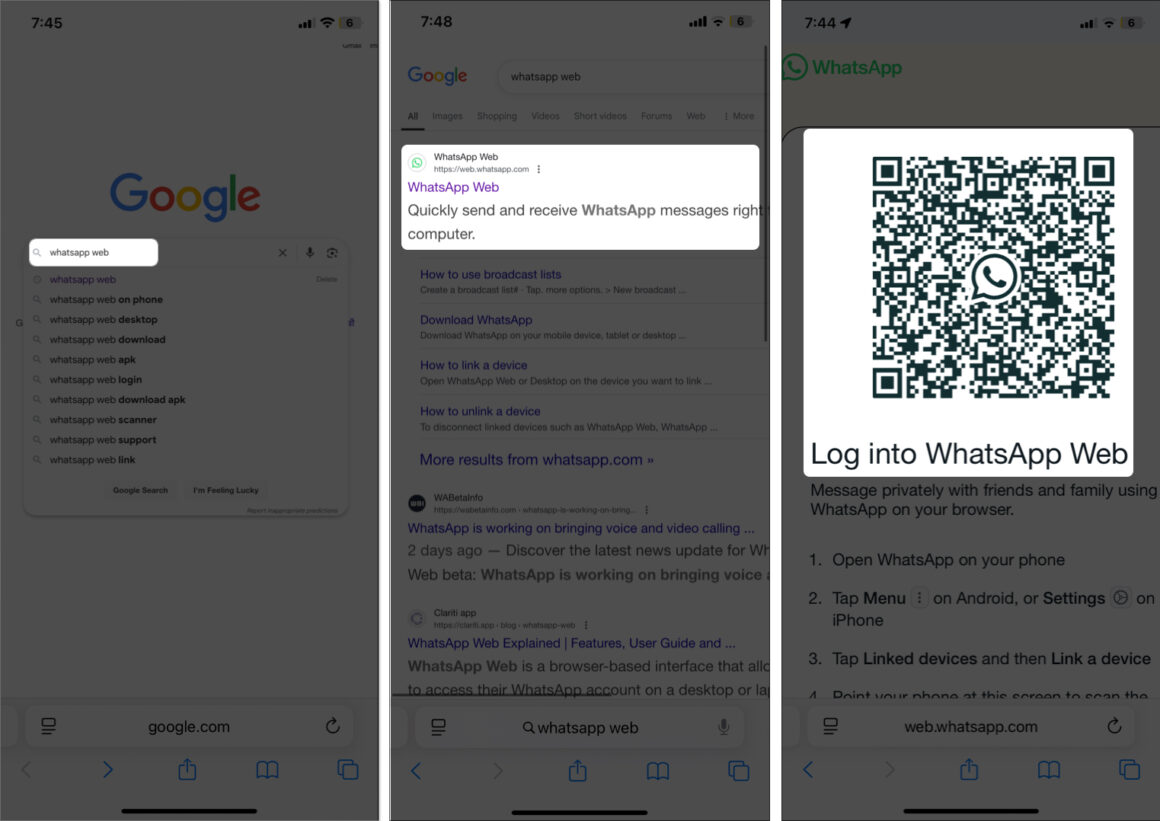
6. Can I use dual login on WhatsApp Web or Desktop? As of 2026, the WhatsApp Desktop and Web versions are catching up to the mobile experience. You can now use the "Switch Account" feature on the desktop client similarly to the mobile app, allowing you to manage both sets of chats from your computer without needing to open multiple browser windows.