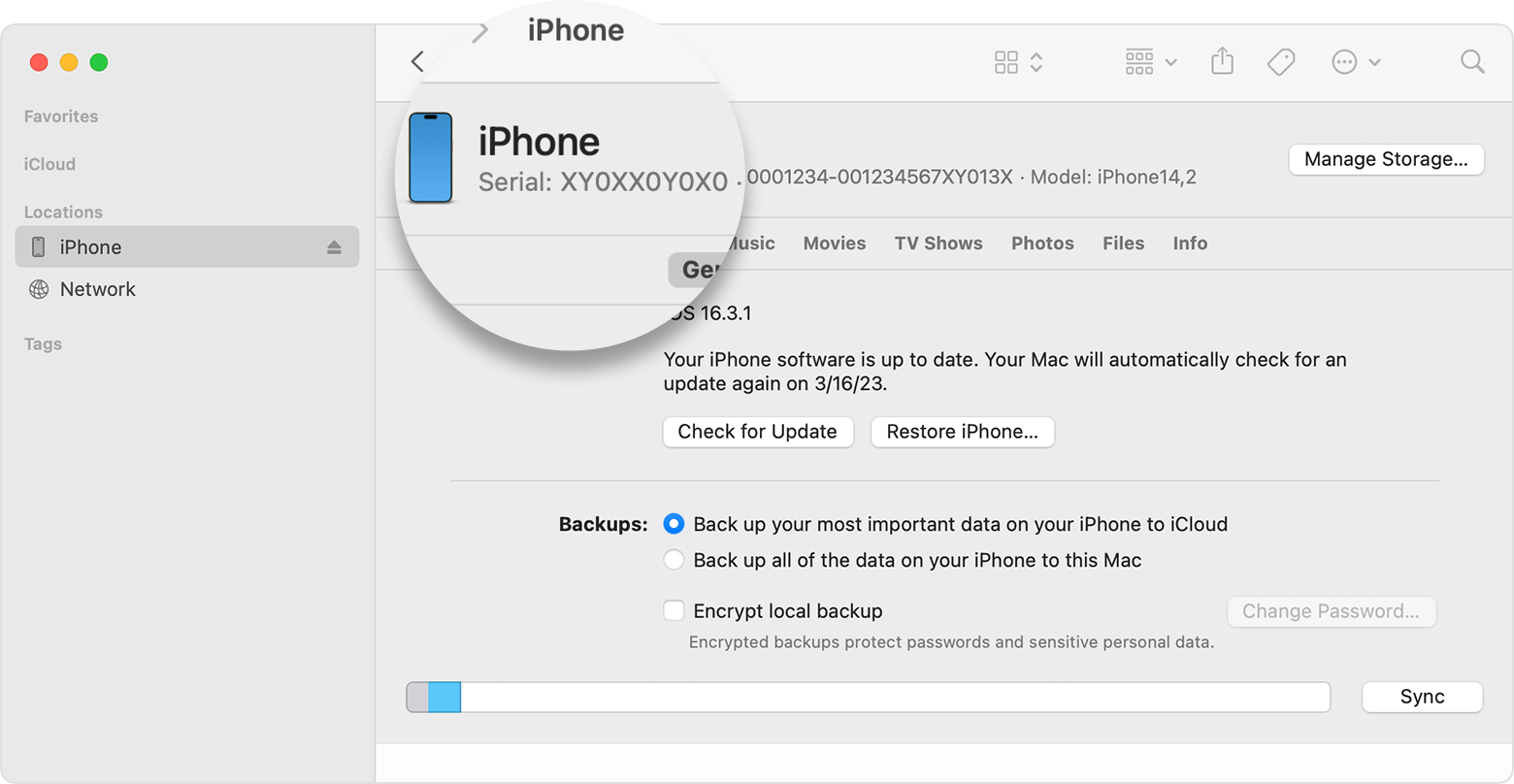
An iPhone IMEI (International Mobile Equipment Identity) is a unique 15-digit serial code used to identify a specific device on mobile networks. Checking this number is a fundamental step when buying a used device, reporting a stolen phone, or verifying the warranty status and activation lock condition of an Apple product.
Understanding the Importance of the IMEI
The IMEI serves as a digital fingerprint for your iPhone. Unlike a serial number, which is often used by manufacturers for inventory and warranty purposes, the IMEI is specifically designed for telecommunications. It is registered by your carrier the moment you insert a SIM card or activate an eSIM, allowing the network to verify the device's authenticity and manage its access to cellular services.
For consumers, the IMEI is the primary tool for transparency. By running a check against global databases, you can determine if a device has been reported lost or stolen. If a phone is marked as "blacklisted," it means that mobile carriers have restricted the device from accessing their network, rendering it useless for calls, texts, or data, regardless of which SIM card is inserted. Furthermore, checking the IMEI is critical for verifying if the device is carrier-locked, which dictates whether you are free to switch between different service providers.
How to Locate Your iPhone IMEI
Before you can check the status of an iPhone, you must retrieve the correct 15-digit identifier. There are several ways to locate this information, ranging from on-device settings to physical markings.
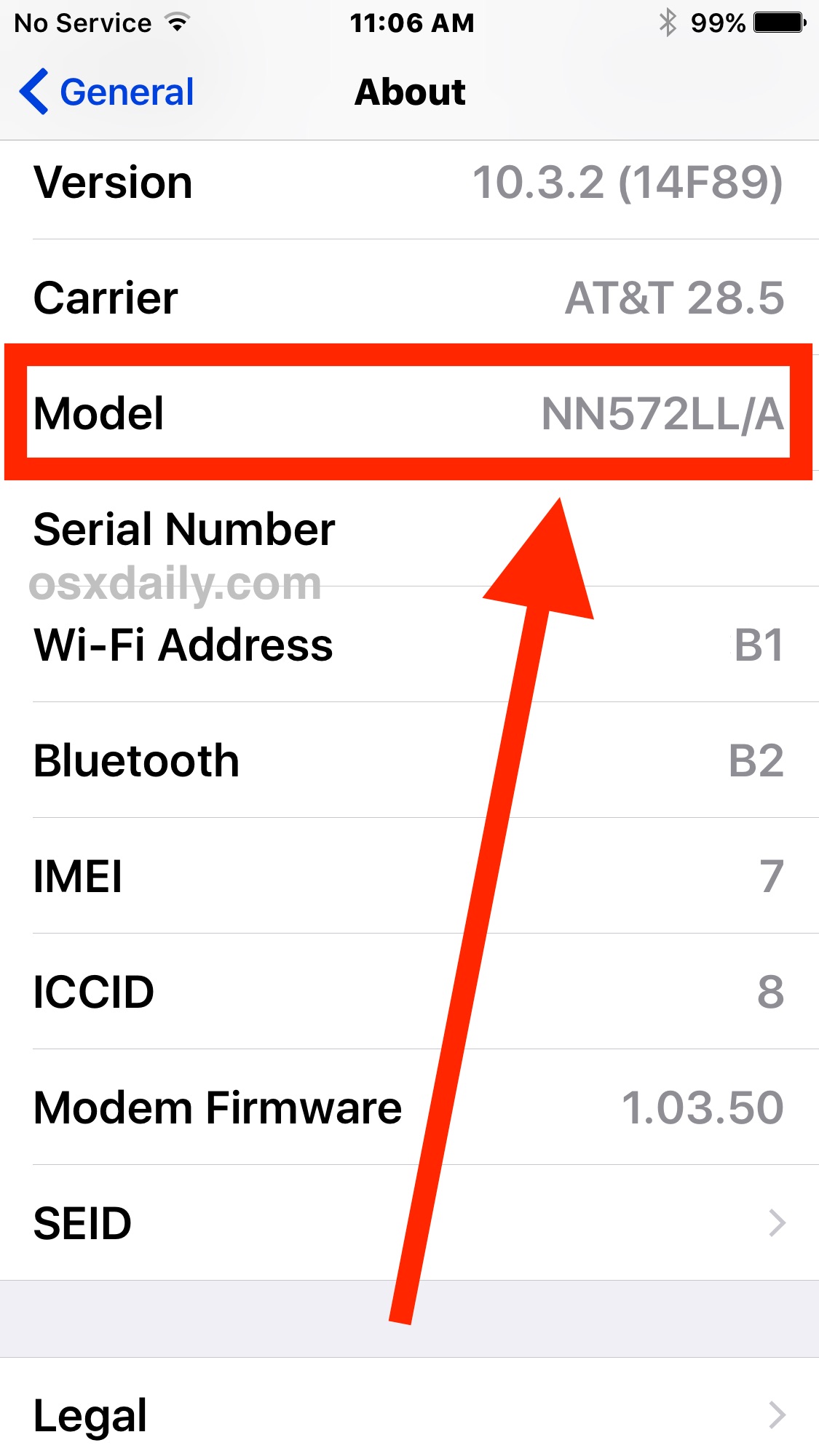
1. Via the Settings Menu
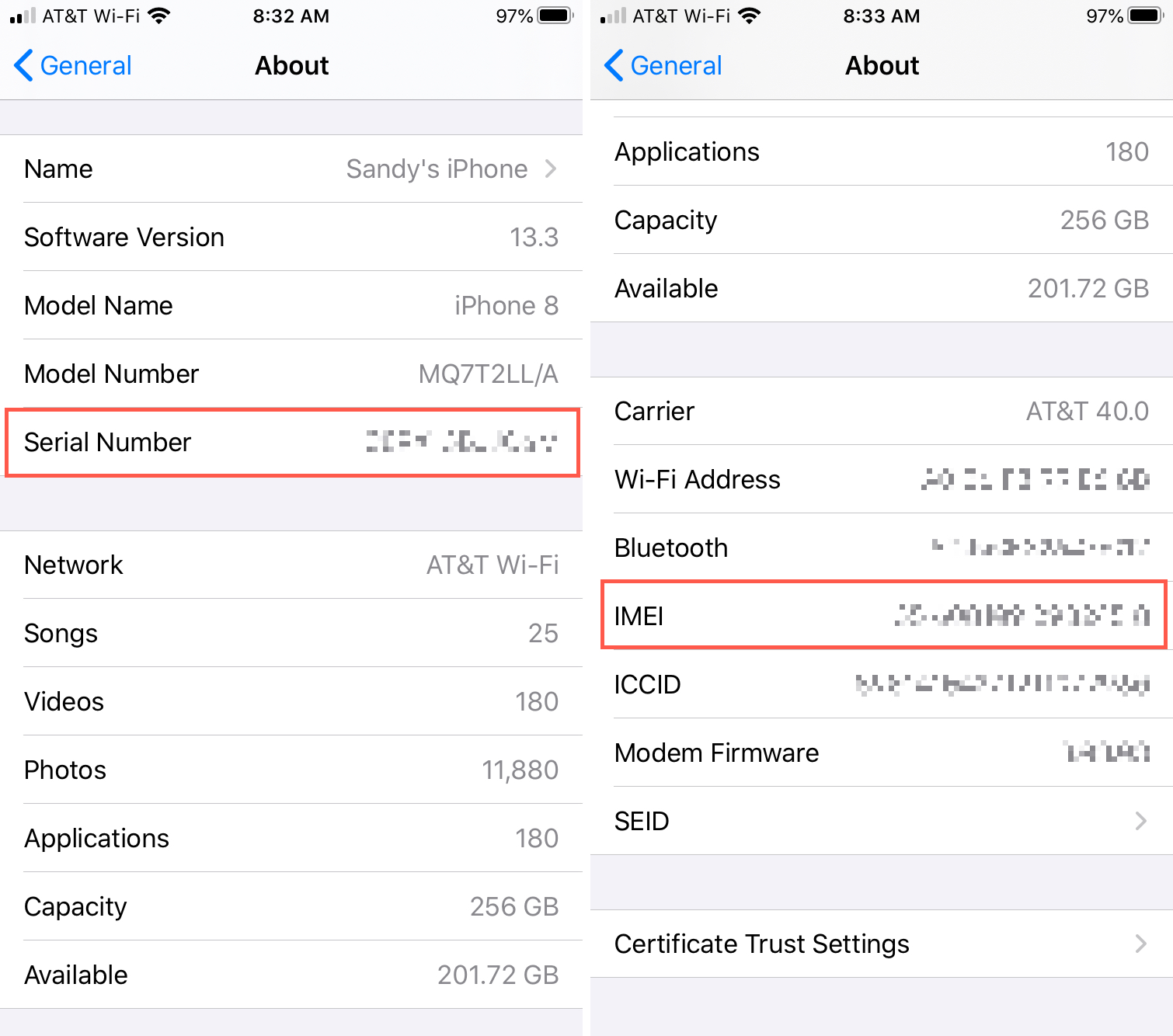
The most reliable method is to navigate directly through the iOS interface. This ensures the IMEI belongs to the device you are currently holding.
- Open the Settings app.
- Tap General.
- Select About.
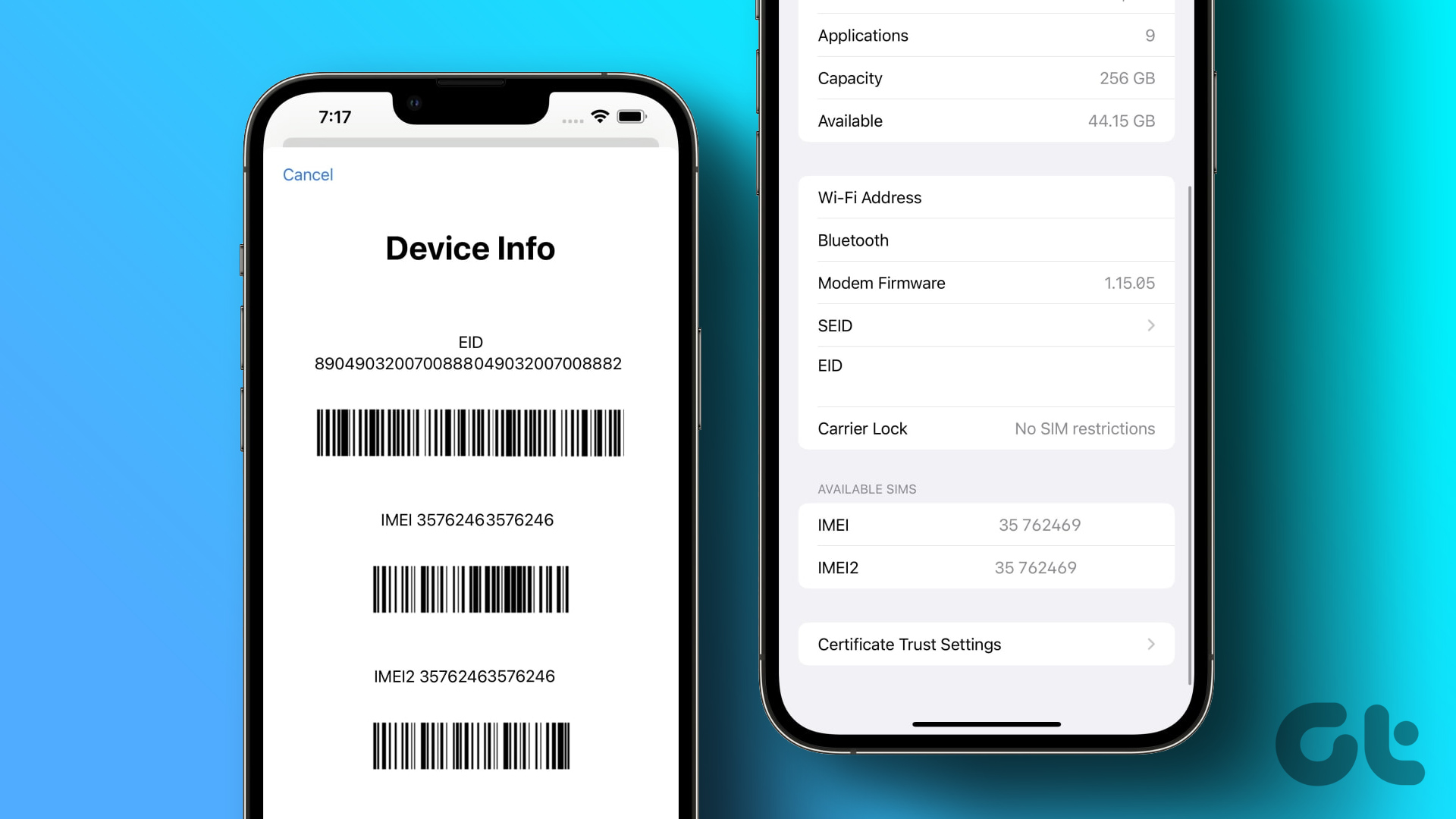
- Scroll down to find the IMEI field. You can press and hold the number to copy it to your clipboard if needed.
2. Using the Dial Pad
If your iPhone is on but you cannot access the Settings menu for any reason, you can use a universal shortcode.
- Open the Phone app.
- Tap the Keypad tab.
- Dial
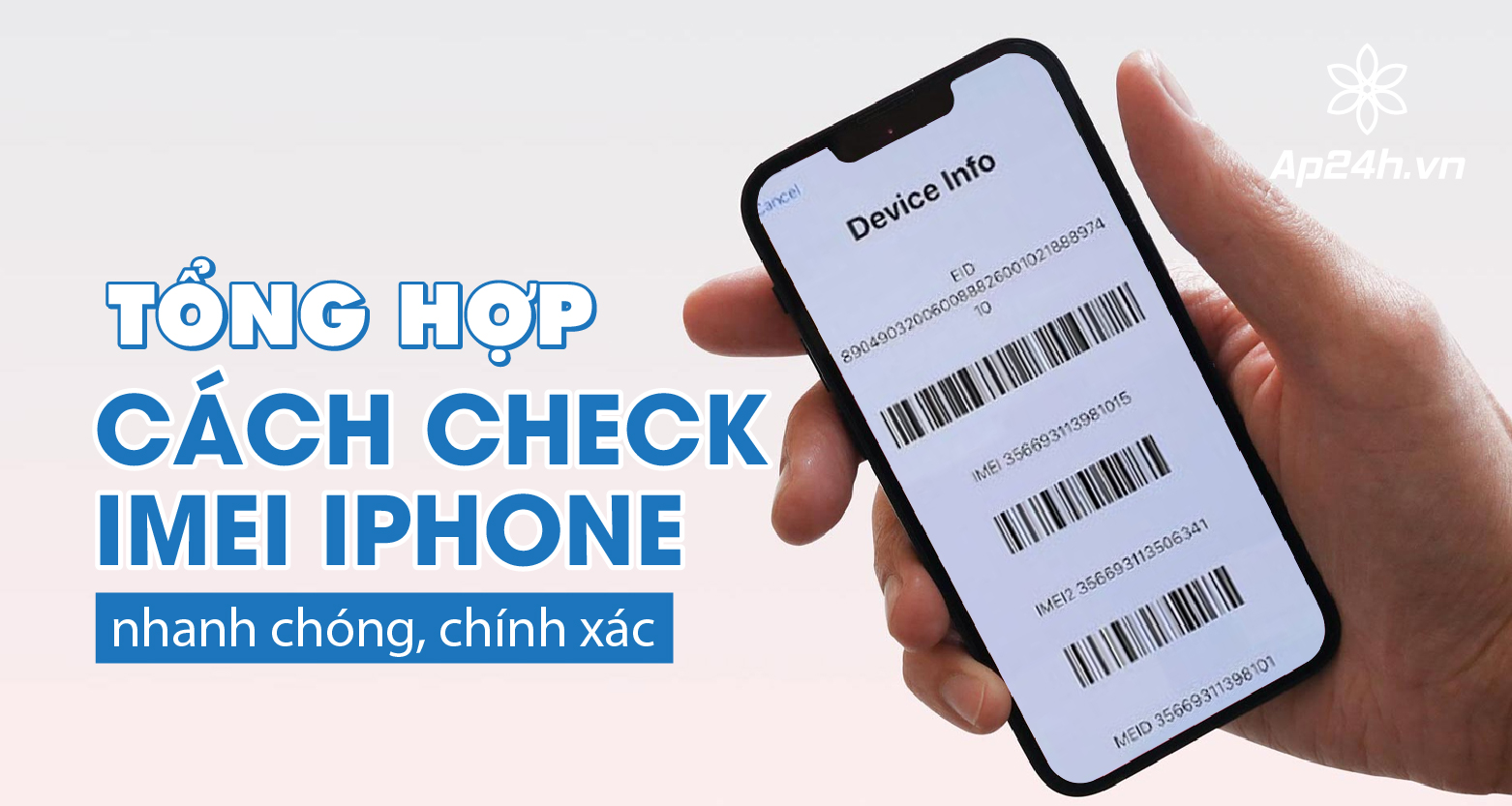
*#06#and press the call button. - A window will automatically pop up displaying your device’s IMEI and serial number.
3. Checking the Hardware
If the device is powered off or inaccessible, Apple provides the IMEI in physical locations:
- SIM Tray: On many modern iPhones, the IMEI is laser-etched onto the SIM card tray. Use a SIM ejector tool or a small paperclip to remove the tray and inspect the outer edge.
- Original Packaging: If you still possess the retail box, look for a barcode label on the bottom or side; the IMEI is almost always printed there alongside the serial number.
- Back of Device: On older models (iPhone 6s and earlier), the IMEI is engraved directly on the rear aluminum casing.
Validating Device Status and Activation Lock
Once you have retrieved the IMEI, the next phase is verification. It is important to distinguish between Apple's internal tools and third-party databases.
The most authoritative check is via the official Apple Check Coverage portal. By entering the serial number or IMEI on Apple’s website, you can confirm the device model, verify if the purchase date was validated, and check the status of your AppleCare+ coverage. This ensures the device is genuine and not a sophisticated counterfeit.
For network status, you must use a reliable IMEI checker service. Because "blacklisting" is managed by individual carriers and coordinated through the GSMA (the global association for mobile operators), some databases may have a slight delay in updating status changes. Always use reputable services that draw from the GSMA database to ensure you are seeing real-time, global information.
Comparison of Methods for Identifying iPhone Status
| Method | Primary Purpose | Best Used For |
|---|---|---|
| Settings Menu | Identity confirmation | Daily usage, warranty claims |
Dial *#06# |
Rapid retrieval | When phone is locked or inaccessible |
| SIM Tray | Hardware verification | Second-hand purchases |
| Apple Coverage Portal | Warranty/Support status | Buying used, checking support eligibility |
| GSMA/Carrier Check | Blacklist/Network status | Avoiding stolen or locked devices |
Common Risks When Buying Used iPhones
When purchasing a second-hand iPhone in 2026, the IMEI is your most powerful tool for risk mitigation. The "Activation Lock" (part of the Find My feature) is the most significant hurdle. Even if you have the physical device, if it is still linked to the previous owner’s Apple ID, you will be unable to set it up or use it.
When inspecting a device:
- Check for Activation Lock: If the device greets you with a "Hello" screen or prompts for an Apple ID and password during setup, it is still locked to the previous owner. Never complete a purchase of a device that is still locked.
- Verify Network Status: Use the IMEI to ensure the phone is "Unlocked." A locked phone may be restricted to a specific carrier (e.g., AT&T or Verizon), meaning it will not accept a SIM card from another provider without a formal unlock process from that carrier.
- Check for Financed Status: Some devices are still under payment plans. While they may not be "blacklisted" yet, they could be blocked in the future if the original owner stops paying their bill. Using an IMEI check that flags finance status can save you from future headaches.
Troubleshooting IMEI Issues
If you find that your IMEI does not match the information on the box or if your device is reporting an "Unknown" IMEI in Settings, you may be dealing with a device that has had its logic board replaced by an unauthorized third-party repair center.
If the IMEI number appears as "0" or "000000," this is a clear sign of a baseband firmware failure. This is often a hardware issue that requires professional diagnostic services from an Apple Authorized Service Provider. In such cases, the device is usually unable to connect to cellular towers, and software troubleshooting like resetting network settings or reinstalling iOS through a computer will rarely resolve the underlying failure.
Frequently Asked Questions
Does a clean IMEI mean the iPhone is 100% safe to buy? Not necessarily. While a "clean" status indicates the phone is not reported as stolen or blacklisted, it does not guarantee the battery health, the authenticity of internal parts, or the status of any ongoing device financing plans. Always verify the device's cosmetic condition and battery health in the settings menu as well.
Can I change my iPhone's IMEI number? No. The IMEI is hardcoded into the device's hardware at the time of manufacturing. It is illegal to tamper with or change a device's IMEI in many jurisdictions, as this identifier is used by law enforcement to track stolen equipment. Any software claiming to change an IMEI is likely fraudulent.
Why does my IMEI show a different model than the one I am holding? This often occurs if the device’s rear housing or display assembly was replaced using parts from a different iPhone model. While the device may function, it suggests that the iPhone has undergone significant, likely unauthorized, repairs. You should proceed with caution and verify all components.
What should I do if my iPhone is stolen? If your iPhone is stolen, immediately log in to iCloud.com/find from a computer. Mark the device as "Lost," which will trigger a remote lock and prevent others from using your personal data. Report the stolen IMEI to your wireless carrier so they can blacklist the device, preventing it from being used on cellular networks globally.
Do I need the IMEI to unlock my iPhone from a carrier? Yes. If you are eligible to unlock your iPhone from a carrier contract, the carrier will require your IMEI to identify the specific unit they need to authorize for use on other networks. Once they process the request on their end, the unlock status is pushed to your device via Apple's activation servers.
Final Recommendation
Whether you are verifying a device for a sale, troubleshooting network connectivity, or preparing for an insurance claim, keeping a record of your iPhone's IMEI is a best practice. Store the 15-digit number in a secure, digital location separate from the device itself. Before finalizing any transaction for a used iPhone, always perform a physical inspection of the SIM tray, cross-reference the IMEI in the settings menu, and perform a status check through a reliable online database to ensure you are entering a secure, legitimate ownership agreement.