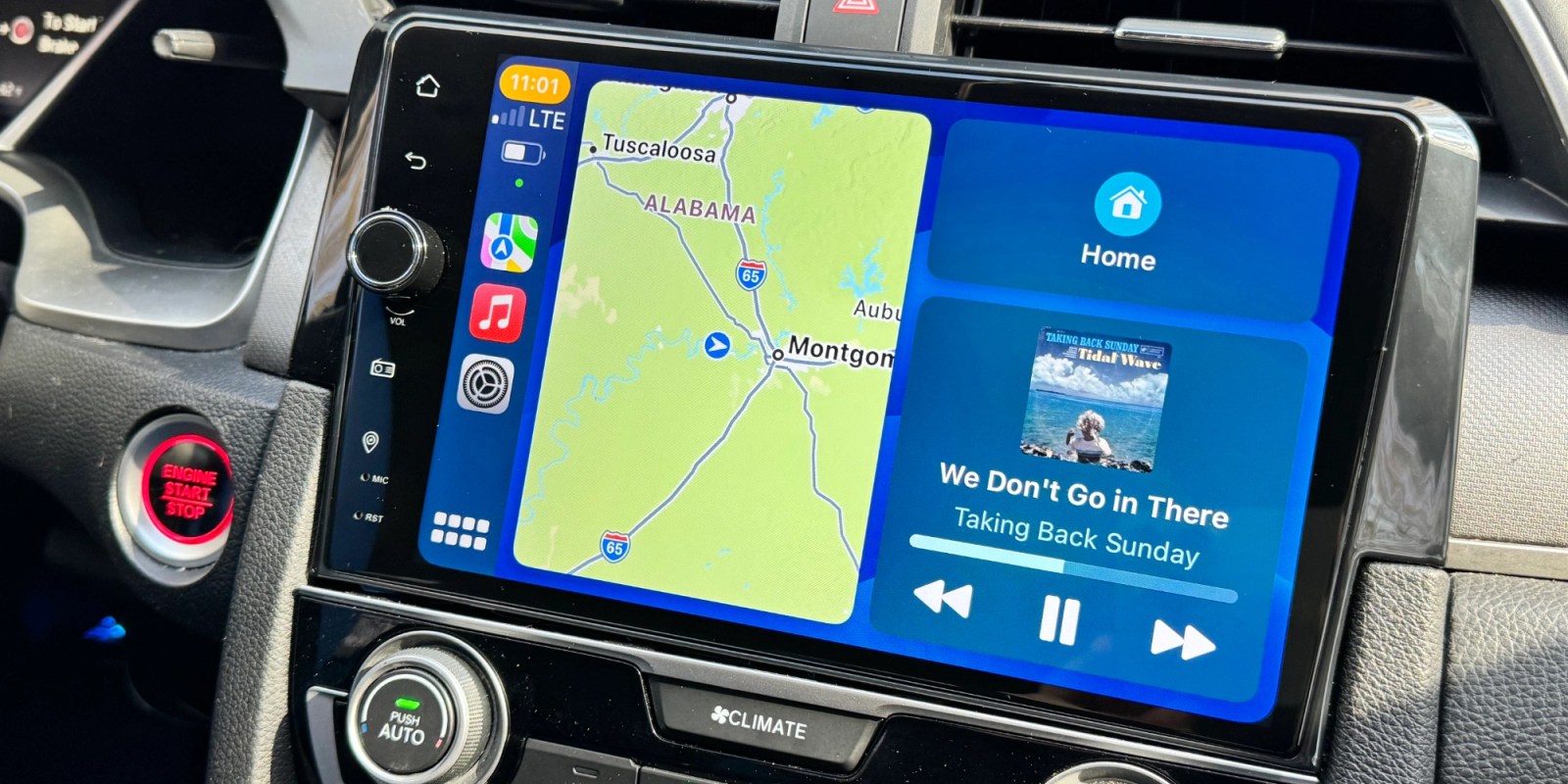
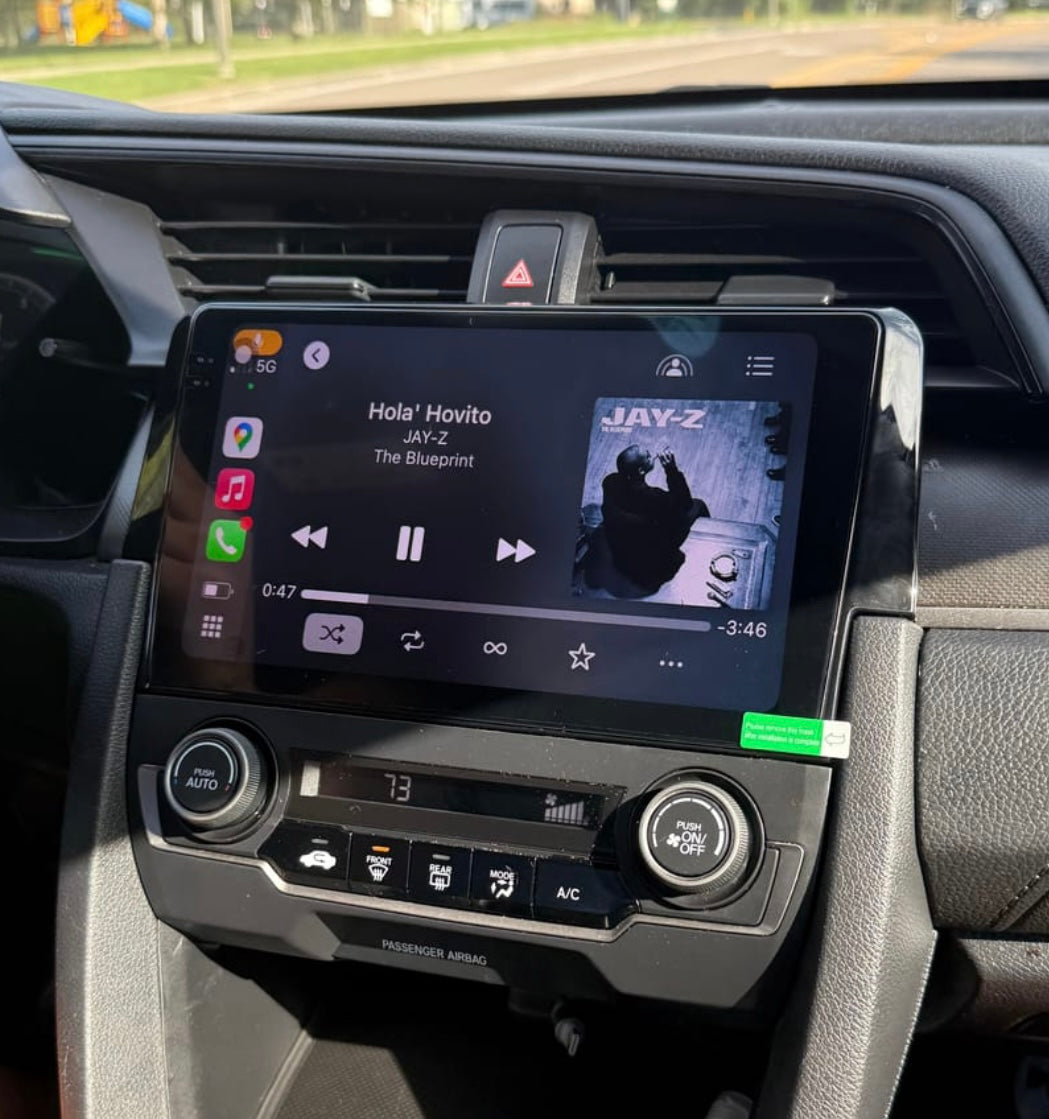
The 2017 Honda Civic integrated Apple CarPlay as a standard factory feature across all EX, EX-T, EX-L, Touring, Si, and Type R trims equipped with the 7-inch Display Audio system. First introduced during the 10th-generation Civic debut for the 2016 model year, wired Apple CarPlay expanded across the entire 2017 lineup—including the newly introduced 5-door Hatchback, Si, and Type R models—while remaining unavailable on base LX trims.
The Historical Timeline of Apple CarPlay in the 10th-Gen Honda Civic
Understanding how Apple CarPlay arrived in the 2017 Honda Civic requires examining Honda’s broader technology rollout for its tenth-generation Civic platform, which debuted for the 2016 model year and ran through 2021.
| Year / Model Year | Milestone Details |
|---|---|
| 2014-2015 | Apple launches CarPlay globally; Honda announces adoption. |
| 2016 MY | 10th-Gen Civic launches (Sedan/Coupe). CarPlay debuts on EX trims and higher via 7-inch Display Audio. |
| 2017 MY | CarPlay expands to Hatchback, Si, and Type R. Standard on EX, EX-T, EX-L, Touring, Si, and Type R trims. |
| 2019 MY | Mid-cycle refresh adds physical volume knob to 7-inch Display Audio, fixing touchscreen-only control complaints. |
| 2022 MY+ | 11th-Gen Civic debuts wireless Apple CarPlay on top trims. |
2014–2015: Initial Announcements and Platform Integration
Apple officially announced CarPlay (formerly iOS in the Car) at the Geneva International Motor Show in March 2014. Honda was among the initial wave of global automakers that pledged support for the technology. However, early implementation was restricted to select high-end vehicles. Honda engineered its mid-tier infotainment platform around an Android-based operating system powering a high-resolution capacitive touch interface capable of running smartphone mirroring protocols.
2016 Model Year: The 10th-Generation Civic Debut
When Honda launched the completely redesigned 10th-generation Civic Sedan and Coupe for the 2016 model year, it represented a massive technological shift. Honda introduced its 7-inch Display Audio system, which included native wired Apple CarPlay and Android Auto support. For 2016, this technology was restricted strictly to the EX trim and above.
2017 Model Year: Lineup Expansion and Full Rollout
The 2017 model year marked the full expansion of the 10th-generation lineup. Honda introduced three major variants:
- The Civic Hatchback (manufactured in Swindon, UK)
- The high-performance Civic Si (Sedan and Coupe)
- The flagship Civic Type R
In all 2017 variants, Honda maintained a strict hardware split: base trims retained a non-touch 5-inch color LCD display without smartphone integration, whereas any trim with the 7-inch Display Audio system received standard factory-installed Apple CarPlay.
2019 Mid-Cycle Refresh: The Physical Knob Update
While not changing the core software functionality of CarPlay, the 2019 mid-cycle refresh addressed the primary customer complaint regarding the 2016–2018 7-inch Display Audio interface: the lack of a physical volume knob. The 2017 system relied on a capacitive touch slider on the left side of the screen or steering wheel controls. In 2019, Honda revised the head unit hardware to add a physical volume knob and hard buttons for key functions, while maintaining the underlying software platform used in the 2017 models.
2017 Honda Civic Trim Compatibility Matrix
Apple CarPlay compatibility in the 2017 Honda Civic depends entirely on the trim level and the head unit installed at the factory.
| Body Style | Trim Level | Screen Size & Type | Apple CarPlay Availability | USB Port Specs (CarPlay Port) |
|---|---|---|---|---|
| Sedan | LX | 5-inch Color LCD (Resistive) | Not Available | 1.0A Front Console (Media Only) |
| Sedan | EX | 7-inch Display Audio (Capacitive) | Standard (Wired) | 1.5A Lower Center Console |
| Sedan | EX-T | 7-inch Display Audio (Capacitive) | Standard (Wired) | 1.5A Lower Center Console |
| Sedan | EX-L | 7-inch Display Audio (Capacitive) | Standard (Wired) | 1.5A Lower Center Console |
| Sedan | Touring | 7-inch Display Audio (Capacitive) | Standard (Wired) | 1.5A Lower Center Console |
| Coupe | LX / LX-P | 5-inch Color LCD (Resistive) | Not Available | 1.0A Front Console (Media Only) |
| Coupe | EX-T | 7-inch Display Audio (Capacitive) | Standard (Wired) | 1.5A Lower Center Console |
| Coupe | EX-L | 7-inch Display Audio (Capacitive) | Standard (Wired) | 1.5A Lower Center Console |
| Coupe | Touring | 7-inch Display Audio (Capacitive) | Standard (Wired) | 1.5A Lower Center Console |
| Hatchback | LX | 5-inch Color LCD (Resistive) | Not Available | 1.0A Front Console (Media Only) |
| Hatchback | Sport | 7-inch Display Audio (Capacitive) | Standard (Wired) | 1.5A Lower Center Console |
| Hatchback | EX-L Navi | 7-inch Display Audio (Capacitive) | Standard (Wired) | 1.5A Lower Center Console |
| Hatchback | Sport Touring | 7-inch Display Audio (Capacitive) | Standard (Wired) | 1.5A Lower Center Console |
| Si | Si (Sedan/Coupe) | 7-inch Display Audio (Capacitive) | Standard (Wired) | 1.5A Lower Center Console |
| Type R | Touring | 7-inch Display Audio (Capacitive) | Standard (Wired) | 1.5A Lower Center Console |
Note: In Canadian markets, the base DX and LX trims featured the 5-inch screen, while LX with Honda Sensing, EX, and higher received the 7-inch Display Audio system with Apple CarPlay.
Technical Architecture: 7-Inch Display Audio vs. Base 5-Inch System
The hardware and software differences between the base and upgraded head units explain why Apple CarPlay cannot simply be enabled via a software patch on base 2017 Civic models.
- Base LX Trim
- 5-Inch LCD Display
- Resistive Panel
- Basic Firmware
- 1.0A USB (Audio Only)
- Result: No CarPlay Support
- EX Trim and Above
- 7-Inch Touchscreen
- Capacitive Glass
- Android-based OS
- 1.5A Dedicated USB
- Result: Native Wired CarPlay
The 5-Inch Base Audio System
The LX (and LX-P) trim level utilizes a basic infotainment system built around a 5-inch screen with traditional physical buttons and a control knob.
- Operating System: Proprietary embedded firmware with fixed functionality.
- Hardware Limitations: Lacks the system memory (RAM), graphics processing performance, and hardware decoding necessary to render the H.264 video feed streamed by an iPhone during an active Apple CarPlay session.
- USB Interface: Includes a single 1.0-amp USB port meant primarily for playing MP3/WMA files from a flash drive or streaming basic audio via legacy iOS iPod control protocols.
The 7-Inch Display Audio System
Standard on EX and higher trims, this unit is a sophisticated computing platform embedded into the dashboard.
- Operating System: Runs a customized build of Android (specifically Android 4.2.2 Jelly Bean on early 10th-gen models), providing a framework for hosting native and mirror-link applications.
- Touch Interface: Uses a glass capacitive touch display supporting multi-touch gestures (such as pinch-to-zoom), essential for navigating Apple Maps, Google Maps, or Waze through CarPlay.
- Dedicated High-Amperage USB Port: Connected directly to an internal controller board capable of handling data throughput while delivering 1.5 amperes at 5 volts. This supplies enough power to charge connected iPhones while running processor-intensive navigation and music streaming apps.
Options for Base Trim Owners (LX and LX-P)
Owners of 2017 Honda Civic LX models often seek ways to add Apple CarPlay. Because Honda built the vehicle’s electronics with deep integration between the head unit and the car's body control systems, retrofit paths require specific hardware considerations.
1. OEM Head Unit Swap (Factory Retrofit)
Attempting to replace a base 5-inch factory radio with an OEM 7-inch Honda Display Audio unit from a donor 2017 Civic EX is not recommended.
- Wiring Harness Discrepancies: The main electrical harness for the LX lacks several wire pins present on EX and higher trims, including lines for the 1.5A smartphone USB port, climate control feedback display, and secondary system buses.
- CAN Bus Integration: The 7-inch Display Audio screen communicates with the vehicle’s Controller Area Network (CAN bus) to manage climate control settings, vehicle customization options, and backup camera rendering. Installing an OEM 7-inch screen into an LX results in persistent network configuration errors, a non-functional screen, or dead climate control interfaces.
2. Aftermarket Double-DIN Head Units
The standard and most reliable method for bringing Apple CarPlay to a 2017 Civic LX is installing an aftermarket double-DIN receiver from established manufacturers like Alpine, Pioneer, Kenwood, or Sony.
To preserve factory features during an aftermarket installation, specific integration modules are required:
- Dash Kit: A vehicle-specific trim panel designed to match the contour of the 2017 Civic dashboard.
- Wiring Interface (e.g., iDatalink Maestro RR or PAC ControlPRO): Translates the 2017 Civic's digital CAN bus signals to work with the aftermarket radio. This maintains steering wheel audio controls, ignition status feeds, and backup camera functionality.
- Reverse Camera Adapter: Steps down the factory 12V reverse line to the 6V feed required by the OEM rear camera, retaining the factory backup screen on the new unit.
3. Plug-and-Play Android-Based Aftermarket Units
Several third-party vendors produce vehicle-specific Android touchscreens designed to fit the 10th-generation Civic dashboard layout directly. These kits include custom wiring harnesses that plug into factory connection points. They feature integrated Apple CarPlay support (often via a built-in app like Zlink or TLink) and support both wired and wireless connections.
How to Set Up Apple CarPlay on a 2017 Honda Civic
For owners of EX, EX-T, EX-L, Touring, Si, or Type R models, configuring Apple CarPlay requires meeting basic prerequisite hardware requirements and executing a brief initial pairing sequence.
Prerequisites
- Compatible iPhone: iPhone 5 or newer running iOS 7.1 or later (for optimal performance, update your device to the latest iOS release).
- Certified Lightning Cable: Use an official Apple-branded Lightning-to-USB-A cable or an Apple MFi-certified third-party cable. Substandard or charge-only cables will trigger connection drops or fail to establish data transfers.
- Siri Enabled: Apple CarPlay requires Siri to be active. On your iPhone, navigate to Settings > Siri & Search and ensure Listen for "Hey Siri" or Press Side Button for Siri is enabled.
Hardware Connection Path
- 7-Inch Screen
- Pass-Through Slot in Center Console
- Lower Tray USB Port (Look for Smartphone Icon)
- Connect MFi Lightning Cable
- Select "Always Enable" on Display
Step-by-Step Setup Sequence
Locate the Primary Data USB Port:
- Sit in the driver's seat and locate the lower compartment beneath the main center console shift area.
- Look for the USB port labeled with a Smartphone Icon (or a tablet/phone emblem). This is the dedicated 1.5A data port. The USB port inside the center armrest storage bin is for charging or media playback only and does not support Apple CarPlay.
Connect the iPhone:
- Turn the vehicle's ignition to ON or start the engine.
- Unlock your iPhone and connect the Lightning cable to the phone and the designated lower USB port.
Respond to On-Screen Prompts:
- On the Honda Display Audio screen: A prompt will ask if you would like to connect to Apple CarPlay. Select Always Enable (this prevents the car from asking every time you plug in your phone).
- On your iPhone: A pop-up prompt will ask: "Allow CarPlay with 'Honda Civic' while phone is locked?" Tap Allow.
Launch the Interface:
- The system will automatically switch from the standard Honda home screen to the Apple CarPlay interface.
- If it does not switch automatically, press the Home icon on the left edge of the Honda screen, then tap the Apple CarPlay icon.
Troubleshooting Common 2017 Civic CarPlay Issues
Due to the age of the hardware platform in 2017 Civics, system glitches, connection dropouts, or unresponsive screens can occur. Follow these verified troubleshooting protocols to resolve the most common issues.
- Troubleshooting Flow (Black Screen / No Connection):
- Check Cable: Is it Apple MFi-Certified?
- Inspect Port: Is it connected to the lower 1.5A port?
- Reboot System: Hold Audio Power Button for 5 Seconds.
- Check iOS: Settings > General > CarPlay > Forget Car.
- Hard Reset: Disconnect battery / System Factory Reset.
Issue 1: "No Device Connected" or Unresponsive Screen
If the phone is plugged in but the Display Audio unit fails to launch CarPlay:
- Perform a Soft Reboot of the Honda Unit: Press and hold the Audio Power Button (the touch key on the upper left corner of the screen bezel) for 5 to 10 seconds until a pop-up appears asking if you want to reboot the system. Select Yes. The system will restart its Android underlying layer without losing user settings.
- Inspect the Cable and Port: Lint inside the iPhone’s Lightning port can block the data pin connections required for CarPlay while still allowing the device to charge. Clean out the Lightning port carefully using a wooden toothpick or plastic pick.
- Toggle iOS Settings: Go to Settings > Content & Privacy Restrictions > Allowed Apps on your iPhone and ensure CarPlay is toggled ON.
Issue 2: Audio Stuttering, Black Screens, or Map Freezes
- Reset Smartphone Connection History: On your iPhone, go to Settings > General > CarPlay, select Honda Civic, and tap Forget This Car. On the Honda Display Audio system, go to Home > Settings > Smartphone > Apple CarPlay, find your device in the list, and delete it. Reconnect the cable to perform a clean setup.
- Check Memory Usage on the Display Audio Unit: The internal memory of the 2017 Display Audio head unit can get fragmented over time. If a soft reboot does not resolve persistent lag, execute a Factory Data Reset:
- Tap Home > Settings > System > Factory Data Reset.
- Caution: This will wipe stored Bluetooth devices, radio presets, and custom wallpaper configurations.
Issue 3: Microphones Not Capturing Siri Voice Commands
- Inspect HandsFreeLink Settings: Check if your iPhone is simultaneously connected via standard Bluetooth HandsFreeLink while plugged into CarPlay. Disconnect Bluetooth and let CarPlay handle both voice input and audio routing over the USB cable.
Converting to Wireless Apple CarPlay in a 2017 Honda Civic
The 2017 Honda Civic natively supports wired Apple CarPlay only. Wireless CarPlay was not added to the Civic lineup by the factory until the 11th-generation model debuted. However, owners of 2017 Civic EX trims and higher can adapt their factory wired setup to function wirelessly using third-party adapters.
How Wireless CarPlay Dongles Work
Wireless adapters (such as those from Carlinkit, Ottocast, or AAWireless) plug directly into the 2017 Civic's 1.5A lower USB data port.
- The dongle pretends to be a wired iPhone to the Honda Display Audio system.
- The user pairs their iPhone to the adapter using Bluetooth and Wi-Fi.
- The adapter creates a local 5GHz Wi-Fi network thatStreams the CarPlay interface wirelessly to the vehicle dashboard.
Operational Expectations & Limitations
- Boot-Up Latency: A native wired connection launches in roughly 3 to 5 seconds after plugging in. Wireless adapters require 15 to 30 seconds to boot, establish a Wi-Fi handshake, and launch the interface after starting the engine.
- Audio Delay: Because data travels over a local Wi-Fi connection, there is typically a minor audio latency (0.5 to 1.5 seconds) when pausing music or skipping tracks compared to a wired connection.
- Battery Consumption: Wireless CarPlay places a heavy processing load on the iPhone's Wi-Fi and GPS modules. For long road trips, placing the phone on a wireless charging pad or plugging it into a charge-only port is recommended.
Frequently Asked Questions
Can I get Apple CarPlay installed on a 2017 Honda Civic LX at a Honda dealership?
No. Honda dealerships do not offer official software or hardware retrofits to add Apple CarPlay to the base 5-inch head unit found on LX models. Adding CarPlay to an LX requires an aftermarket head unit installation.
Does Apple CarPlay work wirelessly in the 2017 Honda Civic from the factory?
No. All 2017 Honda Civic models equipped with Apple CarPlay require a physical connection using a Lightning-to-USB cable plugged into the designated 1.5A center console port. Wireless support can only be added using third-party wireless adapters.
Why does Apple CarPlay keep disconnecting while driving my 2017 Civic?
Intermittent disconnections are almost always caused by a worn or non-MFi certified Lightning cable, dirt or lint build-up inside the iPhone’s Lightning port, or degraded pins in the lower USB port. Swapping to a brand-new, official Apple cable resolves the vast majority of connection drops.
Does using Apple CarPlay drain the battery of my iPhone while connected?
No. The dedicated CarPlay USB port in the 2017 Honda Civic EX and above provides a 1.5-amp power output. This supplies sufficient current to operate navigation, phone calls, and music streaming while simultaneously charging the iPhone’s battery.
Can I use Google Maps or Waze through Apple CarPlay on my 2017 Civic?
Yes. Apple CarPlay supports third-party navigation apps, including Google Maps, Waze, and Sygic, alongside native Apple Maps. You can configure your preferred navigation app directly from your iPhone home screen layout settings.
Recommended Next Steps
If you are buying or troubleshooting a 2017 Honda Civic:
- Verify the Trim: Confirm your vehicle is an EX, EX-T, EX-L, Touring, Si, or Type R (or Hatchback Sport/Sport Touring) to ensure factory CarPlay compatibility. If you own an LX or LX-P, budget for an aftermarket receiver and integration harness.
- Inspect Physical Connections: Purchase an official Apple or MFi-certified Lightning cable and clean out your iPhone's charging port before troubleshooting software issues.
- Keep System Fresh: If your 7-inch Display Audio unit exhibits system lag, perform a soft reboot by holding down the top-left power button for 5 seconds to clear out cached application memory.
EDITORIAL CATEGORY METADATA: