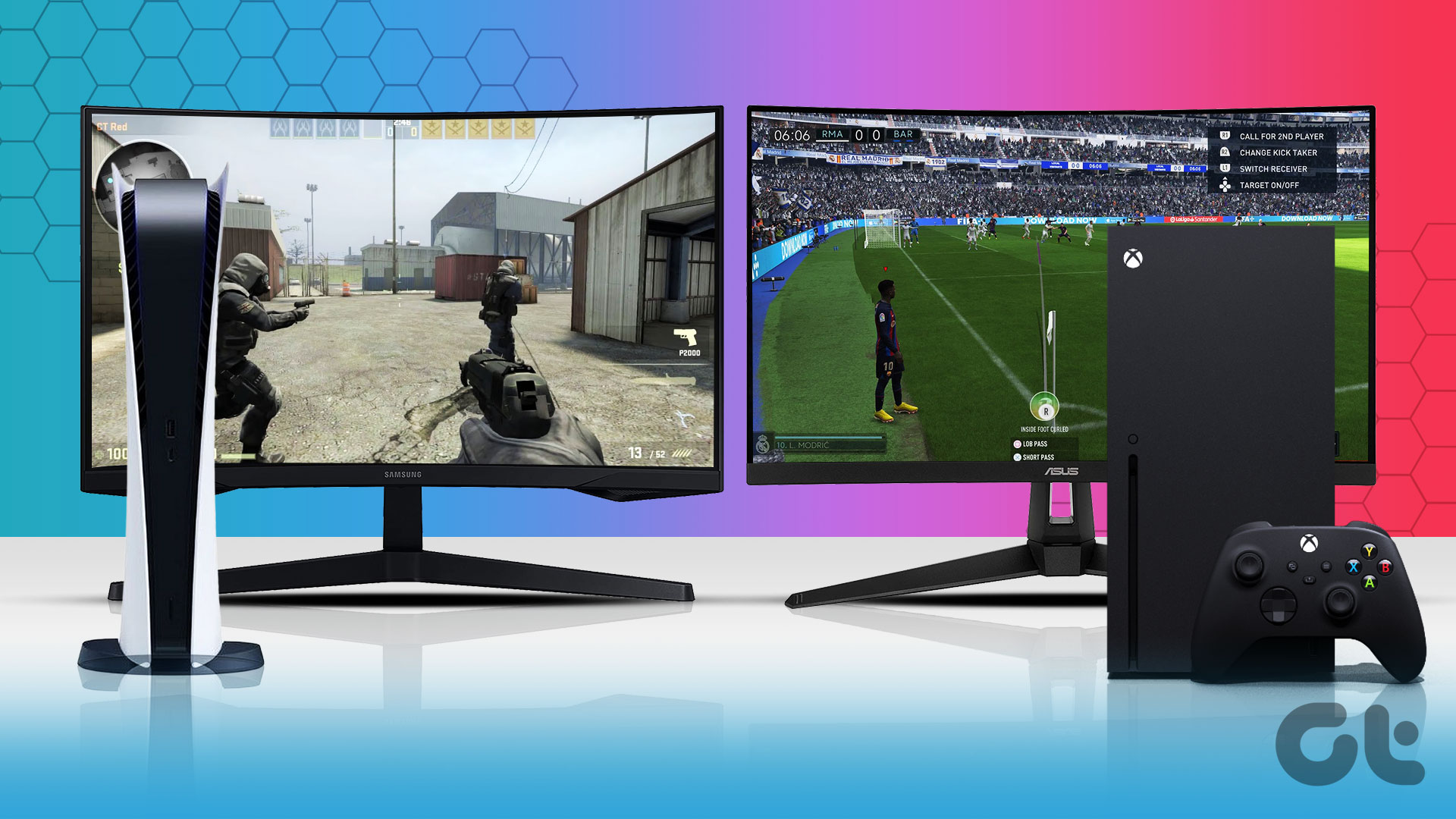
The Sony PlayStation 5 fully supports native 1440p video output. This feature, introduced via a significant system software update, allows players to output a 1440p signal at up to 120Hz on compatible monitors and TVs. It provides a crisp middle ground between 1080p and 4K, often enabling better performance and image clarity for desktop gamers.
The Evolution of 1440p Support on PlayStation 5
When the PlayStation 5 (PS5) first launched in November 2020, it arrived with support for 1080p and 4K resolutions, but native 1440p support was conspicuously absent. This was a point of contention for many "desktop gamers" who preferred using high-refresh-rate PC monitors, which are frequently built with a 1440p (QHD) resolution. For the first two years of the console's lifecycle, users with 1440p monitors were often forced to downscale a 4K signal (if the monitor supported it) or upscale a 1080p signal, neither of which was optimal for image fidelity.
In late 2022, Sony officially released a system firmware update that added 1440p HDMI video output. By 2026, this feature has become a standard part of the PlayStation ecosystem, fully integrated with other high-end features like Variable Refresh Rate (VRR) and Auto Low Latency Mode (ALLM). This evolution reflects Sony's recognition that the PS5 is not just a living-room TV console but also a centerpiece for high-performance monitor setups.
Why 1440p is the "Sweet Spot" for Gamers
In the world of display technology, 1440p (2560 x 1440 pixels) is often referred to as the "Goldilocks" resolution. It offers significantly more detail than standard 1080p (Full HD) while requiring much less graphical processing power than 4K (Ultra HD).
Visual Clarity vs. Performance
On a standard 27-inch or 32-inch monitor, the pixel density of 1440p provides an incredibly sharp image where individual pixels are nearly impossible to distinguish at normal viewing distances. For PS5 owners, selecting 1440p often allows the console to maintain higher frame rates in "Performance Mode" without the blurry side effects sometimes associated with upscaled 1080p.
Supersampling Benefits
If a game natively renders at a higher resolution than 1440p (such as 4K), the PS5 can use supersampling to downscale that image to your 1440p output. This results in an exceptionally clean image with reduced aliasing (jagged edges), providing a visual experience that looks superior to native 1440p rendering. Conversely, if a game renders at a lower resolution, the console's internal upscaler handles the transition to 1440p more efficiently than most monitors' built-in scalers.
Technical Requirements for 1440p Output
To utilize 1440p on your PS5 in 2026, you must meet specific hardware and software criteria. Simply having a 1440p monitor is not always enough; the interface and the cable must also support the necessary bandwidth.
HDMI 2.0 vs. HDMI 2.1
The PS5 uses HDMI 2.1, but it is backward compatible with HDMI 2.0.
- HDMI 2.0: Supports 1440p at up to 60Hz or 120Hz, but it lacks the bandwidth for certain high-end features like uncompressed HDR at high frame rates or VRR in some configurations.
- HDMI 2.1: This is the ideal standard. It provides ample bandwidth for 1440p at 120Hz with HDR and Variable Refresh Rate fully enabled.
Cable Quality
Always use the High Speed HDMI cable that came with your PS5 or a certified "Ultra High Speed" HDMI 2.1 cable. Older HDMI cables from the PS4 era may struggle to maintain a stable 1440p/120Hz signal, leading to screen flickering, "blackouts," or a complete failure to recognize the resolution.
How to Enable 1440p Resolution on PS5
Setting up 1440p is a straightforward process, but it requires a manual check within the system settings to ensure your display is communicating correctly with the console.
Step-by-Step Configuration
- Navigate to the Settings menu (the gear icon on the top right of the home screen).
- Select Screen and Video.
- Go to Video Output.
- Select Resolution. While "Automatic" usually works, you can manually select 1440p to force the output.
- To verify compatibility, select Test 1440p Output.
The "Test 1440p Output" utility is critical. The PS5 will cycle through various frequencies (60Hz, 120Hz, HDR, etc.) to confirm what your monitor can handle. If your monitor supports 1440p but the test fails, it may be due to the monitor's internal timing settings or a limitation of the HDMI port (some monitors only support 1440p over DisplayPort, requiring an active adapter for HDMI).
Variable Refresh Rate (VRR) at 1440p
Variable Refresh Rate (VRR) is a technology that syncs the refresh rate of your display to the frame rate of the console. This eliminates screen tearing and reduces "stutter" when a game's performance dips below its target (e.g., dropping from 60fps to 52fps).
Initially, the PS5 only supported VRR at 1080p and 4K. However, Sony expanded this support to include 1440p. This is a game-changer for titles that offer "Uncapped Framerate" modes. In 2026, most modern 1440p gaming monitors support VRR via HDMI (often branded as FreeSync or G-Sync Compatible), making the experience much smoother for competitive titles like Call of Duty, Fortnite, or racing simulators.
Comparing Output Resolutions on PS5
Understanding the differences between the three primary output modes helps in deciding whether to invest in a new display.
| Feature | 1080p (Full HD) | 1440p (Quad HD) | 4K (Ultra HD) |
|---|---|---|---|
| Pixel Count | 1920 x 1080 | 2560 x 1440 | 3840 x 2160 |
| Ideal Display Size | 24 inches or smaller | 27 to 32 inches | 32 inches or larger |
| Max Refresh Rate | 120Hz | 120Hz | 120Hz |
| HDR Support | Yes | Yes | Yes |
| VRR Support | Yes | Yes | Yes |
| Bandwidth Demand | Low | Medium | High |
| Common Device | Budget Monitors / Older TVs | Gaming Monitors | Modern TVs / Pro Monitors |
Troubleshooting Common 1440p Issues
Even with official support, some users encounter hurdles when trying to get 1440p to work. Here are the most common solutions for 2026.
The "1440p Not Supported" Message
If the PS5 claims your monitor doesn't support 1440p despite the manufacturer's specs, check if HDCP (High-bandwidth Digital Content Protection) is causing a conflict. Some older monitors have handshake issues with HDCP 2.3. You can try disabling HDCP in the PS5 "System" settings, though this will prevent you from using streaming apps like Netflix or YouTube.
120Hz Limitation
If you can get 1440p at 60Hz but not 120Hz, the bottleneck is likely the HDMI version of your monitor. Many 1440p monitors released before 2022 feature HDMI 2.0 ports that are capped at 1440p/60Hz, reserving 1440p/144Hz+ for the DisplayPort input. In this case, you would need an HDMI to DisplayPort Active Converter, though these can introduce input lag and are not always reliable.
HDR and Color Depth
At 1440p and 120Hz, the PS5 may need to reduce color sampling (from RGB to YUV422) to fit within the HDMI 2.0 bandwidth. If your screen looks "washed out" or the colors seem dull when switching to 1440p, ensure you are using an HDMI 2.1-compliant monitor and cable to maintain full 4:4:4 chroma subsampling.
The Role of Game Developers
While the PS5 system supports 1440p output, the quality of the image also depends on how the game itself is coded.
- Native Rendering: Some games are updated specifically to render at a native 1440p resolution, providing the best possible performance-to-visuals ratio.
- Dynamic Resolution Scaling (DRS): Many modern titles use DRS to stay at a steady frame rate. If a game targets 4K but drops to 1440p during intense action, a 1440p display will show those moments with perfect pixel mapping, whereas a 4K display might show a slight softening of the image.
Frequently Asked Questions
Does 1440p support HDR on the PS5?
Yes, the PS5 supports High Dynamic Range (HDR) at 1440p resolution. However, your monitor must have an HDMI port capable of receiving an HDR signal simultaneously with a 1440p resolution. Some older HDR monitors can only process HDR at 1080p or 4K, so it is vital to check your display's specific HDMI "EDID" (Extended Display Identification Data) capabilities.
Will 1440p improve my frame rate?
Changing the console's output resolution to 1440p does not automatically increase a game's internal frame rate. If a game is locked at 60fps by the developer, it will remain at 60fps regardless of whether you output at 1080p, 1440p, or 4K. However, using 1440p allows you to use "Performance" or "HFR" (High Frame Rate) modes in games without the severe drop in visual quality you would experience on a 1080p display.
Can I use 1440p on a 4K TV?
You can, but it is generally not recommended. Most 4K TVs are designed to upscale signals to their native 4K panel. Setting your PS5 to 1440p on a 4K TV will force the TV to do the upscaling work, which can sometimes introduce input lag or result in a blurrier image than if you let the PS5 output native 4K. Native 1440p output is primarily intended for users with 1440p PC monitors.
Does the PS5 support ultrawide 1440p (21:9)?
As of 2026, the PS5 does not natively support ultrawide aspect ratios like 21:9 or 32:9. If you connect the PS5 to an ultrawide 1440p monitor, the image will either be centered with black bars on the sides (pillarboxing) or stretched horizontally to fill the screen, depending on your monitor’s settings. The core output remains a 16:9 1440p signal.
Is VRR available for all 1440p monitors?
VRR at 1440p requires a monitor that supports "VRR via HDMI." While many modern monitors support FreeSync, not all of them are compatible with the PS5's specific implementation of VRR, which is based on the HDMI 2.1 Forum VRR standard. Most monitors released from 2023 onwards with HDMI 2.1 ports will support this feature flawlessly.
Recommendation for PS5 Users
If you are a competitive gamer or someone who plays at a desk, a 27-inch 1440p 144Hz (or higher) monitor with HDMI 2.1 is currently the best value-per-performance investment for the PS5. It allows you to take full advantage of the console’s 120Hz capabilities and VRR support while maintaining a high level of visual density that 1080p simply cannot match.
For those already owning a 1440p monitor, ensure your PS5 system software is up to date and run the "Test 1440p Output" in the settings menu to optimize your experience. If your monitor supports it, always keep VRR set to "Automatic" to ensure the smoothest possible gameplay in demanding titles.