To manage Amazon Prime Video for a family in 2026, you must utilize two distinct features: Amazon Household and Prime Video Profiles. Amazon Household allows you to share your Prime membership benefits with other adult accounts, while Profiles create up to six individual viewing environments (including kids' profiles) under a single login to ensure personalized recommendations and parental oversight.
Managing a digital streaming service for a multi-generational household requires a balance between accessibility, privacy, and safety. In 2026, Amazon has refined its ecosystem to offer granular control over who watches what, how much is spent, and how individual preferences are tracked. Whether you are looking to share your subscription with a spouse, set up a restricted area for a toddler, or give a teenager their own independent login, understanding the mechanics of the "Amazon Prime Video family" setup is essential for maximizing the value of your subscription.
Understanding the Foundation: Amazon Household vs. Profiles
The most common point of confusion for users is the difference between a "Household" and a "Profile." While they work together, they serve very different technical and legal purposes within the Amazon ecosystem.
What is Amazon Household?
Amazon Household is the administrative umbrella that allows you to share the financial benefits of a Prime membership. It is designed for individuals who live together and want to share one subscription fee while maintaining separate Amazon accounts. In 2026, a Household can include:
- Two Adults: Each has their own email, password, and payment methods, but they share the Prime Video library and other Prime benefits.
- Up to Four Teens: Teenagers (ages 13–17) have their own login credentials. They can browse and stream content, but parents receive notifications for any purchases or rentals they attempt.
- Up to Four Children: These are not separate accounts but are managed "child profiles" that exist within the adult's account, restricted to age-appropriate content.
What are Prime Video Profiles?
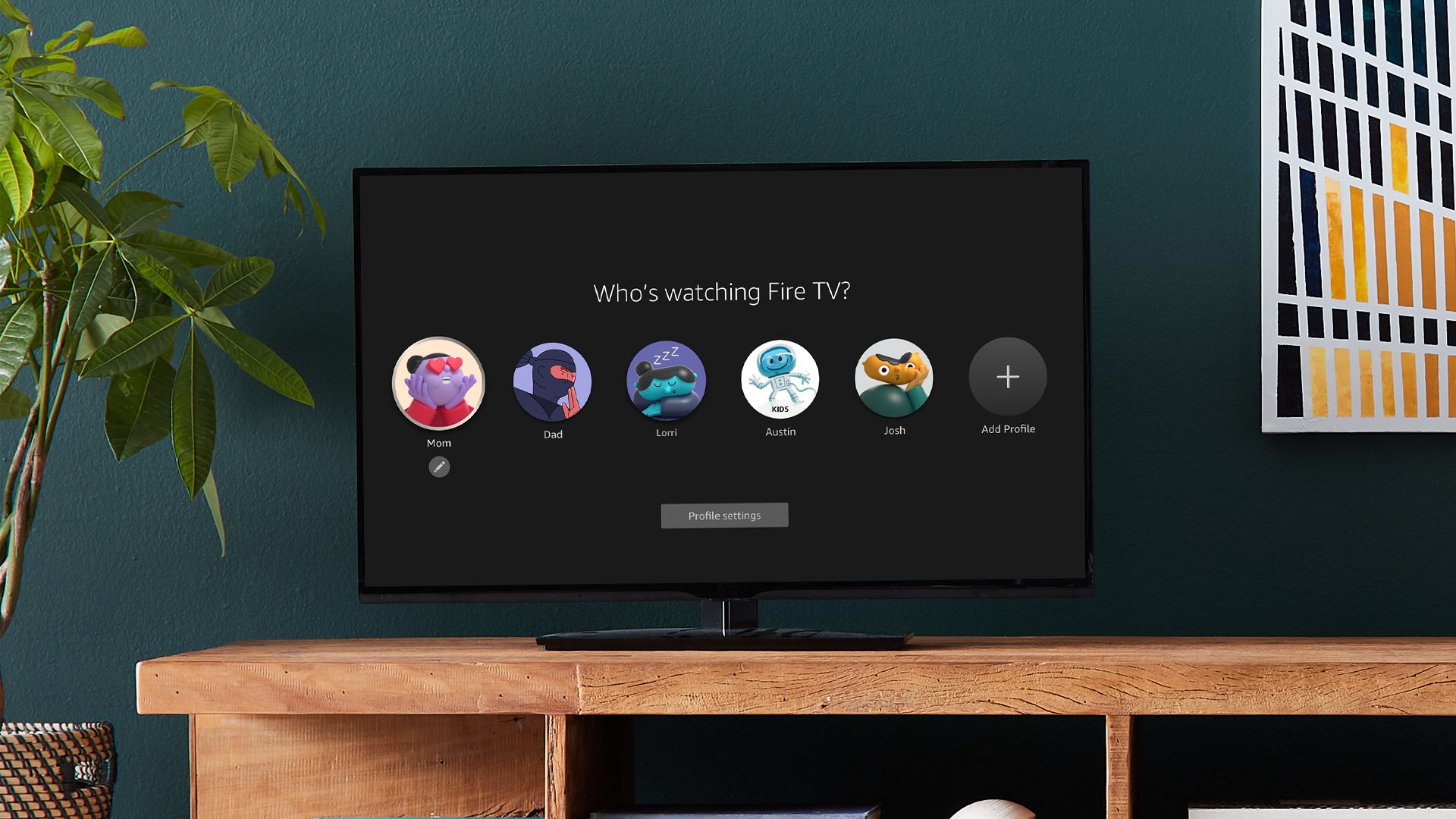
Profiles are individual "sub-accounts" within a single Amazon login. If you do not want to set up an entire Household with separate emails, you can simply create Profiles. One Prime Video account can host up to six profiles. This is ideal for a family where everyone shares the same smart TV or mobile device login but wants their own "Watchlist" and personalized "Recommended for You" section. Profiles ensure that a parent’s feed isn't cluttered with preschool cartoons and a child isn't accidentally exposed to mature-rated dramas.
Step-by-Step Guide to Setting Up Amazon Household
To share your Prime Video benefits with another adult or a teen, you must first establish the Household. This process requires a high level of trust because adults in a Household share "Wallet" access, meaning they can see and use each other's credit cards stored on the Amazon account.
1. Inviting an Adult
To invite another adult, navigate to the "Manage Your Household" section under your Account settings. You will need to enter their name and the email address associated with their Amazon account. Both adults must agree to share payment methods to verify that they reside in the same household. Once the invitation is accepted via email, the second adult will have full, independent access to the Prime Video library without needing your password.
2. Adding a Teenager
Adding a teen is a hybrid process. You provide the teen's name and birth date, and Amazon sends them an invitation. The teen then creates their own login. As the primary account holder, you can set "buying rules." For example, you can require that every video rental or purchase the teen makes must be approved by you via a text message notification. This provides teens with a sense of digital independence while maintaining parental financial oversight.
3. Adding a Child Profile
Child profiles do not require a separate email or invite. You simply select "Add New" in the Profile picker, enter a name, and toggle the "Child Profile" switch. This automatically triggers a simplified interface and restricts content to titles rated for ages 12 and under.
Managing Individual Profiles for Personalization
Once the Household is established, or if you choose to simply use one account, managing Profiles is the next step. Profiles are the key to preventing "Watchlist contamination."
Creating and Editing Profiles
In 2026, the Profile interface is available across all major platforms, including Fire TV, Roku, Apple TV, iOS, and Android.
- Open the Prime Video app.
- Select the "Profile" icon (usually in the top or bottom corner).
- Choose Add Profile.
- Upload an avatar or choose a character from a popular Amazon Original series to make the profile easily identifiable.
- To edit or delete, click "Manage Profiles" from the same menu.
Why Profiles Matter for Families
Without individual profiles, Amazon’s algorithm becomes confused. If one person watches "The Boys" (TV-MA) and another watches "Bluey" (TV-Y), the recommendation engine will struggle to provide relevant suggestions to either. Profiles isolate viewing history, ensuring that the "Continue Watching" row is accurate for each family member.
Parental Controls and Safety Features
Safety is the primary concern for any "Amazon Prime Video family" setup. Amazon provides a robust set of tools to ensure that children only access age-appropriate content.
The Prime Video PIN
The first line of defense is the Prime Video PIN. This five-digit code prevents children from switching into an adult profile or making unauthorized purchases. You can set the PIN by going to "Settings" > "Parental Controls" > "Prime Video PIN." Once established, you can toggle a setting that requires the PIN for any purchase, regardless of which profile is active.
Viewing Restrictions
You can customize viewing restrictions based on rating categories (G, PG, PG-13, R, etc.). These restrictions can be applied to specific devices. For example, you might allow PG-13 content on the living room TV but restrict the tablet in the playroom to G-rated content only.
Amazon Kids+ Integration
In 2026, Amazon Kids+ remains a popular optional subscription that integrates deeply with Prime Video. While standard Prime Video includes a "Kids" section, Kids+ adds thousands of additional premium titles, educational apps, and books. If you have a Kids+ subscription, those titles will automatically appear within the child profiles on your Prime Video app, provided the device is linked to your account.
Technical Limitations: Streams and Devices
Even with a full Household setup, there are technical boundaries to how many people can watch at once. Understanding these limits prevents the frustrating "Too many people are using your account" error message.
| Feature | Limit Specification |
|---|---|
| Concurrent Streams | Up to 3 simultaneous streams across the entire account. |
| Same-Title Limit | No more than 2 devices can stream the same title at once. |
| Profile Count | Maximum of 6 profiles per Amazon account. |
| Offline Downloads | Varies by title; generally limited to 15–25 titles total across all devices. |
| Device Registration | No hard limit on registered devices, but only 3 can stream active video. |
Simultaneous Streaming Rules
If you have a family of five, it is important to note that not everyone can watch their own show at the same time. If three people are already watching Prime Video on their respective tablets, a fourth person attempting to log in on the TV will be blocked. The "same-title" rule is also critical; if two children are watching the same movie in different rooms, a third child cannot start that same movie until one of the others stops.
Managing Offline Downloads
For families who travel, the download feature is a lifesaver. However, Amazon imposes a total download cap per account (not per profile). If one child downloads ten movies for a flight, it significantly reduces the "download data" available for other family members. These downloads also have an expiration date—usually 30 days to start watching and 48 hours to finish once started.
Sharing Purchased Content: The Family Library
Beyond the "free-to-stream" Prime titles, many families purchase or rent digital movies. These assets are managed through the Family Library.
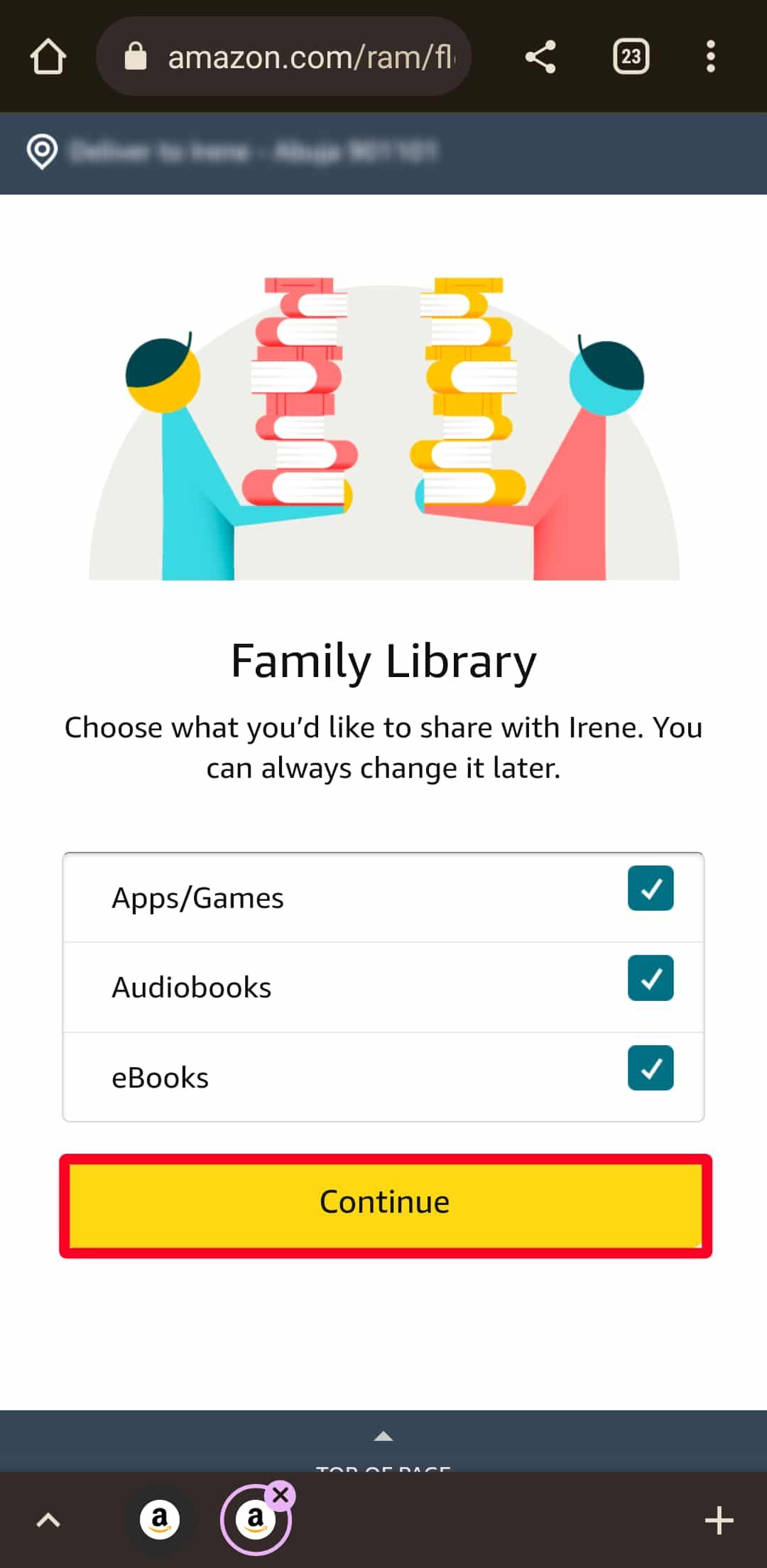
When two adults are linked via Amazon Household, they can choose to share their purchased digital content. This means if Adult A buys "Dune: Part Two," Adult B can see it in their own "Purchases & Rentals" tab at no extra cost.
Important Note on Teen Accounts: Teens do not automatically see the parents' entire library. Parents must manually share specific titles with teens, or the teen must request to purchase the title themselves, which then triggers the parental approval flow mentioned earlier.
Troubleshooting Common Family Sharing Issues
Even with a perfect setup, technical glitches can occur. Here are the most common issues and how to resolve them in 2026.
The "Invite Not Received" Problem
If an adult or teen hasn't received their Household invitation, check the following:
- Ensure the email matches their existing Amazon account exactly.
- Check the "Spam" or "Promotions" folder.
- Invitations expire after 14 days; if expired, you must delete the pending invite and send a new one.
Profiles Not Appearing on Smart TVs
Older smart TVs sometimes struggle to update the app interface. If you created a new profile on your phone but don't see it on your TV:
- Log out of the Prime Video app on the TV.
- Restart the TV or streaming stick.
- Log back in. This forces a refresh of the account metadata.
PIN Disruptions
If you forget your Prime Video PIN, you cannot reset it from a child profile. You must log in to the primary adult account on a web browser, navigate to "Parental Controls," and select "Change PIN." This requires your main Amazon password for security.
Summary of Best Practices for 2026
To ensure a seamless "Amazon Prime Video family" experience, follow these professional recommendations:
- Audit Your Household Annually: Check who has access to your Household. If a teen has turned 18, they may need to transition to an adult account.
- Enable Purchase PINs Immediately: Even if you trust your family, accidental "one-click" purchases on a remote can lead to unwanted charges.
- Use Descriptive Profile Names: Avoid generic names like "Profile 1." Use actual names and distinct icons to prevent kids from accidentally clicking into an adult's "Continue Watching" list.
- Monitor Data Usage: If your family streams in 4K on three devices simultaneously, you will consume approximately 15–20 GB of data per hour. Ensure your home internet plan can handle this volume.
Frequently Asked Questions
Can I share my Prime Video with family members who live in a different country?
No. Amazon Household and Prime Video sharing are region-locked. Both members must be using the same Amazon marketplace (e.g., Amazon.com for the US or Amazon.co.uk for the UK) and generally must reside in the same country. Attempting to share across borders often results in "Content Not Available in Your Region" errors.
Is there an extra cost for adding profiles or household members?
No. Profiles and the Amazon Household sharing feature are included as part of your standard Prime membership. There is no "Family Plan" surcharge similar to what some music streaming services or other video competitors charge.
Can I hide specific "Adult" titles from my spouse or other adults in the Household?
Not easily. While your "Watchlist" and "History" are private to your profile, the "Family Library" of purchased titles is shared. If you purchase a movie, the other adult in the Household will be able to see that title in the shared library if "Share Purchases" is enabled.
How do I remove someone from my Amazon Household?
Navigate to "Manage Your Household" and select "Remove" next to the individual's name. Note that if you remove an adult, neither of you can join a different Household for 180 days. This "cool-down" period is designed to prevent users from constantly swapping accounts to circumvent subscription fees.
Does Prime Video for families include Amazon Kids+?
No. While Prime Video has a dedicated Kids section with thousands of titles, Amazon Kids+ is a separate monthly subscription. However, if you have both, the Kids+ content will be seamlessly integrated into the Prime Video profiles you've created for your children.
Can I set time limits for how long my kids watch Prime Video?
This cannot be done directly within the Prime Video app on most third-party devices (like a Roku or Samsung TV). However, if your child is watching on a Fire Tablet or through a Fire TV device, you can use the "Amazon Parent Dashboard" to set specific daily time limits and "educational goals" that must be met before entertainment content becomes available.
Final Recommendation
For most families, the most efficient setup is to link two adults via Amazon Household and then create individual Profiles for everyone else. This provides the best balance of financial sharing and personal privacy. Always ensure your Prime Video PIN is active to prevent unauthorized purchases and to keep young children within their designated safe-viewing areas. By taking fifteen minutes to configure these settings properly, you can turn a single subscription into a tailored entertainment hub for the entire home.