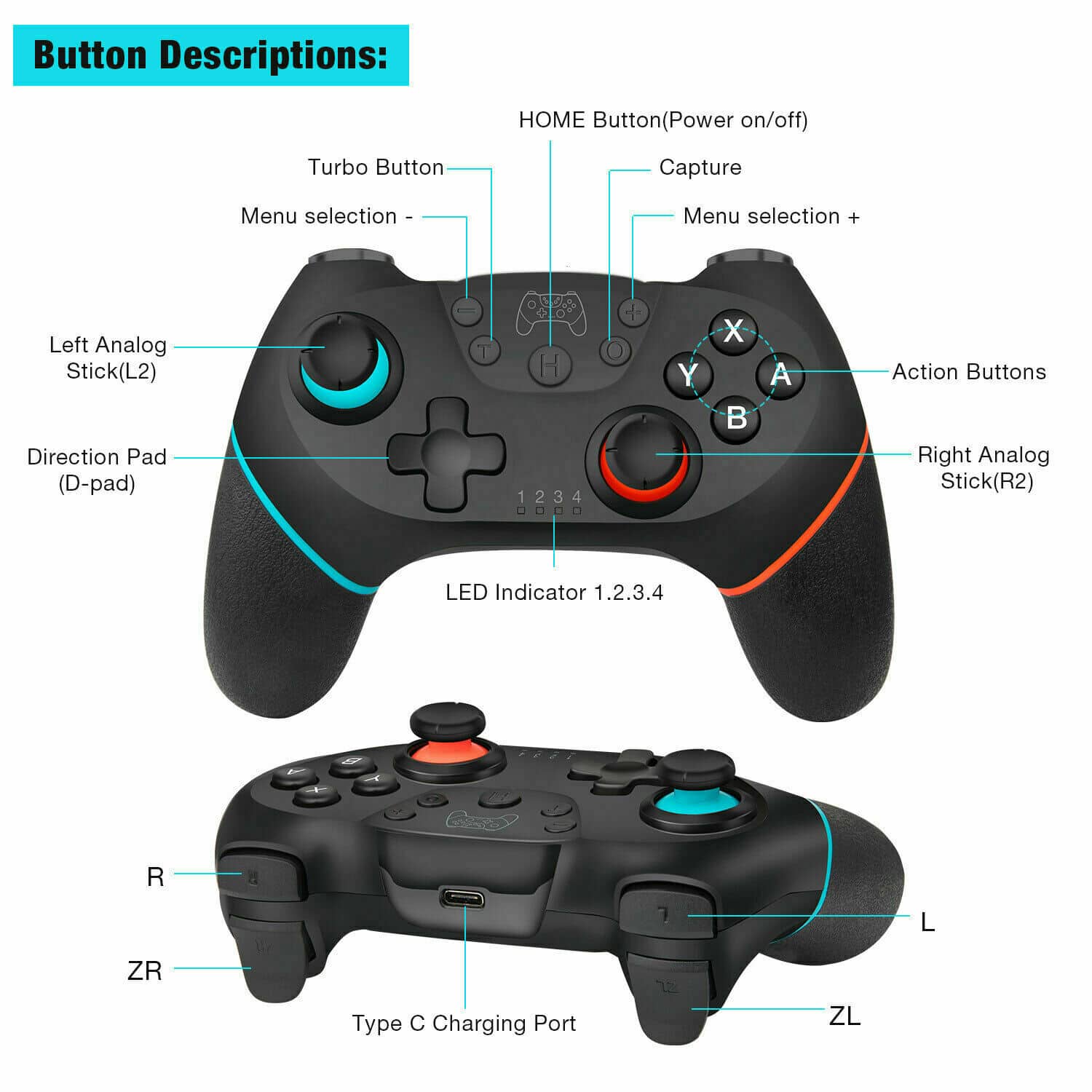
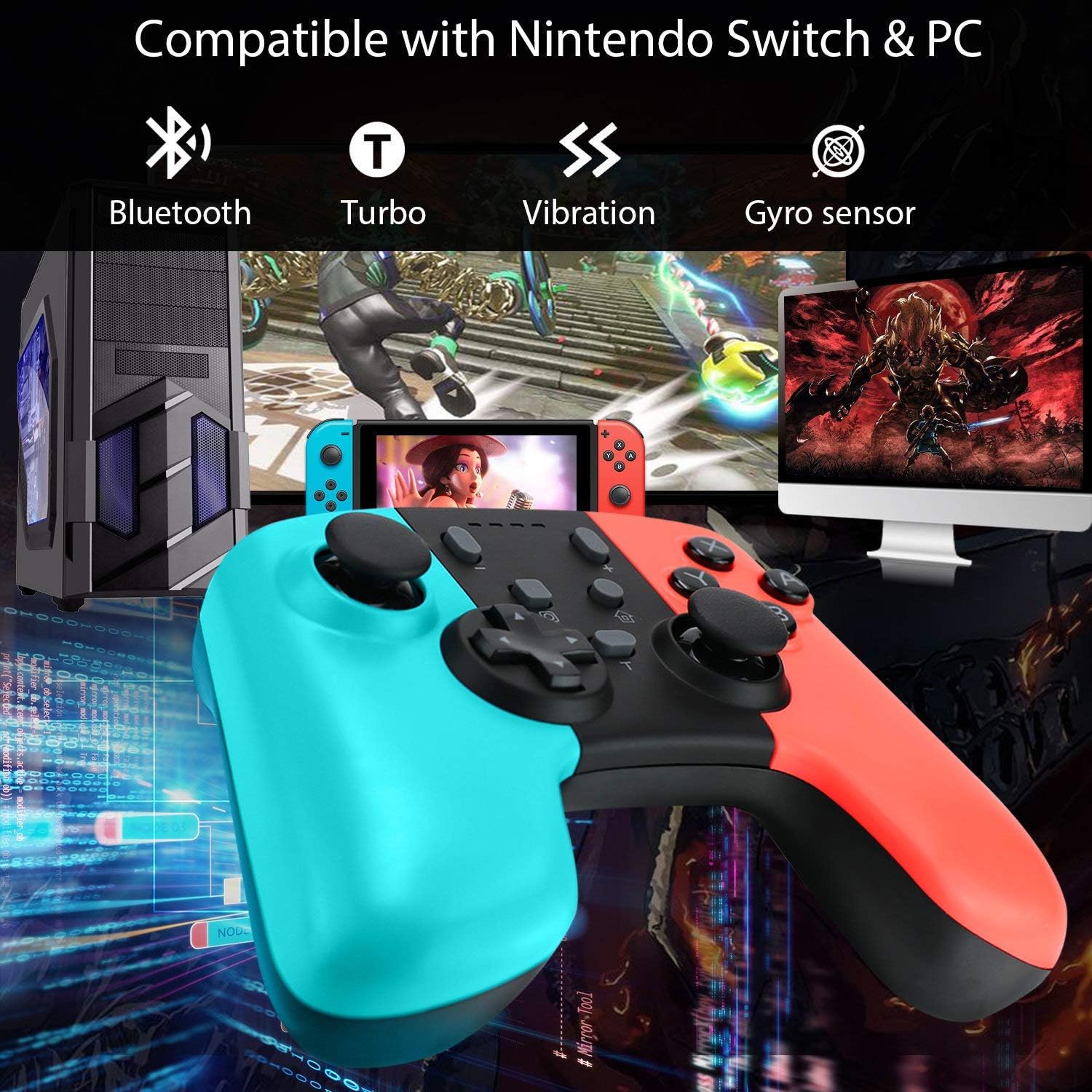
Yes, all standard Nintendo Switch controllers, including the Joy-Con, the Nintendo Switch Pro Controller, and the wireless controllers for the Nintendo Switch Lite and OLED models, utilize Bluetooth technology to communicate with the console. This wireless protocol allows for low-latency input while maintaining a stable connection across the typical distances found in most living room environments.
The Role of Bluetooth in the Nintendo Switch Ecosystem
The Nintendo Switch hardware architecture is built around the necessity for versatile, wireless gameplay. Bluetooth serves as the backbone for this flexibility. When you detach the Joy-Con controllers from the sides of the console, they transition from a physical connection (via the side rails) to a wireless Bluetooth connection. This enables the "Tabletop" and "TV" modes that define the console’s hybrid appeal.
Unlike some specialized game controllers that require a proprietary 2.4GHz USB dongle for low-latency transmission, Nintendo integrated the Bluetooth radio directly into the Switch console’s system-on-chip (SoC) architecture. This integration is designed to manage the pairing, authentication, and data transfer of up to eight individual controllers simultaneously. This capacity is vital for multiplayer gaming, as it allows for various combinations of Joy-Cons and Pro Controllers to remain synced to the system without significant signal interference.
Identifying Nintendo Switch Controller Connectivity
While the primary connection method is Bluetooth, it is helpful to distinguish how different controller types handle this technology. Understanding these nuances helps when troubleshooting connectivity issues or configuring your controllers for PC or other devices.
The Joy-Con Controllers
The Joy-Cons are complex input devices. Even when physically attached to the rails, they rely on a different signaling protocol than when detached. Once removed, their Bluetooth radios activate to establish a handshake with the console. If you notice a delay or "drift" during wireless play, it is often due to signal interference—such as placing the console behind a television or near other high-traffic 2.4GHz devices like Wi-Fi routers—rather than a failure of the Bluetooth technology itself.
The Pro Controller
The Nintendo Switch Pro Controller functions as a standard Bluetooth HID (Human Interface Device) profile. This makes it highly compatible with other devices, such as Windows PCs, macOS, and mobile operating systems. However, within the Nintendo Switch ecosystem, it uses a specific encrypted handshake to ensure that only authorized controllers can interface with the console. This security layer prevents unauthorized third-party devices from hijacking the signal, though it also means that pairing a new Pro Controller requires a momentary physical connection or a specific sync-button sequence to establish trust.
Technical Specifications and Operational Limits
The Bluetooth implementation on the Nintendo Switch conforms to standardized frequency bands, typically operating within the 2.4GHz spectrum. This is the same spectrum used by Wi-Fi and many smart home devices. Because of this, congestion can occur.
If you are experiencing input lag, consider the following technical constraints:
- Physical Obstruction: The human body and large metal objects are highly effective at absorbing Bluetooth signals. If the controller is behind a sofa or blocked by a large entertainment center, the signal strength will drop significantly.
- Distance: While Bluetooth is rated for distances up to 30 feet, the effective range for gaming controllers is much shorter when factoring in the need for sub-millisecond response times. For optimal performance, maintaining a clear line of sight within 10 to 15 feet is recommended.
- Concurrent Connections: Connecting multiple Bluetooth devices simultaneously—such as wireless headsets connected to the console's Bluetooth audio feature (introduced in firmware updates post-launch)—can increase the load on the console’s wireless chip.
Comparison of Nintendo Switch Input Methods
The following table outlines how different controllers interface with the Switch and their respective wireless capabilities.
| Controller Type | Connectivity Method | Wireless Protocol | Wired Option |
|---|---|---|---|
| Joy-Con (Left/Right) | Bluetooth / Rail | Bluetooth | Only via console rail |
| Pro Controller | Bluetooth | Bluetooth | Yes (USB-C) |
| Third-Party Wireless | Bluetooth / Dongle | Bluetooth | Depends on model |
| GameCube Controller | Wired | N/A | Adapter required |
Troubleshooting Bluetooth Connectivity
When a controller fails to connect or experiences dropouts, the issue is rarely a hardware defect in the Bluetooth module itself. Instead, it is usually a pairing conflict or an environmental issue. To resolve most connection concerns:
- Clear the Cache/Sync: Navigate to the System Settings on your Switch, select "Controllers and Sensors," and choose "Disconnect Controllers." This forces the console to clear all existing Bluetooth handshakes.
- Reset the Controller: Most Nintendo-licensed controllers feature a small reset button near the charging port. Pressing this can force the controller to drop its current pairing and enter "discovery mode."
- Check for Interference: Ensure that the console is not tucked inside a cabinet or directly next to a router. The internal Bluetooth antenna is positioned within the console, and external physical barriers are the most common cause of "controller drift" or "stuck" inputs.
- Update Firmware: Nintendo occasionally pushes firmware updates to its controllers to improve Bluetooth stability. In the "Controllers and Sensors" menu, you can select "Update Controllers" to ensure your hardware is running the latest handshake protocols.
Using Switch Controllers on Other Platforms
Because Nintendo Switch controllers utilize standard Bluetooth, they can be paired with PCs, tablets, and smartphones. This is a common use case for users who prefer the ergonomics of the Pro Controller or the portability of the Joy-Cons for mobile gaming.
To pair a Pro Controller with a Windows PC or macOS, put the controller into pairing mode by holding the small sync button located on the top of the controller (near the charging port) until the LEDs begin to pulse. Once they pulse, open your computer’s Bluetooth settings and look for "Pro Controller" in the list of available devices.
Note that while the device will connect, button mapping may not align perfectly with non-Nintendo games. You may need to use third-party software like Steam’s controller configuration tool to remap inputs to the standard Xbox or PlayStation layout that most PC games expect.
Frequently Asked Questions
Can I use my Nintendo Switch controllers with a PC? Yes. Because they use standard Bluetooth, they can be paired with almost any modern PC. However, you may need to use controller emulation software to ensure compatibility with specific game titles.
Do third-party "wireless" controllers for Switch always use Bluetooth? Most do, but some budget-friendly third-party controllers use a 2.4GHz USB dongle instead of native Bluetooth. If you purchase a controller that comes with a small USB receiver, it does not use Bluetooth; it uses that specific dongle to communicate.
Why does my controller disconnect when I move away from the console? This is typically due to signal attenuation. If your console is behind a TV or in a metal cabinet, the Bluetooth signal is being blocked. Move the console to an open area to improve connectivity.
Does using Bluetooth drain the Joy-Con batteries faster? Yes. When the Joy-Cons are attached to the console, they receive a trickle charge and communicate via the rails. When detached and using Bluetooth, they rely entirely on their internal batteries. Using them wirelessly will naturally consume more power than leaving them attached.
Is there a way to use the Switch in "Docked" mode without Bluetooth? If you use the Pro Controller with the provided USB-C cable, the controller communicates over the wired USB data connection rather than Bluetooth. This reduces latency to the absolute minimum and prevents signal interference.
Next Steps for Optimal Performance
If you want the most reliable experience, consider the environment in which you play. If you are a competitive gamer who finds that even the slightest Bluetooth latency affects your performance, the best approach is to connect your Pro Controller to the Switch via a high-quality USB-C cable. This forces the console to bypass the Bluetooth radio, providing a "wired" controller experience that is immune to the wireless interference common in homes with multiple smart devices. If you continue to face issues, ensure your controller firmware is updated through the System Settings, as these minor software patches are specifically designed to optimize Bluetooth handshake efficiency.