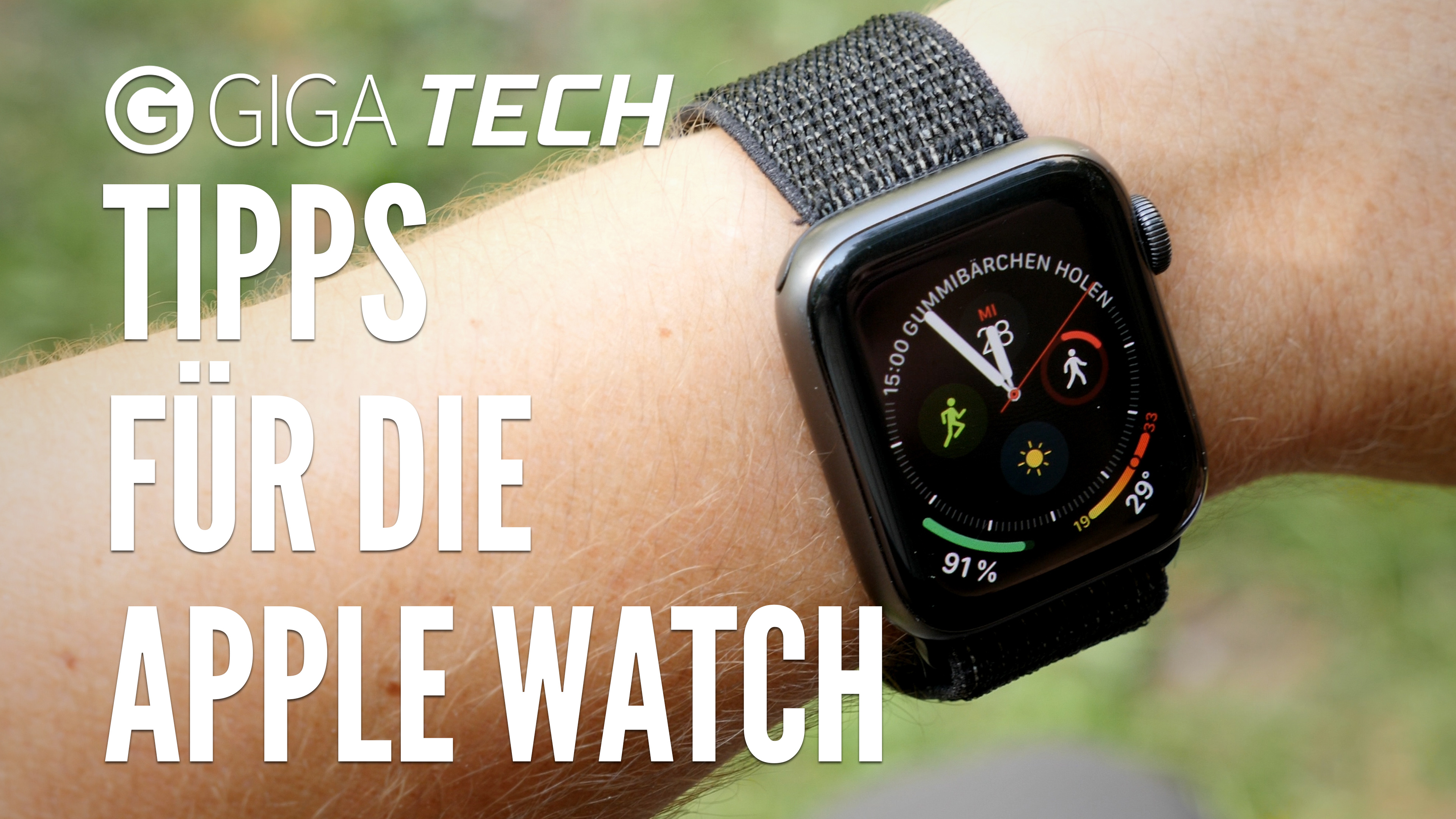
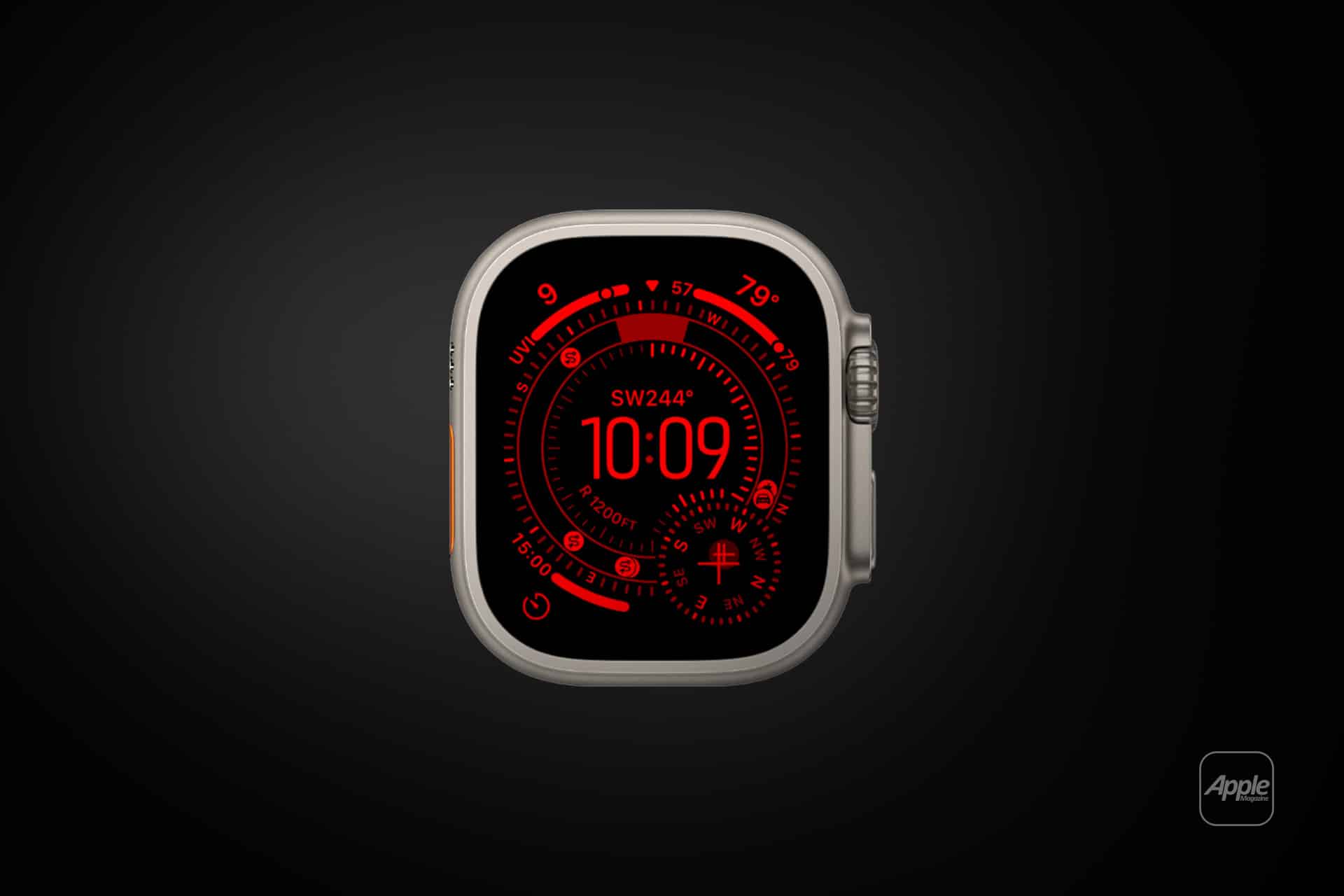
The Apple Watch Always-On display keeps time and complications visible at all times, eliminating the need to raise your wrist or tap the screen to see the face. This feature uses Low-Temperature Polycrystalline Oxide (LTPO) technology to lower the refresh rate to as low as 1Hz, balancing constant visibility with essential battery efficiency.
The introduction of the Always-On display marked a significant turning point in the evolution of the Apple Watch, transforming it from a reactive digital tool into a more traditional, glanceable timepiece. As of 2026, this feature has become a standard expectation for flagship models, though the underlying technology and user customization options have grown significantly more sophisticated since its debut on the Series 5.
The Technical Foundation: How Always-On Display Works
To understand the Apple Watch Always-On screen, one must understand the hardware that makes it possible. Most traditional OLED screens require a high refresh rate to maintain a steady image, which consumes significant power. Apple solved this through the implementation of Low-Temperature Polycrystalline Oxide (LTPO) display technology.
In a standard "active" state, the Apple Watch screen refreshes at 60Hz (60 times per second). When you lower your wrist, the Always-On feature triggers a low-power mode where the refresh rate drops dramatically—down to 1Hz (once per second) on most modern models, and even more efficient variable rates on the Apple Watch Ultra series and the latest Series 11. This allows the watch to update the time and active complications without the massive energy drain associated with a fully illuminated, high-refresh display.
Furthermore, the system intelligently dims the screen and modifies the watch face. Bright colors may shift to black or darker tones, and large white areas are inverted to reduce the number of active pixels. This "dimmed" state is specifically designed to be readable in outdoor light while preserving the 18-to-36-hour battery life users expect.
Compatible Apple Watch Models (2026 Update)
Not every Apple Watch supports the Always-On feature. It requires specific display drivers and LTPO hardware that are absent from budget-friendly or older models. If you are using an older device or the SE line, the screen will continue to turn completely black when the wrist is lowered.
The following models include Always-On display technology:
- Apple Watch Series 5, 6, 7, 8, 9, 10, and 11
- Apple Watch Ultra, Ultra 2, and Ultra 3
It is important to note that the Apple Watch SE (all generations) does not support the Always-On display. Even in 2026, the SE remains a "Raise to Wake" device to maintain its lower price point. Users upgrading from an SE to a flagship model often find the Always-On screen to be the most impactful functional improvement in their daily routine.
How to Enable and Customize Always-On Settings
The Always-On feature is typically enabled by default on supported models during the initial setup. However, many users prefer to tweak its behavior to better suit their privacy needs or battery preferences. You can manage these settings directly on the watch or through the Watch app on a paired iPhone.
Step-by-Step Configuration on Apple Watch:
- Open the Settings app on your Apple Watch.
- Scroll down and tap Display & Brightness.
- Tap Always On.
- Toggle the switch to On or Off.
Customizing Visibility and Privacy
Within the "Always On" menu, Apple provides three critical toggles that control what information is visible when your wrist is down:
- Show Complication Data: This allows you to hide sensitive information like calendar appointments, heart rate readings, or messages. If turned off, the complications remain visible but the specific data within them is hidden until you raise your wrist.
- Show Notifications: This prevents private notifications from being legible to bystanders. When enabled, the watch will show a blurred or generic notification indicator instead of the full text of a message.
- Show Apps: This determines whether an active app stays on screen or if the watch reverts to the clock face when your wrist is lowered.
Managing Battery Life and Power Efficiency
One of the primary concerns regarding the Apple Watch Always-On screen is its impact on battery longevity. While LTPO technology is highly efficient, keeping the screen powered does consume more energy than a completely black display. Generally, disabling Always-On can extend the battery life by approximately 10% to 20% depending on the watch face complexity.
In 2026, the efficiency of the S-series chips and the Ultra's larger battery have made Always-On a "set it and forget it" feature for most. However, if you are in a situation where you need to maximize every minute of power, you can use Low Power Mode. Enabling Low Power Mode (via the Control Center) will automatically disable the Always-On display along with other background features like heart rate monitoring.
Another way to save power without fully disabling Always-On is to choose a "Power Efficient" watch face. Faces with minimal complications and large areas of black (like "Numerals Duo" or "Simple") require less energy than "Infograph" or "Modular Ultra," which feature numerous active data points and brighter colors.
Always-On Behavior in Specific Apps
The Always-On experience isn't limited to just the watch face. Apple has expanded its functionality to work seamlessly with several native applications, ensuring that critical data is always glanceable.
The Workout App
During a workout, the Always-On screen is particularly useful. Whether you are running, cycling, or lifting weights, the screen stays active to show your elapsed time, calories burned, and heart rate. To save power, the milliseconds are usually hidden, and the display updates only once per second. If you stop moving or lower your arm, the metrics remain visible but slightly dimmed.
Maps and Navigation
When using Apple Maps for turn-by-turn directions, the Always-On display ensures you don't miss a turn while walking or driving. The watch face will show your next maneuver and the distance remaining. In 2026, the integration with third-party transit apps has improved, allowing many commuting apps to maintain a persistent, low-power view of arrival times.
Sleep Tracking
By default, the Always-On display is disabled when the watch enters Sleep Mode. This is a deliberate design choice to prevent the light from the watch from disturbing your sleep or the sleep of a partner. If you touch the screen while in Sleep Mode, it will show a simplified, ultra-dimmed version of the time.
Comparison Table: Always-On Display Capabilities
| Feature | Series 5 - 8 | Series 9 - 11 | Ultra 1 - 3 | SE (All Gens) |
|---|---|---|---|---|
| Always-On Support | Yes | Yes | Yes | No |
| Min. Refresh Rate | 1Hz | 1Hz | 1Hz | N/A |
| Max Brightness | 1000 nits | 2000-3000 nits | 3000+ nits | 1000 nits |
| Wrist-Down Dimming | Standard | Optimized | Advanced | N/A |
| Power Efficiency | High | Ultra-High | Maximum | High (Screen Off) |
Troubleshooting Common Always-On Issues
Occasionally, users may find that their Apple Watch Always-On screen is not behaving as expected. Before assuming there is a hardware fault, check the following common scenarios:
- Theatre Mode is Active: If the two-mask icon in the Control Center is highlighted (orange), the screen will stay dark unless tapped. This is intended for environments where screen light is disruptive.
- Wake on Wrist Raise is Off: While Always-On keeps the screen visible, "Wake on Wrist Raise" (found in Display & Brightness) is what brings the watch to full brightness. If this is off, the watch will stay in its dimmed state even when you look at it.
- Low Power Mode: Check if your battery icon is yellow. Low Power Mode disables Always-On automatically to conserve the remaining charge.
- Wrist Detection Issues: Always-On requires the watch to "know" it is on a wrist. If the watch is too loose, or if tattoos interfere with the sensors, the watch may think it has been removed and turn the screen off for security.
- Software Updates: Ensure you are running the latest version of watchOS. Apple frequently releases patches that optimize the display driver and fix bugs related to screen dimming.
Best Practices for Customization
To get the most out of your Apple Watch Always-On screen, consider the following expert tips:
- Match Faces to Your Environment: Use the "Automations" feature in the Shortcuts app to change your watch face based on time or location. You might want a bright, complication-heavy face during work hours and a minimalist, dim face for the evening.
- Leverage Focus Filters: Link specific watch faces to your Focus modes (Work, Personal, Fitness). This ensures that only the most relevant complications are active and visible on your Always-On screen during those activities.
- Test Your Complications: Not all third-party complications are optimized for Always-On. If you notice a specific app is draining your battery, try removing its complication to see if power consumption stabilizes.
Frequently Asked Questions
Does the Always-On display cause screen burn-in?
Apple utilizes several software techniques to prevent OLED burn-in. The watch slightly shifts the position of pixels on the screen (pixel shifting) at regular intervals, a movement that is invisible to the human eye. This ensures that no single pixel is continuously illuminated at the same intensity for too long. In the years since the Series 5 launched, there have been no widespread reports of permanent burn-in caused by the Always-On feature.
Why does my Always-On display turn off when I’m not moving?
The Always-On display is designed to turn off if the watch detects it is not being worn. If you take the watch off and place it on a table, the screen will go black after a short period to save power and protect your data. If it turns off while you are wearing it, ensure the strap is snug enough for the heart rate sensors to maintain contact with your skin.
Can I change the brightness of the Always-On "dimmed" state?
There is no separate slider for the dimmed state. The brightness of the Always-On display is controlled by the ambient light sensor. In a dark room, the Always-On screen will be very faint; in direct sunlight, it will boost its power to remain legible. You can only adjust the overall "Active" brightness in the Settings menu.
Is Always-On display available on the Apple Watch SE 3?
As of 2026, the Apple Watch SE lineup still lacks the Always-On display. Apple keeps this as a "Pro" or "Flagship" feature to differentiate the SE from the more expensive Series 11 and Ultra 3 models. If you require a constant display, you must opt for the Series 5 or later flagship models.
How does the Always-On screen affect privacy?
Privacy is managed through the "Hide Sensitive Complications" setting. When enabled, data like your next meeting or your current heart rate is hidden or blurred while your wrist is down. Only when you raise the watch to your face does the specific data reveal itself, ensuring that people standing nearby cannot read your private information.
Will Always-On display work with a screen protector?
Yes, most high-quality film and tempered glass screen protectors do not interfere with the Always-On functionality. However, very thick or poorly designed protectors might slightly reduce the clarity of the screen in its dimmed state or interfere with the ambient light sensor, causing the watch to misjudge the necessary brightness level.
Recommendation for Users
For most users, keeping the Always-On screen enabled provides the best Apple Watch experience, as it allows for discreet time checks and quick data glances during meetings or workouts. If you find your battery is consistently running low before the end of the day, your first step should be to audit your complications and background app refresh settings rather than disabling the Always-On display. The functional benefit of a visible watch face far outweighs the minor power savings of a black screen for the vast majority of daily use cases.