To get the most out of your Apple Watch in 2026, focus on mastering the Smart Stack for glanceable information, utilizing the Double Tap gesture for hands-free control, and customizing health alerts. These optimizations transform your wearable from a simple notification hub into a powerful, personalized tool for productivity and wellness.
Maximizing the Smart Stack and Navigation
The Smart Stack has evolved into the central nervous system of the Apple Watch interface. By 2026, its ability to surface contextually relevant information has made the traditional grid of apps secondary for most power users. Understanding how to manipulate this stack is the first step toward efficiency.
Customizing Your Widget Priority
The Smart Stack is accessed by simply turning the Digital Crown upward from the watch face. However, the default arrangement might not suit your specific daily routine. To customize this, long-press any widget in the stack. You can then tap the plus (+) icon to add new widgets or the minus (-) icon to remove them.
The "pinning" feature is particularly useful. By tapping the yellow pin icon on a widget, you ensure it remains at the top of the stack regardless of the time of day or your current activity. For instance, if you frequently use the Home app to unlock your front door, pinning that widget saves seconds every time you return home.
Mastering the Double Tap Gesture
Available on Apple Watch Series 9, Ultra 2, and all subsequent models including the 2026 lineup, the Double Tap gesture is a literal lifesaver when your hands are full. By tapping your index finger and thumb together twice, you can perform the primary action in many apps.
This gesture is not just for dismissing timers. In 2026, it is integrated deeply into the OS. You can use it to:
- Answer or end phone calls while carrying groceries.
- Pause and resume music or podcasts during a workout.
- Scroll through the Smart Stack when you cannot touch the screen.
- Reply to a message using voice dictation.
To refine how this works, navigate to Settings > Gestures > Double Tap on your watch. Here, you can choose whether the gesture "plays/pauses" media or "skips" to the next track, allowing you to tailor the hardware to your specific media consumption habits.
Advanced Health and Fitness Optimization
The Apple Watch has transitioned from a basic step counter to a sophisticated health diagnostic tool. In 2026, features like Training Load and the Vitals app provide deep insights that require proper configuration to be effective.
Utilizing Training Load for Recovery
Training Load is a metric that helps athletes and casual users alike understand the strain their body is under over time. It compares the intensity and duration of your workouts over the last seven days to what you have done over the last 28 days.
To use this effectively, you must provide effort ratings after each workout. If you find the watch's automatic estimation is off, you can manually adjust the effort scale (from 1 to 10) in the Workout app summary. This data feeds into the Activity app on your iPhone, showing whether you are "Well Below," "Steady," or "Well Above" your baseline. This insight is crucial for preventing overtraining and injury.
Monitoring with the Vitals App
The Vitals app provides a snapshot of your health by measuring key metrics during sleep, such as heart rate, respiratory rate, wrist temperature, and blood oxygen levels. For these "tricks" to work, you must wear your watch to sleep for at least seven consecutive days to establish a baseline.
Once a baseline is established, the watch will notify you if two or more metrics are outside your typical range. If you receive a notification, consider external factors that the watch might not see—such as alcohol consumption, illness, or significant elevation changes. This is an early warning system that often predicts a cold or flu before you feel physical symptoms.
Customizing Heart Rate Zones
For those focused on cardiovascular health, the Apple Watch automatically calculates your heart rate zones based on your health data. However, if you are a professional athlete or have specific medical guidance, these zones can be adjusted manually. Open the Settings app on your watch, go to Workout > Heart Rate Zones, and select Manual. This allows you to target specific metabolic thresholds during your runs or cycles.
Communication and Safety Features
The Apple Watch is your most personal communication device. Optimizing how it handles messages and ensures your safety is paramount in 2026.
The Power of "Check In" via Messages
Introduced as a safety feature for iPhone and expanded for standalone use on Apple Watch, "Check In" allows you to notify a friend or family member when you have arrived at a destination. If you stop making progress toward your goal and do not respond to prompts, the watch will automatically share your location, battery level, and cellular status with your chosen contact.
To start a Check In from your wrist:
- Open the Messages app.
- Select a conversation with a trusted contact.
- Tap the App Store icon (or the plus sign).
- Select Check In.
- Choose between "When I arrive" or "After a timer."
This is particularly useful for late-night commutes or solo outdoor activities. It provides a "silent" safety net that doesn't require active monitoring unless something goes wrong.
Dictation and Messaging Shortcuts
Texting on a small screen can be cumbersome. The Apple Watch 2026 software utilizes advanced on-device AI to make dictation incredibly accurate. To improve your messaging speed:
- Enable Auto-Punctuation: In Settings > General > Keyboard, ensure Auto-Punctuation is on. This allows you to speak naturally without saying "comma" or "period."
- Use Scribble: If you are in a quiet environment where you cannot speak, use the Scribble feature to draw letters. A pro tip is to use the Digital Crown to move the cursor if you make a mistake, allowing for quick corrections without deleting the entire word.
Battery Life and Performance Management
As the Apple Watch adds more "always-on" features, managing battery life remains a top priority for users who want to avoid the nightly charge.
Fine-Tuning the Always-On Display
The Always-On display is a hallmark of the modern Apple Watch (Series 5 and later), but it is also a primary battery drain. You don't have to turn it off completely to save power. Instead, go to Settings > Display & Brightness > Always On and toggle off specific "Show Data" options. For example, you can hide sensitive complications like your heart rate or calendar events when your wrist is down. This keeps the aesthetic of a watch while reducing the frequency of screen refreshes.
Optimized Charge Limit
In 2026, lithium-ion battery health is managed through "Optimized Charge Limit." The watch learns from your daily charging routine and only charges to a certain capacity (e.g., 80%) if it predicts you won't need a full charge that day. While this preserves long-term battery health, you can override it if you know you have a long day ahead. Simply tap the battery percentage icon in Control Center and select "Charge to Full Now."
| Feature | Best For | Compatibility |
|---|---|---|
| Double Tap | Hands-free interaction | Series 9, Ultra 2, and newer |
| Check In | Personal safety during travel | watchOS 11 and newer |
| Training Load | Athletes and recovery tracking | Series 6 and newer |
| Action Button | Custom shortcuts/Physical control | Ultra series only |
| Precision Finding | Finding a lost iPhone | Series 9/Ultra 2 (with U2 chip) |
Hidden Settings and Accessibility Shortcuts
Some of the most useful "tricks" are buried deep within the settings menu, designed to improve the tactile experience of the device.
Chimes and Haptic Time
If you want to keep track of time without looking at your watch, you can enable "Chimes." Go to Settings > Accessibility > Chimes. Your watch will provide a subtle haptic tap or a bird sound every hour, half-hour, or quarter-hour.
Similarly, "Haptic Time" allows the watch to tap out the time in Morse code or a series of rhythmic pulses. This is found under Settings > Clock > Haptic Time. It is an excellent way to check the time discreetly during meetings or in dark environments like a movie theater.
Silencing with a Palm
One of the oldest but most effective tricks is "Cover to Mute." If your watch starts ringing or an alarm goes off at an inappropriate time, simply cover the entire display with your palm for three seconds. You will feel a haptic confirmation, and the watch will be silenced. Ensure this is enabled in Settings > Sounds & Haptics > Cover to Mute.
Control Center Customization
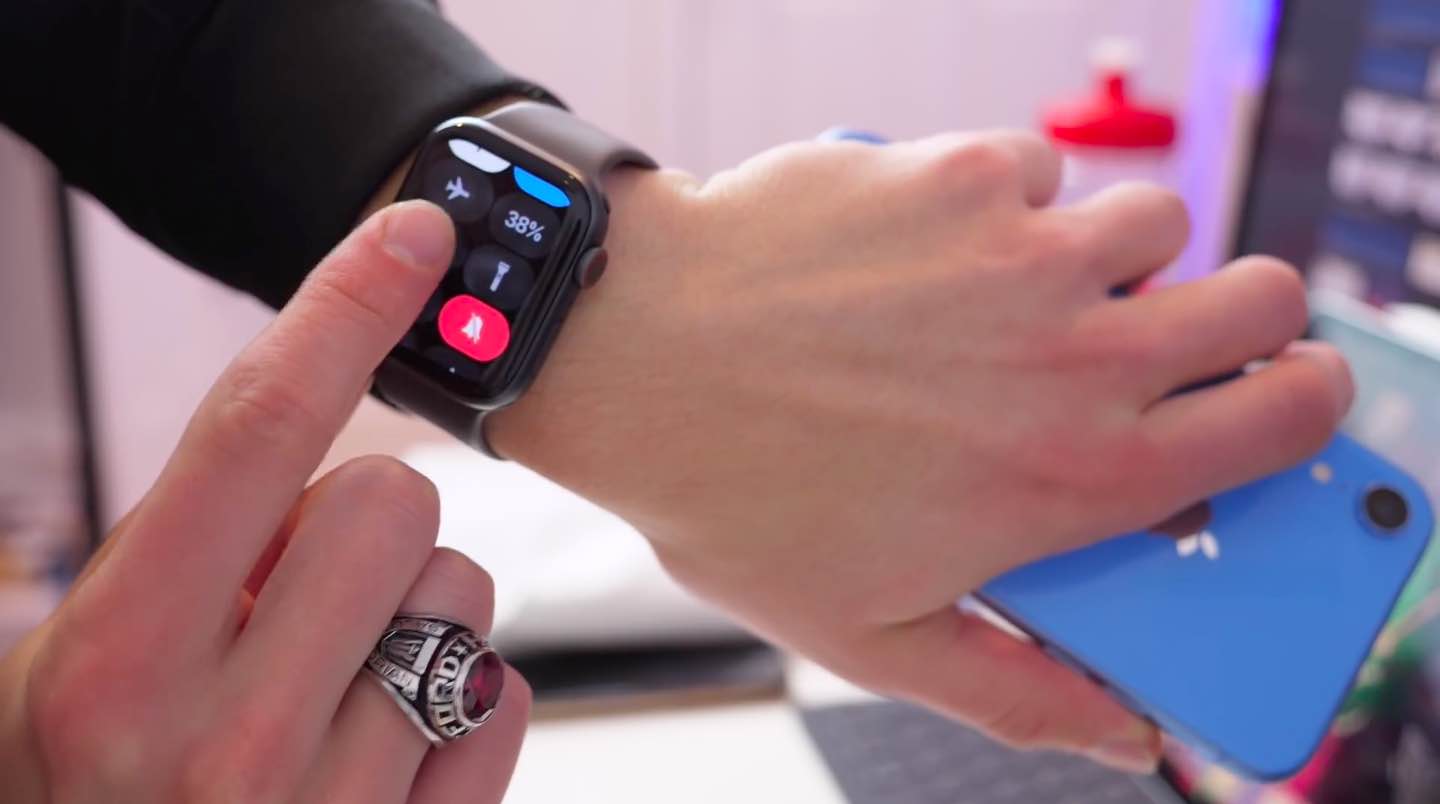
The Control Center (accessed by pressing the side button) is often cluttered with icons you never use. Scroll to the bottom and tap Edit. You can remove icons like "Water Lock" if you never swim, or "Ping iPhone" if you keep your phone on a leash. Rearranging these ensures that the features you use—like Flashlight or Battery Percentage—are always at the top.
Frequently Asked Questions
How do I stop my Apple Watch from vibrating for every notification?
To reduce notification fatigue, you should use Focus Modes. By setting up a Focus on your iPhone (e.g., "Work" or "Reading"), you can mirror that status on your watch. Additionally, you can go to the Watch app on your iPhone, select Notifications, and choose "Custom" for specific apps to turn off haptic alerts while still receiving the notification in your stack.
Can I use my Apple Watch to find my iPhone if it's on silent?
Yes. Swipe into the Control Center and tap the Phone icon. Your iPhone will emit a loud pinging sound even if the physical mute switch is on. If you have an Apple Watch Series 9 or newer, holding the icon will launch the Precision Finding interface, which provides a directional arrow and distance measurement to lead you directly to your phone.
Why is my battery draining faster after the latest update?
Major software updates often trigger background "indexing" and data re-synchronization that can last 24 to 48 hours. If the drain persists, check Settings > General > Background App Refresh. Turning this off for apps that don't need real-time data (like news or stores) can significantly extend your daily battery life.
How do I clear all notifications at once?
To clear the clutter, swipe down from the top of the screen to reveal your notifications. Instead of swiping left on each one, scroll to the very top of the list (or tap the top of the screen) to reveal the Clear All button. In 2026, the watchOS also intelligently groups notifications by app, so you can clear an entire group by swiping left on the stack.
What is the "Action Button" on the Ultra models used for?
The orange Action Button is a programmable physical key. Most users set it to start a specific workout or turn on the flashlight. However, the most powerful "trick" is to link it to a Shortcut. For example, you can create a shortcut that logs your water intake or opens your garage door and assign it to the Action Button for one-press execution.
Recommendation for Next Actions
To truly master your Apple Watch in 2026, start by auditing your Complications. Look at your most-used watch face and ask if every icon provides actionable value. If not, swap them for "Live Activities" or "Smart Stack" shortcuts.
Once your interface is clean, spend a week wearing the watch to sleep to calibrate the Vitals app. This baseline is the foundation of the watch's health intelligence. Finally, take five minutes to set up your Medical ID and Emergency Contacts in the Health app; these are the most critical "tricks" should you ever find yourself in a situation where you cannot speak for yourself.