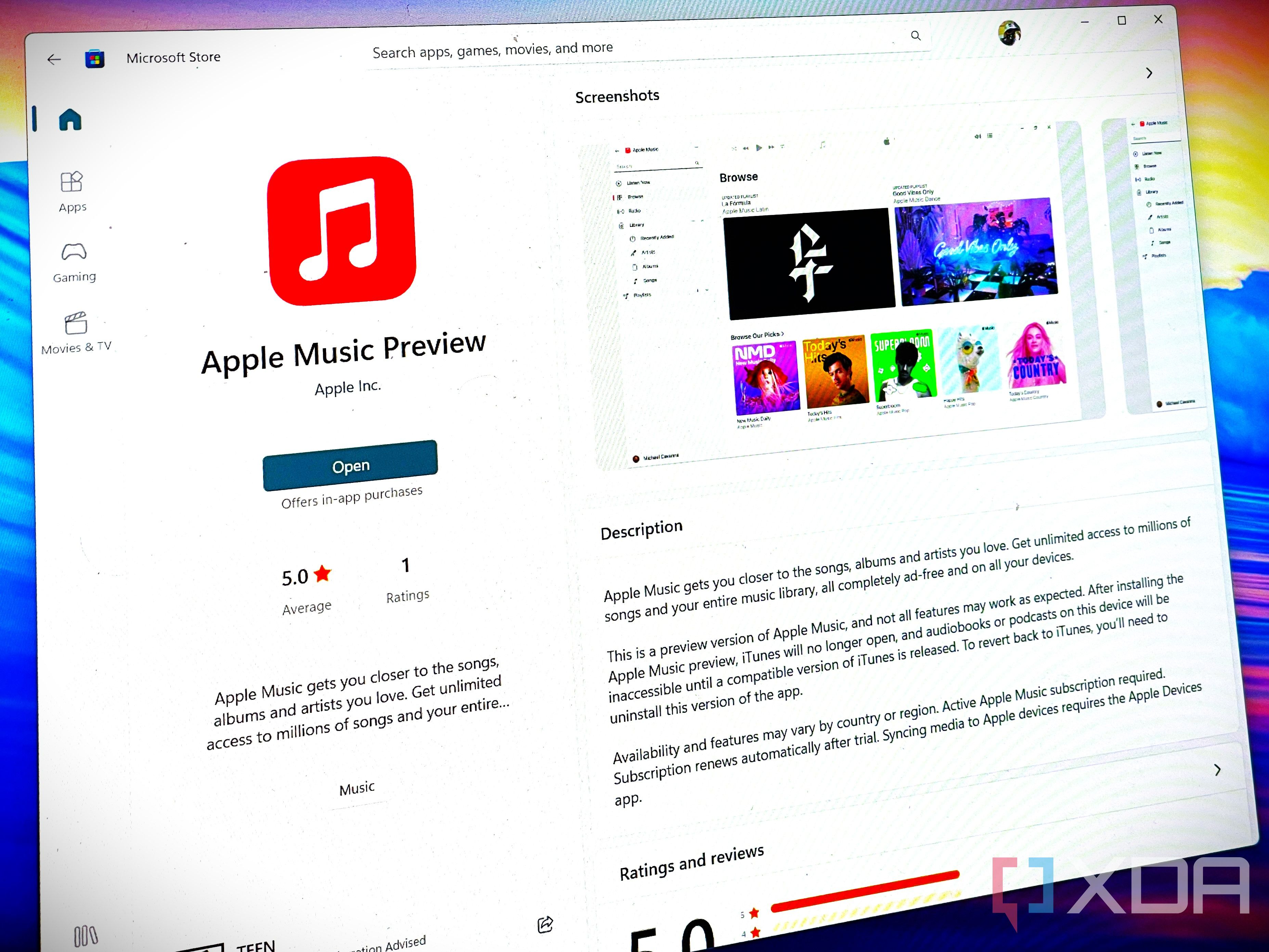
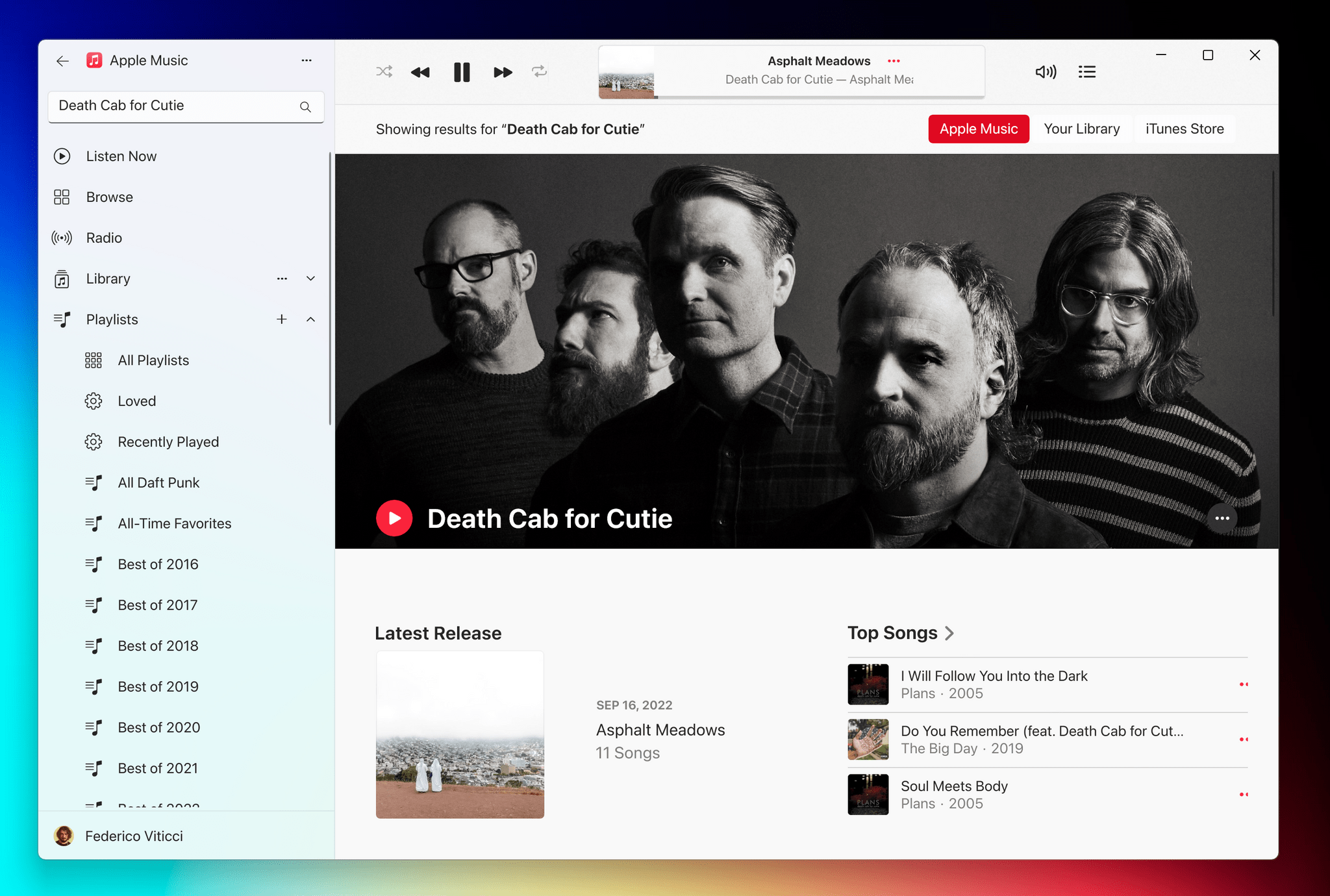
You can access Apple Music on a Windows PC primarily through the standalone Apple Music application available from the Microsoft Store, or by using the web-based version via a standard browser. These methods provide a native interface for managing your music library, streaming high-resolution audio, and syncing content across your devices without requiring a full iTunes installation.
Understanding the Apple Music Ecosystem on Windows
For many years, iTunes served as the singular gateway for Windows users to interact with Apple services. However, as Apple transitioned toward specialized applications—following the precedent set by macOS—the company released distinct apps for Windows to handle specific media tasks. As of 2026, the dedicated Apple Music app for Windows represents the optimized, modern way to experience the streaming service.
The primary shift away from the legacy iTunes architecture means that users now benefit from faster performance, a more intuitive user interface, and better integration with system-level features like media controls and audio drivers. If you have previously used iTunes, your library and playlists are generally portable, but the separation of services means that if you also need to manage movies or TV shows, you would use the Apple TV app, and for device management, you would use the Apple Devices app.
Prerequisites and Compatibility Requirements
Before you begin the installation process, ensure your Windows system meets the baseline requirements. The Apple Music app is designed for Windows 10 and Windows 11. It is important to note that the application relies on the Microsoft Store for updates and installation, making it the most secure and reliable delivery method.
Hardware and Software Checklist
- Operating System: Windows 10 version 19045.0 or higher is required. Windows 11 is fully supported and recommended for the best experience.
- Architecture: The application is compatible with x64-based processors.
- Microsoft Account: A valid Microsoft account is necessary to download the app from the Store.
- Apple ID: You must have an active Apple ID with an Apple Music subscription to stream music. If you have an Apple ID but no subscription, the app will function as a library manager for local files but will not provide streaming access.
- Network: An active, stable internet connection is required for high-fidelity streaming and real-time syncing.
Step-by-Step Installation Guide
To get started with Apple Music on your PC, follow these steps to ensure a clean setup:
- Open the Microsoft Store: Click on the "Microsoft Store" icon in your taskbar or search for it in the Start menu.
- Search for Apple Music: Type "Apple Music" into the search bar. Look for the official app published by Apple Inc.
- Download and Install: Click the "Get" or "Install" button. The store will handle the downloading and silent installation of the necessary components.
- Launch the Application: Once the installation finishes, you can pin the app to your taskbar for quick access.
- Sign In: Upon opening, the app will prompt you to sign in with your Apple ID. Enter your credentials. If you have two-factor authentication enabled, you will need to verify the login on a trusted Apple device.
- Authorize Your Computer: You may be prompted to authorize your computer. This is a standard security measure that allows Apple to associate your device with your account for DRM-protected content.
Using the Apple Music App vs. the Web Interface
While the standalone app is the preferred method for most users, there are distinct differences between the application and the browser-based version at music.apple.com.
Comparison of Access Methods
| Feature | Apple Music App (Windows) | Apple Music (Web Browser) |
|---|---|---|
| Offline Listening | Fully supported | Not supported |
| Lossless Audio | Supported (Hardware dependent) | Limited/Browser dependent |
| System Integration | Full (Media keys, Taskbar) | Minimal |
| Local File Management | Yes | No |
| Resource Usage | Higher (Dedicated process) | Lower (Tab-based) |
The desktop application is essential if you intend to download music for offline playback, which is a common requirement for travelers or users with unstable internet connections. Furthermore, the desktop app allows for more granular control over audio quality settings, including the ability to toggle Lossless Audio and High-Resolution Lossless streaming, provided you have a compatible DAC or high-quality audio hardware connected to your PC.
Managing Your Library and Local Media
A significant advantage of the Apple Music app on PC is its ability to act as a hub for both your streaming library and your locally stored files. If you have a collection of high-quality FLAC or MP3 files, you can import them into the application.
To add local music, go to the File menu and select Add File to Library or Add Folder to Library. Once added, the app will index these tracks alongside your Apple Music streaming content. If you have an Apple Music subscription enabled with "Sync Library," your uploaded personal tracks will be matched or uploaded to iCloud, allowing them to appear on your iPhone, iPad, and other synced devices.
Troubleshooting Common Issues
Despite the transition to modern architecture, users occasionally encounter roadblocks. Here are the most effective solutions for common issues encountered in 2026:
Authentication Loops
If the app repeatedly asks you to sign in, ensure your system clock is set to "Set time automatically." Windows time synchronization issues frequently cause handshake failures with Apple’s authentication servers.
Playback Stuttering
If playback is intermittent, check your Windows audio settings. Often, the sample rate of your audio output device (seen in Windows Sound Control Panel) is set differently than the source audio. Setting your output device to 24-bit/48kHz or 24-bit/96kHz (if your DAC supports it) can resolve most synchronization conflicts.
App Crashes or Performance Lags
If the app becomes sluggish, navigate to the app settings and verify your cache folder location. Occasionally, clearing the cache or ensuring the drive where the media is stored has sufficient free space can restore smooth operation.
Optimizing Audio Quality
For audiophiles, the Apple Music app offers a clear advantage over the web version. To maximize your experience:
- Navigate to Settings: Click on the settings icon or navigate via the menu bar.
- Audio Quality: Select the Playback tab.
- Choose Streaming Settings: You can select "Lossless" for cellular/Wi-Fi streaming.
- Hardware Requirements: If you select "High-Resolution Lossless" (up to 24-bit/192kHz), be aware that your PC’s internal sound card is likely insufficient. You should connect an external Digital-to-Analog Converter (DAC) to your PC’s USB port. The app will detect the DAC, and you must then configure the device output within Windows to match the high-resolution settings you have chosen in the app.
Frequently Asked Questions
Can I still use iTunes on Windows in 2026?
Yes, iTunes remains available for specific tasks, primarily for managing older devices or specific legacy media formats. However, for music streaming, Apple encourages the use of the dedicated Apple Music app, as iTunes is no longer optimized for the modern Apple Music streaming catalog.
Does the Apple Music app work on Windows 11 ARM devices?
Yes, the modern Apple Music app is built to support modern Windows architectures, including ARM64. It is designed to run efficiently on Microsoft’s current generation of hardware.
Can I download music for offline playback?
Yes, by using the desktop app. Once you have a song or album added to your library, you will see a "Download" icon (usually a cloud with a downward-pointing arrow). Clicking this will store the tracks locally on your hard drive, allowing playback without an internet connection.
How do I sync my music with my iPhone?
If you have "Sync Library" turned on in your Apple Music settings (on both your PC and your iPhone), your playlists and library will sync automatically via iCloud. If you are not an Apple Music subscriber, you will need to use the Apple Devices app to manually sync local music files via a wired USB connection.
Is there a dark mode for the PC app?
The Apple Music app for Windows automatically follows your Windows system theme. If you have "Dark Mode" enabled in your Windows Personalization settings, the Apple Music app will respect that choice and adjust its interface accordingly.
Final Recommendation
For the best experience, install the dedicated Apple Music app from the Microsoft Store rather than relying on web browser sessions. This ensures you have access to the full suite of features, including offline playback and high-resolution audio support. Ensure that your Windows system is fully updated to receive the latest security patches and performance improvements, which are pushed through the Windows Update service and the Microsoft Store periodically.