Apple Music provides a seamless listening experience on Windows through the dedicated Apple Music app, which is available directly from the Microsoft Store. This native application replaces the legacy iTunes software for music streaming, allowing subscribers to access their full library, curated playlists, spatial audio features, and high-resolution lossless tracks without relying on a web browser or third-party workarounds.
Transitioning from iTunes to the Apple Music App
For many years, Windows users were required to manage their music libraries and streaming subscriptions through iTunes, a monolithic application designed primarily for iOS device synchronization and file management. As Apple modernized its services, it decoupled the media-specific functions into distinct applications: Apple Music, Apple TV, and Apple Devices.
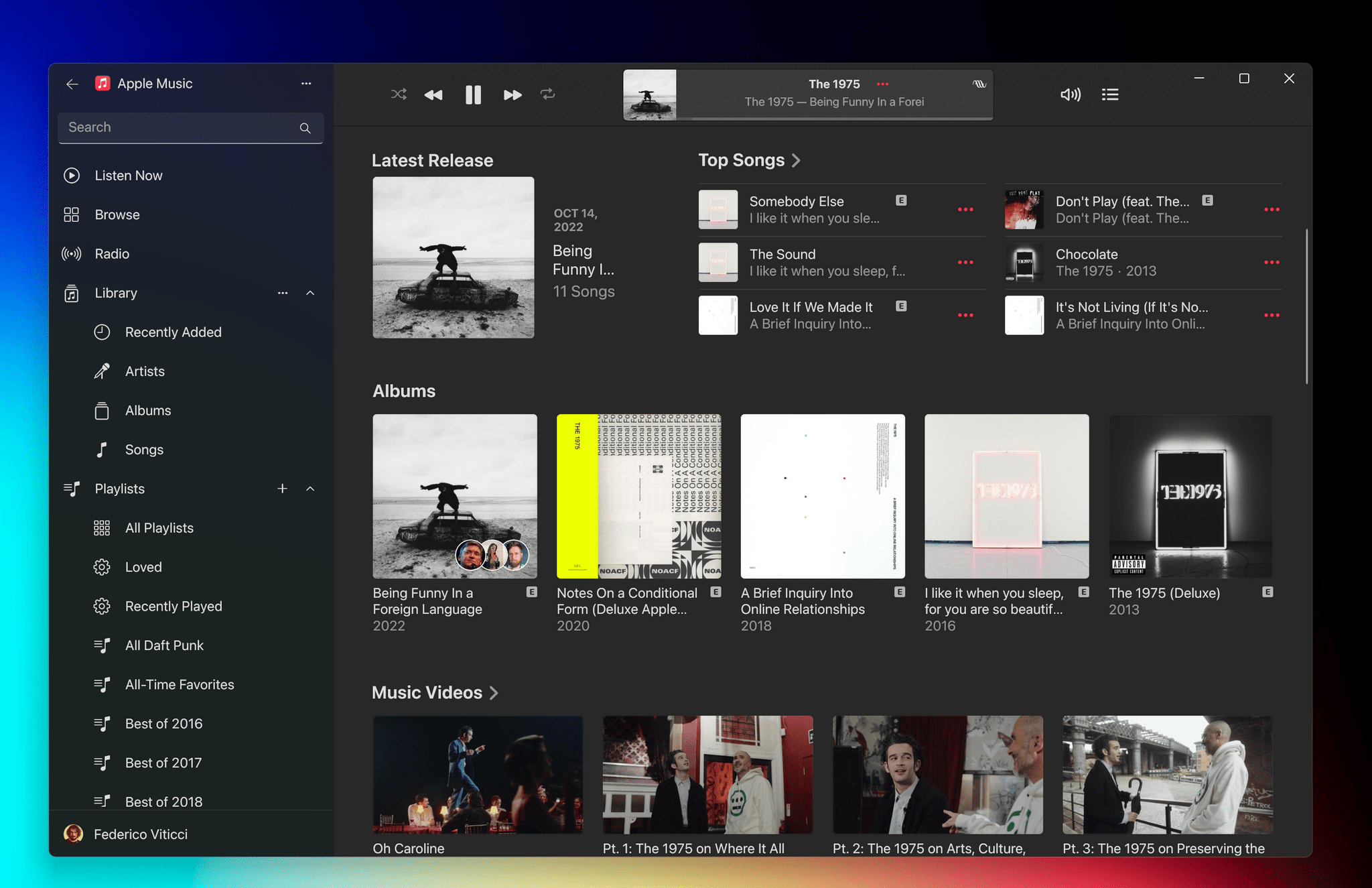
The official Apple Music app for Windows represents a shift toward a streamlined, performant experience. When you install this application, it communicates directly with your Apple ID account, syncing your cloud-based library, listening history, and personal recommendations in real-time. By moving away from the iTunes framework, the official app provides a faster interface with fewer background processes, significantly reducing the system overhead that often plagued older Windows versions of Apple’s software.
System Requirements and Installation
Before you can begin listening, it is important to ensure your hardware and software meet the current standards. The Apple Music app is designed for Windows 10 and Windows 11. Specifically, it requires a version of Windows 10 or later that supports the Microsoft Store application framework.
Prerequisites for Optimal Performance
- Operating System: Windows 10 (version 19045.0 or higher) or Windows 11.
- System Architecture: x64-based processors are standard; the app is optimized for modern Intel, AMD, and ARM-based Windows architectures.
- Internet Connectivity: An active, stable internet connection is required to stream music and sync your library. While offline playback is supported, you must initially download tracks while connected.
- Storage: Sufficient disk space for high-quality audio downloads and cache management.
To install the software, open the Microsoft Store on your PC, search for "Apple Music," and select the official app published by Apple Inc. Once installed, log in with the same Apple ID used for your subscriptions. The app will automatically mirror your library if you have "Sync Library" enabled on your other devices.
Features and Functionality
The Apple Music app on Windows is functionally equivalent to the macOS version in most respects. It provides access to the full catalog of tens of millions of songs, the ability to organize your local library, and the integration of personal music files with your streaming subscription.
Library Management
Your library is centralized via iCloud. When you add a song to your library on an iPhone or a Mac, it appears in your Windows app almost instantly. You can organize tracks into playlists, follow your favorite artists, and view your curated "Listen Now" section, which includes custom mixes and daily discovery playlists tailored to your taste.
High-Resolution Audio
One of the primary advantages of the official application is the support for Apple's high-quality audio formats. You can adjust your audio quality settings within the app's preferences to prioritize "Lossless" or "Hi-Res Lossless" streaming. Note that when choosing these high-bandwidth options, you should ensure your Windows sound settings are configured correctly to match the sample rate of your external Digital-to-Analog Converter (DAC) or audio hardware.
Spatial Audio and Dolby Atmos
For users with supported hardware, the Windows app supports Spatial Audio, which creates an immersive, multi-dimensional sound environment. While this feature is most impactful on headphones, it can also be configured for high-end home theater setups connected to a Windows PC via HDMI or specialized audio interfaces.
Comparison: Official App vs. Legacy iTunes and Web Access
Users often wonder why they should migrate to the official app if they are already familiar with the web browser experience or if they still use iTunes for local file synchronization.
| Feature | Apple Music App | Web Player (Browser) | iTunes (Legacy) |
|---|---|---|---|
| Native Integration | Yes | No | Yes |
| High-Res Audio | Supported | Limited/No | No |
| Spatial Audio | Supported | Limited | No |
| Performance | High | Browser-dependent | Low/Moderate |
| Offline Playback | Supported | No | Supported |
| Sync Library | Seamless | N/A | Manual/Delayed |
As shown in the table, the Apple Music app is the only way to utilize high-resolution audio and offline downloads natively on Windows. The web player is convenient for public terminals, but it lacks the depth of library control and audio quality settings provided by the dedicated software.
Troubleshooting Common Issues
While the Apple Music app is generally stable, technical hiccups can occur, especially during initial synchronization or when hardware configurations conflict with the app's audio output settings.
1. Library Sync Failures
If your music library does not appear or remains stuck in a "syncing" state, ensure that your Apple ID is correctly authenticated. Sometimes, signing out of the application and signing back in forces a re-verification of your subscription status and library cloud assets.
2. Audio Playback Stuttering
If you experience stuttering, especially when using high-resolution audio files, check your Windows "Sound Control Panel." Ensure your default format (bit depth and sample rate) is set to a standard that matches your audio equipment. Incompatible sample rates between the app and the Windows audio driver are a common cause of playback artifacts.
3. Missing Features
If you find that the app is missing advanced management features for local non-streaming files, remember that Apple has separated device management. If you need to manage your physical iPhone or iPad (backups, firmware updates), you should install the "Apple Devices" app from the Microsoft Store, which now handles these tasks that were previously bundled into iTunes.
Managing Local Files and Offline Content
A standout feature of the official app is its ability to handle your own personal music files—those not bought on the iTunes Store or part of an Apple Music subscription. By importing these files into your library, they are uploaded to the cloud (or matched) and made available across all your devices.
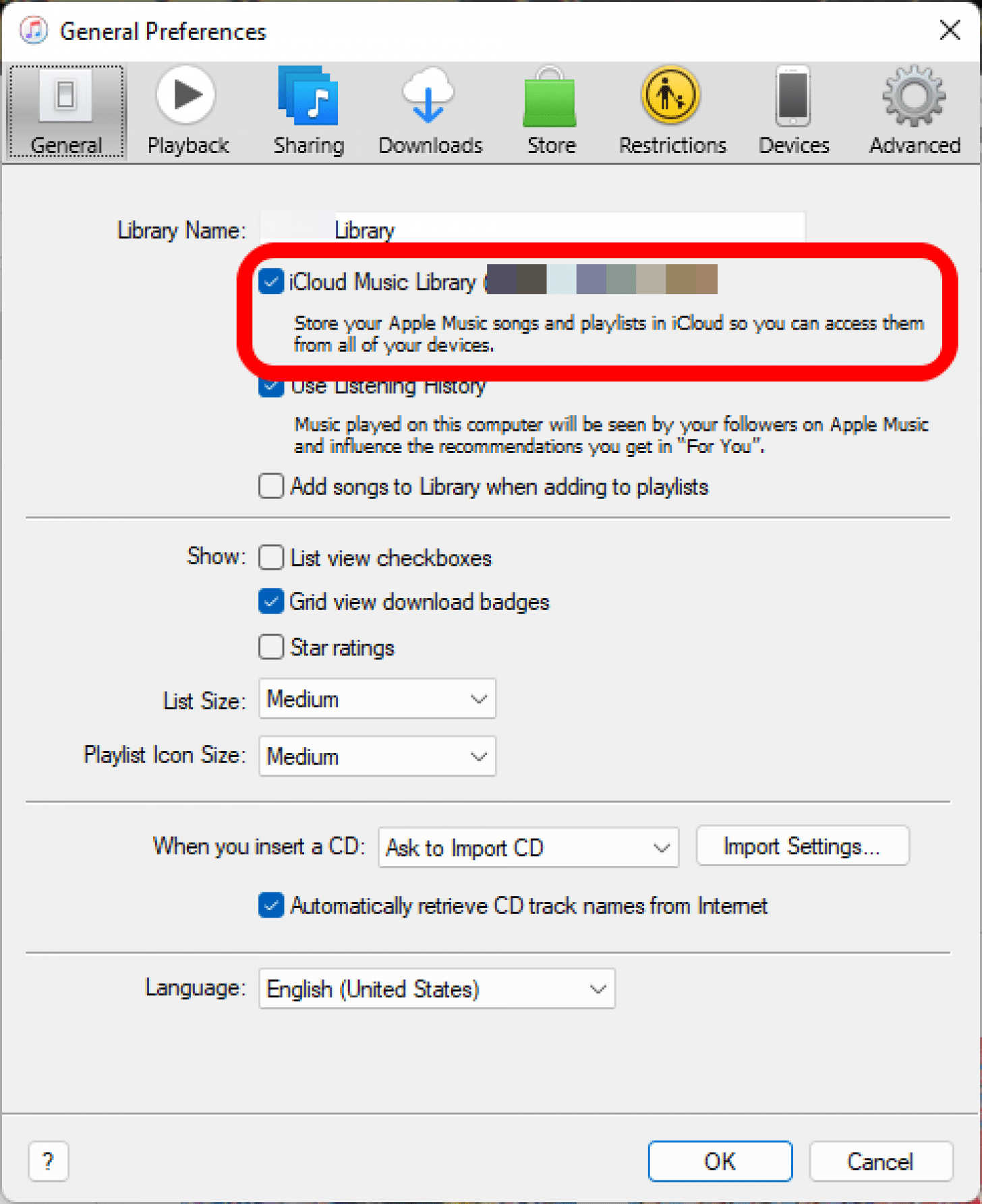
To enable this, go to the application settings and ensure that the "Sync Library" toggle is enabled. When you download music for offline listening, the app stores these files in a specific folder on your drive. You can change this download location in the preferences menu, which is particularly useful if you store your primary music collection on a secondary, high-capacity hard drive rather than your system C: drive.
Expert Tips for Power Users
To get the most out of Apple Music on Windows, consider these advanced usage strategies:
- Keyboard Shortcuts: Learn the standard media keys on your keyboard; the Apple Music app supports system-level media controls, allowing you to play, pause, and skip tracks even when the app is minimized.
- Smart Playlists: Create "Smart Playlists" based on criteria such as "Date Added," "Play Count," or "Genre." While you must create these on the desktop, they will propagate to your mobile devices automatically.
- Sound Enhancers: If you use external speakers, verify that "Audio Enhancement" features in Windows settings are toggled correctly. Some enhancements can conflict with Apple’s native Dolby Atmos processing.
- Background Tasks: If you are using a laptop, be aware that the app may use more power when streaming high-resolution audio. Consider closing the app if you are running on battery power and do not strictly require music.
Frequently Asked Questions
Does the Apple Music app for Windows replace iTunes entirely?
For the purpose of streaming and library management, yes. Apple has effectively split the functionality. If you still have local non-DRM music files or need to sync an iPhone, you will now use the dedicated "Apple Devices" app, while "Apple Music" handles the subscription service and library playback.
Can I listen to Apple Music in high resolution on Windows?
Yes, the app supports Lossless (up to 24-bit/48 kHz) and Hi-Res Lossless (up to 24-bit/192 kHz) audio. However, you will need an external DAC to hear the full benefit of Hi-Res Lossless, as standard internal PC sound cards are often not equipped to handle high-fidelity processing.
Does the Windows app work offline?
Yes. You can download albums or playlists to your local storage by clicking the "Download" icon next to the track or album. Once downloaded, you can listen to them without an active internet connection, provided you sign in periodically to verify your subscription.
Is the app free to download?
The app itself is a free download from the Microsoft Store. However, accessing the music catalog requires an active Apple Music subscription. You can still use the app to play music files that you own and have stored locally without a subscription.
Why do some songs show as "Not Available"?
This is usually due to regional licensing restrictions. Some artists or labels may have content available in certain countries but not others. Additionally, if you have edited metadata on local files, the cloud sync might occasionally struggle to match them to the Apple Music catalog.
How do I update the application?
Since the app is delivered through the Microsoft Store, updates are handled automatically by the Windows update service. You can check for manual updates by opening the Microsoft Store, navigating to the "Library" tab, and selecting "Get updates."
Next Steps for Users
The shift to the official Apple Music app on Windows marks a maturity point for Apple’s presence on non-Apple hardware. By moving away from the bloated nature of iTunes, the platform has become a viable and efficient way to consume high-fidelity audio on a PC.
If you have not yet migrated, the transition is straightforward. Download the app from the Microsoft Store, sign in, and allow the initial library synchronization to complete. Once finished, adjust your audio quality preferences in the settings menu to ensure you are hearing your music as intended. If you are a long-time user of local music files, verify that your "Sync Library" settings are configured correctly to ensure your entire collection remains accessible regardless of which device you are using.