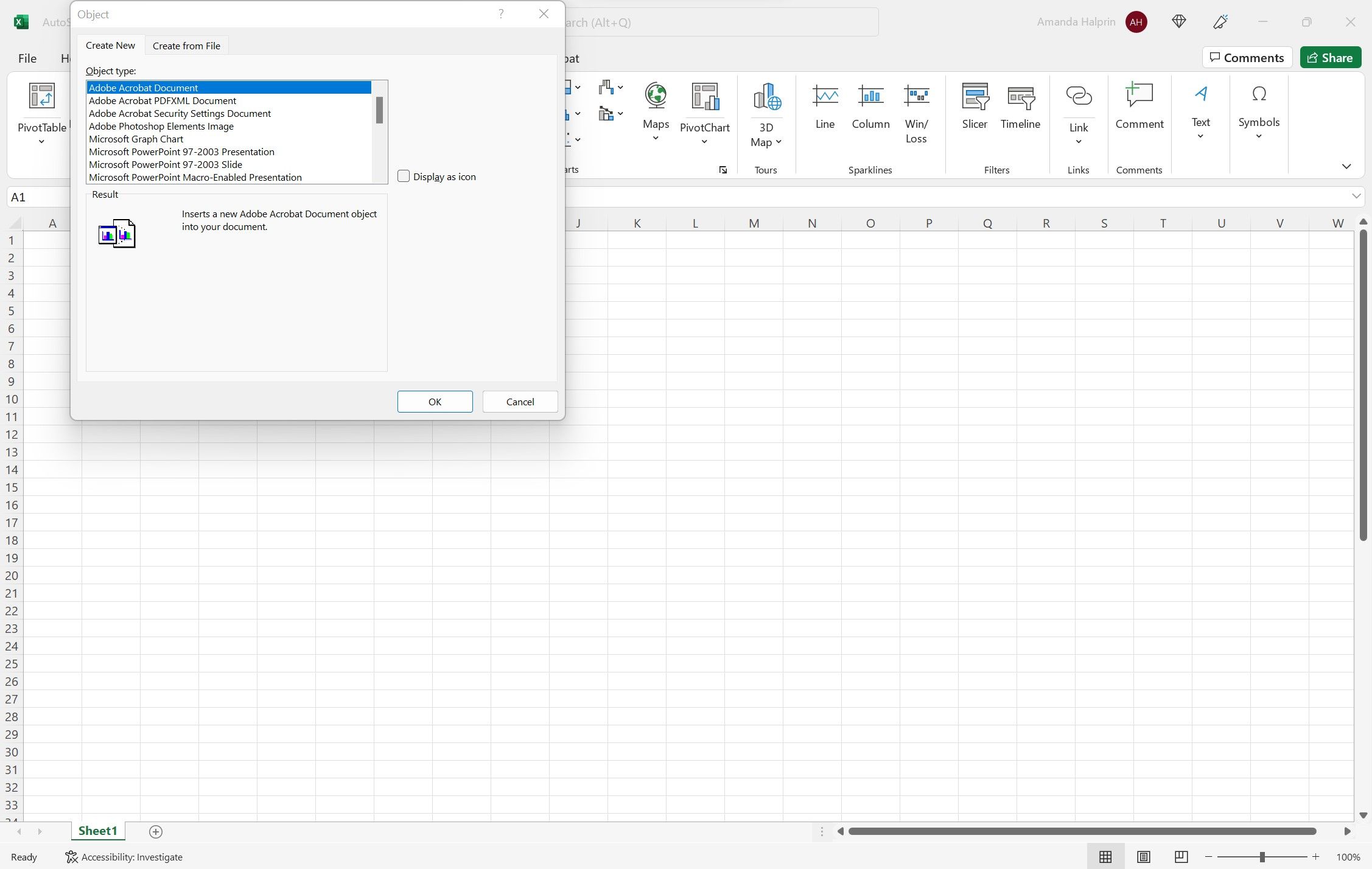
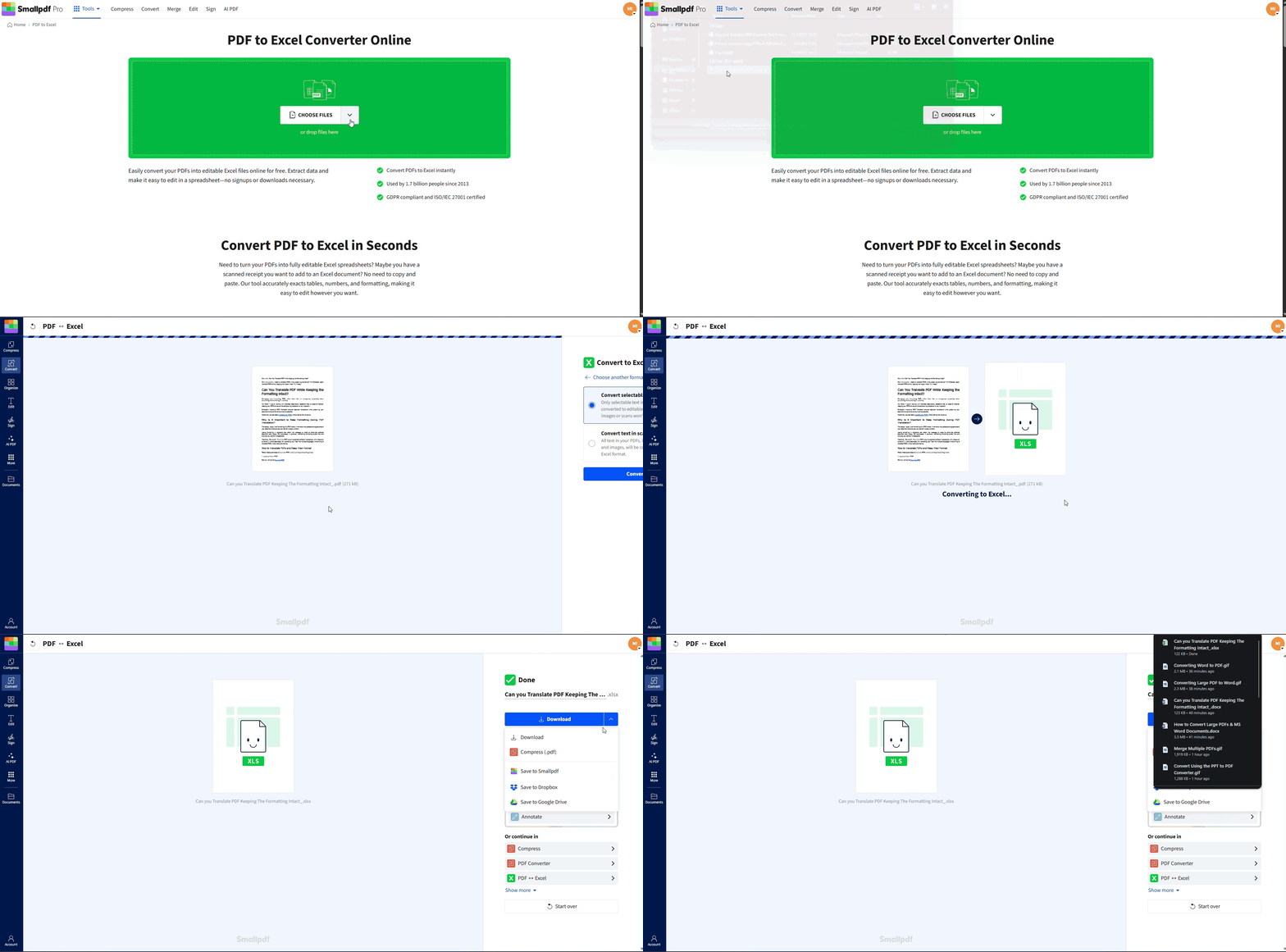
To attach a PDF to an Excel spreadsheet, open your workbook, select the target cell, click the Insert tab, choose Object (under the Text section), select Create from File, and browse for your PDF. Check Display as icon to show a clickable file icon directly inside your worksheet.
Understanding PDF Attachment Methods in Microsoft Excel
Integrating external documents into Microsoft Excel is a standard practice for financial auditing, invoice tracking, compliance recording, and project management. Attaching a PDF file directly to a spreadsheet ensures that supporting documentation stays linked to the relevant numeric data, preventing lost files and streamlining administrative workflows.
Microsoft Excel offers several distinct technical methods to attach or reference a PDF document within a workbook:
- Object Linking and Embedding (OLE): Embeds the PDF binary file directly inside the
.xlsxdocument structure or links to the external file on a local drive while displaying a visual icon on the sheet canvas. - Hyperlinks (Direct URL or File Path): Creates a lightweight clickable link to a local path, network drive, or cloud storage location (such as OneDrive, SharePoint, or Google Drive).
- Power Query Data Extraction: Extracts raw tables and text from a PDF file directly into Excel cells rather than attaching the PDF as an external document viewer.
Choosing the right approach depends on whether your team works primarily on Windows or macOS, whether the file will be edited on Excel for the Web, and whether file size or portability is your main priority.
Method 1: How to Embed a PDF as an OLE Object (Windows Desktop)
The primary method for embedding a PDF directly into an Excel worksheet is Object Linking and Embedding (OLE). This native Microsoft Office feature encapsulates the PDF inside the workbook, allowing anyone opening the spreadsheet on a desktop client to double-click the icon and launch the document in their default PDF reader.
Insert Tab ➔ Text Group ➔ Object Button ➔ Create from File ➔ Browse ➔ Display as Icon ➔ OK
Step-by-Step Desktop Instructions
- Open your target worksheet and select the cell where you want the PDF attachment to appear.
- Navigate to the Insert tab on the Excel ribbon.
- Locate the Text group on the right side of the ribbon and click the Object icon. (On narrower screens, click the Text drop-down menu first, then select Object).
- In the Object dialog box that opens, switch to the Create from File tab.
- Click Browse and navigate through your local file system to select the PDF file you want to insert. Click Insert.
- Check the box labeled Display as icon if you want a clean document icon rather than a full page preview of the PDF cover page.
- Click OK to complete the insertion.
How to Display the PDF as an Icon and Change the Label
When embedding a PDF, displaying it as an image preview often takes up excessive grid space and can look cluttered. Using an icon keeps your data grid structured and legible.
To customize the appearance and display title of the embedded PDF icon:
- In the Object dialog box under Create from File, verify that Display as icon is selected.
- Click the Change Icon... button immediately below the checkbox.
- In the Caption field, type a clear, descriptive label (such as
Q4_Audit_Report.pdforInvoice_#1042). - Select your preferred PDF reader icon from the available list if multiple options exist on your system.
- Click OK, then click OK again in the main dialog box.
Renaming the caption ensures that colleagues reviewing your spreadsheet immediately understand the contents of the attached file without having to open it first.
Formatting and Anchoring the PDF Icon to Cell Borders
By default, an OLE object floats on top of the worksheet grid like an image. If users resize, hide, insert, or filter rows and columns, floating objects can become misaligned or obscure underlying text. Anchoring the PDF icon to a specific cell ensures it moves and resizes gracefully alongside your tabular data.
How to Lock a PDF Icon to Cell Boundaries:
- Click and drag the PDF icon so it fits entirely within the boundaries of a single cell.
- Right-click the PDF icon and select Format Object... from the contextual menu.
- In the Format Object window, switch to the Properties tab.
- Select the option Move and size with cells or Move but don't size with cells.
- Move and size with cells: Recommended when rows or columns might be hidden or resized, keeping the icon tied to the cell dimensions.
- Move but don't size with cells: Recommended if you want the icon to maintain its visual aspect ratio even when row heights change.
- Check the Print object box if you want the PDF icon graphic to appear when printing or exporting the sheet to PDF format; uncheck it if you prefer a clean printed output.
- Click OK.
Method 2: Attaching a PDF via Hyperlink or Cloud Link
Embedding files as OLE objects increases the overall Excel file size. If you attach multiple 20 MB PDF manuals or multi-page reports, your .xlsx workbook can quickly balloon into hundreds of megabytes, causing slow file loading times and crash risks.
Using hyperlinks to cloud storage or shared network locations provides a lightweight alternative that maintains fast performance across all devices.
Linking to Local or Network Drives
If your organization uses a shared network drive (UNC path) accessible to all team members, you can insert a file path hyperlink:
- Click the cell where you want the link to live.
- Press Ctrl + K (or Cmd + K on Mac) or right-click and choose Link (or Hyperlink).
- On the left menu, select Existing File or Web Page.
- Browse to select your PDF file from the local drive or mapped network server.
- In the Text to display field at the top, enter a user-friendly label, such as
View Signed Contract (PDF). - Click OK.
Important Caution: Hyperlinks pointing to local drive paths (such as
C:\Users\Username\Documents\file.pdf) will break when the workbook is sent to external users or opened on a different computer. Always use UNC network paths (\\server\share\file.pdf) or cloud storage URLs for shared files.
Linking to Cloud Storage (OneDrive, SharePoint, Google Drive)
Cloud hyperlinks are the most reliable method for modern multi-platform teams, as they function seamlessly across Windows, macOS, iOS, Android, and Excel for the Web.
- Upload the PDF file to your cloud storage service (e.g., Microsoft SharePoint, OneDrive, or Google Drive).
- Generate a sharing link with the appropriate view or edit permissions for your target audience.
- Copy the URL to your clipboard.
- In your Excel workbook, select the desired cell and press Ctrl + K.
- Paste the cloud URL into the Address field.
- Set a descriptive title in the Text to display box and click OK.
Method 3: Extracting PDF Data directly into Excel Cells Using Power Query
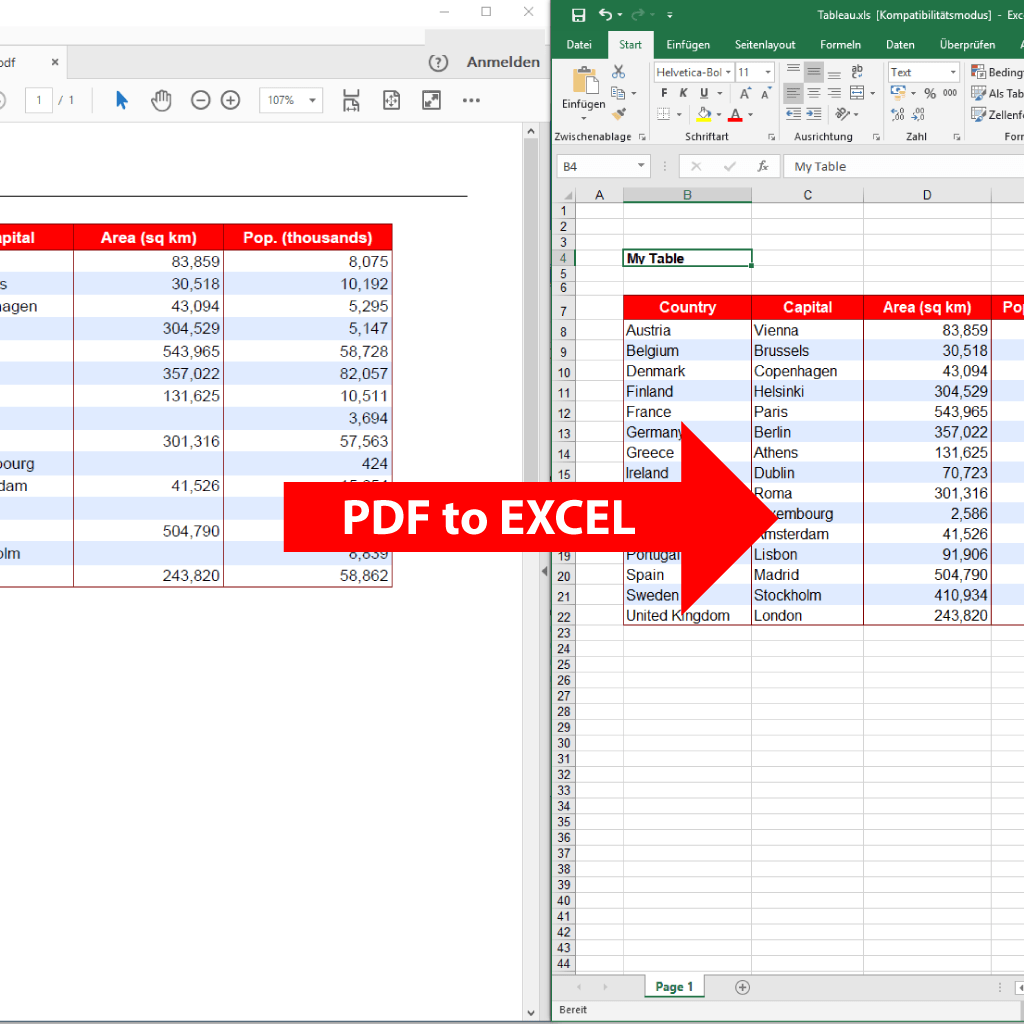
Sometimes, "attaching a PDF" actually means extracting structured tabular data from a PDF report into usable Excel rows and columns. Instead of embedding a static icon, Microsoft Excel's native Power Query engine allows you to parse PDF text and tables natively.
Extracting Tables and Text from PDF Documents
- Go to the Data tab on the top ribbon.
- Click Get Data ➔ From File ➔ From PDF.
- Select your PDF document in the file browser and click Import.
- The Navigator window will open, displaying a list of detected tables and individual pages inside the PDF.
- Select the table or page you want to import to see a live preview.
- Click Transform Data if you need to clean, split, or filter columns using Power Query, or click Load to insert the data directly into your current sheet as a standard Excel table.
Power Query establishes an ETL (Extract, Transform, Load) connection. If the underlying PDF document is replaced with updated monthly figures under the same name and path, you can simply click Data ➔ Refresh All to update your Excel sheet automatically.
Method 4: How to Attach PDFs on Mac and Excel for the Web
Cross-platform limitations can complicate document embedding. Microsoft Excel for macOS and Excel for the Web handle binary objects differently than the legacy Windows desktop application.
macOS Considerations
Excel for Mac supports OLE technology with notable limitations:
- You can insert PDFs as objects via Insert ➔ Object, but macOS handles file association differently through Apple's sandbox security model.
- Embedded objects might display as static image graphics rather than interactive openable icons depending on installed PDF readers.
- For optimal macOS compatibility, using cloud-hosted hyperlinks (OneDrive/SharePoint) is strongly recommended over embedded OLE objects.
Excel for the Web (Browser Edition)
Excel for the Web does not support creating or inserting new embedded OLE objects directly inside the browser window.
- If you open an existing workbook that contains embedded OLE objects created on desktop Excel, the web app will display a placeholder graphic, but you cannot open the embedded binary file directly from the browser tab.
- Workaround: Store the PDF in OneDrive or SharePoint and use standard web hyperlinks. Web hyperlinks remain 100% functional on desktop, mobile, and web versions of Excel.
Comparing PDF Attachment Methods in Excel
The table below compares the primary methods for attaching or integrating PDFs into Microsoft Excel to help you select the right approach for your project parameters.
| Method | Desktop Windows | Desktop Mac | Excel for Web | File Size Impact | Best Used For |
|---|---|---|---|---|---|
| OLE Embedded Object (As Icon) | Fully Supported | Limited Support | View-Only / Disabled | High (Adds full PDF size to .xlsx) |
Self-contained workbooks sent to offline Windows clients |
| OLE Linked File | Fully Supported | Limited Support | Not Supported | Very Low | Local workbooks where source PDF updates frequently |
| Cloud Hyperlink (OneDrive/SharePoint) | Fully Supported | Fully Supported | Fully Supported | None (0 KB added) | Multi-platform collaboration, shared team files, Web usage |
| Network Path Hyperlink (UNC) | Fully Supported | Supported (if mapped) | Not Supported | None | Internal enterprise networks with shared file servers |
| Power Query PDF Import | Fully Supported | Supported (Office 365) | Read/Refresh Only | Low to Moderate | Extracting raw financial tables and text into cell data |
Common Mistakes and Troubleshooting Tips
PDF Icon Not Opening or Adobe Reader Errors
If double-clicking an embedded PDF object results in an error message such as "Cannot start the source application for this object" or "Server application, source file, or item cannot be found", consider the following solutions:
- Set Default PDF Association: Ensure a recognized PDF reader (such as Adobe Acrobat Reader, Microsoft Edge, or Foxit PDF Reader) is properly installed and set as the default system handler for
.pdffiles in Windows Settings. - Bit-Architecture Mismatches: Occasional registry conflicts occur if 32-bit Microsoft Office attempts to call 64-bit PDF handler extensions. Repairing or reinstalling Adobe Acrobat Reader typically repairs OLE registration keys.
- Protected View & Trust Center: If the Excel file was downloaded from an email attachment or the internet, Excel opens in Protected View, which disables macro and OLE execution. Click Enable Editing in the yellow warning banner at the top of the spreadsheet to enable file opening.
Object Shifts or Disappears When Sorting/Filtering Rows
If embedded PDF icons bunch together, overlap, or hide permanently when filtering data rows:
- Select the cell range containing your icons and unhide all rows/columns.
- Right-click the affected PDF icon and select Format Object.
- Under the Properties tab, switch from Don't move or size with cells to Move and size with cells.
- Resize the icon graphic so its boundaries fit cleanly within the cell borders without crossing gridlines.
Large File Sizes Caused by Embedded PDF Copies
Because embedded OLE objects embed a full binary copy of the target PDF into the XML architecture of the workbook, adding multiple high-resolution PDF files can balloon an Excel file from 500 KB to over 100 MB.
Optimization Strategies:
- Compress your PDF files using PDF optimization tools prior to embedding.
- Replace embedded OLE objects with Cloud Hyperlinks hosted on OneDrive or SharePoint.
- Save the Excel file in the Excel Binary Workbook format (
.xlsb), which compresses embedded object data more efficiently than standard.xlsxformats.
Automating PDF Attachments with VBA (Advanced Workflows)
For enterprise administrative workflows requiring automated batch processing—such as linking hundreds of vendor invoices to matching transaction IDs—you can use Visual Basic for Applications (VBA) to programmatically insert PDF icons into specific cell coordinates.
Below is a clean VBA code snippet demonstrating how to insert a PDF object programmatically based on a target cell and file path:
Sub AttachPDFToCell() Dim ws As Worksheet Dim targetCell As Range Dim filePath As String Dim pdfObject As OLEObject ' Set target sheet and cell reference Set ws = ThisWorkbook.Sheets("Sheet1") Set targetCell = ws.Range("B5") ' Define absolute file path to PDF filePath = "C:\AuditDocs\Invoice_2026_001.pdf" ' Verify file existence prior to insertion If Dir(filePath) = "" Then MsgBox "The specified PDF file was not found.", vbCritical, "File Missing" Exit Sub End If ' Insert PDF OLE Object aligned to cell dimensions Set pdfObject = ws.OLEObjects.Add( _ ClassType:="AcroExch.Document", _ Filename:=filePath, _ Link:=False, _ DisplayAsIcon:=True, _ IconFileName:="pdf.exe", _ IconIndex:=0, _ IconLabel:="Invoice_2026_001.pdf", _ Left:=targetCell.Left, _ Top:=targetCell.Top, _ Width:=targetCell.Width, _ Height:=targetCell.Height) ' Lock object properties to cell movement pdfObject.Placement = xlMoveAndSize MsgBox "PDF successfully attached!", vbInformation, "Success" End Sub
To run this macro, press Alt + F11 in Excel to open the VBA Editor, choose Insert ➔ Module, paste the code, update the file path, and press F5.
Best Practices for Shared Workbooks and File Distribution
When preparing an Excel file containing attached PDFs for external distribution to clients, auditors, or executive leadership, implement these quality control standards:
- Audit Security & Privacy Settings: Embedded OLE objects can include hidden metadata, annotations, or cached revision histories from the source PDF. Run Excel's Document Inspector (File ➔ Info ➔ Check for Issues ➔ Inspect Document) before sending workbooks outside your organization.
- Provide Fallback Cloud Links: Because mobile clients (Excel for iOS/Android) and web browsers cannot open OLE objects, provide a cloud storage link alongside embedded icons when distributing files to remote or multi-device teams.
- Verify File Path Stability for Linked OLE Objects: If you choose Link to file inside the OLE dialog box instead of full embedding, remember that Excel stores a relative/absolute path. If you move the source PDF to another folder, the link inside Excel will break. Keep both the Excel file and linked PDFs in the exact same directory folder if using relative local links.
Frequently Asked Questions
Can you view an attached PDF inside Excel for the Web?
No, Excel for the Web cannot natively execute or open binary OLE object icons created in desktop versions of Excel. To view attached PDFs seamlessly in a web browser, upload the PDF files to OneDrive or SharePoint and insert direct web hyperlinks into the Excel cells instead.
Why is the "Object" option greyed out in the Insert menu?
The Object button on the Insert tab becomes disabled (greyed out) if your worksheet is currently protected, if you are actively editing a cell's text contents (in cell edit mode), or if your workbook is operating under legacy shared workbook mode. Exit cell editing mode by pressing Esc, or unprotect the sheet via Review ➔ Unprotect Sheet.
Does embedding a PDF increase the Excel file size?
Yes. When you embed a PDF as an OLE object (with Link to file unchecked), Excel embeds a complete binary copy of the file into the workbook wrapper. A 10 MB PDF will add approximately 10 MB directly to your .xlsx file size. To avoid large workbook files, store your PDFs in cloud storage and use hyperlinks.
How do I extract an embedded PDF out of an Excel file if I lost the original?
Double-click the embedded PDF icon in Excel to open it in your default PDF reader (such as Adobe Acrobat or Edge), then click File ➔ Save As within the reader to save a fresh copy to your computer. Alternatively, rename your .xlsx file extension to .zip, extract the archive folders, and look inside the xl\embeddings\ directory to recover the original binary files.
What is the difference between "Link to File" and "Display as Icon"?
"Display as Icon" changes the visual graphic on your worksheet from a full-page document preview into a compact, double-clickable PDF icon. "Link to File" determines whether the PDF is copied inside the workbook (embedded) or referenced externally on your hard drive (linked). You can check both options simultaneously.
Practical Recommendation
For local, offline accounting models managed on desktop Windows computers where full portability is required without external internet access, use Method 1 (OLE Embedding as an Icon) and lock the object properties to Move and size with cells.
For modern corporate environments using Microsoft 365, macOS, or hybrid web workflows, adopt Method 2 (Cloud Hyperlinking via SharePoint/OneDrive). This prevents workbook file bloat, ensures 100% cross-platform accessibility on mobile and web clients, and guarantees links will not break when files are emailed to colleagues.