If your Apple Watch refuses to turn on after the battery has completely drained, it is likely in a state of deep discharge. To resolve this, place the watch on its charger for at least 30 to 60 minutes without interruption. If the screen remains black or shows a red lightning bolt icon, perform a force restart by holding both the Digital Crown and the Side Button simultaneously for at least 15 seconds until the Apple logo appears.
An Apple Watch that stays "dead" after a long period of inactivity or a sudden power loss can be frustrating, especially when it does not immediately respond to a power source. In 2026, with the prevalence of advanced fast-charging models like the Apple Watch Ultra series and the latest standard iterations, the troubleshooting process has become more nuanced, involving hardware checks, software resets, and environmental considerations.
Understanding the "Deep Discharge" State
When a lithium-ion battery, such as the one found in your Apple Watch, reaches 0%, it does not actually contain zero energy. Instead, the device enters a protective state to prevent the battery cells from becoming unstable. If the watch remains uncharged for days or weeks after it has died, the voltage can drop below a critical threshold. This is known as deep discharge.
In this state, the watch's charging controller limits the incoming current to a "trickle charge" to safely revive the battery. This is why your watch might not show the Apple logo immediately after being placed on the magnetic puck. It may take 30 minutes just to reach a high enough voltage to display the "charging" UI, and up to an hour to actually boot the watchOS operating system.
The Meaning of the "Charging Snake"
If you see a red lightning bolt icon (often called the "snake"), it indicates that the battery is critically low but is successfully receiving power. If there is a red lightning bolt surrounded by a circular cable icon, it means the watch needs to charge further before it can turn on. If the lightning bolt turns green, the watch is charging normally and should power on shortly. However, if the screen remains entirely black after an hour on the charger, the issue likely lies elsewhere in the hardware chain.
Essential Troubleshooting Steps
Before assuming the hardware is faulty, follow these sequential steps to rule out common glitches and connection issues.
1. Perform a Force Restart
A force restart is the most effective way to "wake up" a watch that has crashed during its boot sequence or is stuck in a black-screen loop.
- Keep the watch on the charger during this process.
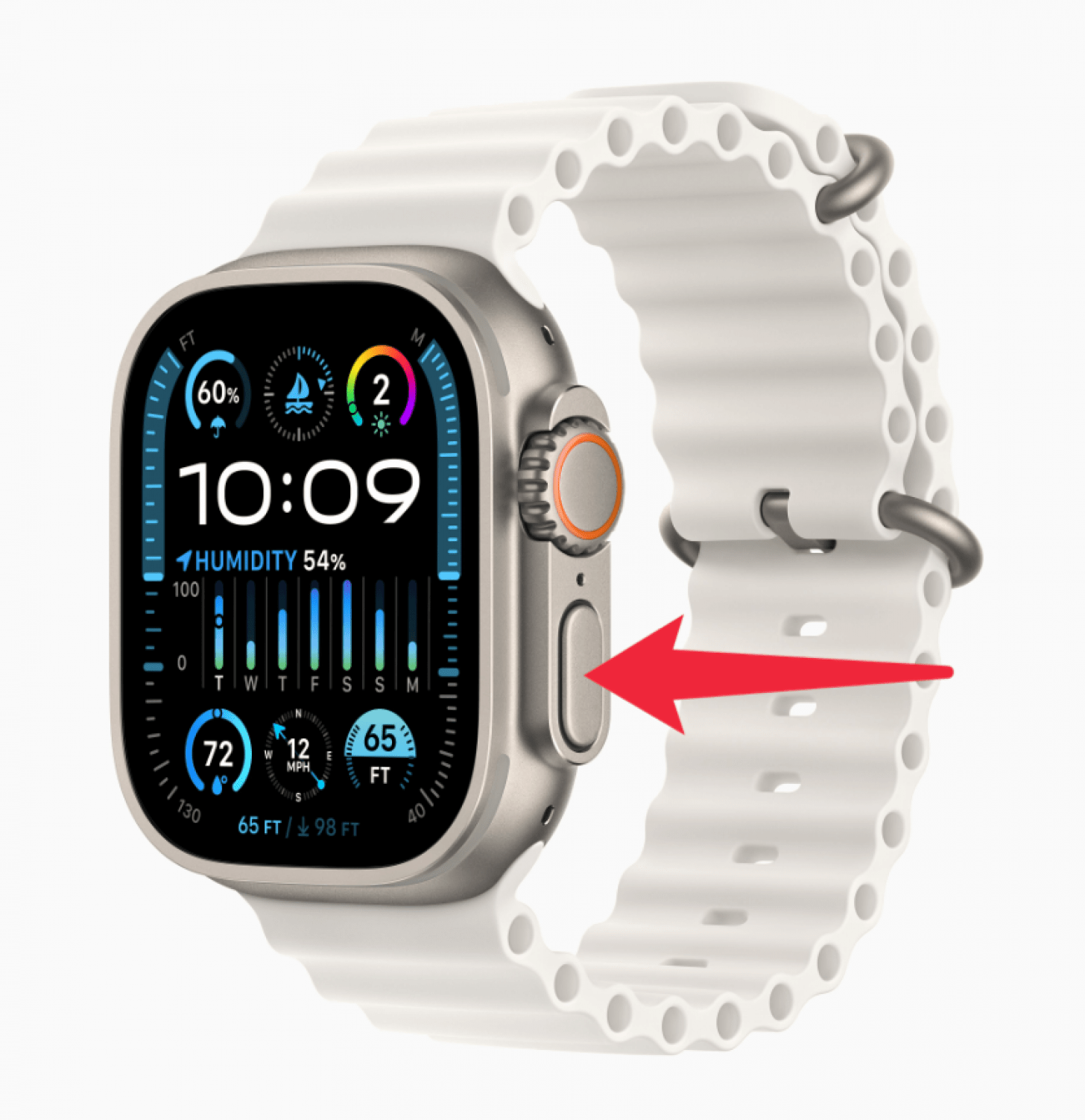
- Press and hold the Digital Crown and the Side Button (the flat button below the crown) at the same time.
- Continue holding both buttons for 15 to 20 seconds.
- Ignore any "Power Off" sliders that might briefly appear.
- Release the buttons only when the silver Apple logo appears on the screen.
2. Inspect the Charging Hardware
In 2026, most Apple Watch users are utilizing USB-C fast chargers. A failure in any part of this assembly will prevent a "dead" watch from reviving.
- The Power Adapter: Ensure you are using a high-quality wall adapter. Apple recommends a 20W USB-C adapter for modern watches. If you are using a low-wattage 5W "cube" from an older iPhone, it may not provide enough initial amperage to kickstart a deeply discharged battery.
- The Magnetic Puck: Inspect the surface of the magnetic charger. Even a thin layer of grime, skin oils, or a piece of protective plastic film can interfere with the inductive charging process.
- The Connection: Ensure the USB-C or USB-A end is firmly seated in the power brick and that the brick is plugged into a known working wall outlet. Avoid using computer USB ports for reviving a dead watch, as they often output lower power than a wall outlet.
3. Check for Environmental Temperature Issues
Apple Watches are designed to operate and charge within a specific temperature range (0° to 35° C or 32° to 95° F). If the watch has been sitting in a very cold car or under direct sunlight, its internal safety sensors may disable charging to prevent a thermal event.
- If the watch feels hot to the touch, remove it from the charger and let it cool down in a shaded area for 20 minutes before trying again.
- If it is freezing cold, warm it up between your hands before placing it on the charger.
Technical Comparison of Charging Indicators
Understanding what your screen is telling you (or not telling you) is vital for diagnosing the root cause.
| Screen Indicator | Meaning | Required Action |
|---|---|---|
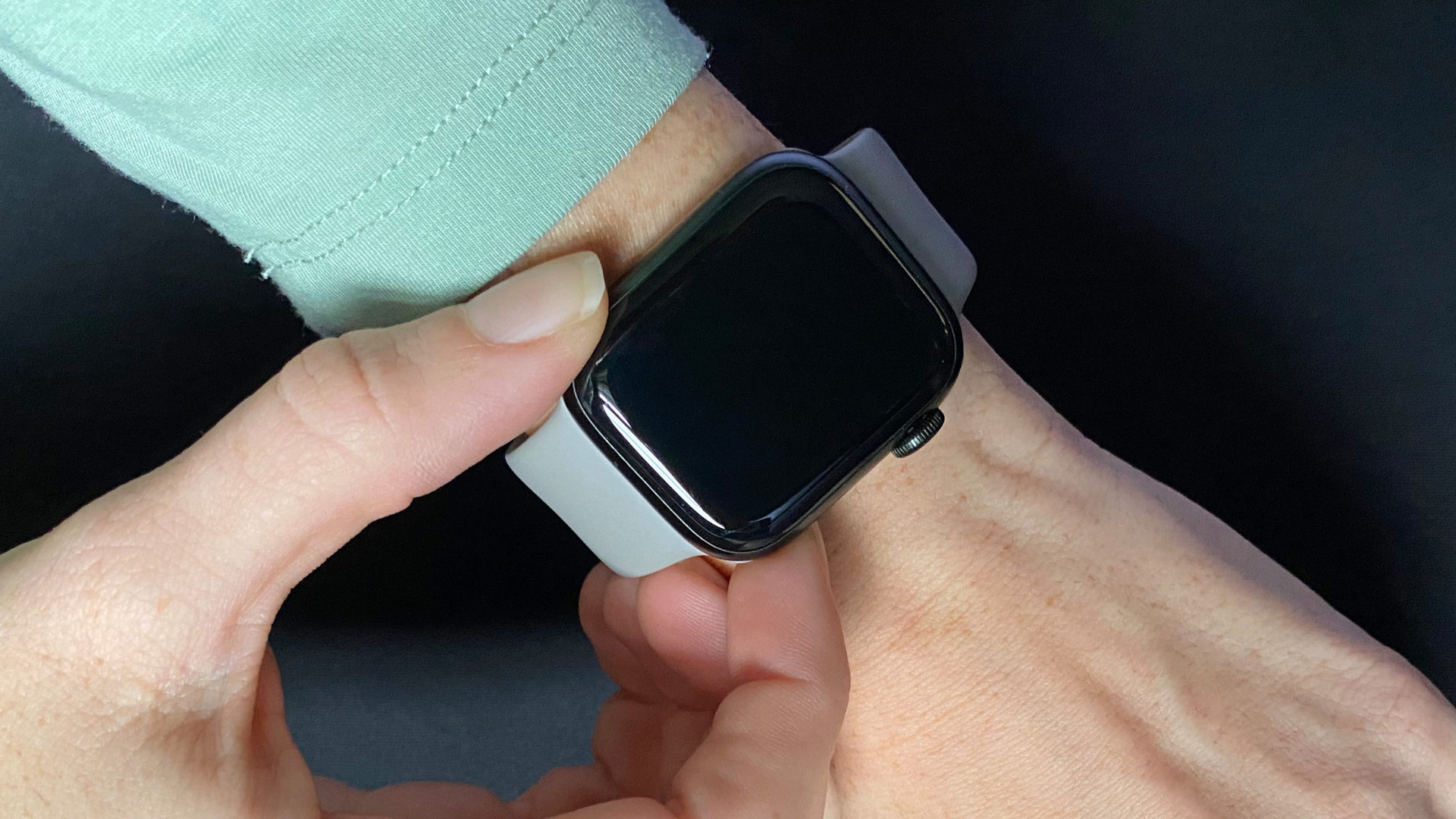
| Black Screen (No Response) | No power detected or deep discharge. | Charge for 60 mins; try a different cable/brick. |
| Red Lightning Bolt (Static) | Battery is low; charging is in progress. | Wait 30 minutes for the device to boot. |
| Red Lightning Bolt + Cable Icon | Power detected but insufficient for boot. | Ensure you are using an official Apple charger. |
| Apple Logo (Flashing) | Boot loop; software or battery failure. | Perform a force restart while on the charger. |
| Green Lightning Bolt | Normal charging; watch should be on soon. | No action needed; wait for the home screen. |
Advanced Diagnostics: Software and Hardware
If the basic steps fail, you must consider more complex issues involving the watchOS software or the physical integrity of the device.
Software "Hang" During Boot
Sometimes the watch has enough power to start, but the software hangs while trying to load the user interface. This is common if the watch died during a background update or a "Find My" ping. If you hear "VoiceOver" feedback or feel haptic vibrations but the screen is black, the watch is actually on. Triple-click the Digital Crown to see if VoiceOver is active, or use the "Find My" app on your iPhone to play a sound. If the sound plays, the issue is with the display assembly, not the battery.
Battery Health and Degradation
By 2026, many older models (like the Series 6 or SE) may have reached their maximum cycle count. Lithium-ion batteries typically degrade significantly after 1,000 full charge cycles. If your battery health is below 80%, the battery may no longer have the "peak power capability" to restart the device after a full drain. In these cases, the watch might show the Apple logo briefly and then go black again—a classic sign of a failing battery cell.
Moisture and Seal Integrity
Even with high water-resistance ratings (WR50 or WR100 for the Ultra), the adhesive seals that keep water out of the Apple Watch degrade over time. If the watch died shortly after a swim or a shower, and it won't turn on now, internal moisture may be shorting the motherboard. If you suspect water damage, do not place it on the charger, as electricity can accelerate the corrosion of internal components.
When to Seek Professional Repair
If you have tried multiple chargers, performed a force restart, and left the watch on the puck for over two hours with no result, the hardware has likely reached a point of failure that requires Apple's intervention.
- Out-of-Warranty Costs: If your watch is no longer covered by AppleCare+, a battery replacement is generally the most cost-effective path. Apple typically offers battery service if the health is below 80%.
- The "Screen Pop": Inspect the side of the watch. If the screen is physically lifting away from the metal frame, the battery has likely "swollen." This is a safety feature to prevent fire, but it renders the watch unusable. Do not attempt to press the screen back down; take it to an Apple Store immediately.
- Diagnostic Tools: Apple Support can run remote diagnostics if the watch has enough power to communicate with your iPhone. If the watch is completely dead, they will need to send it to a repair center to test the logic board and the battery independently.
FAQ
Why is my Apple Watch getting hot while charging but not turning on?
Excessive heat during charging often indicates a hardware conflict or a failing battery cell. When a battery is in deep discharge, it may generate more heat than usual as it accepts a charge. However, if it becomes too hot to touch, remove it from the power source immediately. This could be a sign of a short circuit in the induction coils or a degraded battery that can no longer safely store energy.
Can I revive a dead Apple Watch using a MagSafe iPhone charger?
No. While both use inductive charging, the Apple Watch requires a specific magnetic resonance and coil alignment found only in Apple Watch-specific chargers. Using a standard Qi charger or a MagSafe iPhone charger will not work and may generate unnecessary heat without transferring power to the watch.
How long does it take for a dead Apple Watch to turn on?
A completely dead Apple Watch typically takes between 10 to 45 minutes to display the Apple logo once placed on a functional charger. If the battery is aged or was left dead for several months, it can take up to two hours to reach a state where it can stay powered on without the charger.
My watch shows the Apple logo and then disappears. What does this mean?
This usually indicates a "boot loop." The battery has enough power to start the initial boot process, but as soon as the watchOS software attempts to load—requiring a surge in power—the battery voltage drops too low, and the device shuts down. This cycle then repeats. This is almost always a sign that the battery needs to be replaced.
Is it bad to let the Apple Watch die completely?
Yes, frequently allowing a lithium-ion battery to reach 0% accelerates chemical aging. For optimal battery longevity in 2026, it is recommended to keep your Apple Watch charge level between 20% and 80%. If you plan to store the watch and not use it for a while, Apple recommends charging it to about 50% before turning it off.
Final Recommendation
The most common solution for an Apple Watch that won't turn on after being dead is simply time and a high-wattage power source. Ensure you are using a 20W USB-C adapter and an official Apple charging puck. Leave the device alone for at least 90 minutes. If it remains unresponsive, the Force Restart (Digital Crown + Side Button) is your primary tool for recovery. If these steps fail, contact Apple Support to evaluate the battery health, as the internal cell may have reached the end of its functional lifespan.