Apache HTTP Server logging remains the cornerstone of web server administration in 2026, providing the essential data required for security auditing, performance tuning, and error resolution. By configuring the LogFormat and CustomLog directives correctly, administrators can capture critical request data—ranging from client IP addresses and response times to specific HTTP headers—ensuring that the server environment is both transparent and highly optimized for modern web traffic.
The Apache HTTP Server provides a flexible and highly configurable logging system that allows administrators to record almost every aspect of a web request and the server’s response. Understanding how to manage these logs is not just a matter of system maintenance; it is a prerequisite for security compliance and high-availability operations. In this guide, we explore the core modules, the intricacies of configuration directives, and the industry-standard best practices for managing log data effectively.
The Foundation of Apache Logging Architecture
At the heart of Apache’s logging capability is the mod_log_config module. This module is responsible for the Access Log, which records every request processed by the server. While the Error Log is handled by the core server, the Access Log requires specific directives to define what data is captured and where it is stored.
The power of Apache logging lies in its modularity. You are not restricted to a single log file for the entire server. Instead, you can define specific logging rules for different virtual hosts, directories, or even specific types of requests based on environment variables. This granular control is vital in 2026, where a single server might host dozens of microservices, each requiring unique monitoring parameters.
Understanding the Error Log
The Error Log is the most important log file for server health. It is where the Apache daemon sends information about problems it encounters while starting up or operating. If the server crashes or a request fails with a 500-series status code, the details will appear here.
The ErrorLog directive specifies the location of this file. Common practice involves setting a global error log for the main server and individual error logs for each VirtualHost. This prevents the primary log from becoming cluttered and makes it easier to troubleshoot specific sites or applications.
The LogLevel directive controls the verbosity of the error log. In 2026, the standard levels remain:
- emerg: Emergencies - system is unusable.
- alert: Action must be taken immediately.
- crit: Critical conditions.
- error: Error conditions.
- warn: Warning conditions.
- notice: Normal but significant condition.
- info: Informational.
- debug: Debug-level messages.
For production environments, the notice or warn level is typically recommended. Setting the level to debug can provide immense detail during development but will rapidly consume disk space and slightly degrade performance on high-traffic systems.
Configuring the Access Log
The Access Log records client activity. To use it effectively, you must understand two primary directives: LogFormat and CustomLog.
The LogFormat Directive
The LogFormat directive defines the "blueprint" for a log entry. It uses a string of nicknames and format tags (starting with a percent sign) to determine which variables are recorded. For example, %h represents the remote host, %u is the authenticated user, and %t is the time of the request.
Most modern Apache installations come with a few predefined formats:
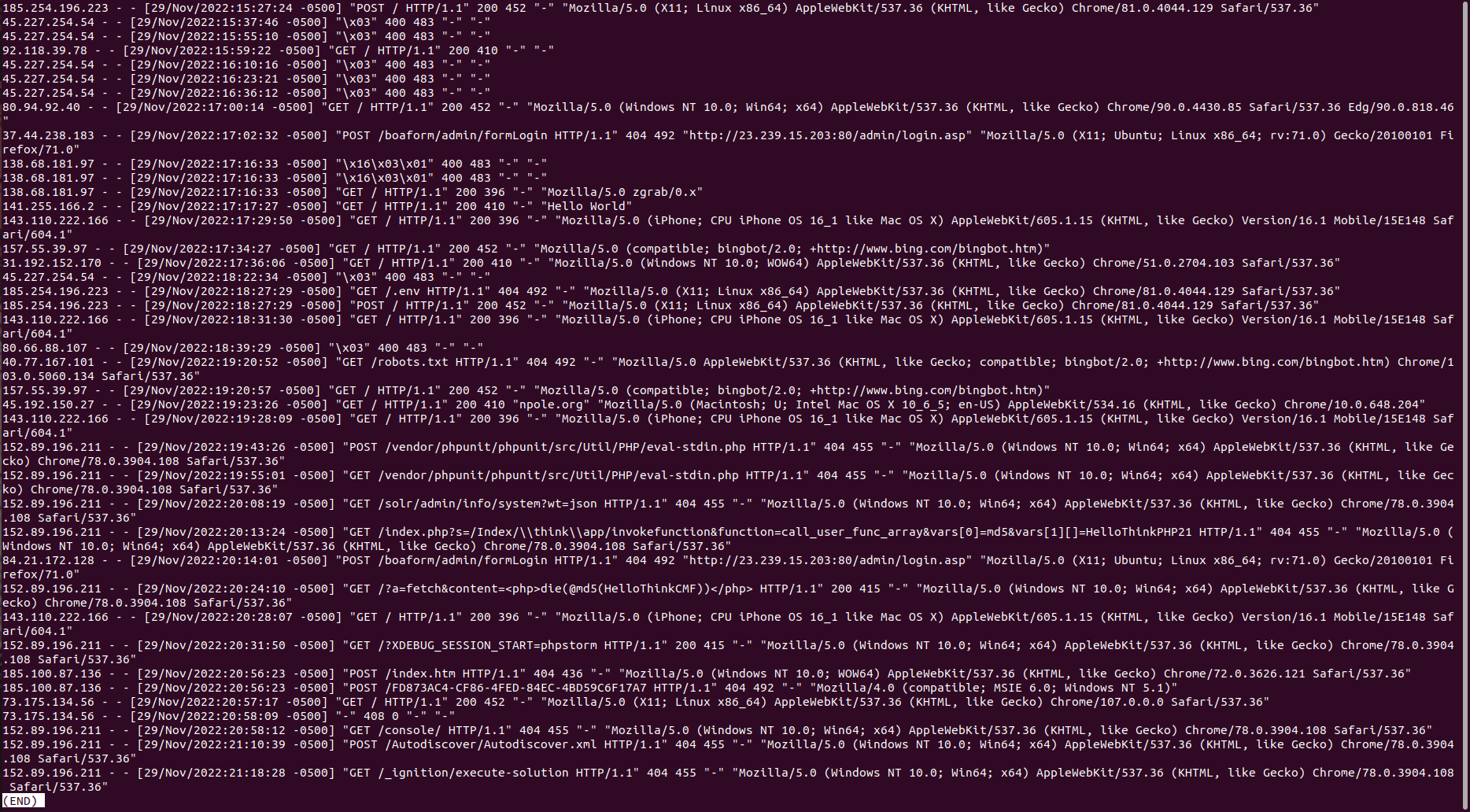
Common Log Format (CLF): This is the classic format used since the early days of the web. It records the host, identd, user, time, request line, status, and size. While compatible with almost every log analysis tool, it lacks modern essentials like the Referer or User-Agent.
Combined Log Format: This adds the Referer and User-Agent headers to the CLF. In 2026, this is the baseline for any public-facing web server, as it provides enough context to identify the source of traffic and the type of device being used by the client.
The CustomLog Directive
Once a format is defined, the CustomLog directive tells Apache where to save the log and which format to use. A typical configuration entry looks like this:
CustomLog logs/access_log combined
This instruction tells Apache to write to the access_log file using the previously defined "combined" format nickname.
Advanced Logging: Conditional and Piped Logs
In complex environments, recording every single request can lead to "log bloat." For instance, internal health checks from load balancers might occur every few seconds, filling logs with repetitive, unhelpful data.
Conditional Logging
Apache allows you to suppress logging based on environment variables. By using the SetEnvIf directive, you can tag certain requests and then instruct the CustomLog directive to ignore them. For example, if you want to exclude requests for common image formats to keep your logs focused on application logic, you can set an environment variable for those extensions and use the "env=!" syntax to exclude them from the log.
This approach is also essential for compliance. If certain URLs handle sensitive data that should not be logged, conditional logging ensures those paths remain private without disabling logging for the rest of the site.
Piped Logging
Writing logs directly to a file is the standard method, but it has limitations. On a very busy server, the I/O required to write to a disk can become a bottleneck. Furthermore, rotating logs often requires restarting or reloading the server, which can lead to minor downtime.
Piped logging solves this by sending log data to another process via a pipe instead of writing to a file. The syntax uses the pipe character (|) followed by the path to an executable. A common use case is piping logs to the rotatelogs utility provided by Apache. This utility handles log rotation based on time intervals or file size without ever needing to restart the Apache process.
Strategic Comparison of Log Formats
Choosing the right format depends on whether the logs are intended for human review, automated analysis, or long-term archival.
| Format Type | Typical Use Case | Primary Benefit | Main Drawback |
|---|---|---|---|
| Common (CLF) | Legacy systems | Minimal disk usage | Lacks browser/source data |
| Combined | Standard web hosting | Good balance of data | Not easily parsed by machines |
| JSON Custom | Log aggregators (ELK/Splunk) | Native machine readability | Very high disk usage |
| Forensic | Security auditing | Records exact request headers | Significant performance impact |
| Performance | Latency monitoring | Tracks %D (time in micros) | Requires custom parsing |
Best Practices for Apache Logging in 2026
Effective logging is not just about capturing data; it is about capturing the right data securely and efficiently.
1. Implement Strict Log Rotation
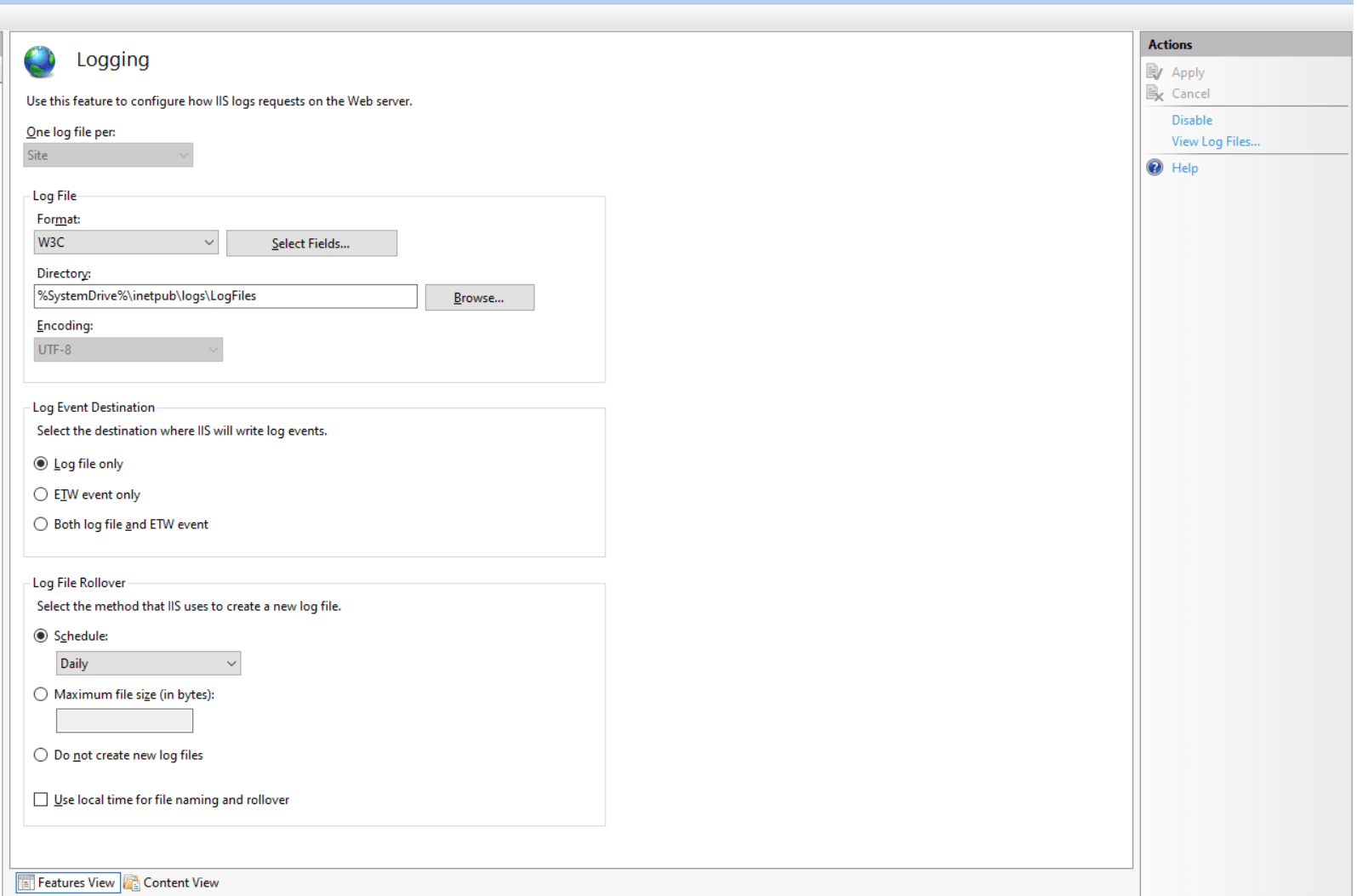
Never allow a log file to grow indefinitely. Large log files (multi-gigabyte) are difficult to open, search, and parse. Use the rotatelogs tool or the system's logrotate utility to rotate logs daily or when they reach a specific size (e.g., 100MB). In 2026, automated cloud-native rotation is the standard, often moving rotated logs directly to cold storage like Amazon S3 or Azure Blob Storage to save local disk space.
2. Prioritize Machine-Readable Formats
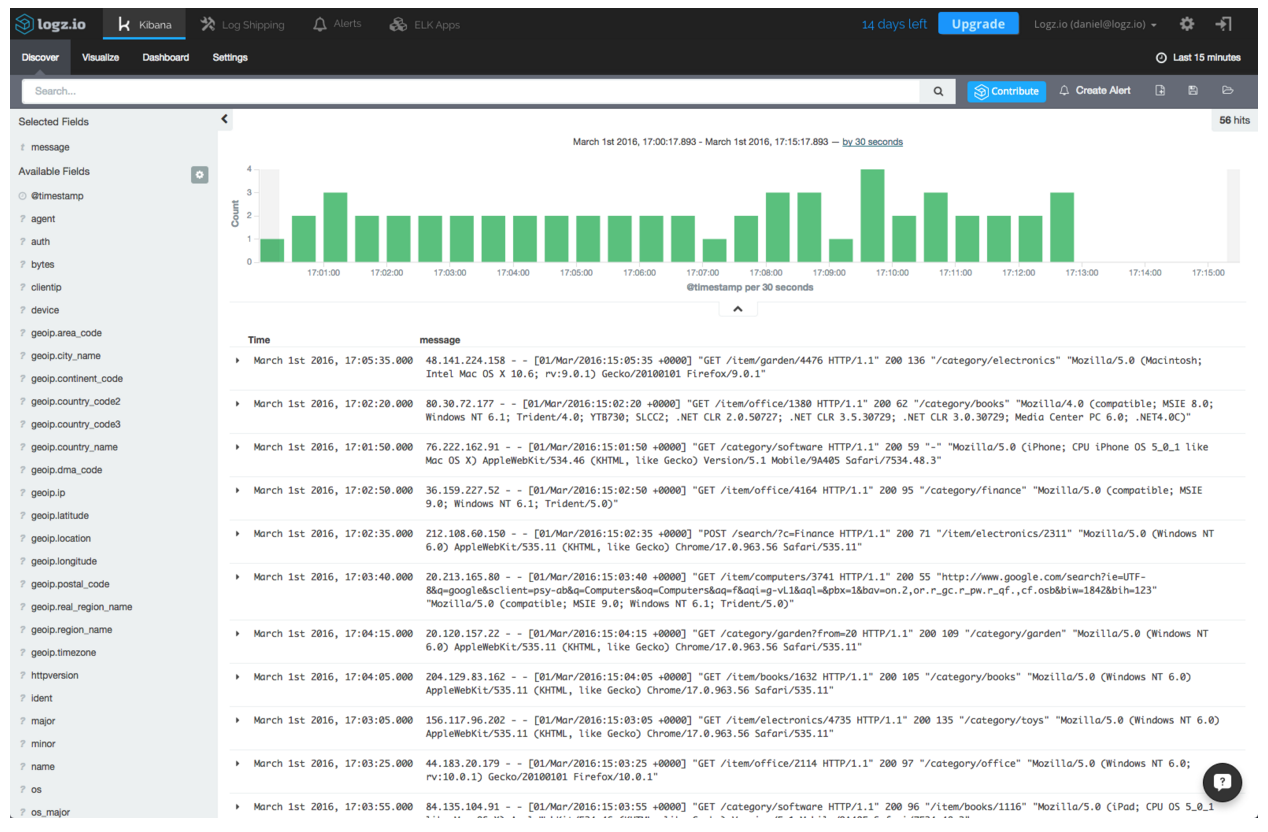
While the Combined format is easy for a human to read via a terminal, it is difficult for software to parse reliably if the data contains unusual characters. For modern DevOps pipelines, configuring Apache to output logs in JSON format is a best practice. This allows tools like Fluentd, Logstash, or Datadog to ingest the data without complex regular expressions, reducing errors in your monitoring dashboards.
3. Mask Personally Identifiable Information (PII)
Privacy regulations like GDPR and CCPA remain strictly enforced in 2026. Avoid logging full IP addresses if they are not necessary for security. You can use the mod_remoteip module or custom LogFormat strings to truncate the last octet of an IP address. Furthermore, ensure that sensitive query parameters, such as session tokens or password reset hashes, are stripped from the request URI before they are written to the log.
4. Use Buffer Logging for High Performance
For high-traffic environments, the constant writing of logs to the disk can increase CPU wait times. The BufferedLogs directive (available in some configurations) allows Apache to collect log entries in memory and write them to the disk in chunks. While this improves performance, there is a small risk that the most recent log entries might be lost if the server crashes before the buffer is flushed.
5. Centralize Your Logs
Relying on local log files is a risk in a distributed or containerized environment. Use a logging agent to ship logs to a centralized server. This ensures that if a web server instance is compromised or deleted, the logs remain available for forensic analysis. Centralization also allows you to correlate events across multiple servers, such as identifying a distributed denial-of-service (DDoS) attack that hits several nodes simultaneously.
Troubleshooting Common Logging Issues
Even with a perfect configuration, issues can arise. If your logs are not appearing, check the following:
Permissions: The user running the Apache process (usually www-data or apache) must have write permissions to the directory where the logs are stored. If you have recently changed the log path, verify the directory ownership.
Disk Space: A common cause of Apache failing to start or stop logging is a full disk partition. If the /var/log/ directory is on a separate partition that has reached 100% capacity, Apache will encounter errors.
Configuration Syntax: Always run apachectl configtest after making changes to your log directives. A single missing quote in a LogFormat string can prevent the server from starting.
Module Activation: Ensure that mod_log_config is enabled. On most distributions, this is compiled into the core or enabled by default, but in custom-built environments, it might be missing.
Frequently Asked Questions
What is the difference between the ErrorLog and the AccessLog?
The ErrorLog is a system-level log where the Apache server records internal issues, startup messages, and request failures. The AccessLog is a transaction-level log that records every request made by clients to the server. While the ErrorLog helps you fix the server, the AccessLog helps you understand your users and traffic patterns.
Can I log the time it takes to serve a request?
Yes. By adding %D to your LogFormat string, Apache will record the time taken to serve the request in microseconds. Alternatively, %T can be used for time in seconds. This is a critical metric for identifying slow-running scripts or database bottlenecks that affect user experience.
How do I log specific HTTP headers?
You can log any incoming request header using the %{HeaderName}i format and any outgoing response header using %{HeaderName}o. For example, to log the "X-Forwarded-For" header commonly used by proxies, you would add %{X-Forwarded-For}i to your LogFormat.
Does logging affect server performance?
Logging does have a performance cost because every request requires a write operation to the storage system. However, for most websites, this impact is negligible. On extremely high-volume sites, performance can be optimized by using piped logging to a different disk, using buffered logs, or minimizing the amount of data captured in the LogFormat.
Where are Apache logs stored by default?
The default location depends on the operating system. On Ubuntu and Debian systems, they are typically found in /var/log/apache2/. On CentOS, RHEL, and Fedora, the default directory is /var/log/httpd/. You can always find the exact path by searching for the ErrorLog or CustomLog directives in your main configuration file (httpd.conf or apache2.conf).
Practical Recommendation
For any production server in 2026, you should move beyond the default logging configuration. Start by implementing a JSON-based LogFormat to ensure your logs are future-proof and ready for automated analysis. Combine this with piped logging using the rotatelogs utility to ensure your server maintains 100% uptime during log rotations. Finally, audit your log files to ensure no PII is being stored unnecessarily, keeping your organization compliant with global privacy standards while maintaining the visibility needed to keep your infrastructure secure and efficient.