Adding PayPal to your Google Wallet is a straightforward process that enables you to make contactless payments at millions of physical retail locations, online stores, and apps that support Google Pay. By linking these two services, you can utilize your PayPal balance or your preferred payment method stored within PayPal without having to physically carry your bank cards or enter sensitive card details into every merchant site. As of 2026, the integration remains a core feature for Android users looking to streamline their digital transaction experience.
Understanding the Integration of PayPal and Google Wallet
The ability to connect PayPal to Google Wallet represents a convergence of two major digital payment ecosystems. Google Wallet functions as a digital container for your payment cards, transit passes, and loyalty programs, while PayPal operates as a robust intermediary for financial transactions. When you link these services, you are essentially provisioning a virtual representation of your PayPal account into the Google Pay payment network.
It is important to clarify that this process does not mean you are adding a physical "PayPal card" in the traditional sense, unless you are specifically utilizing the PayPal Debit Card. Instead, you are enabling the Google Wallet service to initiate transactions that are ultimately funded through your PayPal account. This creates a secure layer of abstraction between the merchant and your primary financial institutions, as the merchant only interacts with the payment token provided by Google.
Prerequisites for a Successful Connection
Before you begin the configuration, ensure that your device and account settings are properly aligned. Connectivity and compatibility are the two most common hurdles in this process. You must have a smartphone running Android 7.0 or higher with Near Field Communication (NFC) capabilities enabled if you intend to use the service for in-store contactless payments.
Additionally, you must have the latest version of the Google Wallet app and the PayPal app installed on your device. Having the PayPal app logged in and active simplifies the authentication handshake significantly. You will also need a stable internet connection—either via cellular data or Wi-Fi—to complete the secure authorization process between the two platforms.
Step-by-Step Configuration: Adding Your Account
The integration process is designed to be user-friendly, relying on an automated handshake between the two applications. Follow these steps to complete the setup:
- Launch Google Wallet: Open the Google Wallet application on your Android device.
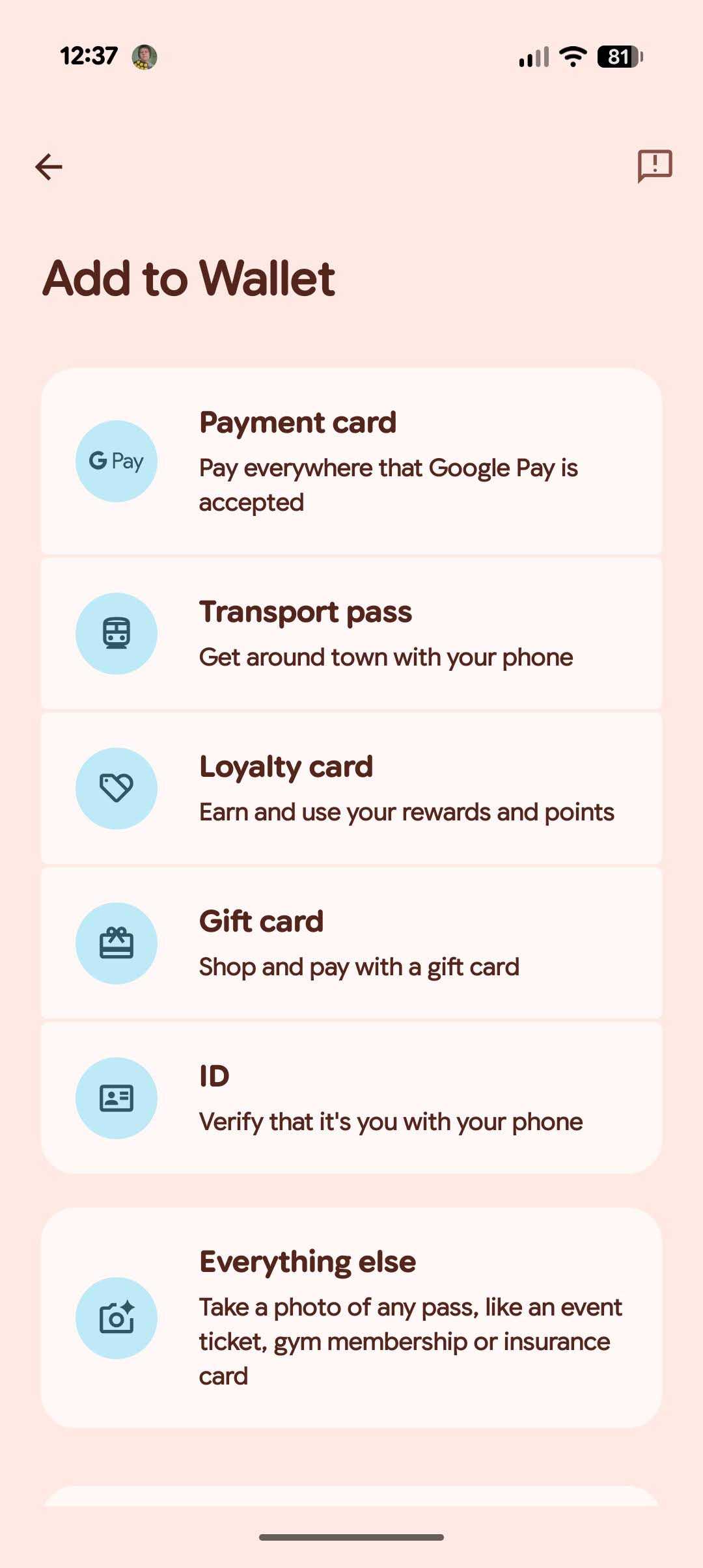
- Access Payment Methods: Tap the "Add to Wallet" button, usually located at the bottom of the main interface.
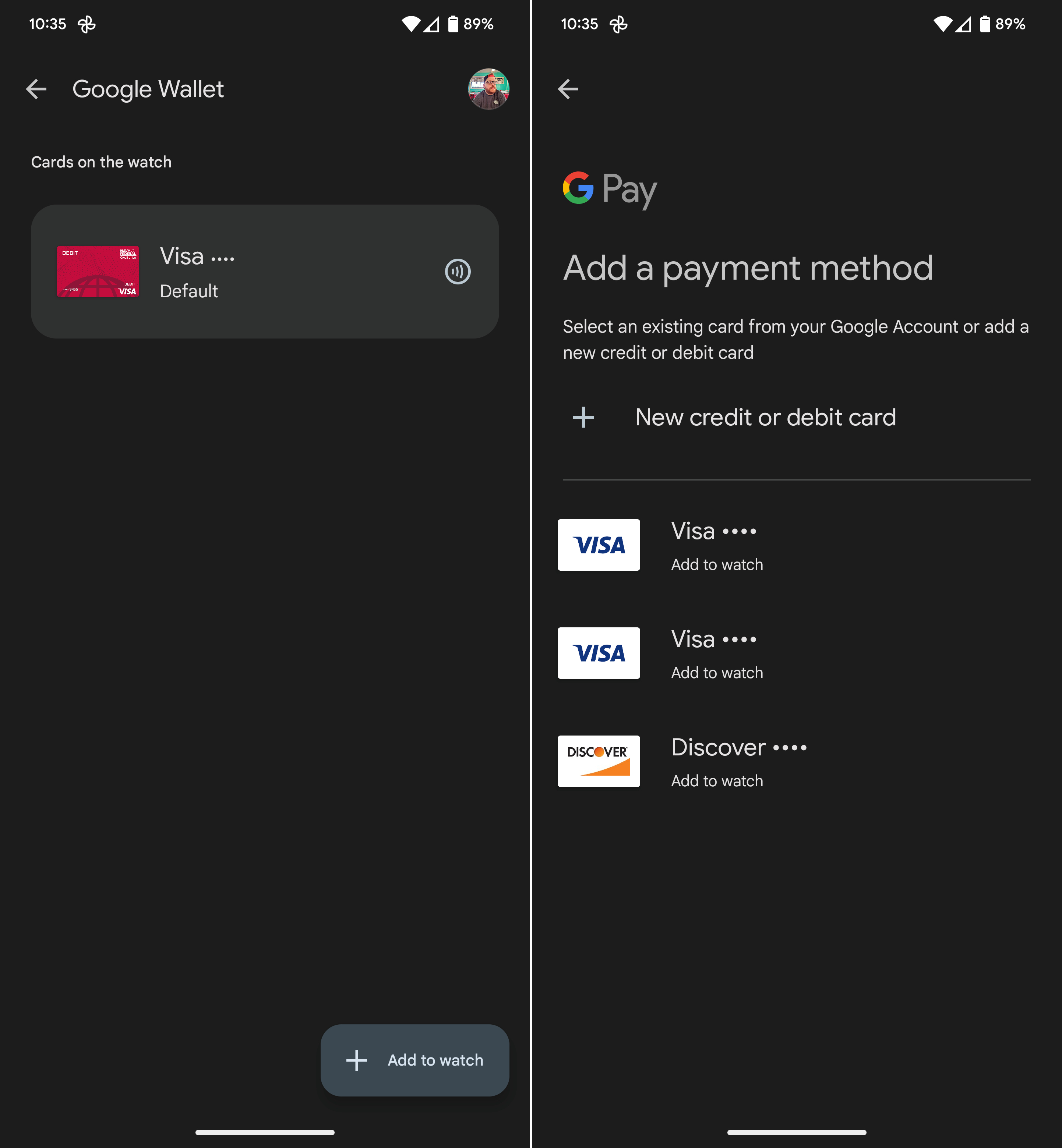
- Select Payment Option: From the list of options, choose "Payment card." You will see an option labeled "PayPal" or "Add PayPal."
- Authorize the Link: You will be redirected to a secure login page. Enter your PayPal credentials. If you have two-factor authentication enabled (which is strongly recommended), you will be prompted to provide your verification code.
- Establish a PIN: You will likely be asked to create a unique Google Pay PIN for your PayPal transactions. This acts as an additional layer of security for physical point-of-sale transactions.
- Confirmation: Once the credentials are confirmed, you will receive a notification in both the Google Wallet app and via email from PayPal confirming that your account has been successfully linked.
Why Use PayPal Within Google Wallet?
Many users wonder why they should bother linking PayPal when they already have credit or debit cards added to Google Wallet. The primary advantage lies in the flexibility of funding sources. PayPal allows you to aggregate multiple bank accounts, credit cards, and your existing PayPal balance in one place. By choosing PayPal as your default or selected payment method in Google Wallet, you are essentially choosing to use the payment logic managed within the PayPal ecosystem.
Furthermore, this setup is beneficial for users who prefer to limit the number of individual bank cards stored directly in Google Wallet. By centralizing everything through PayPal, you only need to manage the security of one account. Should you lose your phone, your primary defense is the Google Pay PIN and the ability to remotely wipe or lock the device, while the underlying PayPal account remains insulated.
Comparison of Payment Methods in Google Wallet
| Feature | Direct Card Addition | PayPal Integration |
|---|---|---|
| Funding Source | Specific Bank Account | PayPal Balance / Linked Cards |
| Merchant Privacy | Standard Tokenization | Enhanced Privacy |
| Transaction Monitoring | Bank Statement | PayPal App & Activity Feed |
| PIN Requirement | Device-Dependent | Dedicated Google Pay PIN |
| Setup Speed | Fast (Manual entry) | Fast (App-to-app handshake) |
Managing Your Linked Account and Troubleshooting
Maintenance of your linked account is minimal, but occasionally errors occur. If you find that transactions are being declined at the point of sale, the first step is to verify that your "preferred" payment method within the PayPal app has sufficient funds or a valid credit line attached. Because Google Wallet simply requests the funds from PayPal, if PayPal denies the request, the transaction will fail.
If you encounter an "authentication error" during the setup, ensure that your PayPal app is updated to the latest version. Older versions of the app may not support the API calls necessary to complete the secure tokenization process required by Google Wallet. If the issue persists, removing the PayPal account from Google Wallet entirely and re-adding it is the standard procedure to clear cached authentication tokens.
Common Troubleshooting Scenarios
- Connection Timeout: This is almost always related to poor network connectivity. Ensure you are not on a restrictive VPN or corporate network that might be blocking the handshake protocols.
- Invalid PIN Errors: If you forget your Google Pay PIN, you may need to navigate to your Google Account security settings to reset your payment profile information.
- Account Not Showing: Verify that your region supports the PayPal-Google Wallet integration. While widely available in North America and much of Europe, specific banking regulations in certain jurisdictions may limit the functionality.
Security Considerations for Digital Wallets
Operating a digital wallet requires an awareness of standard financial security practices. When you add PayPal to Google Wallet, you are effectively extending the security footprint of your PayPal account to your physical device. Always ensure that your Android device is protected by a screen lock—be it biometric, PIN, or pattern.
Google uses a process called tokenization, which means your actual PayPal account number is never shared with the merchant. Instead, a unique virtual account number is created. If a merchant's database were to be compromised, the hackers would only obtain the token, which is useless for unauthorized transactions outside of the specific Google Pay payment environment. This makes using Google Wallet often safer than using a physical plastic card.
Frequently Asked Questions
Is there a fee for using PayPal through Google Wallet?
No, there is generally no additional fee for using PayPal as a payment method through Google Wallet. However, standard transaction fees associated with currency conversion or specific merchant categories within your PayPal terms of service still apply.
Can I use PayPal in Google Wallet if I don't have a balance?
Yes. If your PayPal balance is zero, PayPal will attempt to charge the default payment method you have linked to your PayPal account, such as a bank account or credit card, to fulfill the transaction.
Will I still earn credit card rewards when using PayPal in Google Wallet?
In most cases, yes. If your credit card is linked to your PayPal account and is the source of the funds for the transaction, the card issuer generally treats the transaction as a standard purchase, allowing you to earn your regular reward points or cashback.
What should I do if I lose my phone?
You should immediately use the "Find My Device" service offered by Google to remotely lock your phone or wipe its data. Additionally, you can log in to your PayPal account via a web browser to revoke the digital token associated with the lost device, effectively disabling the wallet remotely.
Can I set PayPal as the default payment method?
Yes. Once added, you can open Google Wallet, go to your payment methods, select PayPal, and toggle the "Default for contactless payments" setting. This ensures that every time you tap your phone at a terminal, it uses your PayPal account first.
Does this work for online shopping as well as in-store?
Yes, the integration allows you to use PayPal via Google Pay for online purchases on websites and apps that support the Google Pay checkout button, in addition to physical NFC-based contactless terminals.
Final Recommendations for Users
To maximize the benefits of this integration, perform a trial transaction at a known, reliable merchant to ensure the setup is working correctly. Before relying on this as your sole method of payment, it is recommended to keep a physical backup, such as a credit card or physical currency, until you are fully confident in the digital flow. Regularly check your PayPal activity feed after using the wallet to ensure your transactions are being processed as expected and to monitor your spending habits. This digital convenience, when managed with a standard level of caution, is one of the most efficient ways to modernize your personal financial management in 2026.