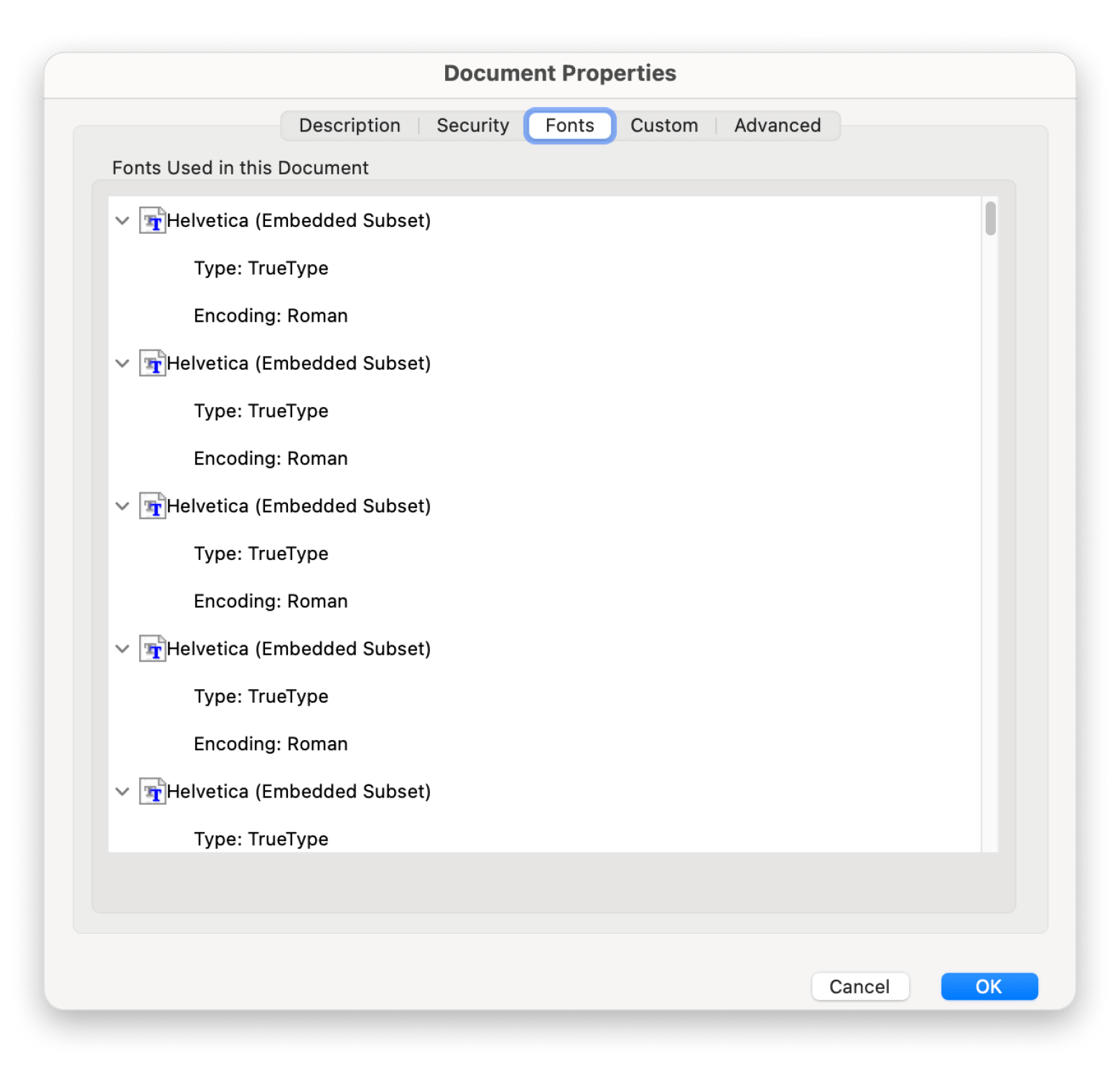
Adding fonts to Adobe Acrobat is a frequently misunderstood task because Acrobat does not function like a word processor where you simply install a font to a system library to make it appear in a dropdown menu. Instead, Adobe Acrobat relies on the fonts already present in your operating system or those embedded within the PDF document itself. When you need to "add" a font to Acrobat, you are typically looking to embed a specific typeface to ensure that a PDF retains its intended appearance across different devices, or you are troubleshooting a document that is failing to display correctly due to missing font data.
To successfully manage fonts in Adobe Acrobat, you must distinguish between system-level font installation and the embedding process within the PDF environment. If you want a font to be available for editing text directly within a PDF, the font must be installed on your Windows or macOS system. If you want to ensure a document displays correctly for recipients, you must embed the font into the file. This guide covers the technical requirements, the distinction between these processes, and the necessary steps to resolve font-related issues.
Understanding the Relationship Between System Fonts and Adobe Acrobat
Adobe Acrobat does not maintain a private font folder. Instead, it queries the font directory of your host operating system. When you open a PDF and choose to "Edit Text," Acrobat searches your computer for a matching typeface. If the font is not installed locally, Acrobat will attempt to perform font substitution, which often results in visual shifts, character replacement, or errors in document layout.
The Role of Operating System Integration
Whether you are using Windows 10/11 or macOS, the procedure for making a font available to Acrobat is identical: you install the font at the system level. Once the operating system recognizes the file—usually in .ttf (TrueType) or .otf (OpenType) formats—Acrobat will automatically populate that font in the formatting pane during text editing.
Why Embedding Matters
Embedding is the process of taking the font file data and saving it inside the PDF file itself. This is critical for portability. If you edit a document using a rare or licensed font and do not embed it, anyone who opens your PDF on a different machine that lacks that font will see a substitute, compromising the visual integrity of your document.
Prerequisites for Adding and Utilizing Fonts
Before attempting to add fonts or modify text in a PDF, verify the following prerequisites to ensure compatibility and legal compliance:
- Administrative Privileges: Installing fonts on Windows or macOS requires administrative rights. If you are on a restricted corporate workstation, you may need to request access from your IT department.
- Licensing Verification: Ensure that the font you are using is licensed for embedding. Some font foundries restrict how their digital files can be distributed. If a font is restricted, it may show an error during the embedding process or prevent the PDF from being saved with the font included.
- PDF/A Compliance: If you are working with long-term archive documents, ensure your fonts are fully embedded. Subsetting—where only the characters used in the document are embedded—is common but can sometimes cause issues with complex archival requirements.
- Acrobat Version: Ensure you are using a current version of Adobe Acrobat (Pro or Standard). Acrobat Reader (the free version) does not provide the advanced editing capabilities required to change fonts or manage document-level font embedding settings.
Step-by-Step: Installing Fonts for System-Wide Availability
To make a font visible and usable for editing in Adobe Acrobat, you must first install it into your operating system.
For Windows Users
- Acquire the Font: Download the font file (usually a compressed .zip folder). Extract the files to reveal the .ttf or .otf file.
- Installation: Right-click the font file and select "Install." Alternatively, you can drag and drop the files into the
C:\Windows\Fontsfolder. - Verification: Once installed, open Adobe Acrobat. If it was already open, you may need to restart the application to force it to re-index the system font directory.
For macOS Users
- Font Book Application: Locate your downloaded font file in Finder.
- Installation: Double-click the font file to open it in "Font Book," then click "Install Font."
- Validation: macOS will validate the font for errors before installation. Once installed, it will appear in the system font library, and subsequently, in the font list within Adobe Acrobat’s Edit Text tool.
Embedding Fonts in Adobe Acrobat
If you are a document creator and need to ensure your fonts travel with the PDF, you must manage embedding settings through the Print production tools or by saving the document in a specific way.
Using the Preflight Tool for Embedding
The most reliable way to ensure fonts are embedded is by using the Preflight tool in Adobe Acrobat Pro:
- Open your PDF in Acrobat Pro.
- Navigate to the Tools center and select Print Production.
- Click on Preflight.
- In the Preflight window, switch to the "Profiles" tab.
- Search for "Embed Fonts." You will find a fix titled "Embed fonts."
- Select the fix and click Fix. Acrobat will then locate any non-embedded fonts in your document and attempt to embed them from your system's font library.
Exporting/Saving with Embedding
When creating PDFs from applications like Microsoft Word or Adobe InDesign, ensure that the export settings are configured to embed fonts. In the PDF settings (often under the "Advanced" or "Options" menu in the print dialogue), look for a setting labeled "Embed all fonts."
Comparison: Embedding vs. Subsetting
When embedding fonts, you are often presented with the option to "Subset." Understanding the difference is vital for file management.
| Feature | Embedding (Full) | Subsetting |
|---|---|---|
| Description | Embeds the entire character set of the font. | Embeds only the characters actually used. |
| File Size | Larger, as it contains all glyphs. | Smaller, optimized for distribution. |
| Editing | Allows full text modification later. | May cause errors if you need to add new text. |
| Best Use | Professional print/Archival. | Web distribution/Email attachments. |
Troubleshooting Common Font Issues
Even after installing or embedding, you may encounter issues where fonts do not appear or look incorrect.
The Font Substitution Problem
If you open a document and see a message saying, "The following fonts are not available and were replaced," this means the original font file is missing from your system. To fix this, you must identify the exact font name, obtain the official font file, and install it on your computer. Replacing a font with a "similar" one often results in tracking and kerning issues that ruin the document's layout.
Corrupt Font Files
Sometimes a font may be installed, but it is corrupted. If Acrobat crashes or the text looks like garbled symbols, try reinstalling the font. Delete the existing version from your system font folder first, restart your machine, and then perform a clean installation of the font file.
Permissions and Licensing Errors
Some professional-grade fonts carry "embedding bits" that forbid the font from being saved inside a PDF. If you receive an error message stating that the font cannot be embedded due to license restrictions, you are legally prevented from using that font in an embedded format. You must either use a different font or convert the text to outlines (shapes) in the original source application before exporting to PDF. Note that converting to outlines prevents the text from being searchable or editable.
Frequently Asked Questions
1. Can I use Adobe Reader to change fonts in a PDF?
No. Adobe Reader is primarily a viewing and annotation tool. To edit existing text or change font attributes in an existing PDF file, you require the paid version, Adobe Acrobat Pro.
2. Why does my text look blurry after embedding?
Blurriness is typically an issue with how the PDF is being rendered by your viewer or the resolution settings used during the creation of the PDF. Ensure you are using high-quality (Type 1 or OpenType) fonts rather than older bitmapped fonts.
3. Will installing new fonts on my computer affect other programs?
Yes. Installing a font at the system level makes it available to all installed applications on your computer, including Microsoft Word, Adobe Photoshop, and web browsers.
4. What is the difference between TTF and OTF?
TrueType Fonts (.ttf) are standard and widely supported. OpenType Fonts (.otf) are more advanced, often containing more characters, ligatures, and better cross-platform compatibility between Windows and macOS. Both are suitable for use in Acrobat.
5. Can I extract a font from a PDF?
Acrobat does not provide a native "extract font" feature because of copyright protections. If you need a font file, you should source it directly from the creator or a licensed font distributor.
Final Recommendations for Workflow Management
To maintain a smooth workflow when working with fonts in Adobe Acrobat, adopt a strategy of Proactive Embedding. Never rely on the system to "find" fonts that were used by another designer or on another machine. Whenever you finalize a document, use the Preflight tool to verify that all fonts are embedded and that no subsetting is creating issues for future edits. If you frequently handle documents with complex fonts, keeping a standard repository of installed company-approved fonts on your workstation will minimize substitution errors and ensure that your PDFs remain professional and compliant with your design standards.