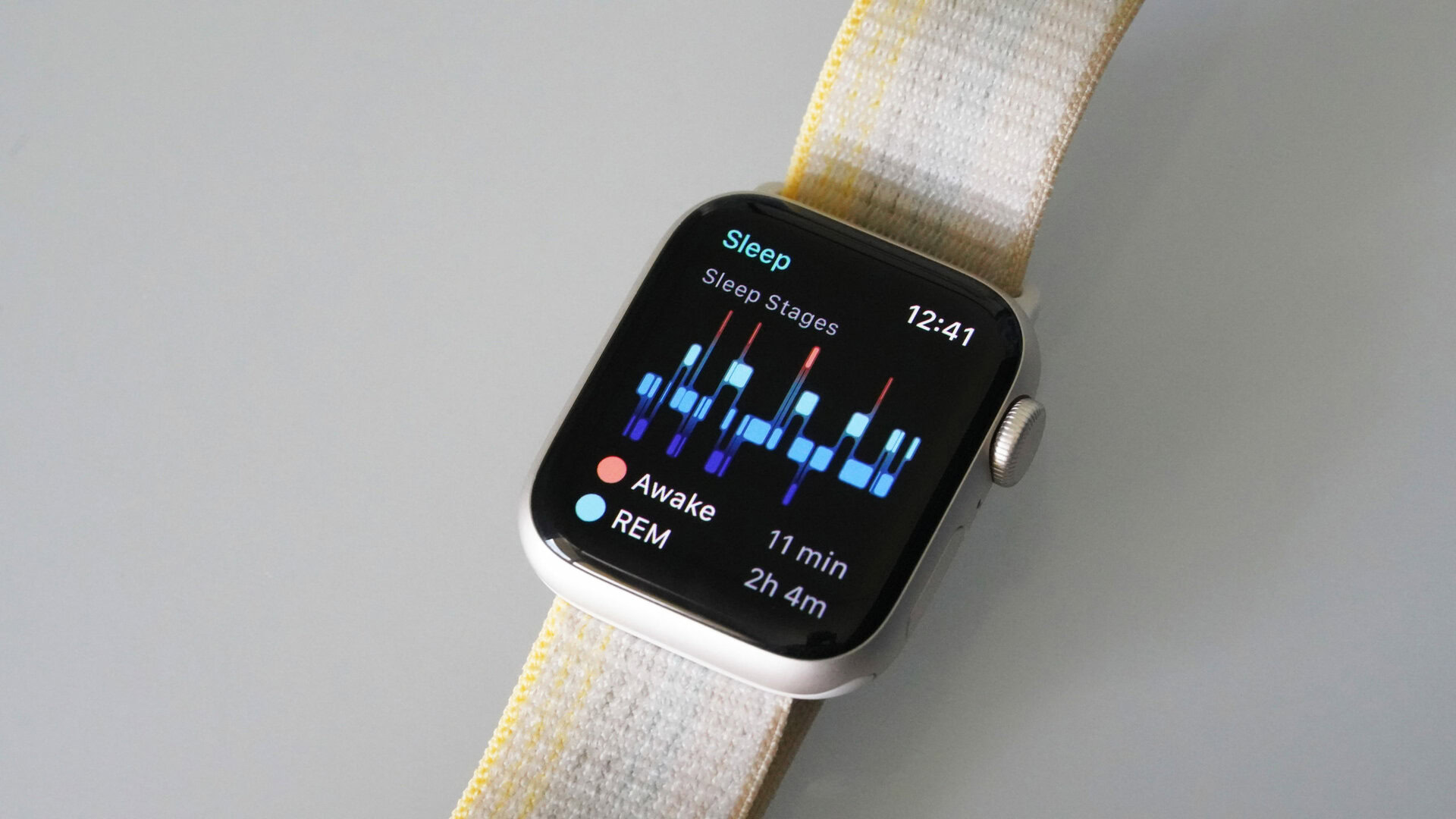
The Apple Watch tracks sleep automatically for most users by utilizing a combination of high-sensitivity accelerometers and optical heart rate sensors to detect shifts in movement and cardiovascular activity. While earlier versions required a strict Sleep Schedule, recent watchOS updates allow the device to identify sleep sessions and naps even when a manual schedule is not active, provided the "Track Sleep with Apple Watch" setting is enabled in the Health app.
For years, the primary criticism of the Apple Watch was its reliance on user input to log sleep. However, as we move through 2026, the integration of advanced machine learning and the refined Vitals app has turned the Apple Watch into a leading passive health monitor. Understanding how this automatic detection works—and how to ensure it remains accurate—is essential for any user looking to optimize their recovery and long-term health.
The Evolution of Automatic Sleep Tracking on Apple Watch
When Apple first introduced native sleep tracking in watchOS 7, it was a "schedule-first" system. Users were required to define a window of time during which they intended to sleep. The watch would then enter a dimmed "Sleep Focus" state, and the sensors would look for data within that specific window. If you fell asleep outside that window, the watch often failed to log the data unless you manually toggled the Sleep Focus mode.
By the release of watchOS 11 and its subsequent iterations leading into 2026, Apple significantly moved the needle toward true automation. The system now uses "Intelligent Detection" to recognize when a user has fallen asleep regardless of the time of day. This was a pivotal shift for shift workers, parents of newborns, and anyone who takes afternoon naps. The "automatic" nature of the device now relies less on a clock and more on the physiological signatures of sleep.
The Hardware Behind the Detection
The Apple Watch does not just "guess" when you are asleep; it uses a suite of sensors to verify your state:
- Accelerometer: This sensor detects micro-movements. Sleep is characterized by long periods of stillness punctuated by specific "toss and turn" movements.
- Optical Heart Sensor (PPG): By measuring heart rate and Heart Rate Variability (HRV), the watch can detect the transition from a resting state to various sleep stages.
- Microphone: Used primarily for detecting respiratory disturbances (and optional snoring detection), the microphone helps the watch understand the environment and the user's breathing patterns.
- Skin Temperature Sensor: Introduced in Series 8 and refined in subsequent models like the Ultra 2 and Series 10, this sensor tracks the natural dip and rise in peripheral temperature that occurs during the circadian rhythm.
How watchOS Identifies "Automatic" Sleep
For most users in 2026, the Apple Watch identifies sleep through a hierarchy of triggers. The most reliable trigger remains the Sleep Focus. When Sleep Focus is active, the watch reduces distractions, dims the display, and prioritizes sleep-stage algorithms.
However, if you forget to turn on Sleep Focus, the watch enters a "Passive Monitoring" mode. In this mode, if the accelerometer detects zero significant movement for a sustained period (usually 10–15 minutes) and the heart rate sensor detects a lower-than-usual resting heart rate combined with specific HRV patterns, the watch flags the period as a "Sleep Session."
The Role of the Vitals App
A major development in the 2024–2026 era of watchOS is the Vitals app. This app acts as a centralized dashboard for the "automatic" data collected overnight. It doesn't just tell you that you slept; it compares your overnight metrics—heart rate, respiratory rate, wrist temperature, and blood oxygen—against your established baseline. If the watch detects that your metrics are "Out of Range" while you were automatically tracked, it provides context, such as whether the deviation might be due to alcohol consumption, illness, or significant elevation changes.
Setting Up Your Apple Watch for Maximum Automation
While the Apple Watch tracks sleep automatically for most users, there are specific settings that must be toggled to ensure the background processes are running. If these are disabled, the sensors will not collect the necessary data to form a sleep analysis.
1. Enable Sleep Tracking in the Health App
To ensure your watch is ready to track:
- Open the Health app on your paired iPhone.
- Tap Browse and select Sleep.
- Scroll down to Full Schedule & Options.
- Ensure Track Sleep with Apple Watch is toggled ON.
2. Managing Sleep Focus
Even though the watch can detect sleep without it, using a Sleep Schedule is still recommended for "most users" because it automates the Sleep Focus toggle. When Sleep Focus is on, the watch uses less battery by keeping the screen off, and it increases the frequency of heart rate sampling, which leads to more granular sleep stage data (REM, Core, Deep).
3. Battery Considerations
One of the few barriers to automatic tracking is the battery level. For the Apple Watch to track a full night of sleep, it typically requires at least 30% battery life before you go to bed. In 2026, with the fast-charging capabilities of the Series 10 and Ultra models, a 15-minute "top-off" while brushing your teeth is usually sufficient to power the sensors through an 8-hour sleep session.
Understanding Sleep Stages and Data Accuracy
Once the Apple Watch automatically logs your sleep, it categorizes the time spent into four distinct categories. This is achieved through a machine-learning model trained against gold-standard polysomnography (sleep lab) data.
| Sleep Stage | Physical Indicators | Importance |
|---|---|---|
| Awake | Brief movements, spikes in heart rate, high accelerometer activity. | Normal to have brief "awake" moments that you don't remember. |
| REM | Increased heart rate variability, rapid eye movement (noted by micro-vibrations), muscle atonia. | Critical for memory consolidation and emotional regulation. |
| Core (Light) | Stable heart rate, decreased body temperature, minimal movement. | The "maintenance" phase of sleep; makes up the bulk of the night. |
| Deep (NREM) | Lowest heart rate, very steady breathing, zero movement. | Essential for physical recovery, tissue repair, and immune function. |
Accuracy of Automatic Naps
Prior to watchOS 11, naps were a "blind spot" for the Apple Watch. In the current 2026 ecosystem, naps are tracked automatically if they exceed 15 minutes. These sessions appear in the Health app as "Sleep" but are often segmented from your "Main Sleep" session to avoid skewing your overnight averages. This is particularly useful for tracking "sleep debt" recovery during the day.
Common Obstacles to Automatic Sleep Tracking
Even though the system is designed to be seamless, certain factors can prevent the Apple Watch from tracking sleep automatically for most users.
Improper Fit
The optical heart rate sensor requires consistent contact with the skin. If the watch band is too loose, the sensor may experience "light leakage," preventing it from accurately reading your pulse. This often results in "gaps" in your sleep graph where no stage data is recorded. For the best results, the watch should be snug—not tight—about one finger's width above the wrist bone.
Focus Mode Conflicts
If you have a custom Focus mode active (such as a "Gaming" or "Reading" focus) that does not allow for the transition into Sleep Focus, the watch might prioritize the active focus over the sleep detection algorithms. Ensure that your "Sleep" schedule is set to override other Focus modes in the Settings > Focus menu on your iPhone.
Third-Party App Interference
While apps like AutoSleep or Sleep Cycle are popular, they sometimes use different "write" permissions in the Health app. If you have multiple apps trying to define your sleep state, the Health app may experience data conflicts. Most users find that the native Apple "automatic" tracking is now robust enough that third-party "automatic" triggers are no longer necessary for basic logging.
Comparing Apple's Automatic Tracking to Competitors
By 2026, the landscape of wearable sleep tracking has become highly competitive. However, Apple's approach remains unique due to its integration with the broader medical ecosystem (via the Health Records API).
- Apple Watch: Focuses on "Vitals" and deviations from a baseline. Highly accurate sleep stage transitions but requires daily charging for most non-Ultra models.
- Oura Ring: Excellent at automatic detection due to its form factor but lacks the active "Sleep Focus" interface of a watch.
- Whoop: Deeply focused on recovery and strain, though it lacks a screen, making it a purely passive tracker.
- Garmin: Provides "Body Battery" metrics, which are similar to Apple’s Vitals, but Garmin’s sleep stage detection is often cited as being more sensitive to movement than heart rate fluctuations.
Advanced Features: Sleep Apnea and Respiratory Tracking
A significant reason why "automatic" tracking is so critical in 2026 is the detection of Sleep Apnea. Apple introduced Sleep Apnea notifications (available on Series 9, Ultra 2, and newer) that analyze "Breathing Disturbances" over a 30-day period.
This feature only works if the watch tracks your sleep automatically. It looks for patterns of "elevated" breathing disturbances that occur while the user is asleep. If the watch identifies a consistent pattern over multiple weeks, it prompts the user to consult a physician. This move from "tracking for fun" to "tracking for clinical insight" is why ensuring your watch is correctly configured for automatic tracking is more than just a matter of convenience—it is a matter of proactive health screening.
Troubleshooting: What to Do If Sleep Isn't Tracking
If you find that your Apple Watch is not tracking sleep automatically, follow this checklist:
- Check the "Sleep" Focus: Ensure you haven't manually disabled it.
- Verify "Wrist Detection": Go to Settings > Passcode on the Watch. If Wrist Detection is off, the watch won't track any health metrics automatically.
- Update Software: Ensure both your iPhone and Apple Watch are running the latest versions of iOS and watchOS available in 2026.
- Re-Calibrate Sensors: Sometimes, a simple restart of both devices re-initializes the accelerometer and PPG sensor communication.
Frequently Asked Questions
Does the Apple Watch track naps automatically in 2026?
Yes. Since the release of watchOS 11, the Apple Watch has the capability to detect and log naps automatically without requiring the user to enter a Sleep Focus mode or set a schedule. These naps are recorded in the Health app and contribute to your total sleep data for the 24-hour period.
Do I have to turn on "Sleep Mode" every night?
No. While "Sleep Mode" (Sleep Focus) helps by silencing notifications and saving battery, the Apple Watch can still detect your sleep stages automatically through passive sensor monitoring, provided "Track Sleep with Apple Watch" is enabled in your settings.
Why is there a gap in my sleep stage data?
Gaps usually occur due to a loose watch band or the watch being positioned too far down the wrist. If the sensors lose contact with your skin, they cannot collect the heart rate variability data required to determine if you are in REM, Core, or Deep sleep.
Can the Apple Watch detect sleep if I'm just lying still watching a movie?
The watch uses heart rate and heart rate variability (HRV) in conjunction with movement. While lying perfectly still might occasionally trigger a "Core Sleep" log, the watch is usually intelligent enough to differentiate between the heart rate signature of a conscious, resting person and a sleeping person.
How much battery does automatic sleep tracking use?
On average, a full night of sleep tracking (8 hours) uses between 10% and 15% of the battery on a standard Apple Watch Series 10. The Apple Watch Ultra 2 and subsequent Ultra models use significantly less, often only 5% to 8% per night.
Summary Recommendation
For the best experience, most users should set a Sleep Schedule for their typical week but rely on the automatic detection for weekends or naps. This hybrid approach ensures that your "Vitals" baseline is consistently updated while giving you the flexibility to sleep in or rest during the day without manual logging. By 2026, the Apple Watch has evolved into a device that understands the context of your rest, making it an indispensable tool for both casual users and those monitoring serious health conditions.