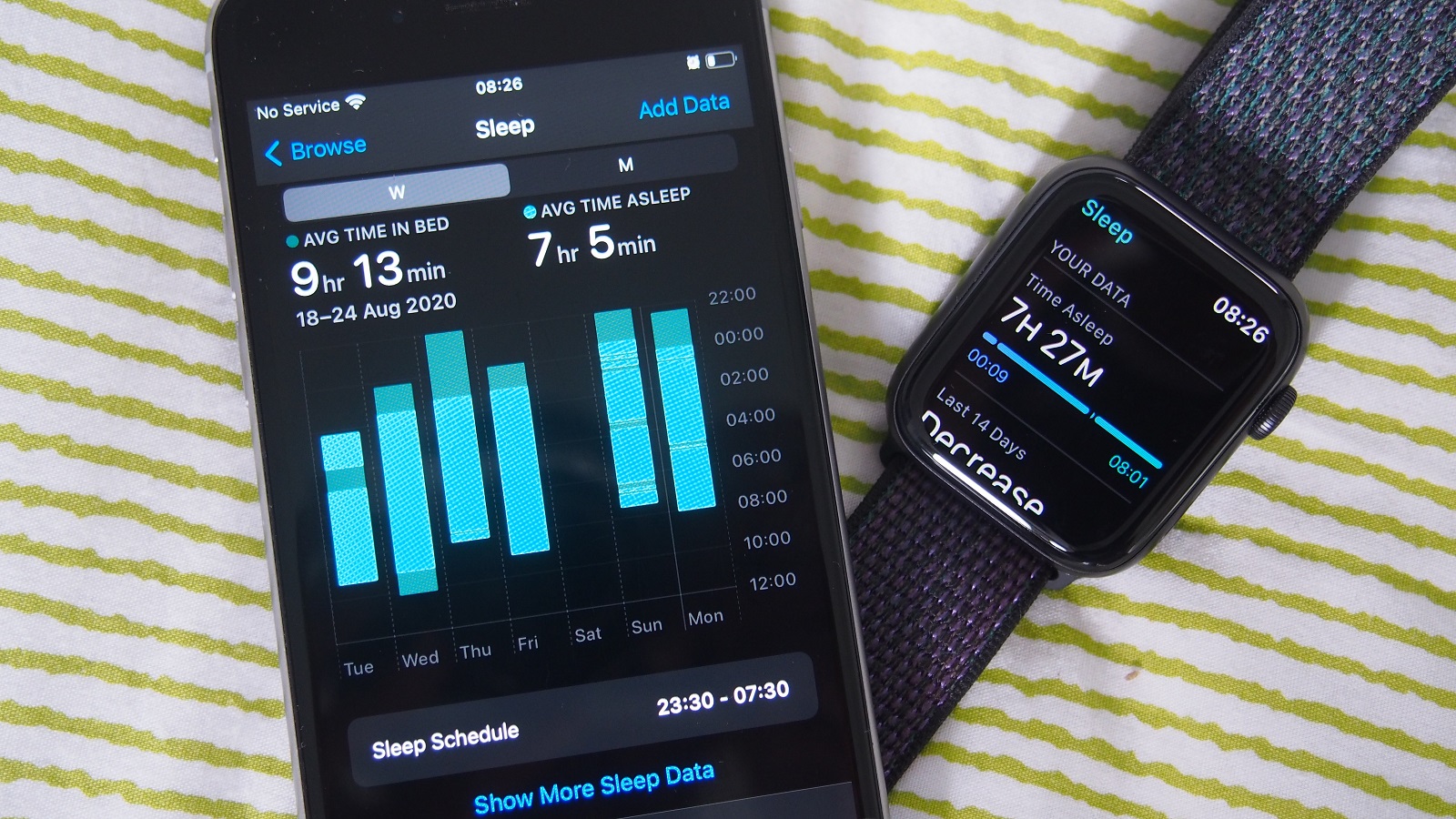
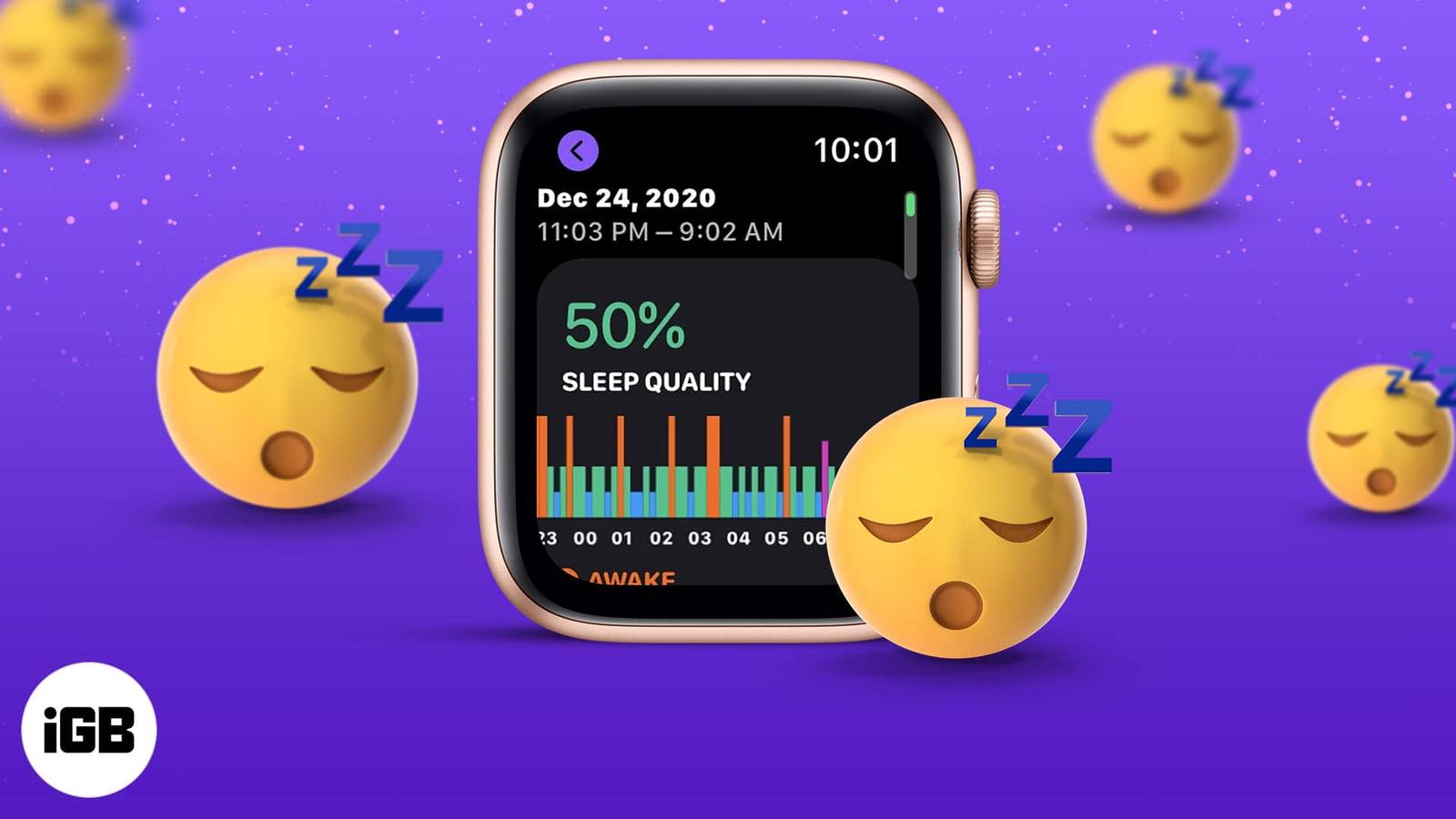
The Apple Watch tracks sleep automatically, but the "myth" stems from how it historically required manual "Sleep Focus" or pre-set schedules to trigger data collection. As of 2026, while the hardware detects sleep and naps through sensor fusion without user input, active schedules remain necessary for the most granular sleep-stage insights and battery management.
Understanding the "Automatic" Debate: Defining Apple’s Approach
For years, the primary criticism of the Apple Watch compared to competitors like Fitbit or Oura was its perceived inability to "just know" when a user had fallen asleep. In the early days of watchOS, if you didn't tell the watch you were going to bed by enabling a specific mode, you often woke up to a blank health graph. This led to a persistent myth: that the Apple Watch is incapable of automatic sleep tracking.
In 2026, the reality is more nuanced. Apple has transitioned from a strictly manual, schedule-based system to a hybrid model. The "fact" is that the device uses a sophisticated array of sensors to detect physiological changes associated with sleep. However, the "myth" persists because the Apple Watch still prioritizes user-defined "Sleep Focus" sessions to minimize distractions and optimize the precision of sleep stage algorithms.
To understand why this distinction exists, we must look at how the Apple Watch differentiates between "sleep detection" (knowing you are asleep) and "sleep tracking" (analyzing the quality and stages of that sleep). While the former is now largely automatic—including the much-requested automatic nap detection introduced in watchOS 11—the latter still performs best when the watch is explicitly told that the user is intending to rest for the night.
How Apple Watch Sleep Tracking Works Technically
The Apple Watch does not use a single "sleep sensor." Instead, it employs a process called sensor fusion, which combines data from several internal components to determine your state of consciousness.
The Accelerometer and Actigraphy
The primary tool for sleep detection is the triaxial accelerometer. This sensor measures movement in three dimensions. By using actigraphy—the study of human rest/activity cycles—the watch identifies periods of prolonged stillness. Machine learning models trained on thousands of clinical sleep study hours help the watch distinguish between someone sitting still watching a movie and someone in the early stages of sleep.
Optical Heart Rate Sensor (PPG)
Photoplethysmography (PPG) uses green and infrared lights to measure blood flow at the wrist. During sleep, the heart rate typically slows, and Heart Rate Variability (HRV) increases. The Apple Watch monitors these shifts to confirm that the physical stillness detected by the accelerometer is indeed sleep and not just sedentary behavior. In 2026 models, such as the Series 11 and Ultra 3, these sensors have become sensitive enough to detect the subtle changes in respiratory rate that occur during various sleep cycles.
The Vitals App and Baseline Data
Integrated into the sleep ecosystem is the Vitals app. This feature, which became a staple in the Apple health suite, uses sleep as the primary window to establish your physiological baseline. It measures heart rate, respiratory rate, wrist temperature, and blood oxygen levels (where legally available). Because the Vitals app requires a consistent environment to provide accurate health alerts, it relies on the data collected during the "automatic" sleep window to inform you if your metrics are "out of range."
Myth vs. Fact: Debunking Common Misconceptions
There is significant confusion regarding what the Apple Watch can do "out of the box" versus what requires configuration. Let’s address the most common claims.
Myth 1: You must set a "Sleep Schedule" for the watch to track anything.
Fact: This is no longer true. While a Sleep Schedule helps automate the process and ensures your phone stays quiet, the Apple Watch (running watchOS 11 or later) will detect sleep and naps even if no schedule is active. If you fall asleep on the couch on a Sunday afternoon, the watch will identify that period of rest and log it in the Health app.
Myth 2: Third-party apps are required for automatic tracking.
Fact: Before 2020, apps like AutoSleep or Pillow were essential for automatic logging. Today, the native Apple Sleep app handles automatic detection quite well. However, third-party apps are still popular because they often provide a different "read" on the data, such as a "readiness score" or "sleep bank" metrics that Apple’s conservative Health app avoids.
Myth 3: The Apple Watch cannot track naps.
Fact: This was a fact for nearly a decade, but it is now a myth. Since 2024, Apple has supported automatic nap detection. As long as the watch detects the necessary physiological shifts for a period longer than approximately 15–20 minutes, the rest period is logged. It will appear in the "Sleep" section of the Health app, categorized as a sleep session outside of your primary schedule.
Myth 4: Automatic tracking is just as accurate as Sleep Focus tracking.
Fact: This is technically a myth. When Sleep Focus is active, the watch enters a low-power state for the screen and restricts background processes. This allows the processor to dedicate more "attention" to the high-frequency sampling required for sleep stage analysis (REM, Core, and Deep sleep). Without Sleep Focus, the watch may still log the duration of sleep, but the granularity of the stages can occasionally be less precise.
Comparison: Automatic Detection vs. Manual/Scheduled Tracking
To help decide how to use your device, the following table compares the two primary ways the Apple Watch handles sleep data in 2026.
| Feature | Automatic Detection (No Focus) | Scheduled / Sleep Focus Active |
|---|---|---|
| Sleep Duration | Logged automatically via sensor fusion. | Logged based on intent and detection. |
| Sleep Stages (REM, Deep) | Generally available, but may lack precision. | High-precision sampling; most accurate. |
| Nap Detection | Fully supported (15+ minutes). | Not applicable (usually for long rest). |
| Screen Behavior | Remains active/Always-On (unless dimmed). | Automatically enters simplified Sleep Face. |
| Notifications | Will bypass unless "Do Not Disturb" is on. | Automatically silenced/filtered. |
| Vitals Integration | Contributes to baseline data. | Primary source for "Out of Range" alerts. |
| Battery Impact | Standard background drain. | Optimized for overnight longevity. |
Setting Up for Success: How to Optimize Your Data
While the Apple Watch has become "more automatic," users who want the most actionable data should still utilize the built-in tools. Relying purely on automatic detection can lead to "noisy" data if you are someone who lies in bed scrolling through your phone for an hour before actually sleeping.
Creating a Sleep Goal
In the Health app on your iPhone, you can set a sleep goal (e.g., 8 hours). This doesn't force the watch to track, but it provides a benchmark for your data. When the watch detects sleep automatically, it compares the duration against this goal to give you a "Consistency" score.
The Role of the "Wind Down" Period
The "Wind Down" feature is an underrated part of the Apple Sleep ecosystem. By setting a Wind Down period 30–45 minutes before your scheduled bedtime, the watch begins to reduce blue light exposure and suggests relaxing apps (like meditation or journaling). This period helps the sensors detect the transition from "active" to "resting" more clearly, which improves the accuracy of the "Time to Fall Asleep" metric.
Wrist Placement and Sensor Contact
For automatic tracking to work, the sensors must maintain consistent contact with the skin. If the band is too loose, the optical heart rate sensor may experience "light leakage," leading to gaps in data. This is often the culprit when users claim their watch "didn't track sleep last night" despite wearing it.
Troubleshooting Automatic Sleep Tracking Issues
If you find that your Apple Watch is failing to log sleep automatically, several software and hardware factors might be at play.
- Check "Track Sleep with Apple Watch": Navigate to the Watch app on your iPhone -> Sleep. Ensure that "Track Sleep with Apple Watch" is toggled on. If this is off, all automatic detection is disabled.
- Review Privacy Settings: Sometimes, heart rate or motion tracking can be accidentally disabled. Go to Settings -> Privacy & Security -> Motion & Fitness to ensure "Fitness Tracking" is on.
- The 14% Battery Rule: Historically, Apple Watches would not track sleep if the battery was below 10–14% at the start of the night. While 2026 models have improved efficiency, it is still a best practice to have at least 20% charge before sleeping to ensure the sensors don't shut down mid-night to preserve basic watch functions.
- Software Updates: Ensure you are on the latest version of watchOS. Apple frequently pushes "algorithm refinements" that improve the machine learning models used for sleep detection.
Why Apple Doesn't Go "Full Automatic" Like Others
Users often ask why Apple still pushes for schedules when Fitbit or Garmin seem more hands-off. The answer lies in Apple’s philosophy of Battery Health and User Intent.
By encouraging a Sleep Focus, Apple ensures the Always-On display turns off, saving significant battery life over an 8-hour period. Furthermore, Apple’s Health app is designed to be a "clinical-grade" repository. They prefer "intentional data" (knowing you meant to sleep) over "inferred data" (guessing you were sleeping because you weren't moving). This reduces the instances of "false positives," such as the watch logging a long movie session as a two-hour nap.
Frequently Asked Questions
Does the Apple Watch track sleep if I don't turn on Sleep Mode?
Yes, the Apple Watch will still track your sleep duration and some stage data even if you do not manually turn on Sleep Mode (Sleep Focus). However, the device is more likely to be interrupted by notifications, and the display will not automatically dim, which can affect your sleep quality and battery life.
Can Apple Watch detect sleep apnea automatically?
In 2024, Apple introduced sleep apnea notifications (on Series 9, 10, 11, and Ultra 2/3). This feature works automatically by analyzing "Breathing Disturbances" over a 30-day period. It does not require a manual start, but it does require you to wear the watch consistently during sleep for the algorithm to collect enough data to issue a notification.
How long of a nap does the Apple Watch need to detect it?
Typically, the Apple Watch requires at least 15 to 20 minutes of consistent sleep-state data to log a nap. Very short "power naps" of 5 or 10 minutes may not be recorded because the heart rate and respiratory changes haven't reached a sustained baseline long enough to differentiate the nap from deep relaxation.
Does automatic sleep tracking drain the battery faster?
No, the sensors used for sleep tracking (accelerometer and heart rate) are already active for other background health monitoring. Using Sleep Focus actually saves battery by disabling the screen and limiting background app refreshes. Relying on "automatic" tracking without Sleep Focus will result in slightly higher battery consumption because the screen remains in its standard state.
Why did my Apple Watch stop tracking sleep after an update?
This is usually due to a reset in permissions or a requirement to re-calibrate. First, check the Health app on your iPhone to see if there is a prompt to "Finish Setting Up Sleep." Sometimes, new privacy terms or feature updates require user consent before the watch can resume automatic data collection.
Final Recommendation
To get the most out of your Apple Watch in 2026, treat the "automatic" features as a safety net rather than the primary method. While it is a fact that the watch can detect sleep and naps on its own, you will receive more accurate, actionable data by setting a loose Sleep Schedule or manually toggling the Sleep Focus when you hit the pillow. This ensures the sensors are optimized for high-fidelity stage tracking and that your health baseline in the Vitals app remains a reliable indicator of your overall wellbeing.