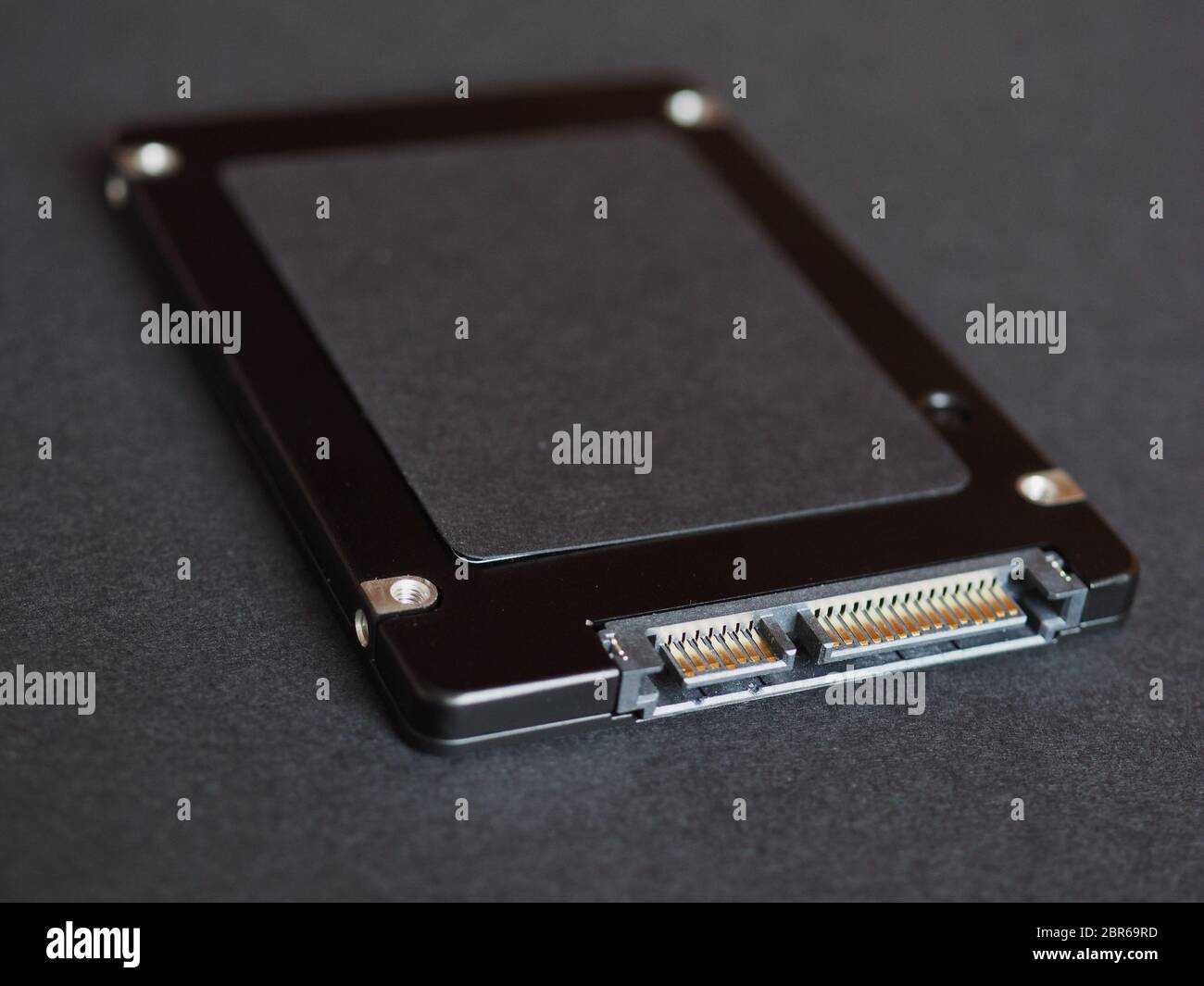
In modern computing, "another drive" typically refers to a secondary storage device—such as a high-capacity NVMe SSD, a SATA solid-state drive, or a network-mapped volume—used alongside the primary boot drive. This secondary unit offloads data-heavy tasks, hosts massive media libraries, and ensures system stability by separating the operating system from user-generated content and high-bandwidth applications.
Modern computing environments have evolved far beyond the single-disk architecture of the early 2000s. Today, the presence of a second, third, or even fourth drive is not merely a luxury for enthusiasts but a functional necessity for professionals, gamers, and even casual users who consume high-definition media. Whether it is a physical M.2 module tucked away on a motherboard or a virtual volume synced through high-speed fiber, the "other drive" is the backbone of digital organization and performance optimization.
The Evolution of Multi-Drive Architectures
The concept of "another drive" has transitioned through several technological epochs. In the 1990s and early 2000s, adding a second drive usually meant installing a mechanical Hard Disk Drive (HDD) via a bulky PATA or SATA cable. These drives were slow, prone to mechanical failure, and primarily used because the primary drive was too small to hold more than a few programs.
By 2026, the landscape is dominated by NVMe (Non-Volatile Memory Express) technology. The primary drive, often referred to as the "Boot Drive" or "C: Drive" in Windows environments, is typically a high-speed PCIe Gen5 or Gen6 NVMe SSD. This drive is optimized for low latency and high IOPS (Input/Output Operations Per Second) to ensure the operating system and essential applications load instantly.
The "other drive"—the secondary storage—is where the real diversity lies. Depending on the user’s needs, this might be a high-capacity QLC (Quad-Level Cell) SSD that prioritizes storage density over extreme speed, or perhaps a legacy HDD for cold storage of archival data. The fundamental shift in modern computing is the move toward tiered storage, where data is intelligently distributed across different physical drives based on how often it is accessed and how much performance is required to utilize it.
Why Systems Benefit from a Secondary Drive
Adding another drive to a workstation or gaming rig serves multiple strategic purposes. While a single large drive is possible, splitting your data across multiple physical or logical units provides several key advantages:
Performance and Bandwidth Distribution
When the operating system (OS) and a high-demand application (like a video editor or a modern AAA game) are on the same physical drive, they compete for the same controller bandwidth and IOPS. By moving the application or its data cache to another drive, you effectively double the available lanes for data transit. In 2026, with PCIe 6.0 platforms becoming more common, a secondary drive can operate at speeds exceeding 25,000 MB/s, ensuring that even the most demanding 16K video assets or complex AI models do not throttle the OS.
Data Security and System Recovery
The "other drive" serves as a crucial safety net. If an operating system becomes corrupted or a primary boot drive fails, data stored on a secondary drive remains untouched. For professionals, this means that a system crash during a Windows update or a driver conflict does not result in the loss of project files. You can simply wipe and reinstall the OS on the primary drive, and your secondary drive’s data will be ready for access the moment the system is back online.
Specialized Workflows
For content creators, the "other drive" is often a dedicated "Scratch Disk." Applications like Adobe Creative Cloud or Blackmagic DaVinci Resolve require temporary space to store cache files during rendering. Using a dedicated high-speed SSD for this purpose prevents the primary drive from being filled with temporary data, which can slow down system performance due to "SSD exhaustion" or "write amplification."
Technical Specifications and Standards in 2026
When selecting or configuring another drive in the current technological climate, understanding the interface and protocol is paramount. As of 2026, several standards define how these drives communicate with the rest of the system.
NVMe 2.0 and Beyond
Most modern secondary drives utilize the NVMe 2.0 protocol. This version of the standard introduced "Zoned Namespaces" (ZNS), which allows the SSD and the host system to collaborate on data placement. This reduces write amplification and extends the lifespan of the drive—a critical feature for secondary drives that handle large amounts of data movement.
PCIe Gen5 and Gen6 Interfaces
While PCIe Gen4 remains the baseline for budget-friendly secondary storage, enthusiasts and professionals are moving toward Gen5 and Gen6.
- PCIe Gen5: Provides up to 14,000 MB/s. Ideal for secondary gaming drives utilizing DirectStorage technology.
- PCIe Gen6: Emerging in 2026, this interface doubles the bandwidth of Gen5, making it the preferred choice for local AI training sets and high-end server-grade expansion.
Form Factors: M.2, E1.S, and U.2
The traditional 2.5-inch SATA SSD is now largely relegated to legacy support or ultra-high capacity (30TB+) bulk storage. The M.2 2280 form factor is the standard for most "other drives" in laptops and desktops. However, in the enterprise and high-end workstation segment, we see a rise in E1.S and U.2 drives. These are thicker and offer better thermal management, allowing for sustained high-performance writes that would cause a standard M.2 drive to throttle.
Comparison Table: Primary vs. Secondary Storage Characteristics
| Feature | Primary (Boot) Drive | Secondary (Data/Storage) Drive |
|---|---|---|
| Primary Goal | Low latency, fast boot times | High capacity, sustained throughput |
| Common Capacity | 512GB – 2TB | 4TB – 32TB |
| Typical Interface | PCIe Gen5/Gen6 NVMe | PCIe Gen4/Gen5 or SATA III |
| NAND Type | SLC or MLC (Higher endurance) | TLC or QLC (Higher density) |
| Data Types | OS files, apps, system registry | Games, media, backups, archives |
| Replacement Cycle | Every 3-5 years | Every 5-8 years (workload dependent) |
Practical Guide: Initializing and Optimizing Your Second Drive
When you install another drive, it doesn't always appear automatically in your file explorer. In modern operating systems like Windows 11 or the newer Windows 12 (released in late 2024), there are specific steps required to make the storage usable.
1. Hardware Installation and BIOS Verification
Ensure the drive is firmly seated in the M.2 slot or connected via the appropriate cable. Upon booting, enter the UEFI/BIOS to ensure the motherboard recognizes the device. In 2026, many motherboards require you to enable "Bifurcation" if you are using a PCIe riser card to add multiple NVMe drives to a single slot.
2. Initializing the Drive
In Windows, you must use the Disk Management tool or the Settings > System > Storage menu. New drives will appear as "Unallocated Space."
- GPT vs. MBR: Always choose GPT (GUID Partition Table). MBR is a legacy standard that cannot handle drives larger than 2TB and is incompatible with modern UEFI security features.
- File System Selection: For internal drives, NTFS remains the standard, but ReFS (Resilient File System) is increasingly popular for secondary drives used for large data arrays due to its ability to automatically detect and repair data corruption.
3. Allocation Unit Size (Cluster Size)
If you are using the drive exclusively for large files (like 8K video or large game installs), increasing the cluster size to 64KB or higher can slightly improve read performance and reduce file fragmentation. For a general-purpose secondary drive, the default 4KB is usually sufficient.
4. Optimization (TRIM)
Unlike HDDs, SSDs do not need defragmentation. In fact, defragmenting an SSD reduces its lifespan. Instead, ensure that the TRIM command is active. This allows the OS to inform the SSD which blocks of data are no longer in use, allowing the drive's controller to manage space efficiently.
The Rise of Virtual and Network-Attached "Other" Drives
In 2026, "another drive" does not always have to be a physical piece of hardware inside your computer. The integration of high-speed networking (Wi-Fi 7 and 10Gbps Ethernet) has made external and network storage feel as fast as internal drives.
NAS (Network Attached Storage)
A NAS acts as a private cloud. For many users, their "other drive" is actually a RAID array located in a different room or even a different building. With modern protocols like SMB 4.0, a NAS can be mapped as a local drive letter (e.g., Z:), providing terabytes of redundant storage that is accessible by every device in the household or office.
Cloud-Local Hybrids
Services like OneDrive and specialized block-storage providers now offer "Hydrated Storage." This technology makes the cloud appear as another physical drive in your system. While the files are technically stored on a server, the most frequently used data is cached locally. In 2026, with the ubiquity of satellite-based high-speed internet and 6G cellular networks, the distinction between a local "other drive" and a cloud-based one has become almost invisible to the end-user.
Troubleshooting Common Issues
Despite the advancements in plug-and-play technology, adding another drive can occasionally present challenges.
- Drive Not Showing in BIOS: This is often a power delivery issue or a conflict in PCIe lane sharing. Many motherboards disable certain SATA ports if the secondary M.2 slot is occupied. Consult your motherboard manual to ensure you aren't using a "shared" lane.
- Thermal Throttling: High-performance NVMe drives generate significant heat. If your "other drive" slows down during large file transfers, it may be overheating. Ensure it has a heatsink, as Gen5 and Gen6 drives can reach temperatures above 80°C without active or significant passive cooling.
- Letter Assignment Conflicts: Sometimes, a new drive will try to claim a drive letter already reserved by a hidden partition or a mapped network drive. You can manually reassign the letter via Disk Management to resolve this.
Frequently Asked Questions
Can I install games on another drive without losing performance?
Yes. In the 2026 computing landscape, as long as the secondary drive is an NVMe SSD (at least PCIe Gen4), you will notice virtually no difference in load times or gameplay compared to the primary drive. In fact, using a separate drive for games can improve overall system responsiveness by reducing contention for the boot drive’s resources.
Is it better to have one large 8TB drive or two 4TB drives?
From a performance and redundancy standpoint, two 4TB drives are generally superior. Having two drives allows for simultaneous data streams and ensures that if one drive fails, the data on the other remains safe. However, one large drive is often more power-efficient and easier to manage in laptops with limited expansion slots.
What is the lifespan of a modern secondary SSD?
Most consumer-grade secondary SSDs in 2026 are rated for approximately 600 to 1,200 TBW (Terabytes Written) per 1TB of capacity. For a typical user, this equates to over a decade of use. If the drive is used primarily for "cold storage" (reading data rather than constantly writing it), the lifespan is even longer.
Do I need a special driver for my second NVMe drive?
Most drives use the standard NVMe driver built into Windows or macOS. However, some high-performance manufacturers (like Samsung or Western Digital) provide proprietary drivers that can unlock advanced features, better thermal monitoring, and slightly improved burst speeds. It is always recommended to check the manufacturer's website for an "SSD Dashboard" or specific driver package.
Next Steps for Storage Expansion
If you are considering adding another drive to your system, your first action should be to verify the available interfaces on your motherboard or laptop. Check for an open M.2 slot or a USB4/Thunderbolt 5 port for external expansion. Once the hardware is confirmed, prioritize a drive that matches your primary use case—higher IOPS for applications and gaming, or higher capacity and durability for archival storage.
As we move deeper into the 2020s, the "other drive" will continue to evolve from a simple storage bin into an intelligent, high-speed extension of the system's memory hierarchy. By understanding the technical requirements and optimization strategies outlined here, you can ensure your computing environment remains fast, organized, and resilient against data loss.