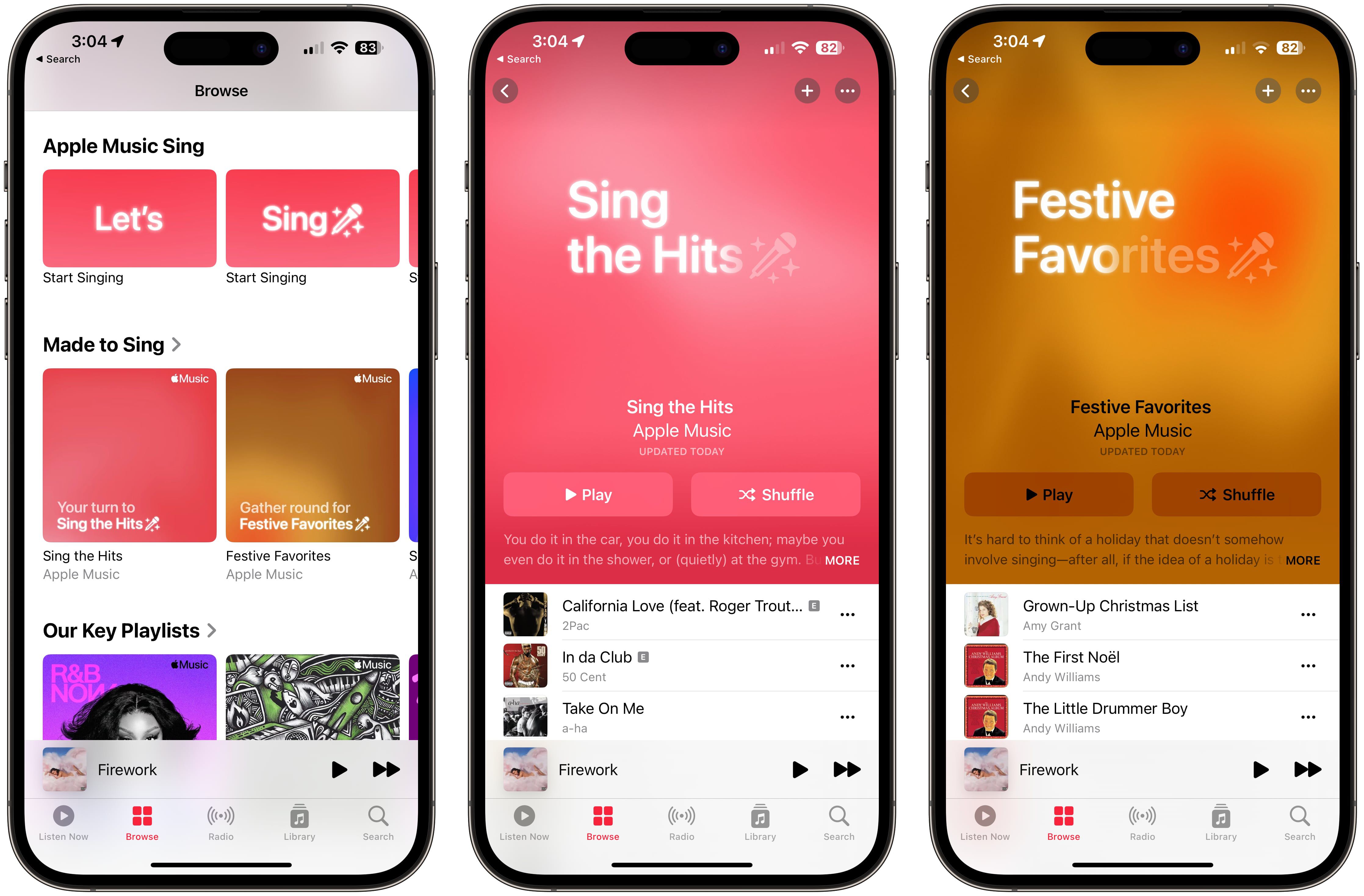
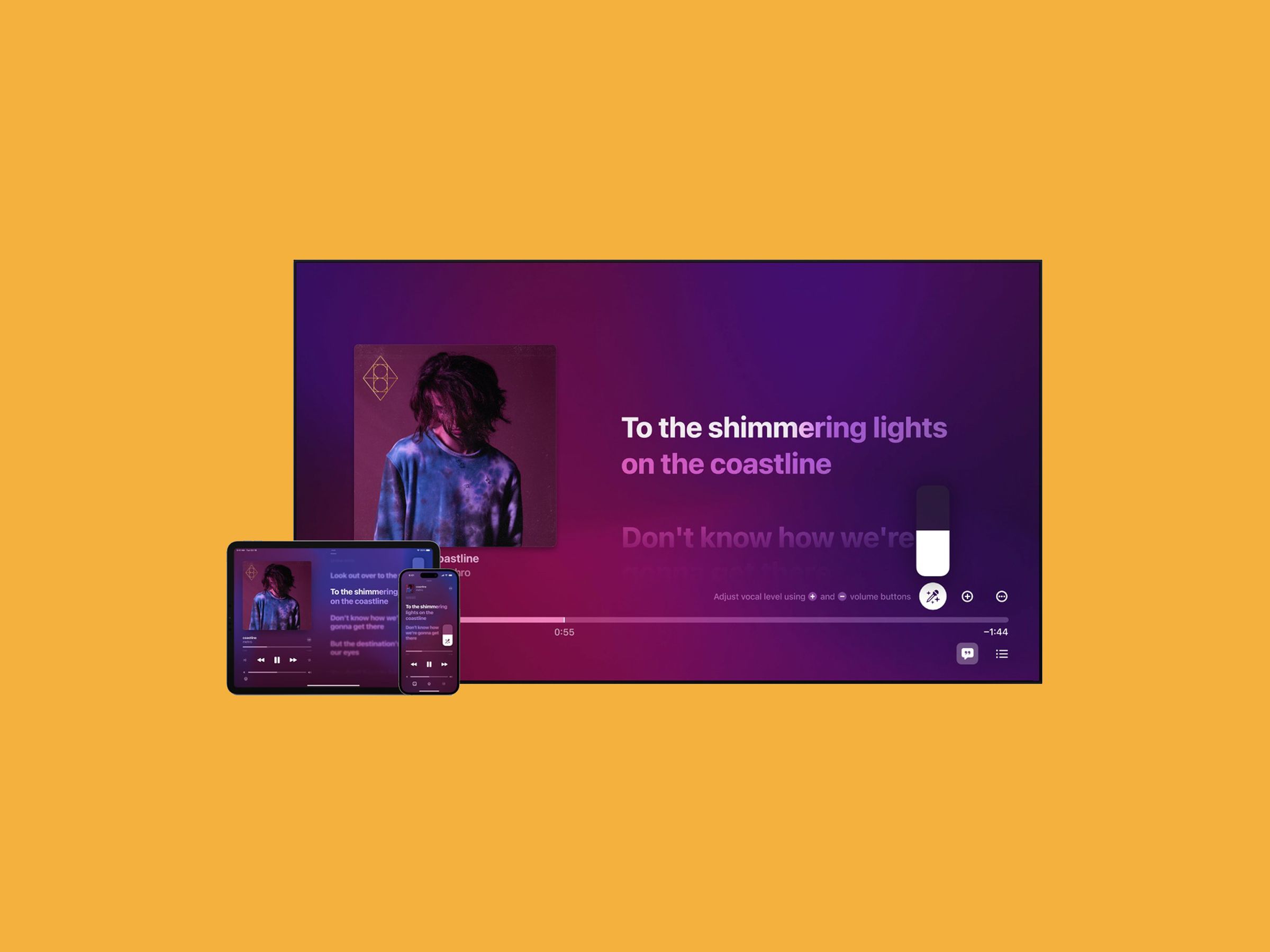
The Apple Music Sing feature transforms the Apple Music experience by allowing users to adjust vocal levels on millions of songs in real time, effectively turning the streaming platform into a personal karaoke machine. By leveraging advanced machine learning, the feature isolates and suppresses vocal tracks, provides beat-by-beat lyrics, and enables duets with multiple vocalists on screen.
Understanding How Apple Music Sing Works
At its core, Apple Music Sing is not merely an instrumental track playback service; it is a sophisticated real-time audio processing system. When you activate the feature, the Apple Music app uses on-device machine learning algorithms to analyze the audio waveform of a supported song. It identifies the frequency range where the lead vocals reside and applies a dynamic filter to suppress or attenuate those frequencies while maintaining the integrity of the underlying instrumentation.
This technology allows for a fluid transition between the original studio version of a track and a vocal-suppressed version. Because this processing happens in real-time, users can adjust the volume of the lead vocals via a dedicated slider, ranging from full vocal presence to complete instrumental playback. This flexibility is what distinguishes Apple Music Sing from traditional karaoke tracks, which are often synthesized MIDI files or low-quality instrumental re-recordings.
Hardware and Software Requirements
To access and utilize Apple Music Sing, you must ensure that your hardware and software are compatible. Apple restricts this feature to devices equipped with specific A-series or M-series chips capable of performing the required real-time audio analysis without latency.
- iPhone: iPhone 11 and later models running iOS 16.2 or newer.
- iPad: iPad Pro 11-inch (3rd generation and later), iPad Air (4th generation and later), iPad (9th generation and later), and iPad mini (6th generation and later).
- Apple TV: Apple TV 4K (3rd generation).
Users must also have an active Apple Music subscription. It is important to note that the feature is integrated directly into the Apple Music app; there is no additional "karaoke subscription" fee required beyond your standard individual, family, or student plan. If your device does not appear to support the feature, ensure your operating system is fully updated to the latest version of iOS, iPadOS, or tvOS.
Step-by-Step: Activating and Using the Interface
Once you have verified your hardware compatibility, accessing the feature is intuitive. Follow these steps to start your karaoke session:
- Open Apple Music: Navigate to the song you wish to sing. Note that not every song in the catalog supports vocal suppression. Look for the "Sing" icon (a microphone with stars) in the playback controls.
- Access Lyrics: Tap the Lyrics button—typically represented by a quotation mark icon—in the bottom left corner of the screen.
- Toggle Sing: If the song is compatible, you will see a microphone icon with a slider. Tap the icon to enable the Sing mode.
- Adjust Vocals: Once enabled, drag the slider up or down to adjust the volume of the original vocal track. Sliding it all the way down creates a karaoke-ready instrumental track.
- Enjoy Beat-by-Beat Lyrics: The interface will highlight lyrics in real-time, matching the vocal pacing of the song. For songs with multiple singers, the interface will split the lyrics to indicate when each vocalist is performing, allowing for easier coordination during duets.
Troubleshooting Common Issues
While the integration is generally seamless, users may occasionally encounter issues where the "Sing" icon does not appear. Use this checklist to diagnose the problem:
- Song Compatibility: Not every track in the Apple Music library is eligible. The feature relies on source material that can be successfully isolated. While the vast majority of popular music is supported, some complex, highly layered, or older analog recordings may not allow for perfect vocal isolation and are therefore opted out by Apple.
- App Updates: If you are using a compatible device but the icon is missing, force-close the Apple Music app and check the App Store for any pending updates.
- Connectivity: Apple Music Sing requires a stable data connection to sync the lyrics and stream the audio processing data. If you are experiencing jittery lyrics, try switching from cellular data to a stable Wi-Fi network.
- Region Restrictions: While broadly available, licensing agreements occasionally mean certain features may not be available in every geographic region. If you are traveling, some content might be restricted based on your account's region settings.
Comparison of Karaoke Solutions
Choosing the right platform for your home karaoke needs involves balancing audio quality, song library size, and technical convenience.
| Feature | Apple Music Sing | Traditional Karaoke Apps | Dedicated Hardware |
|---|---|---|---|
| Library Size | Millions of tracks | Varies (often limited) | Usually limited |
| Audio Quality | Studio Master/Lossless | Varies (often compressed) | High |
| Cost | Part of subscription | Subscription or Pay-per-song | High initial purchase |
| Ease of Use | High (Integrated) | Moderate | Low |
| Duet Support | Built-in visualization | Rarely included | Manual required |
Apple Music Sing excels in the "Ease of Use" and "Library Size" categories. Because it integrates directly with your existing music library, you do not need to hunt for specific karaoke versions of your favorite songs. Traditional karaoke apps often rely on cover versions that may not sound exactly like the original recording, whereas Apple Music uses the actual studio masters.
Maximizing the Experience: Professional Tips
To get the most out of your setup, consider the following performance enhancements:
- External Audio Output: While iPhone or iPad speakers are functional, they lack the low-end frequency response necessary for a true karaoke experience. Connect your device to a high-quality Bluetooth speaker or an external sound system using AirPlay.
- Microphone Use: If you are performing for a group, you may want to use a dedicated microphone. Using a standard Bluetooth microphone paired with your TV or device can help ensure your vocals are projected clearly over the music.
- Visual Setup: When using Apple TV, ensure your television's "Game Mode" is enabled. This reduces input lag between the video processing of the lyrics and the audio output, ensuring that the lyrics are perfectly synchronized with the music.
- The Duet Feature: If you are singing with a partner, take advantage of the "split view" lyrics feature. This prevents two people from singing over each other and keeps the performance structured, mimicking a professional karaoke booth environment.
Frequently Asked Questions
Does Apple Music Sing work on Android devices? As of 2026, the native Apple Music Sing interface, including the vocal slider and beat-by-beat synchronized lyrics for karaoke, is exclusive to the Apple ecosystem. While Android users can access Apple Music, they do not have access to the specific real-time vocal suppression controls found on iOS and Apple TV.
Can I use Apple Music Sing offline? You can use the lyrics display and the Sing feature offline, provided the song has been downloaded to your device previously. However, the initial activation of the feature for a specific track may require a brief handshake with Apple's servers to confirm metadata permissions.
Does it change the song's quality? The feature suppresses vocal frequencies but does not degrade the underlying music quality. When you adjust the slider, the instrumentation remains in its original format, ensuring that the karaoke track sounds as close to the original studio recording as possible.
Can I use it for professional performances? Apple Music Sing is designed for personal, private, and home use. It is not licensed for public performances, bars, restaurants, or commercial karaoke events. Using the feature in a public or commercial setting may violate Apple’s Terms of Service and music licensing laws.
Is there an age limit for specific content? Apple Music applies its existing explicit content filters to the karaoke feature. If you have "Restrictions" enabled in your Screen Time settings, songs marked as explicit will be censored or skipped entirely, even if you are using the Sing feature.
Final Recommendation
Apple Music Sing is a powerful, low-barrier entry point for anyone who enjoys singing along to their favorite tracks. Because it is included within your existing Apple Music subscription, it requires no additional cost to try. To get started, confirm your device is updated to the latest version of your operating system, pick a favorite pop or rock anthem, and look for the microphone icon in the lyrics view. For the best experience, pair your device with an external sound system to provide the depth and volume necessary for a true singing performance. If you encounter any performance lag, check your internet connectivity and ensure no background processes are consuming system memory, as the real-time audio analysis is a resource-intensive task for your device’s processor.