Installing Apache Spark on Windows involves setting up the Java Development Kit (JDK), downloading the Spark binaries, and configuring the Hadoop "winutils.exe" to bridge the gap between Windows and Spark’s native Unix-based file permissions. By correctly establishing environment variables such as SPARK_HOME and HADOOP_HOME, you can run a fully functional Spark environment for local data processing.
Apache Spark has become the de facto standard for large-scale data processing and analytics. While it is natively designed for Unix-like systems, many developers and data scientists prefer or are required to work within a Windows environment. Setting up Spark on Windows is slightly more complex than on Linux or macOS due to the underlying dependency on Hadoop's POSIX-compliant file system interactions. In this guide, we will walk through the entire process, ensuring that by the end, you have a stable, production-ready development environment on your local machine.
Understanding the Spark Architecture on Windows
Before we jump into the installation steps, it is vital to understand why certain components are necessary. Apache Spark is a distributed computing framework that relies on the Java Virtual Machine (JVM). Because Spark was built to interact with the Hadoop Distributed File System (HDFS), it expects specific Unix-like behaviors from the operating system.
Windows does not natively support these behaviors, particularly regarding file permissions and shell scripts. This is why we use a utility called winutils.exe. This small executable mimics the Hadoop environment on Windows, allowing Spark to function without a full Hadoop cluster installation. In a local Windows setup, Spark typically runs in "local mode," where the master and worker nodes all reside within a single JVM instance on your machine.
System Prerequisites and Hardware Requirements
Apache Spark is resource-intensive because it performs most of its computations in-memory. Before starting the installation, ensure your Windows machine meets the following minimum specifications:
- Processor: A multi-core CPU (Intel i5/i7 or AMD Ryzen 5/7) is recommended to handle Spark's parallel processing capabilities.
- RAM: 8GB is the absolute minimum, but 16GB or 32GB is preferred for handling larger datasets or complex transformations.
- Disk Space: At least 10GB of free space for the installation of Java, Python, Spark, and temporary shuffle files.
- Operating System: Windows 10 or Windows 11 (64-bit).
Step 1: Installing the Java Development Kit (JDK)
Apache Spark requires Java to run. As of 2026, Spark versions 3.5 and 4.0 are most compatible with Java 17 or Java 21 (LTS versions). While older versions might support Java 8 or 11, moving to a modern Long-Term Support version ensures better performance and security.
- Visit the official Oracle Java Downloads page or use an open-source alternative like Adoptium (Eclipse Temurin).
- Download the x64 Installer for Windows.
- Run the installer and follow the on-screen instructions. It is highly recommended to install Java in a path without spaces, such as C:\Java\jdk-17. Windows' default "Program Files" folder contains a space, which can sometimes cause issues with older Spark scripts.
- Once installed, verify the installation by opening the Command Prompt and typing: java -version.
Step 2: Installing Python and PySpark Dependencies
If you plan to use Spark with Python (PySpark), which is the most common use case for data scientists, you must have Python installed.
- Download the latest stable version of Python from the official Python website (python.org).
- During installation, ensure you check the box that says Add Python to PATH.
- We recommend using a version like Python 3.10 or newer.
- After installation, verify it by typing python --version in your terminal.
- If you prefer a managed environment, installing Anaconda or Miniconda is a great alternative, as it helps manage virtual environments and prevents library conflicts.
Step 3: Downloading the Apache Spark Binaries
The next step is to obtain the Spark software itself. Spark comes in various "flavors" depending on which version of Hadoop it was built against.
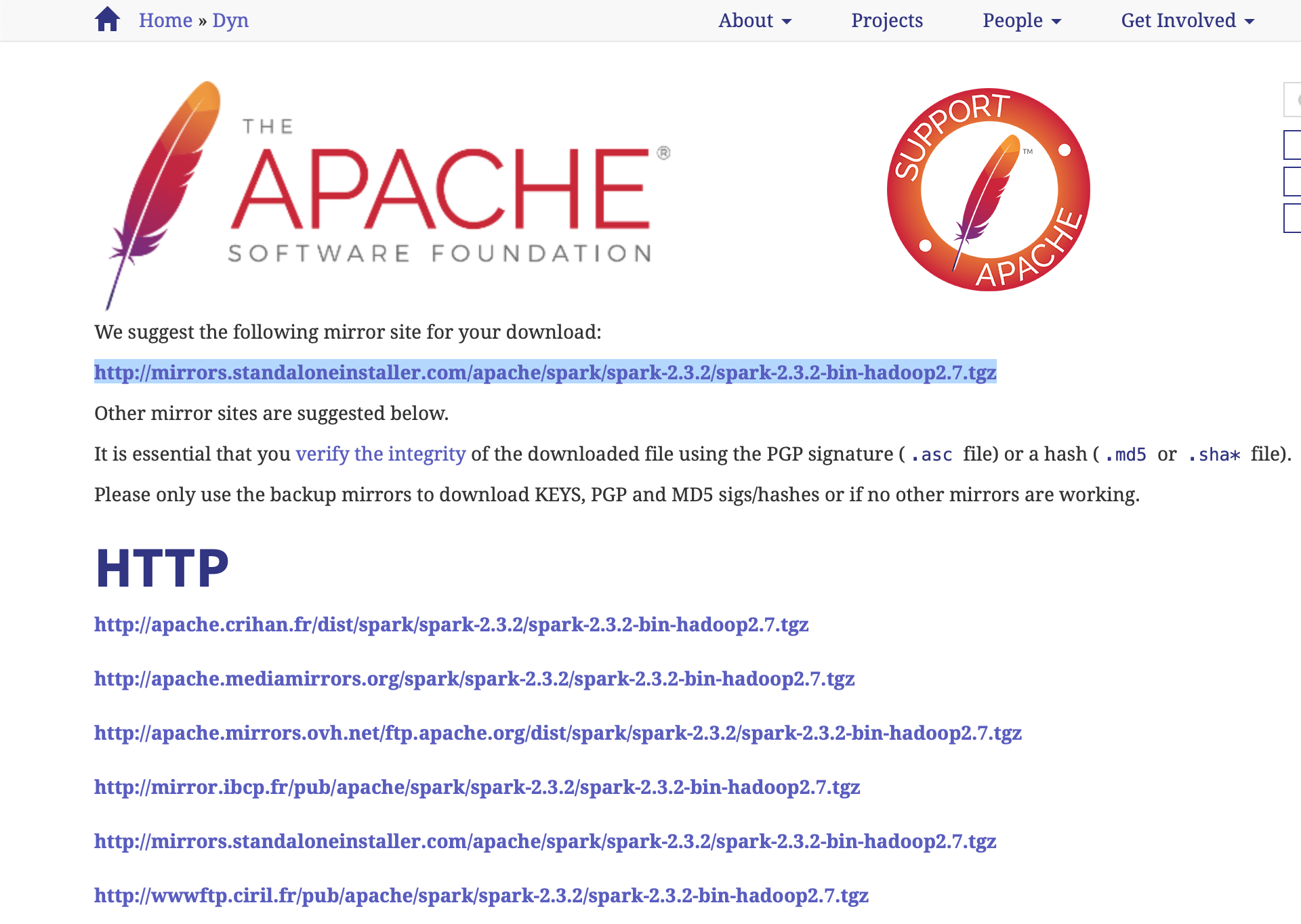
- Go to the Apache Spark Download Page (spark.apache.org/downloads.html).
- Choose the latest stable Spark release (e.g., 3.5.x or 4.0.x).
- For the package type, select Pre-built for Apache Hadoop 3.3 and later. This is the standard for modern installations.
- Click the download link (a .tgz file).
- Since .tgz is a compressed format, you will need a tool like 7-Zip or WinRAR to extract it.
- Extract the contents to a clean directory. Again, avoid spaces in the path. A common choice is C:\spark.
Step 4: Configuring Winutils for Hadoop
This is the most critical step for Windows users. Without winutils.exe, Spark will throw errors when trying to write to the local file system or manage temporary files.
- Navigate to a trusted repository for Hadoop Windows binaries, such as the widely used GitHub repository maintained by cdarlint (github.com/cdarlint/winutils).
- Find the folder that matches the Hadoop version your Spark was built for (usually Hadoop 3.3.x).
- Inside the bin folder of that version, locate winutils.exe.
- On your C: drive, create a folder structure like C:\hadoop\bin.
- Place the winutils.exe file inside C:\hadoop\bin.
Step 5: Setting Up Environment Variables
Environment variables tell Windows where to find the tools you just installed. Without these, you would have to type the full path to the executable every time you wanted to run Spark.
- Open the Start Menu, search for Edit the system environment variables, and press Enter.
- Click the Environment Variables button.
- Under User Variables, click New and add the following:
- Variable: JAVA_HOME | Value: C:\Java\jdk-17
- Variable: SPARK_HOME | Value: C:\spark
- Variable: HADOOP_HOME | Value: C:\hadoop
- Find the Path variable in the User Variables section, select it, and click Edit.
- Click New and add these three entries:
- %JAVA_HOME%\bin
- %SPARK_HOME%\bin
- %HADOOP_HOME%\bin
- Click OK on all windows to save the changes.
Step 6: Verifying the Spark Installation
Now that everything is configured, it is time to test the setup.
- Open a fresh Command Prompt window (this is important to load the new environment variables).
- Type the following command: spark-shell
- If everything is correct, you will see the Spark logo (in ASCII art) and a Scala prompt. This may take a minute the first time as Spark initializes the local cluster.
- To test the Python integration, type: pyspark
- If the PySpark shell opens without errors, your installation is successful.
Common Installation Issues and Troubleshooting
Even with a detailed guide, Windows users often encounter specific hurdles. Here are the most common problems and their solutions:
- Java Not Found: If you see "java is not recognized," double-check your JAVA_HOME variable and ensure it points to the folder above the bin directory, while the Path variable points to the bin directory.
- Winutils Errors: If Spark complains about "HADOOP_HOME and winutils.exe," ensure that winutils.exe is specifically in a subfolder named bin (e.g., C:\hadoop\bin\winutils.exe) and that HADOOP_HOME is set to C:\hadoop.
- Permission Denied (C:\tmp\hive): Spark often creates a temporary folder at the root of your drive. If you get a permission error, manually create the folder C:\tmp\hive and use the command winutils.exe chmod -R 777 C:\tmp\hive to grant full permissions.
- Python Version Mismatch: If you have multiple versions of Python installed, ensure that your PATH prioritizes the one you intend to use with Spark. You can set an environment variable PYSPARK_PYTHON to the exact path of your python.exe to resolve ambiguity.
Component Compatibility Matrix for 2026
| Component | Recommended Version | Purpose |
|---|---|---|
| Operating System | Windows 10/11 (64-bit) | Host Environment |
| Java JDK | JDK 17 or 21 (LTS) | Core Runtime for JVM |
| Apache Spark | 3.5.x or 4.0.x | Data Processing Engine |
| Hadoop Winutils | 3.3.x | Windows File System Bridge |
| Python | 3.10 - 3.12 | PySpark API Support |
Optimizing Spark Performance on Windows
Running Spark on a local Windows machine is great for development, but it can be slow if not configured correctly. You can tune Spark by editing the spark-defaults.conf file located in the C:\spark\conf directory. (You may need to rename spark-defaults.conf.template to spark-defaults.conf first).
Consider adjusting the following settings for a smoother experience:
- spark.driver.memory: Set this to 2g or 4g depending on your total RAM. This allows the Spark driver to handle larger metadata and results.
- spark.executor.memory: Since you are in local mode, the driver and executor often share memory, but defining this helps when you transition to cluster environments.
- spark.sql.shuffle.partitions: By default, Spark uses 200 partitions for shuffles. For local development on a 4-core or 8-core machine, reducing this to 4 or 8 will significantly speed up small data operations.
Frequently Asked Questions
Can I install Spark on Windows without Hadoop? Technically, Spark can run without a full Hadoop cluster installation, but it still requires the Hadoop client libraries and the winutils.exe file to function correctly on Windows. You do not need to install the entire Hadoop ecosystem (HDFS, YARN, etc.), but the "HADOOP_HOME" configuration remains mandatory for file operations.
Is it better to use WSL (Windows Subsystem for Linux) for Spark? Using WSL 2 is often a smoother experience for experienced developers because it allows you to run the Linux version of Spark natively. This eliminates the need for winutils.exe. However, for beginners or those who need to integrate Spark with other Windows-native applications (like Excel or specific Power BI drivers), the direct Windows installation remains a popular choice.
Why do I see so many INFO messages in the console? By default, Spark is very talkative. It logs every action at the INFO level. To reduce the noise, you can go to C:\spark\conf, rename log4j2.properties.template to log4j2.properties, and change the line rootLogger.level = info to rootLogger.level = warn or error.
Do I need a GPU to run Apache Spark? No, Apache Spark is primarily designed for CPU-based distributed computing. While there are specific libraries like NVIDIA's RAPIDS that allow Spark to leverage GPUs for certain operations, a standard installation runs entirely on your CPU and RAM.
How do I stop the Spark Shell? To exit the Spark Scala shell, type :quit. For the PySpark shell, use exit() or press Ctrl+Z followed by Enter.
Next Steps for Your Spark Journey
With Apache Spark now installed on your Windows machine, the next logical step is to build your first data pipeline. You can start by loading a CSV file using the Spark DataFrame API or connecting to a local SQL database. If you are focused on machine learning, explore the MLlib library, which comes bundled with Spark.
For those looking to advance, consider setting up a Jupyter Notebook environment. By setting the environment variables PYSPARK_DRIVER_PYTHON to "jupyter" and PYSPARK_DRIVER_PYTHON_OPTS to "notebook", running the pyspark command will automatically launch a web-based interface, making it much easier to visualize your data transformations and share your work.