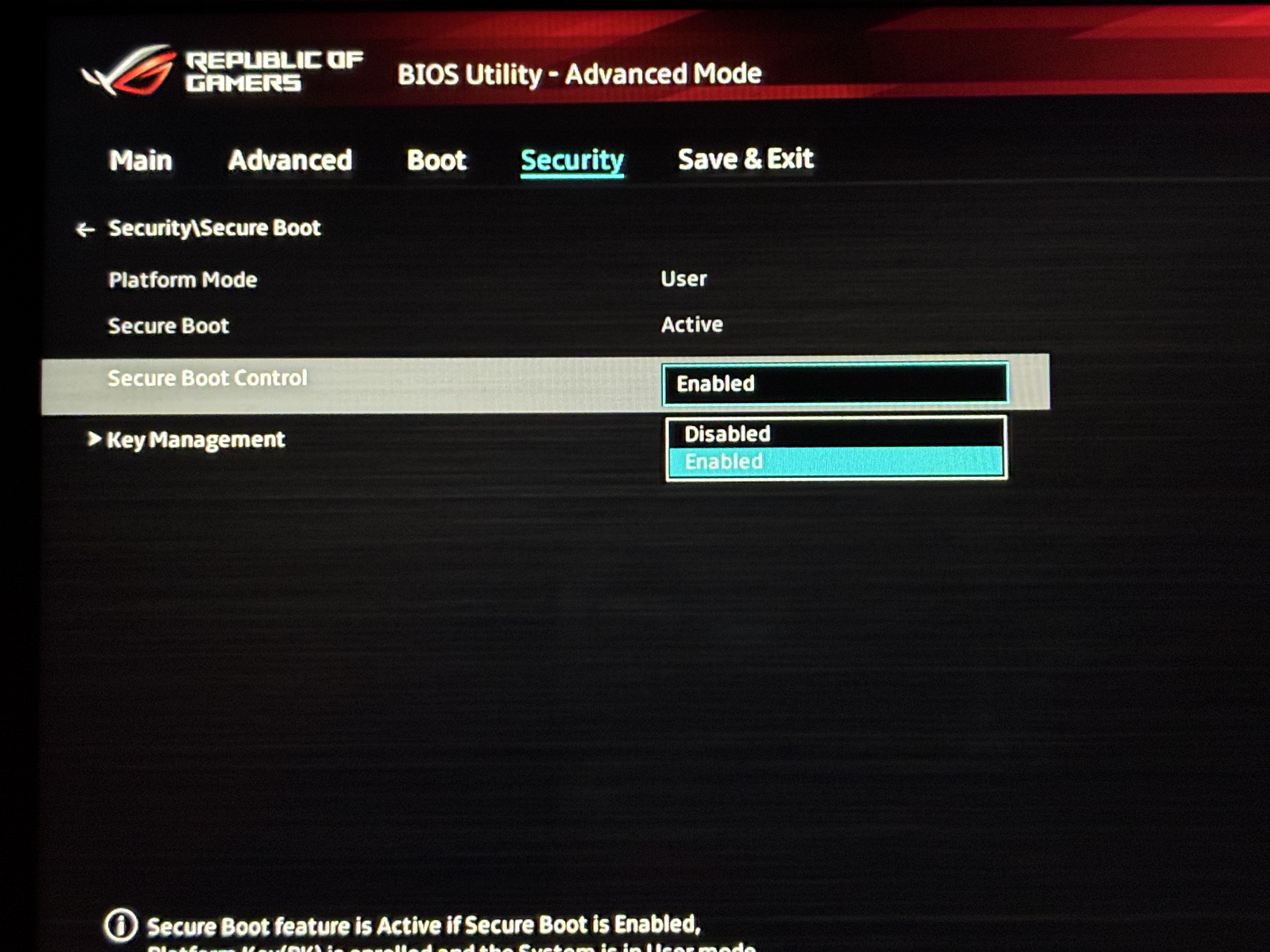
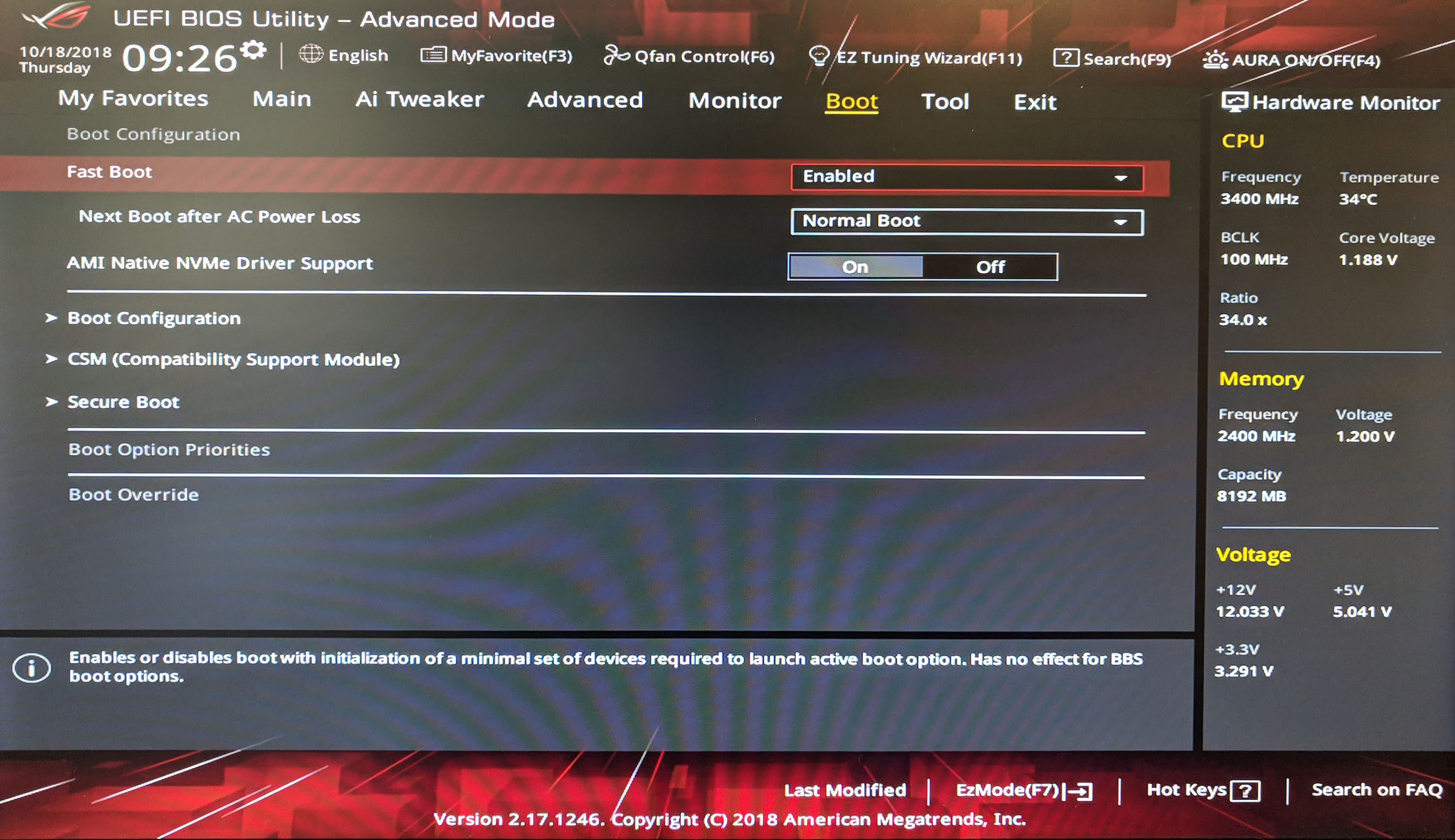
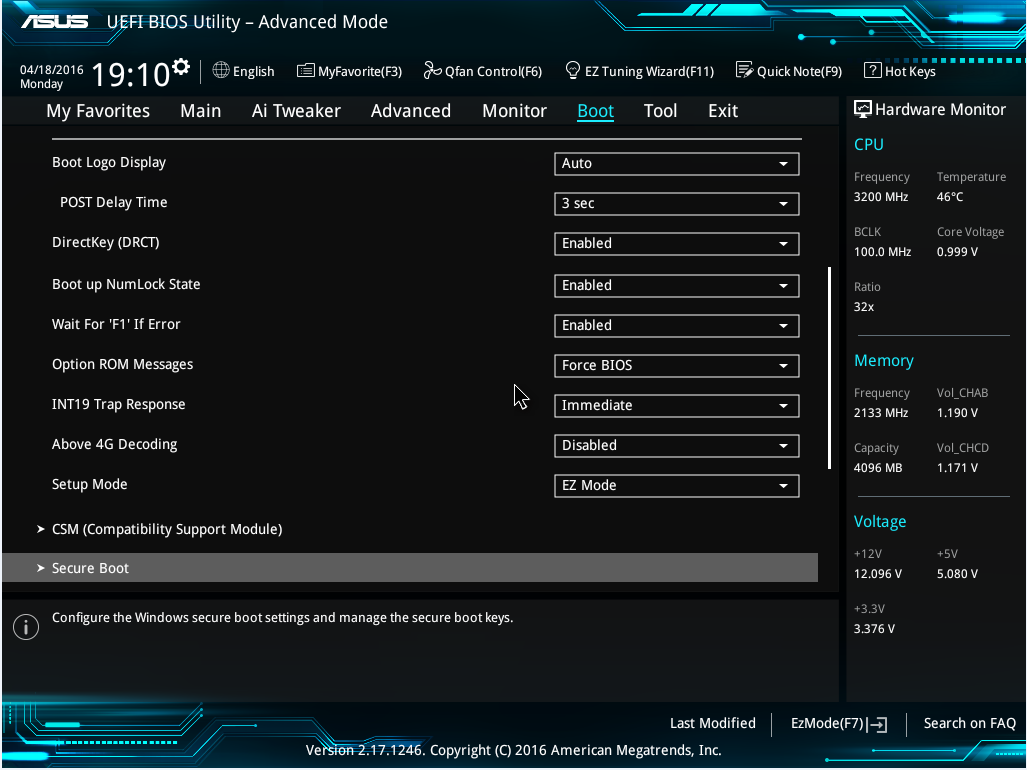
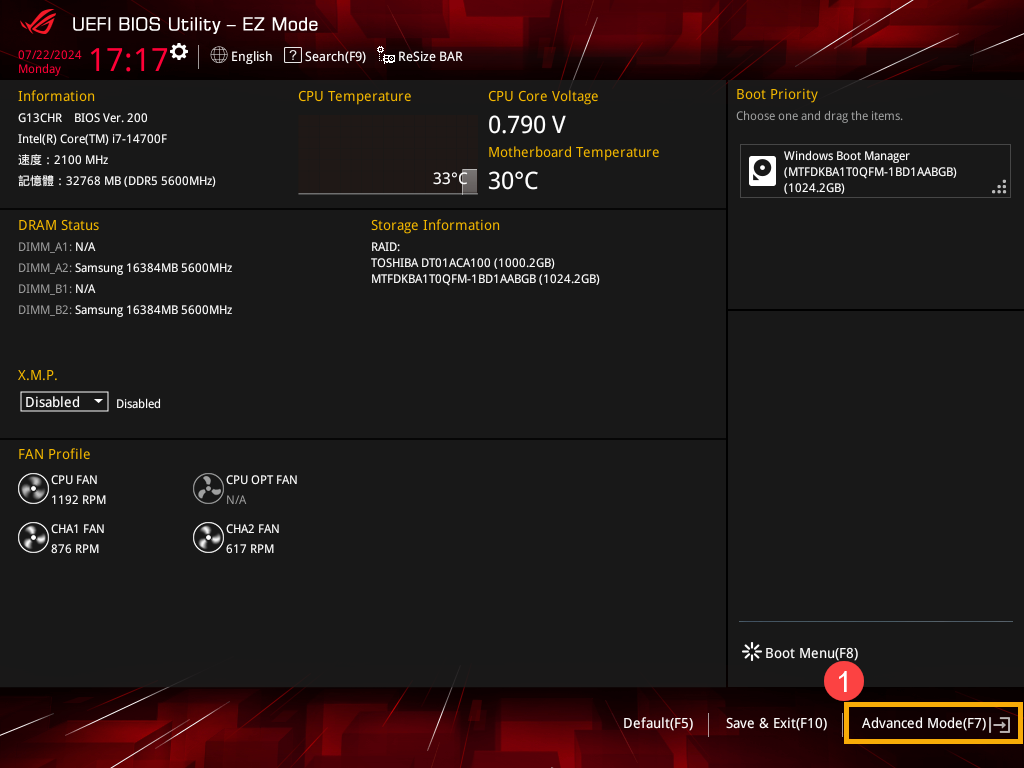
Secure Boot is a fundamental security standard within the UEFI (Unified Extensible Firmware Interface) that ensures your ASUS ROG system boots only using software trusted by the Original Equipment Manufacturer (OEM). On ASUS ROG motherboards and laptops, these settings are found in the UEFI BIOS under the Boot or Security tabs, primarily managed through the "OS Type" and "Key Management" submenus to protect the system against rootkits and unauthorized bootloader modifications.
The implementation of Secure Boot on Republic of Gamers (ROG) hardware is more granular than on standard consumer boards. Because ROG users often engage in overclocking, dual-booting Linux, or running specialized diagnostic tools, understanding how to toggle these settings without locking yourself out of the operating system is critical. As of 2026, Secure Boot remains a mandatory prerequisite for modern versions of Windows, including Windows 11 and its successors, as well as a requirement for many competitive gaming anti-cheat systems.
The Core Mechanism of Secure Boot on ROG Hardware
At its simplest level, Secure Boot acts as a digital gatekeeper during the "handshake" between your hardware and your software. When you press the power button, the ROG UEFI firmware checks the digital signature of each piece of boot software, including UEFI drivers, EFI applications, and the operating system itself. If the signature is valid and recognized by the keys stored in the BIOS, the system proceeds to boot. If the signature is missing or invalid, the system halts the process to prevent potential malware from executing at the kernel level.
For ROG users, this mechanism is tightly integrated with the Trusted Platform Module (TPM) 2.0. While Secure Boot focuses on the integrity of the software, the TPM provides a hardware-based vault for the cryptographic keys used in the process. Together, they form the "Root of Trust." On most ASUS ROG boards, the firmware-based TPM (Intel Platform Trust Technology or AMD fTPM) works in tandem with the Secure Boot settings to meet the strict security requirements of modern software environments.
Prerequisites for Enabling Secure Boot
Before adjusting Secure Boot settings in your ROG BIOS, your system must meet specific architectural requirements. If these are not met, enabling Secure Boot may result in the system failing to find a bootable drive or being stuck in a BIOS loop.
- GPT Partition Style: Secure Boot requires the operating system to be installed on a drive using the GUID Partition Table (GPT) format. Older installations using Master Boot Record (MBR) are incompatible with Secure Boot.
- UEFI Mode: The system must be running in native UEFI mode. If you are currently using "Legacy" mode, you will need to convert your drive and change the BIOS settings before Secure Boot can function.
- Disabled CSM: The Compatibility Support Module (CSM) is an ASUS ROG feature that allows the BIOS to emulate older legacy environments. Secure Boot and CSM are mutually exclusive. You cannot enable Secure Boot while CSM is active.
- Integrated Graphics or UEFI-Compliant GPU: Modern ASUS ROG systems (specifically those released after 2020) generally use UEFI-compliant graphics cards. If you are using an older GPU, it must support UEFI GOP (Graphics Output Protocol) to display the BIOS and boot screen while Secure Boot is active.
Navigating the ASUS ROG Secure Boot Menu
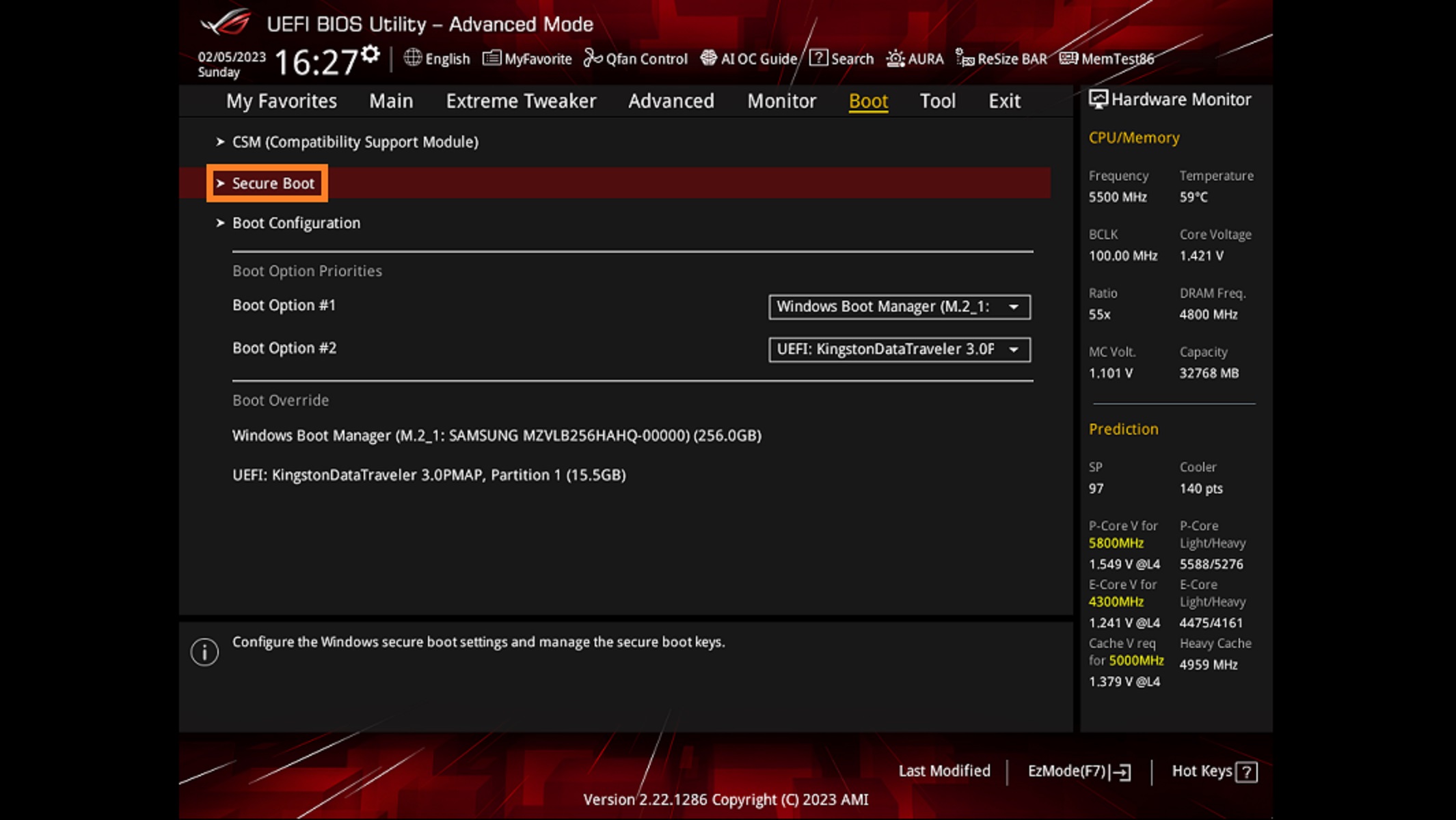
To access these settings, restart your PC and repeatedly press the Delete or F2 key to enter the UEFI BIOS Utility. From there, navigate to Advanced Mode (F7), then select the Boot tab. Scroll down to find the Secure Boot sub-menu.
OS Type: Windows UEFI Mode vs. Other OS
The "OS Type" setting is the most common point of confusion for ROG users. Despite the names, these settings do not strictly limit you to a specific operating system, but rather dictate how the BIOS handles security certificates.
- Windows UEFI Mode: This is the recommended setting for almost all users. It activates the full Secure Boot protocol using the Microsoft-standard keys. If you are running Windows 11 or Windows 12 (in 2026), this must be selected to pass system health checks and play games like Valorant that require active Secure Boot for their anti-cheat (Vanguard).
- Other OS: Selecting this option does not necessarily disable Secure Boot, but it changes how the system treats the signature database. It is often used when installing Linux distributions or using older versions of Windows that do not use the standard UEFI certificates. If you want to "disable" Secure Boot for troubleshooting, switching to "Other OS" while clearing the keys is the standard procedure on ROG boards.
Key Management Sub-menu
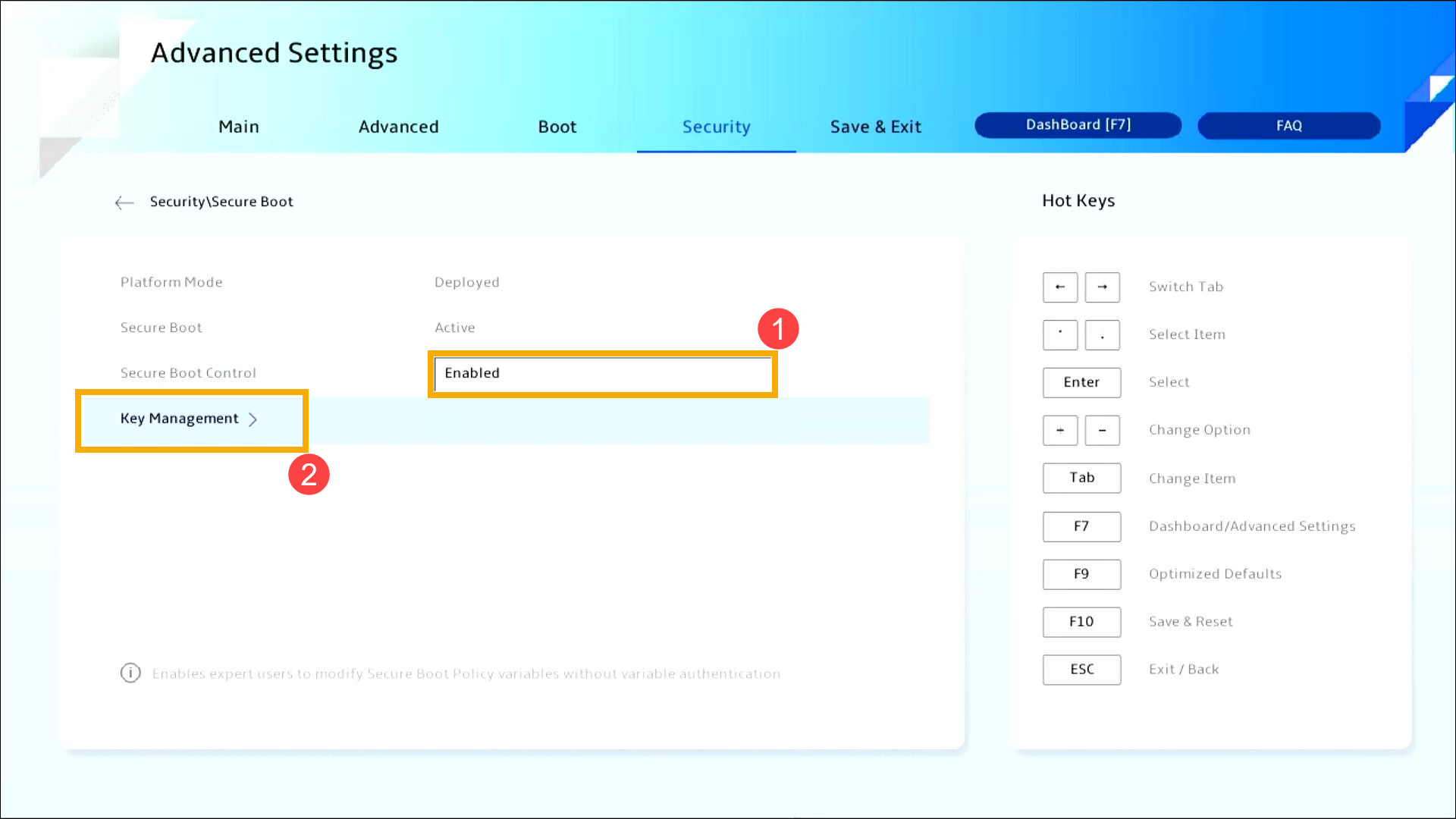
Deep within the Secure Boot menu is Key Management. This section allows you to manage the cryptographic signatures that the motherboard trusts.
- Install Default Secure Boot Keys: If you have cleared your keys and the system says "Secure Boot: Disabled," choosing this option will restore the factory Microsoft and ASUS keys, effectively re-enabling the feature.
- Clear Secure Boot Keys: This action removes all trusted signatures. This is a common step for users who need to install custom certificates for specialized development work or for those trying to bypass Secure Boot restrictions entirely.
- Save Secure Boot Keys: This allows you to export your current certificates to a USB drive, which is a vital safety step before performing a BIOS update or switching motherboards.
Understanding the Secure Boot Databases
The ROG BIOS manages four specific databases under the Key Management section. Understanding these is essential for advanced users who need to troubleshoot boot failures.
| Database | Name | Function |
|---|---|---|
| PK | Platform Key | The "Master Key" owned by the hardware manufacturer (ASUS). It controls access to the KEK database. |
| KEK | Key Exchange Key | Keys used to verify the integrity of the Signature Database (db) and the Forbidden Signature Database (dbx). |
| db | Signature Database | An "Allow List" containing certificates for trusted bootloaders (e.g., Windows Boot Manager, Linux Shims). |
| dbx | Forbidden Signature Database | A "Block List" containing signatures of known malware or compromised bootloaders that the system must reject. |
Step-by-Step: How to Enable Secure Boot on ASUS ROG
If your system shows that Secure Boot is "Unsupported" or "Off" within Windows, follow these steps to properly configure your ROG BIOS:
- Enter BIOS: Restart and press Delete/F2.
- Disable CSM: Go to the Boot tab > CSM (Compatibility Support Module). Set "Launch CSM" to Disabled.
- Set OS Type: Go to Boot > Secure Boot. Set "OS Type" to Windows UEFI Mode.
- Load Keys: If "Secure Boot State" shows as "User," the keys are already active. If it shows as "Setup," go to Key Management and select Install Default Secure Boot Keys.
- Save and Exit: Press F10 to save changes and restart.
Caution: If your Windows installation was done in Legacy/MBR mode, the system will not boot after these changes. You will need to use a tool like MBR2GPT within Windows or perform a clean installation to convert the drive to GPT format.
Troubleshooting the "Secure Boot Violation" Error
One of the most common issues on ROG systems is the "Secure Boot Violation" red box error upon startup. This usually happens after a BIOS update or when a new hardware component (like a secondary SSD with an old OS) is added.
This error means the firmware found a bootloader or driver that doesn't match the signatures in the db or is listed in the dbx. To fix this:
- Verify Boot Order: Ensure your primary Windows Boot Manager is the first priority.
- Update BIOS: Sometimes, newer OS updates require updated keys provided by ASUS in the latest BIOS firmware.
- Reset Keys: Go to Key Management, select Clear Secure Boot Keys, then immediately select Install Default Secure Boot Keys. This refreshes the database and often resolves signature mismatches.
Secure Boot and Gaming Performance
A common myth in the ROG community is that Secure Boot introduces "input lag" or reduces FPS. Based on technical architecture and benchmarking through 2026, there is no measurable performance penalty for having Secure Boot enabled.
The signature check occurs only during the initial boot sequence (the first few seconds after power-on). Once the Windows kernel is loaded and the desktop appears, Secure Boot has completed its task and remains idle. It does not use CPU cycles or RAM during active gameplay. In fact, many modern titles now require it to be enabled to ensure the integrity of the game's anti-cheat environment, making it a "must-have" for competitive gamers.
Frequently Asked Questions
Why is the Secure Boot option greyed out in my ROG BIOS?
The option is often greyed out if a Supervisor Password has not been set, or more commonly, if CSM is still enabled. You must disable the Compatibility Support Module and restart the BIOS for the Secure Boot options to become interactable.
Can I run Linux with Secure Boot enabled on an ASUS ROG laptop?
Yes. Modern distributions like Ubuntu, Fedora, and openSUSE support "Shim" bootloaders signed by Microsoft. However, if you are using a more niche distribution like Arch Linux, you may need to manually enroll your own keys in the Key Management section or switch the OS Type to "Other OS."
Does enabling Secure Boot delete my data?
No. Enabling or disabling Secure Boot does not touch the data stored on your drives. However, it changes how the BIOS looks for a bootable partition. If you switch from Legacy to UEFI/Secure Boot without converting your drive to GPT, your data remains safe, but the system simply won't boot until you revert the setting or convert the drive.
Is Secure Boot the same as TPM 2.0?
No, they are different but related. Secure Boot ensures the software is trusted, while TPM (Trusted Platform Module) provides a secure hardware space for encryption keys. You generally need both enabled for Windows 11/12 compatibility.
What happens if I "Clear Secure Boot Keys"?
If you clear the keys, Secure Boot enters "Setup Mode." In this state, the system will likely boot any operating system regardless of its signature, but Windows security features (like BitLocker or certain anti-cheats) may stop working until you "Install Default Keys" to put the system back into "User Mode."
Final Recommendation
For the vast majority of ASUS ROG users in 2026, the optimal configuration is to have CSM Disabled, OS Type set to Windows UEFI Mode, and the Default Secure Boot Keys installed. This configuration provides the highest level of system security, ensures full compatibility with modern Windows features, and allows competitive games to run without anti-cheat interference. Only modify these settings or clear keys if you are a developer or power user with a specific requirement for unsigned bootloaders.