Apple for Families is a comprehensive suite of features and services designed to allow up to six family members to share Apple subscriptions, digital content, storage, and parental controls under a single administrative umbrella. By utilizing Family Sharing, a primary organizer coordinates access to shared digital assets while maintaining individual privacy and personalized accounts, effectively centralizing billing and device management without compromising the distinct user experience of each family member.
Understanding the Family Sharing Infrastructure
At the core of Apple’s family-oriented ecosystem is the "Family Sharing" framework. This system is designed to bridge the gap between individual device ownership and collective household needs. When you initiate a family group, one adult—designated as the Family Organizer—takes responsibility for the group's shared billing method and administrative settings.
The structure is intentionally hierarchical yet private. Every member of the family uses their own Apple ID. This is a critical distinction: you are not sharing a single login. Instead, you are connecting independent accounts to a common pool of resources. Because each person has their own Apple ID, your emails, files, photos, and messages remain completely private from other family members unless you explicitly choose to share them via specific features like iCloud Shared Photo Library or collaborative notes.
The primary benefit is fiscal and logistical consolidation. Without this system, families often grapple with multiple subscriptions to services like Apple Music or Apple TV+, resulting in redundant monthly charges. Family Sharing allows these subscriptions to be distributed across all members, ensuring that every participant gets full access to the service for the price of one plan.
Essential Prerequisites for Setup
Before establishing a Family Sharing group, there are several foundational requirements that must be met to ensure a seamless experience. Every participant must have their own active Apple ID. If you have children in the household who do not yet have an account, the Family Organizer can create child accounts specifically managed within the family group.
Technical requirements include:
- Devices: Participants should be using hardware that supports modern iOS, iPadOS, macOS, or watchOS versions. While legacy devices may function in a limited capacity, the full feature set—particularly parental controls and location sharing—requires current system software.
- Payment Method: The Family Organizer must provide a valid, accepted payment method. This method covers all purchases initiated by family members, though members can use their own Apple ID balance to pay for personal items first.
- Regional Consistency: All family members must belong to the same country or region. Apple services, content libraries, and legal compliance requirements vary significantly by territory; therefore, if a family member changes their region, they must leave the family group to re-align their Apple ID with their new location.
Key Features of the Apple Family Ecosystem
Once the group is configured, you gain access to several integrated features that simplify digital life. These tools are designed to reduce the friction of managing household digital assets.
Shared Subscriptions and Content
The most frequently used feature is the sharing of Apple subscriptions, which include Apple Music, Apple TV+, Apple Arcade, and Apple News+. When the Organizer subscribes to these services and enables "Share with Family," everyone in the group gains access to these premium services without additional cost. Furthermore, you can share purchases from the App Store, Books, and the iTunes Store. When a user buys a movie or an application, it becomes available for download by all other members of the group, eliminating the need to repurchase content for each device.
iCloud+ Storage
Managing digital clutter is a common household challenge. With Family Sharing, you can share an iCloud+ plan. If the Organizer subscribes to a 200GB or 2TB storage tier, that storage is pooled for the entire family. Importantly, while the storage is shared, the files themselves remain private. No one can browse your documents or photos; they simply consume a portion of the communal storage quota.
Parental Controls and Screen Time
For parents, the most significant component is the suite of parental controls, managed through "Screen Time." This allows the Organizer or designated parents to monitor how children use their devices. You can set time limits for specific applications, restrict access to age-inappropriate content, and manage who can contact your child. These settings are synchronized across all devices signed into the child’s account, preventing them from bypassing restrictions by switching from an iPad to an iPhone.
Location Sharing
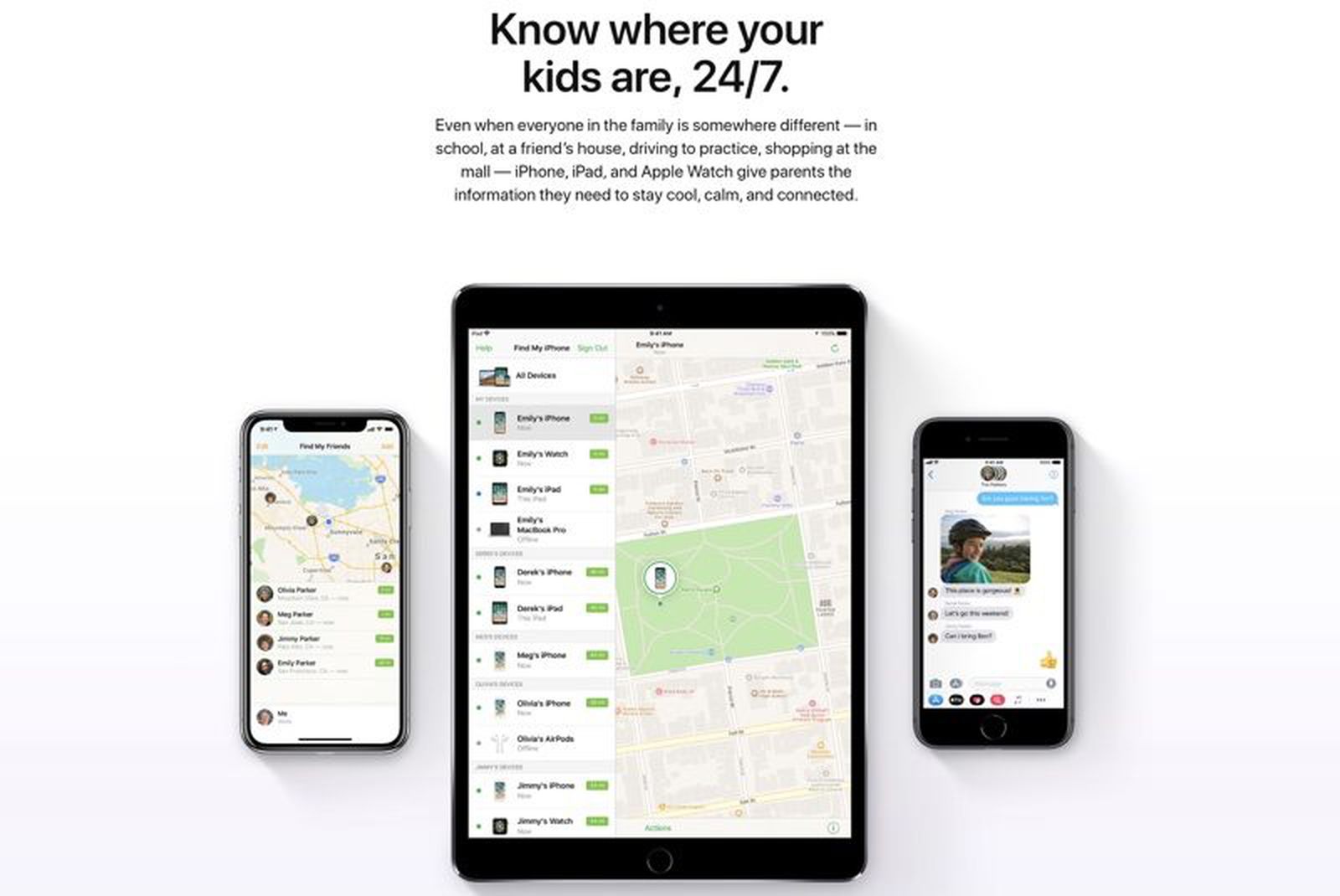
Through the "Find My" app, families can share their locations with one another. This provides an added layer of safety and coordination, allowing parents to see the location of a child’s device, or enabling family members to coordinate meetups during travel. Location sharing is highly granular; you can toggle it on or off for specific individuals at any time, ensuring that you maintain control over your digital footprint.
Comparative Overview of Family Features
The following table summarizes the primary capabilities afforded to families within the Apple ecosystem and how they function at an administrative level.
| Feature | Primary Function | Privacy Level | Administrative Requirement |
|---|---|---|---|
| Subscriptions | Shares Music, TV+, Arcade, News+ | High (Individual logs) | Organizer pays bill |
| iCloud+ Storage | Pools storage capacity | High (Files stay private) | Shared quota limit |
| Purchase Sharing | Allows downloading owned apps/media | Moderate (Access list) | Opt-in required |
| Screen Time | Manages child device limits | High (Parent view only) | Requires child Apple ID |
| Find My | Real-time location sharing | High (User-controlled) | Location services enabled |
Troubleshooting Common Configuration Issues
Despite the streamlined nature of Family Sharing, users occasionally encounter challenges. The most common issues typically stem from account conflicts or billing status.
1. The "Subscription Not Sharing" Problem: If members cannot see a shared subscription, ensure that the Family Organizer has specifically toggled on the "Share with Family" setting within that subscription's management page. Sometimes, users mistakenly believe that subscribing to a plan automatically makes it available to the family, but the final permission must be granted in the subscription settings.
2. Purchase Sharing Limitations: Some content is not eligible for sharing due to licensing restrictions. If an item does not appear in a family member's "Purchased" list, verify that the content provider has not disabled family sharing for that specific title. Additionally, ensure the primary purchase account is signed into the App Store on the device in question.
3. Billing Declines: Because the Organizer’s payment method is the primary source of funding, if that card expires or is declined, all family members may lose access to shared purchases or subscriptions. It is vital for the Organizer to maintain an active, updated payment method. If a member uses their own store credit, their purchases will be charged against their credit balance before the family’s shared method is utilized.
Managing Children's Digital Safety
Establishing an Apple ID for a child is a critical step in using these tools safely. By creating a child account, you associate that account with your own, which grants you automatic control over their settings. As of 2026, the process remains strictly governed by age-gating protocols.
When you manage a child's account, you receive "Ask to Buy" notifications. If a child attempts to download an app or make an in-app purchase, a notification is sent to the parent's device. The parent can then review the request, see the price, and approve or decline it. This provides a "safety valve" against accidental spending and helps educate children on digital consumption and the cost of media.
It is recommended that parents review these settings regularly. As children mature, you may need to adjust the age-based content filters for music, movies, and websites. These filters are not universal; they are tailored to the specific Apple ID of the child, meaning a 10-year-old and a 16-year-old can have vastly different access levels within the same family group.
Best Practices for Ongoing Maintenance
To keep your digital family environment running smoothly, perform a quarterly audit of your setup.
- Review Member Status: Ensure that every member of the group still requires access. If an adult child or a former member of the household has left, remove them from the group to prevent them from inadvertently using your shared payment method.
- Audit Storage Usage: Use the iCloud storage settings to monitor which members are using the most space. If one person is consuming the majority of the pooled iCloud+ storage, it may be time to perform a digital clean-up on their device or consider upgrading to a larger storage tier.
- Refresh Security: Periodically check that your Apple ID security, such as two-factor authentication, is active for all members. A single compromised account in a family group can potentially create vulnerabilities for the others.
Frequently Asked Questions
Can I keep my private purchases private from my family? Yes. Even with Purchase Sharing enabled, you can hide individual purchases from your purchase history. Once an item is hidden, it will not be visible in the shared pool for other family members, and they will not be able to download it.
What happens if I leave a family group? When you leave a group, you immediately lose access to all shared subscriptions, shared storage, and shared media purchases. Any items you downloaded while in the group may stop functioning or require a personal purchase to continue use. You keep your personal data, but you must provide your own payment method for future transactions.
How many people can be in a Family Sharing group? A family group can have a maximum of six members, including the Family Organizer. This limit is fixed and ensures that the infrastructure remains manageable for personal and household use.
Can I belong to two family groups at once? No. An Apple ID can only be associated with one Family Sharing group at any given time. If you wish to switch groups, you must leave your current one before you can accept an invitation to join another.
Are these tools for business or professional use? No. Apple’s family features are strictly designed for personal, household use. They are not intended for organizations, schools, or businesses. Attempting to use Family Sharing for professional purposes may violate Apple’s terms of service and lead to account limitations.
Recommended Next Steps
To begin, the designated Family Organizer should navigate to the Settings app on their iPhone or iPad, tap their name at the top, and select "Family Sharing." Follow the on-screen prompts to invite family members via iMessage. Once they accept, you can begin toggling individual features like storage sharing, media sharing, and subscription access. If you are managing accounts for children, prioritize setting up "Ask to Buy" immediately upon account creation to establish clear boundaries for digital expenditures. By taking these steps, you ensure a secure, cost-effective, and organized digital life for your entire household.