Apple device enrollment for business is the structured framework through which organizations connect Apple hardware—including Mac, iPhone, iPad, and Apple TV devices—to a Mobile Device Management (MDM) solution. Powered by Apple Business Manager (ABM), this process allows IT departments to automate device deployment, enforce mandatory security settings, distribute enterprise applications, and manage lifecycle operations over the air without physical intervention.
Understanding Apple Device Enrollment Frameworks
Enrolling Apple hardware into a corporate environment is not a one-size-fits-all procedure. Apple provides distinct enrollment channels designed to accommodate different device ownership models, compliance requirements, and privacy considerations. Selecting the correct framework determines the level of control your organization maintains over the hardware and the degree of privacy granted to the user.
- Apple Business Manager (ABM)
- Automated Device Enrollment (ADE)
- Zero-touch deployment
- Corporate-owned hardware
- Mandatory, unremovable MDM
- Full device supervision
- User Enrollment (BYOD)
- User-driven activation
- Managed Apple Account
- Cryptographic data separation
- Personal data privacy preserved
- Automated Device Enrollment (ADE)
Automated Device Enrollment (ADE)
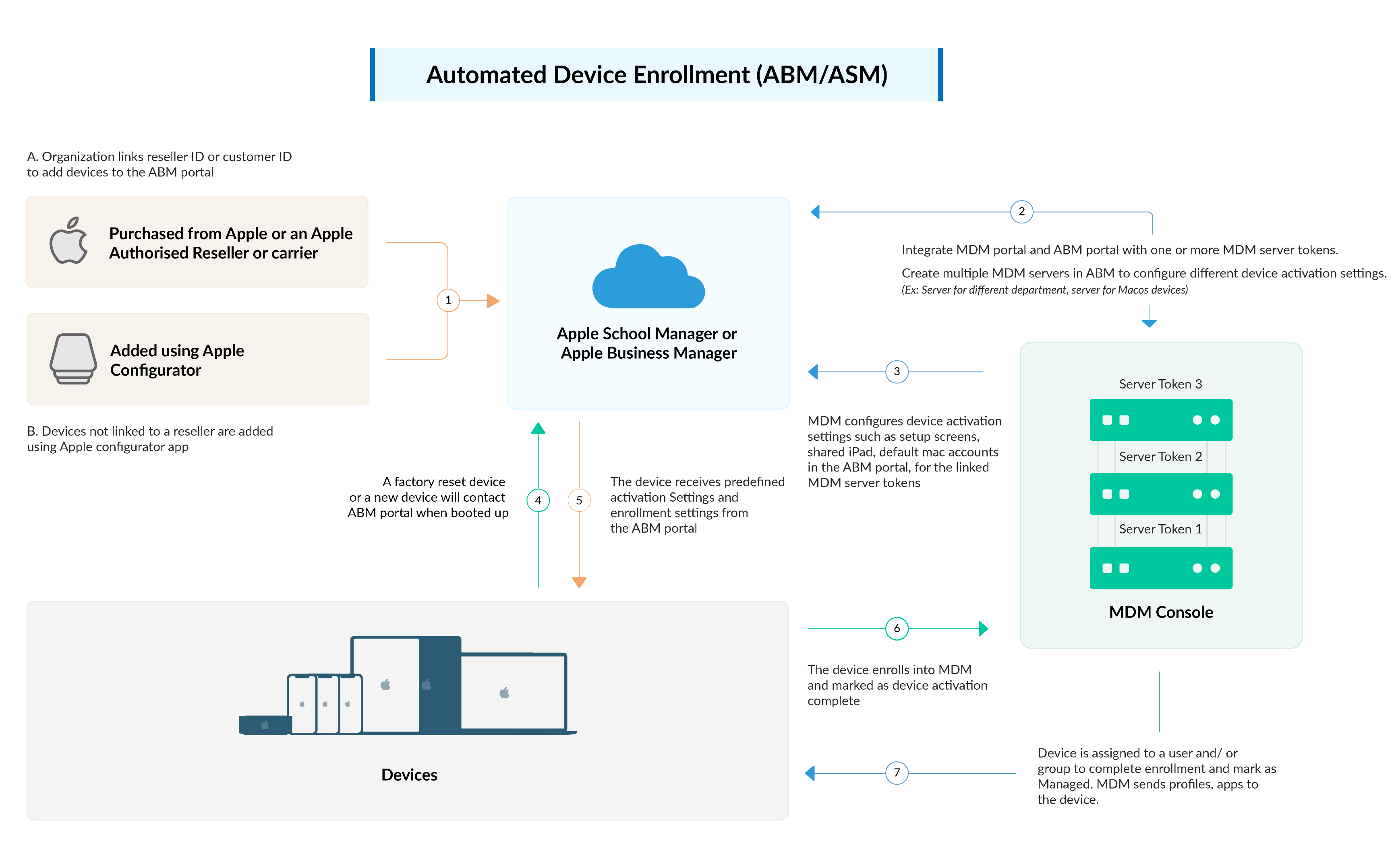
Automated Device Enrollment (formerly known as the Device Enrollment Program or DEP) represents the gold standard for corporate-owned assets. When an organization purchases devices directly from Apple or an authorized Apple Reseller, those serial numbers are linked directly to the enterprise's Apple Business Manager instance.
When the device is powered on for the first time, it contacts Apple activation servers, identifies its assignment to your organization's MDM server, and forces enrollment during the initial out-of-box Setup Assistant.
Key characteristics of Automated Device Enrollment include:
- Zero-Touch Deployment: Devices ship directly from the vendor to the employee's desk. IT never needs to unbox, image, or manually touch the hardware.
- Unremovable Management Profiles: Administrators can lock the MDM enrollment profile, preventing end users from manually removing management capabilities from Settings or System Settings.
- Automatic Supervision: Supervision is automatically enabled during ADE. This grants extended administrative control, allowing IT to enforce advanced restriction payloads, execute remote locks and wipes, and configure silent application installation.
- Customizable Setup Assistant: IT can selectively hide specific setup screens (such as Privacy terms, Location Services, Siri configuration, and Diagnostics) to accelerate onboarding.
User Enrollment (BYOD Framework)
User Enrollment is engineered specifically for Bring Your Own Device (BYOD) deployment models. Recognized officially by Apple to balance corporate control with individual privacy, User Enrollment establishes a formal boundary between personal data and enterprise assets on iOS, iPadOS, and macOS systems.
Unlike traditional enrollment methods, User Enrollment requires the deployment of Managed Apple Accounts alongside personal Apple Accounts. The system creates a separate, cryptographically protected APFS volume on the device storage dedicated exclusively to business data.
Capabilities and restrictions under User Enrollment include:
- Data Isolation: Enterprise apps, corporate email accounts, and managed documents reside strictly on the managed volume. Personal photos, messaging histories, and personal applications remain completely inaccessible to the enterprise.
- Limited Administrative Actions: MDM administrators can wipe corporate data remotely, but they cannot perform a full factory reset of the hardware, inspect personal app inventories, track physical location, or read personal communications.
- Account-Driven Onboarding: Users initiate enrollment directly within the Settings application using their assigned Managed Apple Account credentials, removing the need for legacy enrollment profiles downloaded via web browsers.
Device Enrollment (Direct and Manual Methods)
Device Enrollment covers scenarios where hardware is corporate-owned but was acquired through non-standard channels—such as retail purchases, donations, or secondary markets—that lack automated enrollment links at the point of sale.
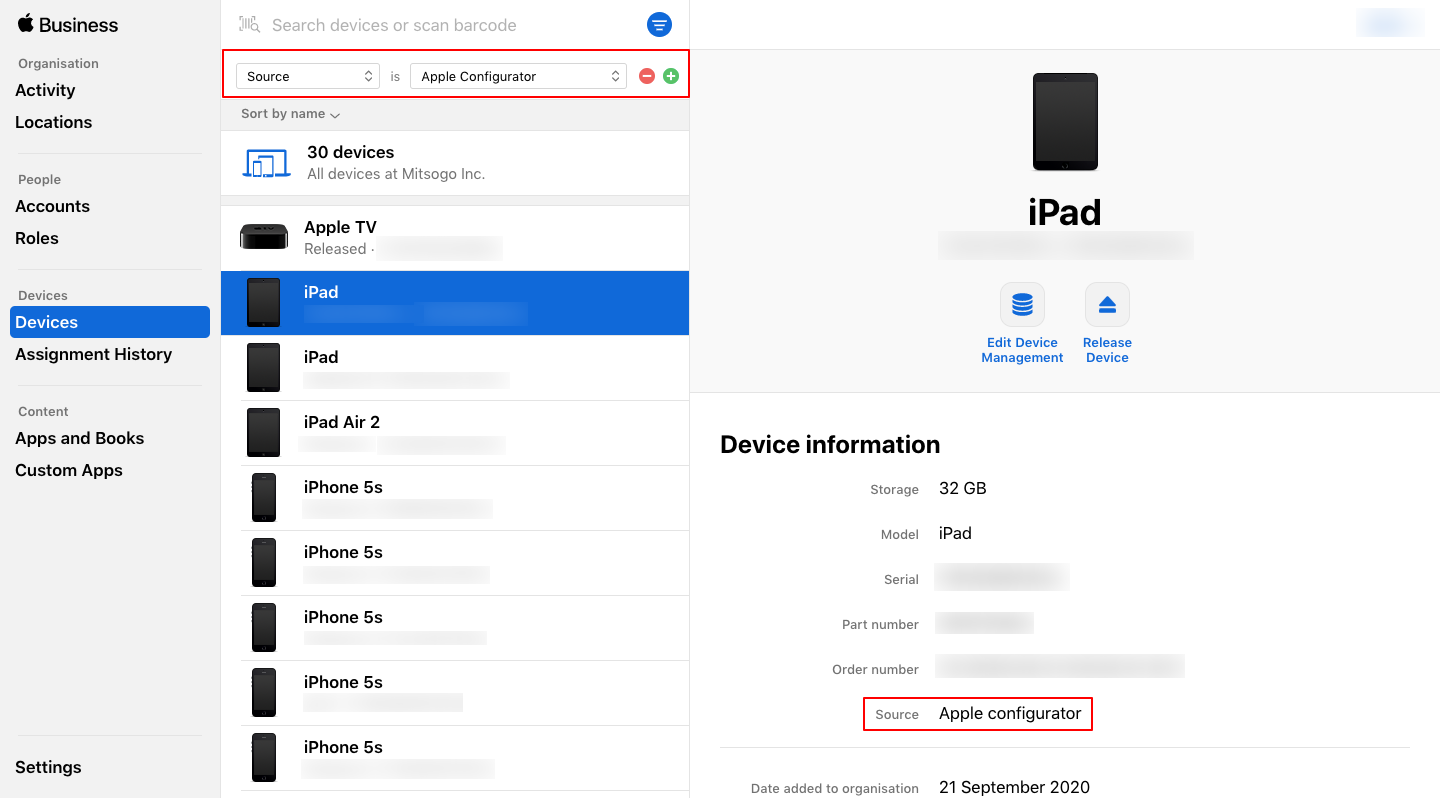
Manual device enrollment requires physical access to the device or manual user participation to install an MDM management profile. On iOS and iPadOS, administrators can utilize Apple Configurator (available for Mac and iPhone) to manually assign unlinked hardware into Apple Business Manager.
It is vital to note that manually enrolled devices enter a 30-day provisional period. During these 30 days, the end user retains the ability to manually opt out and remove the MDM profile from the device settings. Once the 30-day window elapses, the device assignment becomes permanent in ABM, granting standard Automated Device Enrollment properties.
Technical Infrastructure and Setup Prerequisites
Before enrolling devices into an enterprise environment, IT teams must build the core infrastructure linking Apple's infrastructure to their internal identity and management systems.
- Apple Business Manager (ABM)
- APNs Token Exchange with Third-Party MDM Solution
- Trust Relationship to Target Device
- Third-Party MDM Solution
- APNs Token Exchange with Apple Business Manager (ABM)
- Profile Delivery to Target Device
- Target Device
1. Establishing an Apple Business Manager Account
Apple Business Manager serves as the central administrative hub for enterprise device ownership, volume app licensing, and identity integration. Registering an enterprise organization requires:
- Legal Entity Verification: Apple verifies business status through a valid D-U-N-S (Data Universal Numbering System) number assigned by Dun & Bradstreet.
- Verification Contact: An authorized company representative (such as a Director, Legal Officer, or CIO) who can legally obligate the organization to Apple's terms and agreements.
- Dedicated Domain Workmail: Registration requires an email address associated with the organization's corporate domain. Apple rejects personal addresses hosted on public mail services.
2. Apple Push Notification service (APNs) Certificates
The continuous operational link between a Mobile Device Management platform and enrolled Apple devices relies entirely on the Apple Push Notification service (APNs). MDM solutions send command notifications across APNs to wake up devices and trigger policy syncs.
Setting up APNs involves a secure cryptographic handshake:
- Generate a Certificate Signing Request (CSR) from your MDM administration console.
- Upload the CSR to the official Apple Push Certificates Portal.
- Authenticate using an organizational Apple Account reserved specifically for infrastructure administration.
- Download the signed APNs vendor certificate (
.pemor.pemderivative file) and upload it back into your MDM platform.
Critical Maintenance Requirement: APNs certificates expire after 365 days. If an APNs certificate is allowed to lapse, the existing trust relationship between the MDM server and all currently enrolled devices breaks completely. Renewing the certificate must be performed using the exact same Apple Account that originally created it; creating a net-new certificate forces every enrolled device to undergo re-enrollment.
3. Identity Provider (IdP) Integration and Managed Apple Accounts
Modern deployments leverage Federated Authentication to sync Apple Business Manager with cloud identity providers such as Microsoft Entra ID or Google Workspace.
Federation automates the provisioning of Managed Apple Accounts based on existing enterprise identities. This ensures users authenticate using their standard corporate credentials during account-driven User Enrollment, while enabling central administrative control over account lifecycles, password policies, and multi-factor authentication (MFA).
Step-by-Step Implementation Workflow
To deploy corporate-owned hardware via Automated Device Enrollment, follow this structured execution plan:
- Step 1: Purchasing: Order hardware via authorized Apple Customer Number / Reseller ID
- Step 2: ABM Assignment: Link Reseller ID in ABM; auto-assign hardware to target MDM
- Step 3: Payload Design: Configure MDM Enrollment Profile (Setup Assistant suppression, etc.)
- Step 4: Provisioning: Device boots, queries Apple Activation Servers, pulls MDM payload
Step 1: Hardware Purchasing and Reseller Integration
Ensure all hardware orders flow through direct enterprise Apple accounts or authorized reseller channels:
- Obtain your organization's DEP Customer ID (from Apple) or provide your Apple Customer Number to your authorized reseller.
- Log into Apple Business Manager, navigate to Preferences > Device Supplier Management, and enter your reseller's Reseller ID.
- Add your organization's Customer ID to the reseller’s internal portal to authorize automated invoice ingestion.
Step 2: Linking MDM Servers to Apple Business Manager
Establish two-way authentication between ABM and your MDM solution:
- In your MDM console, download the server public key certificate.
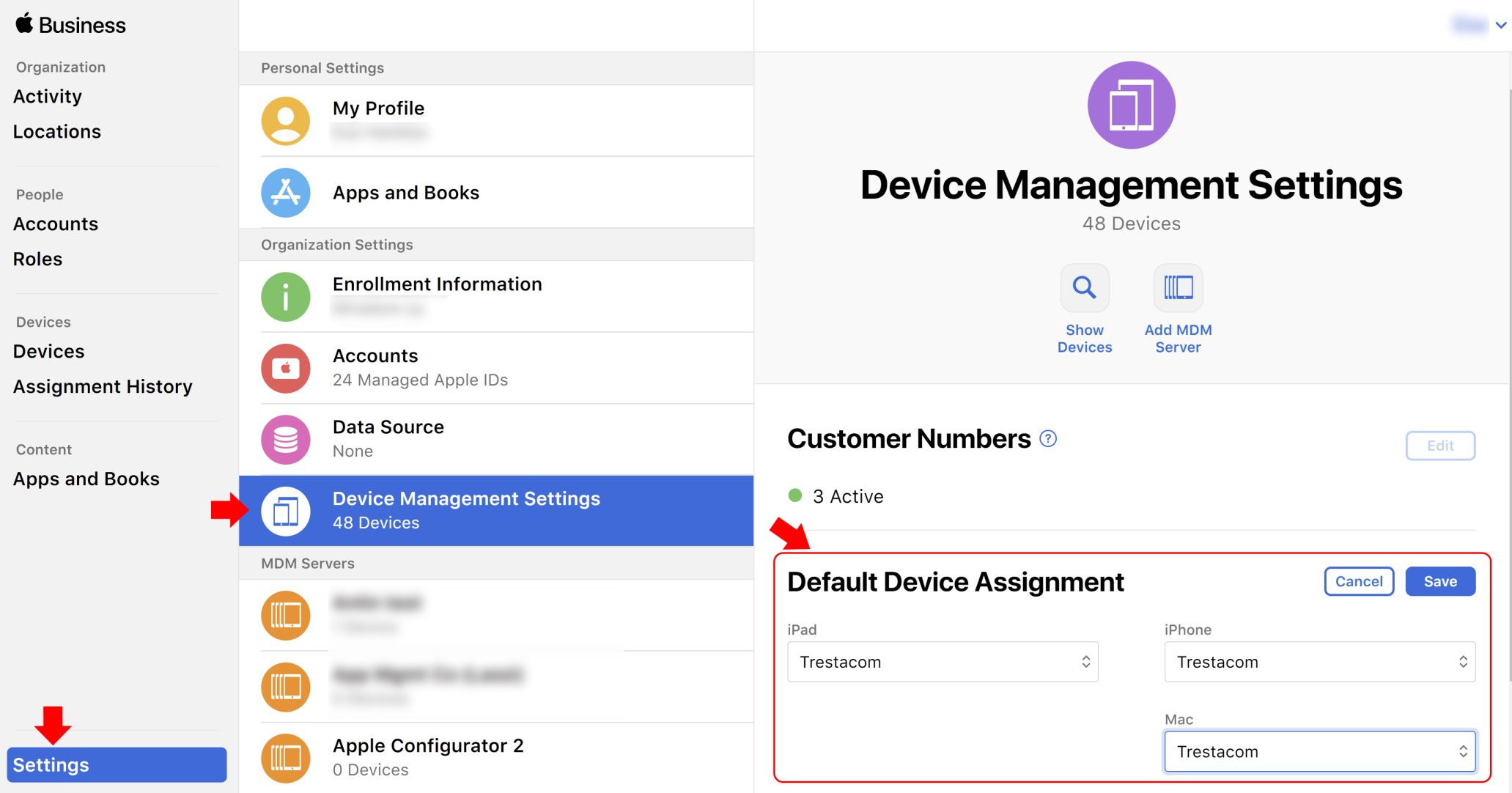
- In Apple Business Manager, navigate to Devices > MDM Servers and select Add MDM Server.
- Upload the public key file and download the resulting Server Token (
.p7mfile). - Upload this server token into your MDM management portal to complete the trust relationship.
- Set this MDM server instance as the Default Device Assignment for target device types (macOS, iOS, iPadOS).
Step 3: Designing the MDM Enrollment Profile
Within your MDM console, build the automated enrollment payload that applies to devices upon activation:
- Define local administrative credentials for macOS setup (e.g., creating a managed admin account while demoting the primary end user to a standard user account).
- Set profile enforcement to Mandatory and block MDM Profile Removal.
- Configure Setup Assistant pane suppression to skip irrelevance steps (e.g., Accessibility, Screen Time, Apple Pay, Display Zoom).
- Assign target device management configurations (Wi-Fi profiles, FileVault encryption mandates, baseline compliance rules).
Step 4: Device Unboxing and Automated Provisioning
With hardware assigned in ABM and payload rules established in MDM:
- Deliver the sealed hardware directly to the employee.
- The user powers on the device and selects a local Wi-Fi network or connects to Ethernet.
- The device contacts
albert.apple.comanddeviceenrollment.apple.comto check enrollment status. - The system identifies the organization's assignment, downloads the custom enrollment profile, executes setup restrictions, and prompts the user for corporate identity login.
- The MDM agent silently downloads business-critical software, security tools, and configuration policies in the background.
Comparison of Enrollment Methods
| Feature / Capability | Automated Device Enrollment (ADE) | User Enrollment (BYOD) | Manual Device Enrollment |
|---|---|---|---|
| Primary Target Ownership | Corporate-Owned | Personally-Owned | Corporate-Owned (Unlinked) |
| User Experience | Out-of-box Zero Touch | Self-Service App/Settings | Web download or USB cable |
| Supervision Status | Mandatory / Automatic | Not Supported | Optional (Via Configurator) |
| Unremovable MDM Profile | Yes | No (User can remove anytime) | Optional (Locked after 30 days) |
| Data Separation Model | FileVault / Device-level Encryption | APFS Volume-level Cryptographic Separation | Device-level Encryption |
| Full Device Wipe Ability | Yes | No (Enterprise Data Only) | Yes |
| OS Support | macOS, iOS, iPadOS, visionOS, tvOS | iOS, iPadOS, macOS | macOS, iOS, iPadOS, tvOS |
| Prerequisites | ABM + Approved Reseller | ABM + Managed Apple Account | ABM + Apple Configurator |
Security, Supervision, and Compliance Enforcements
The choice of device enrollment pathway directly governs the depth of security controls available to enterprise network security teams.
- Device Supervision Capabilities
- System Integrity: Force OS updates, block beta OS releases, lock firmware
- Application Control: Silent app installation, force managed app configuration
- Data Protection: Enforce FileVault/BitLocker key escrow, restrict AirDrop
- Network Security: Enforce Always-On VPN, mandate custom proxy configurations
Advanced Controls Granted by Device Supervision
Supervision grants IT administrators deep control over Apple hardware. Designed specifically for corporate assets, supervised mode enables advanced compliance management:
- Operating System Version Deferrals: IT can defer public software updates for up to 90 days, providing time to test internal apps against operating system updates.
- Silent Application Management: Enterprise software, internal business apps, and security agents push to devices silently without requiring user interaction or personal Apple IDs.
- System Integrity Enforcement: Prevent users from altering network configurations, disabling enterprise Firewalls, removing System Extensions, or modifying native security tooling (such as Gatekeeper and System Integrity Protection on macOS).
- Kiosk and Single App Mode: Lock iOS/iPadOS hardware into running a single dedicated application, useful for retail POS systems or point-of-entry check-in stations.
Safeguarding Personal Privacy in BYOD Deployments
Modern enterprise governance requires strict adherence to privacy frameworks (e.g., GDPR, CCPA). User Enrollment guarantees compliance by technically restricting management capabilities. Under User Enrollment, the MDM platform is strictly prevented from collecting:
- Personal app inventories or web browsing histories.
- Location data or personal cellular connectivity metrics.
- Personal message histories, emails, photos, or personal calendar entries.
- Device UDID or serial numbers (a unique enrollment ID is generated instead).
This separation is enforced at the kernel and file-system levels via Apple's enterprise data architecture, eliminating risks of accidental enterprise surveillance while ensuring corporate assets remain encrypted inside managed APFS containers.
Troubleshooting Common Enrollment Failures
Even thoroughly configured enrollment pipelines can encounter operational issues. Understanding how to diagnose and address enrollment blockages prevents deployment delays.
| Failure Symptom | Root Cause | Remediation Strategy |
|---|---|---|
| Setup Assistant hangs on "Remote Management" | Device cannot reach Apple servers or enterprise network blocks APNs | Open network access to ports 443/5223 on 17.0.0.0/8 IP block |
| MDM Token Error during sync | ABM server token expired | Regenerate token pair in ABM & MDM |
| Hardware purchased but not showing up in ABM | Reseller failed to ingest invoice data into Apple supply chain | Assign purchase manually via Apple Configurator |
1. Network and Port Configuration Blockages
Automated Device Enrollment depends on open network paths to Apple's infrastructure. If a newly unboxed device fails to display the "Remote Management" screen during setup, verify that your corporate network or setup Wi-Fi does not restrict outgoing traffic to Apple's subnet.
- Crucial Hostnames: Ensure unrestricted TLS communication to
albert.apple.com,deviceenrollment.apple.com, andmdmenrollment.apple.com. - Required Ports: Network switches and firewalls must pass outbound traffic across TCP Port 443 (HTTPS) and TCP Port 5223 (APNs communication).
- IP Range: Apple maintains ownership of the entire
17.0.0.0/8IPv4 address block. Enterprise firewall policies must allow outbound connections to this range.
2. Apple Business Manager Token Expiration
If your MDM console reports synchronization errors or fails to pull newly purchased hardware assignments, the ABM token pair has likely expired.
Server tokens exchanged between ABM and MDM solutions remain valid for exactly 365 days. To remediate:
- Log into Apple Business Manager with an administrative account.
- Navigate to Preferences > MDM Servers and select the impacted server instance.
- Click Download Token to acquire a fresh
.p7mtoken file. - Access the MDM administration panel and upload the new token into your Apple enrollment integration settings.
- Execute a manual synchronization to resume device updates.
3. Manually Adding Omitted Hardware via Apple Configurator
When devices are acquired outside authorized reseller channels (such as emergency retail purchases), they will not automatically appear in Apple Business Manager. These units can be added manually using Apple Configurator:
- Install Apple Configurator from the Mac App Store or iOS App Store on an administrative host device.
- Open Apple Configurator and log in using an account assigned the Device Enrollment Manager role in Apple Business Manager.
- For iOS/iPadOS devices: Connect the physical device via USB to a Mac running Configurator, or bring an iPhone running Apple Configurator close to the setup screen of the unassigned device.
- Scan the pairing imagery displayed in the Setup Assistant.
- Assign the device to your desired MDM server assignment.
- Remember: Hardware added via this method enters a 30-day provisional phase during which the end user can opt out of management. After 30 days, the enrollment profile locks permanently.
Frequently Asked Questions
What happens if an APNs certificate expires before it is renewed?
If the APNs certificate lapses, the active management channel between your MDM server and all enrolled devices breaks immediately. Devices will no longer receive security policies, app updates, or administrative commands. If you renew the certificate using the same Apple Account before renewing, connectivity recovers automatically. However, if you create a brand-new APNs certificate using a different Apple Account, every existing device must be re-enrolled from scratch.
Can personal Apple IDs be blocked on corporate-owned, enrolled devices?
Yes. On devices enrolled through Automated Device Enrollment or supervised via manual enrollment, IT administrators can push restriction payloads that disable signing in with personal Apple IDs. Additionally, administrators can restrict iCloud backup services, document sync, and personal App Store downloads while enforcing the use of Managed Apple Accounts for corporate tools.
What is the difference between Apple Business Manager and Mobile Device Management (MDM)?
Apple Business Manager (ABM) is a portal provided by Apple to verify organizational ownership of devices, manage app licenses (Volume Purchase Program), and delegate device management targets. ABM does not push policies directly to devices. An MDM solution (such as Jamf, Microsoft Intune, or Kandji) is a third-party management platform that integrates with ABM to deliver configuration profiles, deploy software, monitor compliance, and issue remote administrative commands.
How does Apple Device Enrollment protect corporate data on BYOD devices?
Through the User Enrollment framework, personal devices utilize an isolated APFS storage volume dedicated solely to enterprise data. Managed apps, enterprise email accounts, and work documents reside on this encrypted volume. The MDM server maintains administrative access over the managed volume—allowing for selective corporate data wipes—while remaining technically locked out from viewing or modifying personal applications, personal photos, browsing histories, or device locations.
Can an employee bypass Automated Device Enrollment by wiping the hardware?
No. Automated Device Enrollment assignment is anchored to the physical hardware's serial number on Apple’s activation servers (albert.apple.com). Even if an end user performs a hard factory reset, erases the disk drive, or reinstalls the operating system, the device will query Apple’s activation servers upon initial startup, recognize its corporate assignment, and re-enforce the mandatory MDM enrollment screen during the Setup Assistant.
Strategic Next Steps for Implementation
To ensure a smooth rollout of Apple device management in your organization, follow these key preparation phases:
- Audit Enterprise Purchasing Pathways: Ensure all future Apple hardware purchases flow directly through direct enterprise Apple Customer Numbers or registered reseller channels linked to your organization's D-U-N-S profile.
- Establish Infrastructure Ownership Accounts: Create a dedicated, non-personal distribution group email (e.g.,
apple-admin@yourdomain.com) to register and maintain your Apple Business Manager account and annual APNs certificates. - Review Identity Federation Readiness: Prepare your primary Identity Provider (Entra ID, Okta, or Google Workspace) for federation with ABM to automate Managed Apple Account provisioning.
- Draft Role-Based Enrollment Profiles: Map out enrollment payloads by department, identifying which roles require full Automated Device Enrollment and which user bases align with BYOD User Enrollment frameworks.