The Apple macOS Mojave (version 10.14) operating system was officially released to the public on September 24, 2018. As a major milestone in Apple’s software history, Mojave introduced significant interface changes, such as the system-wide Dark Mode and the introduction of the Mac App Store’s redesigned layout, marking a transition period between legacy system designs and the modern macOS aesthetic.
Historical Context of the macOS Mojave Release
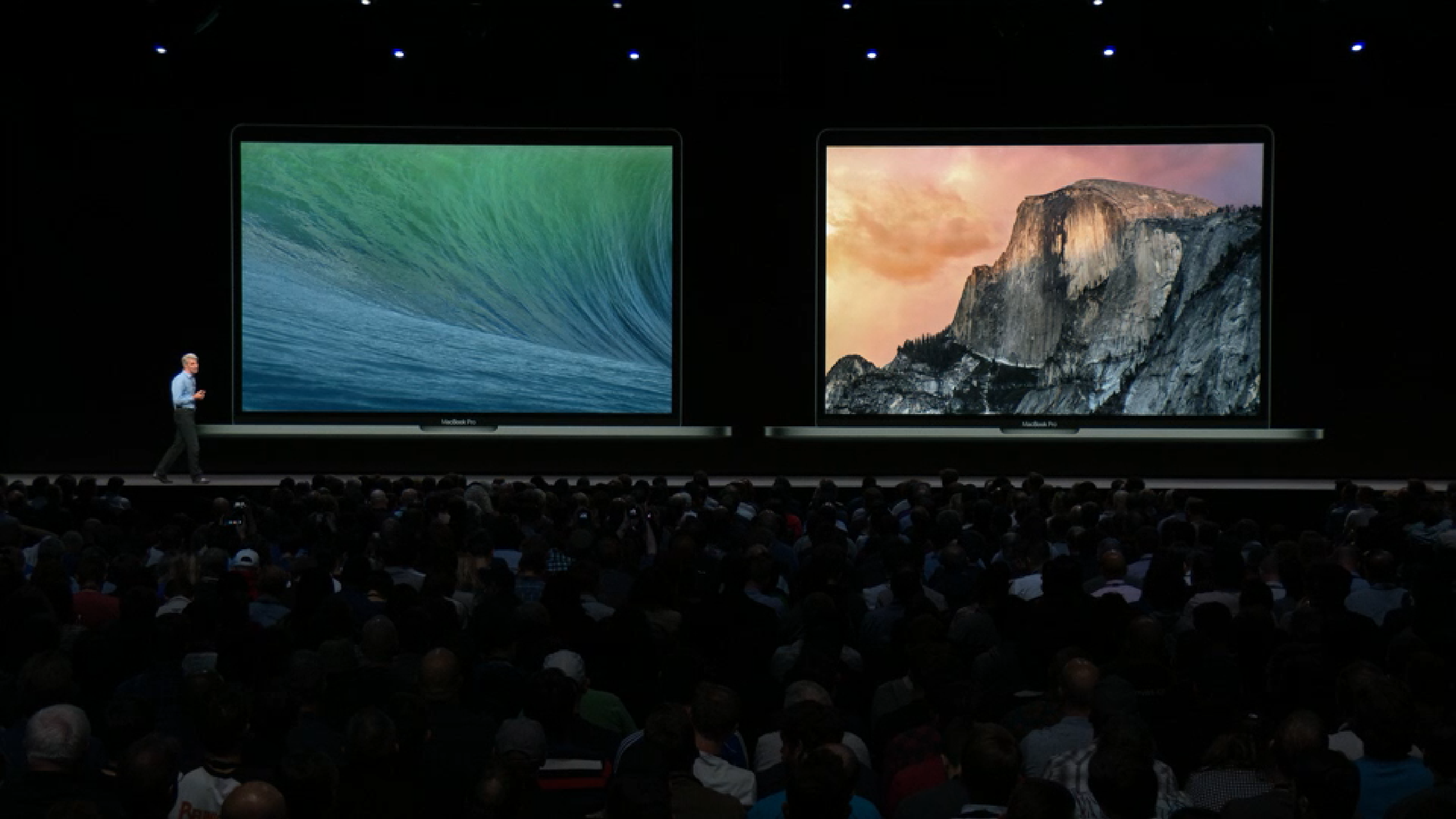
Apple announced macOS Mojave on June 4, 2018, during the Worldwide Developers Conference (WWDC). Following a series of developer and public beta iterations throughout the summer, the final version reached the public on September 24, 2018. Named after the Mojave Desert in California—continuing Apple’s trend of naming operating systems after iconic California locations—it succeeded macOS High Sierra (version 10.13).
The release was notable because it represented the last major version of macOS to officially support 32-bit applications. While the transition to a purely 64-bit architecture was initiated in High Sierra, Mojave served as the "final warning" for developers and users to migrate their software, as the subsequent release, macOS Catalina, completely removed support for 32-bit binaries. Understanding this release date is crucial for users managing legacy hardware or attempting to reconcile software compatibility issues in 2026.
Core Features and Technical Contributions
The 2018 release of Mojave brought several architectural and functional improvements that remain relevant for users of older Mac hardware today. By prioritizing performance and system-wide aesthetics, Apple managed to extend the utility of machines released as far back as 2012.
Dark Mode and Dynamic Desktop
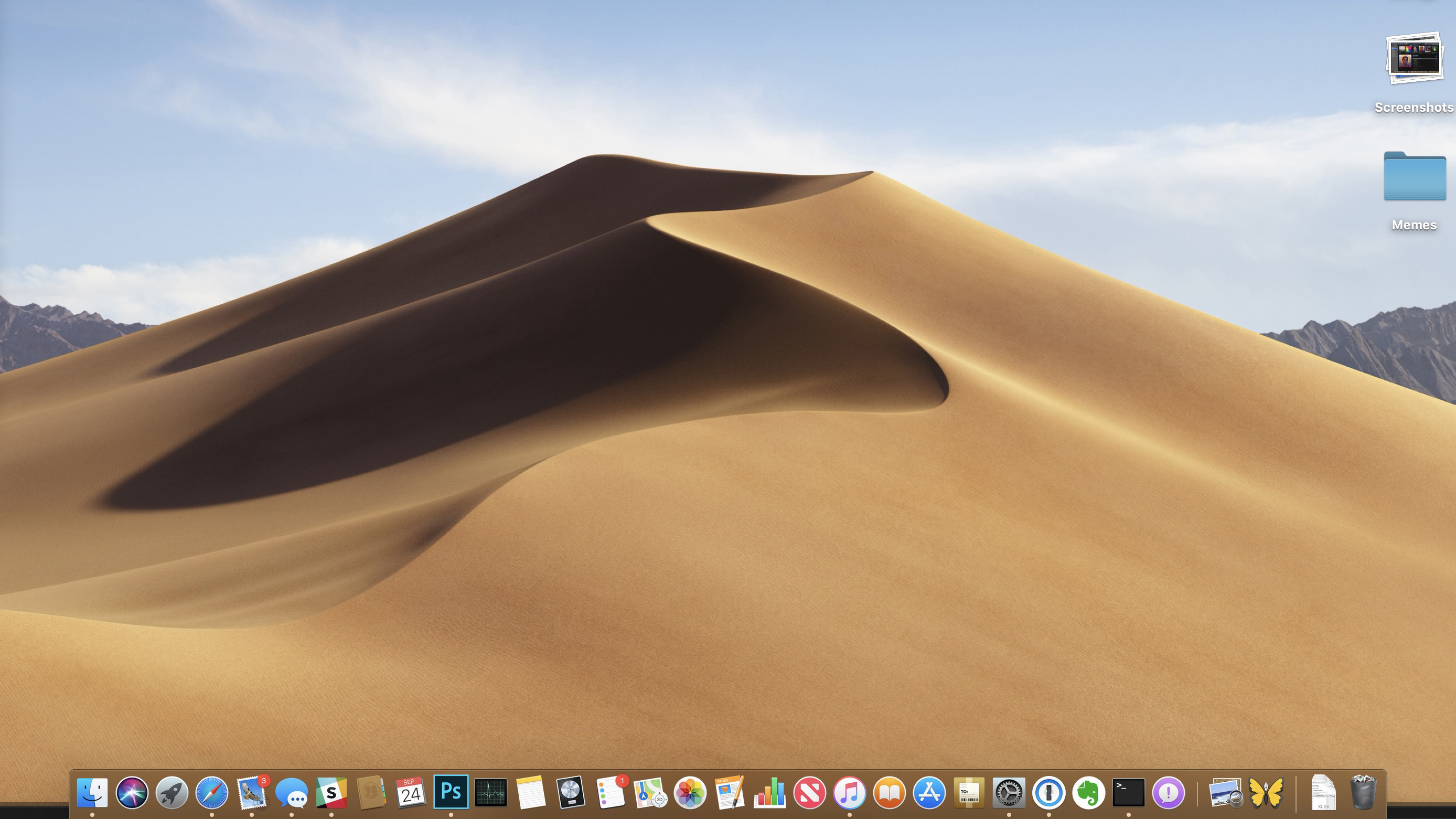
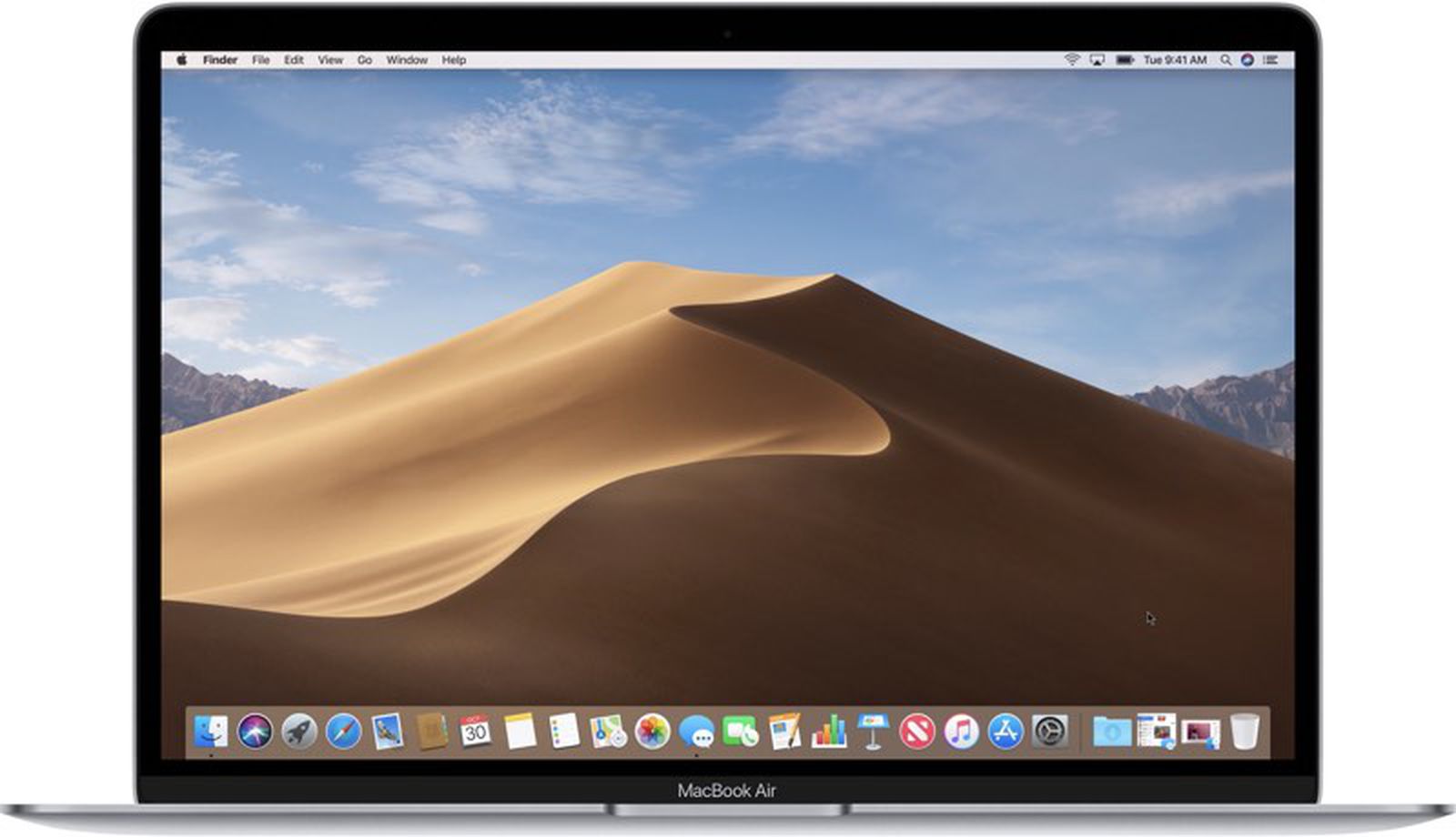
Mojave is perhaps most recognized for the introduction of Dark Mode, which changed the way users interacted with their interface, particularly in low-light environments. Along with this, Apple introduced Dynamic Desktop, where the desktop wallpaper would subtly change its color tones and lighting based on the time of day, syncing with the system’s internal clock.
Stacks and Finder Enhancements
To combat digital clutter, Mojave introduced "Stacks" on the desktop. This feature automatically grouped files by kind, date, or tags, keeping the user’s workspace organized. The Finder also received an update in the form of "Gallery View," allowing users to visually browse files with a preview pane that displayed comprehensive metadata, which proved highly beneficial for creative professionals working with images and documents.
Security and Privacy Upgrades
The 2018 release significantly bolstered security by requiring apps to seek explicit user permission before accessing the camera, microphone, or sensitive data like Mail and Messages databases. This shifted the responsibility of data privacy toward the user, setting the standard for the permissions-based security model found in all current versions of macOS.
Hardware Compatibility Requirements
To determine if a machine is compatible with macOS Mojave, one must look at the specific hardware architecture finalized in 2018. Because Mojave relied on the Metal graphics API for much of its visual rendering, it required Macs with specific GPU capabilities.
| Mac Model | Minimum Year Requirement |
|---|---|
| MacBook | Early 2015 or later |
| MacBook Air | Mid 2012 or later |
| MacBook Pro | Mid 2012 or later |
| Mac mini | Late 2012 or later |
| iMac | Late 2012 or later |
| iMac Pro | 2017 |
| Mac Pro | Late 2013 (or mid-2010/2012 with Metal-capable GPU) |
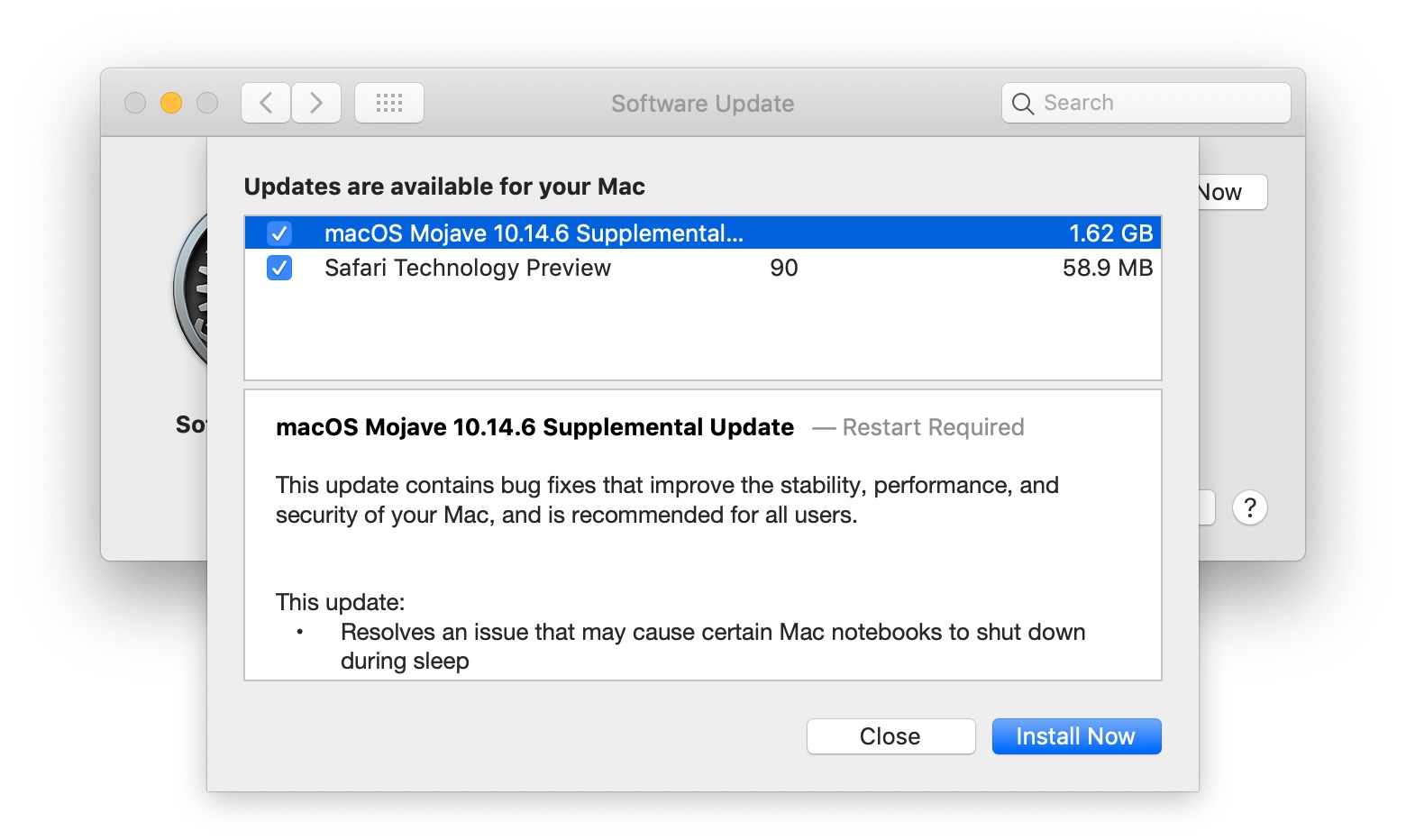
Users attempting to run software developed in 2026 on these machines may find that the underlying OS (Mojave) lacks the necessary security patches and modern API support, as Apple ceased providing security updates for Mojave in late 2021.
Managing Software Compatibility in 2026
In 2026, users still running macOS Mojave are in a "legacy state." While the OS is functional for basic tasks such as word processing or offline file management, it is no longer supported by current versions of Safari, Chrome, or modern productivity suites like Microsoft 365 or the latest Creative Cloud apps.
If you are using a Mac that is stuck on Mojave, you are effectively isolated from the security updates that protect against modern exploits. If your hardware is officially listed as compatible with a newer operating system (such as macOS Monterey or Sonoma), upgrading is the only way to ensure software compatibility and system safety. However, if your hardware is strictly limited to Mojave, you should consider the following:
- Air-gapping: If the machine contains sensitive data, consider disconnecting it from the internet to mitigate the risk of unpatched vulnerabilities.
- Third-party Browsers: While official Safari updates have stopped, some lightweight, community-maintained browser forks may still provide basic rendering capabilities, though they do not offer full security protection.
- Migration: Export all essential data to a modern machine. Using an external SSD or a cloud-based sync service is the most reliable way to transition data away from a legacy Mojave environment.
Comparison: macOS Mojave vs. Subsequent Releases
The evolution from Mojave to later versions was defined by the transition from Intel-based architecture to Apple Silicon. The following table highlights the distinct phases of this transition.
| Feature / Version | macOS Mojave (2018) | macOS Catalina (2019) | macOS Monterey+ (2021+) |
|---|---|---|---|
| 32-bit App Support | Yes | No | No |
| Architecture | Intel | Intel | Intel & Apple Silicon |
| Security Updates | Discontinued (2021) | Discontinued (2022) | Active |
| Primary Focus | Visual Polish/Dark Mode | App Separation (Music/TV/Podcasts) | Continuity/Cross-Device Features |
Frequently Asked Questions
Is macOS Mojave still safe to use in 2026? No. macOS Mojave reached its "End of Life" (EOL) status in 2021. This means it no longer receives security patches, leaving it vulnerable to exploits discovered since that time. It is not recommended for daily use, especially for banking or sensitive communications.
Can I upgrade from Mojave to a newer OS? It depends on your hardware. If your Mac meets the minimum requirements for a newer OS (such as macOS Monterey or Sonoma), you can perform an in-place upgrade via the System Settings or the Mac App Store. If your Mac is older, you may need to use tools like OpenCore Legacy Patcher, though this is intended for advanced users and carries risks.
Why was 2018 a pivotal year for macOS? 2018 was the turning point where Apple aggressively pushed for 64-bit software adoption and revamped the system’s visual identity. It marked the end of the traditional "App Store" experience and prepared the foundation for the eventual shift to Apple Silicon hardware that began in 2020.
How do I check if my software works on Mojave? Since Mojave is the final version to support 32-bit apps, you can check your system by going to "About This Mac" -> "System Report" -> "Software" -> "Applications." Any app listed as "64-bit (No)" will not run on any version of macOS released after Mojave.
Can I still download macOS Mojave? Apple makes older installers available via their official support website. If your Mac supports Mojave and you have performed a factory reset, you can use the App Store links provided in Apple's "How to download macOS" support page.
Recommendation
If you are currently relying on a machine running macOS Mojave in 2026, your primary goal should be data preservation and transition. Verify the maximum supported OS version for your specific model using the official Apple Support database. If your machine cannot be upgraded further, prioritize the transition to a newer system that supports current security protocols. Avoid using the Mojave machine for any tasks involving web-based authentication, financial transactions, or the handling of sensitive personal information.