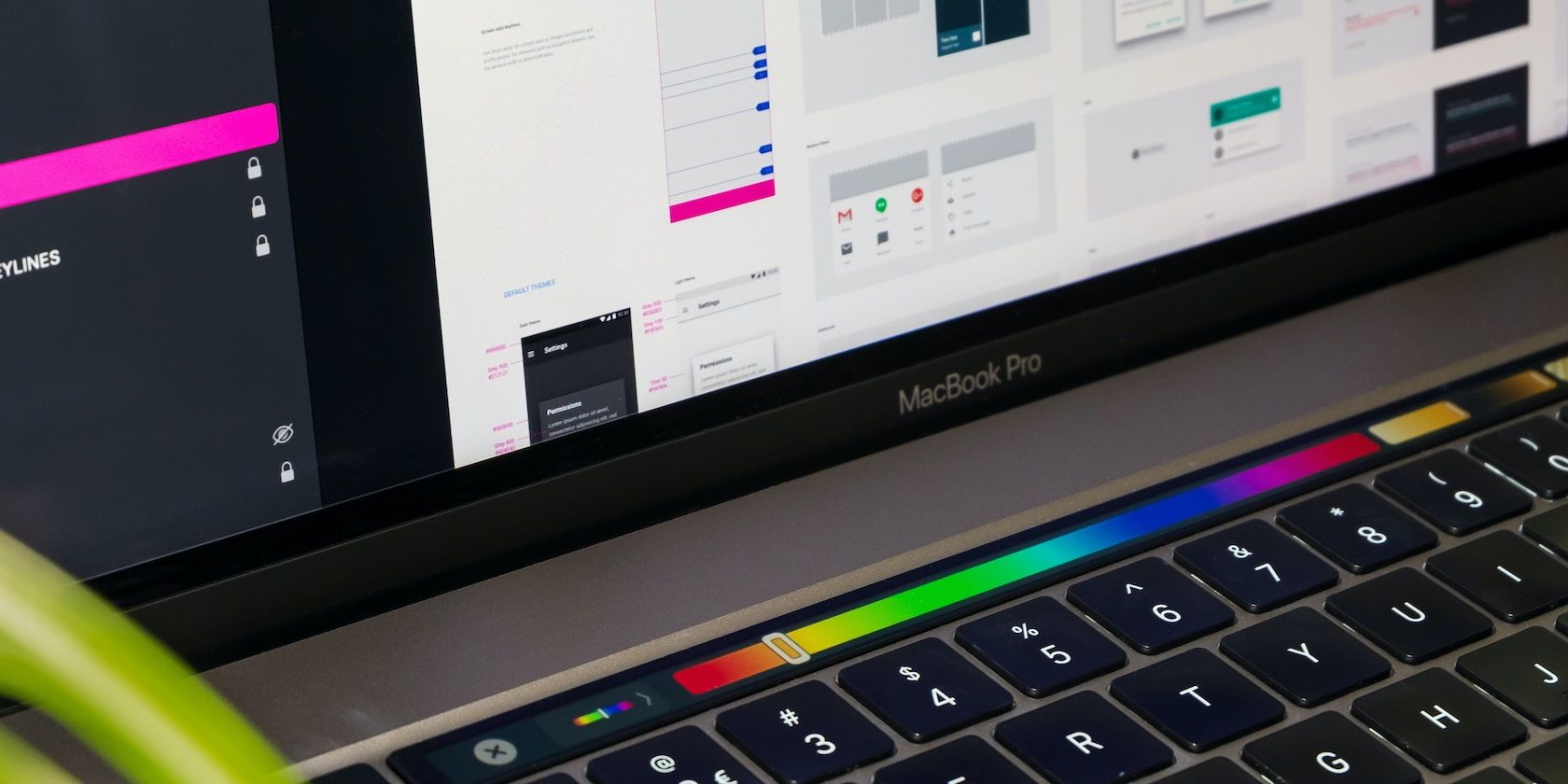
As of 2026, Apple does not manufacture any MacBook models with a touch-sensitive screen. While the company has integrated touch-based technology into its macOS ecosystem through external peripherals and the specialized Touch Bar on legacy hardware, the primary interface for all current MacBook Air and MacBook Pro models remains the keyboard and trackpad combination.
The Evolution of the MacBook Interface
For decades, Apple has maintained a distinct philosophical divide between its product lines. The iPad, running iPadOS, is built around a multi-touch interface designed for direct interaction with the display. Conversely, the Mac, running macOS, is architected around the precision of a cursor-driven environment. This separation is not merely a technical limitation but a design decision rooted in ergonomics and user experience.
Why Apple Avoids Touch Screens on MacBooks
Apple’s leadership has frequently cited the "gorilla arm" phenomenon as a primary reason for the absence of touch screens on its laptops. When a screen is positioned vertically—as it is on a MacBook—prolonged interaction requires the user to hold their arm up in the air, which leads to physical fatigue.
Furthermore, the macOS user interface relies heavily on small, precise targets, such as close buttons, menu bars, and fine-grained sliders. These elements are designed for the high-precision input of a trackpad, which allows for microscopic adjustments. Transforming these elements for finger-based touch would require a fundamental redesign of the entire operating system, likely resulting in a less efficient experience for power users.
Understanding the Touch Bar Legacy
To understand the landscape of touch-based input on MacBooks, one must look at the Touch Bar. Introduced in 2016, the Touch Bar was a thin, Retina-quality OLED strip that replaced the traditional function key row on higher-end MacBook Pro models.
This hardware feature allowed users to interact with context-aware controls, such as scrubbing through video, adjusting volume with a slider, or selecting emojis in messaging apps. While it provided a touch interface on the keyboard deck, it was never a replacement for the screen itself. By 2026, Apple has largely phased out the Touch Bar in favor of physical, full-height function keys, signaling a return to traditional tactile inputs that prioritize speed and muscle memory.
How to Get a "Touch" Experience on Your Mac
While your MacBook screen itself is not touch-capable, there are several ways to bridge the gap if you require touch-like functionality for specific workflows.
1. The iPad as a Secondary Display (Sidecar)
The most integrated way to gain touch control is through the Sidecar feature. If you own an iPad, you can connect it to your MacBook to serve as a secondary display. While the Mac interface itself is not optimized for touch, using an Apple Pencil on the iPad allows for high-precision drawing, sketching, and annotation within creative applications like Adobe Photoshop or Final Cut Pro. In this configuration, you effectively turn your iPad into a touch-sensitive digitizer for your Mac.
2. External Drawing Tablets
For graphic designers and illustrators, a dedicated external graphics tablet—such as those manufactured by Wacom or Xencelabs—provides the tactile control that a touch screen lacks. These tablets translate pen-to-surface interaction directly to the Mac’s cursor, offering pressure sensitivity and tilt recognition that a finger-driven touch screen cannot replicate.
3. Trackpad Gestures
Apple’s Force Touch trackpads are arguably the most advanced pointing devices on the market. By mastering multi-touch gestures—such as swiping between spaces, pinching to zoom, and mission control triggers—you can navigate macOS with a level of fluidity that often rivals or exceeds touch-screen interaction. These gestures are specifically engineered to keep your wrists in a natural, rested position while providing rapid access to the operating system's deep navigation layers.
Comparison of Interface Methods
The table below outlines how various input methods compare when trying to achieve a touch-like workflow on a MacBook.
| Input Method | Touch-Capable? | Precision | Ergonomic Impact | Best For |
|---|---|---|---|---|
| MacBook Trackpad | No (Gesture-based) | Extremely High | Low (Natural) | Daily navigation & productivity |
| iPad (Sidecar) | Yes (Touch/Pencil) | High (with Pencil) | Medium (Extended arm) | Design, editing, illustration |
| External Pen Tablet | Yes (Stylus) | Professional Grade | Low (Natural) | Digital art & precise retouching |
| Touchscreen PC | Yes (Direct) | Medium | High (Gorilla arm) | Browsing & simple interaction |
Common Misconceptions Regarding Future MacBooks
Market rumors regarding a touch-screen MacBook have persisted for years. However, as of 2026, there has been no official shift in strategy. Apple’s ongoing development of the M-series silicon has further optimized the synergy between macOS and the hardware, emphasizing performance and battery efficiency over changing the fundamental input model.
It is also important to differentiate between "touch screen" and "multi-touch." Your current MacBook does feature a multi-touch trackpad, which uses the same capacitive glass technology found on an iPhone. Users often confuse the surface of the trackpad with the display itself when they hear "multi-touch," but it is crucial to remember that these technologies exist in different physical locations on your device.
Troubleshooting Input Issues
If you feel the need for a touch screen because your current trackpad is underperforming, you may simply need to optimize your settings:
- Adjust Tracking Speed: Navigate to System Settings > Trackpad. Increasing the tracking speed allows you to reach any corner of your display with minimal finger movement, reducing the physical effort required for large movements.
- Enable Tap to Click: Many users find that disabling "Click" in favor of "Tap to Click" makes the trackpad feel more like a touch screen, as it removes the need to physically depress the mechanism.
- Customize Gestures: Ensure that "App Expose" and "Launchpad" gestures are enabled, as these allow for rapid application switching that mimics the fluidity of a touch-based mobile interface.
Frequently Asked Questions
Is there any way to install a touch-screen overlay on a MacBook?
No. There are no safe, reliable, or software-supported methods to add a touch-screen overlay to a MacBook. Attempting to install third-party hardware add-ons can result in damage to the Retina display, void your AppleCare warranty, and cause erratic cursor behavior due to driver incompatibility with macOS.
Will Apple ever release a touch-screen MacBook?
While Apple has not announced such a product, they have filed patents over the years for various interface technologies. However, holding a patent is not an indication of a future product release. Currently, the company remains committed to the iPad as its primary touch-capable computing device.
Can I use my iPhone as a touch screen for my Mac?
You can use third-party continuity apps that allow your iPhone to act as a remote trackpad or, in some limited capacity, a macro controller. However, there is no native Apple feature that allows you to mirror your Mac desktop onto your iPhone and interact with it via touch.
Does the MacBook Pro's current keyboard support touch?
No. The Touch Bar has been discontinued in favor of physical keys. The current generation of MacBook Pro keyboards is designed for tactile feedback, which is preferred for professional typing and keyboard shortcuts.
Why do some laptop manufacturers offer touch screens and not Apple?
Other manufacturers often use a "2-in-1" or "convertible" design where the screen folds back to become a tablet. Because Apple maintains a strict separation between the tablet form factor (iPad) and the laptop form factor (MacBook), they do not design their hardware to accommodate the specialized hinges required for a stable touch-screen experience.
Final Recommendation
If your workflow relies heavily on touch interaction, you should consider the intended use case. If you need a primary computing device that allows for both touch and high-performance desktop productivity, the most effective solution in 2026 is to pair a high-end MacBook with an iPad Pro using Sidecar. This provides the best of both worlds: the raw power of macOS and the direct, tactile input of an iPad. Avoid unofficial attempts to modify your MacBook display, as these will likely result in hardware failure rather than improved functionality.