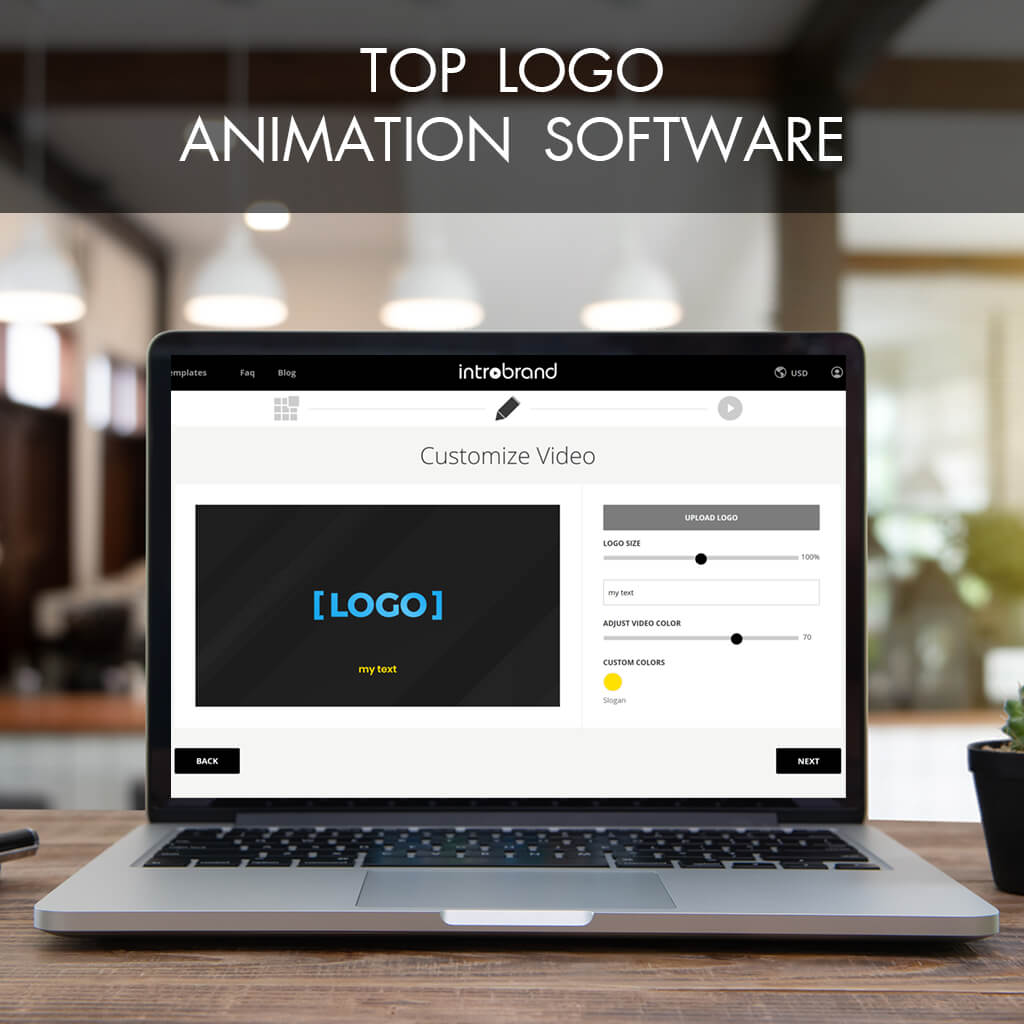
An animated logo creator free allows users to transform static branding into dynamic motion graphics using web-based templates or AI-driven tools. In 2026, top options like Canva and Adobe Express offer sophisticated presets and Lottie exports, though most free tiers include watermarks or limited resolution compared to their premium counterparts.
The Evolution of Logo Animation in 2026
In the current digital landscape of 2026, a static logo is often insufficient for brands aiming to capture attention across saturated social media feeds and interactive web interfaces. Movement is no longer a luxury reserved for high-budget corporations with dedicated motion design teams. The democratization of animation technology has shifted the focus from manual keyframing—a labor-intensive process—to intuitive, AI-assisted platforms that can interpret a brand’s aesthetic and suggest appropriate motion paths.
The primary shift in 2026 involves the widespread adoption of Lottie files. Unlike traditional GIFs or MP4s, Lottie files are JSON-based animation files that are incredibly small in size, infinitely scalable, and capable of playing on web and mobile platforms without losing quality or slowing down page load speeds. When searching for an animated logo creator, the ability to export in this format has become a standard requirement for professional-grade results.
Furthermore, the psychology behind motion branding has become better understood. Movement triggers the human brain’s "orienting response," which evolved to detect predators or prey in the peripheral vision. By applying subtle, purposeful motion to a logo, a brand can increase its visual "stickiness," ensuring that the first thing a user sees on a splash screen or social header is a dynamic representation of the brand’s identity.
Top Free Animated Logo Creators: A Detailed Review
Choosing the right tool depends largely on your technical proficiency and the specific "vibe" your brand requires. Below are the most reliable platforms available in 2026 that offer robust free-tier functionality for animating logos.
Canva: The King of Accessibility
Canva remains the most popular entry point for beginners. Its "Magic Animate" suite, updated significantly for the 2026 season, allows users to upload a static SVG or PNG logo and apply professional-grade movement with a single click.
Canva’s free tier is generous, providing access to basic animation styles such as "Breathe," "Fade," and "Tumble." However, the most significant limitation for free users remains the lack of transparent background exports (alpha channels). To get a logo with a transparent background in the free version, users often have to resort to workarounds, such as using a green-screen background and removing it in a video editor later.
Adobe Express: Professional Presets for All
Adobe Express has positioned itself as the high-end alternative to Canva. By 2026, its integration with the broader Adobe Firefly AI ecosystem allows for "Text-to-Motion" features. For instance, you can describe how you want your logo to appear—"liquid metal pouring into a gear shape"—and the AI generates several animation variations.
The free version of Adobe Express provides a surprising amount of control over timing and "easing" (the acceleration and deceleration of an object). This ensures that the animation doesn't look robotic. While it offers high-resolution MP4 exports for free, some of the more complex motion templates are locked behind a premium subscription.
Renderforest: Best for Cinematic Intros
If your goal is a high-impact, 3D, or cinematic logo reveal for a YouTube channel or a corporate presentation, Renderforest is the specialized tool for the job. It utilizes a massive library of pre-rendered 3D environments. You simply upload your logo, and the software "maps" it onto 3D surfaces, adds lighting effects, and renders the video.
The downside to Renderforest’s free tier is the presence of a watermark and a resolution cap (typically 720p). While this may not be ideal for a permanent website header, it serves as an excellent prototyping tool to see how your logo looks in a 3D space before committing to a paid export.
Animaker: Vector-Level Control
For those who want more than just "presets," Animaker offers a "Lite" version of a professional animation suite. It allows for more granular control over individual elements of a logo. If your logo consists of multiple parts—for example, a name and an icon—you can animate them independently, having the icon bounce in from the left while the text fades in from the right.
Animaker is particularly strong for 2D, vector-style animations. In 2026, it supports direct SVG imports, which means your logo remains crisp regardless of how much you scale it during the animation process.
Technical Specifications and File Formats
Understanding the output of these tools is just as important as the creation process itself. Not all "video" files are created equal, and using the wrong format can lead to blurry logos or slow websites.
- MP4 (H.264/H.265): The most common format. Excellent for social media posts (Instagram, TikTok). However, MP4 does not support transparency natively in most web browsers.
- GIF: An older format primarily used for memes and simple email signatures. It has a limited color palette (256 colors) and often results in "pixelated" edges. It should be avoided for high-quality branding in 2026 unless specifically required by a platform.
- Lottie (JSON): The gold standard for web and app design. It is a code-based file that tells the browser how to draw and move the logo in real-time. It supports transparency and is usually 1/10th the size of a GIF.
- WebM: A modern video format that does support transparency (alpha channel). This is the best choice if you need a high-quality video background for a logo on a desktop website.
Step-by-Step Guide to Creating an Animated Logo
Regardless of which "animated logo creator free" tool you choose, the workflow generally follows a standard professional sequence to ensure the best results.
Step 1: Preparation of Assets
Before uploading, ensure your logo is in a high-resolution format. An SVG (Scalable Vector Graphics) file is always preferred over a PNG or JPG. SVGs allow the software to recognize individual paths and shapes, enabling more complex animations (like a line-drawing effect).
Step 2: Selecting the Animation Style
Match the motion to your brand's personality.
- Tech Brands: Should use "glitch" effects, rapid slides, or precise geometric movements.
- Organic/Wellness Brands: Should utilize "soft fades," "gentle pulses," or "liquid transitions."
- Retail/Bold Brands: Benefit from "pops," "bounces," and high-energy scaling.
Step 3: Adjusting the Timing
A common mistake is making a logo animation too long. In 2026, user attention spans are shorter than ever. A professional logo reveal should typically last between 1.5 and 3 seconds. Any longer, and it becomes a hurdle for users trying to access your content.
Step 4: Exporting and Implementation
Once you are satisfied with the preview, export the file. If the tool offers a "transparent background" option, use it. If not, ensure the background color of your animation matches the hex code of your website's header exactly to create a seamless look.
Comparison of Free Animated Logo Tools (2026 Status)
| Tool Name | Primary Strength | Export Formats (Free) | Watermark? | AI Integration |
|---|---|---|---|---|
| Canva | Ease of Use | MP4, GIF | No (on free elements) | Magic Animate |
| Adobe Express | Design Quality | MP4 | No | Firefly Motion |
| Renderforest | 3D/Cinematic | MP4 (720p) | Yes | Template Matching |
| Animaker | Customization | MP4, GIF | Yes | Smart Move AI |
| VistaCreate | Social Media | MP4, GIF | No | Basic Presets |
Common Limitations of Free Tools
While "free" is an attractive price point, it is vital to manage expectations. Developers of these platforms incur significant server costs for rendering video, which leads to several common restrictions:
- The Transparency Paywall: Almost all tools reserve the "transparent background" export for their Pro versions. This is because creating a video with an alpha channel requires more processing power and specific codecs.
- Resolution Caps: You may be limited to 720p. On high-resolution mobile screens (Retina/OLED), a 720p logo can appear slightly soft or blurry.
- Asset Libraries: Free users often have access to a restricted set of fonts and music tracks. Using "Pro" assets in your design will usually prevent you from downloading the final file until you pay or remove the asset.
- Commercial Licensing: This is a critical legal area. Often, the "free" version of a tool grants you a license for personal use only. If you are using the logo for a business that generates revenue, you may technically be in violation of the terms of service unless you upgrade to a commercial license.
Future Trends: Logo Animation in the Age of AI
As we progress through 2026, we are seeing the rise of Dynamic Logos. These are logos that don't just move in one set way but react to user behavior. For example, a logo might pulse when a user hovers their mouse over it or change its animation speed based on the time of day.
While currently sophisticated, free tools are beginning to integrate these "reactive" features. We are also seeing "Generative Motion," where the AI doesn't just use a preset but creates a unique motion path every time the page loads, ensuring the brand always feels "alive" and non-repetitive.
Frequently Asked Questions
Can I create an animated logo for free without a watermark?
Yes, platforms like Canva and Adobe Express allow you to export animated logos without a watermark on their free tiers, provided you use only the free elements and templates. However, specialized 3D tools like Renderforest almost always include a watermark in their free versions.
What is the best file format for a website logo?
The best format is Lottie (JSON). It provides the smallest file size and the highest quality. If your website platform does not support Lottie, the next best option is a WebM file with transparency or a high-bitrate MP4 that matches your site's background color.
Do I need to be a designer to use these tools?
No. Most modern tools in 2026 use "one-click" animation styles. You simply upload your image, click a style like "Drift" or "Pop," and the AI handles the complex math of motion. However, having a basic understanding of "easing" and "timing" will help you produce a more professional result.
Is it legal to use a free animated logo for my business?
This depends on the specific tool's Terms of Service. Many "free" tools are for personal use or have a "Creative Commons with Attribution" license. Always check the licensing section of the tool's website to ensure you have the rights for commercial use, especially if you plan to use the logo in paid advertising.
How do I make the background of my animated logo transparent for free?
Most free tools block transparent exports. A common professional workaround is to set your background to a solid, vibrant color (like "Chroma Key Green") that does not appear in your logo. You can then use free video editing software like CapCut or DaVinci Resolve to "key out" the green background and export the final file with transparency.
Practical Recommendation
For the vast majority of small business owners and creators in 2026, Adobe Express is the recommended starting point. It offers the best balance of professional-grade AI motion presets and a generous free tier that does not force a watermark onto your branding.
If you find that your brand requires a specific 3D look, use Renderforest to create a concept, but consider the small one-time fee or a monthly subscription if you need a high-resolution, watermark-free version for your primary business site. Always prioritize the Lottie format if your web host supports it, as the performance benefits for SEO and user experience are substantial.