The always-on screen feature on iPhone, technically known as the Always-On Display (AOD), allows the device to remain dimly lit even when locked. By utilizing advanced LTPO (Low-Temperature Polycrystalline Oxide) hardware, the display drops its refresh rate to a power-efficient 1Hz, showing the time, widgets, and notifications without requiring the user to wake the phone.
The introduction of the always-on screen marked a significant shift in how users interact with their iPhones. Prior to the iPhone 14 Pro, the display would turn completely black to save power. However, with the evolution of mobile silicon and display panels, Apple engineered a solution that mimics the behavior of the Apple Watch, providing "at-a-glance" information while minimizing the impact on battery longevity. As of 2026, this feature remains a staple of the "Pro" lineup, serving as a primary differentiator between entry-level and high-end hardware.
The Underlying Technology: LTPO and Refresh Rates
To understand the always-on screen, one must first understand the concept of Refresh Rate. Most standard smartphone screens refresh 60 times per second (60Hz). High-end "ProMotion" displays can scale up to 120Hz for smooth scrolling. However, running a screen at 60Hz or 120Hz while the phone is idle would drain the battery in a matter of hours.
The always-on screen relies on LTPO display technology. This specific type of backplane allows the iPhone to dynamically adjust its refresh rate across a massive range. When the phone is in its "always-on" state, the screen drops to just 1Hz—meaning the image updates only once per second. This drastically reduces the power required to keep the pixels active.
Furthermore, the A-series chips (beginning with the A16 Bionic and continuing through the A19 Pro in 2026) feature a dedicated Display Engine. This sub-component of the processor manages the always-on state independently of the high-power CPU cores. It uses extremely low power to handle the pixel-level dimming and color preservation, ensuring that the transition from "active" to "always-on" is seamless and efficient.
Hardware Compatibility and Requirements
Not every iPhone is capable of supporting an always-on screen. This is not a software limitation that Apple imposes arbitrarily; rather, it is a hardware constraint. Standard iPhone models typically use LTPS (Low-Temperature Polycrystalline Silicon) panels, which cannot safely drop to 1Hz without causing significant flickering or image instability.
As of 2026, the following models support the always-on screen:
- iPhone 14 Pro and 14 Pro Max
- iPhone 15 Pro and 15 Pro Max
- iPhone 16 Pro and 16 Pro Max
- iPhone 17 Pro and 17 Pro Max
While rumors often circulate about Apple bringing AOD to the standard models, the higher cost of LTPO panels has historically kept this feature reserved for the Pro tier. Users with an iPhone 13 Pro or earlier do not have access to this feature, as their screens can only drop to a minimum of 10Hz, which Apple deemed too taxing on battery life for a permanent "on" state.
How the Always-On Screen Behaves
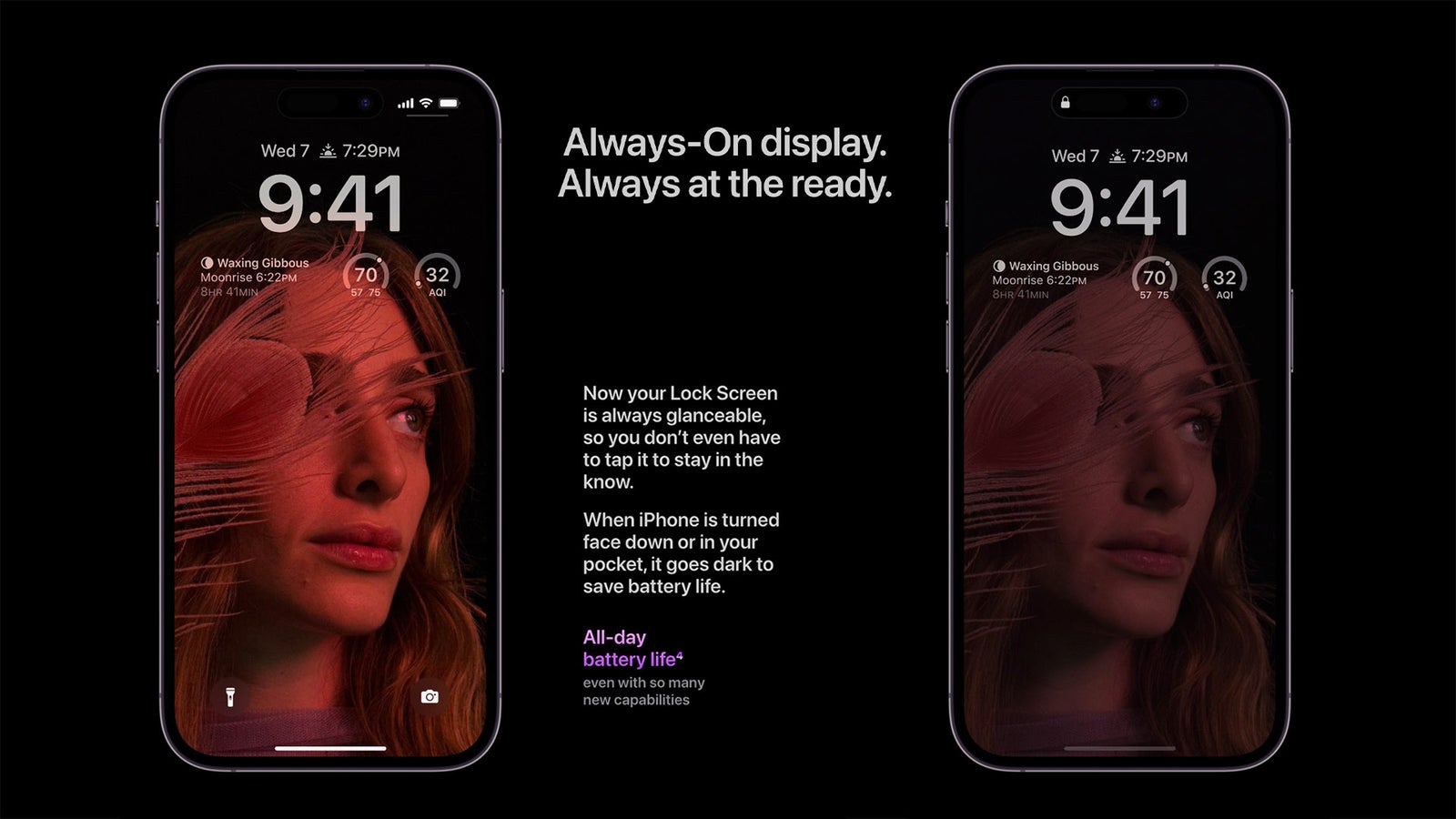
When you lock your iPhone, the screen does not simply stay "on" at a lower brightness. Instead, it undergoes a complex transformation. The iOS system intelligently dims the wallpaper while preserving skin tones and vibrant colors to ensure the image still looks high-quality.
There are two primary ways to configure the visual experience:
- Wallpaper Enabled: The iPhone displays a very dim, desaturated version of your lock screen wallpaper. This gives the phone a "poster" look even when it is sitting on a desk.
- Wallpaper Disabled: The screen turns completely black, showing only the digital clock, date, and any widgets you have configured. This is often preferred by users who find the dimmed wallpaper distracting or who want to maximize battery savings.
Regardless of the setting, Live Activities (such as sports scores or Uber ride progress) and Notifications continue to appear, though they are rendered with minimal brightness to prevent excessive power draw.
Battery Life and Power Management
One of the most frequent questions regarding the always-on screen is its impact on daily battery life. Independent testing and official data suggest that the always-on display accounts for roughly a 3% to 5% battery drop over a full 24-hour period. While this is measurable, Apple has implemented several "intelligent sleep" triggers to minimize waste.
The always-on screen will automatically turn off (go completely black) in the following scenarios:
- The iPhone is lying face down on a surface.
- The iPhone is tucked inside a pocket or bag.
- Sleep Focus is enabled.
- Low Power Mode is turned on.
- The iPhone is connected to CarPlay.
- You are using Continuity Camera (using your iPhone as a webcam).
- The iPhone detects you have moved away while wearing an Apple Watch paired to the device.
- The iPhone has been idle for a long period (it "learns" your activity patterns and turns off during times you typically don't use it).
These safeguards ensure that the screen is only consuming power when there is a reasonable chance you might actually look at it.
Comparative Specifications: Display Performance
The following table outlines the technical differences between the various iPhone display states as they stand in 2026.
| Feature | Standard Mode | Always-On Mode | Low Power Mode |
|---|---|---|---|
| Refresh Rate | 1Hz - 120Hz | Fixed at 1Hz | Max 60Hz |
| Brightness | Up to 2,000+ nits | Minimal (variable) | Reduced |
| Color Depth | Full P3 Gamut | Limited/Desaturated | Full P3 Gamut |
| Wallpaper | Fully Visible | Optional/Dimmed | Fully Visible (when awake) |
| CPU Usage | High (Primary Cores) | Low (Display Engine) | Throttled |
Customizing the Always-On Experience
If you find the default always-on screen too bright or distracting, Apple provides granular controls within the iOS settings. These options allow you to tailor the feature to your specific needs.
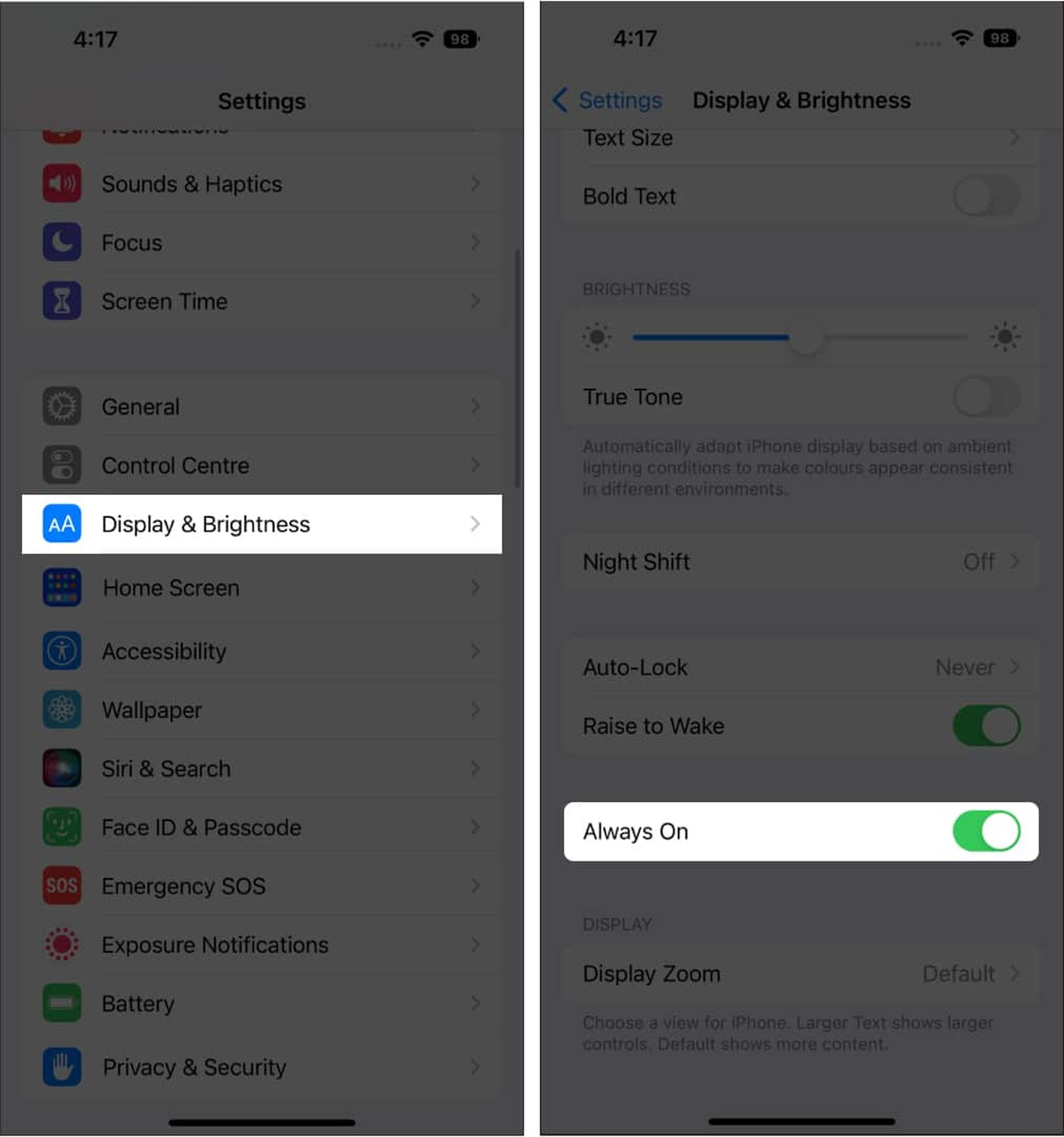
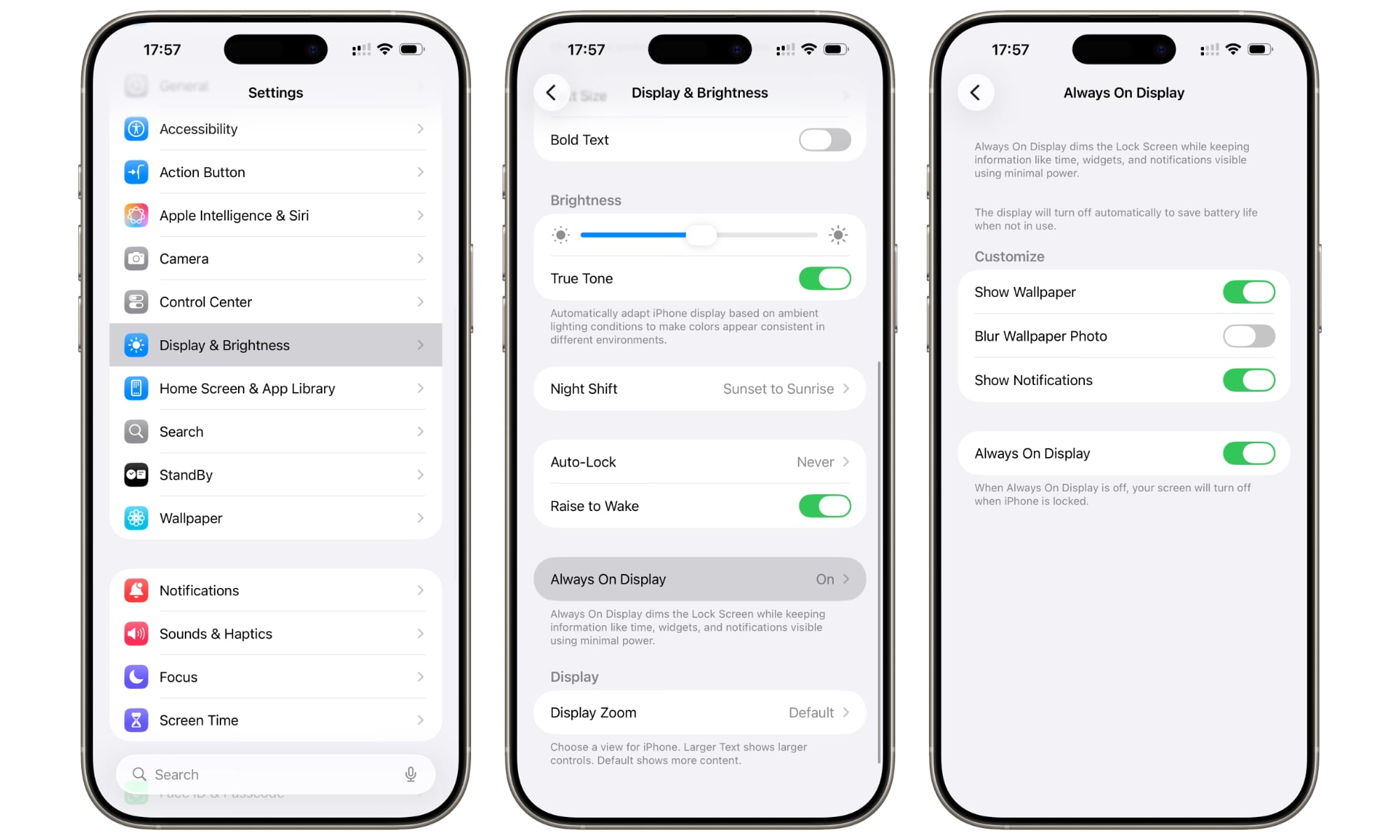
To adjust these settings, navigate to Settings > Display & Brightness > Always On Display. From here, you can toggle the following:
- Always On Display: The master switch to enable or disable the feature entirely.
- Show Wallpaper: Toggling this off will result in a black background, which can help focus your attention solely on the time and notifications.
- Show Notifications: If you value privacy, turning this off prevents your incoming messages or alerts from being visible while the phone is locked.
For many users, the "Black Background" (Show Wallpaper: Off) is the ideal middle ground. It provides the utility of a desk clock without the "glow" of a full-screen image, which some users find misleadingly similar to an active, unlocked phone.
Addressing Concerns: Burn-In and Privacy
A common technical concern with any always-on technology is OLED burn-in, where a static image left on the screen for too long leaves a permanent "ghost" image. Apple mitigates this through pixel shifting. The iOS Display Engine subtly moves the displayed elements (the clock and widgets) by a few pixels at regular intervals. This movement is invisible to the human eye but ensures that no single organic light-emitting diode is stressed for an extended duration.
Regarding privacy, the always-on screen does respect your notification settings. If you have set your notifications to "Show Previews: When Unlocked," the always-on screen will show that you have a message (e.g., "1 Message from WhatsApp") but will not reveal the actual text of the message until the Face ID sensor verifies your identity and wakes the phone.
Troubleshooting Common Issues
If your always-on screen is not working as expected, there are usually simple explanations rooted in the power-saving logic mentioned earlier.
- Screen remains black: Check if Low Power Mode is enabled. Always-on is automatically disabled in this state. Also, ensure the phone is not in a "Sleep" Focus mode, as this is designed to keep the room dark.
- Screen is too dim to see: The always-on screen uses the ambient light sensor to calibrate its brightness. If you are in direct sunlight, the AOD will boost its brightness temporarily, but in a dark room, it will drop to its lowest possible setting.
- Battery draining faster than expected: While the AOD is efficient, using a very bright, colorful wallpaper can increase the power draw slightly compared to a black background. Try disabling "Show Wallpaper" to see if your battery performance improves.
For further official guidance on managing display settings, you can visit Apple Support.
Frequently Asked Questions
Does the always-on screen work with StandBy mode? Yes. In fact, the always-on screen is what makes StandBy mode (the horizontal nightstand view) so effective. On Pro models, StandBy can stay visible all night. On non-Pro models, the screen will still time out and go black even in StandBy mode, requiring a tap on the table or phone to wake it.
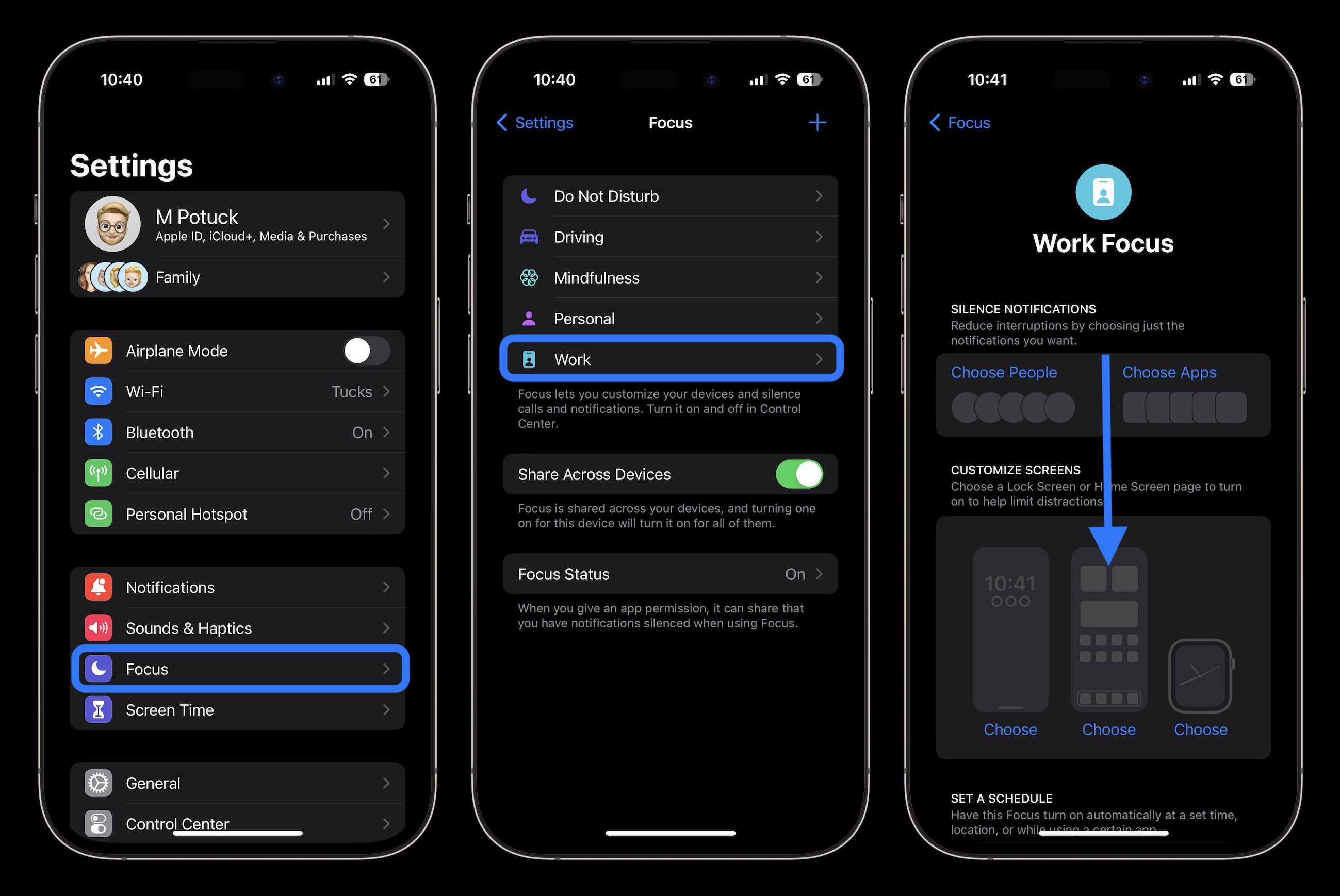
Can I schedule the always-on screen to only work during the day? There is no direct "schedule" toggle for AOD, but you can achieve this using Focus Filters. By setting a "Work" Focus to have AOD on and a "Personal" Focus to have it off (or vice versa), you can effectively automate the display behavior based on the time of day or your location.
Does the always-on screen cause the phone to get warm? Under normal conditions, no. The power draw of the 1Hz refresh rate and the dedicated Display Engine is so low that it generates negligible heat. If your phone is warm, it is likely due to background app refreshes, indexing, or cellular data usage rather than the display itself.
Why is my wallpaper still colorful when the screen is "off"? Apple’s approach to AOD is different from many Android manufacturers who use a strictly black-and-white interface. Apple uses a "dimmed" version of your actual wallpaper. If you prefer the classic black look, you must manually go to Settings > Display & Brightness > Always On Display and turn off Show Wallpaper.
Does having a screen protector affect the always-on display? Generally, no. High-quality tempered glass or film protectors do not interfere with the LTPO panel's ability to dim or the ambient light sensor's ability to calibrate brightness. However, extremely thick or poorly designed protectors could theoretically interfere with the proximity sensor, which might cause the screen to turn off unexpectedly.
Final Recommendation
If you own a compatible iPhone, the always-on screen is best used in conjunction with Lock Screen Widgets. By placing your calendar, weather, or battery levels directly on the lock screen, you turn your idle iPhone into a highly functional information hub. If you find the dimmed wallpaper distracting, disable the "Show Wallpaper" toggle for a cleaner, more professional look that provides all the data with none of the visual clutter.